Import accounts from Active Directory, see [**Import of Users**](https://docs.safedns.com/books/42-setup-users/page/import-of-users) for details.
--- #### Setting up user authorization For users imported from Active Directory, all types of user authorization are available. The most commonly used user authorization options are Single Sign-On authentication via Active Directory using Kerberos/NTLM for authorization via a web browser and authorization via the Active Directory security log (simultaneous use of both types of authorization is recommended). --- #### Setting up SafeUTM To enable **Single** **Sign-On Authentication** and **Authorization through the Active Directory Security Log**, go to the **Users -> Authorization -> General** tab and enable these authorization types. Next, click the **Save** button. [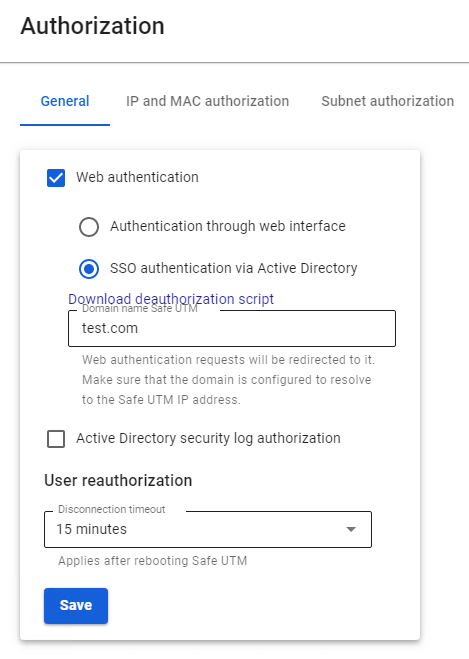](https://docs.safedns.com/uploads/images/gallery/2022-09/hh8H3p9NpvZHb77J-1-active-directory-user-authorization.png)After filling in the Domain name field and saving the settings, a Let’s Encrypt certificate will be issued and the user will be redirected to the authorization window, bypassing the security exception page. If a certificate for such a domain has already been loaded in the [**TLS Certificates**](https://docs.safedns.com/books/45-setup-services/page/tls-certificates) section, then it will be used and a new certificate will not be issued.
--- #### Configuring user computers and domain policies ##### Authorization via Active Directory security logSupported starting with the 2008 standard edition domain controller.
For authorization through the security log to work, you must configure the following settings on the primary domain controller: - In the Windows firewall settings on all domain controllers (or domains), allow Remote Event Log Management (RPC) [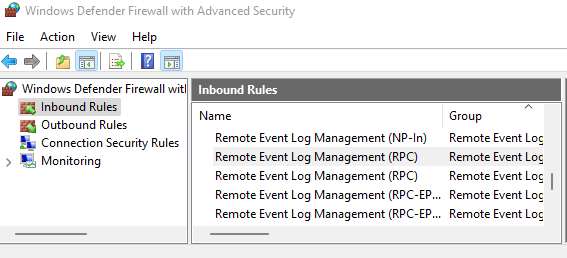](https://docs.safedns.com/uploads/images/gallery/2022-09/sps6cwKMhfefYvAl-2-active-directory-user-authorization.png) - Add SafeUTM to the Event Log Readers security group. - After configuring access to the log, it is necessary to restart the **Active Directory security log authorization** service on SafeUTM, to do this, disable this setting and re-enable it. - If you changed the security policies of domain controllers compared to the standard ones, then you need to enable logging-in security policies by activating the following setting: **Default Domain Controllers Policy -> Computer Configuration->Policies->Windows Settings->Security Settings-> Advanced Audit Policy Configuration - > Audit Policies -> Logon/Logoff -> Audit Logon -> Success**. - The following settings must also be enabled: **Default Domain Controllers Policy -> Computer Configuration->Policies->Windows Settings->Security Settings-> Advanced Audit Policy Configuration -> Audit Policies -> Account logon -> "Audit Kerberos Authentication Service" and "Audit Kerberos Service Ticket Operations" -> Success.** - To update domain controller policies, run the `gpupdate /force command` - If user authorization does not occur during login, you need to check the security log for events 4768, 4769, and 4624. --- ##### Web Authorization (SSO or NTLM) For authorization to work through a web browser (using Kerberos or NTLM), you need to configure Internet Explorer (other browsers pick up its settings). Be sure to use these settings, even if users usually log in through the security log, in some cases they will need to log in through the browser. In order to configure authorization through a web browser, you must perform the following steps: 1. Go to your browser's properties and go to the **Security** tab. 2. Select **Local Intranet -> Sites -> Advanced**. 3. In the window that opens, add a link to SafeUTM under the name under which you entered it into the domain. You need to specify two URLs: with `http://` and with `https://` In the screenshot below, SafeUTM is entered into the `example.com` domain under the name `safeics`. [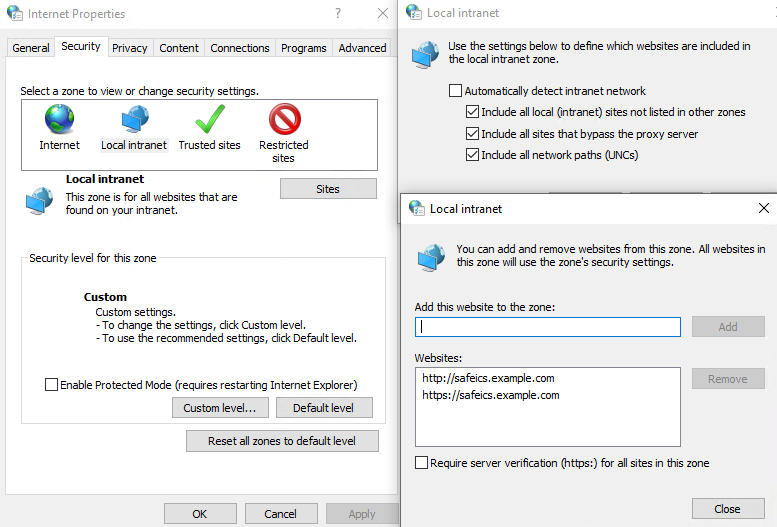](https://docs.safedns.com/uploads/images/gallery/2022-09/1W7p4NWNHm0zp2Nm-4-active-directory-user-authorization.png) Also, this setting can be made using Active Directory group policies for all users at once. To do this, you must perform the following steps: 1. In group policies for users, go to: **Default Policy Group > Computer Configuration > Policies > Administrative Templates > Windows Components > Internet Explorer > Internet Control Panel > Security Page > Site to Zone Assignment List** 2. Enter the zone assignment for the SafeUTM DNS name (safeics.example.com in the example) with a value of 1 (intranet). It is necessary to specify two destinations, for schemes of work on HTTP and HTTPS. [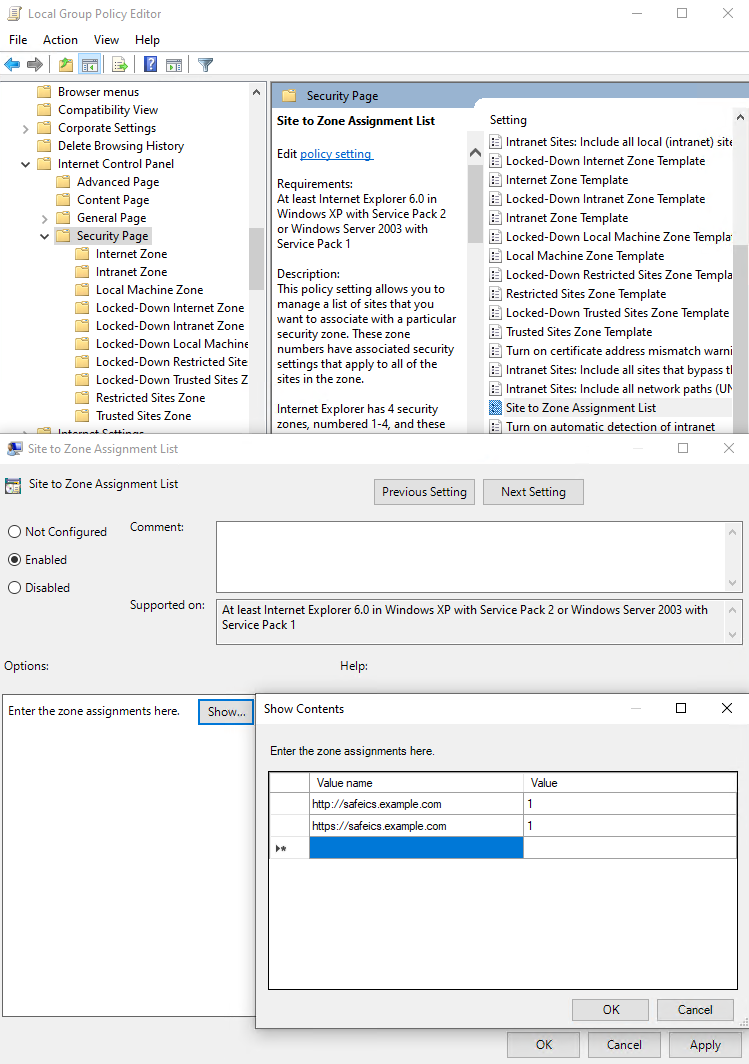](https://docs.safedns.com/uploads/images/gallery/2022-09/9mwDYXNUrD6u3Al5-5-active-directory-user-authorization.png)When entering an HTTPS site, for authorization, you must allow the browser to trust the SafeUTM certificate (in order not to do this every time, you can add the SafeUTM root certificate to the trusted root certificates of the device. For example, using domain policies). You can also use [**scripts to automatically authorize**](https://docs.safedns.com/books/42-setup-users/page/automatic-authorization-and-de-authorization-scripts) users upon login.
On the **Mozilla Firefox** browser settings page (about:config in the address bar), configure the following settings: - **network.automatic-ntlm-auth.trusted-uris** and **network.negotiate-auth.trusted-uris** add the address of the local SafeUTM interface (for example, safeUTM.example.com). - **security.enterprise\_roots.enabled** set to true will allow Firefox to trust the system certificate and authorize users when going to HTTPS sites. Also, for users imported via AD, the following authorization methods are possible: - **Authorization by IP address** - suitable if users always work from fixed IP addresses. IP addresses on UTM must be manually assigned to each user. - **Authorization via PPTP** - if the network has increased requirements for the confidentiality of information transmitted between the gateway and user devices, or if Wi-Fi is weakly protected from traffic interception. --- #### Configuring user authorization for direct connections to a proxy server Setting up transparent user authorization for direct connections to a proxy server is similar to setting up transparent **Single Sign-On** authorization described above in the instructions. The only difference is that the proxy server address is **not the IP address of SafeUTM, but its DNS name.** --- ##### Configuring the Mozilla Firefox browser for authorization via NTLM when connecting directly to a proxy server For computers that are **not in the Active Directory domain**, if they need to be authorized under a domain user account, configure the following settings on the **Mozilla Firefox** browser settings page (about:config in the address bar): - **network.automatic-ntlm-auth.allow-proxies** = false; - **network.negotiate-auth.allow-proxies** = false.Do not disable these options for computers that are members of an Active Directory domain, as in this case, the outdated NTLM authorization method will be used.
--- #### Possible causes of authorization errors - If a window appears in Internet Explorer with the text **Authentication is required** to gain access, and authorization occurs only when manually following the authorization link, then for some reason the browser does not redirect to the authorization page (it may be limited by browser security settings). In this case, set **Active Scripting** in Internet Explorer to **Enabled**. [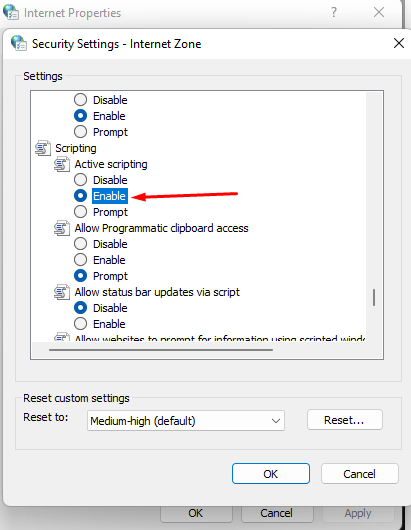](https://docs.safedns.com/uploads/images/gallery/2022-09/doiMdwf3YKXBfB6Q-7-active-directory-user-authorization.png) - The domain user must be allowed to log in to SafeUTM. On the domain controller, go to the properties of the selected users in the tab **Account -> Login to...**, select **only on specified computers** and enter the name of the workstation to log into the system. - With authorization through the security log of an Active Directory domain controller, users will be authorized when they try to access the Internet (any traffic). There is no automatic authorization without traffic passing through UTM because a competitive authorization policy is used.