When migrating UTM from one physical machine to another (disk transfer or backup restore on new hardware), the settings of all network interfaces specified before the migration will be restored. Use the trash bin button to remove unnecessary interfaces. **Example**: the original version of UTM 13.X -> migrated UTM to new hardware -> configured new hardware -> upgraded -> in the Network interfaces section, old (before migration) and new (after migration and configuration) network interfaces will be displayed.
# Configuring Local Ethernet Manual and automatic configuration using the DHCP protocol. ---Be careful! If you select **Local Ethernet** and set it as **External Ethernet**, you will not be able to access the Internet.
--- #### Manual Configuration To configure the connection in the web interface, follow these steps: 1\. Go to the menu **Services** -> **Network Interfaces**. 2\. Click on the icon (+) in the upper right corner of the window and select ****Local Ethernet.****[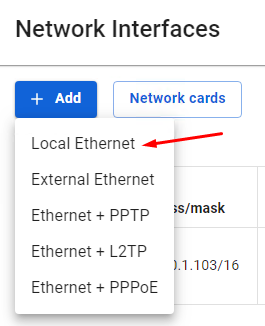](https://docs.safedns.com/uploads/images/gallery/2022-09/xS60bD0giEP7M7as-1-configuring-local-ethernet.png) 3\. Select a network card. 4\. Fill in the fields listed below: - **Title** - The name you will use to identify the interface in the future. Maximum 42 characters. - **Network card** - The network adapter that will be used to connect. - **VLAN tag** - VLAN ID. Such network interface is considered a VLAN interface. Also, one Ethernet interface can be created without specifying VLAN belonging to this network segment that will receive untagged traffic. Regular Ethernet interfaces, without specifying the VLAN ID, are created on the physical interface only in a single copy. The field is filled in only if the network card is already in use. - **Automatic configuration via DHCP** - It is used if your Internet provider supports the ability to automatically configure the Ethernet interface using the DHCP protocol. - **IP address/mask** - You can assign multiple IP addresses to the interface. At least one IP address must be specified. - **Gateway** - Gateway IP address. - **DNS** - Two fields are available to specify the DNS server (optional).The **Gateway** field in the Local interface is set only if: - There is no External UTM interface; - UTM is only used as a proxy.
##### Configuration example: [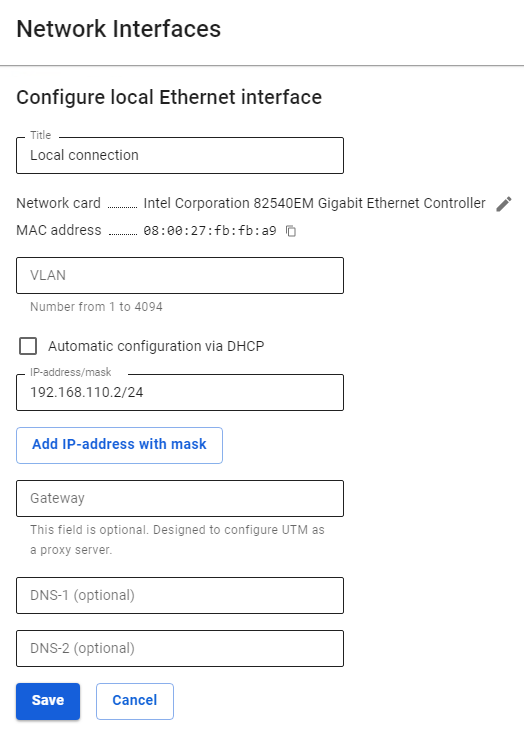](https://docs.safedns.com/uploads/images/gallery/2022-09/thImaKaVKAHqHiEE-2-configuring-local-ethernet.png) --- #### Automatic Configuration It is used if your Internet provider supports the ability to automatically configure the Ethernet interface using the DHCP protocol. 1. Go to menu **Services** -> **Network interfaces.** 2. Click on the icon (+) in the upper right corner of the window and select **Local Ethernet.** 3. Select a network card. 4. Fill in the **Title** field. The **VLAN tag** field is filled in only if the network card is already in use. 5. Enable **Automatic configuration via DHCP**. 6. Make sure that the entered values are correct and click **Save**. ##### Configuration example: [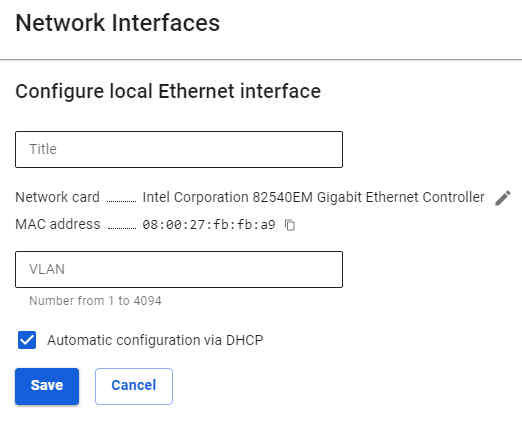](https://docs.safedns.com/uploads/images/gallery/2022-09/nbCCFDr7wA51Lw1O-3-configuring-local-ethernet.png) # Configuring External Ethernet Manual and automatic configuration using the DHCP protocol. --- Usually, all necessary information for configuration is contained in the contract with your Internet provider. --- #### Manual Configuration To configure the connection in the web interface, follow these steps: 1\. Go to the menu **Services** -> **Network Interfaces**. 2\. Click on the icon (+) in the upper right corner of the window and select **External Ethernet.**[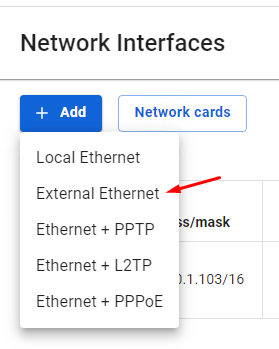](https://docs.safedns.com/uploads/images/gallery/2022-09/8FGzeyY8z5yXXOAd-1-configuring-external-ethernet.png) 3\. Select a network card. 4\. Fill in the fields listed below: - **Title** - The name you will use to identify the interface in the future. Maximum 42 characters. - **Network card** - The network adapter that will be used to connect. - **VLAN tag** - VLAN ID. Such network interface is considered a VLAN interface. Also, one Ethernet interface can be created without specifying VLAN belonging to this network segment that will receive untagged traffic. Regular Ethernet interfaces, without specifying the VLAN ID, are created on the physical interface only in a single copy. The field is filled in only if the network card is already in use. - **Automatic configuration via DHCP** - It is used if your Internet provider supports the ability to automatically configure the Ethernet interface using the DHCP protocol. - **IP address/mask** - You can assign multiple IP addresses to the interface. At least one IP address must be specified. - **Gateway** - Gateway IP address. - **DNS** - Two fields are available to specify the DNS server (optional). ##### Configuration example: [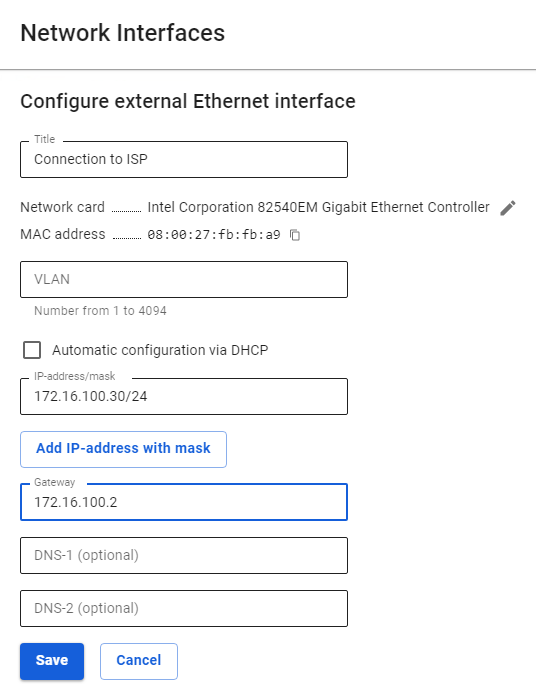](https://docs.safedns.com/uploads/images/gallery/2022-09/D94dtEz4woQmXVhD-2-configuring-external-ethernet.png) --- #### Automatic Configuration It is used if your Internet provider supports the ability to automatically configure the Ethernet interface using the DHCP protocol. 1. Go to menu **Services** -> **Network interfaces.** 2. Click on the icon (+) in the upper right corner of the window and select **External Ethernet.** 3. Select a network card. 4. Fill in the **Title** field. The **VLAN tag** field is filled in only if the network card is already in use. 5. Enable **Automatic configuration via DHCP**. 6. Make sure that the entered values are correct and click **Save**. ##### Configuration example: [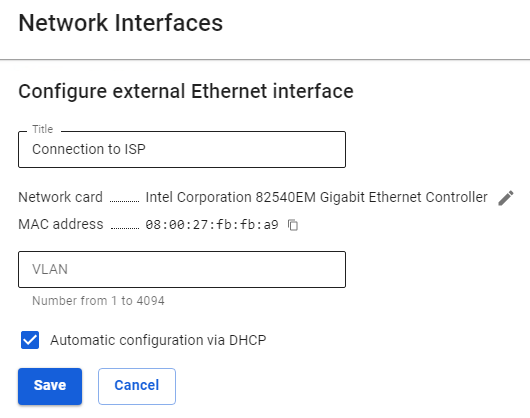](https://docs.safedns.com/uploads/images/gallery/2022-09/HUdMcYkFqGGwV8Vp-3-configuring-external-ethernet.png) # Configuring PPTP Connection Connection via PPTP protocol is used by Internet service providers in order to provide a more reliable authorization. --- To configure such a connection in the web interface, follow these steps: 1\. Go to the menu **Services -> Network Interfaces.** 2\. Click on the icon (+) in the upper right corner of the window and select **Ethernet + PPTP**. 3\. Select a network card. 4\. Fill in the fields listed in the table below:| **Parameter** | **Description** |
| Title | The name you will use to identify the interface in the future. Maximum 42 characters. |
| Network card | The network adapter will be used to connect to the Internet provider. |
| VLAN tag | The VLAN ID in which UTM will be present. Such network interface is considered a VLAN interface. Fill only in the case a network card is already in use. |
| Automatic configuration via DHCP | Used if your Internet provider supports the ability to automatically configure the Ethernet interface using the DHCP protocol. |
| IP address/mask | You can assign multiple IP addresses to the interface. At least one IP address must be specified. |
| Gateway | Gateway IP address. |
| DNS | There are two fields available to specify the DNS server. Optional fields. |
| VPN Server | IP address or domain name of the PPTP server. |
| Login | Username for the PPTP connection. |
| Password | Password for the PPTP connection. |
| **Parameter** | **Description** |
| Title | The name you will use to identify the interface in the future. Maximum 42 characters. |
| Network Card | The network adapter will be used to connect to the Internet provider. |
| VLAN tag | The VLAN ID in which UTM will be present Such network interface is considered a VLAN interface. Fill in only if the network card is already in use. |
| Automatic configuration via DHCP | Used if your Internet provider supports the ability to automatically configure the Ethernet interface using the DHCP protocol. |
| IP address/mask | You can assign multiple IP addresses to the interface. At least one IP address must be specified. |
| Gateway | Gateway IP address. |
| DNS | Two fields are available to specify the DNS server (optional). |
| VPN Server | IP address or domain name of the L2TP server. |
| Username | User name for the L2TP connection. |
| Password | Password for the L2TP connection. |
| **Parameter** | **Description** |
| Title | The name you will use to identify the interface in the future. Maximum 42 characters. |
| Network card | The network adapter will be used to connect to the Internet provider. |
| VLAN tag | The VLAN ID in which UTM will be present Such network interface is considered a VLAN interface. Fill in only if the network card is already in use. |
| Login | Username for PPPoE connection. |
| Password | Password for PPPoE connection. |
| Service | Service ID. If you don't know what to enter, leave the field empty. |
| Access concentrator (Hub) | Hub ID. If you don't know what to enter, leave the field empty. |