# Troubleshooting
# Error ERR_CONNECTION_TIMED_OUT When Opening Site or Site Does Not Open
---
##### Step 1. Check if the site opens in *Allow Internet to all* mode:
- Click on the technical support icon in the upper right part of the window.
- Slide **Allow Internet to everyone** to the Enabled position: [](https://docs.safedns.com/uploads/images/gallery/2022-09/gk7B6BbMql99laFG-1-error-err-connection-timed-out-when-opening-site-or-site-does-not-open.png)
- Open the website.
If the site does not open, check if the site opens on another device from the same IP address:
1.1. If it doesn't, we recommend contacting your provider. Most likely, the provider blocks the IP address or website address.
1.2. If the site opens, contact technical support.
##### Step 2. Check if the site is blocked by the [**Intrusion Prevention**](https://docs.safedns.com/books/44-setup-traffic-rules/page/intrusion-prevention-system) system.
- Go to **Traffic Rules -> IPS.**
- Move the **IPS** section **slider** to the Disabled position for a few minutes: [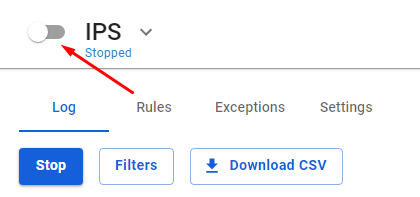](https://docs.safedns.com/uploads/images/gallery/2022-09/fPqLycwG6UNoZ8Ec-2-error-err-connection-timed-out-when-opening-site-or-site-does-not-open.png)
- Try going on the site again.
If the site has opened, find the number of the blocking rule in the logs and add the rule number to **IPS -> Exceptions.**
##### Step 3. If the previous paragraph did not help, check whether the site is blocked by a [**Content Filter**](https://docs.safedns.com/books/44-setup-traffic-rules/page/content-filter) rule. To do this:
- Create a test rule for the tested user in **Traffic Rules -> Content Filter**:
- **Title** - any name.
- **Applies to** - select a test user.
- **Sites Categories -** all requests.
- **Action** – allow [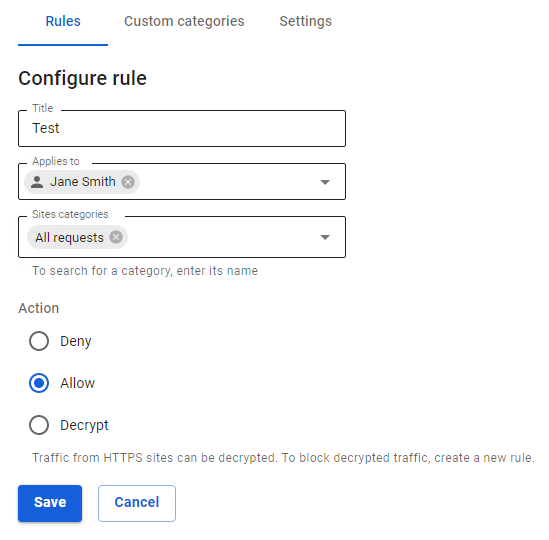](https://docs.safedns.com/uploads/images/gallery/2022-09/jQFRuqs6FymuZoU1-3-error-err-connection-timed-out-when-opening-site-or-site-does-not-open.png)
- Click *Save*.
- Place the created rule at the top of the list by clicking the arrow up icon.
- Open the website.
If the site opens, you can find the blocking rule by dropping the test rule down the list.
If the blocking rule has not been found, proceed to the next step.
##### Step 4. Determine the blocked domain or IP address (let's take Firefox as an example):
- Open the desired site in the browser.
- Press F12.
- Select the "Network" tab.
- Refresh the page.
- Sort the column *Status* with the left mouse button.
Pay attention to the status codes 4xx and 5xx; it is these requests that are blocked either by UTM or by higher-level services.
Determine which category of the content filter a particular name belongs to. To do this, go to **Traffic Rules -> Content Filter -> URL for categorization**:
[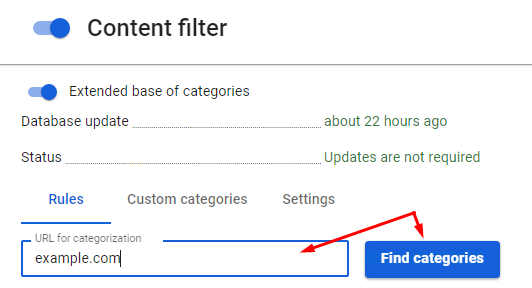](https://docs.safedns.com/uploads/images/gallery/2022-09/h9MvVba4ht3oAhdE-4-error-err-connection-timed-out-when-opening-site-or-site-does-not-open.png)
**If you failed to solve the problem, please send the following to technical support:**
1\. Screenshot of the error in the browser.
2\. Screenshot of sorted errors from Firefox so that problematic domains or IP addresses can be seen (changed).
Obviously reliable services can be added to **Services -> Proxy -> Exceptions** in the tab **Destination networks**.
It is not recommended to add the addresses of your network's clients to the exceptions, since in this case their web traffic will not be filtered by the content filter rules and will not be included in reports.
# What to Do If Internet Does Not Work
---
##### Step 1. Check user parameters
Make sure that the user being checked is logged in to the server. Possible user statuses are described in the chapter **[User Tree](https://docs.safedns.com/books/42-setup-users/page/user-tree)**.
##### Step 2. Checking the user's computer
Run `ping` command from the user's computer to address `8.8.8.8`: **Start -> Run**, enter the command `cmd`, in the window that appears enter `ping 8.8.8.8`.
- If address `8.8.8.8` responds to echo requests, check `ping google.com` .
- If address `8.8.8.8` does not respond to echo requests, go to Step 3.
- If address `google.com` responds to echo requests, go to Step 5.
- If the message **'failed to detect node google.com'** appears, the DNS provider may not be working, check with the command `nslookup google,com 222.222.222.222` , instead of `222.222.222.222` specify the DNS address of the provider:
- If there is no response, contact your provider.
- If there is a response, check the primary DNS address on your computer (the local SafeUTM address must be specified); also check that the DNS server is running on SafeUTM in **Services -> DNS**.
##### Step 3. Checking Internet access on the server
Go to **Terminal** in the web interface: run the command `ping 8.8.8.8`, to stop `ctrl+c`.
**If the ping fails:**
- Check the server settings, addresses, and interface masks.
- Make sure that the network equipment you are using is in good condition, the network cables are properly embossed and do not have fractures and breaks; check the signal indicator on the network card (you can see it in **Services -> Network Interfaces)**, restart the switch and modem (if used).
- If you are using an Ethernet connection, you need to run the command `arp -an | grep `. If the MAC address of the provider's gateway has not been determined, then it makes sense to try rebooting the Server by reconnecting the network cable. After that, check for the MAC address of the provider's gateway. This solution helps if the provider's switch port "freezes". If after the specified measure the MAC of the provider's gateway does not appear in the MAC address table, contact the provider. It should be noted that when changing network equipment, no access to the Internet may be due to the fact that your Internet provider uses binding to the MAC address.
**If the ping passes, go to Step 4.**
##### Step 4. Checking the firewall
- Disable the **Firewall** module in the web interface section **Traffic Rules -> Firewall.** If the web interface is not available, the firewall can be turned off using the local menu.
- If access to the Internet has appeared, find the rule prohibiting access to the network in the firewall, alternately enabling the rules.
##### Step 5. Checking web traffic
If the user receives responses to echo requests with the command `ping` both by domain name and IP address, but there is no web traffic:
- Make sure that all proxy settings are not used in the browser.
- Temporarily turn off the Windows firewall and antivirus software.
**If you failed to solve the problem, please send the following to technical support:**
1\. Take screenshots of the user’s tab **General** in an expanded form and contact us via the [**support portal**](https://www.safedns.com/resource/support-ticket) or email us at support@safedns.com.
2 . Enable [**Remote Assistant mode**](https://docs.safedns.com/books/5-maintenance/page/remote-assistant-mode) and contact technical support: **[https://www.safedns.com/resource/support-ticket](https://www.safedns.com/resource/support-ticket)**.
# Authorization error "The browser is outdated"
If you are using a browser that does not support UTM, then the error **Your browser is outdated will appear during authorization. This version of the browser is not secure and unsupported by modern web technologies. Please install the latest version of one of the listed browsers.**
Supported Browsers:
- Google Chrome version >= 90;
- Firefox version >= 78;
- Safari version >= 14.
We recommend updating your browser to the minimum supported version.
To continue authorization despite the risks, you will need to click **I understand the risks and wish to continue**.