# Instructions for Creating VPN Connection on Mobile Devices
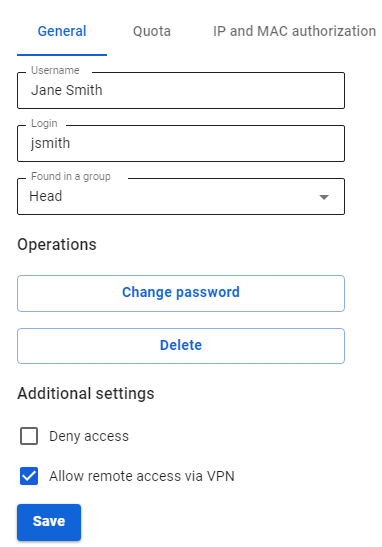
Before configuring a VPN connection, in the user tree, open the card of the required user and set the **Allow remote access via VPN** flag. To do this, go to the **Users -> User & Group** section:
[](https://docs.safedns.com/uploads/images/gallery/2022-09/wrpo4a4WgzzWvDsB-1-instructions-for-creating-vpn-connection-on-mobile-devices.png)
---
Connecting via the StrongSwan app
1\. Click **Add a VPN profile**:
[](https://docs.safedns.com/uploads/images/gallery/2022-09/YbtgYQVs380VOJtj-2-instructions-for-creating-vpn-connection-on-mobile-devices.png)
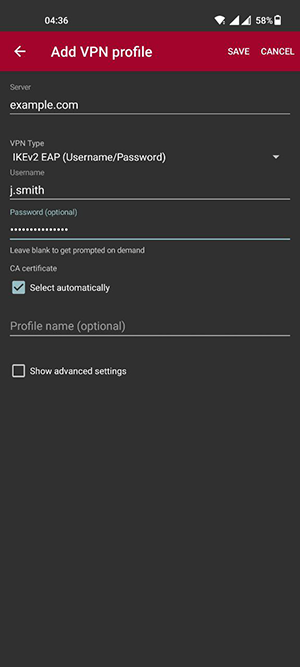
2 . Fill in the fields:
- Server – the domain specified in SafeUTM in **Users -> VPN connections -> IKEv2/IPsec Connection**;
- VPN type – IKEv2 EAP (Login/Password).
- Login – the name of the user allowed to connect via VPN.
- Password – the user's password.
[](https://docs.safedns.com/uploads/images/gallery/2022-09/MCUDM3c1wjYUeq9G-3-instructions-for-creating-vpn-connection-on-mobile-devices.png)
3\. Click **Save** and then click on the created connection.
Connecting on Android
1\. Go to VPN in **Settings -> Connections -> Other settings.** If necessary, use the settings search bar.
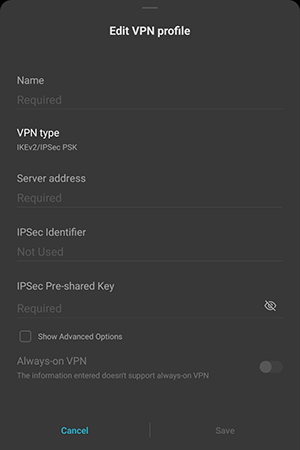
2\. Select the connection type and fill in the following fields:
**For PPTP:**
- Name – connection name.
- Server address – the address of the VPN server.
- Username – the name of the user allowed to connect via VPN.
- Password – the user's password.
**For IKEv2/IPsec MSCHAPv2:**
- Name – connection name.
- Server address – the address of the VPN server.
- IPsec ID – user's login.
- Server Certificate – received from the server.
- IPsec CA Certificate – do not check the server.
- User name – the name of the user allowed to connect via VPN.
- Password – the user's password.
[](https://docs.safedns.com/uploads/images/gallery/2022-09/ptGDZ3vnRwi5vu3Y-4-instructions-for-creating-vpn-connection-on-mobile-devices.png)
**For L2TP/IPsec PSK:**
- Name – connection name.
- Server address – the address of the VPN server.
- IPsec shared key – the value of the **PSK** line in **Users -> VPN Connections -> L2TP/IPsec Connection**
4\. Click **Save** and activate the connection.
Connecting on iOS
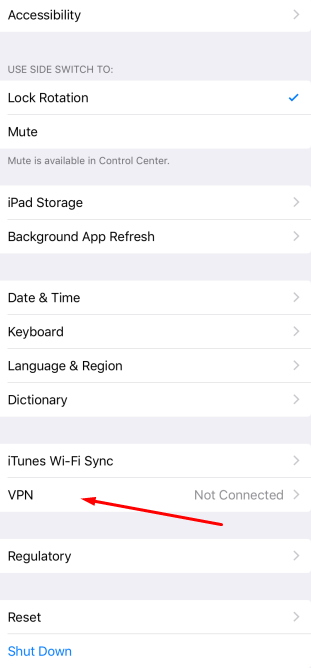
1\. Go to **Settings -> General -> VPN:
[](https://docs.safedns.com/uploads/images/gallery/2022-09/X2eNxerFgxMYSntH-5-instructions-for-creating-vpn-connection-on-mobile-devices-png.png)**
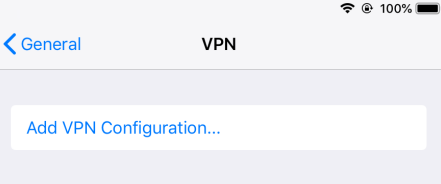
2\. Click **Add VPN configuration**:
[](https://docs.safedns.com/uploads/images/gallery/2022-09/KIjfdzVXdfJeTQkZ-6-instructions-for-creating-vpn-connection-on-mobile-devices-png.png)
3\. Select **Type** and fill in the corresponding fields:
**For PPTP:** Starting with iOS 10, Apple has removed support for the PPTP protocol.
- Description – connection name.
- Server – VPN server address.
- Account – the name of the user allowed to connect via VPN.
- Password – the user's password
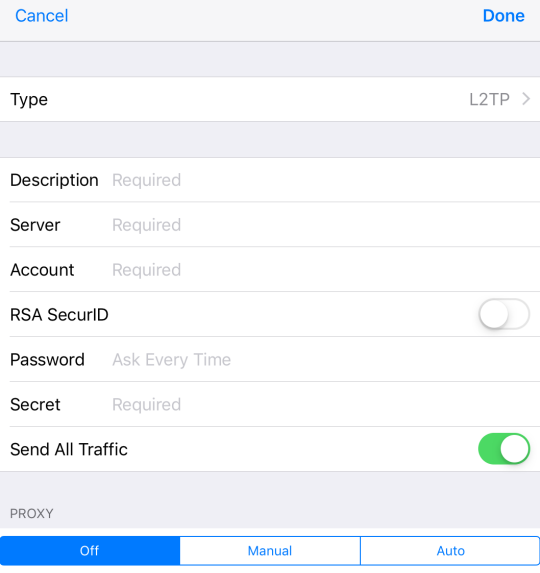
**For L2TP:**
- Description – connection name.
- Server – VPN server address.
- Account – the name of the user allowed to connect via VPN.
- Password – the user's password.
- The shared key – the value of the **PSK** line in **Users -> VPN connections -> L2TP/IPsec Connection**.
[](https://docs.safedns.com/uploads/images/gallery/2022-09/wsSwFKCIy5DVnk2x-7-instructions-for-creating-vpn-connection-on-mobile-devices-png.png)
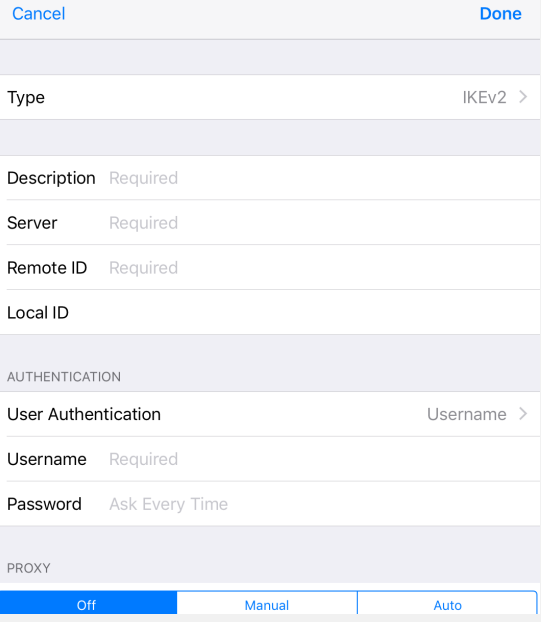
**For IKEv2:**
- Description – connection name.
- Server – VPN server address.
- Remote ID – VPN server address.
- User name – the name of the user allowed to connect via VPN.
- Password – the user's password.
[](https://docs.safedns.com/uploads/images/gallery/2022-09/kT3i2EAzPC33fCLb-8-instructions-for-creating-vpn-connection-on-mobile-devices-png.png)
4\. Click **Done**.
5\. To connect, slide the **Status** switch to the right.