**DoH should only be turned on if you intend to use it.**
**Please note that DoH is designed to increase the security level of your Internet connection. Please make sure your environment requires traffic encryption before using it.**
--- #### **Choosing a filtering policy for DNS-over-HTTPS** By default, your device will be filtered with the Default policy. To filter devices with a different policy, follow these steps: 1\. Open SafeDNS Dashboard. 2\. Navigate to **Settings > Policy**. 3\. Enter policy name (1), turn on DoH (2), and press Create policy (3). [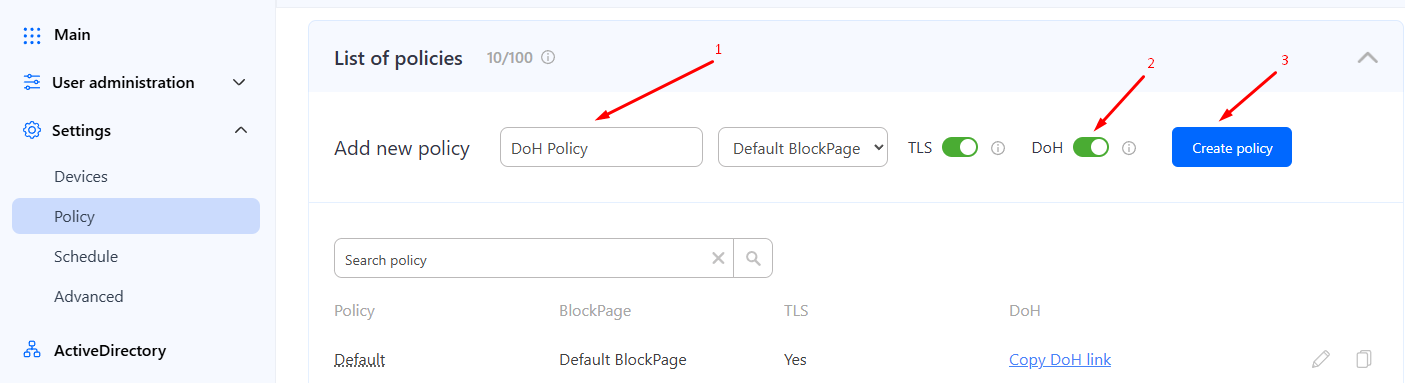](https://docs.safedns.com/uploads/images/gallery/2024-07/XcfD0UkSVtXDEyox-screenshot-273.png) 4\. Search for policy and press on the **Copy DoH link**. 5\. The DoH link will be copied to the clipboard.**Example of a DoH link:** [https://doh.safedns.com/763966395](https://doh.safedns.com/763966395)
6\. Paste the copied link to the **system** **DNS settings** or in **DNS settings in the browser**.**Most of the devices require DoH in a form of a domain. To set up DoH domain please follow our [guide here](https://docs.safedns.com/books/installation-guides/page/dns-over-https-setup-doh-domain).**
#### **Below are instructions for setting up DoH using a URL link on Windows 11 and popular browsers.** ##### **DNS-over-HTTPS on Windows 11** To configure DNS over HTTPS (DoH) on Windows 11, follow these steps: 1\. Open **Start** on Windows 11. 2\. Search for **Settings** and click the top result to open the app. 3\. Click on **Network & internet**. 4\. Click the **Ethernet** or **Wi-Fi** tab (depending on the active connection). If you have a wireless connection, click on the connection properties setting to access the settings. 5\. Click the **Edit** button in the "DNS server assignment" setting. [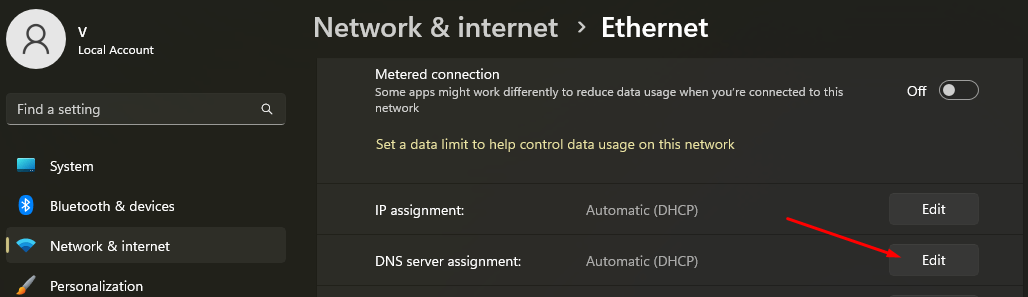](https://docs.safedns.com/uploads/images/gallery/2024-07/g3WVxQqUchHLOGdX-screenshot-270.png) 6\. Select the **Manual** option from the drop-down menu. 7\. Turn on the **IPv4** toggle switch. 8\. Under the "Preferred DNS" and "Alternate DNS" sections, specify the primary and secondary DoH provided by SafeDNS - doh.safedns.com (or copy the DoH link from SafeDNS Dashboard). [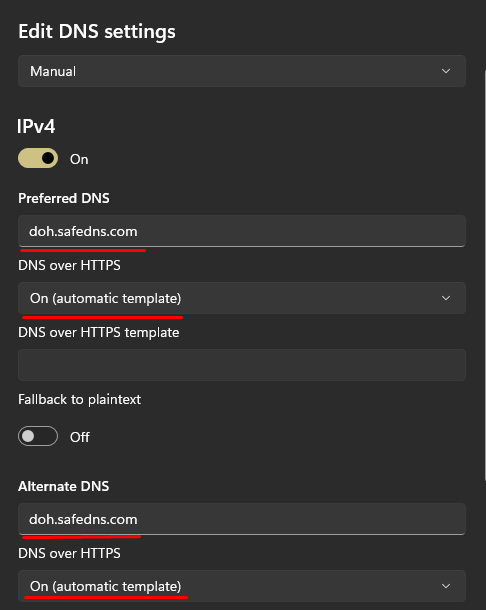](https://docs.safedns.com/uploads/images/gallery/2024-07/oezxXh5bqNq9VWjL-screenshot-272.png) 9\. Use the "DNS over HTTPS" drop-down menu and select the **On (automatic template)** option. 10\. Turn off the **“Fallback to plaintext”** toggle switch. If you enable this feature, the system will encrypt DNS traffic, but it allows queries to be sent without encryption. --- ##### **DNS-over-HTTPS in Microsoft Edge** To configure DNS over HTTPS (DoH) in Edge, follow these steps: 1\. Open **Settings**. 2\. Go to **Privacy, search, and services**. 3\. Scroll down to **Security**. 4\. Pick **Choose a service provider**. 5\. Add SafeDNS DoH - **https://doh.safedns.com** (or copy the DoH link from SafeDNS Dashboard) and close the **Settings** page. [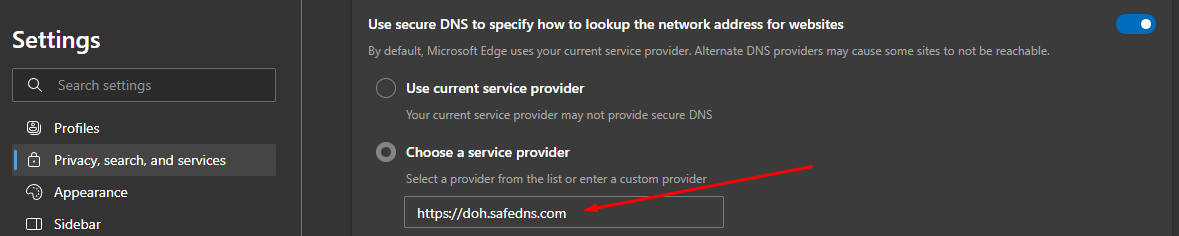](https://docs.safedns.com/uploads/images/gallery/2024-07/xZ7R9d0fG8OknsRB-screenshot-274.png) --- ##### **DNS-over-HTTPS in Google Chrome** To configure DNS over HTTPS (DoH) in Chrome, follow these steps: 1\. Open **Settings**. 2\. Navigate to **Privacy and security** and click on the **Security** section. 3\. Scroll down to **Use secure DNS**. 4\. Choose **Add custom DNS service provider** from the dropdown menu. 5\. Add SafeDNS DoH - **https://doh.safedns.com** (or copy the DoH link from SafeDNS Dashboard) and close the **Settings** page. [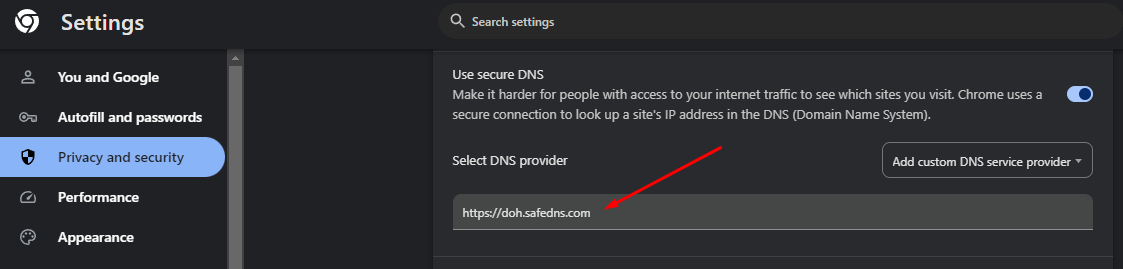](https://docs.safedns.com/uploads/images/gallery/2024-07/c2WQZcZvSdjgw0B1-screenshot-276.png) --- ##### **DNS-over-HTTPS in Mozilla Firefox** To configure DNS over HTTPS (DoH) in Mozilla, use these steps: 1\. Open **Settings**. 2\. Select **Privacy & Security** and scroll down to the **DNS over HTTPS** section. 3\. Select **Max Protection**. 4\. Click the "**Choose provider**" dropdown menu and select **Custom**. 5\. Add SafeDNS DoH - **https://doh.safedns.com** (or copy the DoH link from SafeDNS Dashboard) and close the **Settings** page. [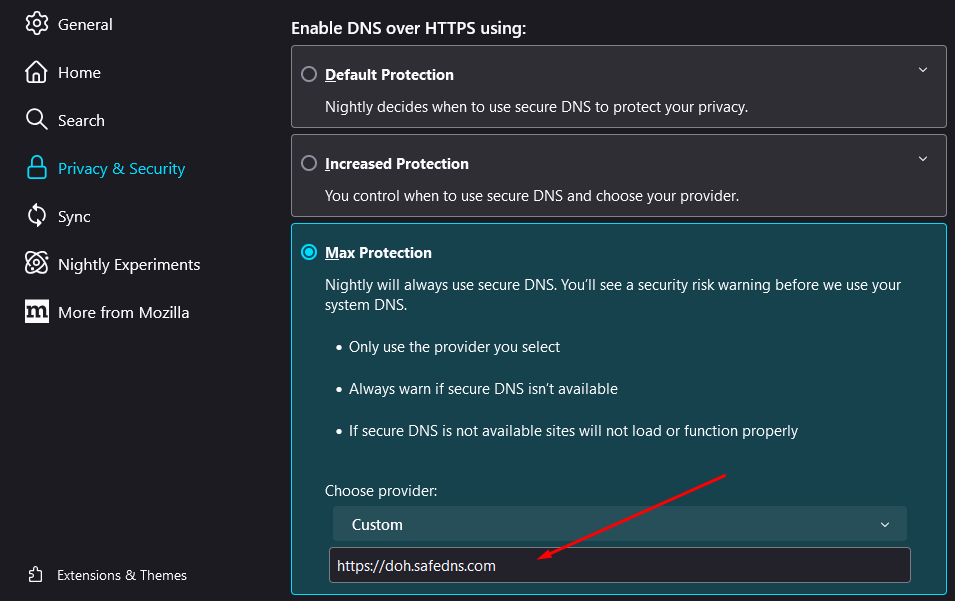](https://docs.safedns.com/uploads/images/gallery/2024-07/865MMPxOJ7axC8rd-screenshot-275.png)