# Advanced


# How To Check The Filtering Status

Since our filter is DNS-based, the best way to check the filtering is the **nslookup** command. Here you will find the checking methods for different platforms.

<p class="callout warning">Please note that settings take 5-7 minutes to apply.  
Stats and filtering status update every 10 minutes.  
</p>

---

#### Windows

Take a look at the video guide.

<figure class="kg-card kg-embed-card" id="bkmrk--0"><div class="fluid-width-video-container"><div class="fluid-width-video-wrapper"><iframe allowfullscreen="allowfullscreen" data-mce-fragment="1" height="314" src="https://www.youtube.com/embed/ufkxHCrL-g0" width="560"></iframe>

</div></div></figure>1. Open the "**Start**" menu
2. Type "**cmd**"
3. Select the suggested application - **Command Prompt**
4. Enter and run the command **nslookup -q=txt black.safedns.com** or **nslookup -q=txt black.safedns.com 127.0.0.1** if you are using the SafeDNS Agent

<p class="callout info">To check via IPv6 (if it was set up), use the command **nslookup -q=txt black.safedns.com 2001:67c:2778::3939**</p>

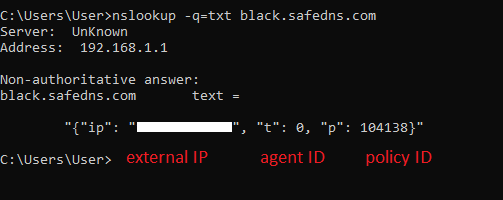
Correct results should show your external IP address ("ip"), policy ID ("p"), and also SafeDNS Agent ID ("t") in case it is installed. If you see the results similar to *screenshot 01*, it means that the filtering is active.

If the "p":0, check if the IP address in the Dashboard &gt; Settings &gt; Devices is added correctly.

[![1.How To Check The Filtering Status .png](https://docs.safedns.com/uploads/images/gallery/2022-08/scaled-1680-/dT9b1nVAHAz3ZpB5-1-how-to-check-the-filtering-status.png)](https://docs.safedns.com/uploads/images/gallery/2022-08/dT9b1nVAHAz3ZpB5-1-how-to-check-the-filtering-status.png)

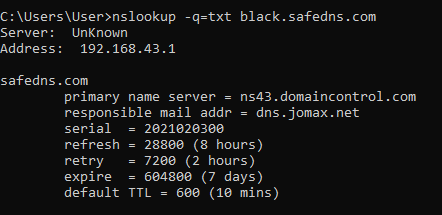
If you see the results similar to *screenshot 02,* it means that the filtering is not configured, and the primary and secondary DNS servers on your device or router are set up incorrectly. Please check your DNS settings.

[![2.How To Check The Filtering Status .png](https://docs.safedns.com/uploads/images/gallery/2022-08/scaled-1680-/xjBLsU0ve7mYpSjM-2-how-to-check-the-filtering-status.png)](https://docs.safedns.com/uploads/images/gallery/2022-08/xjBLsU0ve7mYpSjM-2-how-to-check-the-filtering-status.png)
---

#### Linux

1. Navigate to "**Menu**"
2. Run the "**Terminal**" app
3. Enter and run the command **host -t txt black.safedns.com**

<p class="callout info">To check via IPv6 (if it was set up), use the command **nslookup -q=txt black.safedns.com 2001:67c:2778::3939**</p>

Correct results should show your external IP address ("ip"), policy ID ("p"), and also SafeDNS Agent ID ("t") in case it is installed. If you see the results similar to *screenshot 03*, it means that the filtering is active.

If the "p":0, check if the IP address in the Dashboard &gt; Settings &gt; Devices is added correctly.

[![3.How To Check The Filtering Status .png](https://docs.safedns.com/uploads/images/gallery/2022-08/scaled-1680-/TId5o6sQhkWTHEdy-3-how-to-check-the-filtering-status.png)](https://docs.safedns.com/uploads/images/gallery/2022-08/TId5o6sQhkWTHEdy-3-how-to-check-the-filtering-status.png)

If you see the results similar to *screenshot 04,* it means that the filtering is not configured, and the primary and secondary DNS servers on your device or router are set up incorrectly. Please check your DNS settings.

[![4.How To Check The Filtering Status .png](https://docs.safedns.com/uploads/images/gallery/2022-08/scaled-1680-/6bv6qLzXjIjNBhQ8-4-how-to-check-the-filtering-status.png)](https://docs.safedns.com/uploads/images/gallery/2022-08/6bv6qLzXjIjNBhQ8-4-how-to-check-the-filtering-status.png)

---

#### Mac

1. Launch "**Spotlight"** with ⌘ + SPACE or by clicking on the magnifying glass in your menu
2. Search for and launch the "**Terminal"** app
3. Enter and run the command **host -t txt black.safedns.com**

<p class="callout info">To check via IPv6 (if it was set up), use the command **nslookup -q=txt black.safedns.com 2001:67c:2778::3939**</p>

Correct results should show your external IP address ("ip"), policy ID ("p"), and also SafeDNS Agent ID ("t") in case it is installed. If you see the results similar to *screenshot 05*, it means that the filtering is active.

If the "p":0, check if the IP address in the Dashboard &gt; Settings &gt; Devices is added correctly.

[![5.How To Check The Filtering Status .png](https://docs.safedns.com/uploads/images/gallery/2022-08/scaled-1680-/D3DaWl43vmPREgpn-5-how-to-check-the-filtering-status.png)](https://docs.safedns.com/uploads/images/gallery/2022-08/D3DaWl43vmPREgpn-5-how-to-check-the-filtering-status.png)

If you see the results similar to *screenshot 06,* it means that the filtering is not configured, and the primary and secondary DNS servers on your device or router are set up incorrectly. Please check your DNS settings.

<div class="pointer-container" id="bkmrk-%C2%A0"><div class="pointer anim is-page-editable"><svg class="svg-icon" data-icon="link" role="presentation" viewbox="0 0 24 24" xmlns="http://www.w3.org/2000/svg"></svg><div class="input-group inline block"> <button class="button outline icon" data-clipboard-target="#pointer-url" title="Copy Link" type="button"><svg class="svg-icon" data-icon="copy" role="presentation" viewbox="0 0 24 24" xmlns="http://www.w3.org/2000/svg"></svg></button></div><svg class="svg-icon" data-icon="edit" role="presentation" viewbox="0 0 24 24" xmlns="http://www.w3.org/2000/svg"></svg></div></div>[![6.How To Check The Filtering Status .png](https://docs.safedns.com/uploads/images/gallery/2022-08/scaled-1680-/t5kSJLvacEx0p53f-6-how-to-check-the-filtering-status.png)](https://docs.safedns.com/uploads/images/gallery/2022-08/t5kSJLvacEx0p53f-6-how-to-check-the-filtering-status.png)

# New Page


# How to Clear DNS Cache

DNS cache refers to the temporary storage of information about previous DNS lookups on a router, machine's OS, or web browser.  
Keeping a local copy of a DNS lookup allows your router, OS, or browser to quickly retrieve it and thus a domain can be resolved to its corresponding IP **much more efficiently**.

However, sometimes it can cause a problem when the new filtering settings conflict with the information saved in the cache. Usually, the problem resolves after clearing the cache on a browser level.

---

#### Browser level

##### Chrome, Edge, Opera, Firefox, and many others

Press **Ctrl** + **Shift** + **Delete** simultaneously on the keyboard to open the appropriate window. Select "Cache" and click "Clear".  
**Please note, that you don't need to delete cookies and saved passwords.**

Alternatively, you can use the browser's Settings menu, search for the "cache" setting, and select the suggested option.

<details id="bkmrk-advanced-cache-clear"><summary>Advanced cache clearing for Chrome browser</summary>

Certain popular, high-traffic websites might open even after the cache is cleared. To fix this, do the following:

1. Enter **chrome://net-internals/#dns** in the address bar and press **Clear host cache**.
2. Enter **chrome://net-internals/#sockets** in the address bar and press **Flush socket pools**.
3. Clear DNS cache of the operating system ([read below](https://docs.safedns.com/link/183#bkmrk-system-level)).

</details>##### Safari

1. Click on Safari on the top menu bar.
2. Click Preferences.
3. Click the Privacy tab.
4. Click Manage Website Data...
5. Click Remove All.
6. Click Remove Now.
7. Go to the Safari menu on the top menu bar.
8. Select Quit to close Safari and save your changes.

##### iOS, iPadOS

Safari browser:  
1\. Go to **Settings** (the app with the gear icon).  
2\. Scroll down until you see **Safari.** Tap it.  
3\. Press **Clear History and Website Data.**  
4\. Press **Clear History and Data** again in the warning notification.

Chrome browser:  
1\. On your iPhone or iPad, open the Chrome app.  
2\. At the bottom, press More **...**  
3\. Press **History &gt; Clear browsing data**.  
4\. Select **Cookies, Site Data** and **Cached Images and Files**.  
5\. Press **Clear browsing data**.

##### Android

1. Long press on the app in the app menu.
2. Select **App info** in the pop-up window.
3. Press **Storage usage** in the app's info page.
4. Press **Clear cache**.

---

#### System level

##### Windows

1. Open the **Start** menu and type **cmd**.
2. Right-click on the suggested **Command Prompt** app and choose the **Run as administrator** option.
3. Type *ipconfig /flushdns* inside the terminal window.
4. Press **Enter**.

##### Mac

1. Search for the **Terminal** in the applications list or press **CMD+Space**.
2. Enter the following command:  
    *sudo dscacheutil -flushcache; sudo killall -HUP mDNSResponder*
3. Press **Enter**.
4. If prompted, type your administrator account password.
5. Press **Enter** again to submit your password.

##### Linux

1. Search for the **Terminal** in the applications list or press **Ctrl+Alt+T**.
2. Enter the following command:  
    *sudo systemd-resolve --flush-caches*
3. Press **Enter**.
4. If prompted, type your administrator account password.
5. Press **Enter** again to submit your password.

##### iOS, iPadOS, Android

1. Turn Airplane mode on
2. Reboot device
3. Turn Airplane mode off

---

#### Router level

Reboot the router using the router's interface.

Alternatively, turn the router off by pressing its power button, wait for 15 seconds, and turn the router back on.

# How to troubleshoot access to domains using Network Tools

---

This guide shows how to troubleshoot the issue when a domain is loading partially or some additional services from the main domain are not accessible.

---

#### Prerequisites:

Browser with the support of the Developers Tools. All popular modern browsers have this feature.

---

#### How to troubleshoot:

Start the browser and press **F12**, or go to **Menu &gt; Tools &gt; Browser Tools &gt; Web Developer Tools**.

<p class="callout warning">Path to the Developer Tools might be different in various browser</p>

Navigate to the Network Tab. The list below shows all the items from the page that were loaded or blocked.  
The list will be empty if the Network tab is opened after the page is loaded. In this case, refresh the page.

The HTTP status can have different values, including:

- **200 (OK)** — the access was not blocked and the item has been loaded.
- **451** — Unavailable for Legal Reasons.
- **Blocked icon** — the access was forbidden and the item had not been loaded.

Using these statuses, you can identify the blocked domain.

---

#### Example:

[![FBCDN.NET_blocked.png](https://docs.safedns.com/uploads/images/gallery/2023-09/scaled-1680-/OhWevU9daiTCARXx-fbcdn-net-blocked.png)](https://docs.safedns.com/uploads/images/gallery/2023-09/OhWevU9daiTCARXx-fbcdn-net-blocked.png)
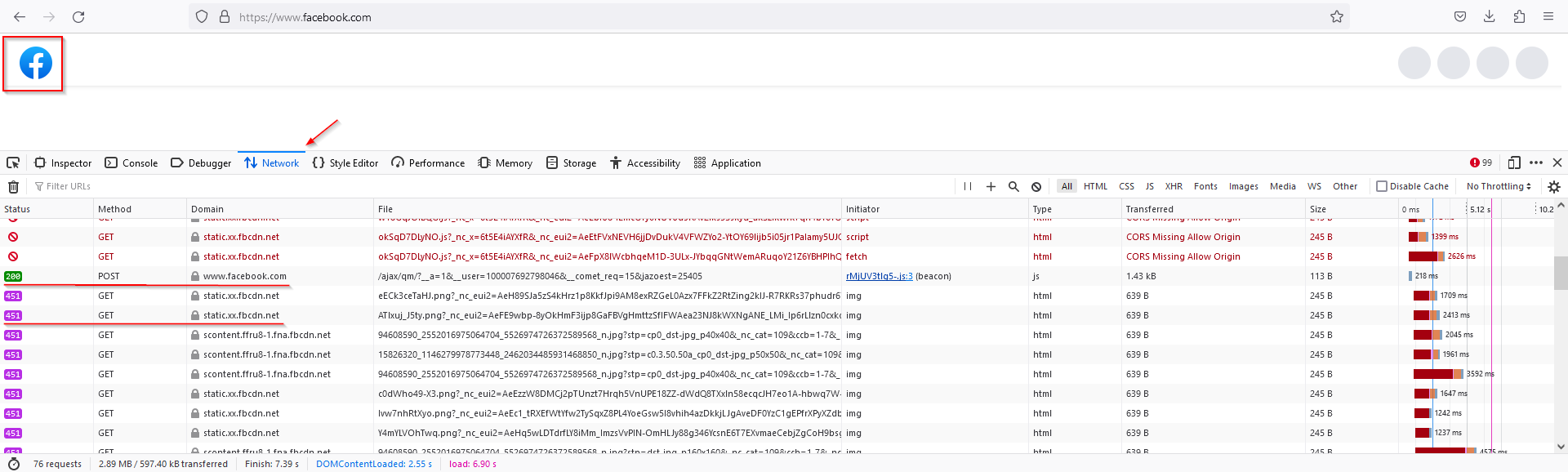
The access to **facebook.com** is not blocked, and the Facebook logo has been loaded.  
However, all other data on the page was not loaded, because it is located on the blocked **fbcdn.net** domain.

To unblock this domain, please check its category here: [https://www.safedns.com/check/](https://www.safedns.com/check/)  
After that, navigate to the SafeDNS Dashboard and unblock that category.

If you want to keep the category blocked, you can add this domain to Allowlist instead.

# How to check domain category

<main class="content-wrap card" id="bkmrk-you-can-always-check">You can always check your domain category [here.](https://www.safedns.com/check-website)

</main>

# Agent Unattended Installation

#### New Agent, versions 1.4.1+ (Windows only)

##### Installation

To initialize the unattended installation, run the installer with **/verysilent** switch in the command line.

You can use the additional keys:

- **/login=&lt; login &gt;** **/password=&lt; password &gt; /pin=&lt; pin code &gt;** to specify your login, password, and pin code.  
    Pin-code can be any 4-digit number that will be used instead of a password to access the Agent interface. It can be different for different devices.  
    **It is mandatory to use the /login, /password, and /pin keys together**. If only one of the keys is used, login, password, and pin will be requested via GUI at the first launch.  
    Example: `/verysilent /login=email@email.com /password=StrongPass /pin=1234`
- **/token= &lt;token&gt;** to pass the authentication key instead of the login, password, and pin code.
- **/noad**<span style="font-family: -apple-system, BlinkMacSystemFont, 'Segoe UI', Oxygen, Ubuntu, Roboto, Cantarell, 'Fira Sans', 'Droid Sans', 'Helvetica Neue', sans-serif; font-size: 14px; font-style: normal; font-variant-ligatures: normal; font-variant-caps: normal; font-weight: 400;"> key can be used in cases when the Agent needs to be installed in an Active Directory environment as a regular Agent without AD GPO integration.</span>

<span style="font-family: -apple-system, BlinkMacSystemFont, 'Segoe UI', Oxygen, Ubuntu, Roboto, Cantarell, 'Fira Sans', 'Droid Sans', 'Helvetica Neue', sans-serif; font-size: 14px; font-style: normal; font-variant-ligatures: normal; font-variant-caps: normal; font-weight: 400;"> </span>Keys from the old Agent will be added in the subsequent releases.

##### Uninstallation

To initialize the unattended uninstallation, run the uninstaller with **/verysilent** switch in the command line.

---

#### Old Agent

<details id="bkmrk-to-initialize-the-un-1"><summary></summary>

To initialize the unattended installation, run the installer with **/S** switch in the command line (**S** must be uppercase).

You can use the additional keys:

- **/login=&lt; login &gt;** and **/pass=&lt; password &gt;** to specify your login and password.  
    Example: `safedns-agent-setup /S /login=email@email.com /pass=qwerty`  
    **It is mandatory to use the /login and /pass keys together**. If only one of the keys is used, both login and password will be requested via GUI at the first launch.
- **/prof=&lt; profile &gt;** to specify the filtering policy.  
    Example: `safedns-agent-setup /S /login=email@email.com /pass=qwerty /prof=My policy`  
    If the key is not used or the wrong policy is specified, a new policy will be created.
- **/conn=&lt; interface &gt;** to specify the network interface which needs to be protected.  
    Example: `safedns-agent-setup /S /login=email@email.com /pass=qwerty /conn=Wi-Fi`
- **/pall** to protect all network interfaces.  
    If both **/conn** and **/pall** are used, then only the former takes action. If neither key is used, only the default network interface will be protected.
- **/dupd** turns off automatic checks for the new versions of the Agent.
- **/darun** disables automatic startup of the SafeDNS Agent GUI when the system starts (no icon will be shown in the system tray). This switch does not affect the SafeDNS Agent system service.
- **/D=&lt; path &gt;** to specify the installation directory (**D** must be uppercase). It must be the last option used in the command line and must not contain any quotation marks, even if the path contains whitespace characters.  
    Example: `safedns-agent-setup /S /login=email@email.com /pass=qwerty /D=c:\program files (x86)\SafeDNS Agent`  
    Only absolute paths are supported.
- **/nogui** disables installation of the graphical user interface (GUI). When you use the key, all components will be installed, except for the dns-agent.exe file. **You must specify the login and password with this key**

<div class="pointer-container" id="bkmrk-%C2%A0"><div class="pointer anim is-page-editable"><svg class="svg-icon" data-icon="link" role="presentation" viewbox="0 0 24 24" xmlns="http://www.w3.org/2000/svg"></svg><div class="input-group inline block"> <button class="button outline icon" data-clipboard-target="#pointer-url" title="Copy Link" type="button"><svg class="svg-icon" data-icon="copy" role="presentation" viewbox="0 0 24 24" xmlns="http://www.w3.org/2000/svg"></svg></button></div><svg class="svg-icon" data-icon="edit" role="presentation" viewbox="0 0 24 24" xmlns="http://www.w3.org/2000/svg"></svg></div></div>Don't enclose options containing whitespace characters in quotation marks (i.e. **/prof=My policy**).

#####   


##### Old Agent, special version for Active Directory

This version supports all commands above and one additional key:

- **/DNS=&lt; IP address &gt;** to specify the DNS forwarder.  
    Example: `safedns-agent-catserver-setup /S /login=email@email.com /pass=qwerty /DNS=192.168.0.1`

</details>

# Web Filtering Bypass Prevention

#### Common recommendations:

1. Block the **Proxies &amp; Anonymizers** category.
2. Block the **Firefox/Chrome Secure DNS** feature in the **VPN and Proxy** section of AppBlocker.
3. Make sure that all of your **users have restricted operating system rights**. If a user has no administrator rights, it will be impossible for them to delete the SafeDNS Agent, install any VPN/proxy, change the "hosts" file, or change the DNS server in the network settings.
4. **Prohibit access to any other DNS.** If devices connect to the internet via a gateway or router, prohibit access to all DNS servers, except the SafeDNS public DNS servers. We recommend excluding the **195.46.39.0/24** network as well, as this is a whole SafeDNS network. If you are using a caching server in your corporate network, exclude its address instead.
5. **Prohibit access to HTTP proxies.** To do that, restrict packet transfer to all IP addresses by TCP and UDP protocols on ports **3128** and **8080** in the firewall settings of your router.
6. **Prohibit access to DNS over TLS.** To do that, restrict packet transfer to all IP addresses, except SafeDNS network **195.46.39.0/24**, on TCP port **853**.
7. **Disable IPv6 protocol.** Even though SafeDNS does support IPv6 addresses, we generally recommend disabling this protocol on your router or in the network settings of your device. Please note, that this will not have any effect on the quality of your internet connection.

#### Recommendations for system administrators:

<div class="pointer-container" id="bkmrk-%C2%A0"><div class="pointer anim is-page-editable"><svg class="svg-icon" data-icon="link" role="presentation" viewbox="0 0 24 24" xmlns="http://www.w3.org/2000/svg"></svg><div class="input-group inline block"> <button class="button outline icon" data-clipboard-target="#pointer-url" title="Copy Link" type="button"><svg class="svg-icon" data-icon="copy" role="presentation" viewbox="0 0 24 24" xmlns="http://www.w3.org/2000/svg"></svg></button></div><svg class="svg-icon" data-icon="edit" role="presentation" viewbox="0 0 24 24" xmlns="http://www.w3.org/2000/svg"></svg></div></div>1. Set up DNS requests rerouting to the SafeDNS public DNS server or to the caching server of your corporate network.
2. Prohibit access to any external proxy servers.
3. Restrict direct access to any website via its IP address.
4. Restrict connection to unknown external VPN servers.
5. Restrict running any unknown application.
6. Restrict using any unknown hardware.

# DD Client Setup

This guide explains how to install ddclient software in the case when you have a Dynamic IP address and your router does not have a Dynamic DNS feature.

---

#### Install and configure DDclient software  


[![1.DD Client Setup Guide .png](https://docs.safedns.com/uploads/images/gallery/2022-08/scaled-1680-/Rv5eziO3KgIGT0DO-1-dd-client-setup-guide.png)](https://docs.safedns.com/uploads/images/gallery/2022-08/Rv5eziO3KgIGT0DO-1-dd-client-setup-guide.png)

1. Install DDclient ([download link](https://www.safedns.com/downloads/ddclient.exe)).
2. Click **"Next"** until your reach the **"Select Dynamic DNS server"** window (see screenshot above).
3. Enter **any preferred name** in the **"Client hostname"** field. (please do not use the space in this field)
4. Enter **www.safedns.com** in the **"Dynamic DNS server"**.
5. Select **HTTPS** in the **"Connection"**.
6. Select **dyndns2** in the **"Dynamic DNS protocol"**.
7. Enter your SafeDNS **account login** in the **"Dynamic DNS username"**.
8. Enter your SafeDNS **password** in the **"Dynamic DNS password"**.
9. Continue clicking **"Next"** until the setup process is finished.

---

#### After the installation

Check if the IP address is successfully bound to service in the **ddclient.log** file. There should be a line like this:

*SUCCESS: updating my computer name: good: IP address set to 18.26.28.10*

On **Windows 10, 11** you can find the log file here:

- C:\\Windows\\ServiceProfiles\\NetworkService\\AppData\\Local\\ddclient.log

On **Windows 7**:

- C:\\windows\\ServiceProfiles\\NetworkService\\AppData\\Local\\ddclient.log
- C:\\windows\\ServiceProfiles\\LocalService\\AppData\\Local\\ddclient.log
- C:\\Users\\username\\AppData\\Local\\ddclient.log

On **Windows XP**:

- C:\\Documents and Settings\\LocalService\\Local Settings\\Application Data\\ddclient.log
- C:\\Documents and Settings\\NetworkService\\Local Settings\\Application Data\\ddclient.log
- C:\\Documents and Settings\\username\\Local Settings\\Application Data\\ddclient.log

If the log file is correct, the **DD Client** table in **Dashboard &gt; Settings &gt; Devices** ([link](https://www.safedns.com/cabinet/devices/)) will be updated automatically.

[![DD Client Setup.png](https://docs.safedns.com/uploads/images/gallery/2024-08/scaled-1680-/PcsJGkPB6TC5RUgy-dd-client-setup.png)](https://docs.safedns.com/uploads/images/gallery/2024-08/PcsJGkPB6TC5RUgy-dd-client-setup.png)

<p class="callout info">By default, DD Client checks the IP every 15 minutes. If the IP is changed, it will be updated in the SafeDNS Dashboard.</p>

<div class="pointer-container" id="bkmrk-%C2%A0"><div class="pointer anim is-page-editable"><svg class="svg-icon" data-icon="link" role="presentation" viewbox="0 0 24 24" xmlns="http://www.w3.org/2000/svg"></svg><div class="input-group inline block"> <button class="button outline icon" data-clipboard-target="#pointer-url" title="Copy Link" type="button"><svg class="svg-icon" data-icon="copy" role="presentation" viewbox="0 0 24 24" xmlns="http://www.w3.org/2000/svg"></svg></button></div><svg class="svg-icon" data-icon="edit" role="presentation" viewbox="0 0 24 24" xmlns="http://www.w3.org/2000/svg"></svg></div></div><p class="callout warning">Please note that settings take 5-7 minutes to apply.  
Stats and filtering status update every 10 minutes.  
</p>

# DNS-over-TLS using Stubby

The goal of the DNS-over-TLS protocol is to increase user privacy and security by preventing eavesdropping and manipulation of DNS data via man-in-the-middle attacks. With DoT, the content and response of the DNS query are encrypted.

Using this feature the SafeDNS service can identify users by their public IP address only. This feature does not work with the SafeDNS Agent or the SafeDNS VPN solution.

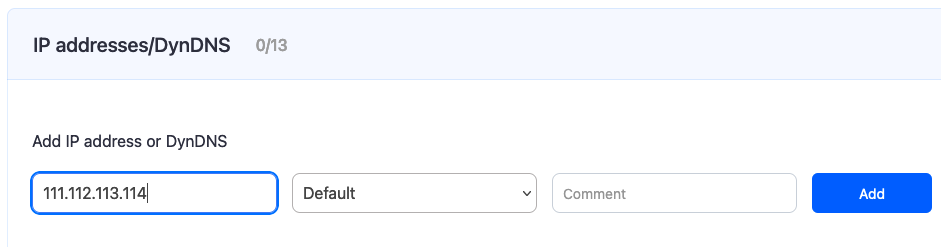
Before you start, please open your **SafeDNS** **Dashboard &gt; Settings &gt; Devices**. Enter your public IP address in the "**Enter an IP address or DynDNS**" field and click the "**Add**" button.

[![DNS-over-TLS Setup.png](https://docs.safedns.com/uploads/images/gallery/2024-08/scaled-1680-/3htrW0L4jUUOONjk-dns-over-tls-setup.png)](https://docs.safedns.com/uploads/images/gallery/2024-08/3htrW0L4jUUOONjk-dns-over-tls-setup.png)
---

#### Windows 10

1\. [Download](https://dnsprivacy.org/wiki/display/DP/Windows+installer+for+Stubby) and install a Stubby .msi package.

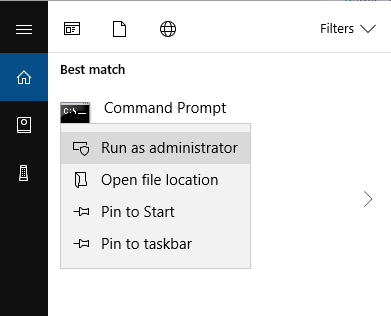
2\. Run the Windows Command Prompt as administrator:

[![2.DNS-over-TLS Setup Guide .png](https://docs.safedns.com/uploads/images/gallery/2022-08/scaled-1680-/71VLBAOxyleQiwmq-2-dns-over-tls-setup-guide.png)](https://docs.safedns.com/uploads/images/gallery/2022-08/71VLBAOxyleQiwmq-2-dns-over-tls-setup-guide.png)
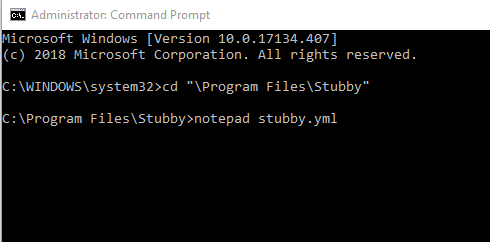
3\. Go to the Stubby directory using the Command Prompt and open **stubby.yml** configuration file with Notepad:

[![3.DNS-over-TLS Setup Guide .png](https://docs.safedns.com/uploads/images/gallery/2022-08/scaled-1680-/iEbdzMlvrh6wN6ss-3-dns-over-tls-setup-guide.png)](https://docs.safedns.com/uploads/images/gallery/2022-08/iEbdzMlvrh6wN6ss-3-dns-over-tls-setup-guide.png)
4\. Set settings following the example below:

<p class="callout info">resolution\_type: GETDNS\_RESOLUTION\_STUB  
dns\_transport\_list: GETDNS\_TRANSPORT\_TLS  
tls\_authentication: GETDNS\_AUTHENTICATION\_NONE tls\_query\_padding\_blocksize: 128  
edns\_client\_subnet\_private: 0  
idle\_timeout: 100000  
listen\_addresses: - 127.0.0.1@53  
round\_robin\_upstreams: 1  
upstream\_recursive\_servers:  
- address\_data: 195.46.39.41  
tls\_auth\_name: "dns-s.safedns.com" tls\_pubkey\_pinset:  
- digest: "sha256"  
value: kbv1ODr8gP7FV9/h2lp5t3sP4TdYZEwqUYj0mk0IBzg=</p>

5\. Run the following command to replace the default DNS server with a local Stubby:

<p class="callout info">PowerShell -ExecutionPolicy bypass -file "**C:\\Program Files\\Stubby\\stubby\_setdns\_windows.ps1**"</p>

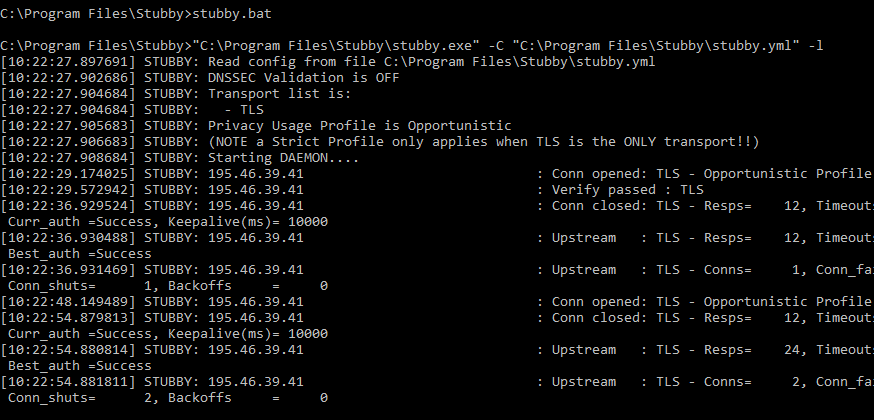
6\. Run the **stubby.bat** file

[![4.DNS-over-TLS Setup Guide .png](https://docs.safedns.com/uploads/images/gallery/2022-08/scaled-1680-/XsSPiGAE7UCI4iFl-4-dns-over-tls-setup-guide.png)](https://docs.safedns.com/uploads/images/gallery/2022-08/XsSPiGAE7UCI4iFl-4-dns-over-tls-setup-guide.png)

7\. Check the filtering.

---

#### Linux (Ubuntu)

1\. Install the Stubby package from a repository:

<p class="callout info">$ sudo apt install stubby</p>

2\. Set the configuration file **/etc/stubby/stubby.yml** as follows:

<p class="callout info">resolution\_type: GETDNS\_RESOLUTION\_STUB  
dns\_transport\_list: - GETDNS\_TRANSPORT\_TLS  
tls\_authentication: GETDNS\_AUTHENTICATION\_NONE  
tls\_query\_padding\_blocksize: 128  
edns\_client\_subnet\_private : 0  
idle\_timeout: 100000  
listen\_addresses: - 127.0.0.2@53  
round\_robin\_upstreams: 1  
upstream\_recursive\_servers:  
- address\_data: 195.46.39.41  
tls\_auth\_name: "dns-s.safedns.com" tls\_pubkey\_pinset:  
- digest: "sha256"  
value: kbv1ODr8gP7FV9/h2lp5t3sP4TdYZEwqUYj0mk0IBzg=</p>

3\. Change DNS in **/etc/resolv.conf** file to **127.0.0.2**:

<p class="callout info">nameserver 127.0.0.2</p>

4\. Start the filtering service

<p class="callout info">service stubby start</p>

5\. Check the filtering.

---

#### MacOS

1\. [Download](https://dnsprivacy.org/dns_privacy_daemon_-_stubby/installation/macos_homebrew/) and install the Stubby Manager package.

If you get a security alert, click on "**Open Anyway**" in the security settings.

[![5.DNS-over-TLS Setup Guide .png](https://docs.safedns.com/uploads/images/gallery/2022-08/scaled-1680-/bXud5Q8gZWwB4tfL-5-dns-over-tls-setup-guide.png)](https://docs.safedns.com/uploads/images/gallery/2022-08/bXud5Q8gZWwB4tfL-5-dns-over-tls-setup-guide.png)
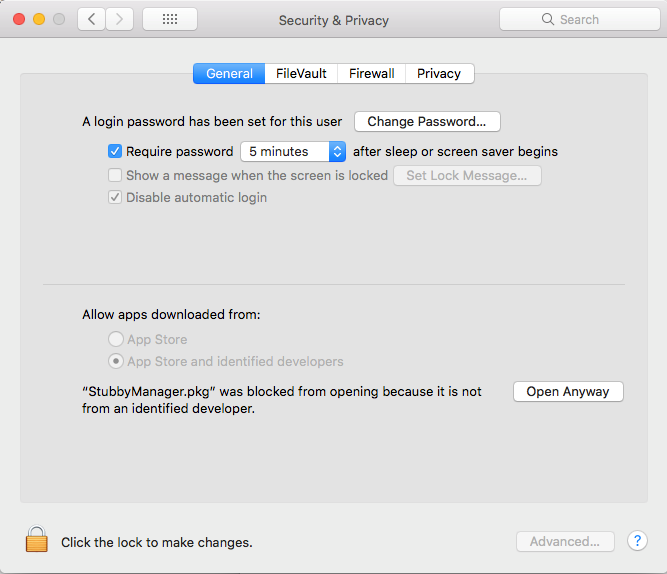
2\. Launch a Stubby Manager app after installation and click the "**Advanced**" button.

[![6.DNS-over-TLS Setup Guide .png](https://docs.safedns.com/uploads/images/gallery/2022-08/scaled-1680-/hTyr6BBhVgeFD6VA-6-dns-over-tls-setup-guide.png)](https://docs.safedns.com/uploads/images/gallery/2022-08/hTyr6BBhVgeFD6VA-6-dns-over-tls-setup-guide.png)
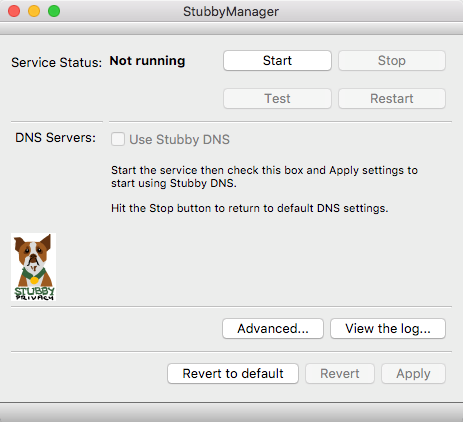
3\. Set the configuration file as follows:

<p class="callout info">resolution\_type: GETDNS\_RESOLUTION\_STUB  
dns\_transport\_list: - GETDNS\_TRANSPORT\_TLS  
tls\_authentication: GETDNS\_AUTHENTICATION\_NONE  
tls\_query\_padding\_blocksize: 128  
edns\_client\_subnet\_private : 0  
idle\_timeout: 100000  
listen\_addresses: - 127.0.0.1@53  
round\_robin\_upstreams: 1  
upstream\_recursive\_servers:  
- address\_data: 195.46.39.41  
tls\_auth\_name: "dns-s.safedns.com" tls\_pubkey\_pinset:  
- digest: "sha256"  
value: kbv1ODr8gP7FV9/h2lp5t3sP4TdYZEwqUYj0mk0IBzg=</p>

4\. Apply the settings and click **"Start"**.

5\. Open **"Network Properties"** and set **127.0.0.1** as the DNS server.

[![7.DNS-over-TLS Setup Guide .png](https://docs.safedns.com/uploads/images/gallery/2022-08/scaled-1680-/aEqeug0rbnRICY5L-7-dns-over-tls-setup-guide.png)](https://docs.safedns.com/uploads/images/gallery/2022-08/aEqeug0rbnRICY5L-7-dns-over-tls-setup-guide.png)
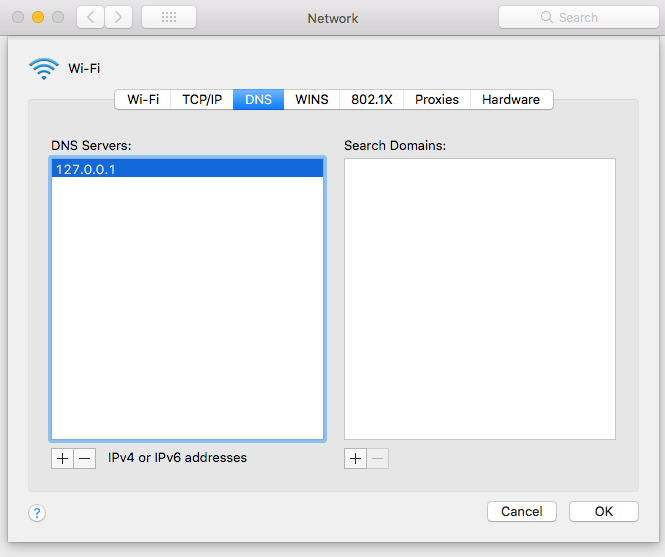
6\. Check the filtering.

# SafeDNS Root Certificate For HTTPS Pages

#### About the certificate  


**Root certificate** or **SSL certificate** is the main part of the website security. SSL certificate is required for the correct operation of sites with a secure (HTTPS) connection. If you have issues with displaying the SafeDNS block page (your internet browser shows a message "Unable to access the site"), you need to download a SafeDNS certificate and configure it to use in your browser.

<p class="callout warning">Please note that the certificate should be installed on each end device where you want HTTPS pages to display correctly.</p>

[⤵Download **SafeDNS** certificate](https://safedns.com/downloads/safedns_root.crt)

If the browser starts installing the certificate after you click on the button, cancel it, right-click on the button and choose "**Save as…**"

<div dir="auto" id="bkmrk-">---

</div>#### Windows (Chrome, Edge, Opera browsers)

<p class="callout info">For Mozilla Firefox, see the next section.</p>

1\. Open the **Start menu**, type in **'Control Panel'**, and open the suggested app.

[![1.SafeDNS Root Certificate For HTTPS Pages.png](https://docs.safedns.com/uploads/images/gallery/2022-08/scaled-1680-/EH47xzYL5JOpIgla-1-safedns-root-certificate-for-https-pages.png)](https://docs.safedns.com/uploads/images/gallery/2022-08/EH47xzYL5JOpIgla-1-safedns-root-certificate-for-https-pages.png)
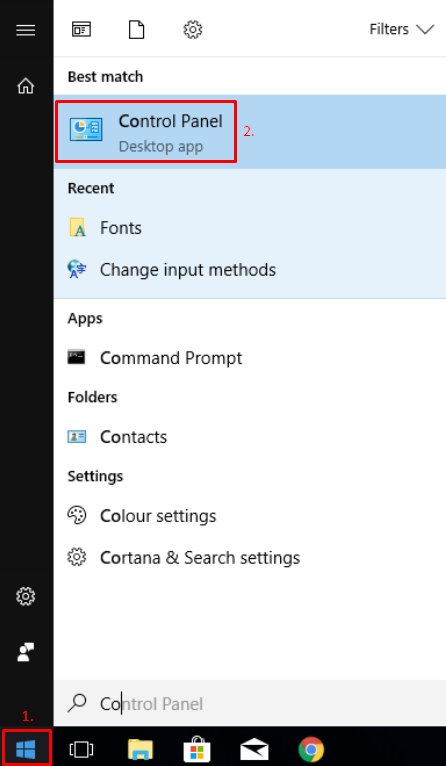
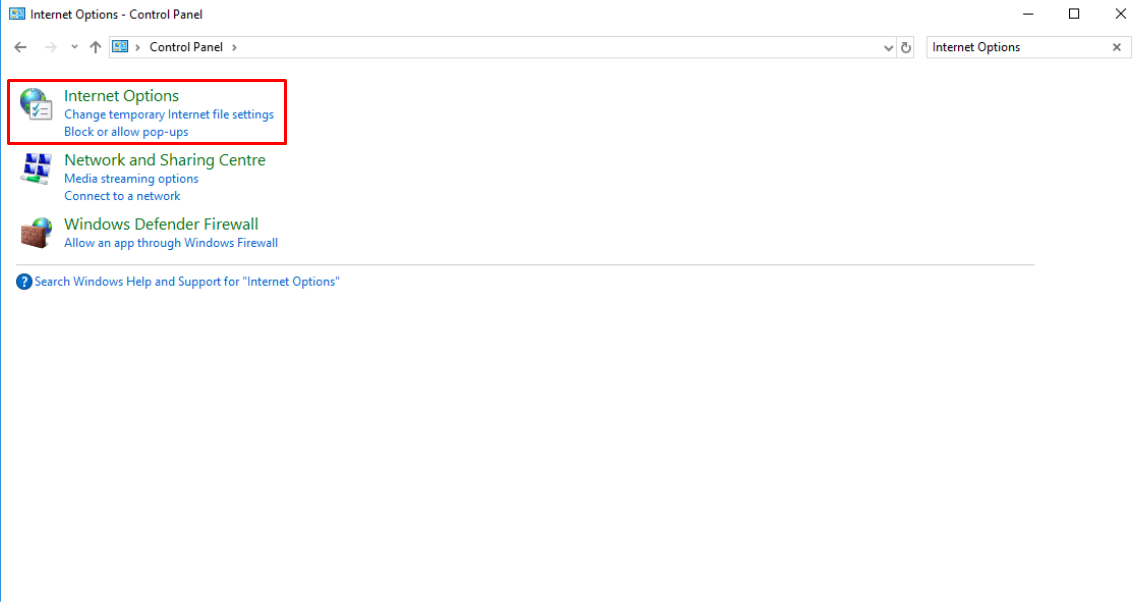
2\. Open **Internet Options**.

[![2.SafeDNS Root Certificate For HTTPS Pages.png](https://docs.safedns.com/uploads/images/gallery/2022-08/scaled-1680-/EeuikQdFFRGUBNxt-2-safedns-root-certificate-for-https-pages.png)](https://docs.safedns.com/uploads/images/gallery/2022-08/EeuikQdFFRGUBNxt-2-safedns-root-certificate-for-https-pages.png)
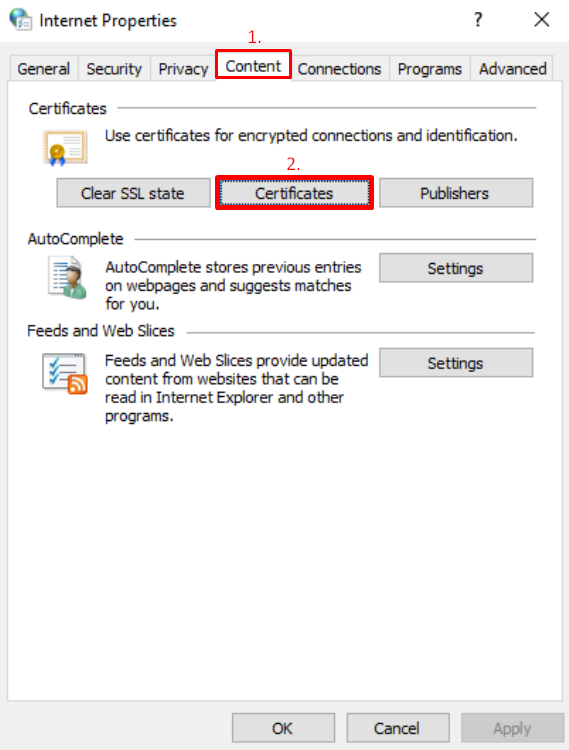
3\. Navigate to the **Content** tab and click **Certificates**.

[![3.SafeDNS Root Certificate For HTTPS Pages.png](https://docs.safedns.com/uploads/images/gallery/2022-08/scaled-1680-/BDO7gLR2MCE5Niuq-3-safedns-root-certificate-for-https-pages.png)](https://docs.safedns.com/uploads/images/gallery/2022-08/BDO7gLR2MCE5Niuq-3-safedns-root-certificate-for-https-pages.png)
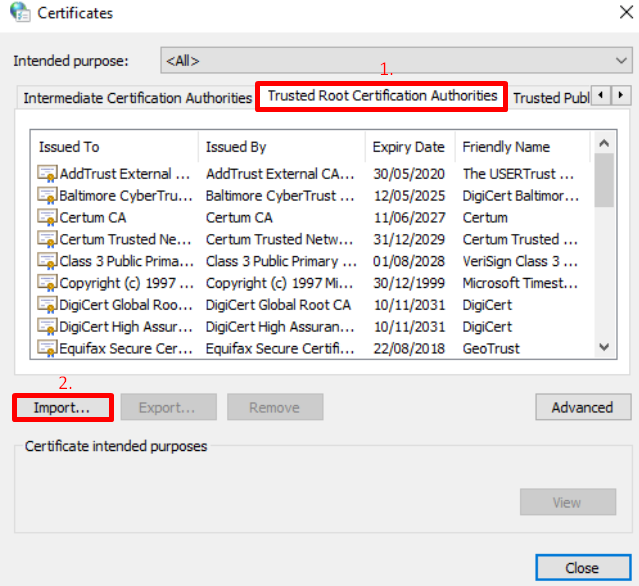
4\. Navigate to the **Trusted** **Root** **Certification** **Authorities** tab, and click **Import**.

[![4.SafeDNS Root Certificate For HTTPS Pages.png](https://docs.safedns.com/uploads/images/gallery/2022-08/scaled-1680-/cSnSGno6TwpbWWQl-4-safedns-root-certificate-for-https-pages.png)](https://docs.safedns.com/uploads/images/gallery/2022-08/cSnSGno6TwpbWWQl-4-safedns-root-certificate-for-https-pages.png)
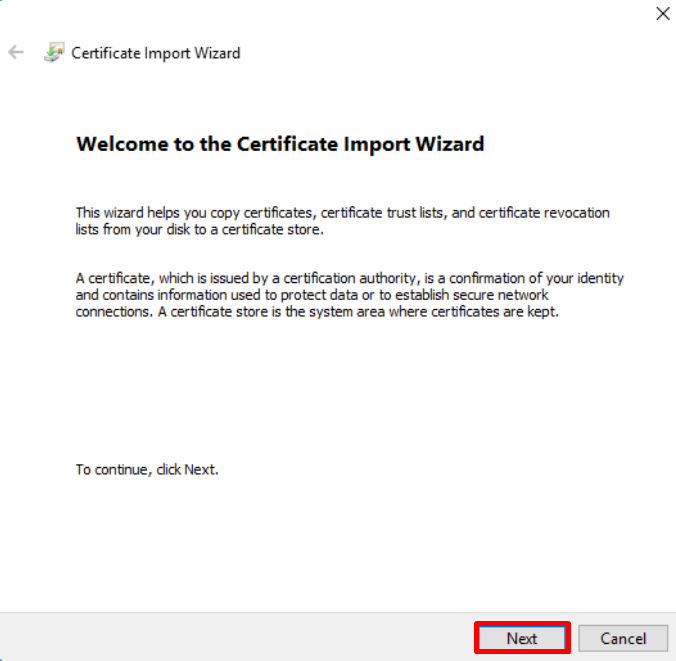
5\. Click **Next** in **Certificate Import Wizard**.

[![5.SafeDNS Root Certificate For HTTPS Pages.png](https://docs.safedns.com/uploads/images/gallery/2022-08/scaled-1680-/LEcB73AGmz3HVE7O-5-safedns-root-certificate-for-https-pages.png)](https://docs.safedns.com/uploads/images/gallery/2022-08/LEcB73AGmz3HVE7O-5-safedns-root-certificate-for-https-pages.png)
6\. Click **Browse** and select a downloaded SafeDNS certificate file.

[![6.SafeDNS Root Certificate For HTTPS Pages.png](https://docs.safedns.com/uploads/images/gallery/2022-08/scaled-1680-/cidG7g4x8eQG6LgC-6-safedns-root-certificate-for-https-pages.png)](https://docs.safedns.com/uploads/images/gallery/2022-08/cidG7g4x8eQG6LgC-6-safedns-root-certificate-for-https-pages.png)
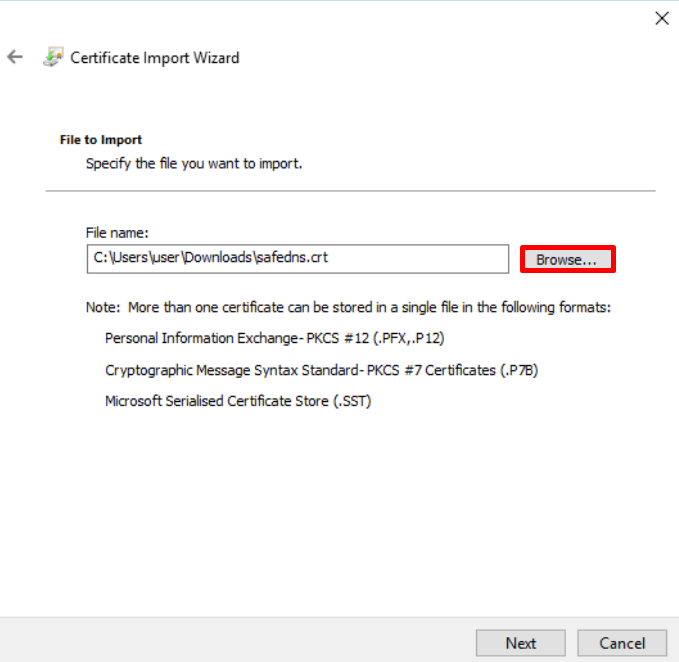
7\. Make sure that the certificate is placed in the store **Trusted Root Certification Authorities**.

[![7.SafeDNS Root Certificate For HTTPS Pages.png](https://docs.safedns.com/uploads/images/gallery/2022-08/scaled-1680-/GnrtMcCEx2zjraqJ-7-safedns-root-certificate-for-https-pages.png)](https://docs.safedns.com/uploads/images/gallery/2022-08/GnrtMcCEx2zjraqJ-7-safedns-root-certificate-for-https-pages.png)
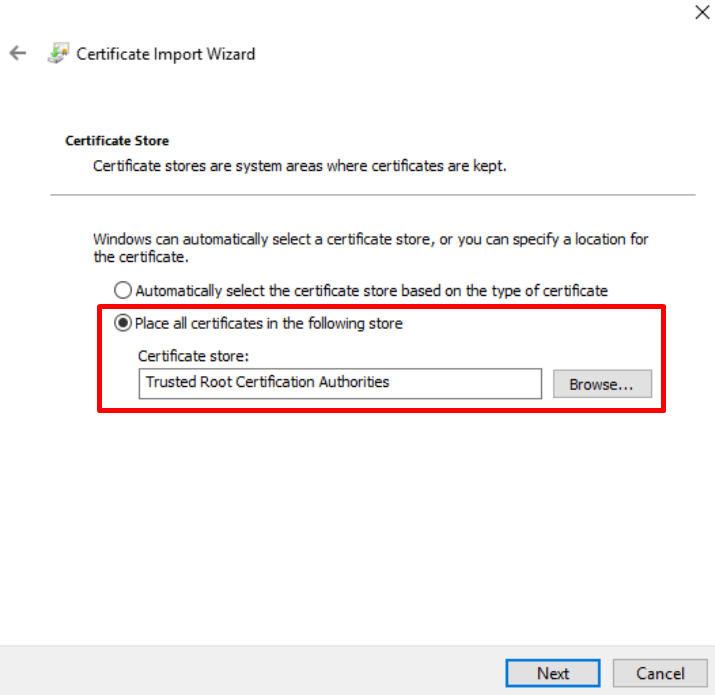
8\. Close the window by clicking on **Finish**.

[![8.SafeDNS Root Certificate For HTTPS Pages.png](https://docs.safedns.com/uploads/images/gallery/2022-08/scaled-1680-/DEvvPKW3YTNfjhtR-8-safedns-root-certificate-for-https-pages.png)](https://docs.safedns.com/uploads/images/gallery/2022-08/DEvvPKW3YTNfjhtR-8-safedns-root-certificate-for-https-pages.png)
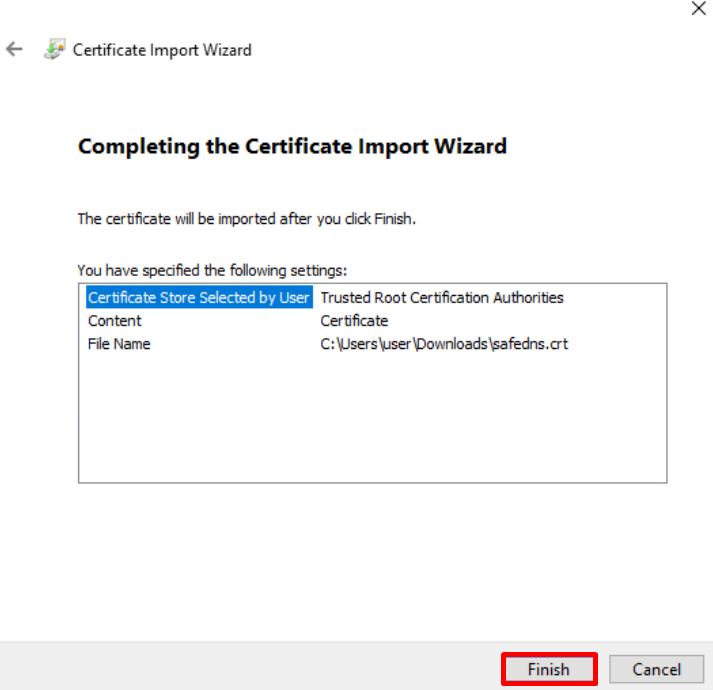
9\. Click on **Yes** when **Security Warning** appears.

[![9.SafeDNS Root Certificate For HTTPS Pages.png](https://docs.safedns.com/uploads/images/gallery/2022-08/scaled-1680-/Z3TSri5lEA6R3rQk-9-safedns-root-certificate-for-https-pages.png)](https://docs.safedns.com/uploads/images/gallery/2022-08/Z3TSri5lEA6R3rQk-9-safedns-root-certificate-for-https-pages.png)
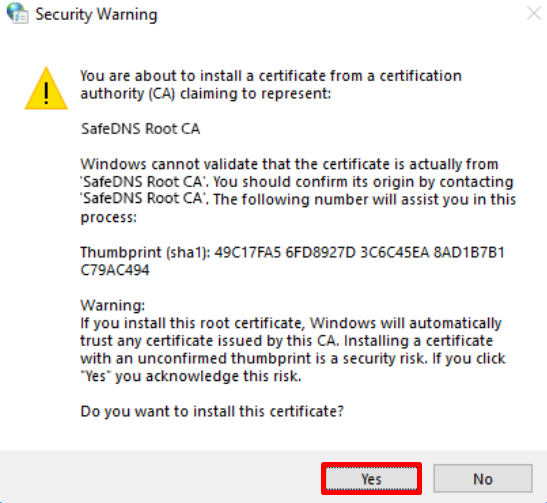
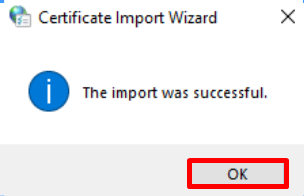
10\. Close Certificate Import Wizard by clicking **OK**.

[![10.SafeDNS Root Certificate For HTTPS Pages.png](https://docs.safedns.com/uploads/images/gallery/2022-08/scaled-1680-/92n9pCZg3MAI0mbv-10-safedns-root-certificate-for-https-pages.png)](https://docs.safedns.com/uploads/images/gallery/2022-08/92n9pCZg3MAI0mbv-10-safedns-root-certificate-for-https-pages.png)
<div class="page-content clearfix" id="bkmrk--0" page-display="51"><div class="page-content clearfix" page-display="51"><div dir="auto">---

</div></div></div>#### Mozilla Firefox (all platforms)

1\. Click on the **Menu button** in the top right corner of the browser and select **Settings**.

2\. Choose **Privacy &amp; Security** in the left menu, scroll to the bottom of the page, and click **View Certificates**.

[![11.SafeDNS Root Certificate For HTTPS Pages.png](https://docs.safedns.com/uploads/images/gallery/2022-08/scaled-1680-/7EuQn6AYIvr9xM5d-11-safedns-root-certificate-for-https-pages.png)](https://docs.safedns.com/uploads/images/gallery/2022-08/7EuQn6AYIvr9xM5d-11-safedns-root-certificate-for-https-pages.png)

3\. Select the **Authorities** tab and click **Import**.

[![12.SafeDNS Root Certificate For HTTPS Pages.png](https://docs.safedns.com/uploads/images/gallery/2022-08/scaled-1680-/vyfNATgVn6ZgD5y9-12-safedns-root-certificate-for-https-pages.png)](https://docs.safedns.com/uploads/images/gallery/2022-08/vyfNATgVn6ZgD5y9-12-safedns-root-certificate-for-https-pages.png)

4\. Select the downloaded SafeDNS Certificate, tick the box **Trust this CA to identify websites**, and click **OK**.

<div class="page-content clearfix" id="bkmrk--12" page-display="51"><div class="page-content clearfix" page-display="51"><div dir="auto">---

</div></div></div>#### Mac OSX

1\. Press the hotkey **CTRL + SPACE** and type **'Keychain'** in the Spotlight search. Open the **Keychain Access application**.

[![13.SafeDNS Root Certificate For HTTPS Pages.png](https://docs.safedns.com/uploads/images/gallery/2022-08/scaled-1680-/AbgckkFXIewvvPAS-13-safedns-root-certificate-for-https-pages.png)](https://docs.safedns.com/uploads/images/gallery/2022-08/AbgckkFXIewvvPAS-13-safedns-root-certificate-for-https-pages.png)

2\. Navigate to **Login &gt; System**.[![14.SafeDNS Root Certificate For HTTPS Pages.png](https://docs.safedns.com/uploads/images/gallery/2022-08/scaled-1680-/1Izltzl1Cif6z2SF-14-safedns-root-certificate-for-https-pages.png)](https://docs.safedns.com/uploads/images/gallery/2022-08/1Izltzl1Cif6z2SF-14-safedns-root-certificate-for-https-pages.png)

3\. Drag and drop the downloaded SafeDNS certificate on the right side of the Keychain Access application where the rest of the certificates are stored.

4\. Double-click on the SafeDNS certificate and select **Properties certificate**. In the opened window, choose when to use this certificate, and select **'Always trust'**. Close the window.

[![15.SafeDNS Root Certificate For HTTPS Pages.png](https://docs.safedns.com/uploads/images/gallery/2022-08/scaled-1680-/gSMpsIhVNqDdnj7D-15-safedns-root-certificate-for-https-pages.png)](https://docs.safedns.com/uploads/images/gallery/2022-08/gSMpsIhVNqDdnj7D-15-safedns-root-certificate-for-https-pages.png)

5\. Make sure that the SafeDNS certificate is marked as trusted for this account in the Keychain Access application.

[![16.SafeDNS Root Certificate For HTTPS Pages.png](https://docs.safedns.com/uploads/images/gallery/2022-08/scaled-1680-/wnNFAtmlpcsmPPGz-16-safedns-root-certificate-for-https-pages.png)](https://docs.safedns.com/uploads/images/gallery/2022-08/wnNFAtmlpcsmPPGz-16-safedns-root-certificate-for-https-pages.png)

<div class="page-content clearfix" id="bkmrk--15" page-display="51"><div class="page-content clearfix" page-display="51"><div dir="auto">---

</div></div></div>#### iPhone and iPad

1\. Download the **SafeDNS certificate.**

2\. **Allow** the website to open **Settings**.

[![17.SafeDNS Root Certificate For HTTPS Pages.png](https://docs.safedns.com/uploads/images/gallery/2022-08/scaled-1680-/2hxC0yXFEvLyuW0m-17-safedns-root-certificate-for-https-pages.png)](https://docs.safedns.com/uploads/images/gallery/2022-08/2hxC0yXFEvLyuW0m-17-safedns-root-certificate-for-https-pages.png)

3\. Tap **Install**.

[![18.SafeDNS Root Certificate For HTTPS Pages.png](https://docs.safedns.com/uploads/images/gallery/2022-08/scaled-1680-/BafMW89CfwqDOUKg-18-safedns-root-certificate-for-https-pages.png)](https://docs.safedns.com/uploads/images/gallery/2022-08/BafMW89CfwqDOUKg-18-safedns-root-certificate-for-https-pages.png)

4\. Tap on **Install** in the system warning window.

[![19.SafeDNS Root Certificate For HTTPS Pages.png](https://docs.safedns.com/uploads/images/gallery/2022-08/scaled-1680-/r3TBgT81TfaZwjr0-19-safedns-root-certificate-for-https-pages.png)](https://docs.safedns.com/uploads/images/gallery/2022-08/r3TBgT81TfaZwjr0-19-safedns-root-certificate-for-https-pages.png)

5\. Tap **Install** in the confirmation window.

[![20.SafeDNS Root Certificate For HTTPS Pages.png](https://docs.safedns.com/uploads/images/gallery/2022-08/scaled-1680-/KK4M9oxdU3CGdInk-20-safedns-root-certificate-for-https-pages.png)](https://docs.safedns.com/uploads/images/gallery/2022-08/KK4M9oxdU3CGdInk-20-safedns-root-certificate-for-https-pages.png)

6\. Tap **Done**.

[![21.SafeDNS Root Certificate For HTTPS Pages.png](https://docs.safedns.com/uploads/images/gallery/2022-08/scaled-1680-/jGTNP7yJkF6n4MIi-21-safedns-root-certificate-for-https-pages.png)](https://docs.safedns.com/uploads/images/gallery/2022-08/jGTNP7yJkF6n4MIi-21-safedns-root-certificate-for-https-pages.png)

7\. Navigate to Settings &gt; General &gt; About &gt; Certificate Trust Settings  
8\. Enable full trust for the SafeDNS Root CA certificate  
[![IMG_0500.PNG](https://docs.safedns.com/uploads/images/gallery/2022-12/scaled-1680-/o35v8w38cB4jL57O-img-0500.PNG)](https://docs.safedns.com/uploads/images/gallery/2022-12/o35v8w38cB4jL57O-img-0500.PNG)

<div dir="auto" id="bkmrk--20">---

</div>#### Android

<p class="callout warning">Menu items and the system interface might be different on your device.</p>

1\. Open the Settings app.

2\. Start typing "certificate" in the search box.

3\. Choose the option related to the certificate installation, a new window will open.

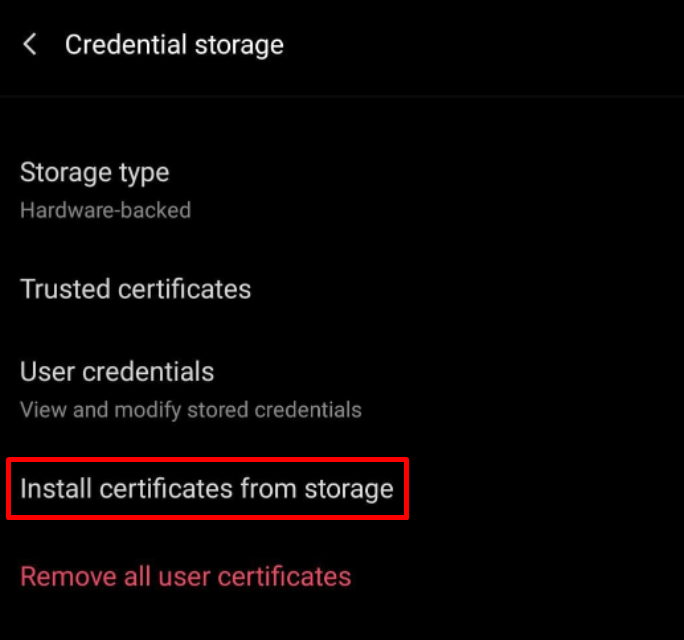
4\. Choose "Install certificates from storage".

[![22.SafeDNS Root Certificate For HTTPS Pages.png](https://docs.safedns.com/uploads/images/gallery/2022-08/scaled-1680-/xfQCQKLJKrdLKsEh-22-safedns-root-certificate-for-https-pages.png)](https://docs.safedns.com/uploads/images/gallery/2022-08/xfQCQKLJKrdLKsEh-22-safedns-root-certificate-for-https-pages.png)
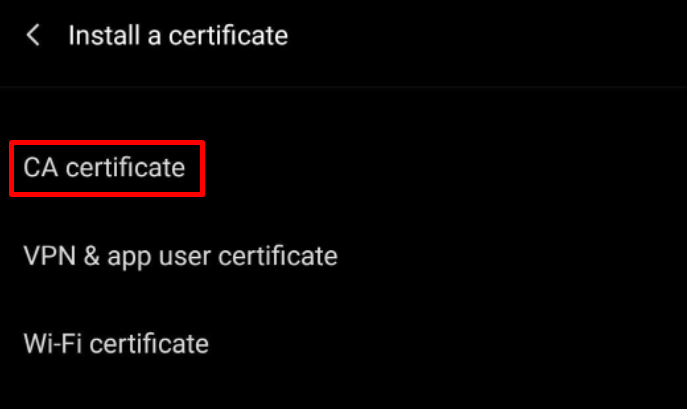
5\. Press "CA certificate".

[![23.SafeDNS Root Certificate For HTTPS Pages.png](https://docs.safedns.com/uploads/images/gallery/2022-08/scaled-1680-/X0PjN0UiGjEJcoln-23-safedns-root-certificate-for-https-pages.png)](https://docs.safedns.com/uploads/images/gallery/2022-08/X0PjN0UiGjEJcoln-23-safedns-root-certificate-for-https-pages.png)
6\. Follow the on-screen instructions to install the certificate.

---

#### Chromebooks and Google Workspace

In case the .crt certificate is not accepted, export it as a .pem file and import it into Workspace Admin.

<div dir="auto" id="bkmrk--28">---

</div>#### Troubleshooting

<p class="callout info">If you don't see the block page on HTTPS pages after the certificate installation, or there is a browser warning about an invalid certificate, please, try reinstalling the certificate.</p>

If the issue remains, [⤵contact our technical support team](mailto:support@safedns.com)

# How to enable two-factor authentication (2FA)

#### Enabling 2FA

To enable two-factor authentication, do the following:

1\. Navigate to [https://www.safedns.com/dashboard/account/](https://www.safedns.com/dashboard/account/)

2\. Scroll down to the **Two-Factor Authentication (2FA)** panel

[![Screenshot_568.png](https://docs.safedns.com/uploads/images/gallery/2026-03/scaled-1680-/OYuQQREM8rcUVLLB-screenshot-568.png)](https://docs.safedns.com/uploads/images/gallery/2026-03/OYuQQREM8rcUVLLB-screenshot-568.png)
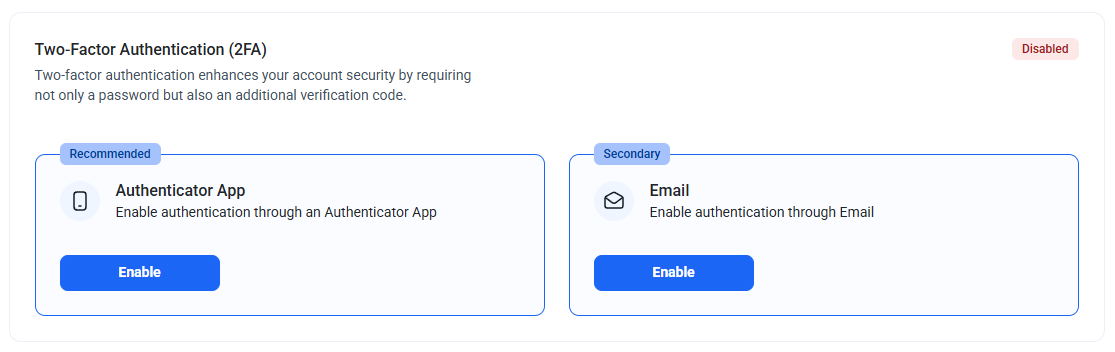
3\. Choose the preferred method for authentication.

<p class="callout success">We recommend using the **Authenticator App** for better security.</p>

4\. Press **Enable** and follow the on-screen instructions for the selected method.

5\. Save the backup codes when prompted.

<p class="callout warning">Backup codes are shown only once. We strongly recommend keeping them on a different device or writing them down. Each code can be used only once.  
Backup codes can be regenerated by pressing the **Regenerate** button. Previously generated codes will be invalidated.</p>

If needed, you can enable both authentication methods. To do that, press **Enable** under the other method, then follow the on-screen instructions.

---

#### Using 2FA

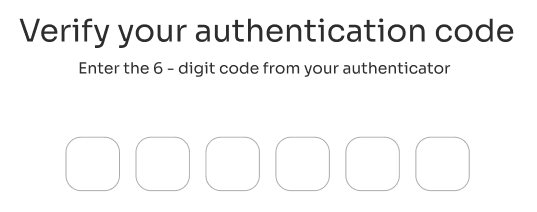
2FA will be prompted on each login after entering the valid login and password.

[![Screenshot_571.png](https://docs.safedns.com/uploads/images/gallery/2026-03/scaled-1680-/tTmsUr9Tk43z9scE-screenshot-571.png)](https://docs.safedns.com/uploads/images/gallery/2026-03/tTmsUr9Tk43z9scE-screenshot-571.png)
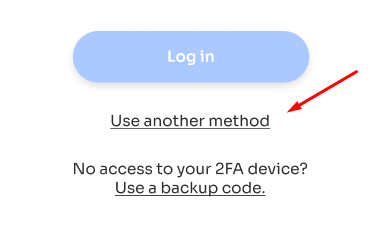
If both authentication methods are enabled, you can use the other method via the **Use the other method** option.

[![Screenshot_569.png](https://docs.safedns.com/uploads/images/gallery/2026-03/scaled-1680-/KicbSoBOIXqg6eHV-screenshot-569.png)](https://docs.safedns.com/uploads/images/gallery/2026-03/KicbSoBOIXqg6eHV-screenshot-569.png)
---

#### Using Backup Codes

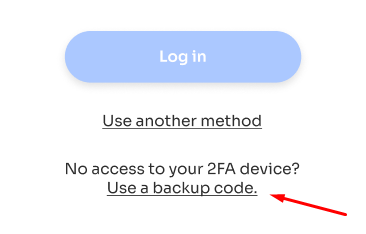
If you lost access to the authentication method(s), you can use the backup codes instead via the **Use a backup code** option.

[![Screenshot_570.png](https://docs.safedns.com/uploads/images/gallery/2026-03/scaled-1680-/gdCEwE5g9JSpdGdo-screenshot-570.png)](https://docs.safedns.com/uploads/images/gallery/2026-03/gdCEwE5g9JSpdGdo-screenshot-570.png)
<p class="callout warning"> Each backup code can be used only once.</p>

---

#### Disabling 2FA

You can disable 2FA by pressing the Disable button in the Two-Factor Authentication (2FA) panel.

[![Screenshot_572.png](https://docs.safedns.com/uploads/images/gallery/2026-03/scaled-1680-/fDXGeT4gjtYjrjsv-screenshot-572.png)](https://docs.safedns.com/uploads/images/gallery/2026-03/fDXGeT4gjtYjrjsv-screenshot-572.png)
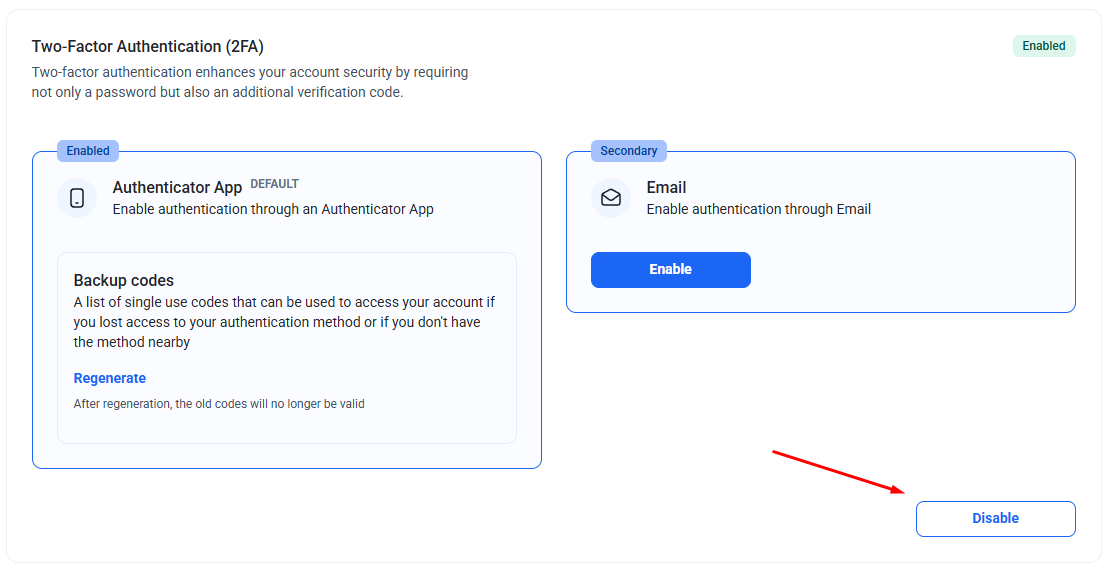
If both authentication methods are enabled, you can disable one or both.

---

#### Disabling 2FA via SafeDNS Support

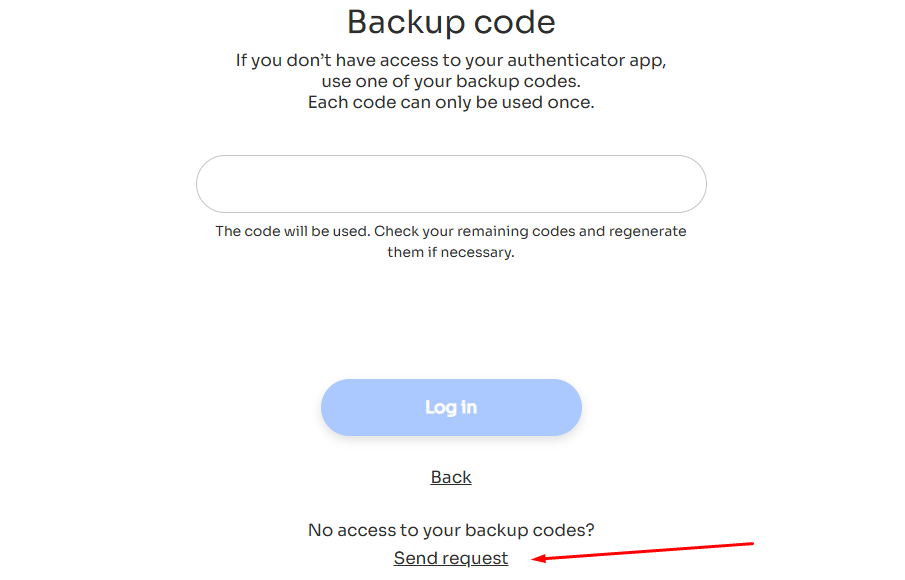
If you lost access to authentication methods and backup codes, you can request to disable 2FA via the **Use a backup code &gt; Send Request** option.

[![Screenshot_573.png](https://docs.safedns.com/uploads/images/gallery/2026-03/scaled-1680-/eQjZVajo1FzBH0VU-screenshot-573.png)](https://docs.safedns.com/uploads/images/gallery/2026-03/eQjZVajo1FzBH0VU-screenshot-573.png)

After the request is sent, the SafeDNS Support team will respond within 3 hours to the email address of your SafeDNS account.

If you need Support to reply to the other email, please send the request manually to <support@safedns.com>. Alternatively, you can use the live chat on any page of the SafeDNS website.

<p class="callout warning">Please note that for security reasons, Support will ask additional questions to verify the account ownership.</p>