# Installation and configuration


# Allow/Denylists And Named Lists

This feature comes in handy when you need to add the same list of domains to the different policies (filtering profiles). You can create or edit a list and then apply it to any of your filtering policies. You can manage lists of allowed or blocked hosts and domains for all of your profiles or group of profiles.

<p class="callout info">Blocking/allowing a domain automatically blocks/allows all its subdomains, overriding Categories settings.</p>

<p class="callout info">It is possible to simultaneously block a domain and allow its subdomain(s), and vice versa.</p>

1. Navigate to the "**Allowlist"** or "**Denylist"** tab to create a new named list.
2. Find the "**Create list"** button and enter the name of the new list into the "**List name"** box on the right and click "**Create list"**. It will appear at the bottom of the page.  
      
    [![1.Allow_DenyLists.png](https://docs.safedns.com/uploads/images/gallery/2024-08/scaled-1680-/P3dogHXd3cRz2BhK-1-allow-denylists.png)](https://docs.safedns.com/uploads/images/gallery/2024-08/P3dogHXd3cRz2BhK-1-allow-denylists.png)
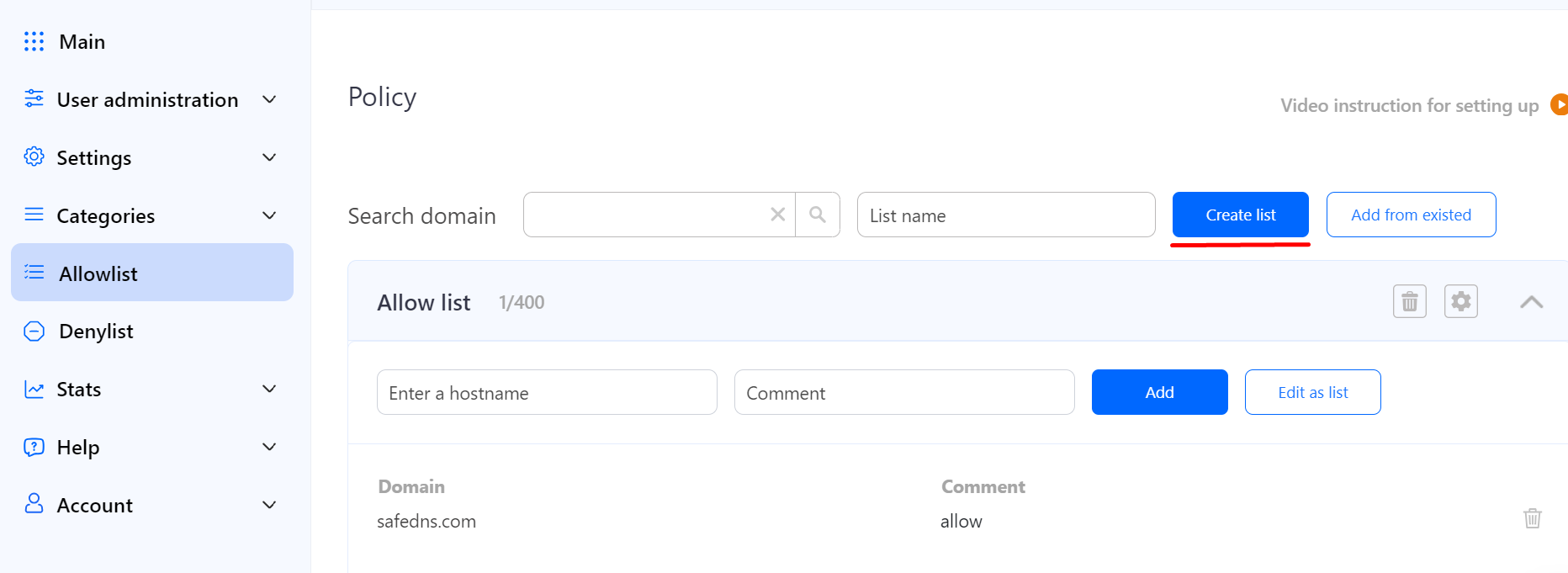
3. Click the **Cogwheel** button on the right, then click "**Save"** to add the newly created named list to the multiple policies (profiles).

[![2.Allow_DenyLists.png](https://docs.safedns.com/uploads/images/gallery/2024-08/scaled-1680-/E6DN6PLZZDF7gVlY-2-allow-denylists.png)](https://docs.safedns.com/uploads/images/gallery/2024-08/E6DN6PLZZDF7gVlY-2-allow-denylists.png)
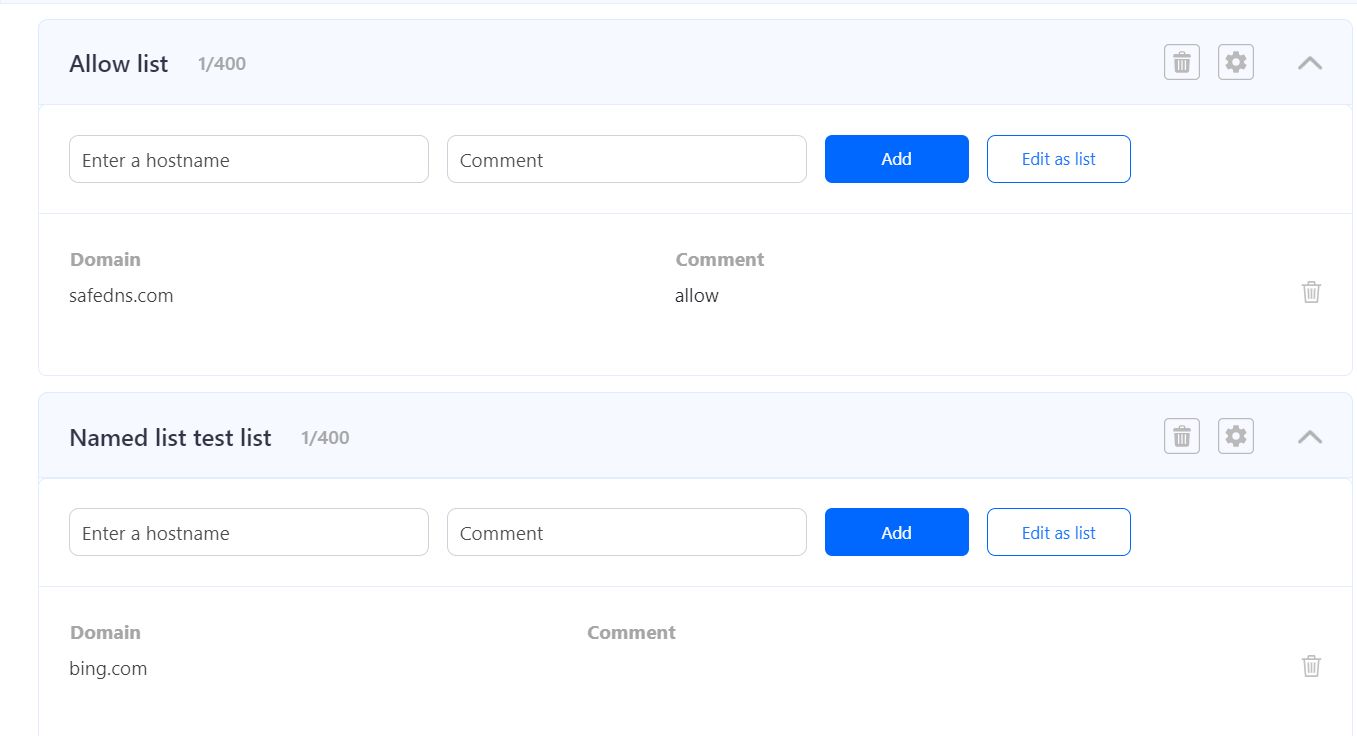
<p class="callout info">The same steps work for the **Denylist** section.</p>

<p class="callout info">Wildcards are not supported at the moment.</p>

<p class="callout warning">Please note that settings take 5-7 minutes to apply.  
Stats and filtering status update every 10 minutes.  
</p>

# General Setup via OpenVPN

Some devices are not yet supported by the SafeDNS Agent or cannot have it installed for various reasons. In this case, you can configure the SafeDNS filtering via the third-party app OpenVPN.

**[⤵Download OpenVPN](https://openvpn.net/download-open-vpn/)**

<figure class="kg-card kg-bookmark-card" id="bkmrk-download-the-world%E2%80%99s"><div class="kg-bookmark-content"><div class="kg-bookmark-title">OpenVPN creates a VPN connection using the SafeDNS **Configuration file** that contains all settings of chosen filtering policy.  
</div></div></figure>OpenVPN does not change or hide your Public IP, as regular VPN services do, it only receives filtering rules from your dashboard.

Multiple devices can use the same filtering policy, but **each device should use its own Configuration file**.

Devices filtered via OpenVPN remain protected in any network.

The installation process is the same for all platforms: you need to download the Configuration file, install OpenVPN, and import the **Configuration file.**

---

#### Guides for the platforms supported by OpenVPN

1. [Windows Filtering Setup via OpenVPN](https://docs.safedns.com/books/installation-guides/page/windows-filtering-setup-via-openvpn)
2. [Mac Filtering Setup via OpenVPN](https://docs.safedns.com/books/installation-guides/page/mac-filtering-setup-via-openvpn)
3. [Linux Filtering Setup via OpenVPN](https://docs.safedns.com/books/installation-guides/page/linux-filtering-setup-via-openvpn)
4. [iOS and Android Filtering Setup via OpenVPN](https://docs.safedns.com/books/installation-guides/page/mobile-devices-filtering-setup)

# Schedule Setup

Unlike other content filtering systems that use simple schedules with complete blocking of internet access based on time, SafeDNS uses a complex system of schedules that can be flexibly configured for any needs and any scenario. However, greater flexibility brings more complexity to the setup of a schedule.

<p class="callout info">Schedule logic: selected custom Policy (profile) is applied at the selected time; Default policy is applied at all other times.</p>

This system allows a much more flexible schedule, that you can apply in advanced scenarios such as:

1. Turning off the internet on schedule, with the filtered internet at the other time. This option is often used by parents to limit kids during school hours.
2. Filtering of unproductive websites at the workplace, with unfiltered access during lunch break, and before and after the workday. This type of scheduling is suitable for use within organizations.
3. Filtered internet in the hours when the computer is used by a child, with different filtering rules in the hours when the computer is used by adults.

---

#### Schedule setup

To set the schedule, you must create an additional Policy (profile) for which the schedule will be enabled.

1. Log in to your SafeDNS Dashboard
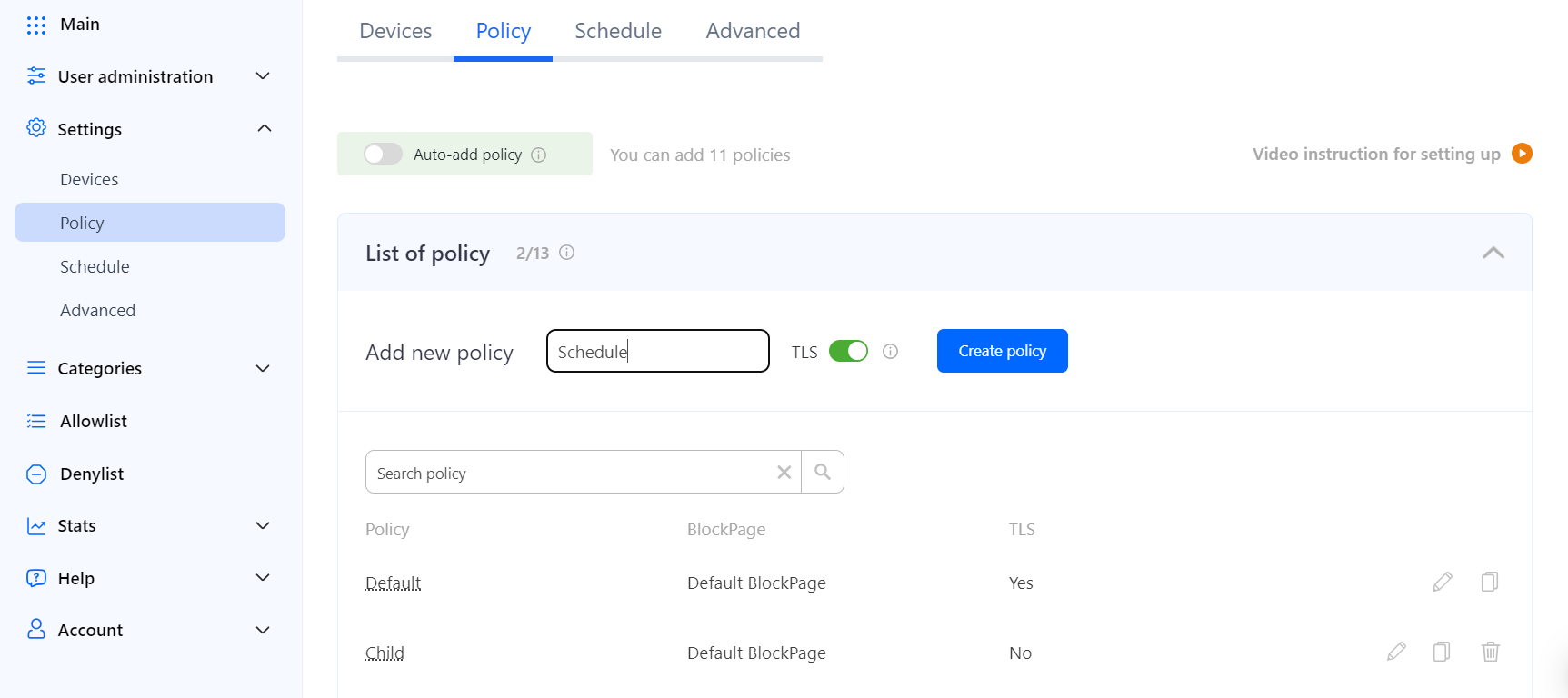
2. Go to **Settings &gt; Policy**
3. Enter the name of the policy (e.g. *"Schedule"*), and click "**Create policy**".  
    [![1.Schedule.png](https://docs.safedns.com/uploads/images/gallery/2024-08/scaled-1680-/D3EyhBspQr3q1wKH-1-schedule.png)](https://docs.safedns.com/uploads/images/gallery/2024-08/D3EyhBspQr3q1wKH-1-schedule.png)
After creating a policy, you can start setting up the schedule.

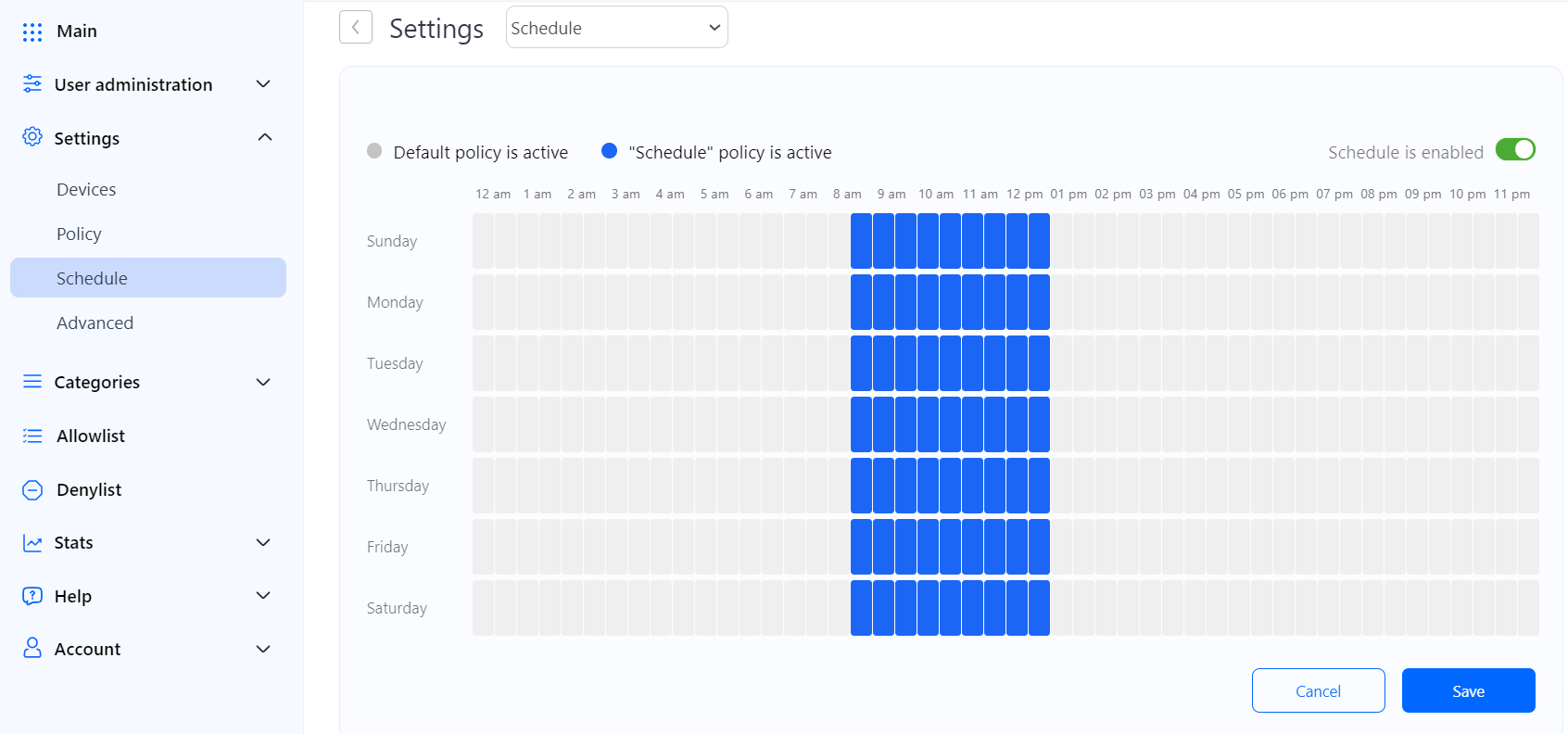
1. Go to **Settings &gt; Schedule**.
2. Click on the cogwheel to the right from the newly created policy *"Schedule"*.
3. Set the time at which the policy *"Schedule"* should be active. The rest of the time the Default policy will be active. The appearance and functionality of the Schedule depend on your billing plan.
4. Switch on the **Schedule is enabled** on the right.
5. Click "**Save**".[![2.Schedule.png](https://docs.safedns.com/uploads/images/gallery/2024-08/scaled-1680-/Z9ErS6hmGcLw0pc8-2-schedule.png)](https://docs.safedns.com/uploads/images/gallery/2024-08/Z9ErS6hmGcLw0pc8-2-schedule.png)
After setting the schedule, you need to apply it to your network or individual computers.

If you use the SafeDNS Agent, you need to open **Settings &gt; Policy** and set the *"Schedule"* policy as active.  
  
[![3. Activating Schedule on Computer.png](https://docs.safedns.com/uploads/images/gallery/2022-08/scaled-1680-/imTL1FaKyO2jOu9Z-3-activating-schedule-on-computer.png)](https://docs.safedns.com/uploads/images/gallery/2022-08/imTL1FaKyO2jOu9Z-3-activating-schedule-on-computer.png)
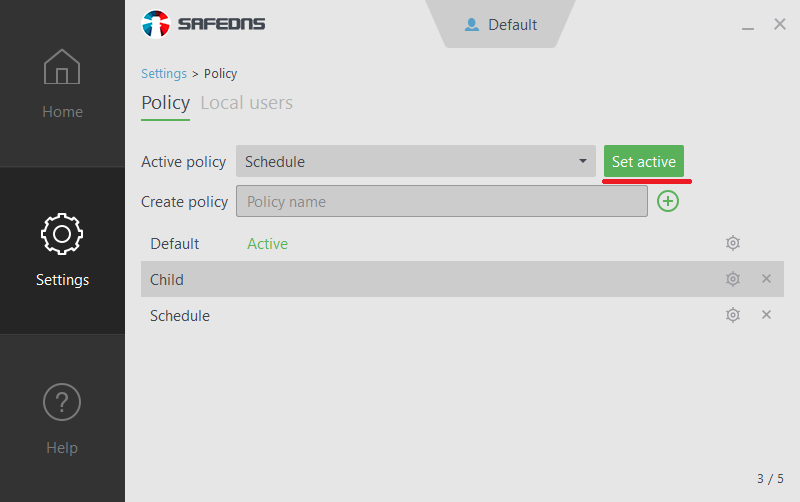
If you use an unattended installation of the Agent for computers in a corporate network, you will need to reinstall it with the scheduling policy as the main policy parameter.

If your filtering is set up at the router/modem, proxy, or gateway, you need to bind your external (public) IP address to the custom *"Schedule"* policy.

1. Go to **Settings &gt; Devices**
2. Navigate to your IP address/DynDNS and click on the edit icon on the right.
3. Change the Policy to the custom *"Schedule"* using the dropdown menu.
4. Click on the green checkmark on the right to apply changes.[![3.Schedule.png](https://docs.safedns.com/uploads/images/gallery/2024-08/scaled-1680-/MbqGbyu8q0ysqB28-3-schedule.png)](https://docs.safedns.com/uploads/images/gallery/2024-08/MbqGbyu8q0ysqB28-3-schedule.png)
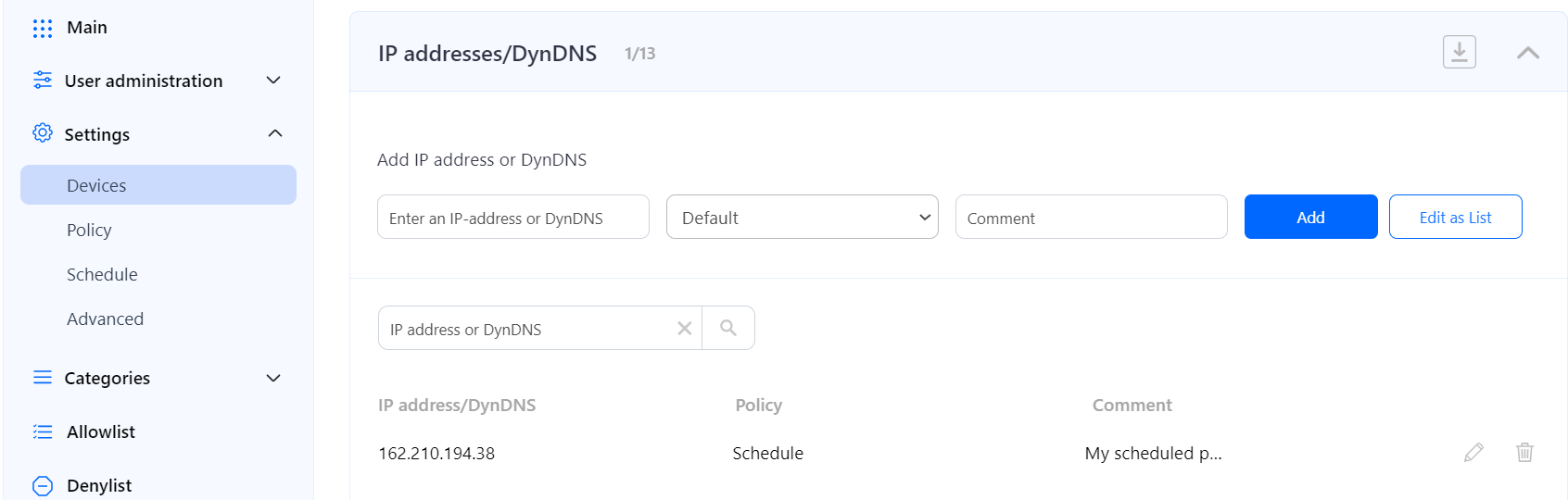
After the settings are applied, the Schedule will be active.

You can have multiple policies with different schedules for different users and networks, but note that the switch will always be between the current policy and the *"Default"* policy.

<p class="callout warning">Please note that settings take 5-7 minutes to apply.  
Stats and filtering status update every 10 minutes.</p>

---

#### Possible problems with the schedule

##### Scheduled settings switch at the wrong time

Make sure that you have the correct time zone applied. In the Dashboard, click on the **Cogwheel** icon in the top right corner, select the correct time zone and click **"Save changes"**.

<p class="callout warning">Please note that settings take 5-7 minutes to apply.</p>

Because of the cache of DNS queries at the system level and in the browser, your computer can not immediately respond to the newly applied settings. To eliminate this, we recommend disabling automatic control of the browser cache.

##### The schedule is not working at all

Make sure that you have followed all steps above. If everything is done correctly and the problem persists, please contact our technical support.

# Block Page Setup

The block page is displayed when a user is trying to access a website blocked by the filtering rules. SafeDNS provides instruments to customize the block page. For example, you can add your logo and contact details on the block page, and an explanation why the website site is blocked.

---

#### Creating custom block page

To create a custom block page, do the following:

1. Log in to SafeDNS Dashboard.
2. Navigate to **Settings &gt; Advanced** and scroll down to the **block page** section.
3. Click "**Add new**".  
    [![1.BlockPage.png](https://docs.safedns.com/uploads/images/gallery/2024-08/scaled-1680-/OydvFnwCz9EewKYd-1-blockpage.png)](https://docs.safedns.com/uploads/images/gallery/2024-08/OydvFnwCz9EewKYd-1-blockpage.png)
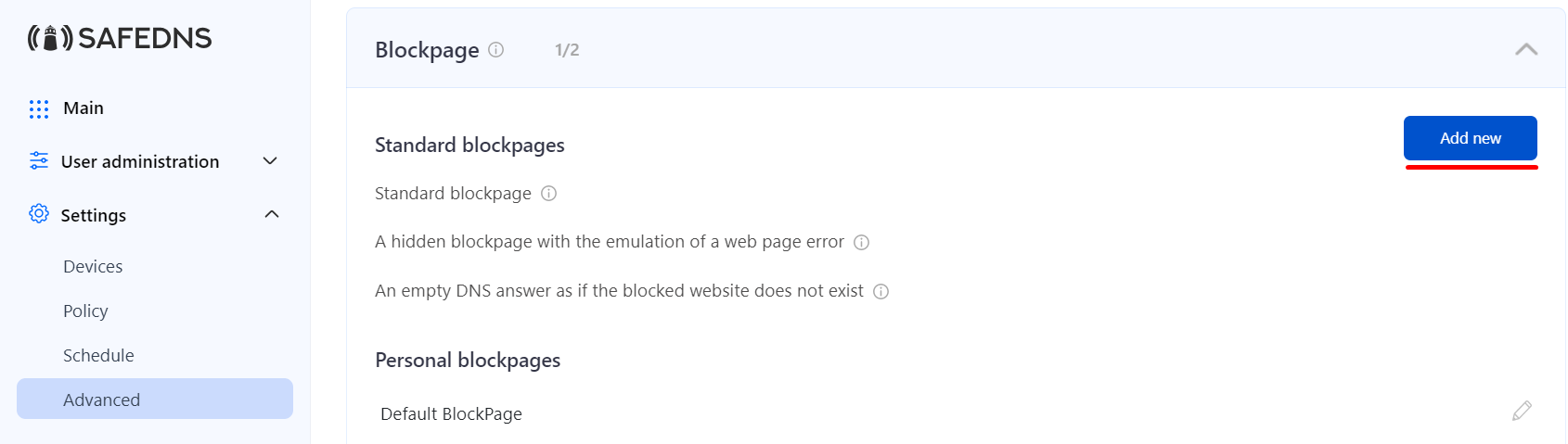
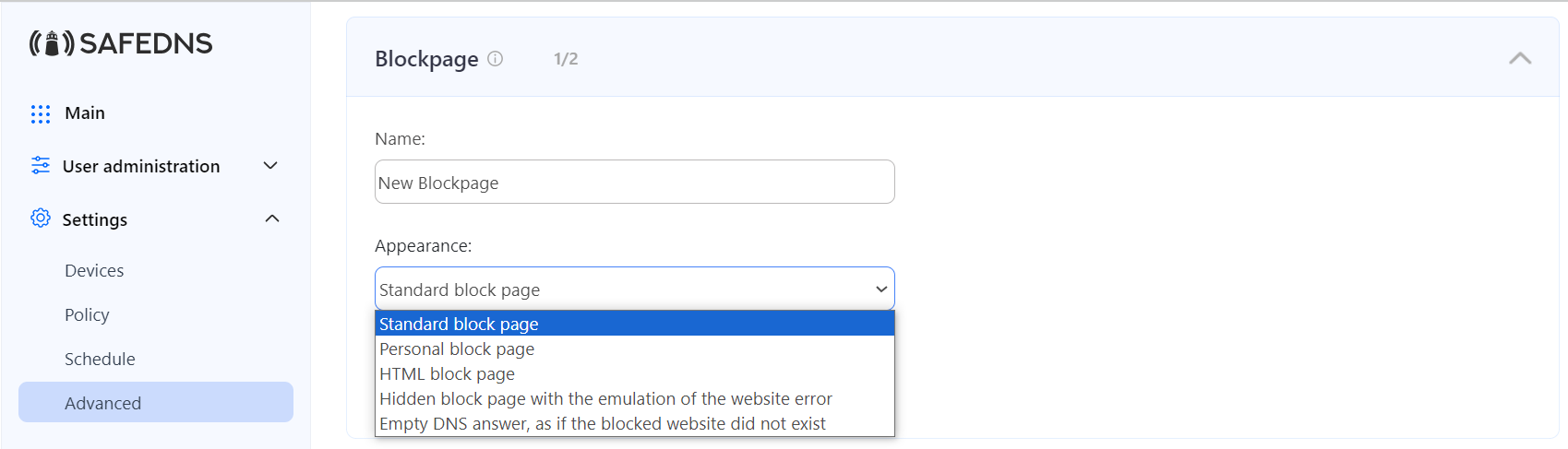
4. Enter the name of the new block page and choose its type from the dropdown menu. Click "Add".  
    [![2.BlockPage.png](https://docs.safedns.com/uploads/images/gallery/2024-08/scaled-1680-/OyAVLhxT1h2sKh7o-2-blockpage.png)](https://docs.safedns.com/uploads/images/gallery/2024-08/OyAVLhxT1h2sKh7o-2-blockpage.png)
---

#### Block page types

- **Standard block page** - default SafeDNS block page.  
    [![Screenshot_342.png](https://docs.safedns.com/uploads/images/gallery/2025-01/scaled-1680-/VirHFG5lFbYeEsNV-screenshot-342.png)](https://docs.safedns.com/uploads/images/gallery/2025-01/VirHFG5lFbYeEsNV-screenshot-342.png)
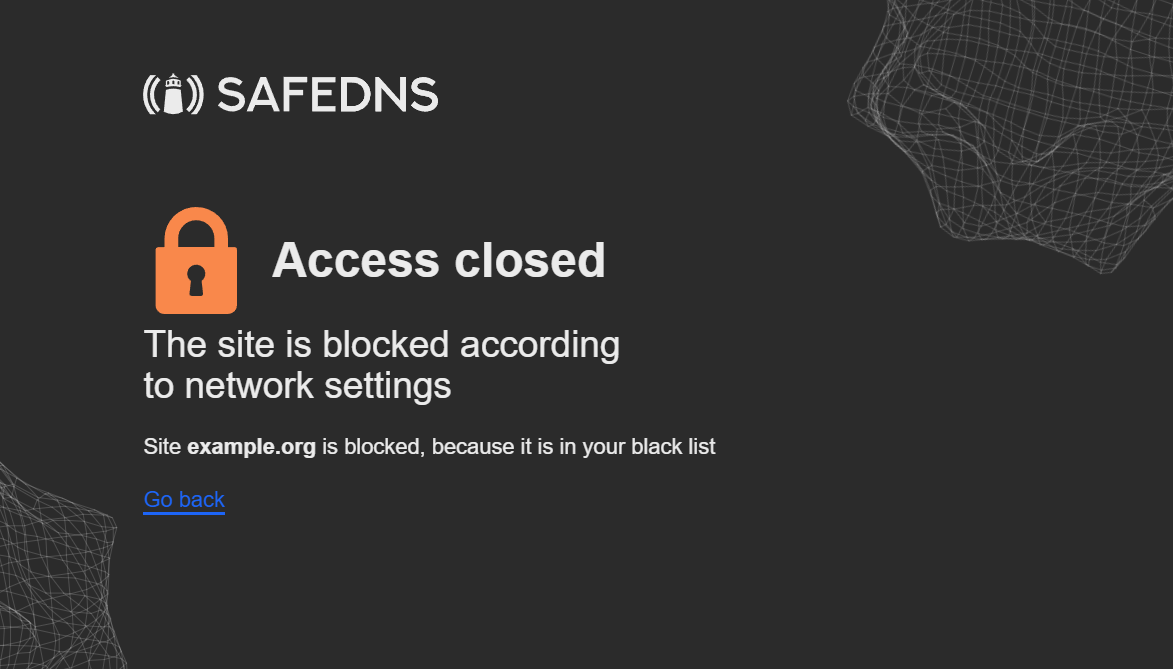
- **Personal block page** - simple block page with the customizable image and description.  
    [![Screenshot_343.png](https://docs.safedns.com/uploads/images/gallery/2025-01/scaled-1680-/H4REGkHQV5EDc0su-screenshot-343.png)](https://docs.safedns.com/uploads/images/gallery/2025-01/H4REGkHQV5EDc0su-screenshot-343.png)
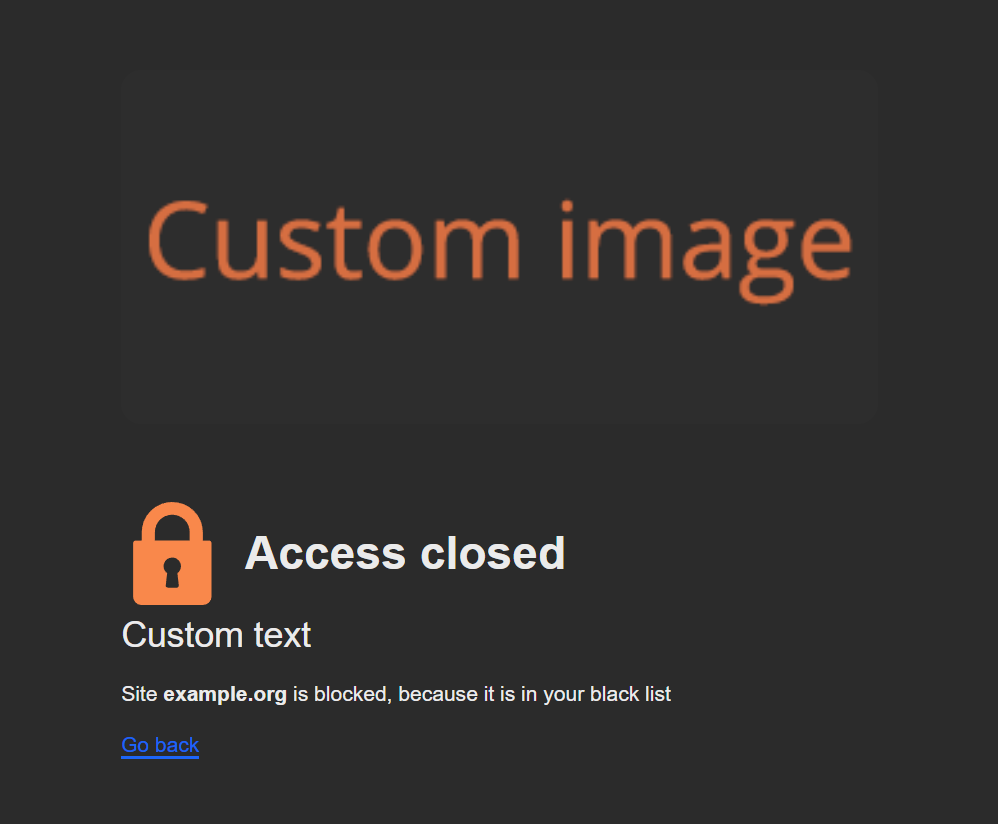
- **HTML block page** - block page with the HTML support.  
    The following variables are supported: 
    - *$website* - shows the address of a blocked website.
    - *$domain* - shows the domain part of the *$website*.
    - *$reason* - shows the reason of the block, supports language prefix.
    - *$category* - shows the filtering category(-ies) of the blocked *$domain*, supports language prefix.

<p class="callout info">You can add a language prefix to translate the *$reason* and *$category* variables (e.g *$fr:reason, $ar:category*).  
List of available languages: sq (Albanian), ar (Arabic), es (Spanish), sv (Swedish), tr (Turkish), it (Italian), en (English), ur (Urdu), pt\_BR (Brazilian Portuguese), fr (French), de (German).</p>

<details id="bkmrk-html-blockpage-examp"><summary>HTML blockpage example</summary>

```HTML

<html lang="en" dir="ltr">
<head>
<meta http-equiv="content-type" content="text/html; charset=utf-8">
<title>Website Blocked</title>
<style media="screen" type="text/css">
body { font-family: Tahoma, sans-serif; font-size: 16px; color: #444; text-align: left; background-color:white; width: 100%; height: 100%; margin: 0; padding: 0; }
h1 { font-size: 32px; letter-spacing: -1px; font-weight: bold; color: #659ebf; text-align: center; margin-top: 20px; margin-bottom: 20px; }
a { color: #659ebf; font-weight: bold; text-decoration: none; }
.micro { font-size: 13px; text-align: center; }
.med { font-size: 13px; }
</style>
</head>
<body>
<table id="f" style="width: 100%; height: 100%; border: 1px solid black; display: none;">
<tbody>
<tr><td style="font:normal 10px Tahoma, sans-serif;color:#333;text- align:center;">Content is Blocked</td></tr>
</tbody>
</table>
<table id="b" style="width: 600px;" align="center">
<tbody>
<tr>
<td>
<div align="center">
<img src="//YOUR.WEBSITE/YOUR-LOGO.PNG" border="0">
</div>
<h1>You have been denied access to this website. For further info please contact YOUR@EMAIL.COM</h1>
<div id="detailed-info">
<p><strong>$website $reason</strong></p>
</div>
<div class="report-form">
<p class="med">If the categories are listed incorrectly, press the 'Report' button below.</p>
<form method="post" action="mailto:YOUR@EMAIL.COM?subject=$website">
<div align="center">
<input name="send" value="Report" style="height:30px;" type="submit">
</div>
</form>
</div>
</td>
</tr>
</tbody>
</table>
</body>
</html>
```

Please change the "**//YOUR.WEBSITE/YOUR-LOGO.PNG**" and "**YOUR@EMAIL.COM**" in the lines 25, 27, and 33 accordingly.  
[![Screenshot_26.png](https://docs.safedns.com/uploads/images/gallery/2023-10/scaled-1680-/cFfR61qN7KqGNg4A-screenshot-26.png)](https://docs.safedns.com/uploads/images/gallery/2023-10/cFfR61qN7KqGNg4A-screenshot-26.png)

</details>- **Hidden block page with the emulation of the website error** - block page that imitates browser's website error.  
    [![Screenshot_28.png](https://docs.safedns.com/uploads/images/gallery/2023-10/scaled-1680-/rscuPVUhsqSdVUkE-screenshot-28.png)](https://docs.safedns.com/uploads/images/gallery/2023-10/rscuPVUhsqSdVUkE-screenshot-28.png)
- **Empty DNS answer, as if the blocked website does not exist** - block page that imitates NXDOMAIN browser error.  
    [![Screenshot_27.png](https://docs.safedns.com/uploads/images/gallery/2023-10/scaled-1680-/qSev1nfKNi4NMd5T-screenshot-27.png)](https://docs.safedns.com/uploads/images/gallery/2023-10/qSev1nfKNi4NMd5T-screenshot-27.png)

<p class="callout info">The availability of a certain block page type depends on your billing plan.</p>

You can always edit the block page type by clicking on the pencil icon to the right.  
[![3.BlockPage.png](https://docs.safedns.com/uploads/images/gallery/2024-08/scaled-1680-/27QoGtcmjHoxfEq1-3-blockpage.png)](https://docs.safedns.com/uploads/images/gallery/2024-08/27QoGtcmjHoxfEq1-3-blockpage.png)
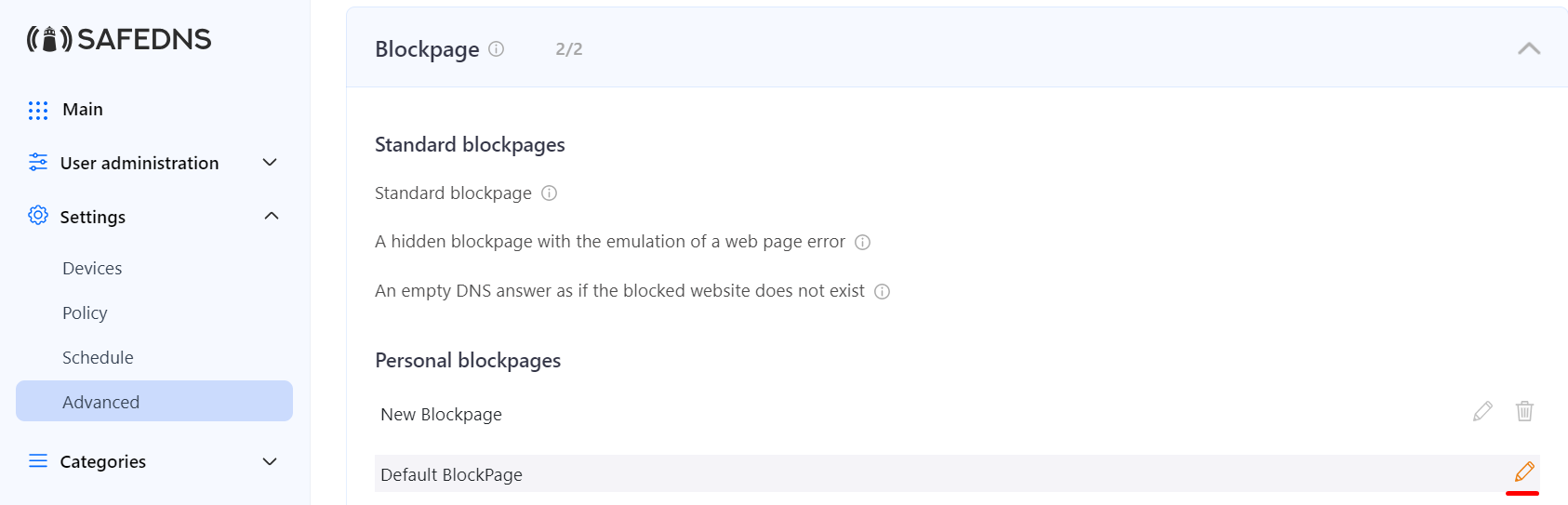
---

#### Applying custom block page

To create a custom block page, do the following:

1. Navigate to **Settings &gt; Policy**.
2. Click on the pencil icon to the right from the filtering policy.
3. Select the custom block page from the dropdown menu.
4. Click on the green check mark to save the changes.  
    [![4.BlockPage.png](https://docs.safedns.com/uploads/images/gallery/2024-08/scaled-1680-/gMImjMfPTULXXNUA-4-blockpage.png)](https://docs.safedns.com/uploads/images/gallery/2024-08/gMImjMfPTULXXNUA-4-blockpage.png)
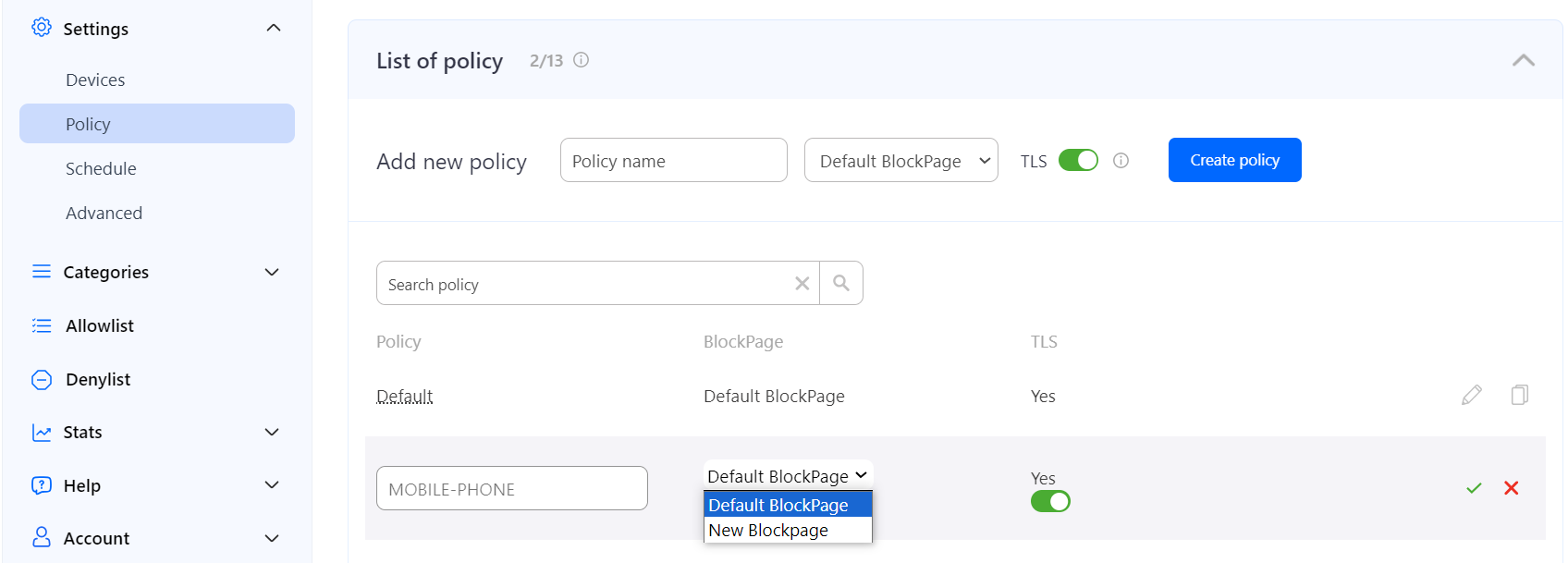
Please note that the SafeDNS TLS certificate should be installed on each end device where you want HTTPS pages to display correctly. Without the certificate, block page will be displayed for HTTP websites only.

[SafeDNS Root CA certificate installation guide](https://docs.safedns.com/books/guides/page/safedns-root-certificate-for-https-pages).

</body></html>

# NAT DNS Setup

<p class="callout warning">This feature is not available for the Safe Home and Basic plans.</p>

- Network Address Translation or NAT is frequently used in corporate networks. It allows network owners and administrators to:  
    • decrease the number of static IPs  
    • secure local networks  
    • prevent unwanted external access to the local hosts  
    • hide the entire internal network structure

**NAT DNS** is a SafeDNS service feature designed to apply different filtering policies to different networking hardware (routers, gateways, etc.) behind NAT with one public IP.

<p class="callout warning">Your networking hardware should be set up according to the SafeDNS instructions.</p>

[![1. NAT DNS Setup Guide.png](https://docs.safedns.com/uploads/images/gallery/2022-08/scaled-1680-/qUL6Dz5F01j0PhjU-1-nat-dns-setup-guide.png)](https://docs.safedns.com/uploads/images/gallery/2022-08/qUL6Dz5F01j0PhjU-1-nat-dns-setup-guide.png)

---

#### NAT DNS setup

1. Enter the **Dashboard &gt; Settings**. Assign the **Public IP** of a NAT device to one of the existing filtering policies under the “IP addresses / DynDNS” section. (to use NAT DNS you must have 2 or more policies).
2. Manually or via DHCP set up the **target DNSes** on the end devices (routers or gateways behind NAT).  
      
    List of target DNS addresses:**  
    <p class="callout info">*195.46.39.101 195.46.39.102 195.46.39.103 195.46.39.104 195.46.39.105* </p>
3. In the **Dashboard &gt; Settings**, scroll down to the bottom, and assign policies to the **Target IPs** (one IP = one policy). Click on the green checkmark to apply settings.[![1.NAT_DNS.png](https://docs.safedns.com/uploads/images/gallery/2024-08/scaled-1680-/tNmfrTRXqOMdQdlU-1-nat-dns.png)](https://docs.safedns.com/uploads/images/gallery/2024-08/tNmfrTRXqOMdQdlU-1-nat-dns.png)

After that, all devices behind NAT will be filtered by the chosen policy.

You can view the stats for each **Target IP** by selecting its policy in the **Stats** tab.

<p class="callout warning">This feature works only for networks behind NAT. If you use a proxy server, the NAT DNS filtering option will not work, because in proxy server’s settings will be applied instead.</p>

<p class="callout warning">Please note that settings take 5-7 minutes to apply.  
Stats and filtering status update every 10 minutes.  
</p>

# Top-level Domains Blocking

If you want to block any top-level domain, just add it without a leading dot to your **Denylist**.

For example, if you want to block access to all websites in the RU domain zone, add **ru** to your Denylist.

[![1.Top_level_domains.png](https://docs.safedns.com/uploads/images/gallery/2024-08/scaled-1680-/qc01gDcM9A0rtJXI-1-top-level-domains.png)](https://docs.safedns.com/uploads/images/gallery/2024-08/qc01gDcM9A0rtJXI-1-top-level-domains.png)

Internationalized country code top-level domains should be added to the Denylist list in the IDN form:   
**中国** (Chinese IDN ccTLD), **рф** (Russian IDN ccTLD), etc.

<p class="callout info">A full list of top-level domains can be found on the [IANA website](https://www.iana.org/domains/root/db) and [Wikipedia](https://en.wikipedia.org/wiki/Country_code_top-level_domain).</p>

<p class="callout warning">Please note that settings take 5-7 minutes to apply.  
Stats and filtering status update every 10 minutes.  
</p>

# Encrypted DNS Setup (DoH/DoT)

This guide explains how to set up **DNS-over-HTTPS (DoH)** / **DNS-over-TLS (DoT)** links using the **Encrypted DNS** section of the SafeDNS Dashboard and how to enable **DoH/DoT** in the **SafeDNS Agent**.

---


#### Creating DoH/DoT link

<p class="callout warning">**Please note that DoH/DoT links with the filtering policy token are available on Pro, Pro Plus, and Education &amp; Non-Profit plans only.**  
**Other plans can use the DoH/DoT link without the filtering policy (explained below).**</p>

##### Links with the filtering policy

<p class="callout info">**This type of link works in any network and does not require adding the IP address of the network in the SafeDNS Dashboard.**</p>

1\. Navigate to the SafeDNS **Dashboard &gt; Settings** and create a new record in the **Encrypted DNS** table with a required filtering policy.

[![1-encrypted-dns-setup.png](https://docs.safedns.com/uploads/images/gallery/2025-07/scaled-1680-/xhOea79Ix5oR1Esa-1-encrypted-dns-setup.png)](https://docs.safedns.com/uploads/images/gallery/2025-07/xhOea79Ix5oR1Esa-1-encrypted-dns-setup.png)

2\. Click **Copy link**.

##### Links without the filtering policy

<p class="callout warning">**Please note that this method works only when the device with the link is located in the network specified in the SafeDNS Dashboard.**</p>

1\. Navigate to the SafeDNS **Dashboard &gt; Settings** and copy your IP address in the "**Enter an IP address or DynDNS**" box. Click "**Add**".

[![2-encrypted-dns-setup.png](https://docs.safedns.com/uploads/images/gallery/2025-07/scaled-1680-/jXq0pdSgi3RxcnSo-2-encrypted-dns-setup.png)](https://docs.safedns.com/uploads/images/gallery/2025-07/jXq0pdSgi3RxcnSo-2-encrypted-dns-setup.png)

2\. Use **https://doh.safedns.com** as a DoH/DoT link.

---

#### Using DoH/DoT links

Links can be used on various devices, operating systems, and browsers. Below are some popular examples.

##### Operating systems

<details id="bkmrk-windows-11-1.-open-s"><summary>Windows 11</summary>

1\. Open **Start** on Windows 11.  
2\. Search for **Settings** and click the top result to open the app.  
3\. Click on **Network &amp; internet**.  
4\. Click the **Ethernet** or **Wi-Fi** tab (depending on the active connection).  
 If you have a Wi-Fi connection, click on the connection properties setting to access the settings.  
5\. Click the **Edit** button in the "DNS server assignment" setting.  
[![1-encrypted-dns-windows-setup.png](https://docs.safedns.com/uploads/images/gallery/2025-07/scaled-1680-/lilyZYQNBGQRZawV-1-encrypted-dns-windows-setup.png)](https://docs.safedns.com/uploads/images/gallery/2025-07/lilyZYQNBGQRZawV-1-encrypted-dns-windows-setup.png)  
6\. Select the **Manual** option from the drop-down menu.  
7\. Turn on the **IPv4** toggle switch.  
8\. Under the **Preferred DNS** and **Alternate DNS** sections, enter the created **DoH/DoT link**.  
[![2-encrypted-dns-windows-setup.png](https://docs.safedns.com/uploads/images/gallery/2025-07/scaled-1680-/FT6Sgds3ZjnPzgkg-2-encrypted-dns-windows-setup.png)](https://docs.safedns.com/uploads/images/gallery/2025-07/FT6Sgds3ZjnPzgkg-2-encrypted-dns-windows-setup.png)  
9\. Use the **DNS over HTTPS** drop-down menu and select the **On (automatic template)** option.  
10\. Turn off the **Fallback to plaintext** toggle.  
11\. Click **Save**.

</details><details id="bkmrk-android-private-dns-"><summary>Android Private DNS</summary>

1\. Navigate to **Settings &gt;** **Network &amp; internet.** (on some devices - More connectivity options).  
2\. Select **Advanced &gt;** **Private DNS**. (on some devices it is under **Advanced** or **More** options).  
[![1-encrypted-dns-android-setup.png](https://docs.safedns.com/uploads/images/gallery/2025-07/scaled-1680-/wa58rFMg6Yh7Z36w-1-encrypted-dns-android-setup.png)](https://docs.safedns.com/uploads/images/gallery/2025-07/wa58rFMg6Yh7Z36w-1-encrypted-dns-android-setup.png)  
3\. Select the **Private DNS provider hostname** option.  
[![2-encrypted-dns-android-setup.png](https://docs.safedns.com/uploads/images/gallery/2025-07/scaled-1680-/uny9wDpsQN1Zr3dt-2-encrypted-dns-android-setup.png)](https://docs.safedns.com/uploads/images/gallery/2025-07/uny9wDpsQN1Zr3dt-2-encrypted-dns-android-setup.png)  
4\. Add the **DoH/DoT link** and select **Save**.  
[![3-encrypted-dns-android-setup.png](https://docs.safedns.com/uploads/images/gallery/2025-07/scaled-1680-/VrYOwY46Fet5hfzT-3-encrypted-dns-android-setup.png)](https://docs.safedns.com/uploads/images/gallery/2025-07/VrYOwY46Fet5hfzT-3-encrypted-dns-android-setup.png)

</details>##### Browsers

<details id="bkmrk-microsoft-edge-1.-op"><summary>Microsoft Edge</summary>

1\. Open **Settings**.  
2\. Navigate to **Privacy, search, and services**.  
3\. Scroll down to **Security**.  
4\. Select **Choose a service provider**.  
5\. Add the **DoH/DoT link**.  
[![1-encrypted-dns-edge-setup.png](https://docs.safedns.com/uploads/images/gallery/2025-07/scaled-1680-/2rdy7HycCb7gHoKb-1-encrypted-dns-edge-setup.png)](https://docs.safedns.com/uploads/images/gallery/2025-07/2rdy7HycCb7gHoKb-1-encrypted-dns-edge-setup.png)

</details><details id="bkmrk-google-chrome-1.-ope"><summary>Google Chrome</summary>

1\. Open **Settings**.  
2\. Navigate to **Privacy and security** and click on the **Security** section.  
3\. Scroll down to **Use secure DNS**.  
4\. Choose **Add custom DNS service provider** from the dropdown menu.  
5\. Add the **DoH/DoT link**.  
[![1-encrypted-dns-chrome-setup.png](https://docs.safedns.com/uploads/images/gallery/2025-07/scaled-1680-/7SQYYwuAiWlLy0uv-1-encrypted-dns-chrome-setup.png)](https://docs.safedns.com/uploads/images/gallery/2025-07/7SQYYwuAiWlLy0uv-1-encrypted-dns-chrome-setup.png)

</details><details id="bkmrk-mozilla-firefox-1.-o"><summary>Mozilla Firefox</summary>

1\. Open **Settings**.  
2\. Select **Privacy &amp; Security** and scroll down to the **DNS over HTTPS** section.  
3\. Select **Max Protection**.  
4\. Click the "**Choose provider**" dropdown menu and select **Custom**.  
5\. Add the **DoH/DoT link**.  
[![1-encrypted-dns-firefox-setup.png](https://docs.safedns.com/uploads/images/gallery/2025-07/scaled-1680-/PU4vWHI62V16QmZn-1-encrypted-dns-firefox-setup.png)](https://docs.safedns.com/uploads/images/gallery/2025-07/PU4vWHI62V16QmZn-1-encrypted-dns-firefox-setup.png)

</details>---

#### DNS-over-TLS

Created links can also be used in devices and applications that support DoT.

You can also set up DoT without creating the link in the Encrypted DNS section [using this guide](https://docs.safedns.com/books/installation-guides/page/dns-over-tls-using-stubby).

---


#### Using DoH/DoT in the SafeDNS Agent


<p class="callout info">**This method does not require a link. It is provided as part of the [Mac](https://docs.safedns.com/books/installation-guides/page/safedns-agent-for-macos-setup) and [Windows](https://docs.safedns.com/books/installation-guides/page/safedns-agent-for-windows-setup) SafeDNS Agents.**</p>

1\. Open the SafeDNS Agent interface.  
2\. Navigate to **Settings**.  
3\. In the **Protocols** section, click on the **DOH** or **DOT** to use the respective protocol.

[![agent doh.png](https://docs.safedns.com/uploads/images/gallery/2026-02/scaled-1680-/9ohue3Fg1vuzhK5k-agent-doh.png)](https://docs.safedns.com/uploads/images/gallery/2026-02/9ohue3Fg1vuzhK5k-agent-doh.png)