# Mobile & tablet


# SafeDNS App for Android Setup

SafeDNS Agent is an application that allows you to use SafeDNS filtering on mobile devices running Android.

<p class="callout info">Supported Android versions: **5 or higher**.  
Supported devices: **Samsung, Pixel, Lenovo**.  
The Agent is available on the following billing plans: **Safe Family, Pro, Pro Plus,** and archived **Safe@Home, Safe@Office**.</p>

<figure class="kg-card kg-bookmark-card" id="bkmrk-safedns-agent---apps"><div class="kg-bookmark-content"><div class="kg-bookmark-title">[⤵SafeDNS Agent - App on Google Play](https://play.google.com/store/apps/details?id=com.safedns.agent)</div><div class="kg-bookmark-title">Alternative .apk installation file download: [https://safedns.com/downloads/safedns-2\_1\_6\_3-debug.apk](https://safedns.com/downloads/safedns-2_1_6_3-debug.apk)</div></div></figure>---

#### Getting started

1\. Install the app from Google Play, and run the SafeDNS Agent app.

[![1.SafeDNS App for Android Setup Guide .png](https://docs.safedns.com/uploads/images/gallery/2022-08/scaled-1680-/hf5HbB7WKu4CCwOV-1-safedns-app-for-android-setup-guide.png)](https://docs.safedns.com/uploads/images/gallery/2022-08/hf5HbB7WKu4CCwOV-1-safedns-app-for-android-setup-guide.png)

2\. Press the "Get started" button.

[![2.SafeDNS App for Android Setup Guide .png](https://docs.safedns.com/uploads/images/gallery/2022-08/scaled-1680-/UUmq4gs0etKBWrGz-2-safedns-app-for-android-setup-guide.png)](https://docs.safedns.com/uploads/images/gallery/2022-08/UUmq4gs0etKBWrGz-2-safedns-app-for-android-setup-guide.png)

3\. Press "Sign in" if you already have a SafeDNS account, and go to **Step 5**.

Otherwise, press "Register".

[![3.SafeDNS App for Android Setup Guide .png](https://docs.safedns.com/uploads/images/gallery/2022-08/scaled-1680-/itSOEB0w25EauNnH-3-safedns-app-for-android-setup-guide.png)](https://docs.safedns.com/uploads/images/gallery/2022-08/itSOEB0w25EauNnH-3-safedns-app-for-android-setup-guide.png)

4\. Fill in the required fields and press "Register".

[![4.SafeDNS App for Android Setup Guide .png](https://docs.safedns.com/uploads/images/gallery/2022-08/scaled-1680-/gth23HslcmAlLVsW-4-safedns-app-for-android-setup-guide.png)](https://docs.safedns.com/uploads/images/gallery/2022-08/gth23HslcmAlLVsW-4-safedns-app-for-android-setup-guide.png)

5\. Enter your SafeDNS account email (or username) and password, and press "Sign in".

[![5.SafeDNS App for Android Setup Guide .png](https://docs.safedns.com/uploads/images/gallery/2022-08/scaled-1680-/WStX8cqxJp3JKRwJ-5-safedns-app-for-android-setup-guide.png)](https://docs.safedns.com/uploads/images/gallery/2022-08/WStX8cqxJp3JKRwJ-5-safedns-app-for-android-setup-guide.png)

6\. Create and confirm a PIN code for quick access to the application.

[![6.SafeDNS App for Android Setup Guide .png](https://docs.safedns.com/uploads/images/gallery/2022-08/scaled-1680-/Bf0BJXOOejZhJHgv-6-safedns-app-for-android-setup-guide.png)](https://docs.safedns.com/uploads/images/gallery/2022-08/Bf0BJXOOejZhJHgv-6-safedns-app-for-android-setup-guide.png)

7\. Press "Download certificate" to install the SafeDNS root certificate. This step is necessary for the correct display of the block page on HTTPS sites.

Please note that the filtering still works without the installed certificate.

[![7.SafeDNS App for Android Setup Guide .png](https://docs.safedns.com/uploads/images/gallery/2022-08/scaled-1680-/OGpBb236YiQoSrVy-7-safedns-app-for-android-setup-guide.png)](https://docs.safedns.com/uploads/images/gallery/2022-08/OGpBb236YiQoSrVy-7-safedns-app-for-android-setup-guide.png)

8\. Press "Activate now" and "Activate device admin" to enable the feature that prevents unauthorized users from deleting the application and disabling filtering on the device.

[![8.SafeDNS App for Android Setup Guide .png](https://docs.safedns.com/uploads/images/gallery/2022-08/scaled-1680-/0X0apXBdU6LavzMH-8-safedns-app-for-android-setup-guide.png)](https://docs.safedns.com/uploads/images/gallery/2022-08/0X0apXBdU6LavzMH-8-safedns-app-for-android-setup-guide.png)

[![9.SafeDNS App for Android Setup Guide .png](https://docs.safedns.com/uploads/images/gallery/2022-08/scaled-1680-/JXOa3QVdTfHuIjFt-9-safedns-app-for-android-setup-guide.png)](https://docs.safedns.com/uploads/images/gallery/2022-08/JXOa3QVdTfHuIjFt-9-safedns-app-for-android-setup-guide.png)

9\. Press "Allow now", then find the SafeDNS app in the suggested list and set the permission switch to **ON**.

[![10.SafeDNS App for Android Setup Guide .png](https://docs.safedns.com/uploads/images/gallery/2022-08/scaled-1680-/MhZ9LNMRhV5XyQAk-10-safedns-app-for-android-setup-guide.png)](https://docs.safedns.com/uploads/images/gallery/2022-08/MhZ9LNMRhV5XyQAk-10-safedns-app-for-android-setup-guide.png)

[![11.SafeDNS App for Android Setup Guide .png](https://docs.safedns.com/uploads/images/gallery/2022-08/scaled-1680-/TzcRqisR95lX7psU-11-safedns-app-for-android-setup-guide.png)](https://docs.safedns.com/uploads/images/gallery/2022-08/TzcRqisR95lX7psU-11-safedns-app-for-android-setup-guide.png)

10\. Press "Allow now", then find the SafeDNS app in the suggested list and set the permission switch to **ON**.

[![12. SafeDNS App for Android Setup Guide .png](https://docs.safedns.com/uploads/images/gallery/2022-08/scaled-1680-/xoGZ9HrNGKHJmpI5-12-safedns-app-for-android-setup-guide.png)](https://docs.safedns.com/uploads/images/gallery/2022-08/xoGZ9HrNGKHJmpI5-12-safedns-app-for-android-setup-guide.png)

[![13.SafeDNS App for Android Setup Guide .png](https://docs.safedns.com/uploads/images/gallery/2022-08/scaled-1680-/SvRUfYOzkxpP03kq-13-safedns-app-for-android-setup-guide.png)](https://docs.safedns.com/uploads/images/gallery/2022-08/SvRUfYOzkxpP03kq-13-safedns-app-for-android-setup-guide.png)

11\. Press "Allow now", then tap "Ok" to allow SafeDNS Agent to create a VPN connection.

[![14.SafeDNS App for Android Setup Guide .png](https://docs.safedns.com/uploads/images/gallery/2022-08/scaled-1680-/I1vsETcuttKL9WK1-14-safedns-app-for-android-setup-guide.png)](https://docs.safedns.com/uploads/images/gallery/2022-08/I1vsETcuttKL9WK1-14-safedns-app-for-android-setup-guide.png)

[![15.SafeDNS App for Android Setup Guide .png](https://docs.safedns.com/uploads/images/gallery/2022-08/scaled-1680-/19emxzdygrNiy1DP-15-safedns-app-for-android-setup-guide.png)](https://docs.safedns.com/uploads/images/gallery/2022-08/19emxzdygrNiy1DP-15-safedns-app-for-android-setup-guide.png)

12\. Press "Go to website" to visit the SafeDNS Dashboard and set up the filtering.

If the filtering is already configured, swipe this screen to the left and press "Got it" to complete the installation.

[![16.SafeDNS App for Android Setup Guide .png](https://docs.safedns.com/uploads/images/gallery/2022-08/scaled-1680-/OOkRelWzv9XuicE1-16-safedns-app-for-android-setup-guide.png)](https://docs.safedns.com/uploads/images/gallery/2022-08/OOkRelWzv9XuicE1-16-safedns-app-for-android-setup-guide.png)

[![17.SafeDNS App for Android Setup Guide .png](https://docs.safedns.com/uploads/images/gallery/2022-08/scaled-1680-/cwUFiogGzM5qjzKr-17-safedns-app-for-android-setup-guide.png)](https://docs.safedns.com/uploads/images/gallery/2022-08/cwUFiogGzM5qjzKr-17-safedns-app-for-android-setup-guide.png)

---

#### App settings

If you want to change the filtering settings after installing the application, open the SafeDNS Agent application and enter your PIN code.

[![18.SafeDNS App for Android Setup Guide .png](https://docs.safedns.com/uploads/images/gallery/2022-08/scaled-1680-/spLaU3kSbNvCRFMY-18-safedns-app-for-android-setup-guide.png)](https://docs.safedns.com/uploads/images/gallery/2022-08/spLaU3kSbNvCRFMY-18-safedns-app-for-android-setup-guide.png)

You will be taken to the main screen of the application. Here you can disable filtering using the slider, change the filtering policy (after installation, the Default policy is applied), or go to the SafeDNS Dashboard. To go to the Dashboard, press on the three bars in the upper left corner and pick "Filtering settings".

[![19.SafeDNS App for Android Setup Guide .png](https://docs.safedns.com/uploads/images/gallery/2022-08/scaled-1680-/1gtYTMmF7fOMsNw7-19-safedns-app-for-android-setup-guide.png)](https://docs.safedns.com/uploads/images/gallery/2022-08/1gtYTMmF7fOMsNw7-19-safedns-app-for-android-setup-guide.png)

In your Dashboard, you can configure filtering categories, manage exceptions in Allow/Deny lists, and much more.

[![SafeDNS App for Android Setup 1.png](https://docs.safedns.com/uploads/images/gallery/2024-08/scaled-1680-/K6xC3ByH1BQtwxee-safedns-app-for-android-setup-1.png)](https://docs.safedns.com/uploads/images/gallery/2024-08/K6xC3ByH1BQtwxee-safedns-app-for-android-setup-1.png)

[![SafeDNS App for Android Setup 2.png](https://docs.safedns.com/uploads/images/gallery/2024-08/scaled-1680-/72vc0cmpWhlym9jn-safedns-app-for-android-setup-2.png)](https://docs.safedns.com/uploads/images/gallery/2024-08/72vc0cmpWhlym9jn-safedns-app-for-android-setup-2.png)

[![22.SafeDNS App for Android Setup Guide .png](https://docs.safedns.com/uploads/images/gallery/2022-08/scaled-1680-/5HZ3rJxv7ZRK2B49-22-safedns-app-for-android-setup-guide.png)](https://docs.safedns.com/uploads/images/gallery/2022-08/5HZ3rJxv7ZRK2B49-22-safedns-app-for-android-setup-guide.png)

After setting up the filtering, check its operation by trying to access one of the sites you blocked. If you see the block page instead of the site, everything is configured correctly.

<div class="pointer-container" id="bkmrk-%C2%A0"><div class="pointer anim is-page-editable"><svg class="svg-icon" data-icon="link" role="presentation" viewbox="0 0 24 24" xmlns="http://www.w3.org/2000/svg"></svg><div class="input-group inline block"> <button class="button outline icon" data-clipboard-target="#pointer-url" title="Copy Link" type="button"><svg class="svg-icon" data-icon="copy" role="presentation" viewbox="0 0 24 24" xmlns="http://www.w3.org/2000/svg"></svg></button></div><svg class="svg-icon" data-icon="edit" role="presentation" viewbox="0 0 24 24" xmlns="http://www.w3.org/2000/svg"></svg></div></div><p class="callout warning">Please note that settings take 5-7 minutes to apply.  
Stats and filtering status update every 10 minutes.  
</p>

# Android DNS Setup

This guide explains how to set up the DNS filtering by changing the DNS server on the Android device.

For the Android Private DNS setup, please [use this guide](https://docs.safedns.com/books/installation-guides/page/encrypted-dns-setup-dohdot).

---

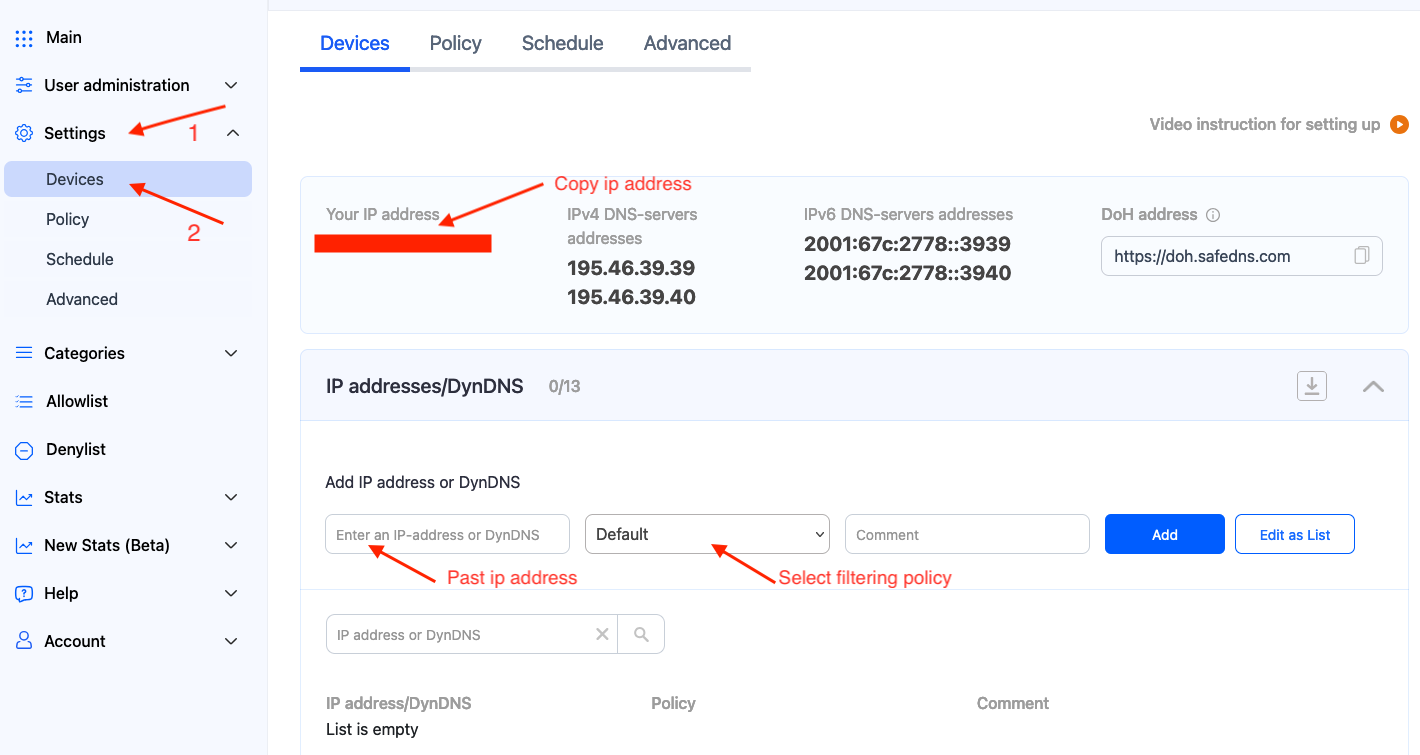
1\. Navigate to the SafeDNS **Dashboard &gt; Settings** and copy your IP address in the "**Enter an IP address or DynDNS**" box. Click "**Add**".

[![1. Android DNS Setup.png](https://docs.safedns.com/uploads/images/gallery/2024-08/scaled-1680-/8Y0tYayR50H9IAFz-1-android-dns-setup.png)](https://docs.safedns.com/uploads/images/gallery/2024-08/8Y0tYayR50H9IAFz-1-android-dns-setup.png)
<p class="callout warning">Please note, that the Android user interface varies depending on the device model.</p>

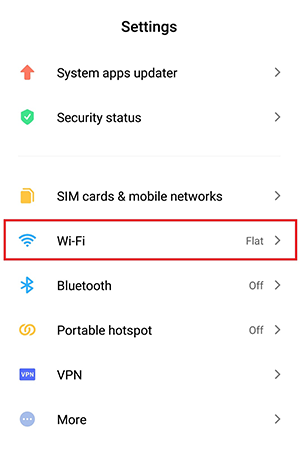
2\. Open the "Settings" app and navigate to the Wi-Fi menu.

[![1.Android DNS Setup Guide.png](https://docs.safedns.com/uploads/images/gallery/2022-08/scaled-1680-/tHxDhQfbHOwjwrbl-1-android-dns-setup-guide.png)](https://docs.safedns.com/uploads/images/gallery/2022-08/tHxDhQfbHOwjwrbl-1-android-dns-setup-guide.png)
3\. Press on arrow icon of your current Wi-Fi connection.

[![2.Android DNS Setup Guide.png](https://docs.safedns.com/uploads/images/gallery/2022-08/scaled-1680-/eK51sixfU330tKjS-2-android-dns-setup-guide.png)](https://docs.safedns.com/uploads/images/gallery/2022-08/eK51sixfU330tKjS-2-android-dns-setup-guide.png)
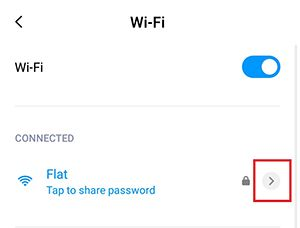
4\. In the Network Details press on the "IP settings – DHCP".

[![3.Android DNS Setup Guide.png](https://docs.safedns.com/uploads/images/gallery/2022-08/scaled-1680-/jd4IOYRpXnqERY6S-3-android-dns-setup-guide.png)](https://docs.safedns.com/uploads/images/gallery/2022-08/jd4IOYRpXnqERY6S-3-android-dns-setup-guide.png)
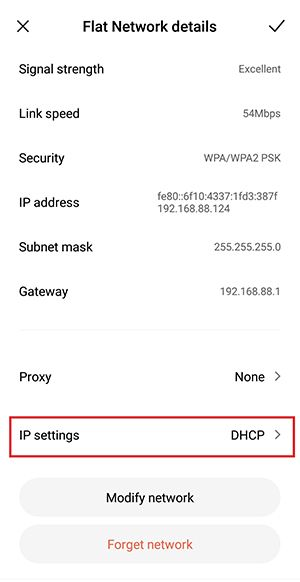
5\. Select the Static option and add the following addresses to DNS1 and DNS2 fields: **195.46.39.39** and **195.46.39.40**

Once the addresses are added, press the checkmark icon to save the settings.

[![4.Android DNS Setup Guide.png](https://docs.safedns.com/uploads/images/gallery/2022-08/scaled-1680-/CjZcQXpKtlXuxH7B-4-android-dns-setup-guide.png)](https://docs.safedns.com/uploads/images/gallery/2022-08/CjZcQXpKtlXuxH7B-4-android-dns-setup-guide.png)
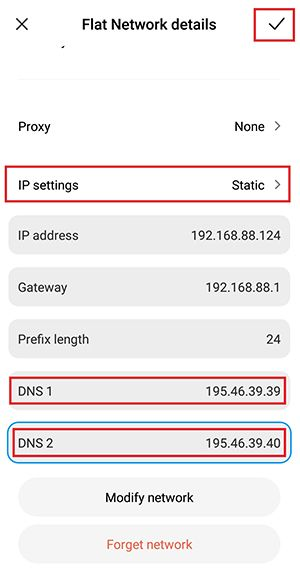
**Your Android device is now filtered with the SafeDNS filtering policy.**

<div class="pointer-container" id="bkmrk-%C2%A0"><div class="pointer anim is-page-editable"><svg class="svg-icon" data-icon="link" role="presentation" viewbox="0 0 24 24" xmlns="http://www.w3.org/2000/svg"></svg><div class="input-group inline block"> <button class="button outline icon" data-clipboard-target="#pointer-url" title="Copy Link" type="button"><svg class="svg-icon" data-icon="copy" role="presentation" viewbox="0 0 24 24" xmlns="http://www.w3.org/2000/svg"></svg></button></div><svg class="svg-icon" data-icon="edit" role="presentation" viewbox="0 0 24 24" xmlns="http://www.w3.org/2000/svg"></svg></div></div><p class="callout warning">Please note that settings take 5-7 minutes to apply.  
Stats and filtering status update every 10 minutes.  
</p>

# Mobile Devices Filtering Setup

<p class="callout warning">Please note, that this filtering option works via the third-party app OpenVPN.  
If you encounter any issues, please contact our Technical Support.</p>

---

#### iPhone and iPad

1\. Open the SafeDNS Dashboard and navigate to **Settings &gt; Devices**.

[![1. Mobile Devices Filtering Setup.png](https://docs.safedns.com/uploads/images/gallery/2024-08/scaled-1680-/LfDQGqhce3heupYk-1-mobile-devices-filtering-setup.png)](https://docs.safedns.com/uploads/images/gallery/2024-08/LfDQGqhce3heupYk-1-mobile-devices-filtering-setup.png)

2\. Scroll down to the VPN section, enter any name for a new VPN connection, and click Add.

Choose a filtering policy before adding a VPN connection, if needed.

[![2. Mobile Devices Filtering Setup.png](https://docs.safedns.com/uploads/images/gallery/2024-08/scaled-1680-/ankK8STLVWedwhVj-2-mobile-devices-filtering-setup.png)](https://docs.safedns.com/uploads/images/gallery/2024-08/ankK8STLVWedwhVj-2-mobile-devices-filtering-setup.png)
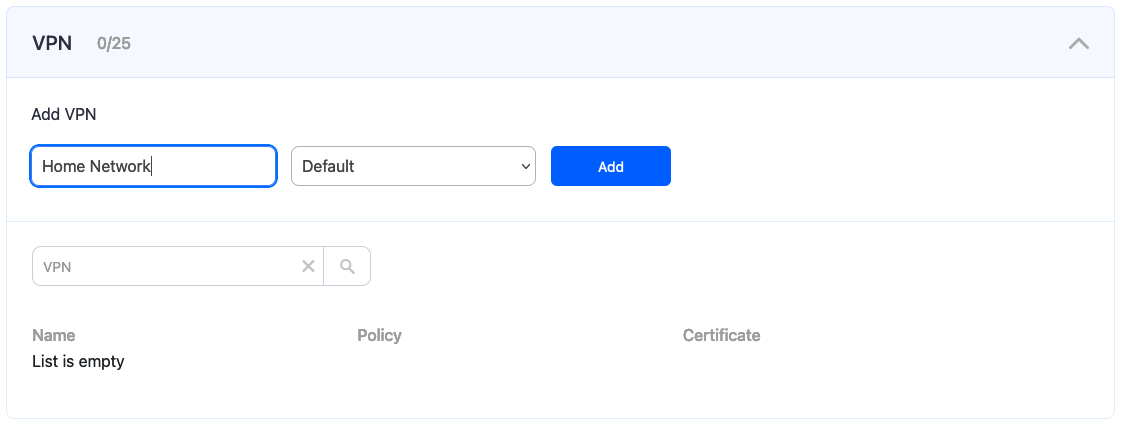
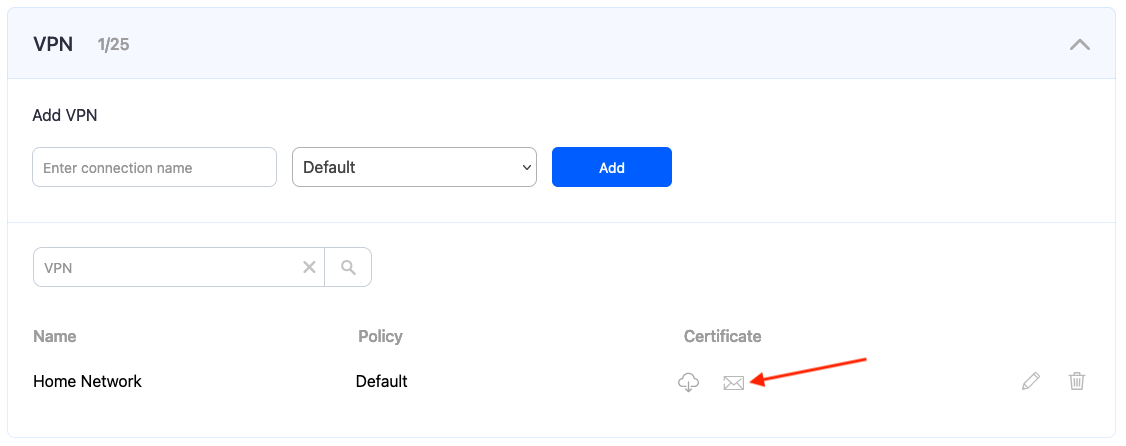
3\. Upon creating the connection, two icons will appear in the "Certificate" column. One is for downloading the Certificate, and the other is for sending it by email. Open your SafeDNS Dashboard on your mobile device, and press the "Cloud download" icon.  
Alternatively, you can click the "Letter" icon to send the configuration file to your SafeDNS account email.

Multiple devices can use the same filtering policy, but **each device should use its own VPN certificate**.

You can also change the filtering policy of the created VPN connection by clicking on the pencil icon to the right. Please note, that you don't need to redownload your VPN certificate on your mobile device if you change its filtering policy.

[![3. Mobile Devices Filtering Setup.png](https://docs.safedns.com/uploads/images/gallery/2024-08/scaled-1680-/LL1Nr5ToJlJuy48U-3-mobile-devices-filtering-setup.png)](https://docs.safedns.com/uploads/images/gallery/2024-08/LL1Nr5ToJlJuy48U-3-mobile-devices-filtering-setup.png)
4\. Install the **OpenVPN Connect** client from the App Store (the app is free of charge).

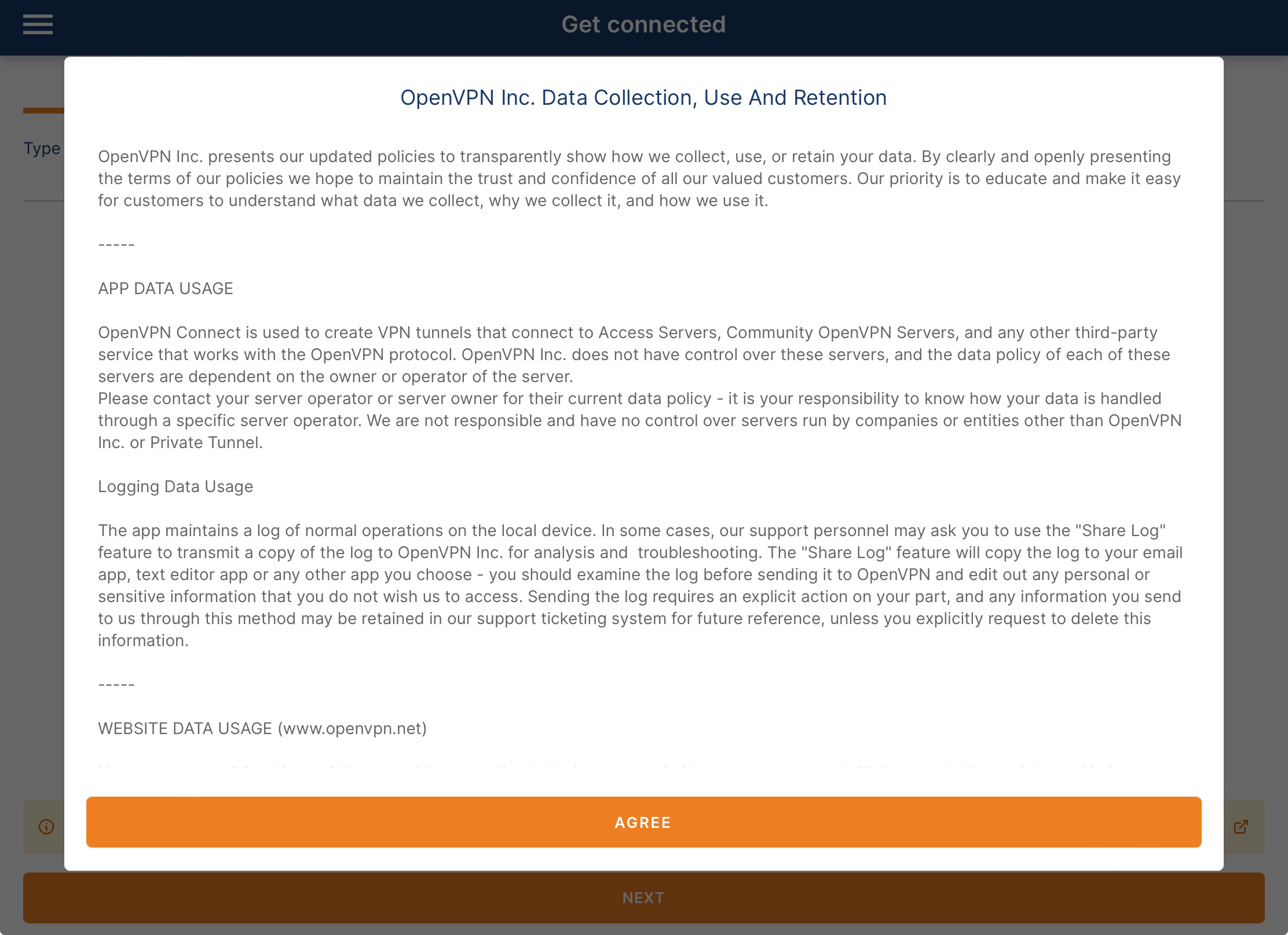
5\. Open the installed application and click **Agree** in the Privacy Policy pop-up.

[![opvpn_ipad1.png](https://docs.safedns.com/uploads/images/gallery/2024-08/scaled-1680-/qGlR4IboZWUM2tNl-opvpn-ipad1.png)](https://docs.safedns.com/uploads/images/gallery/2024-08/qGlR4IboZWUM2tNl-opvpn-ipad1.png)
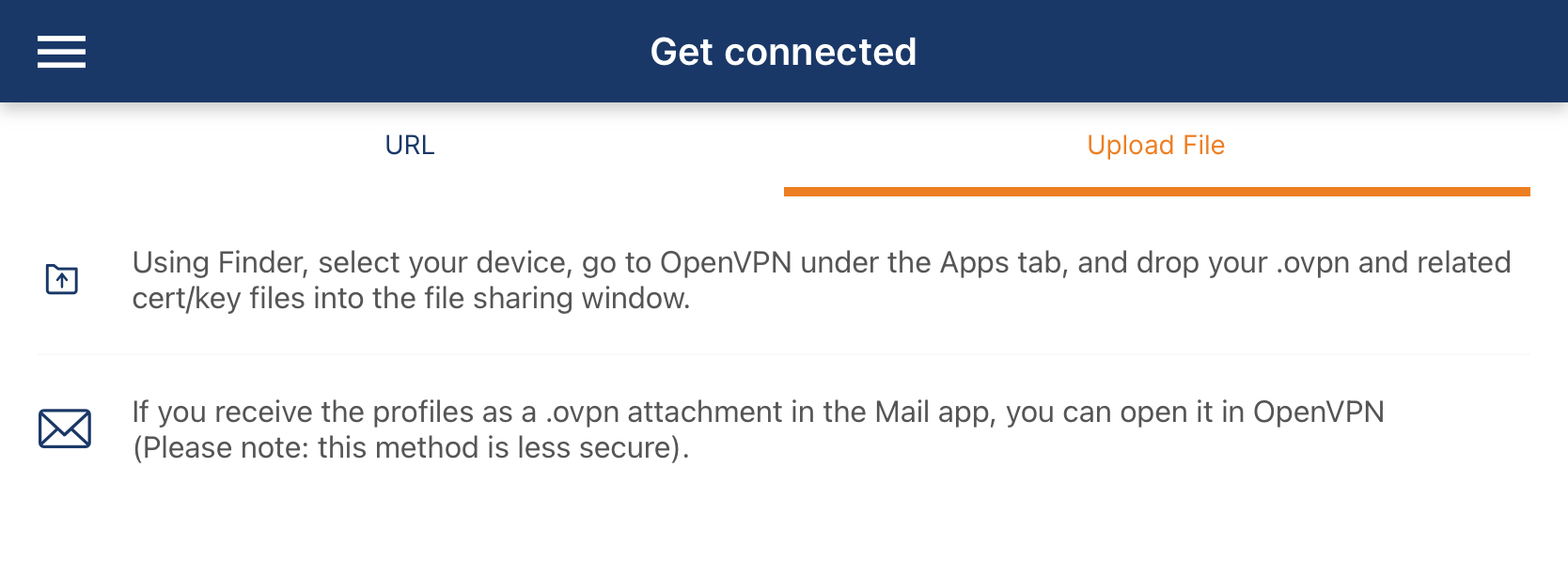
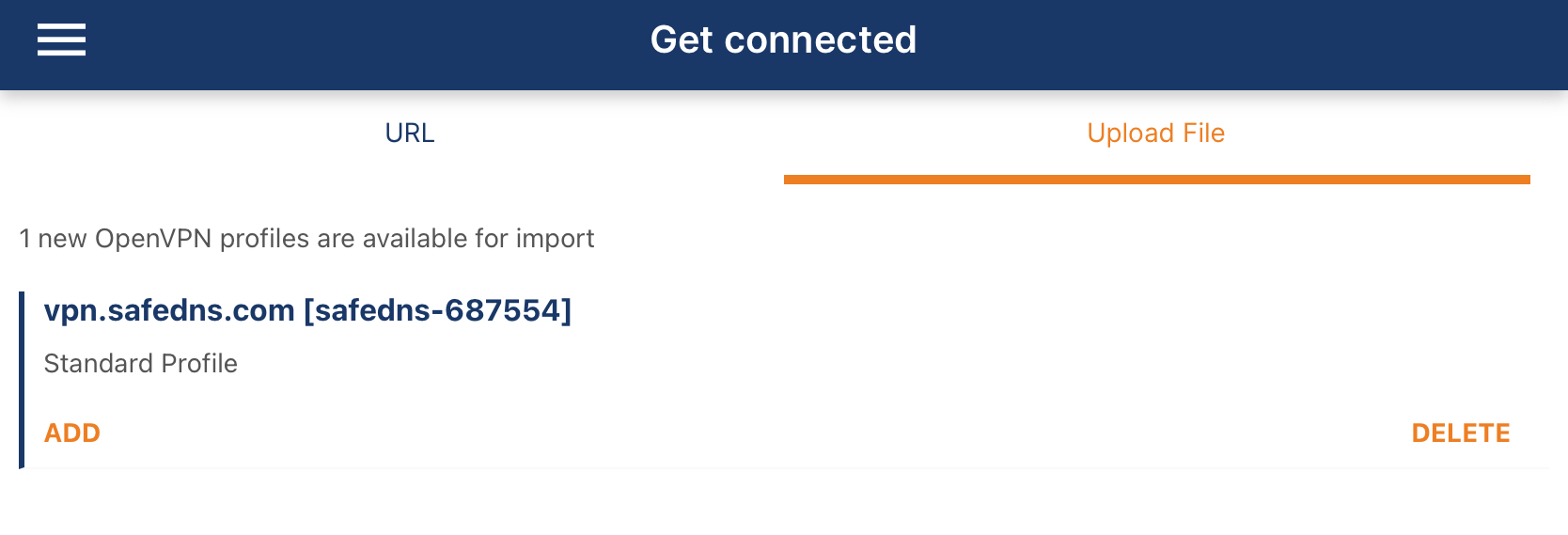
6\. Select the **Upload File** menu and import the downloaded .ovpn certificate file either from the Files or from the received mail.

The Certificate has the following name format: **safedns-123456.ovpn**

[![opvpn_ipad2.png](https://docs.safedns.com/uploads/images/gallery/2024-08/scaled-1680-/i5DCmF0m3zCirzXz-opvpn-ipad2.png)](https://docs.safedns.com/uploads/images/gallery/2024-08/i5DCmF0m3zCirzXz-opvpn-ipad2.png)
[![opvpn_ipad3.png](https://docs.safedns.com/uploads/images/gallery/2024-08/scaled-1680-/lBKQXfqfRjESd9Bw-opvpn-ipad3.png)](https://docs.safedns.com/uploads/images/gallery/2024-08/lBKQXfqfRjESd9Bw-opvpn-ipad3.png)7. Tap the **Connect** button.
[![opvpn_ipad4.png](https://docs.safedns.com/uploads/images/gallery/2024-08/scaled-1680-/8VagO9MtcpHoijHp-opvpn-ipad4.png)](https://docs.safedns.com/uploads/images/gallery/2024-08/8VagO9MtcpHoijHp-opvpn-ipad4.png)
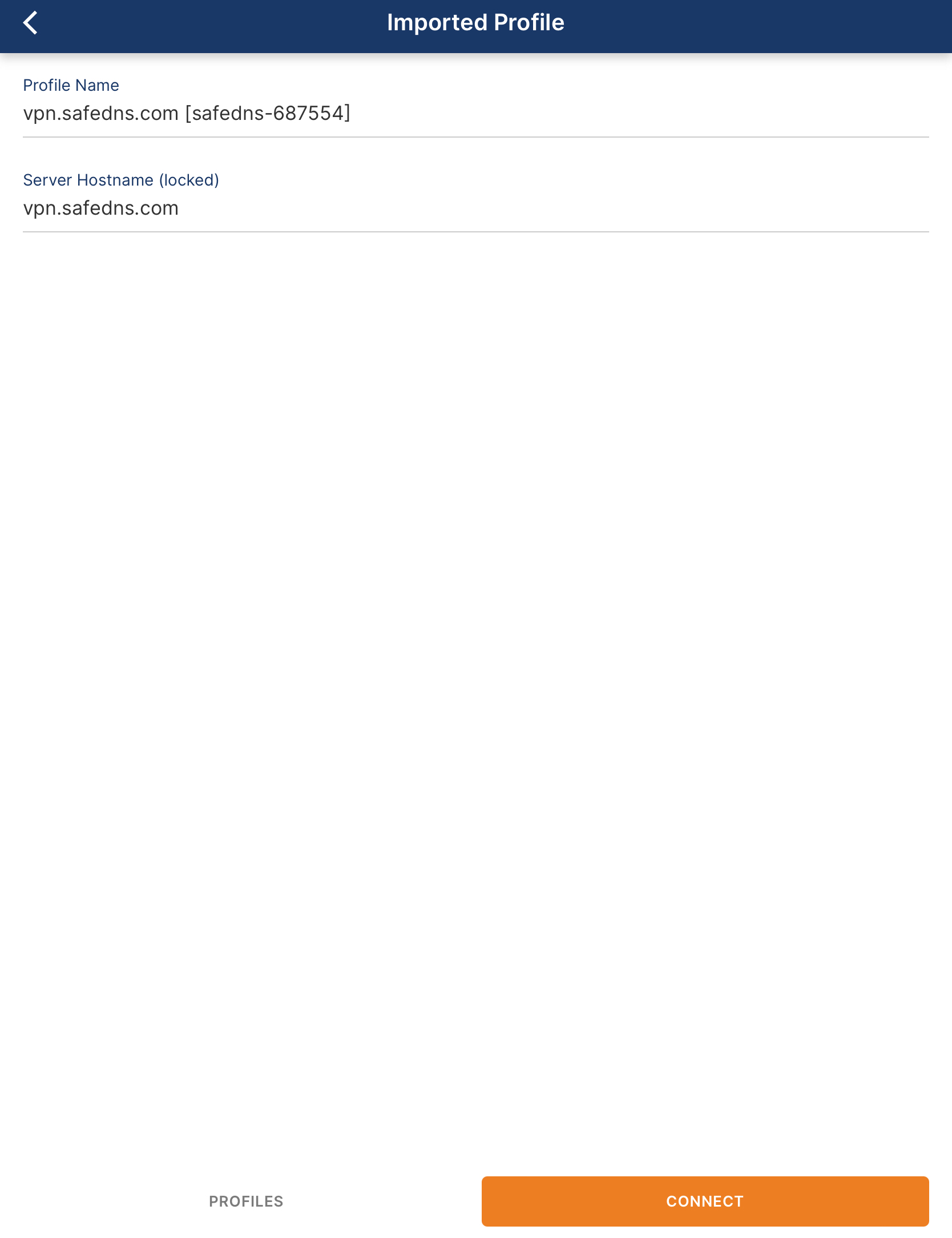
8\. Wait until the VPN connection is established.

[![opvpn_ipad5.png](https://docs.safedns.com/uploads/images/gallery/2024-08/scaled-1680-/CyzYJRKsu4hOCiPd-opvpn-ipad5.png)](https://docs.safedns.com/uploads/images/gallery/2024-08/CyzYJRKsu4hOCiPd-opvpn-ipad5.png)
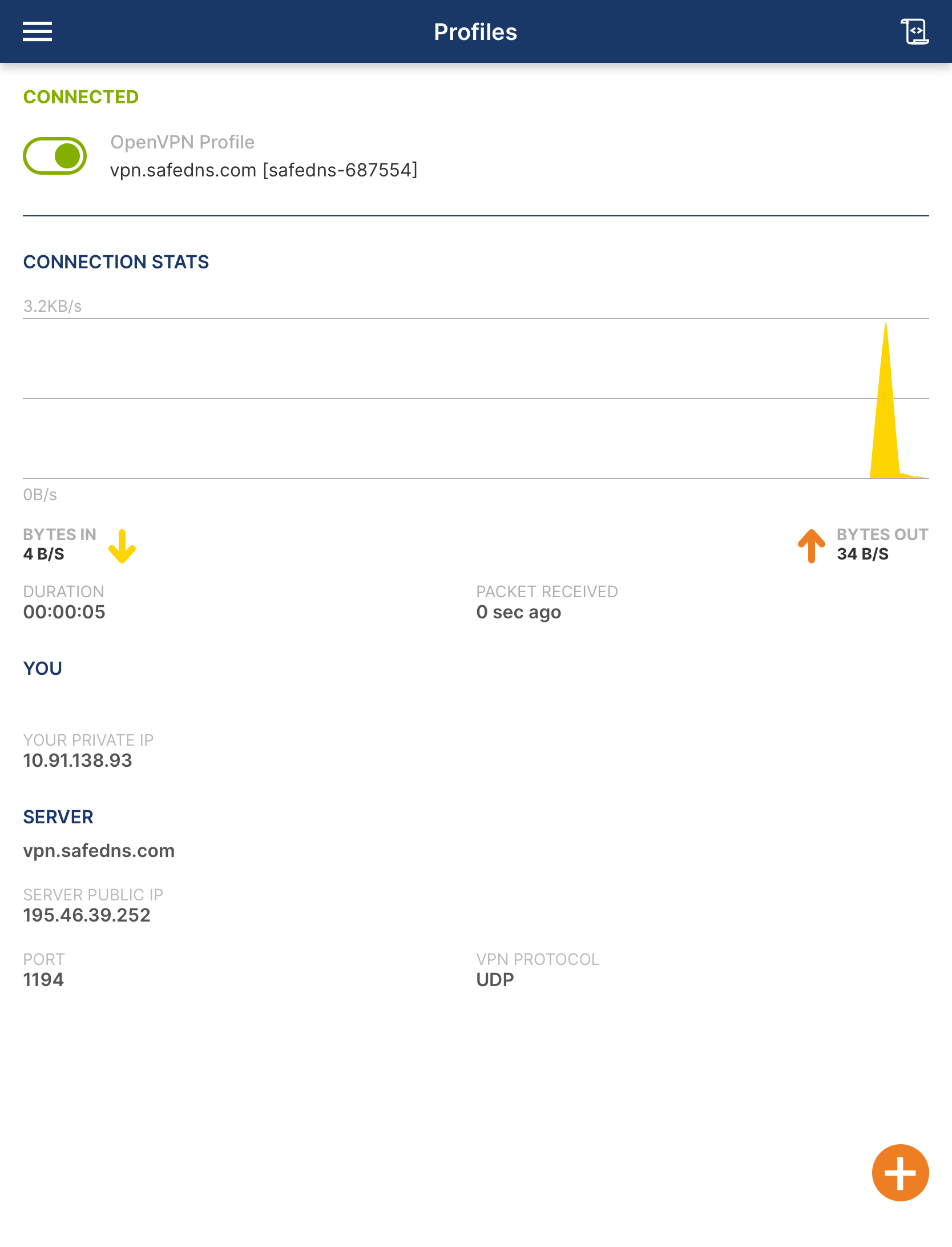
Your iPhone/iPad is now filtered with the SafeDNS filtering policy.

---

#### Android Devices

1\. Open the SafeDNS Dashboard and navigate to **Settings &gt; Devices**.

[![1. Mobile Devices Filtering Setup.png](https://docs.safedns.com/uploads/images/gallery/2024-08/scaled-1680-/LfDQGqhce3heupYk-1-mobile-devices-filtering-setup.png)](https://docs.safedns.com/uploads/images/gallery/2024-08/LfDQGqhce3heupYk-1-mobile-devices-filtering-setup.png)

2\. Scroll down to the VPN section, enter any name for a new VPN connection, and click Add.

Choose a filtering policy before adding a VPN connection, if needed.

[![2. Mobile Devices Filtering Setup.png](https://docs.safedns.com/uploads/images/gallery/2024-08/scaled-1680-/ankK8STLVWedwhVj-2-mobile-devices-filtering-setup.png)](https://docs.safedns.com/uploads/images/gallery/2024-08/ankK8STLVWedwhVj-2-mobile-devices-filtering-setup.png)

3\. Upon creating the connection, two icons will appear in the "Certificate" column. One is for downloading the Certificate, and the other is for sending it by email. Open your SafeDNS Dashboard on your mobile device, and press the "Cloud download" icon.  
Alternatively, you can click the "Letter" icon to send the configuration file to your SafeDNS account email.

Multiple devices can use the same filtering policy, but **each device should use its own VPN certificate**.

You can also change the filtering policy of the created VPN connection by clicking on the pencil icon to the right. Please note, that you don't need to redownload your VPN certificate on your mobile device if you change its filtering policy.

[![4. Mobile Devices Filtering Setup.png](https://docs.safedns.com/uploads/images/gallery/2024-08/scaled-1680-/6BmHN6eN3WidtQh6-4-mobile-devices-filtering-setup.png)](https://docs.safedns.com/uploads/images/gallery/2024-08/6BmHN6eN3WidtQh6-4-mobile-devices-filtering-setup.png)
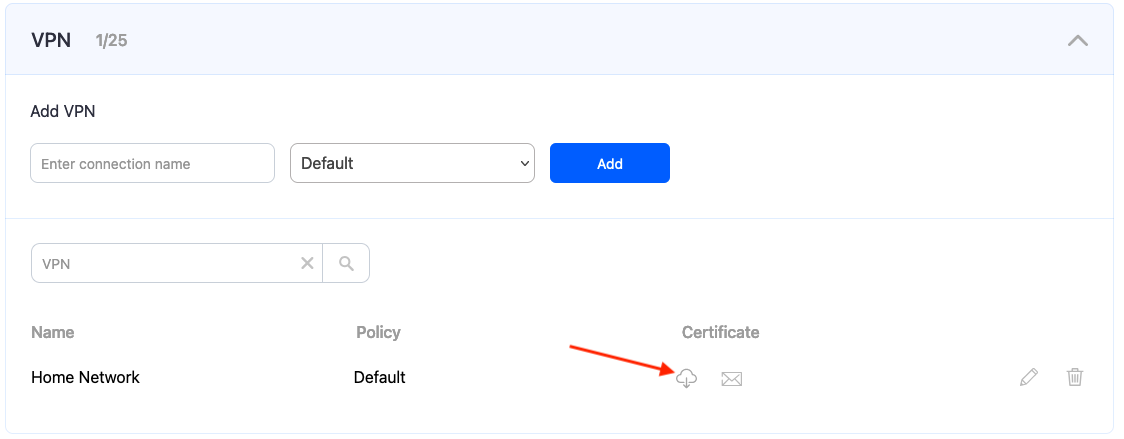
4\. Install the **OpenVPN Connect** app from Google Play (the app is free of charge).

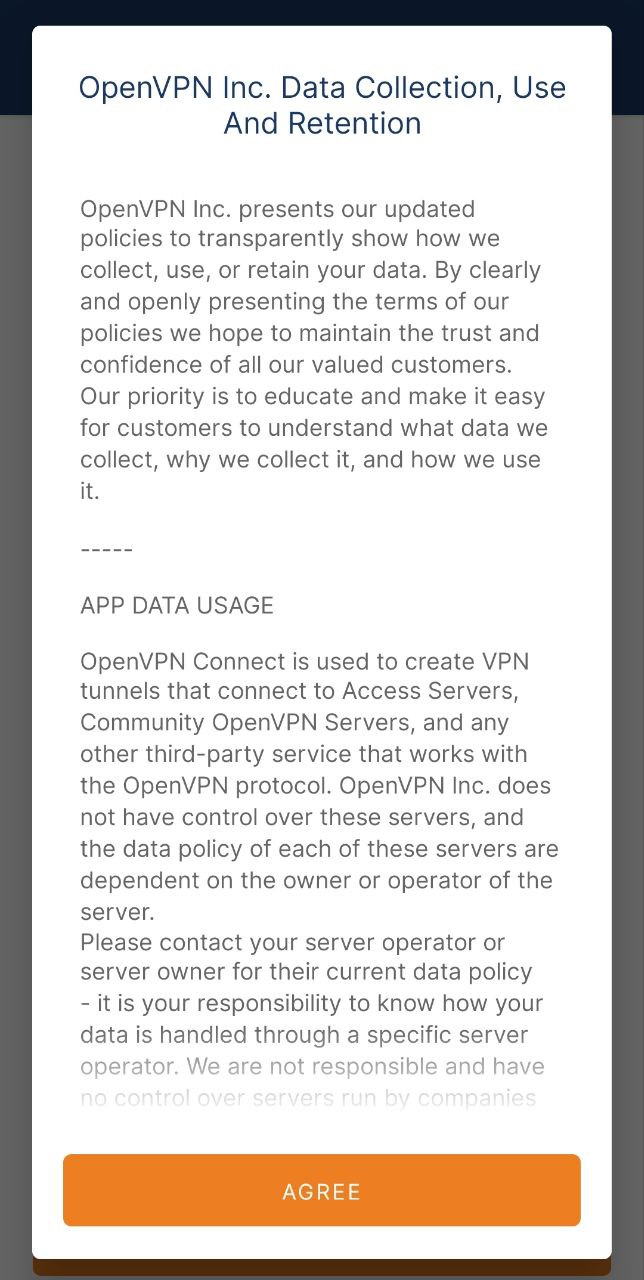
5\. Open the installed application and click **Agree** in the Privacy Policy pop-up.

[![opvpn_and1.jpg](https://docs.safedns.com/uploads/images/gallery/2024-08/4pVLfK2EXq7adEed-opvpn-and1.jpg)](https://docs.safedns.com/uploads/images/gallery/2024-08/4pVLfK2EXq7adEed-opvpn-and1.jpg)
6\. Select the **Upload File** menu and import the downloaded .ovpn certificate file either from the File Manager or from the received mail.

The Certificate has the following name format: **safedns-123456.ovpn**

**[![opvpn_and2.jpg](https://docs.safedns.com/uploads/images/gallery/2024-08/t0ZfqckKX4O04fCt-opvpn-and2.jpg)](https://docs.safedns.com/uploads/images/gallery/2024-08/t0ZfqckKX4O04fCt-opvpn-and2.jpg)**
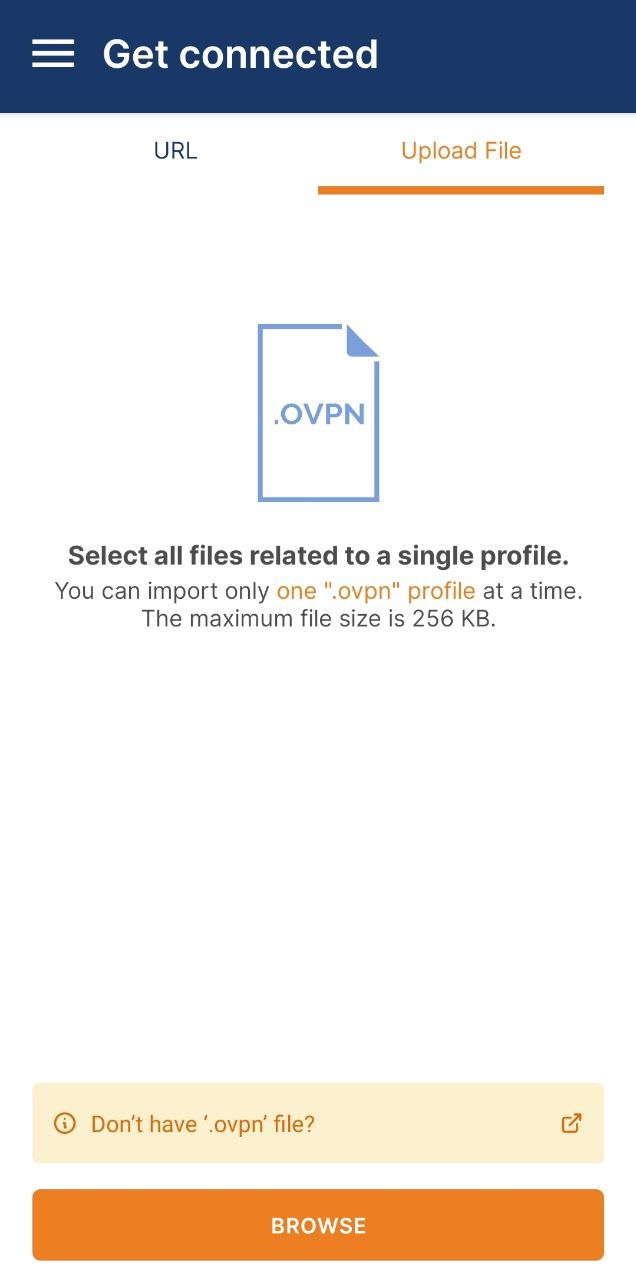
7\. Tap the **Connect** button.

[![opvpn_and4.jpg](https://docs.safedns.com/uploads/images/gallery/2024-08/1iSvrPYZ8OAMgOQo-opvpn-and4.jpg)](https://docs.safedns.com/uploads/images/gallery/2024-08/1iSvrPYZ8OAMgOQo-opvpn-and4.jpg)
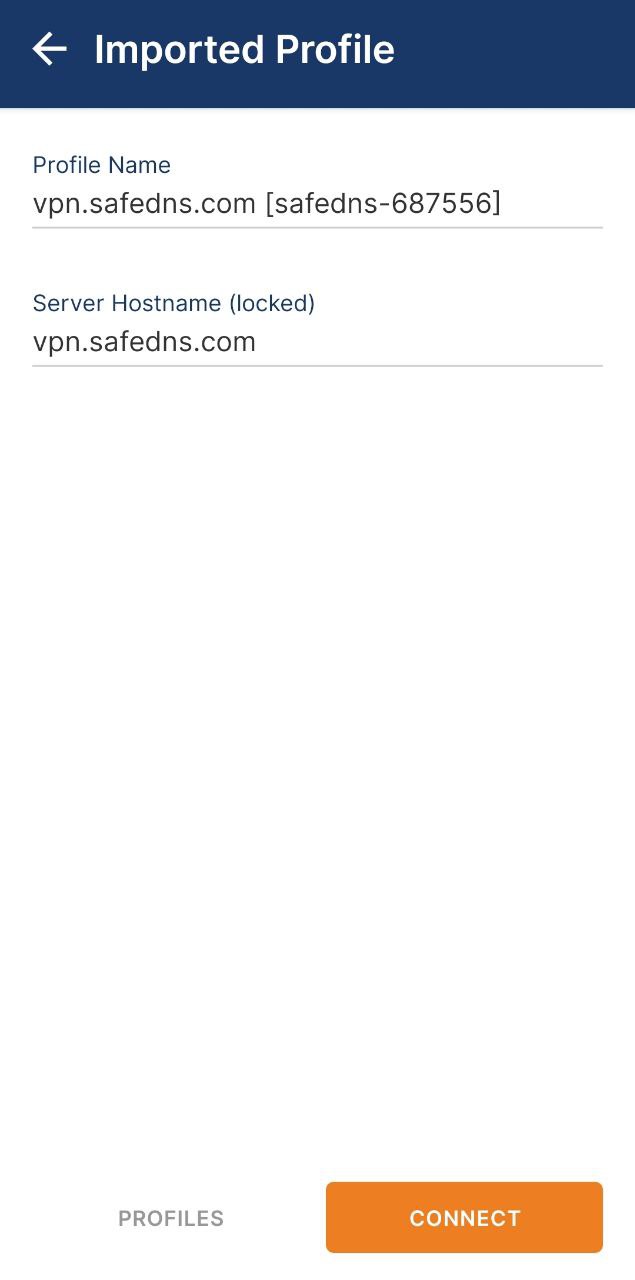
8\. Wait until the VPN connection is established.

[![opvpn_and6.jpg](https://docs.safedns.com/uploads/images/gallery/2024-08/Metf549Yh60ylMnn-opvpn-and6.jpg)](https://docs.safedns.com/uploads/images/gallery/2024-08/Metf549Yh60ylMnn-opvpn-and6.jpg)
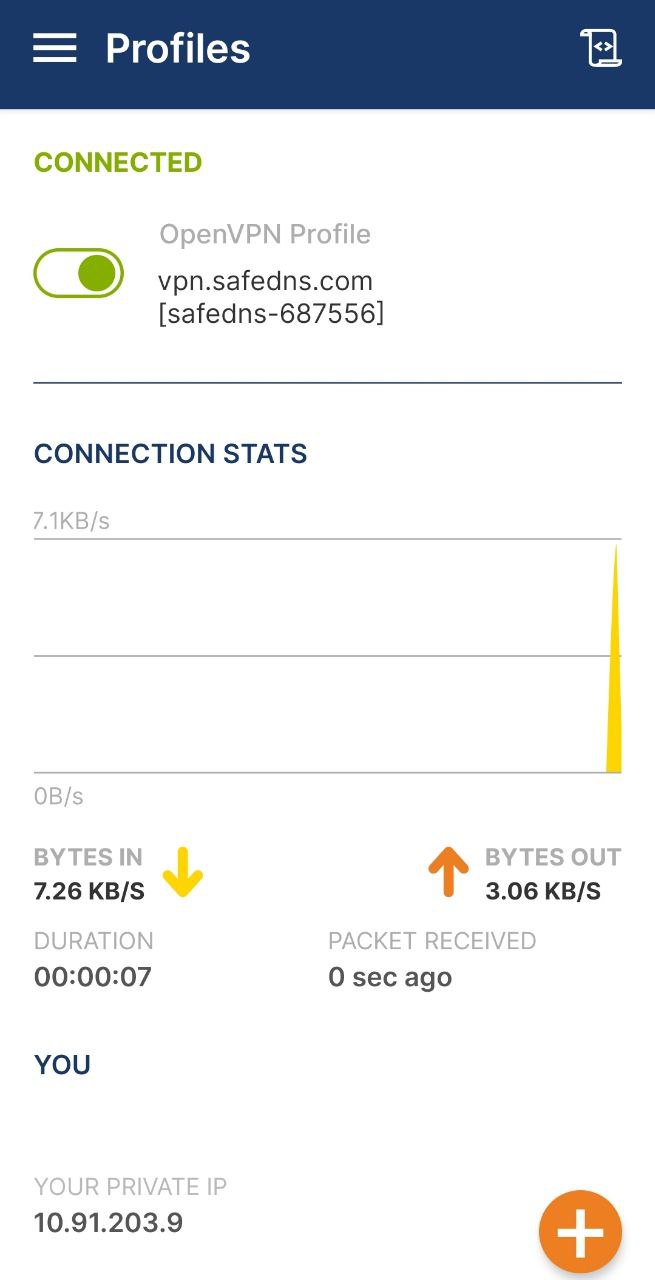
Your Android device is now filtered with the SafeDNS filtering policy.

---

<p class="callout warning">Please note that settings take 5-7 minutes to apply.  
Stats and filtering status update every 10 minutes.  
</p>

# Network Analyzer Guide

This guide shows how to troubleshoot the internet issues on iOS and Android devices using Network Analyzer.

---

#####   


##### **Installation**

To run the diagnostics, please download and install the Network Analyzer app from the Google Play:  
[https://play.google.com/store/apps/details?id=net.techet.netanalyzerlite.an](https://play.google.com/store/apps/details?id=net.techet.netanalyzerlite.an)

Or from the App Store:  
[https://apps.apple.com/us/app/network-analyzer/id562315041](https://apps.apple.com/us/app/network-analyzer/id562315041)

---

How to use the app

Once the Application installed, please run it and open the Tools tab:

[![1.Network Analyzer Guide.png](https://docs.safedns.com/uploads/images/gallery/2022-09/scaled-1680-/XcbZnhtFFPaqbmjX-1-network-analyzer-guide.png)](https://docs.safedns.com/uploads/images/gallery/2022-09/XcbZnhtFFPaqbmjX-1-network-analyzer-guide.png)
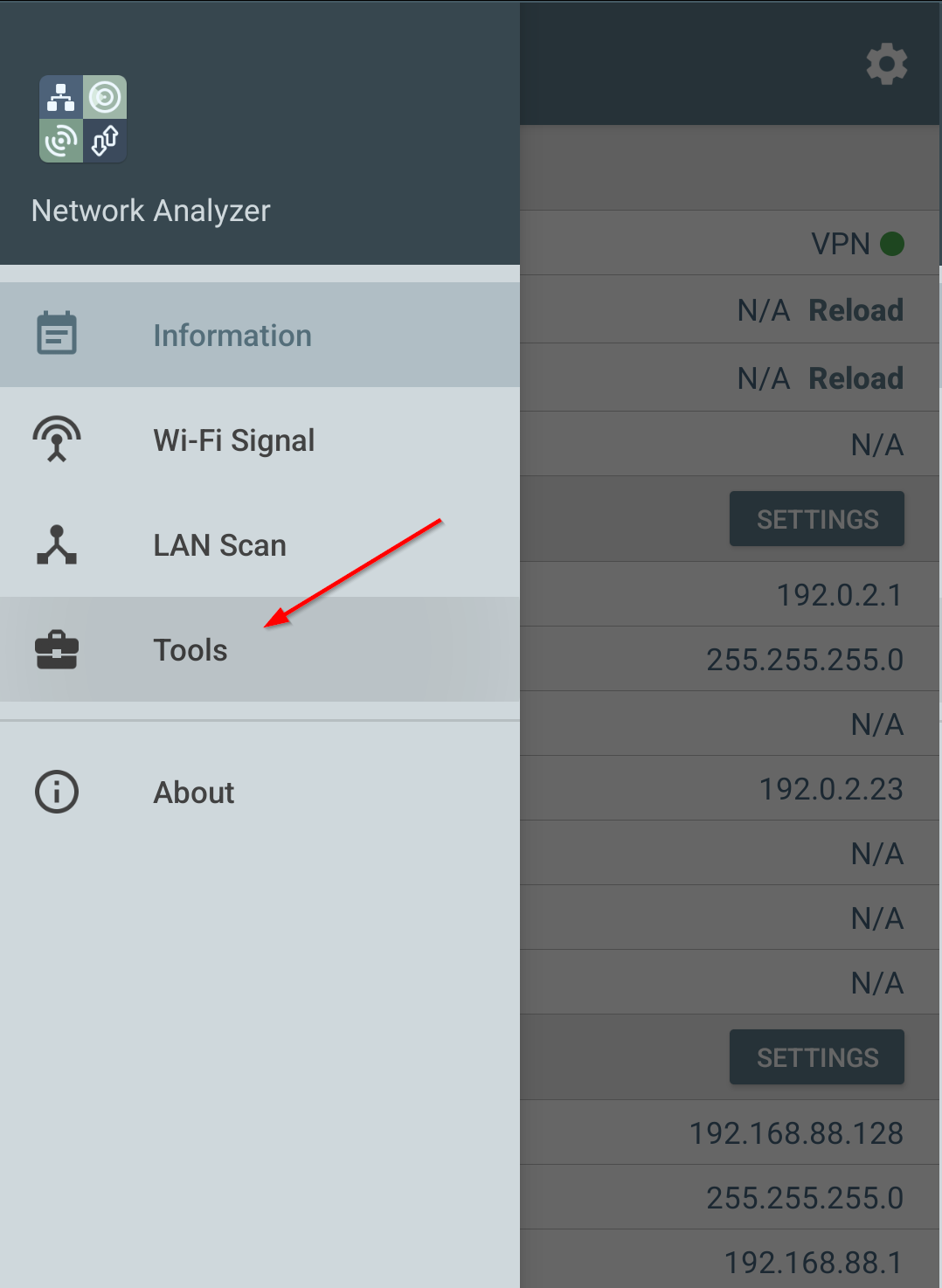
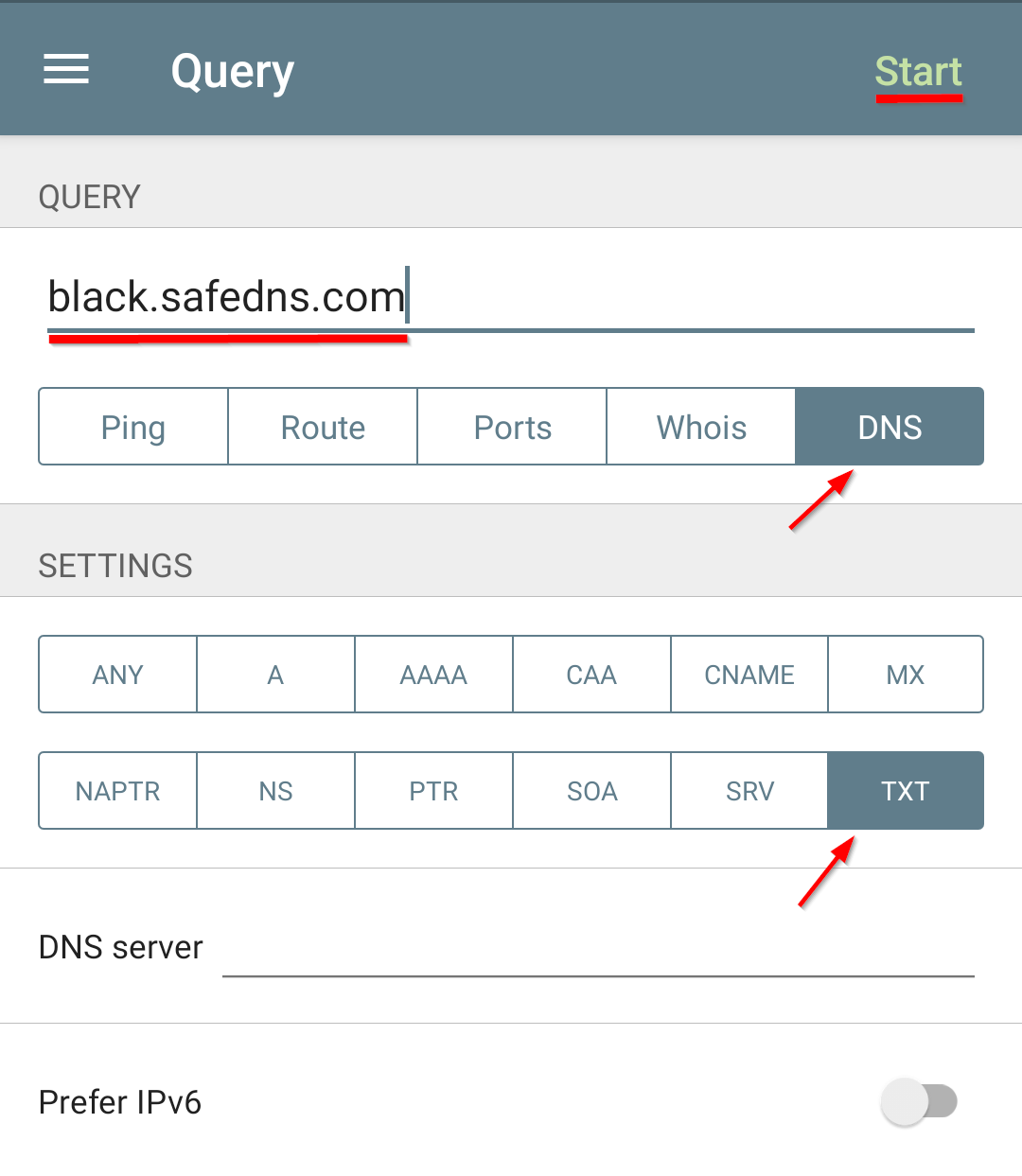
Select the Query type: **DNS** and the Settings: **TXT**.

Set the query address: **black.safedns.com** and press the **Start** button.

[![2.Network Analyzer Guide.png](https://docs.safedns.com/uploads/images/gallery/2022-09/scaled-1680-/yND9Kxn0QqMErSf9-2-network-analyzer-guide.png)](https://docs.safedns.com/uploads/images/gallery/2022-09/yND9Kxn0QqMErSf9-2-network-analyzer-guide.png)
This is an example of the correct response:

[![4.Network Analyzer Guide.png](https://docs.safedns.com/uploads/images/gallery/2022-09/scaled-1680-/9ZXXjL3SYhUxCtDA-4-network-analyzer-guide.png)](https://docs.safedns.com/uploads/images/gallery/2022-09/9ZXXjL3SYhUxCtDA-4-network-analyzer-guide.png)
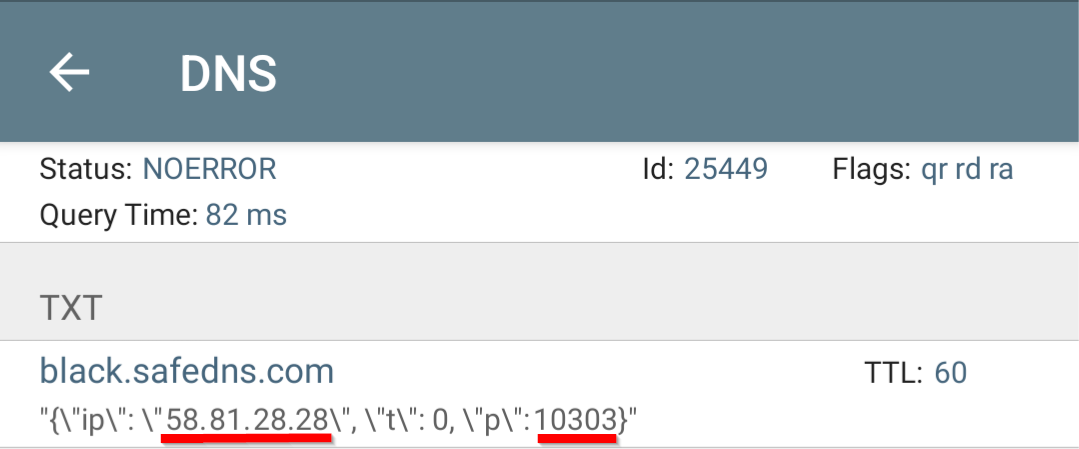
The first underlined part shows the public IP address of your network.

The second underlined part shows the ID of your filtering policy that can also be found here - [https://www.safedns.com/cabinet/policy/](https://www.safedns.com/cabinet/policy/)

### Troubleshooting

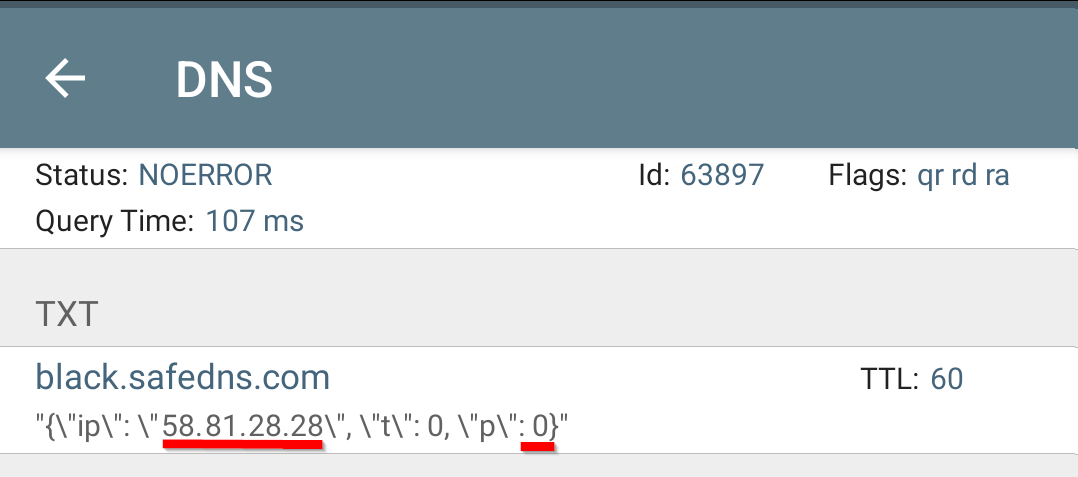
If you haven't added the IP address to the SafeDNS Dashboard, the second underlined number will show “0”.

[![5.Network Analyzer Guide.png](https://docs.safedns.com/uploads/images/gallery/2022-09/scaled-1680-/7iQ2NxChOyDXo2dd-5-network-analyzer-guide.png)](https://docs.safedns.com/uploads/images/gallery/2022-09/7iQ2NxChOyDXo2dd-5-network-analyzer-guide.png)
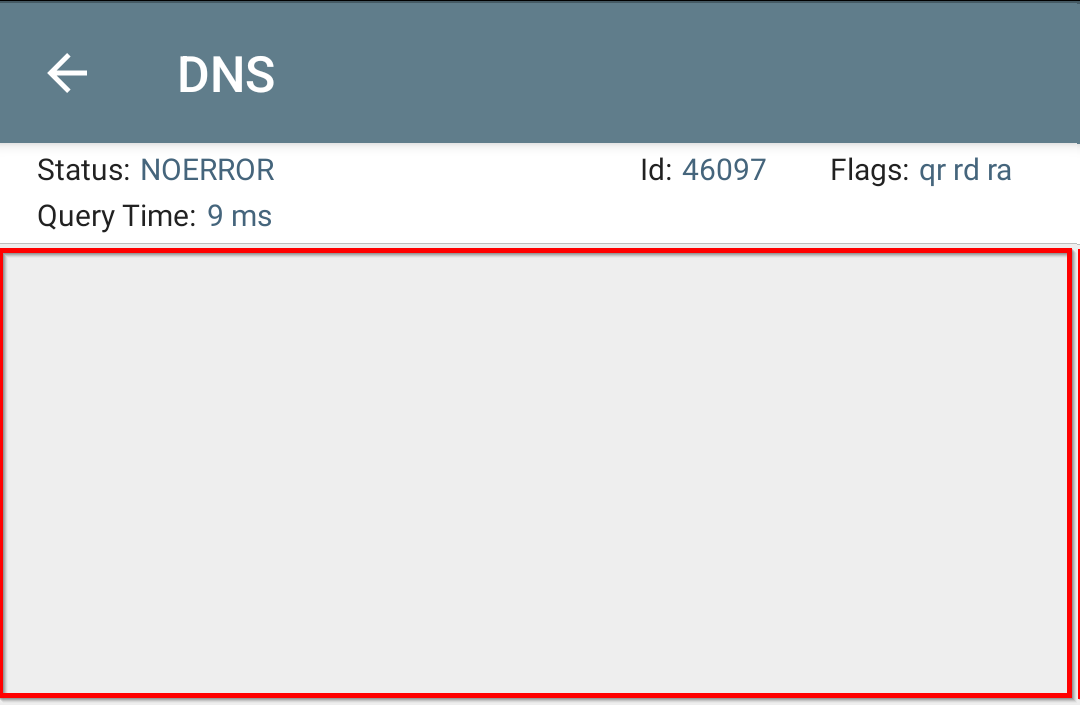
If the response contains the status message only, it usually means that DNS servers are not configured on your router or your device.

[![6.Network Analyzer Guide.png](https://docs.safedns.com/uploads/images/gallery/2022-09/scaled-1680-/Uw4nuDYTmB3JeXAI-6-network-analyzer-guide.png)](https://docs.safedns.com/uploads/images/gallery/2022-09/Uw4nuDYTmB3JeXAI-6-network-analyzer-guide.png)