**We are using HexNode Integrator as an example.**
1\. Obtain a personal authKey (also known as AD authKey) from SafeDNS support. The authKey should be provided as a string (Base64 encoding is done on our side). Here's an example of such key: MGCjbnYyYWItMTQxNy00MjVlqTkzNjEtMDMzY2I2MTU4YzVi. [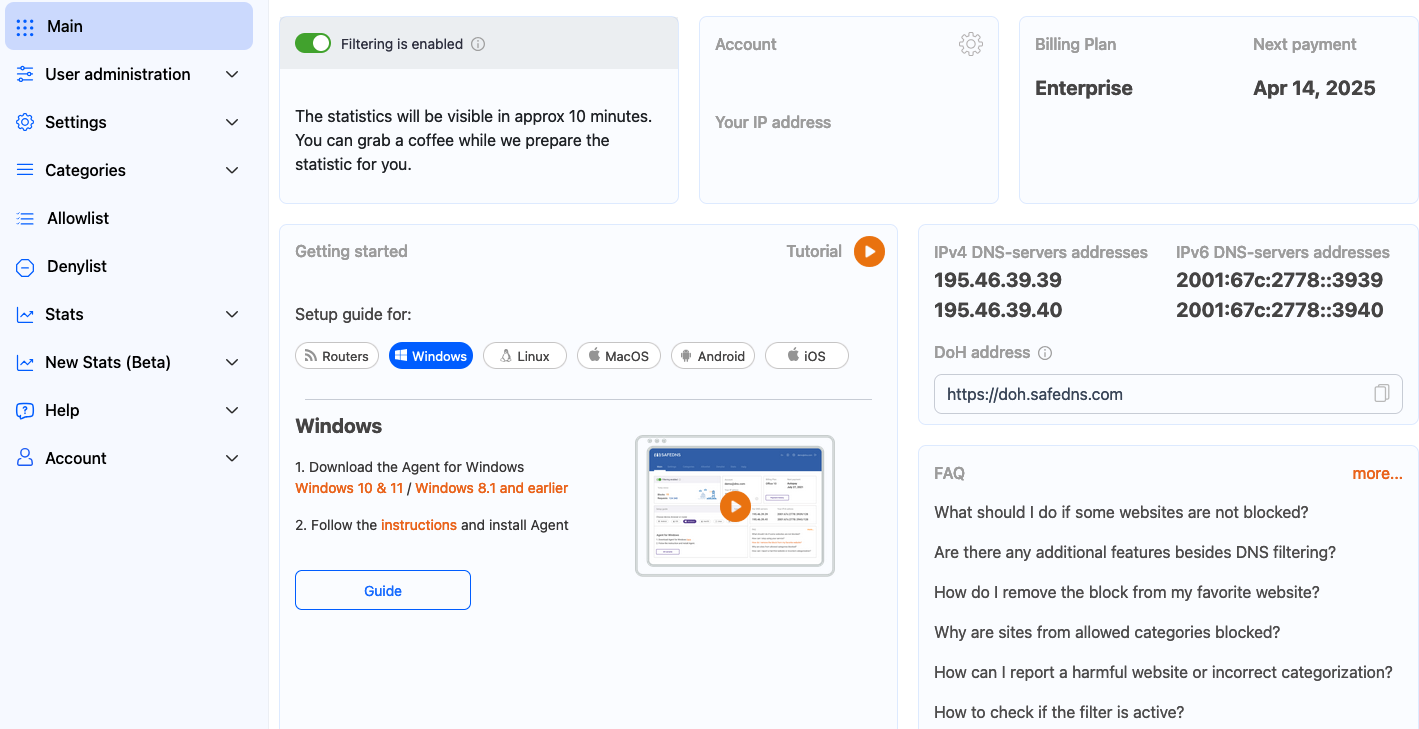](https://docs.safedns.com/uploads/images/gallery/2024-08/0blGK1Px6PzpBnkB-beta-products-1.png) 2\. Install the SafeDNS Agent Enterprise application in the Integrator's Personal Account by adding the .ipa file to the app catalog as an application for the Enterprise segment. 3\. Create a configuration file with the key. When creating a configuration file in .xml format, use the Sample.xml template. In the Sample.xml file, change only one line: replace the highlighted fragment with your AD key. [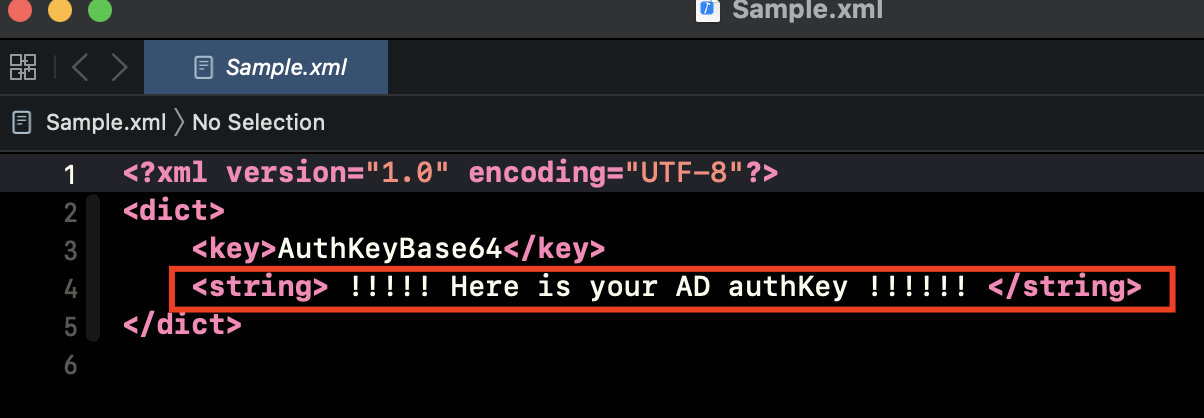](https://docs.safedns.com/uploads/images/gallery/2024-08/IWgPcccgT2OS80IZ-beta-products-2.png) 4\. Upload the previously downloaded SafeDNS Agent Enterprise application from the SafeDNS Personal Account in .ipa format. During the application installation, select the option to add the .ipa file and **Send Application Configuration**. Choose the previously created configuration file with your key, "Sample.xml", and click **Add**. [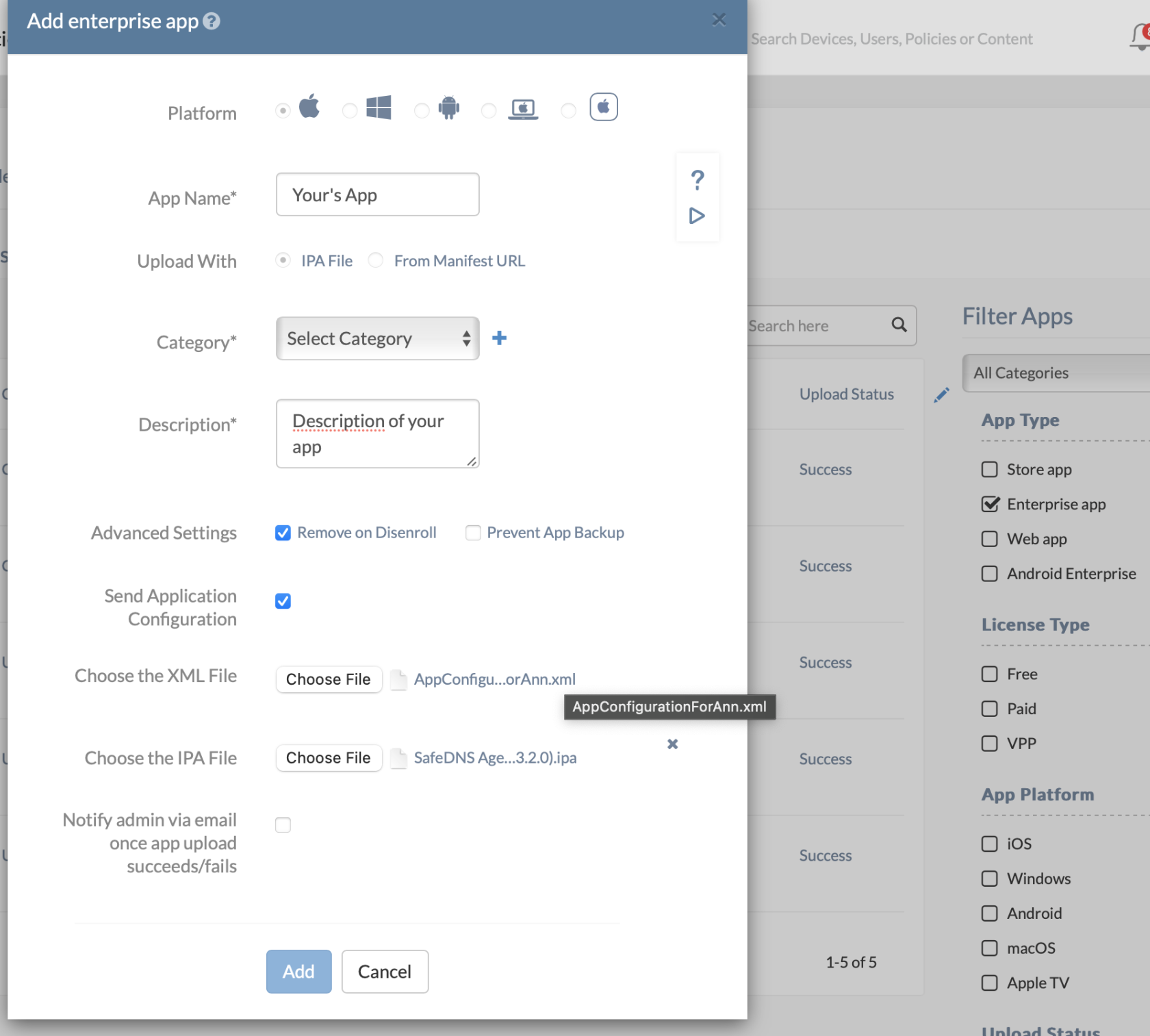](https://docs.safedns.com/uploads/images/gallery/2024-08/GuSENCTeWLH9Jx4t-beta-products-3.png) After uploading, the application will appear in the Integrator's application catalog in the Enterprise app section. To view the AD key, select the application in the catalog, then navigate to **Settings cogwheel > App Configuration**. [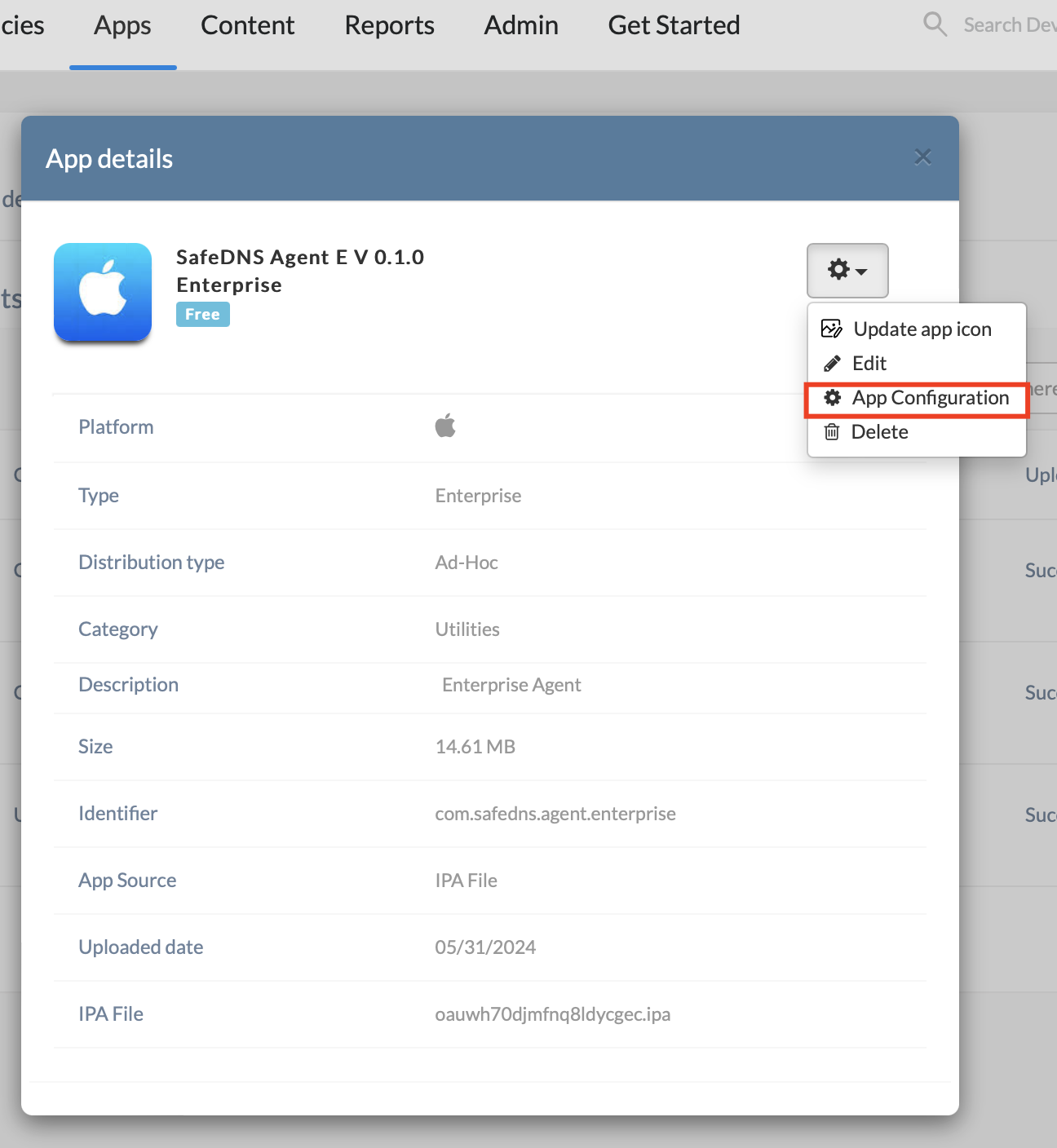](https://docs.safedns.com/uploads/images/gallery/2024-08/ncA0HmWc3TcwKYzo-mdm-integrators-with-file-addition-4.png) You can also verify the presence of the added configuration file and, if necessary, re-upload it. [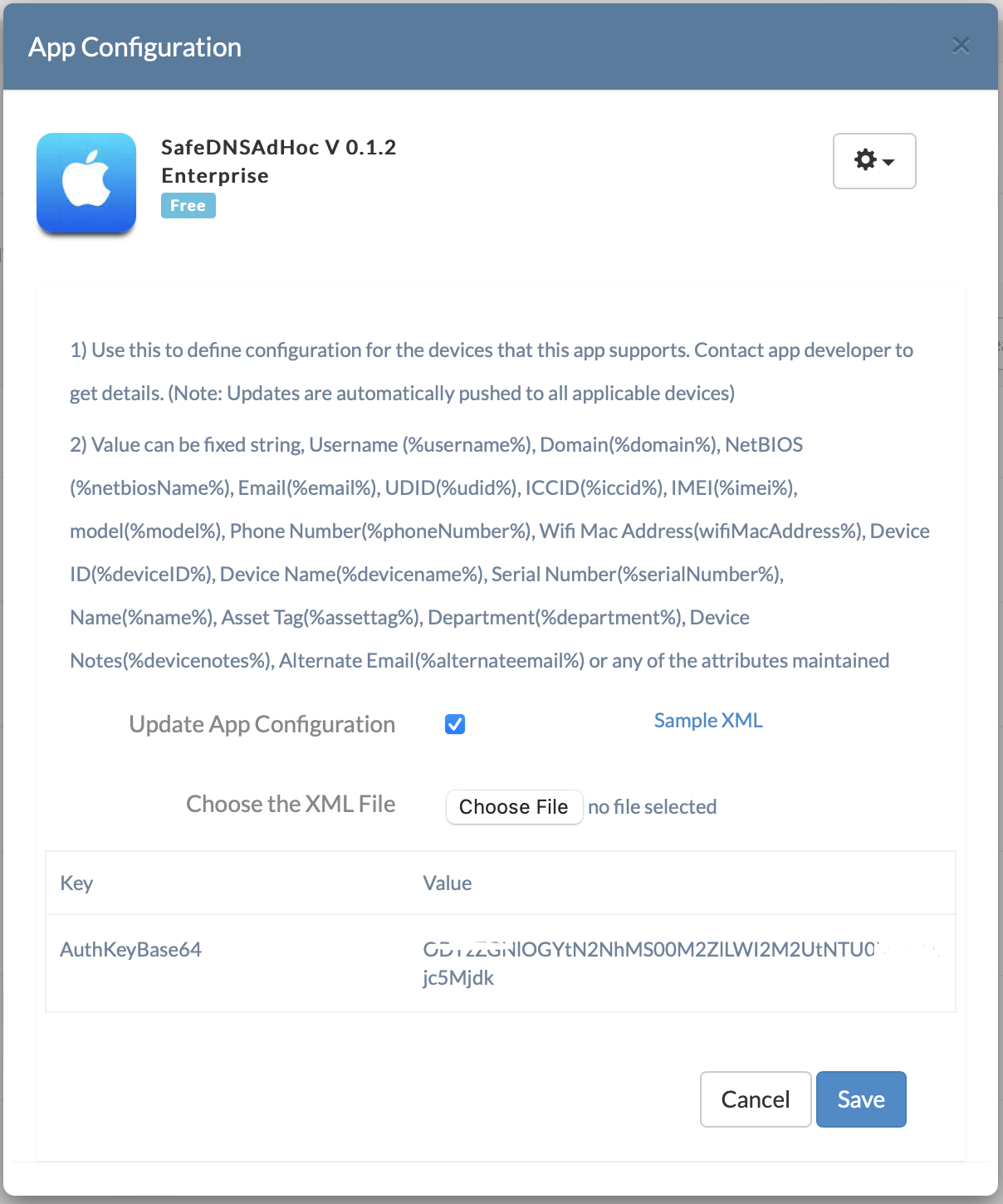](https://docs.safedns.com/uploads/images/gallery/2024-08/p3BLqwP1mdrd28tX-mdm-integrators-with-file-addition-5.png) 5\. Continue the application installation for all devices. 1. To do that, select all devices in the Management section, then open **Settings > Install Application**. 2. In the drop-down list, find the application using the search and install it. 3. After sending the command for mass deployment of the application to the devices, you will need to configure the application after about 1-2 minutes. To do this, simply launch the application and go through all the setup steps until you reach the main screen. 4. During the installation, a notification will appear indicating that the authKey has been detected and applied. 5. After that, just enter the email of the registered device and proceed to the main screen. The installation is complete. --- #### DNS-Proxy After the application is installed, the DNS-Proxy will not be present on the device; it needs to be added via a Custom Mobile Profile. Navigate to the Policies section on the Integrator's website and select **New Policy**. [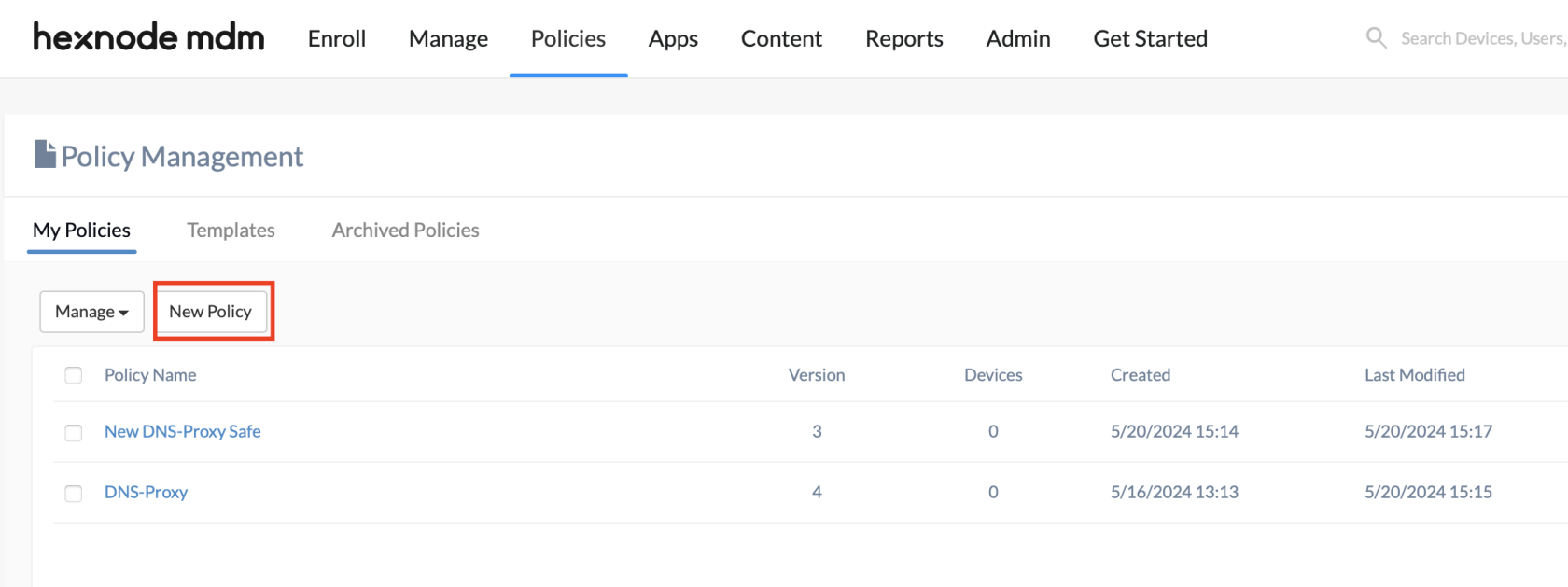](https://docs.safedns.com/uploads/images/gallery/2024-08/j665IiaEuCblFOUq-mdm-integrators-with-file-addition-6.png) Choose **New Blank Policy** when selecting a template. [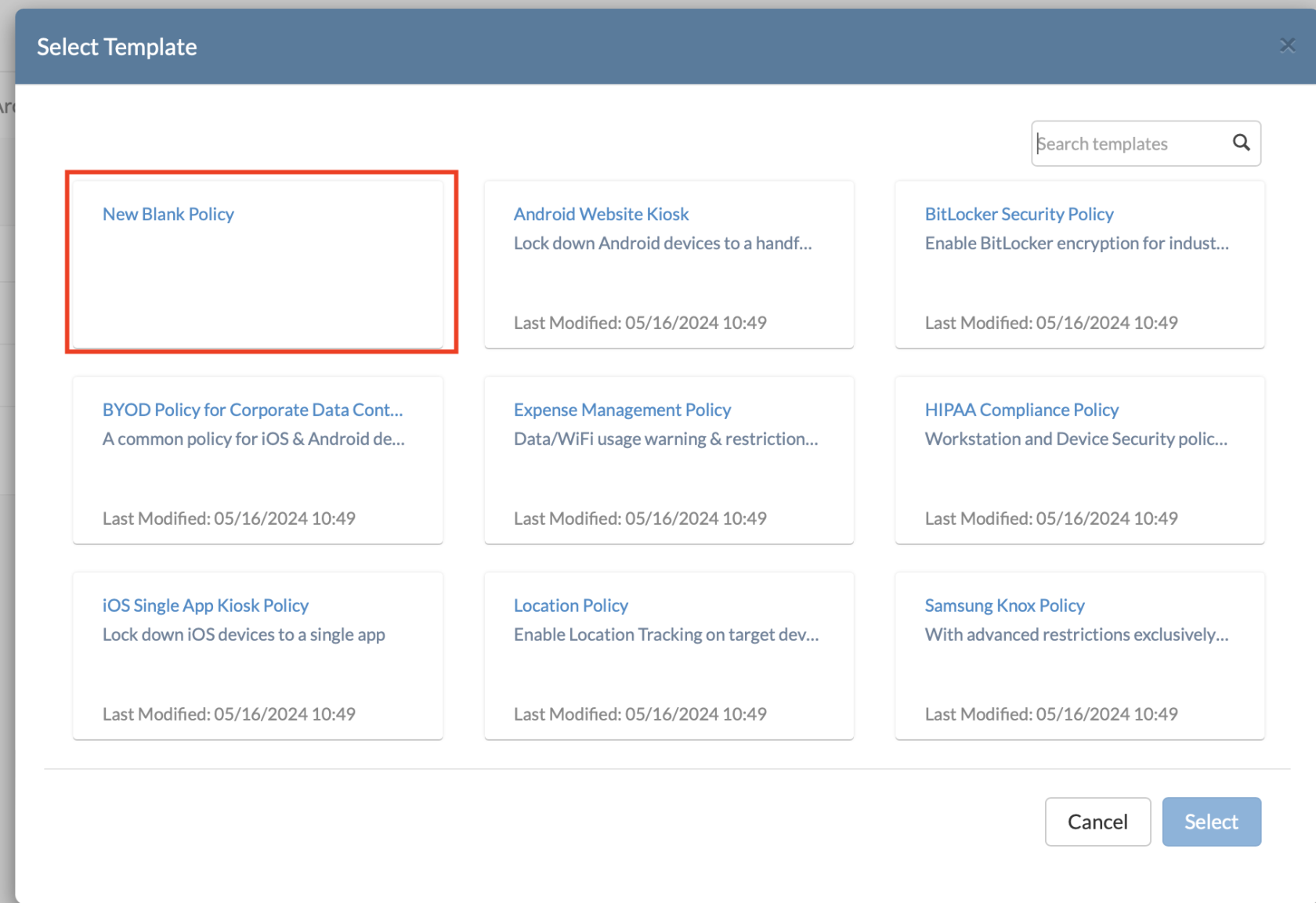](https://docs.safedns.com/uploads/images/gallery/2024-08/1okxVGexBfp1gFpB-mdm-integrators-with-file-addition-7.png) Enter any name and description. On the left side, select **Configuration > Deploy Custom Configuration** and click **Configure**. [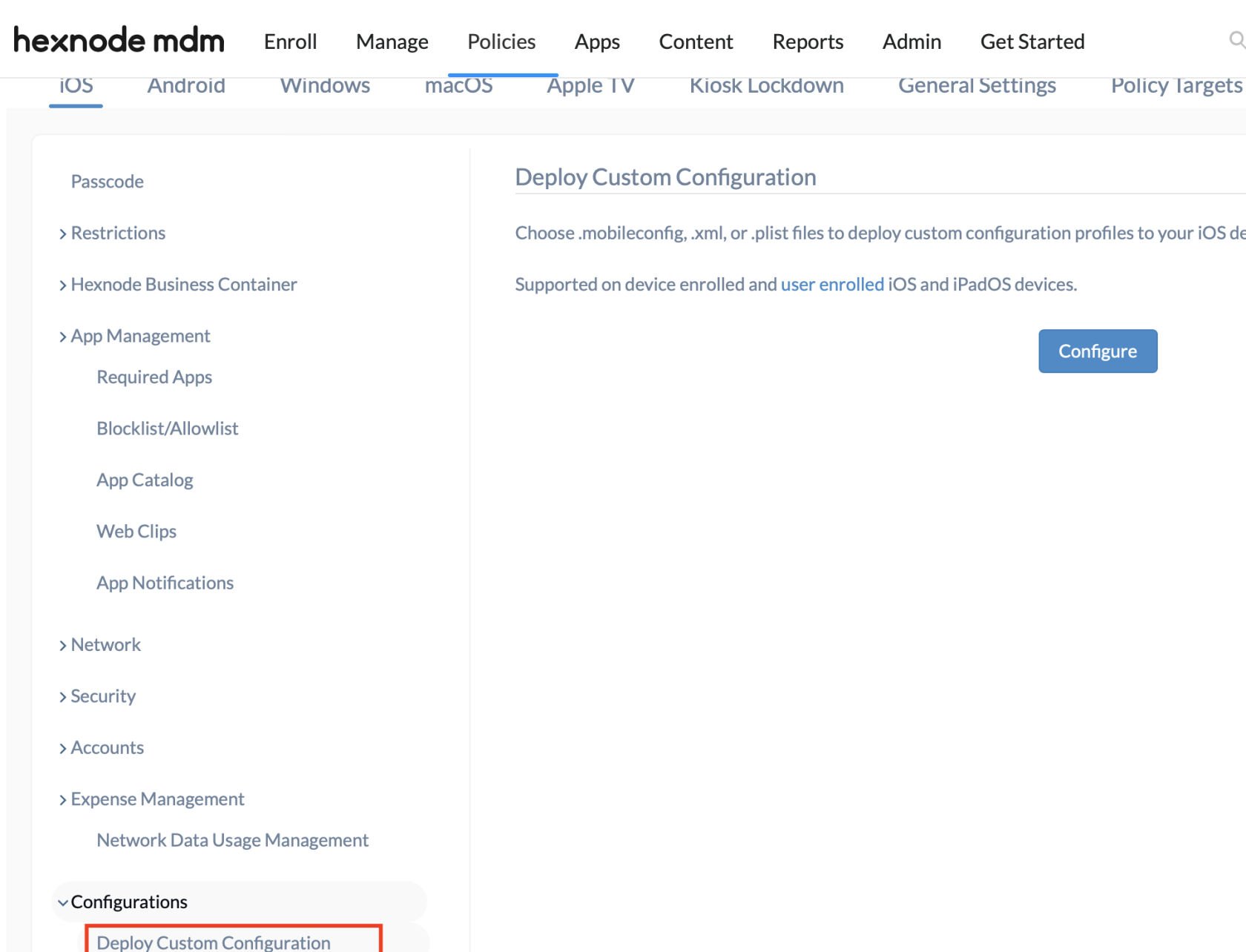](https://docs.safedns.com/uploads/images/gallery/2024-08/C26TkYrReAzZqelk-mdm-integrators-with-file-addition-8.png) Select **Choose File** in the opened window, and pick the **SafeDNSProxy Enterprise.mobileconfig** file.Please find below the link to the file: [SafeDNSProxy\_Enterprise.mobileconfig](https://docs.safedns.com/attachments/2)
**Do not change anything in the file. It contains configuration settings for the DNS-Proxy.**
[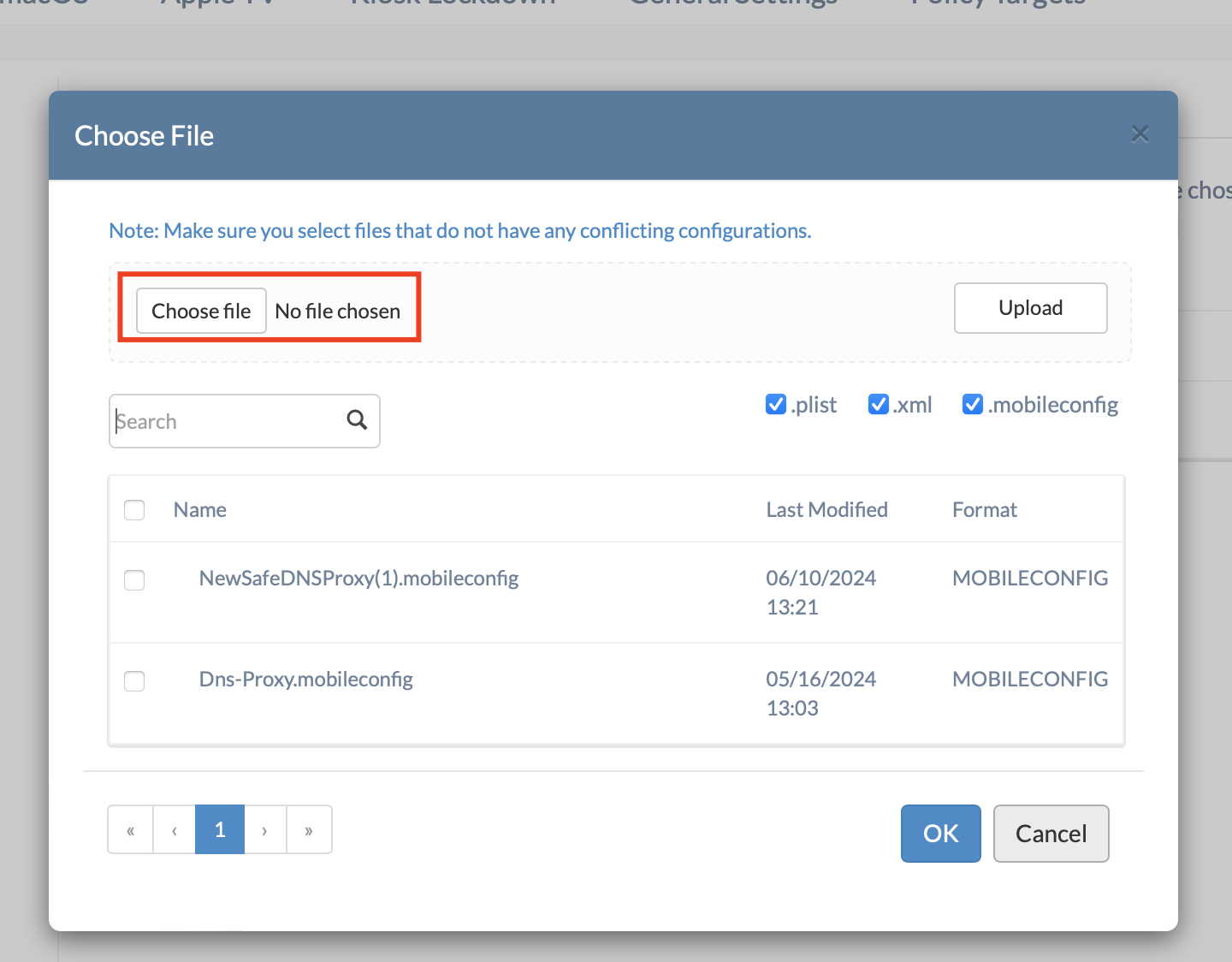](https://docs.safedns.com/uploads/images/gallery/2024-08/YwsL3a2Gz9vQdbgx-mdm-integrators-with-file-addition-9.png) --- #### Adding Policy**The application installation and its setup must be completed before proceeding to the next step.**
Add the policy to the the devices by associating it through the **Associate Policy** tab. [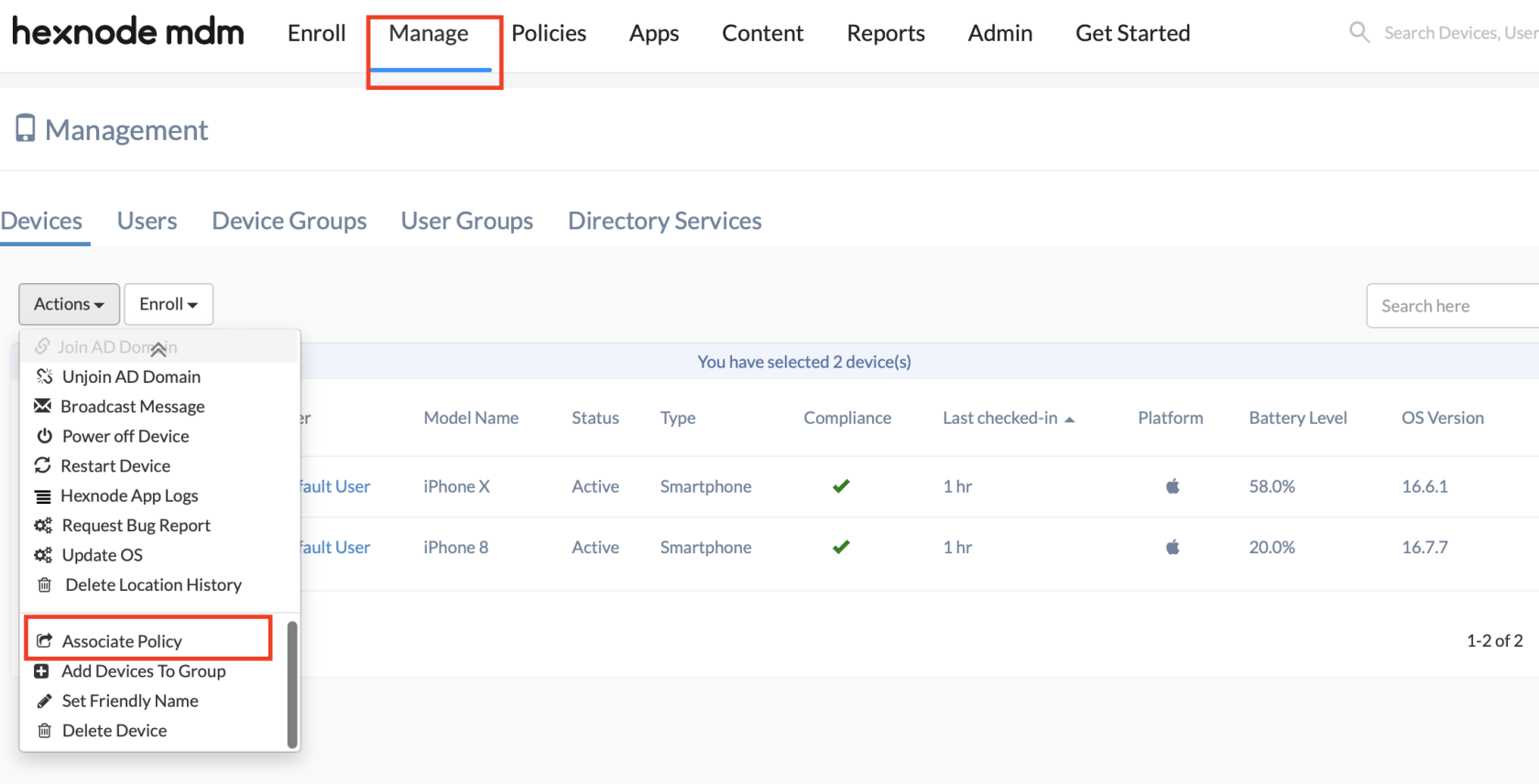](https://docs.safedns.com/uploads/images/gallery/2024-08/j3YcKQ8uS40BrDT3-mdm-integrators-with-file-addition-10.png) Within 1-3 minutes, the policy will be propagated and automatically installed on the devices. You can check this in **Settings > General > VPN and Management > DNS** as well as in the Integrator's profile on the devices, where a DNS-Proxy section will appear. With this, the installation is complete. Filtering will typically start within 10 minutes. The filtering policy and status are automatically updated in the application. # SafeDNS Application deployment using MDM Integrators for iOS #### **General guide** 1\. Obtain a personal **AuthKey** from SafeDNS support in your Personal Account in the form of a String (Base64 encoding is handled on our side). Example format: MGNjYnYyYWItMTQxNy00MjVlqTkzNjEtMDMzY2I2MTU4YzVi. 2. Install the SafeDNS application in the **MDM Integrator**'s Personal Account by adding it through Apple Store App in the Apps catalog. 3\. Wait for the application to be deployed on the devices. 4\. Once the initial setup is complete and the device is registered in the SafeDNS Dashboard, create a Custom Configuration Profile in the Integrator's menu. This profile should include our DNSProxy.mobileconfig with the AppBundleIdentifier and the AuthKey: com.safedns.agent and ProviderBundleIdentifier: com.safedns.agent.dnsProxy. Then, this profile is deployed to the devices. After the profile is installed, a new DNS Proxy Server section will appear in the smartphone's settings with SafeDNS parameters, initiating the traffic interception, redirection, and filtering module. The filtering process may take 3-5 minutes to start. --- ##### **SimpleMDM example** 1\. Create an account on [https://simplemdm.com](https://simplemdm.com) and add your Apple id. 2\. Obtain a personal **authKey** from SafeDNS support in your Personal Account in the form of a String (Base64 encoding is handled on our side). Example format: MGNjYnYyYWItMTQxNy00MjVlqTkzNjEtMDMzY2I2MTU4YzVi. [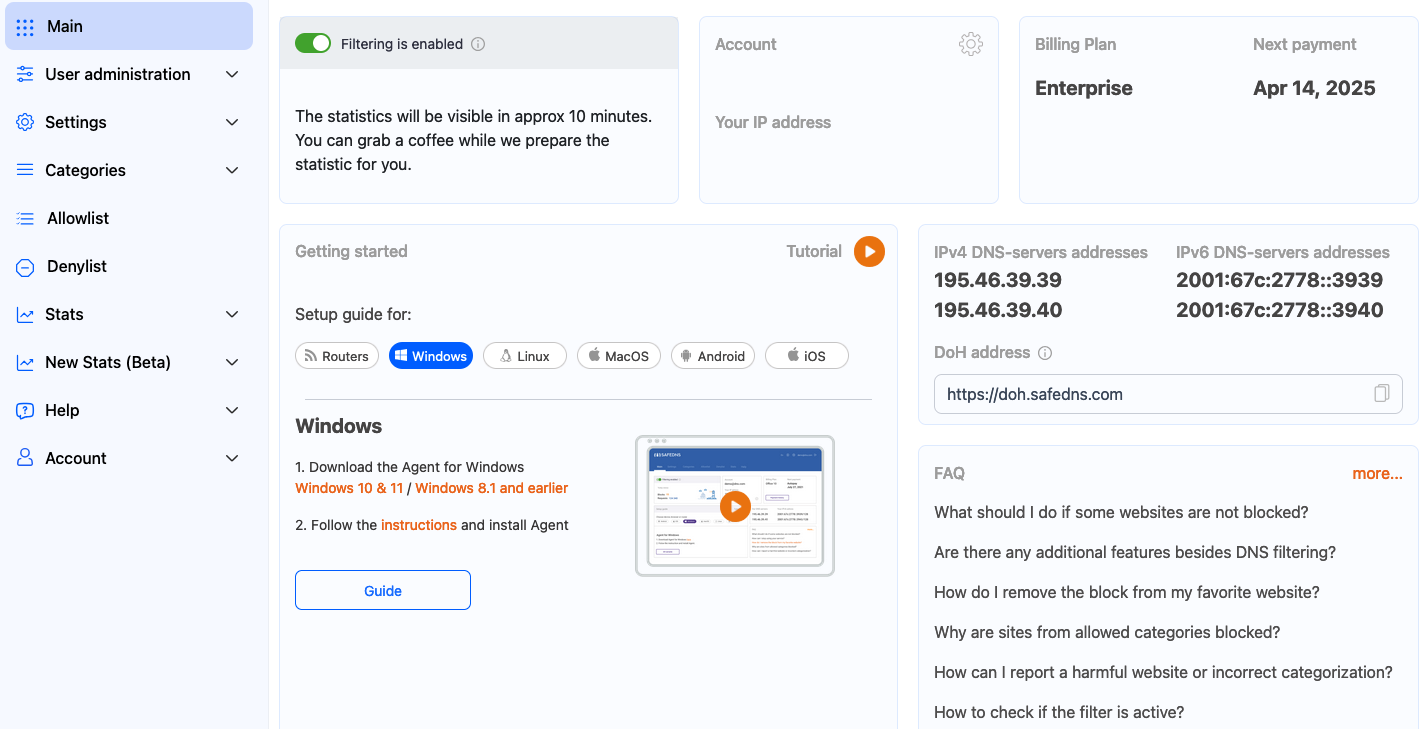](https://docs.safedns.com/uploads/images/gallery/2024-08/k8oj39NU9xEzuUlm-mdm-integrators-without-file-addition-guide-1.png) 2\. Install the **SafeDNS** application in the SimpleMDM Personal Account by adding it through **Apple Store App** in the Apps catalog. [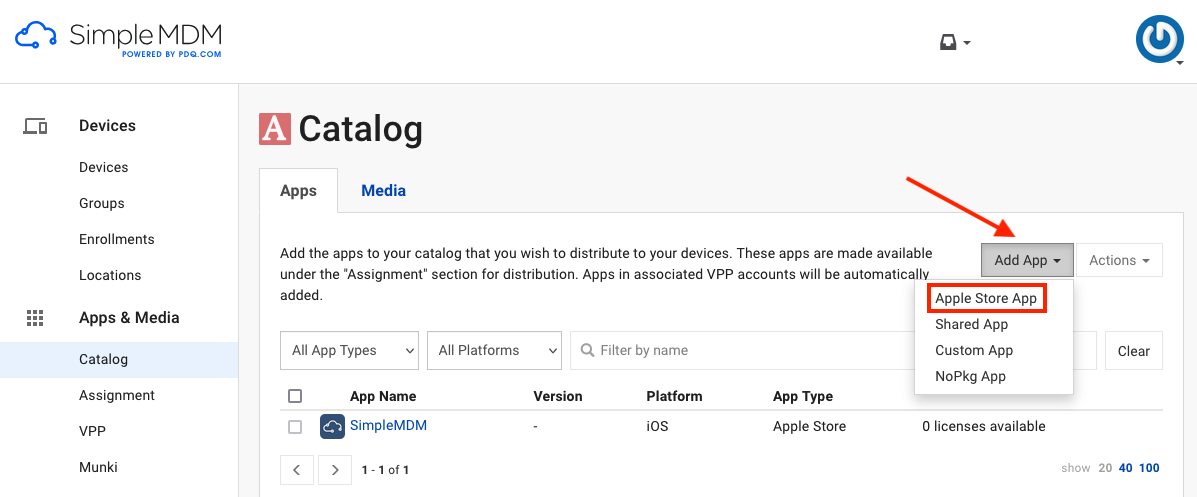](https://docs.safedns.com/uploads/images/gallery/2024-10/nzVjGXOqEdn3g0pu-mdm-integrators-without-file-addition.png) [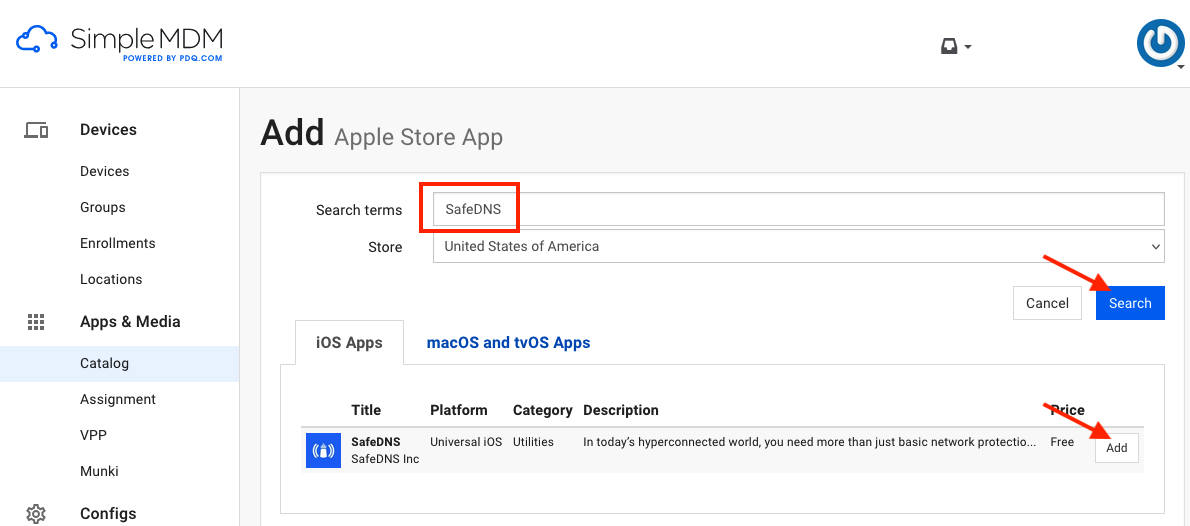](https://docs.safedns.com/uploads/images/gallery/2024-10/Kr1cthQSuQuO1c29-mdm-integrators-without-file-addition-1.png) 3\. Now the application can be deployed on the devices. If your devices are already enrolled the deployment will be done automatically. If not you first need to enroll them in SimpleMDM: Go to Devices > Enrollments > Add Enrollment. [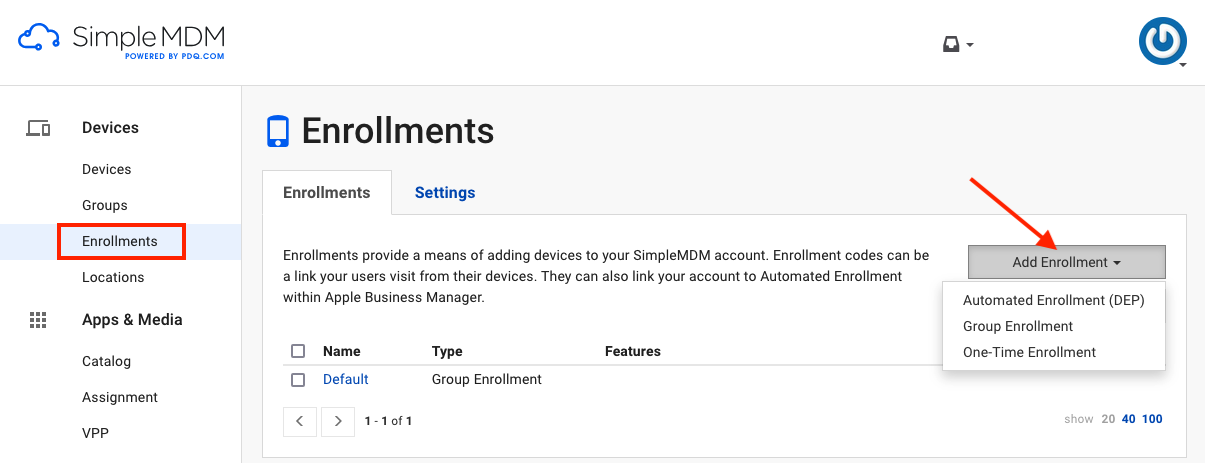](https://docs.safedns.com/uploads/images/gallery/2024-10/wnaRLqBIs3H9kxCo-mdm-integrators-without-file-addition-4.png) After a successful installation, the application **does not need to be launched** on end devices. 4\. After the application is installed on the devices, complete the full configuration of the app by adding the **profile** with the **authKey**. Once the initial setup is complete and the device is registered in the SafeDNS Dashboard, create a Custom Configuration Profile in the Integrator's Personal Account. Upload the custom DNSProxy.mobileconfig profile (received from SafeDNS). This profile includes DNS-Proxy details showed below where you need to change **one line** by adding the AuthKey:`
`"!!!! Enter here your AuthKEY" − needs to be replaced with the AuthKey received from SafeDNS support`
[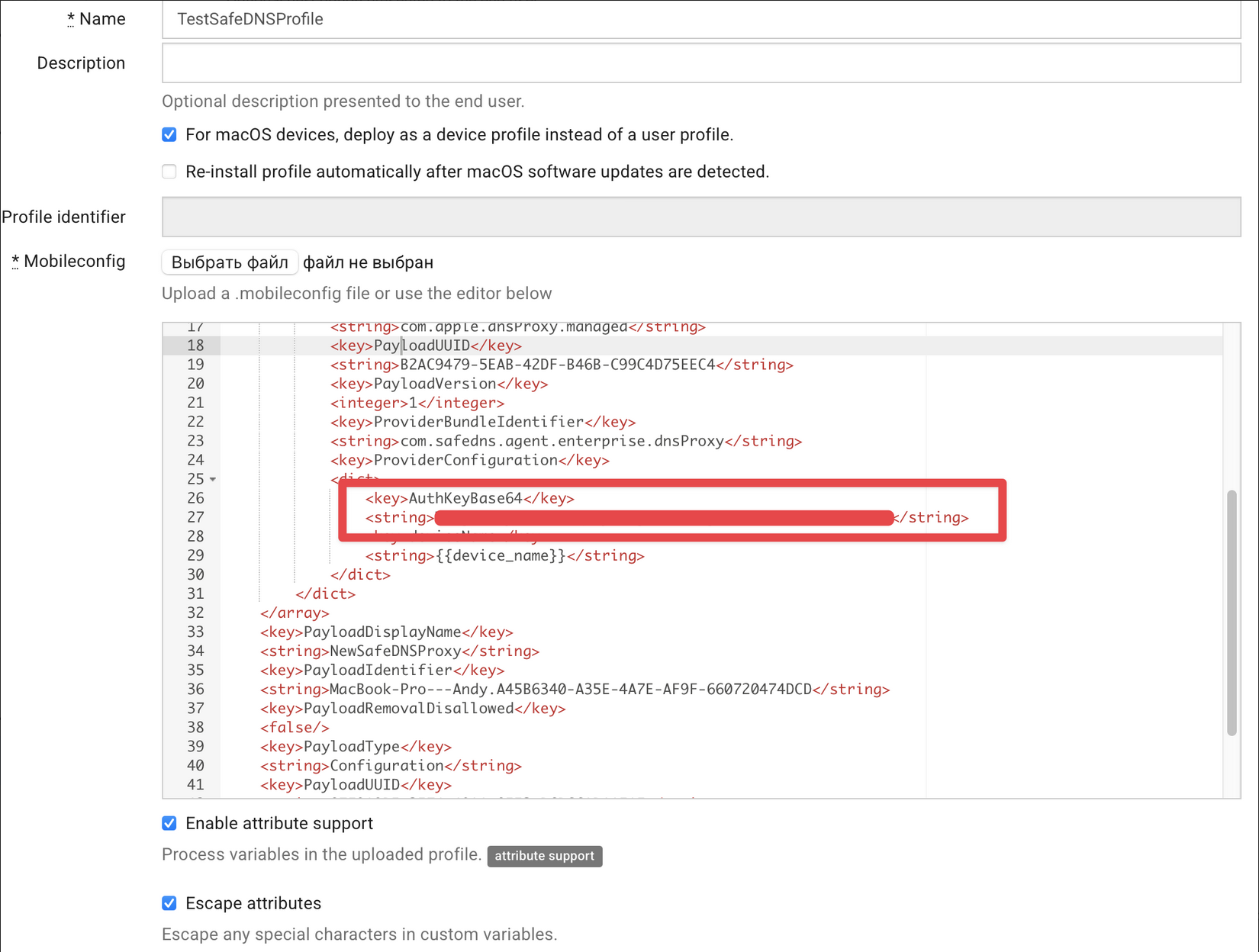](https://docs.safedns.com/uploads/images/gallery/2025-06/HOypa32SNbsbx5rT-safedns-application-deployment-using-mdm.png)Please find below the link to the file: [SafeDNS-Proxy.mobileconfig](https://docs.safedns.com/attachments/3)
Depending on the connection speed and profile propagation on the devices, a DNS-Proxy section with our settings will be added to the Device Management and VPN menu in the device settings. After this, the application and filtering module will synchronize, and filtering will begin based on the configuration settings in the SafeDNS.com Personal Account. The filtering process may take 3-5 minutes to start. # SafeDNS Agent Enterprise Application initial setup This step follows the mass deployment of the Agent application. It must be completed to enable the filtering on the device.**Before installation, please ensure that the device's battery level is at least 50% and that you have a stable internet connection.**
--- #### Initial setup 1\. Open the application after it is installed on the device. [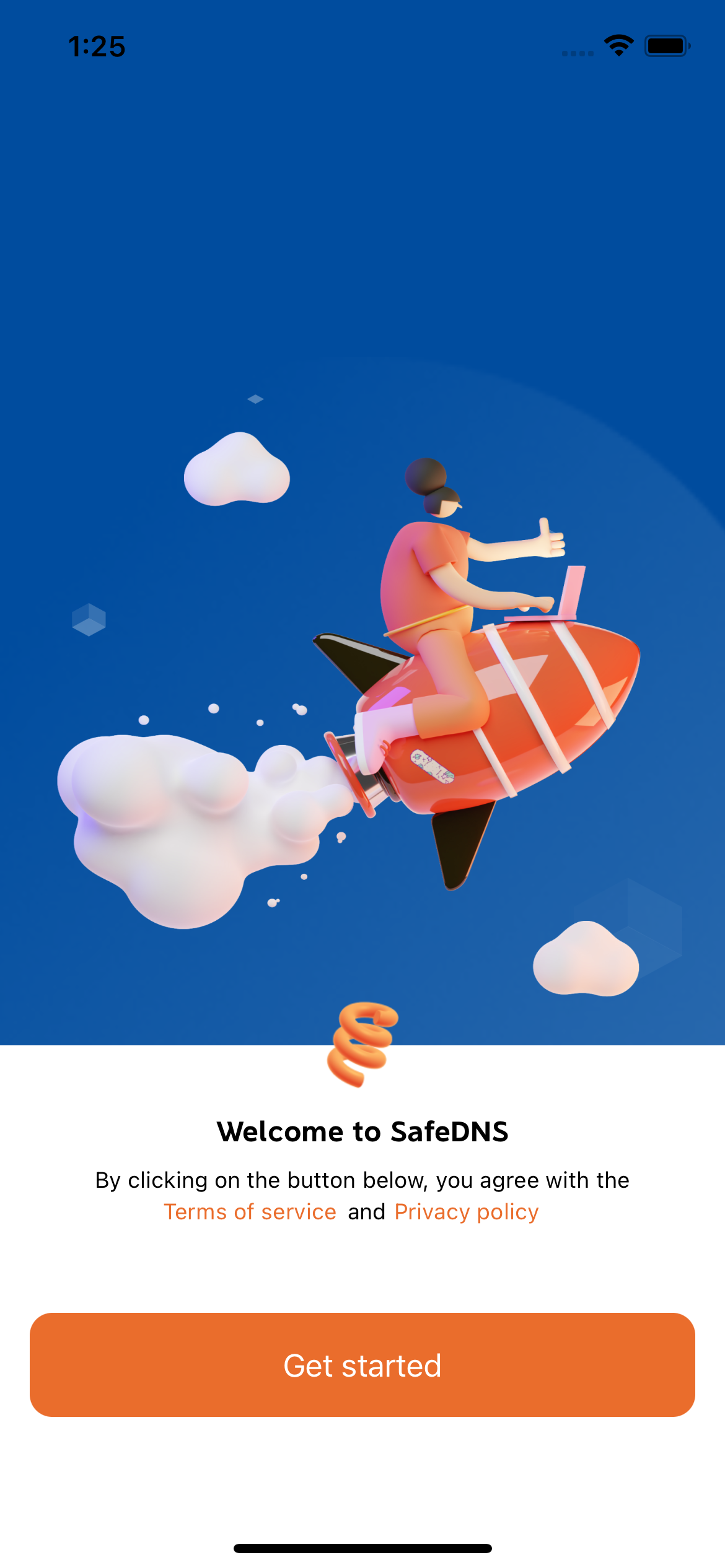](https://docs.safedns.com/uploads/images/gallery/2024-08/adORn52QNoe0j1eH-enterprise-application-initial-setup-guide-1.png)On this screen, the user can review **Terms of Service** and **Privacy Policy**. Press **Get started** to continue. 2\. Enter your work email (Apple ID under control) or another identifier controlled by the IT admin. [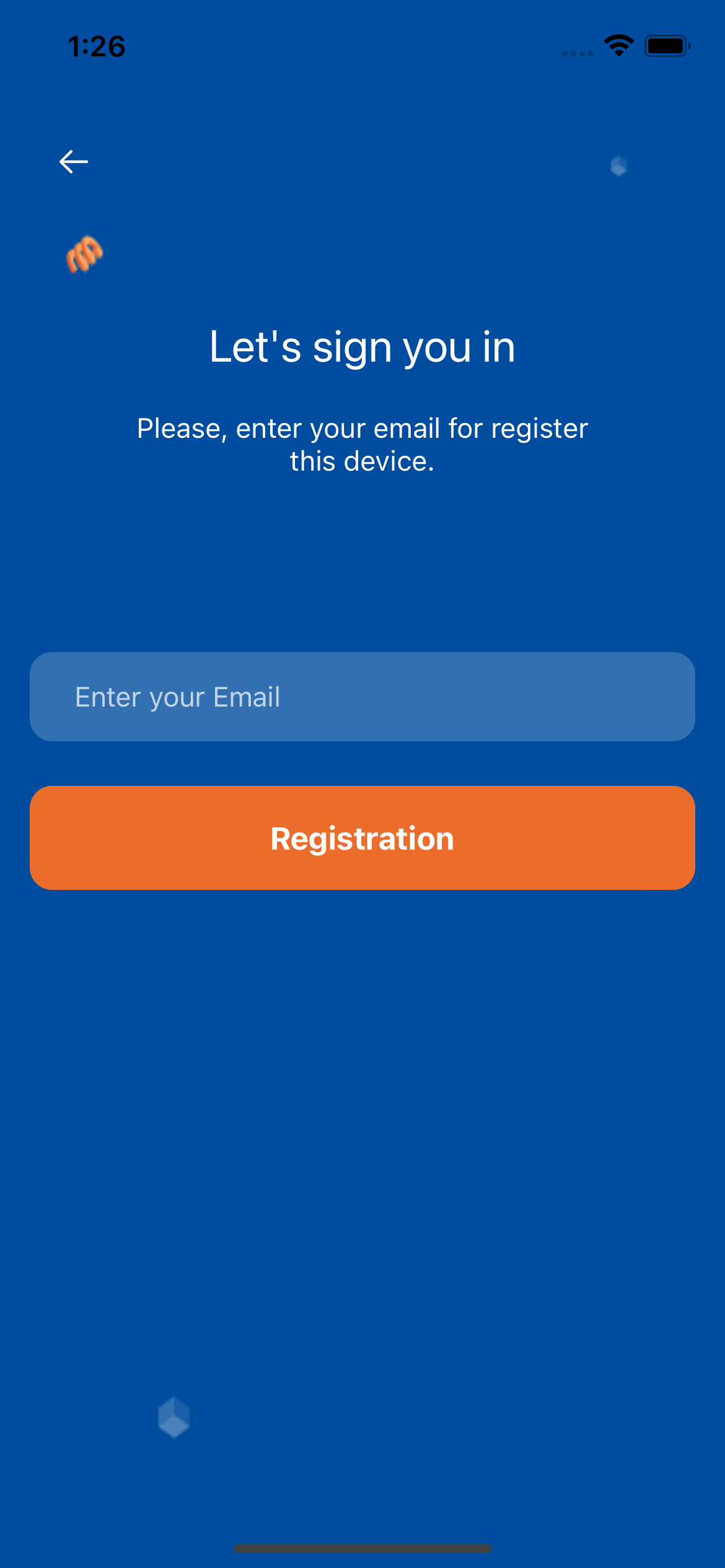](https://docs.safedns.com/uploads/images/gallery/2024-08/nHEJC0LHcOs8GadV-enterprise-application-initial-setup-guide-2.png) A manual entry option for the AuthKey is also available in case of any key delivery issues with the MDM integrator server (rare scenario). The user will have fields to enter the authKey and email. 3\. Press the **Next** button on the MDM system notification screen. [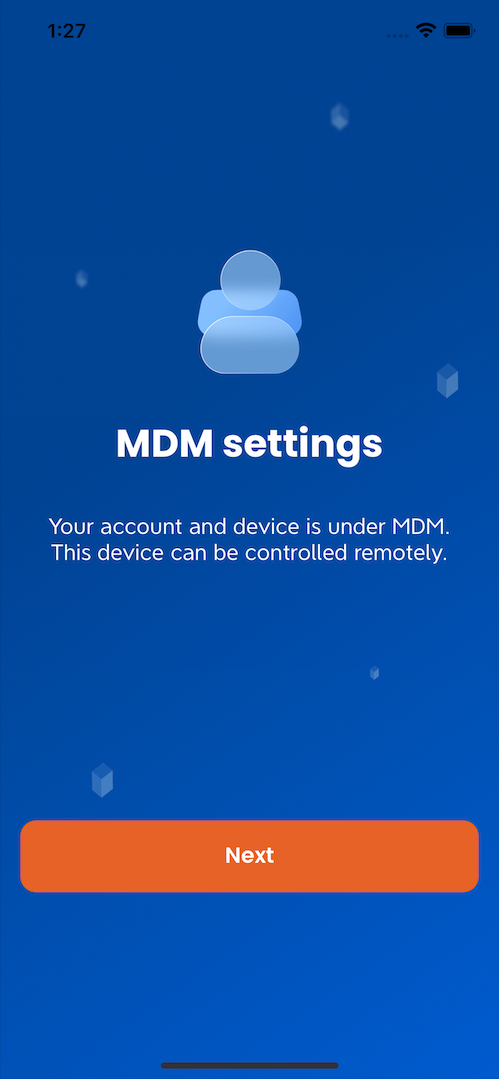](https://docs.safedns.com/uploads/images/gallery/2024-08/CBHQOIyoWjdKOuZT-enterprise-application-initial-setup-guide-3.png) This completes the initial setup and opens the Agent interface. #### Agent interface The main screen shows the status of the filtering, and the current filtering policy. Both can be adjusted by the admin in the SafeDNS Dashboard. [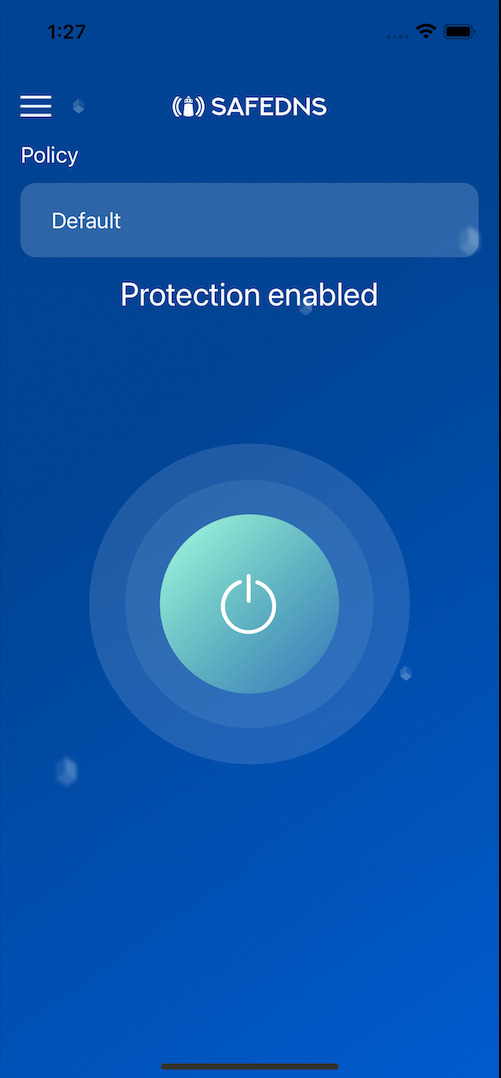](https://docs.safedns.com/uploads/images/gallery/2024-08/LdCs3G7RKzbKTamW-enterprise-application-initial-setup-guide-4.png) You can find the application version and build information in the **About Application** section in the settings menu. [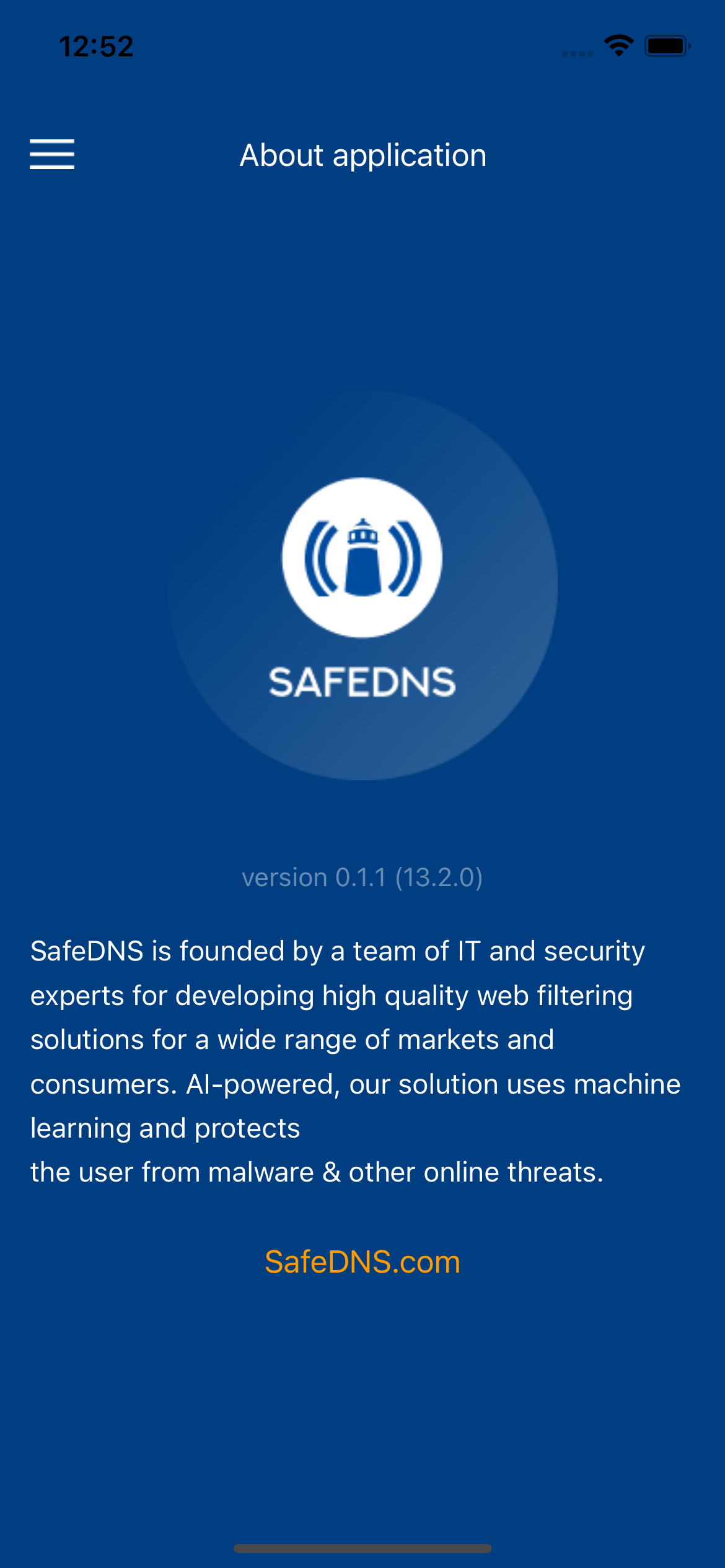](https://docs.safedns.com/uploads/images/gallery/2024-08/bcRB1PYh8jEXbkLd-enterprise-application-initial-setup-guide-5.png) If the internet connection is lost, the user will be simply notified on some screens, while on others, the interface will be disabled to reduce the likelihood of errors.