# Windows OS


# SafeDNS Agent for Windows Setup (old)

#### **Video tutorial #1:** SafeDNS Agent Installation  


<figure class="kg-card kg-embed-card" id="bkmrk-"><div class="fluid-width-video-container"><div class="fluid-width-video-wrapper"><iframe allowfullscreen="allowfullscreen" data-mce-fragment="1" height="314" src="https://www.youtube.com/embed/eF_Z3YplnGw" width="560"></iframe>

</div></div></figure>#### **Video tutorial #2:** SafeDNS Agent Settings and Features

<figure class="kg-card kg-embed-card" id="bkmrk--0"><div class="fluid-width-video-container"><div class="fluid-width-video-wrapper"><iframe allowfullscreen="allowfullscreen" data-mce-fragment="1" height="314" src="https://www.youtube.com/embed/tYstyXkxELI" width="560"></iframe>

</div></div></figure>---

#### **What is Agent created for**

The Agent software is designed to automatically launch and manage the SafeDNS web filtering service on Windows-based computers. The Agent should be installed on the PC when you have a private (local) or a dynamic public address, or you want to have a separate web filtering policy for each Windows-based computer within your network.

**Attention!** If you want to configure the SafeDNS web filtering service for the entire network, you can find information about the available settings in the [Instructions section](https://www.safedns.com/resource/setup-guides) of our website.

---

#### **Agent Installation**

1. Log into your SafeDNS account using your email/login and password.  
    If you have already downloaded the Agent, skip to **Step 3**.
2. Navigate to the **Main page** of the Dashboard and click on the [**Windows 8.1 and earlier**](https://www.safedns.com/downloads/beta/SafeDNS-Agent-Setup.exe) link in the **Getting started** menu.  
    [![Screenshot_304.png](https://docs.safedns.com/uploads/images/gallery/2024-09/scaled-1680-/YhxxSR0EWntl8dB8-screenshot-304.png)](https://docs.safedns.com/uploads/images/gallery/2024-09/YhxxSR0EWntl8dB8-screenshot-304.png)

Make sure your current Windows user account has Administrator rights. Run the **SafeDNS-Agent-Setup.exe** file and install the Agent on your computer following the program prompts.  
If you see a Windows SmartScreen alert, click **More options &gt; Run anyway** to start the installation.

[![2. SafeDNS Agent for Windows Setup Guide.png](https://docs.safedns.com/uploads/images/gallery/2022-08/scaled-1680-/vyMRJLLmhnCLfpOt-2-safedns-agent-for-windows-setup-guide.png)](https://docs.safedns.com/uploads/images/gallery/2022-08/vyMRJLLmhnCLfpOt-2-safedns-agent-for-windows-setup-guide.png)

  
[![3.SafeDNS Agent for Windows Setup Guide.png](https://docs.safedns.com/uploads/images/gallery/2022-08/scaled-1680-/6P7zVAiccKfbuZjf-3-safedns-agent-for-windows-setup-guide.png)](https://docs.safedns.com/uploads/images/gallery/2022-08/6P7zVAiccKfbuZjf-3-safedns-agent-for-windows-setup-guide.png)

  
[![4.SafeDNS Agent for Windows Setup Guide.png](https://docs.safedns.com/uploads/images/gallery/2022-08/scaled-1680-/cK2kjGHEYxVWTJTo-4-safedns-agent-for-windows-setup-guide.png)](https://docs.safedns.com/uploads/images/gallery/2022-08/cK2kjGHEYxVWTJTo-4-safedns-agent-for-windows-setup-guide.png)

<p class="callout info">After the successful installation, the Agent will be launched automatically.</p>

---

#### **Agent Unattended Installation**

You can install the Agent in an unattended automatic way. This allows you to automatically install and launch the service, manage the filtering policies and collect web traffic statistics on several individual computers within your network. [Learn how to install the Agent in unattended mode](https://docs.safedns.com/books/installation-guides/page/agent-unattended-installation).

---

#### **Getting Started with Agent**

Log in to the Agent using your SafeDNS email/login and password.  
If you forgot your password, click "**Forgot my password"**.

[![5.SafeDNS Agent for Windows Setup Guide.png](https://docs.safedns.com/uploads/images/gallery/2022-08/scaled-1680-/41Q3DSD0I9M9ycgO-5-safedns-agent-for-windows-setup-guide.png)](https://docs.safedns.com/uploads/images/gallery/2022-08/41Q3DSD0I9M9ycgO-5-safedns-agent-for-windows-setup-guide.png)
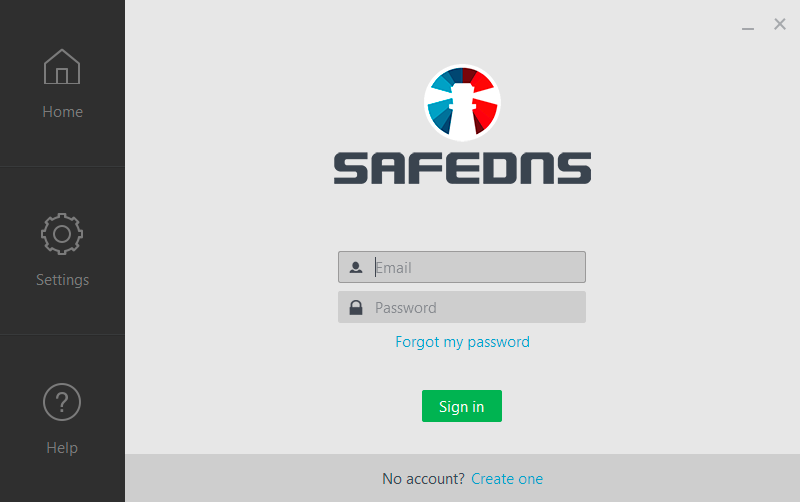
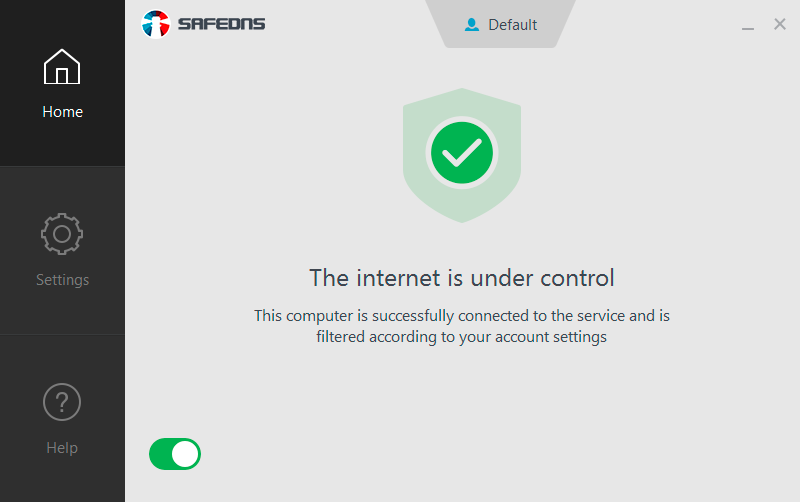
After successful login, the **Home page** of the program will be shown.  
This page contains:

- Current status of the filtering service in the center.
- Active filtering policy at the top.
- On/Off filtering slider button at the bottom.  
      
    [![6.SafeDNS Agent for Windows Setup Guide.png](https://docs.safedns.com/uploads/images/gallery/2022-08/scaled-1680-/Fo3afYBM07FELv0S-6-safedns-agent-for-windows-setup-guide.png)](https://docs.safedns.com/uploads/images/gallery/2022-08/Fo3afYBM07FELv0S-6-safedns-agent-for-windows-setup-guide.png)
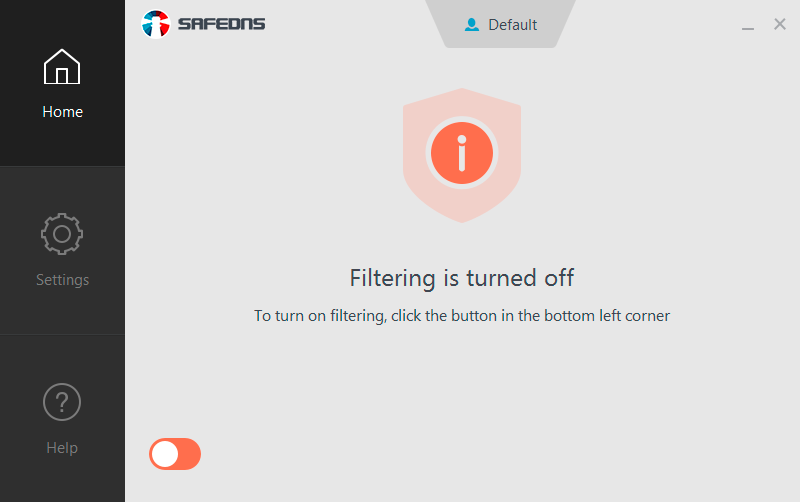
You can temporarily shut down the filtering by clicking on the slider button at the bottom of the window. You will be asked for a password if the settings are password protected.

[![7. SafeDNS Agent for Windows Setup Guide.png](https://docs.safedns.com/uploads/images/gallery/2022-08/scaled-1680-/Ry5RSa3ep4oQTWrm-7-safedns-agent-for-windows-setup-guide.png)](https://docs.safedns.com/uploads/images/gallery/2022-08/Ry5RSa3ep4oQTWrm-7-safedns-agent-for-windows-setup-guide.png)
---

#### **Content Filtering Settings**

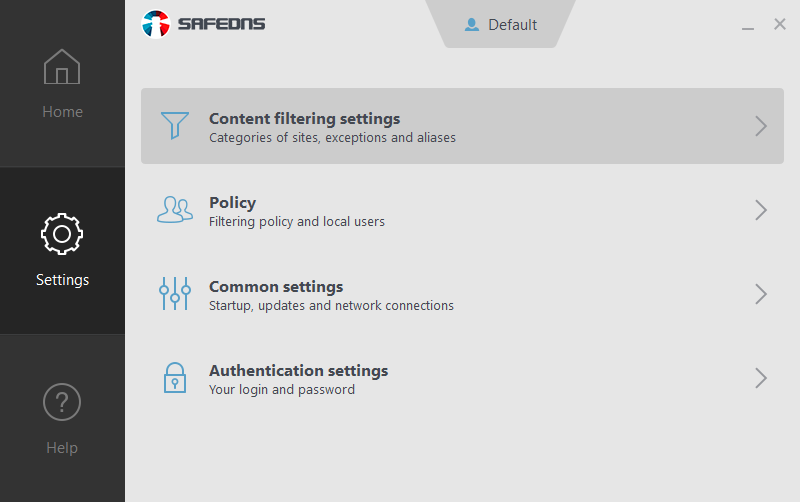
To set up your filtering rules go to the **Content filtering settings** section.

[![8.SafeDNS Agent for Windows Setup Guide.png](https://docs.safedns.com/uploads/images/gallery/2022-08/scaled-1680-/w6hXkQ030yonxkcy-8-safedns-agent-for-windows-setup-guide.png)](https://docs.safedns.com/uploads/images/gallery/2022-08/w6hXkQ030yonxkcy-8-safedns-agent-for-windows-setup-guide.png)
<p class="callout warning">Please note that settings take 5-7 minutes to apply.  
In some cases, you will need to [clear the cache of your browser](https://docs.safedns.com/books/guides/page/how-to-clear-dns-cache).</p>

If you have more than one filtering policy, you can select the needed one at the top of the window (paid plans only). Click on the **Plus** button to proceed to the **Policy** section where you can create a new policy.

[![9.SafeDNS Agent for Windows Setup Guide.png](https://docs.safedns.com/uploads/images/gallery/2022-08/scaled-1680-/ihAiAnQOhYJ9DCqp-9-safedns-agent-for-windows-setup-guide.png)](https://docs.safedns.com/uploads/images/gallery/2022-08/ihAiAnQOhYJ9DCqp-9-safedns-agent-for-windows-setup-guide.png)
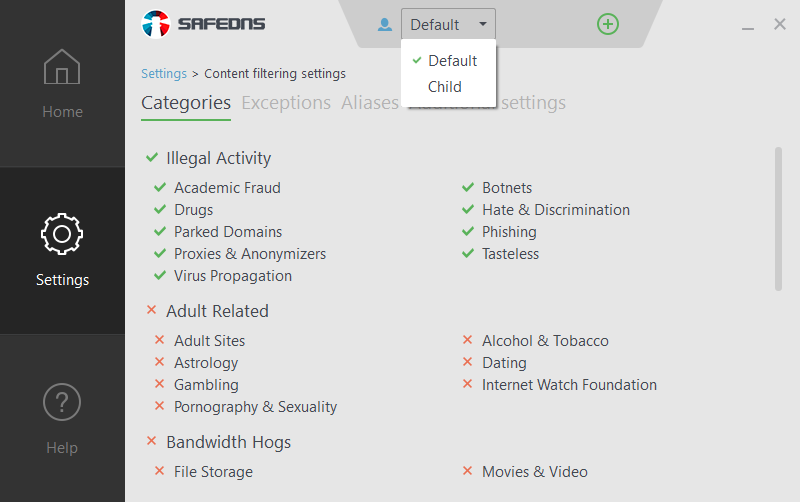
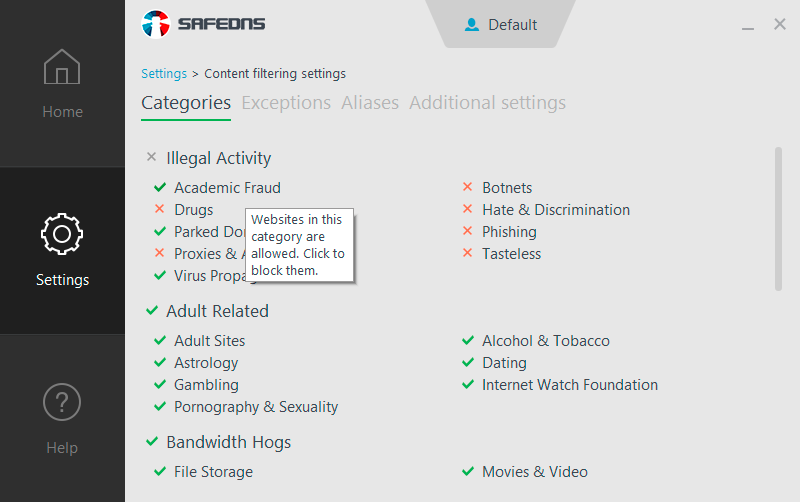
In the **Categories** tab, you can see a full list of content categories of your current filtering policy. In this tab, you can block or allow any of them. The red cross indicates blocked categories and the green checkmark indicates allowed categories. You can also block or allow an entire group of categories by clicking on the group name. The gray cross near a group name means that some categories are blocked and some of them are allowed.

[![10.SafeDNS Agent for Windows Setup Guide.png](https://docs.safedns.com/uploads/images/gallery/2022-08/scaled-1680-/jdVSzQtFUH9JKBN0-10-safedns-agent-for-windows-setup-guide.png)](https://docs.safedns.com/uploads/images/gallery/2022-08/jdVSzQtFUH9JKBN0-10-safedns-agent-for-windows-setup-guide.png)
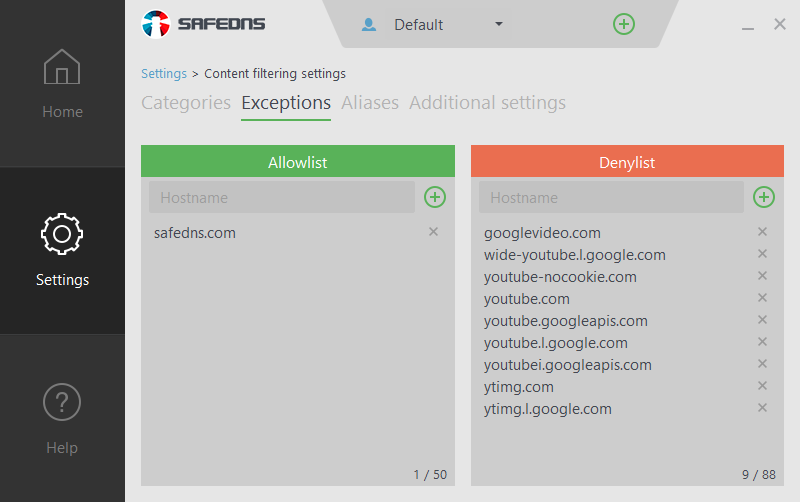
In the **Exceptions** tab, you can create Allow/Denylists for individual websites (domains). Domains in Denylist will always be blocked even if the category of these domains is allowed. Domains in Allowlist will always be accessible even if the category of these domains is blocked.  
To block a group of subdomains, add the main domain (e.g. google.com) to the Denylist and all subdomains on this domain will be blocked (drive.google.com, translate.google.com, photos.google.com, etc).

[![11.SafeDNS Agent for Windows Setup Guide.png](https://docs.safedns.com/uploads/images/gallery/2022-08/scaled-1680-/W2QIGfl1VnzJeU8i-11-safedns-agent-for-windows-setup-guide.png)](https://docs.safedns.com/uploads/images/gallery/2022-08/W2QIGfl1VnzJeU8i-11-safedns-agent-for-windows-setup-guide.png)
You can also create Named Allow/Denylists and apply them to one or several different policies (this option is available in **Dashboard** only). [Learn more about how to create named lists.](https://docs.safedns.com/books/guides/page/allowdenylists-and-named-lists)

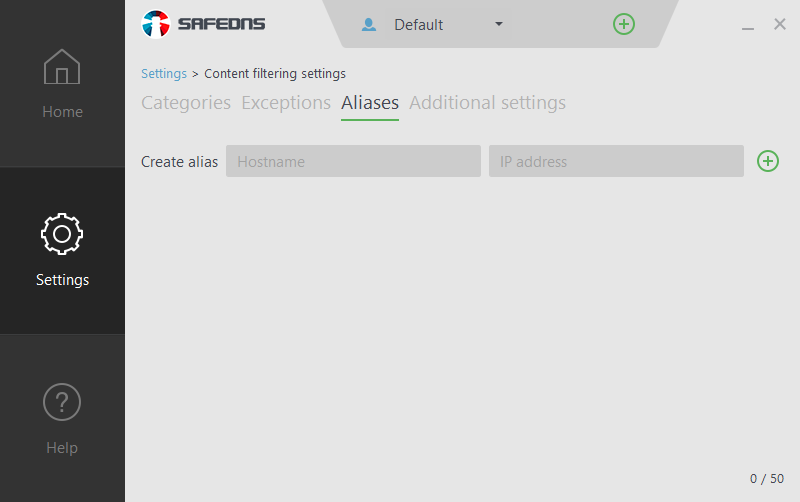
For the correct performance of your Internet Service Provider’s local resources such as media archives, online TV services, or your company’s local resources such as file share servers, printers, etc., add a local domain and IP address of this domain in the **Aliases** tab.

[![12.SafeDNS Agent for Windows Setup Guide.png](https://docs.safedns.com/uploads/images/gallery/2022-08/scaled-1680-/MqTfkvH6XDBBm65w-12-safedns-agent-for-windows-setup-guide.png)](https://docs.safedns.com/uploads/images/gallery/2022-08/MqTfkvH6XDBBm65w-12-safedns-agent-for-windows-setup-guide.png)
You can manage additional settings such as **Force Safe Search**, **Force Restricted Mode for YouTube,** and **Use the Allowlist only** in the **Additional settings** tab.

[![13.SafeDNS Agent for Windows Setup Guide.png](https://docs.safedns.com/uploads/images/gallery/2022-08/scaled-1680-/qXCZ0XKrju8BkH4X-13-safedns-agent-for-windows-setup-guide.png)](https://docs.safedns.com/uploads/images/gallery/2022-08/qXCZ0XKrju8BkH4X-13-safedns-agent-for-windows-setup-guide.png)
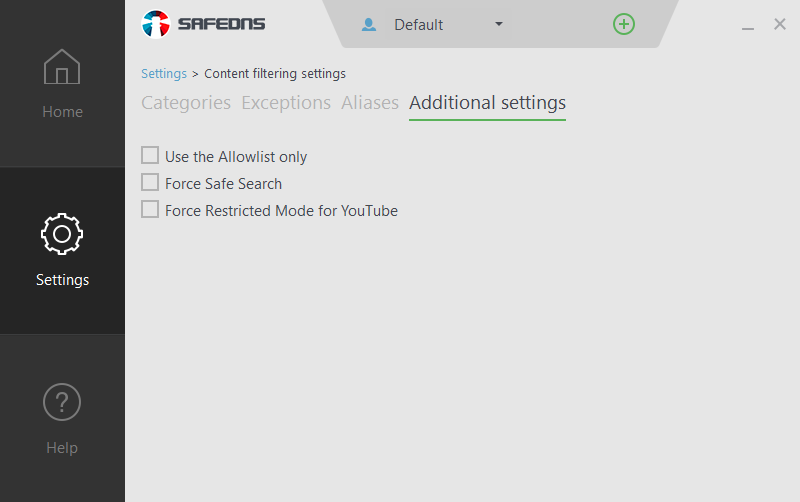
<p class="callout warning">All domains which are not added to the Allowlist will be blocked when **Use the** **Allow List only** option is active.</p>

---

#### **Creating Additional Filtering Policies**

The **Default** filtering policy cannot be deleted.  
You can also create additional policies (paid plans only) and use them to apply different filtering policies for:

- a different user accounts on the same PC,
- different PCs with the SafeDNS Agent installed.

To create a new filtering policy follow these steps:  
1\. Go to the **Policy** Section on the **Settings** page.

[![14.SafeDNS Agent for Windows Setup Guide.png](https://docs.safedns.com/uploads/images/gallery/2022-08/scaled-1680-/Ho9umlgfMk7p2p5f-14-safedns-agent-for-windows-setup-guide.png)](https://docs.safedns.com/uploads/images/gallery/2022-08/Ho9umlgfMk7p2p5f-14-safedns-agent-for-windows-setup-guide.png)
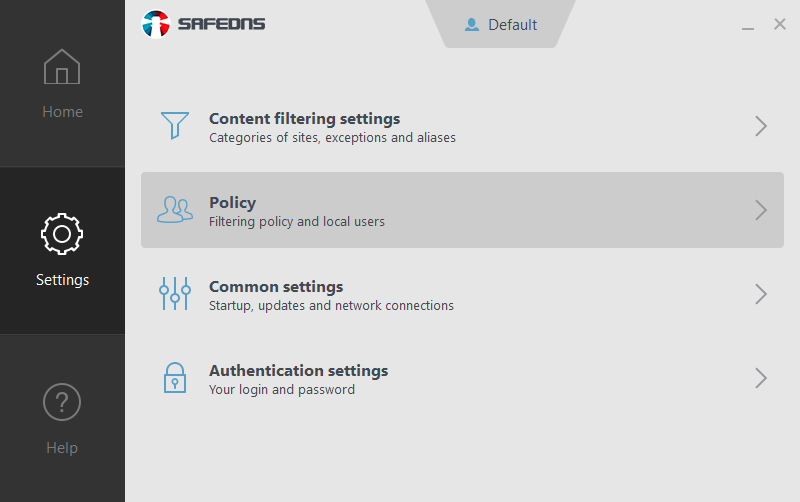
2\. Type the name of the new policy in the **Create policy** field. After that, click the **Plus** button on the right to create a policy.

[![15.SafeDNS Agent for Windows Setup Guide.png](https://docs.safedns.com/uploads/images/gallery/2022-08/scaled-1680-/57ucxwFIrPWnKGyy-15-safedns-agent-for-windows-setup-guide.png)](https://docs.safedns.com/uploads/images/gallery/2022-08/57ucxwFIrPWnKGyy-15-safedns-agent-for-windows-setup-guide.png)
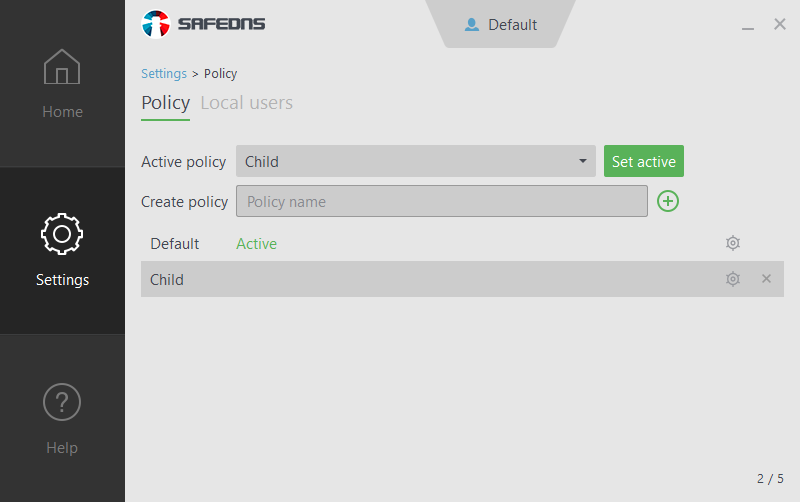
Now you can change settings for a new filtering policy in **Settings &gt; Content filtering**. You can use the **Cogwheel** icon near the policy’s name, to open the **Content filtering settings** of this policy.

To delete a policy, press the **Cross** icon near the policy’s name.

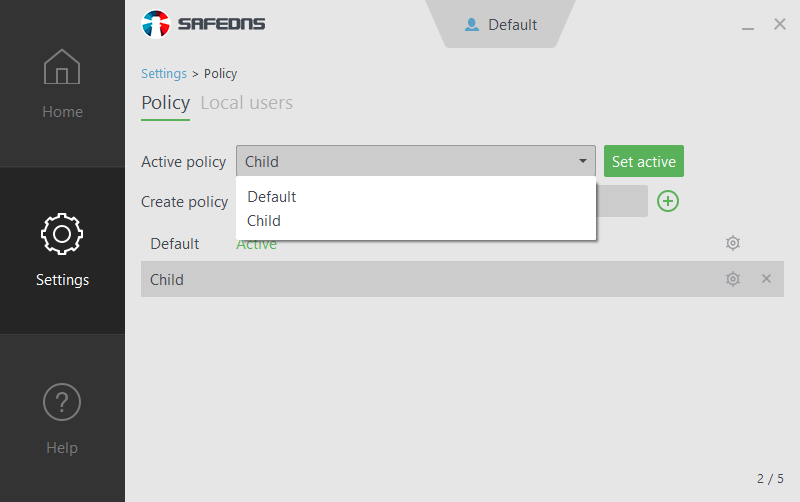
You can set up one of your policies as active in the **Active policies** dropdown menu.

[![16.SafeDNS Agent for Windows Setup Guide.png](https://docs.safedns.com/uploads/images/gallery/2022-08/scaled-1680-/7b6R57mGAsw99syS-16-safedns-agent-for-windows-setup-guide.png)](https://docs.safedns.com/uploads/images/gallery/2022-08/7b6R57mGAsw99syS-16-safedns-agent-for-windows-setup-guide.png)
---

#### **Binding Local Users to the Filtering Policies**

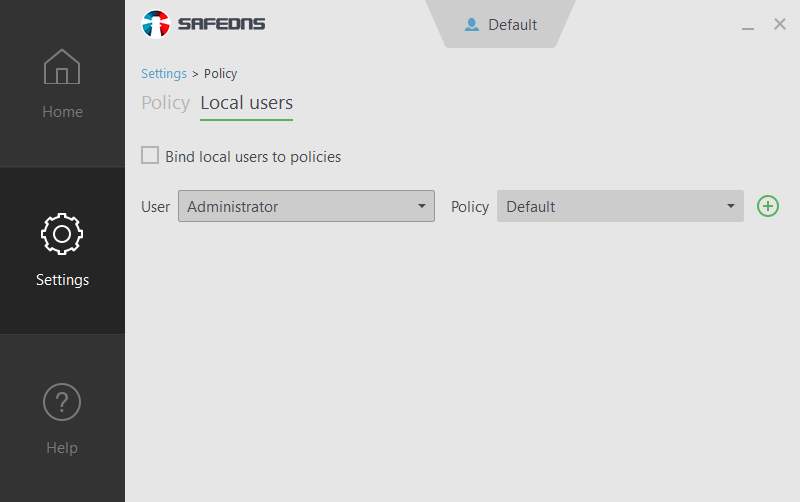
If you have several filtering policies, you can bind local users on your PC to these policies. The selected policy will be applied to the selected Windows user after they log into the system.

To bind a user to a filtering policy, go to the **Local user** tab in the **Policy** section. Check the **Bind local users** **to the policies** box to activate binding.

Choose the necessary Windows user in the **User** dropdown menu. Then select the preferred policy from the **Policy** dropdown menu and press the **Plus** icon.

To unbind a Windows user from a policy, press the **Cross** icon near the user’s name.

To turn off local users’ binding, uncheck the **Bind, local users, to the policies** box.

[![17.SafeDNS Agent for Windows Setup Guide.png](https://docs.safedns.com/uploads/images/gallery/2022-08/scaled-1680-/1AhBmI7NSumSpGod-17-safedns-agent-for-windows-setup-guide.png)](https://docs.safedns.com/uploads/images/gallery/2022-08/1AhBmI7NSumSpGod-17-safedns-agent-for-windows-setup-guide.png)
---

#### **Filtering Schedule**

Additional policies can be used for a filtering Schedule. It allows you to apply different settings or limit web access at certain time periods in a single day. Schedule configuration is available in the **Dashboard** on the SafeDNS website only. [Learn how to set up a filtering schedule](https://docs.safedns.com/books/installation-guides/page/schedule-setup).

---

#### **Password Protection**

Actions such as changing settings, Agent uninstall, filtering suspension, and policy changing, are by default protected by your password.

[![18.SafeDNS Agent for Windows Setup Guide.png](https://docs.safedns.com/uploads/images/gallery/2022-08/scaled-1680-/wrcypuEOygUkMfuM-18-safedns-agent-for-windows-setup-guide.png)](https://docs.safedns.com/uploads/images/gallery/2022-08/wrcypuEOygUkMfuM-18-safedns-agent-for-windows-setup-guide.png)
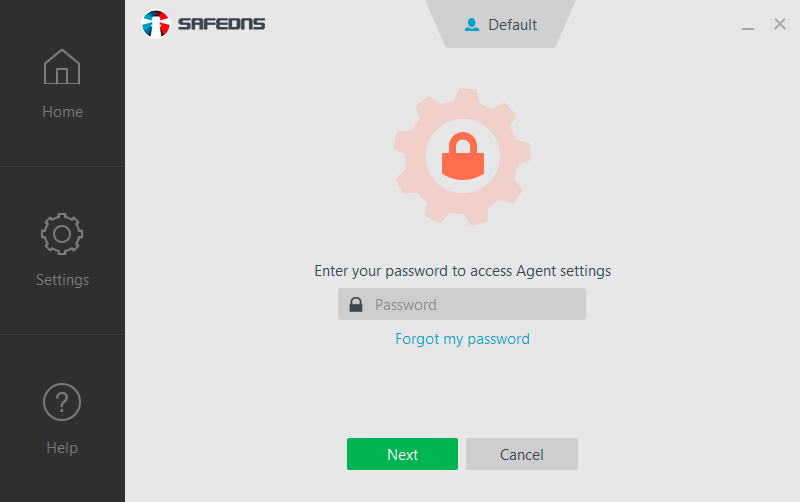
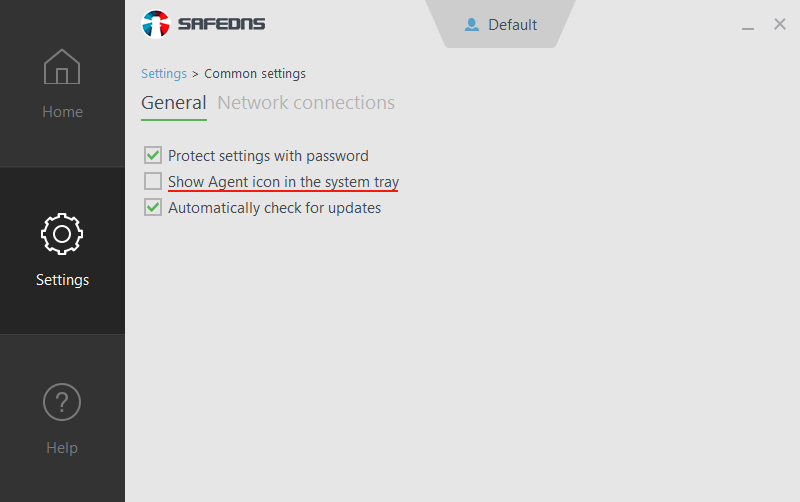
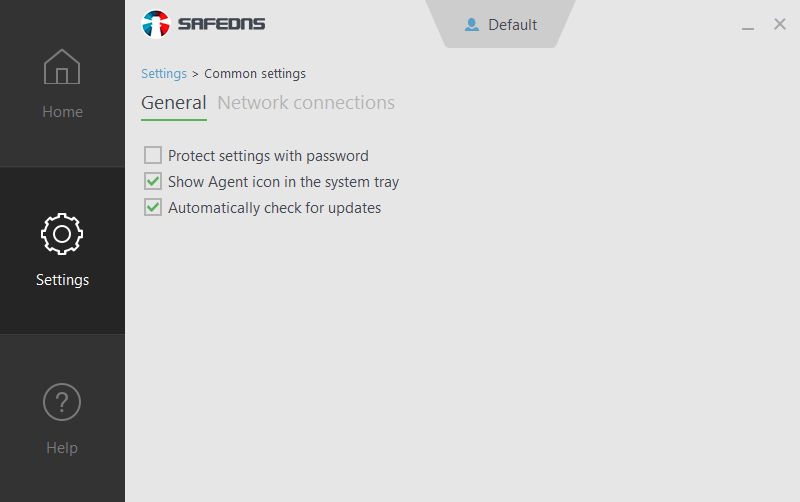
Password protection can be deactivated in **Settings &gt; Common settings**. To turn off password protection, uncheck **Protect settings with the password** box. We recommend it only if you're the sole user of your computer. You can also manage additional settings, such as **show agent icon in the system tray,** and **Automatically check for updates**.

[![19.SafeDNS Agent for Windows Setup Guide.png](https://docs.safedns.com/uploads/images/gallery/2022-08/scaled-1680-/nfZLpdAGV06pEnad-19-safedns-agent-for-windows-setup-guide.png)](https://docs.safedns.com/uploads/images/gallery/2022-08/nfZLpdAGV06pEnad-19-safedns-agent-for-windows-setup-guide.png)
---

#### **Agent's Tray Icon Options**

You can use **Agent’s tray icon** to stop filtering or change the active policy.  
Right-click on it and choose the necessary action.

[![20. SafeDNS Agent for Windows Setup Guide.png](https://docs.safedns.com/uploads/images/gallery/2022-08/scaled-1680-/7Eq7KpcCOJ7bJIvm-20-safedns-agent-for-windows-setup-guide.png)](https://docs.safedns.com/uploads/images/gallery/2022-08/7Eq7KpcCOJ7bJIvm-20-safedns-agent-for-windows-setup-guide.png)
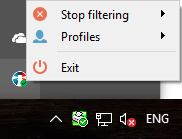
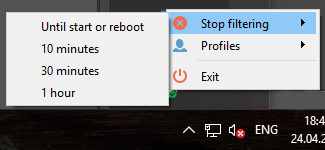
You can temporarily switch the filtering off for 10 minutes, 30 minutes, 1 hour, and until start or reboot.

[![21.SafeDNS Agent for Windows Setup Guide.png](https://docs.safedns.com/uploads/images/gallery/2022-08/scaled-1680-/iLe9cjXeJLxjuPIP-21-safedns-agent-for-windows-setup-guide.png)](https://docs.safedns.com/uploads/images/gallery/2022-08/iLe9cjXeJLxjuPIP-21-safedns-agent-for-windows-setup-guide.png)
You can also change the active filtering policy from the tray icon.

[![22.SafeDNS Agent for Windows Setup Guide.png](https://docs.safedns.com/uploads/images/gallery/2022-08/scaled-1680-/Gt3JZ6VkLF5GUXi4-22-safedns-agent-for-windows-setup-guide.png)](https://docs.safedns.com/uploads/images/gallery/2022-08/Gt3JZ6VkLF5GUXi4-22-safedns-agent-for-windows-setup-guide.png)
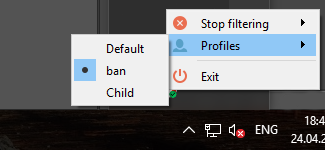
If your settings are password-protected, you will be asked to enter the password.

To hide Agent's icon in the system tray uncheck the **Show Agent icon in the system tray** box in **Settings &gt; Common settings.**

[![23.SafeDNS Agent for Windows Setup Guide.png](https://docs.safedns.com/uploads/images/gallery/2022-08/scaled-1680-/gd7R8hpipPWtTBQP-23-safedns-agent-for-windows-setup-guide.png)](https://docs.safedns.com/uploads/images/gallery/2022-08/gd7R8hpipPWtTBQP-23-safedns-agent-for-windows-setup-guide.png)

---

#### **If You Have Issues**

If you have issues with the SafeDNS service or the Agent, feel free to contact our technical support. You can find our contacts on the **Help page** in the Agent. The **Get support** button will redirect you to the support form on the SafeDNS website. The **Check for updates** button allows you to automatically download the most recent version of the SafeDNS Agent.

[![24. SafeDNS Agent for Windows Setup Guide.png](https://docs.safedns.com/uploads/images/gallery/2022-08/scaled-1680-/RLgDXvlwIP2yaxDo-24-safedns-agent-for-windows-setup-guide.png)](https://docs.safedns.com/uploads/images/gallery/2022-08/RLgDXvlwIP2yaxDo-24-safedns-agent-for-windows-setup-guide.png)
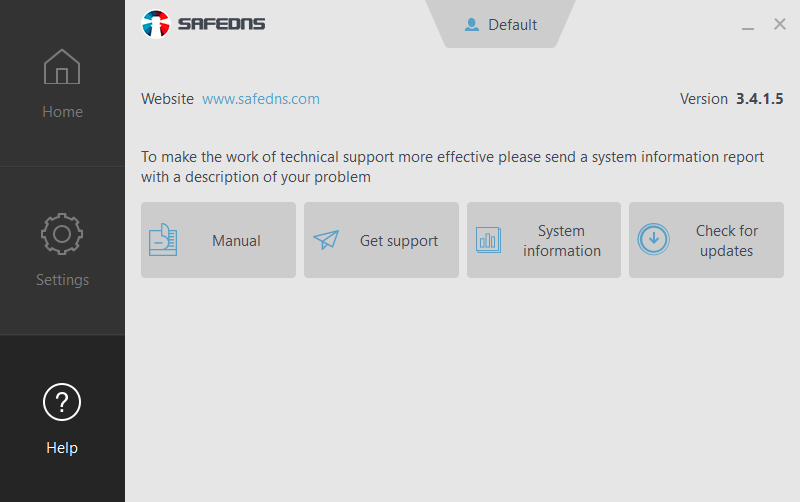
If SafeDNS Support asks you to send a system report, you can get it in the Agent. To get the report click the **System information** button on the **Help page**. This operation can take a few minutes. After that, copy the report and send it to the Support team via the [feedback form](https://www.safedns.com/resource/support-ticket).

<p class="callout warning">Please note that settings take 5-7 minutes to apply.  
Stats and filtering status update every 10 minutes.  
</p>

# SafeDNS Agent for Windows Setup

<p class="callout info">The Agent is available on the following billing plans: **Safe Family, Pro, Pro Plus,** and archived **Safe@Home, Safe@Office**.</p>

---

#### What is Agent created for

The Agent software is designed to automatically launch and manage the SafeDNS web filtering service on Windows-based computers. The Agent should be installed on the PC when you have a private (local) or a dynamic public address, or you want to have a separate web filtering policy for each Windows-based computer within your network.

Attention! If you want to configure the SafeDNS web filtering service for the entire network, you can find information about the available settings in the [Instructions section](https://www.safedns.com/resource/setup-guides) of our website.

---

#### Agent Installation

1. Log into your SafeDNS account using your email/login and password.  
    If you have already downloaded the Agent, make sure you are using the latest version and go to "[Getting Started with Agent](https://docs.safedns.com/books/installation-guides/page/safedns-agent-for-windows-setup-beta#bkmrk-getting-started-with)".
2. Navigate to Main, scroll down, and click the "beta release" button under "Windows".  
      
    [![1.Agent for Windows.png](https://docs.safedns.com/uploads/images/gallery/2024-08/scaled-1680-/xFPzMe2yqjZMIWzc-1-agent-for-windows.png)](https://docs.safedns.com/uploads/images/gallery/2024-08/xFPzMe2yqjZMIWzc-1-agent-for-windows.png)
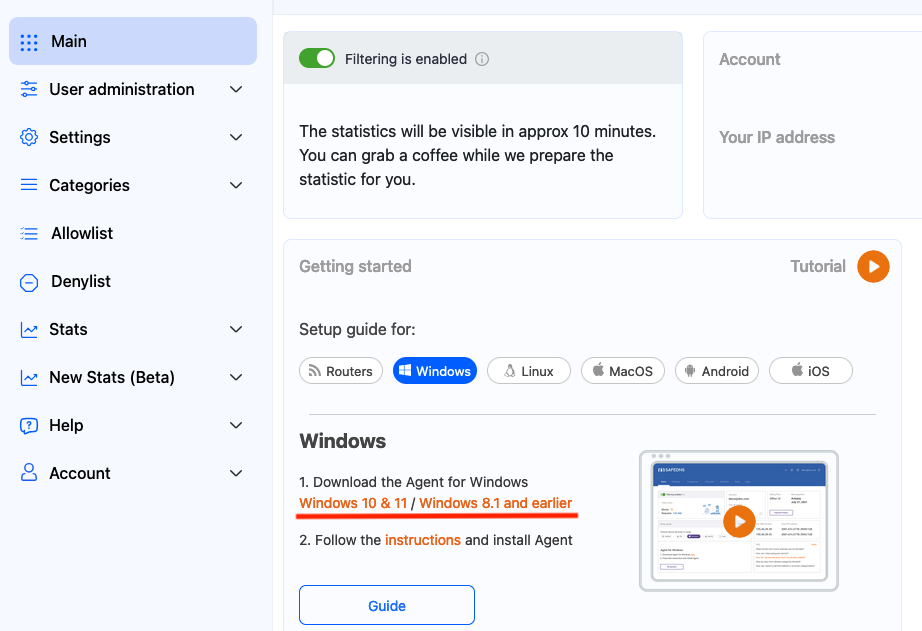
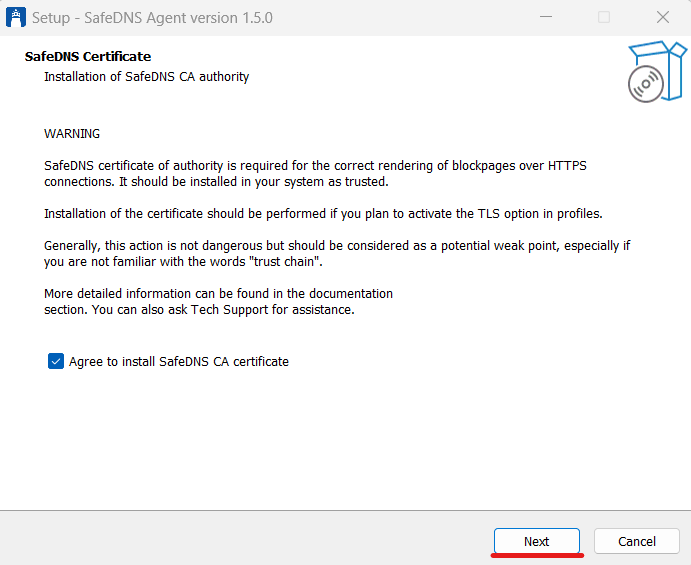
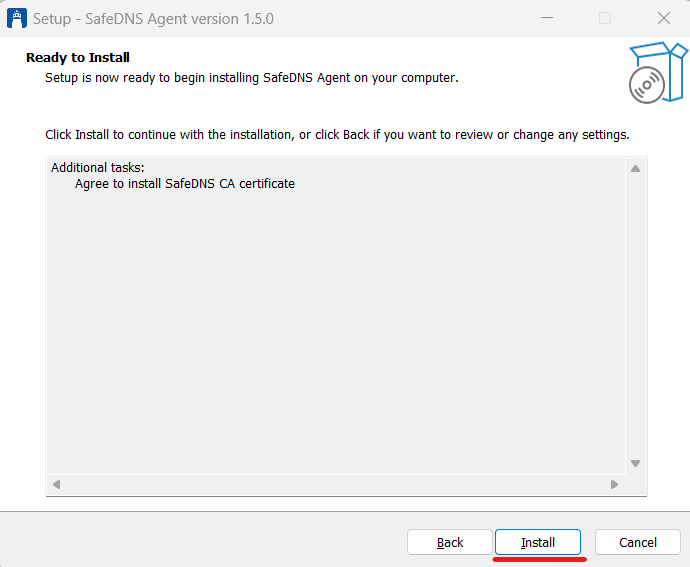
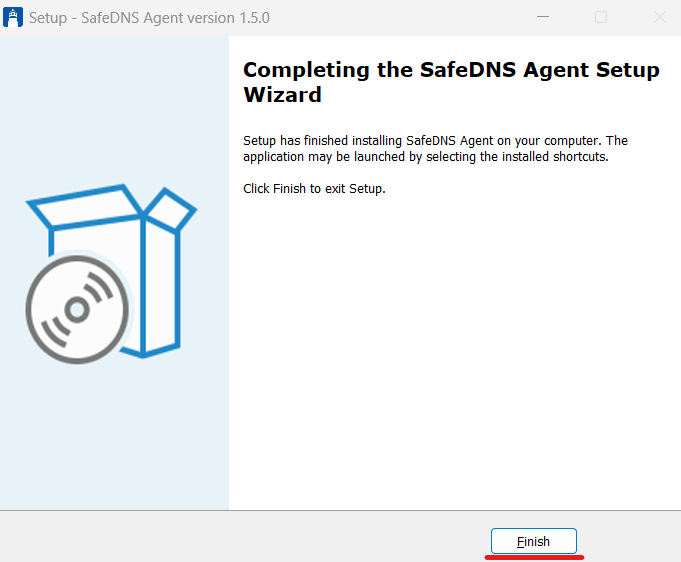
Make sure your current Windows user account has Administrator rights. Run the SafeDNS-Agent-Setup.exe file and install the Agent on your computer.

You will see the warning about SafeDNS Certificate installation, please click Next.

[![Screenshot 2023-09-16 003926.png](https://docs.safedns.com/uploads/images/gallery/2023-09/scaled-1680-/I6s8fSYq9xlHmxmJ-screenshot-2023-09-16-003926.png)](https://docs.safedns.com/uploads/images/gallery/2023-09/I6s8fSYq9xlHmxmJ-screenshot-2023-09-16-003926.png)  
[![Screenshot 2023-09-16 004501.png](https://docs.safedns.com/uploads/images/gallery/2023-09/scaled-1680-/HXEl7KTbMUVR3tej-screenshot-2023-09-16-004501.png)](https://docs.safedns.com/uploads/images/gallery/2023-09/HXEl7KTbMUVR3tej-screenshot-2023-09-16-004501.png)
[![Screenshot 2023-09-16 004534.png](https://docs.safedns.com/uploads/images/gallery/2023-09/scaled-1680-/tqOC2I7aBDQLeKKv-screenshot-2023-09-16-004534.png)](https://docs.safedns.com/uploads/images/gallery/2023-09/tqOC2I7aBDQLeKKv-screenshot-2023-09-16-004534.png)
---

#### Agent Unattended Installation

You can install the Agent in an unattended automatic way. This allows you to automatically install and launch the service, manage the filtering policies, and collect web traffic statistics on several individual computers within your network. [Learn how to install the Agent in unattended mode](https://docs.safedns.com/books/installation-guides/page/agent-unattended-installation).

---

#### Getting Started with Agent

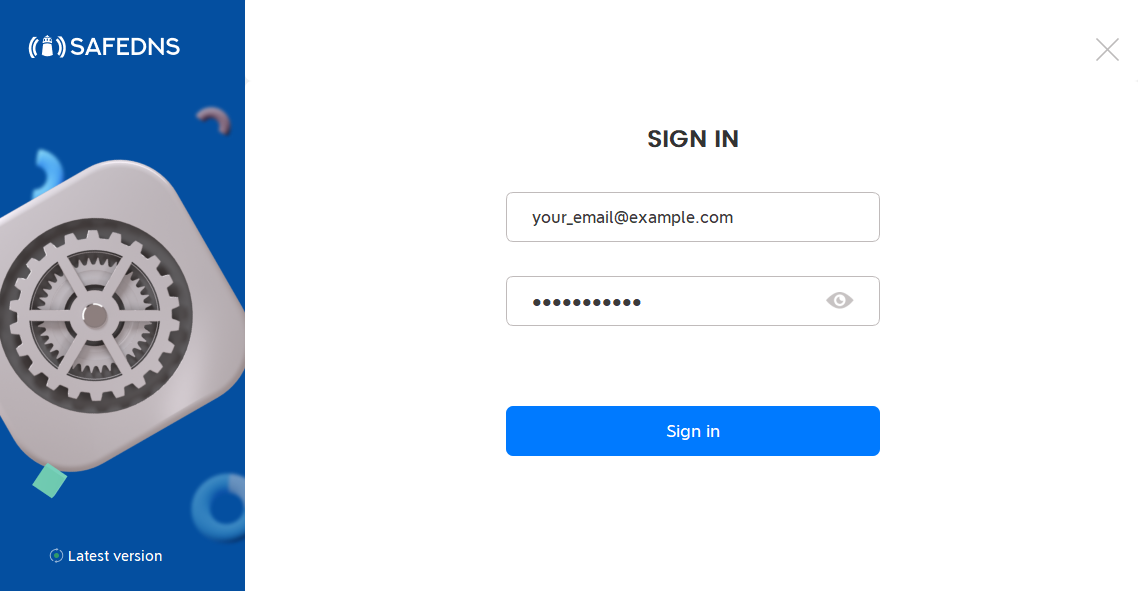
1\. Log in to the Agent using your SafeDNS email/login and password.  
If you forgot your password, click this link to reset your password: [https://www.safedns.com/auth/forgot](https://www.safedns.com/auth/forgot)

[![Screenshot 2023-09-16 005446.png](https://docs.safedns.com/uploads/images/gallery/2023-09/scaled-1680-/wSoZCJi8FCvxFnAH-screenshot-2023-09-16-005446.png)](https://docs.safedns.com/uploads/images/gallery/2023-09/wSoZCJi8FCvxFnAH-screenshot-2023-09-16-005446.png)
2\. Set up the security PIN that will be used later to restrict access to the Agent.  
The PIN code must be between 4 and 20 characters in length and may consist of digits, letters, or special symbols.

[![Screenshot 2023-09-16 005612.png](https://docs.safedns.com/uploads/images/gallery/2023-09/scaled-1680-/POWWLERfYrNB385b-screenshot-2023-09-16-005612.png)](https://docs.safedns.com/uploads/images/gallery/2023-09/POWWLERfYrNB385b-screenshot-2023-09-16-005612.png)
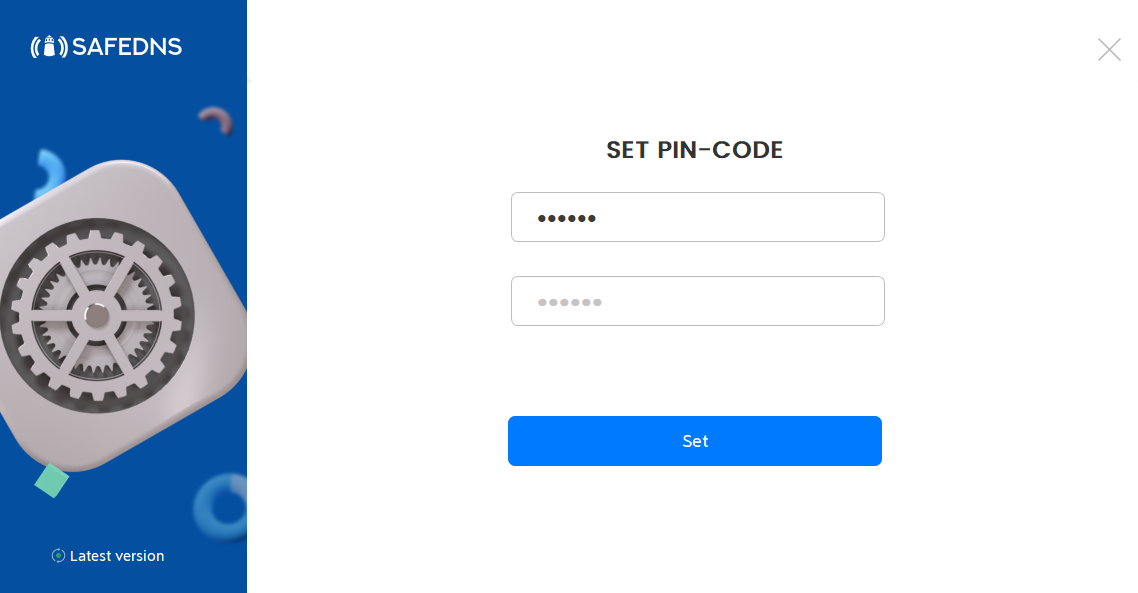
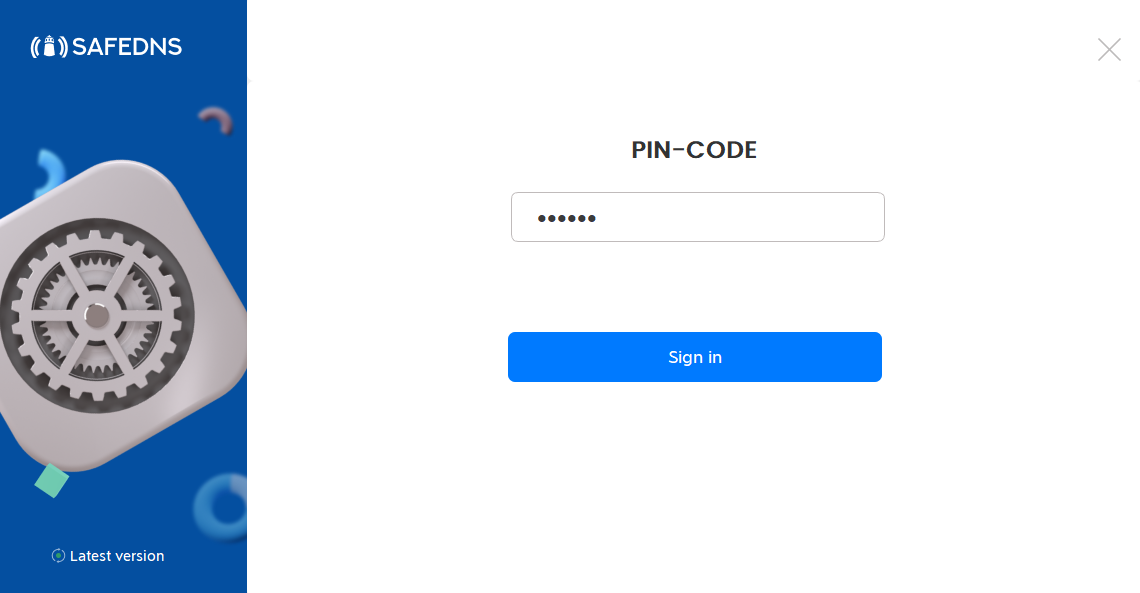
3\. Enter the PIN once again to sign in to the Agent.

[![Screenshot 2023-09-16 005638.png](https://docs.safedns.com/uploads/images/gallery/2023-09/scaled-1680-/RZ1ewM1PwSl1EueQ-screenshot-2023-09-16-005638.png)](https://docs.safedns.com/uploads/images/gallery/2023-09/RZ1ewM1PwSl1EueQ-screenshot-2023-09-16-005638.png)
---

#### Agent overview

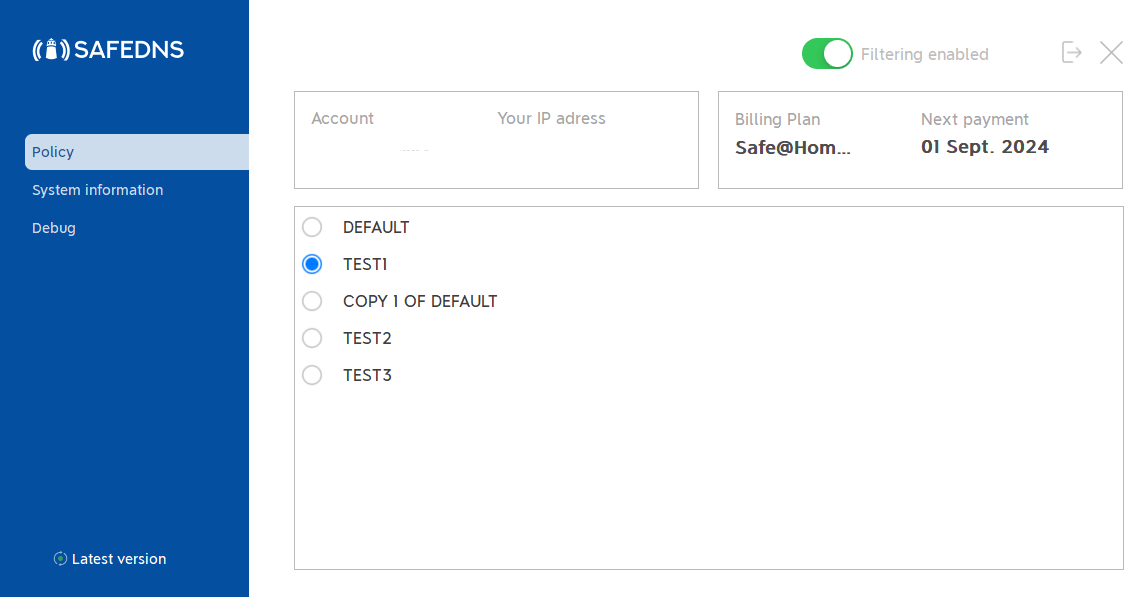
1\. In the main window of the Agent you can view your account information, current IP address, your Billing Plan, and the Subscription expiration date.  
All filtering rules changes can be made in the [SafeDNS Dashboard.](https://safedns.com/cabinet/main/)

<div class="pointer-container" id="bkmrk-%C2%A0"><div class="pointer anim "><svg class="svg-icon" data-icon="link" role="presentation" viewbox="0 0 24 24" xmlns="http://www.w3.org/2000/svg"></svg><div class="input-group inline block"> <button class="button outline icon" data-clipboard-target="#pointer-url" title="Копировать ссылку" type="button"><svg class="svg-icon" data-icon="copy" role="presentation" viewbox="0 0 24 24" xmlns="http://www.w3.org/2000/svg"></svg></button></div></div></div>Use the **Policy** menu to view and change the current filtering Policy.

Filtering can be stopped in Agent using the "Filtering enabled" button at the right top corner of the app.

<p class="callout warning">Please note that settings take 5-7 minutes to apply.  
In some cases, you will need to [clear the cache of your browser](https://docs.safedns.com/books/guides/page/how-to-clear-dns-cache).</p>

[![Screenshot 2023-09-16 005915.png](https://docs.safedns.com/uploads/images/gallery/2023-09/scaled-1680-/HLGuVgDq2AzWIyaB-screenshot-2023-09-16-005915.png)](https://docs.safedns.com/uploads/images/gallery/2023-09/HLGuVgDq2AzWIyaB-screenshot-2023-09-16-005915.png)

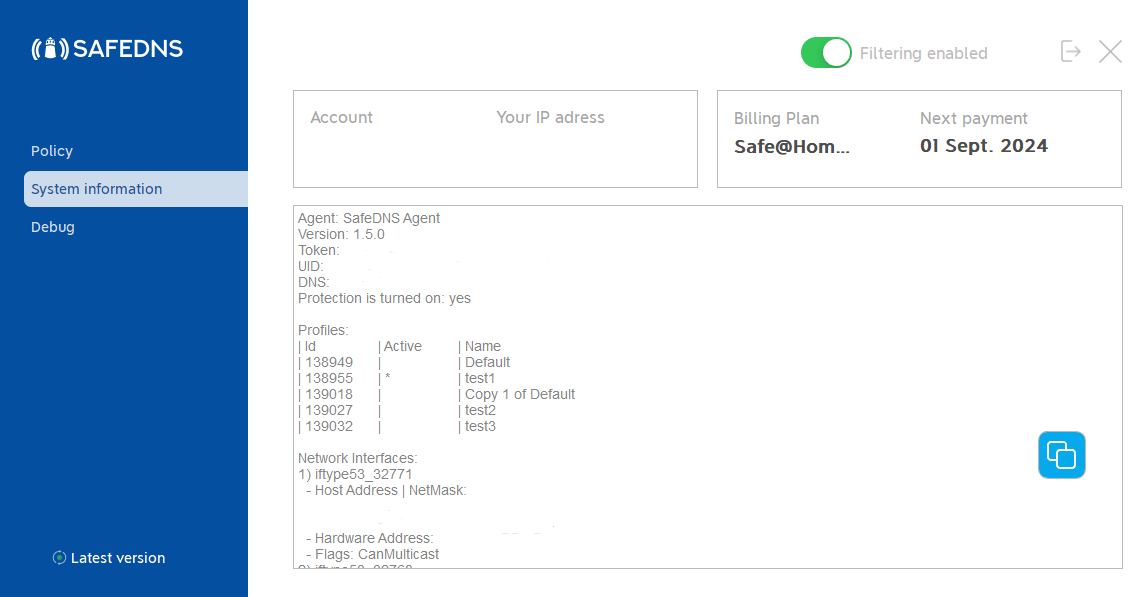
2\. The **system information** menu shows brief information about the Agent, current filtering policies, and network interfaces. The information in this menu can be copied to the clipboard by clicking the "Copy to clipboard" button.

[![Screenshot 2023-09-16 010213.png](https://docs.safedns.com/uploads/images/gallery/2023-09/scaled-1680-/sgb5J5sjohEXRLBx-screenshot-2023-09-16-010213.png)](https://docs.safedns.com/uploads/images/gallery/2023-09/sgb5J5sjohEXRLBx-screenshot-2023-09-16-010213.png)
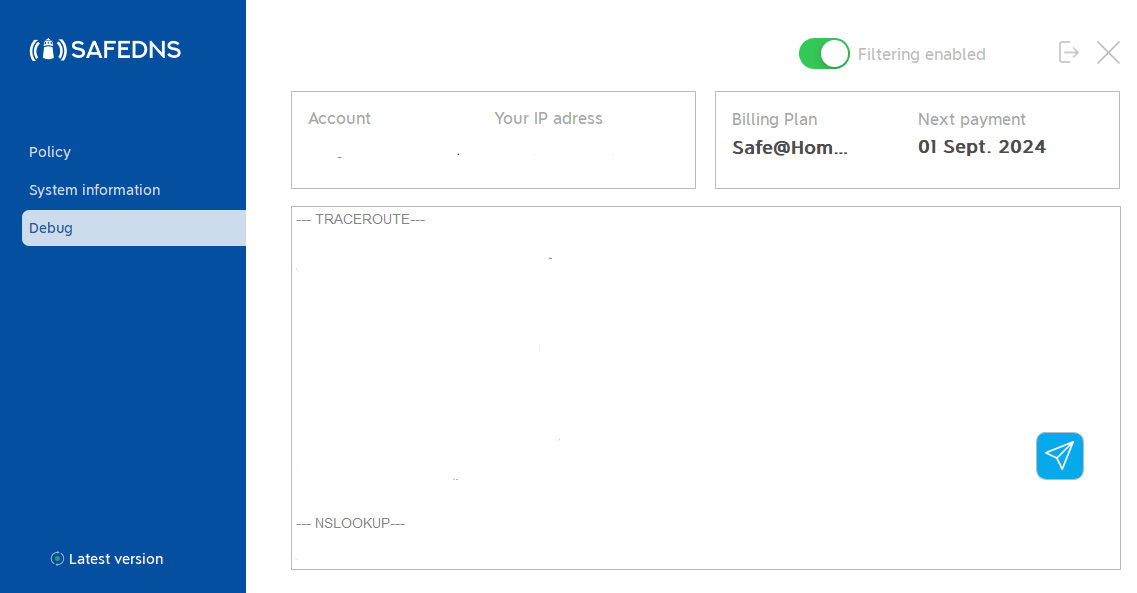
3\. The **Debug** menu displays the results of the diagnostic commands required for troubleshooting. To send the debug information to SafeDNS, click the "Send report" button.

[![Screenshot 2023-09-16 014107.png](https://docs.safedns.com/uploads/images/gallery/2023-09/scaled-1680-/P0qBCEXZtP3pnjag-screenshot-2023-09-16-014107.png)](https://docs.safedns.com/uploads/images/gallery/2023-09/P0qBCEXZtP3pnjag-screenshot-2023-09-16-014107.png)
---

#### **Additional settings**

To ensure the Agent was installed correctly, please navigate to the "Settings" tab in the [SafeDNS Dashboard](https://www.safedns.com/cabinet/devices) and scroll to the bottom.

<div class="pointer-container" id="bkmrk-%C2%A0-0"><div class="pointer anim "><svg class="svg-icon" data-icon="link" role="presentation" viewbox="0 0 24 24" xmlns="http://www.w3.org/2000/svg"></svg><div class="input-group inline block"> <button class="button outline icon" data-clipboard-target="#pointer-url" title="Копировать ссылку" type="button"><svg class="svg-icon" data-icon="copy" role="presentation" viewbox="0 0 24 24" xmlns="http://www.w3.org/2000/svg"></svg></button></div></div></div>If you see the record with the Device name and your IP address, it means that the filtering is working.

[![2.Agent for Windows.png](https://docs.safedns.com/uploads/images/gallery/2024-08/scaled-1680-/tsP5PJ4QIU5UFMoI-2-agent-for-windows.png)](https://docs.safedns.com/uploads/images/gallery/2024-08/tsP5PJ4QIU5UFMoI-2-agent-for-windows.png)

After that, you can adjust the filtering Policy according to your needs. You can select categories to block in the SafeDNS [Dashboard ](https://www.safedns.com/cabinet/main/)under the [Categories](https://www.safedns.com/cabinet/categories) tab.

[![3.Agent for Windows.png](https://docs.safedns.com/uploads/images/gallery/2024-08/scaled-1680-/kgyEGccoXUV79xnn-3-agent-for-windows.png)](https://docs.safedns.com/uploads/images/gallery/2024-08/kgyEGccoXUV79xnn-3-agent-for-windows.png)

<p class="callout info">Don't forget to click the "Save changes" button.</p>

The setup is finished!  
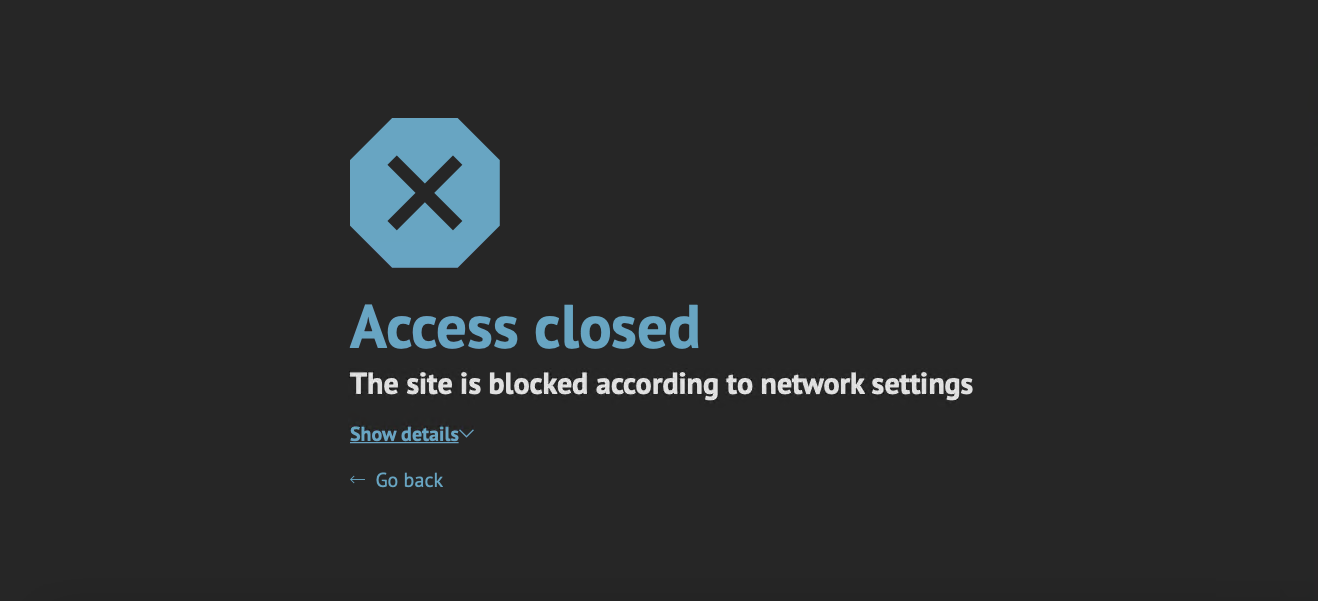
A blocked website will display an error message that the Access is closed.

[![wPoDDhGm7AwMhbSc-13-safedns-agent-for-macos-setup-guide.png](https://docs.safedns.com/uploads/images/gallery/2023-09/scaled-1680-/JcPNSgebraEmPBIf-wpoddhgm7awmhbsc-13-safedns-agent-for-macos-setup-guide.png)](https://docs.safedns.com/uploads/images/gallery/2023-09/JcPNSgebraEmPBIf-wpoddhgm7awmhbsc-13-safedns-agent-for-macos-setup-guide.png)
If the filtering doesn't work according to your policy settings, clear the cache of your browser using this [guide](https://docs.safedns.com/books/installation-guides/page/how-to-clear-dns-cache).

<p class="callout warning">**Please note, that settings take 5-7 minutes to apply**  
**Stats and filtering status update hourly**</p>

#### **Uninstallation**

<div class="pointer-container" id="bkmrk-%C2%A0-1"><div class="pointer anim "><svg class="svg-icon" data-icon="link" role="presentation" viewbox="0 0 24 24" xmlns="http://www.w3.org/2000/svg"></svg><div class="input-group inline block"> <button class="button outline icon" data-clipboard-target="#pointer-url" title="Копировать ссылку" type="button"><svg class="svg-icon" data-icon="copy" role="presentation" viewbox="0 0 24 24" xmlns="http://www.w3.org/2000/svg"></svg></button></div></div></div>To uninstall the Agent please quit it first.

[![Screenshot 2023-09-16 015841.png](https://docs.safedns.com/uploads/images/gallery/2023-09/scaled-1680-/DDBe9mUO5eLQaPJP-screenshot-2023-09-16-015841.png)](https://docs.safedns.com/uploads/images/gallery/2023-09/DDBe9mUO5eLQaPJP-screenshot-2023-09-16-015841.png)

Then click **Start**, type **Control Panel,** and open it.[![Screenshot 2023-09-16 020130111.png](https://docs.safedns.com/uploads/images/gallery/2023-09/scaled-1680-/oE3wOh8Uv8CwqweT-screenshot-2023-09-16-020130111.png)](https://docs.safedns.com/uploads/images/gallery/2023-09/oE3wOh8Uv8CwqweT-screenshot-2023-09-16-020130111.png)

Select **Category** in **View by** dropdown menu.

[![Screenshot 2023-09-16 020557.png](https://docs.safedns.com/uploads/images/gallery/2023-09/scaled-1680-/SvVq2amCCW6tTDIb-screenshot-2023-09-16-020557.png)](https://docs.safedns.com/uploads/images/gallery/2023-09/SvVq2amCCW6tTDIb-screenshot-2023-09-16-020557.png)

All settings in the Control Panel will be divided into categories. Click **Uninstall a program**.

[![Screenshot 2023-09-16 0205571.png](https://docs.safedns.com/uploads/images/gallery/2023-09/scaled-1680-/0EiscPIeZqNIm3VI-screenshot-2023-09-16-0205571.png)](https://docs.safedns.com/uploads/images/gallery/2023-09/0EiscPIeZqNIm3VI-screenshot-2023-09-16-0205571.png)

---

Find **SafeDNS Agent** in the list of all programs, click it once, and click **Uninstall**

[![Screenshot 2023-09-16 020830.png](https://docs.safedns.com/uploads/images/gallery/2023-09/scaled-1680-/4Awz70vIS8adw3Qy-screenshot-2023-09-16-020830.png)](https://docs.safedns.com/uploads/images/gallery/2023-09/4Awz70vIS8adw3Qy-screenshot-2023-09-16-020830.png)

Click **Yes** in appeared window of deletion confirmation  
[![Screenshot 2023-09-16 021205.png](https://docs.safedns.com/uploads/images/gallery/2023-09/scaled-1680-/jPcSAp8szF6TpTgE-screenshot-2023-09-16-021205.png)](https://docs.safedns.com/uploads/images/gallery/2023-09/jPcSAp8szF6TpTgE-screenshot-2023-09-16-021205.png)

---

If the User Account Control window appears and asks "Do you want to allow this app to make changes to your device?', then click **Yes**   
![Screenshot 2023-09-16 021139.png](https://docs.safedns.com/uploads/images/gallery/2023-09/scaled-1680-/Nod4FUkOh1DTiEYC-screenshot-2023-09-16-021139.png)

Click **OK** and the SafeDNS agent will be successfully uninstalled.   
![Screenshot 2023-09-16 021237.png](https://docs.safedns.com/uploads/images/gallery/2023-09/scaled-1680-/8wvKLo8RkiWookPw-screenshot-2023-09-16-021237.png)

# Windows Filtering Setup via OpenVPN

Please note, that this filtering option works via the third-party app OpenVPN. If you encounter any issues, please contact our Technical Support.

---

1\. Open the SafeDNS Dashboard and navigate to **Settings &gt; Devices**.

[![1. Setup via OpenVPN.png](https://docs.safedns.com/uploads/images/gallery/2024-08/scaled-1680-/W9tSNDMnI4YnE5hF-1-setup-via-openvpn.png)](https://docs.safedns.com/uploads/images/gallery/2024-08/W9tSNDMnI4YnE5hF-1-setup-via-openvpn.png)

2\. Scroll down to the VPN section, enter any name for a new VPN connection, and click Add.

Choose a filtering policy before adding a VPN connection, if needed.

[![2. Setup via OpenVPN.png](https://docs.safedns.com/uploads/images/gallery/2024-08/scaled-1680-/3uveYN4gbwKLLFYH-2-setup-via-openvpn.png)](https://docs.safedns.com/uploads/images/gallery/2024-08/3uveYN4gbwKLLFYH-2-setup-via-openvpn.png)

3\. Upon creating the connection, two icons will appear in the "Certificate" column. One is for downloading the Certificate, and the other is for sending it by email. Press the "Cloud download" icon.

Multiple devices can use the same filtering policy, but **each device should use its own VPN certificate**.

You can also change the filtering policy of the created VPN connection by clicking on the pencil icon to the right. Please note, that you don't need to redownload your VPN certificate on your mobile device if you change its filtering policy.

[![3. Setup via OpenVPN.png](https://docs.safedns.com/uploads/images/gallery/2024-08/scaled-1680-/t5xMpC48I6j1DzUk-3-setup-via-openvpn.png)](https://docs.safedns.com/uploads/images/gallery/2024-08/t5xMpC48I6j1DzUk-3-setup-via-openvpn.png)

4\. Download [**OpenVPN Connect**](https://openvpn.net/client/).

5\. Install OpenVPN Connect from the downloaded file.

[![opvpn_win1.png](https://docs.safedns.com/uploads/images/gallery/2024-08/scaled-1680-/9HAb2f3DAoLK1kZb-opvpn-win1.png)](https://docs.safedns.com/uploads/images/gallery/2024-08/9HAb2f3DAoLK1kZb-opvpn-win1.png)

6\. Follow the on-screen instructions to finish the installation process.

[![opvpn_win4.png](https://docs.safedns.com/uploads/images/gallery/2024-08/scaled-1680-/q8mQs6E4QIOn48S5-opvpn-win4.png)](https://docs.safedns.com/uploads/images/gallery/2024-08/q8mQs6E4QIOn48S5-opvpn-win4.png)

7\. Open the installed application and click **Agree** in the Privacy Policy pop-up.

[![opvpn_win5.png](https://docs.safedns.com/uploads/images/gallery/2024-08/scaled-1680-/84uq29EZjivxdMkg-opvpn-win5.png)](https://docs.safedns.com/uploads/images/gallery/2024-08/84uq29EZjivxdMkg-opvpn-win5.png)

8\. Select the **Upload File** menu and import the downloaded .ovpn certificate file.

The Certificate has the following name format: **safedns-123456.ovpn**

[![opvpn_win6.png](https://docs.safedns.com/uploads/images/gallery/2024-08/scaled-1680-/t8r4MxThGLPcm6qU-opvpn-win6.png)](https://docs.safedns.com/uploads/images/gallery/2024-08/t8r4MxThGLPcm6qU-opvpn-win6.png)

9\. Click on the **Connect** button.

[![opvpn_win7.png](https://docs.safedns.com/uploads/images/gallery/2024-08/scaled-1680-/NC8EBE7FrbgES5t7-opvpn-win7.png)](https://docs.safedns.com/uploads/images/gallery/2024-08/NC8EBE7FrbgES5t7-opvpn-win7.png)  
10\. Wait until the VPN connection is established.

[![opvpn_win9.png](https://docs.safedns.com/uploads/images/gallery/2024-08/scaled-1680-/YXm6edBb4syT5OsM-opvpn-win9.png)](https://docs.safedns.com/uploads/images/gallery/2024-08/YXm6edBb4syT5OsM-opvpn-win9.png)

Your Windows device is now filtered with the SafeDNS filtering policy.

<div class="pointer-container" id="bkmrk-%C2%A0"><div class="pointer anim is-page-editable"><svg class="svg-icon" data-icon="link" role="presentation" viewbox="0 0 24 24" xmlns="http://www.w3.org/2000/svg"></svg><div class="input-group inline block"> <button class="button outline icon" data-clipboard-target="#pointer-url" title="Copy Link" type="button"><svg class="svg-icon" data-icon="copy" role="presentation" viewbox="0 0 24 24" xmlns="http://www.w3.org/2000/svg"></svg></button></div><svg class="svg-icon" data-icon="edit" role="presentation" viewbox="0 0 24 24" xmlns="http://www.w3.org/2000/svg"></svg></div></div><p class="callout warning">Please note that settings take 5-7 minutes to apply.  
Stats and filtering status update every 10 minutes.  
</p>

# Windows DNS Setup

#### Video tutorial

<div class="pointer-container" id="bkmrk-%C2%A0"><div class="pointer anim is-page-editable"><svg class="svg-icon" data-icon="link" role="presentation" viewbox="0 0 24 24" xmlns="http://www.w3.org/2000/svg"></svg><div class="input-group inline block"> <button class="button outline icon" data-clipboard-target="#pointer-url" title="Copy Link" type="button"><svg class="svg-icon" data-icon="copy" role="presentation" viewbox="0 0 24 24" xmlns="http://www.w3.org/2000/svg"></svg></button></div><svg class="svg-icon" data-icon="edit" role="presentation" viewbox="0 0 24 24" xmlns="http://www.w3.org/2000/svg"></svg></div></div>Watch this video tutorial to learn how to deploy SafeDNS on a Windows-based PC with a static IP without the installation of any software.

<p class="callout warning">This video tutorial was recorded for Windows 10. Navigate to the section below for a specific Windows version.</p>

<iframe allowfullscreen="allowfullscreen" data-mce-fragment="1" height="358" src="https://www.youtube.com/embed/sQdADlMYRmA" style="width: 640px; height: 358px;" width="640"></iframe>

---

#### Step-by-step guide

1\. Navigate to the SafeDNS **Dashboard &gt; Settings** and copy your IP address in the "**Enter an IP address or DynDNS**" box. Click "**Add**".

[![1-windows-dns-setup.png](https://docs.safedns.com/uploads/images/gallery/2025-07/scaled-1680-/ELqD5GkcHUB30IBM-1-windows-dns-setup.png)](https://docs.safedns.com/uploads/images/gallery/2025-07/ELqD5GkcHUB30IBM-1-windows-dns-setup.png)
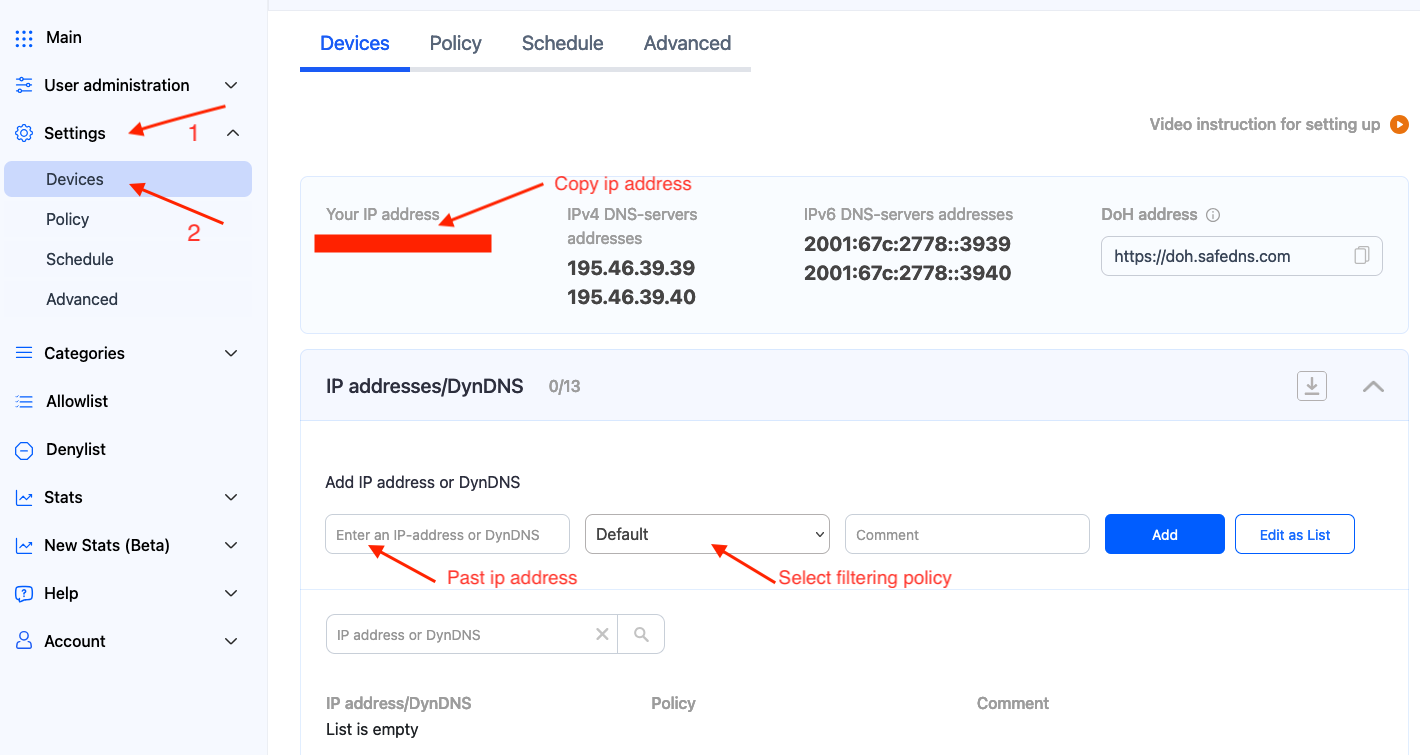
**If you have Windows 7 or 8**

<details id="bkmrk-windows-7-network-se"><summary>Windows 7 network settings</summary>

2\. From the Taskbar pane, **right-click** on the Wi-Fi (or LAN) icon and select **Open Network and Sharing Center**:

[![2-windows-7-dns-setup.png](https://docs.safedns.com/uploads/images/gallery/2025-07/scaled-1680-/OwofiKauMTzANQu9-2-windows-7-dns-setup.png)](https://docs.safedns.com/uploads/images/gallery/2025-07/OwofiKauMTzANQu9-2-windows-7-dns-setup.png)

3\. Select **Change adapter settings**.

[![3-windows-7-dns-setup.png](https://docs.safedns.com/uploads/images/gallery/2025-07/scaled-1680-/vpajBrMpKBmXtUgC-3-windows-7-dns-setup.png)](https://docs.safedns.com/uploads/images/gallery/2025-07/vpajBrMpKBmXtUgC-3-windows-7-dns-setup.png)

4\. **Right-click** on the current internet connection, and select **Properties**. If the system shows the security notification, click Yes.

[![4-windows-7-dns-setup.png](https://docs.safedns.com/uploads/images/gallery/2025-07/scaled-1680-/DjbMf9wR5tIlUUFc-4-windows-7-dns-setup.png)](https://docs.safedns.com/uploads/images/gallery/2025-07/DjbMf9wR5tIlUUFc-4-windows-7-dns-setup.png)

<div class="pointer-container" id="bkmrk-%C2%A0-6"><div class="pointer anim "><svg class="svg-icon" data-icon="link" role="presentation" viewbox="0 0 24 24" xmlns="http://www.w3.org/2000/svg"></svg><div class="input-group inline block"> <button class="button outline icon" data-clipboard-target="#pointer-url" title="Copy Link" type="button"><svg class="svg-icon" data-icon="copy" role="presentation" viewbox="0 0 24 24" xmlns="http://www.w3.org/2000/svg"></svg></button></div></div></div></details>**If you have Windows 10**

<details id="bkmrk-windows-10-network-s"><summary>Windows 10 network settings</summary>

2\. From the Taskbar pane, **right-click** on the Wi-Fi (or LAN) icon and select **Open Network and Sharing Center**:

[![2-windows-10-dns-setup.png](https://docs.safedns.com/uploads/images/gallery/2025-07/scaled-1680-/K2JoY670nnfQOfof-2-windows-10-dns-setup.png)](https://docs.safedns.com/uploads/images/gallery/2025-07/K2JoY670nnfQOfof-2-windows-10-dns-setup.png)

3\. Select **Change adapter settings**.

[![3-windows-10-dns-setup.png](https://docs.safedns.com/uploads/images/gallery/2025-07/scaled-1680-/dQDIKowLPjrogXCe-3-windows-10-dns-setup.png)](https://docs.safedns.com/uploads/images/gallery/2025-07/dQDIKowLPjrogXCe-3-windows-10-dns-setup.png)

<div class="pointer-container" id="bkmrk-%C2%A0-7"><div class="pointer anim "><svg class="svg-icon" data-icon="link" role="presentation" viewbox="0 0 24 24" xmlns="http://www.w3.org/2000/svg"></svg><div class="input-group inline block"> <button class="button outline icon" data-clipboard-target="#pointer-url" title="Copy Link" type="button"><svg class="svg-icon" data-icon="copy" role="presentation" viewbox="0 0 24 24" xmlns="http://www.w3.org/2000/svg"></svg></button></div></div></div>4\. **Right-click** on the current internet connection, and select **Properties**. If the system shows the security notification, click Yes.

[![4-windows-10-dns-setup.png](https://docs.safedns.com/uploads/images/gallery/2025-07/scaled-1680-/dIOBXbY4zO6IHIEw-4-windows-10-dns-setup.png)](https://docs.safedns.com/uploads/images/gallery/2025-07/dIOBXbY4zO6IHIEw-4-windows-10-dns-setup.png)

</details>**If you have Windows 11**

<details id="bkmrk-windows-11-network-s"><summary>Windows 11 network settings</summary>

2\. From the Taskbar pane, **right-click** on the Wi-Fi (or LAN) icon and select **Open Network and Sharing Center**:

[![2-windows-11-dns-setup.png](https://docs.safedns.com/uploads/images/gallery/2025-07/scaled-1680-/se6h7NlCc6gDz6Ut-2-windows-11-dns-setup.png)](https://docs.safedns.com/uploads/images/gallery/2025-07/se6h7NlCc6gDz6Ut-2-windows-11-dns-setup.png)

3\. Select **Advanced network settings**.

[![3-windows-11-dns-setup.png](https://docs.safedns.com/uploads/images/gallery/2025-07/scaled-1680-/jV1whCw01imtdjoG-3-windows-11-dns-setup.png)](https://docs.safedns.com/uploads/images/gallery/2025-07/jV1whCw01imtdjoG-3-windows-11-dns-setup.png)

 4. Click on the active network adapter (usually the top one), and click **Edit** in the **More adapter options** section.

[![4-windows-11-dns-setup.png](https://docs.safedns.com/uploads/images/gallery/2025-07/scaled-1680-/rsTvmtqKNNmjHlG9-4-windows-11-dns-setup.png)](https://docs.safedns.com/uploads/images/gallery/2025-07/rsTvmtqKNNmjHlG9-4-windows-11-dns-setup.png)

</details><p class="callout info">We recommend disabling **Internet Protocol Version 6**.  
This will simplify the installation process and will not affect the quality of your internet connection.  
If you wish to use IPv6 DNS, you will need to add your IPv6 address to the SafeDNS Dashboard (Step 1) and enter IPv6 DNS addresses similar to Step 6 below for **Internet Protocol Version 6**.</p>

5\. Select **Internet Protocol Version 4**, and click on **Properties.**

**[![5-windows-dns-setup.png](https://docs.safedns.com/uploads/images/gallery/2025-07/scaled-1680-/npnVQps4dTprnn5g-5-windows-dns-setup.png)](https://docs.safedns.com/uploads/images/gallery/2025-07/npnVQps4dTprnn5g-5-windows-dns-setup.png)**
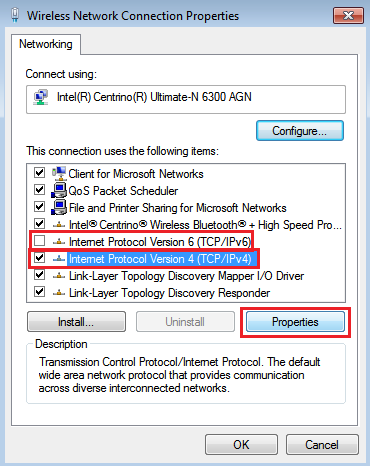
6\. Select the option **Use the following DNS server addresses**, enter the following SafeDNS addresses:

**Preferred DNS server: 195.46.39.39**  
**Alternate DNS server: 195.46.39.40**

**[![6-windows-dns-setup.png](https://docs.safedns.com/uploads/images/gallery/2025-07/scaled-1680-/8l0Tl0w3PPAqqcaD-6-windows-dns-setup.png)](https://docs.safedns.com/uploads/images/gallery/2025-07/8l0Tl0w3PPAqqcaD-6-windows-dns-setup.png)**
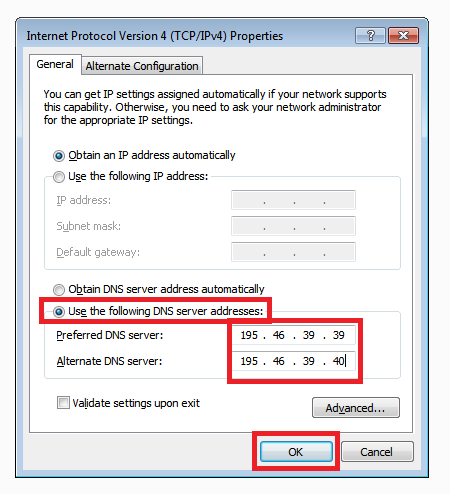
7\. Click the **OK** button to save your settings and close the network properties window.

<div class="pointer-container" id="bkmrk-%C2%A0-4"><div class="pointer anim "><svg class="svg-icon" data-icon="link" role="presentation" viewbox="0 0 24 24" xmlns="http://www.w3.org/2000/svg"></svg><div class="input-group inline block"> <button class="button outline icon" data-clipboard-target="#pointer-url" title="Copy Link" type="button"><svg class="svg-icon" data-icon="copy" role="presentation" viewbox="0 0 24 24" xmlns="http://www.w3.org/2000/svg"></svg></button></div></div></div>**You have successfully configured the filtering for a Windows-based device.**

---

#### Troubleshooting

Please note that Windows may still be using the addresses saved in the local DNS cache. It is recommended to clean it using the following steps:

1\. Press "**Start**"

2\. Search for "**cmd**" and open the suggested application

[![7-windows-dns-setup.png](https://docs.safedns.com/uploads/images/gallery/2025-07/scaled-1680-/CLiN6an8lZQ1ybIU-7-windows-dns-setup.png)](https://docs.safedns.com/uploads/images/gallery/2025-07/CLiN6an8lZQ1ybIU-7-windows-dns-setup.png)

3\. Enter and run the following command in the opened window **ipconfig /flushdns**

**[![8-windows-dns-setup.png](https://docs.safedns.com/uploads/images/gallery/2025-07/scaled-1680-/F8ZaPZmKlNNwe6Vi-8-windows-dns-setup.png)](https://docs.safedns.com/uploads/images/gallery/2025-07/F8ZaPZmKlNNwe6Vi-8-windows-dns-setup.png)**

[Learn more about how to clear the DNS cache.](https://docs.safedns.com/books/guides/page/how-to-clear-dns-cache)

<div class="pointer-container" id="bkmrk-%C2%A0-5"><div class="pointer anim "><svg class="svg-icon" data-icon="link" role="presentation" viewbox="0 0 24 24" xmlns="http://www.w3.org/2000/svg"></svg><div class="input-group inline block"> <button class="button outline icon" data-clipboard-target="#pointer-url" title="Copy Link" type="button"><svg class="svg-icon" data-icon="copy" role="presentation" viewbox="0 0 24 24" xmlns="http://www.w3.org/2000/svg"></svg></button></div></div></div><p class="callout warning">Please note that settings take 5-7 minutes to apply.  
Stats and filtering status update every 10 minutes.</p>

# DNS configuration on the AD Controller

There are 2 scenarios for how to configure DNS in the AD environment:

##### 1. Configuration of the SafeDNS servers for each user via DHCP.

<p class="callout info">The user can not benefit from the faster DNS resolve – DNS cache using this configuration. We are not recommending using that option within the AD environment.</p>

Open Control Panel =&gt; Administrative Tools=&gt; DHCP

Configure the scope using the example below:

[![image-1721165235154.png](https://docs.safedns.com/uploads/images/gallery/2024-07/scaled-1680-/3XFjSbQlXFVID8Je-image-1721165235154.png)](https://docs.safedns.com/uploads/images/gallery/2024-07/3XFjSbQlXFVID8Je-image-1721165235154.png)
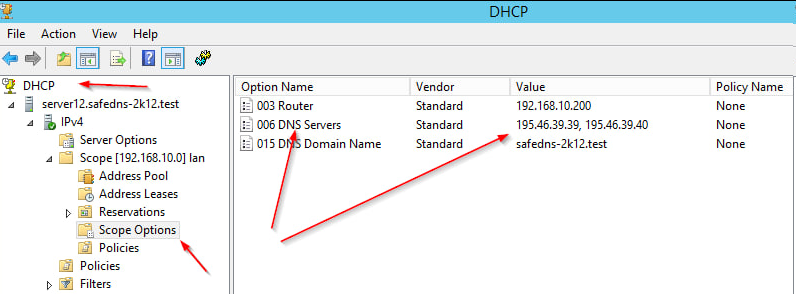
##### 2. Configuration of the local DNS server.

The role of the DNS server should be installed on the server and the DNS server should be configured using the following example:

Open Control Panel =&gt; Administrative Tools =&gt; DNS

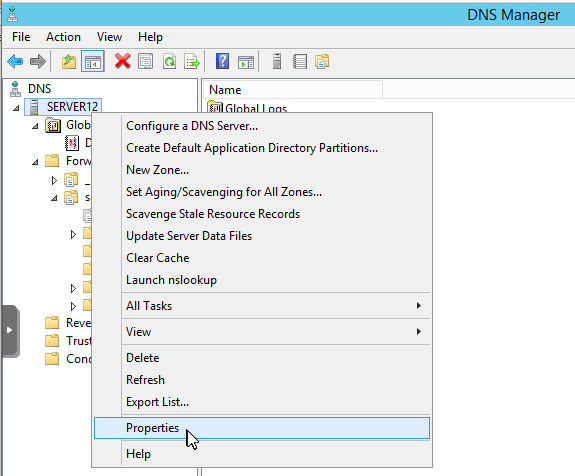
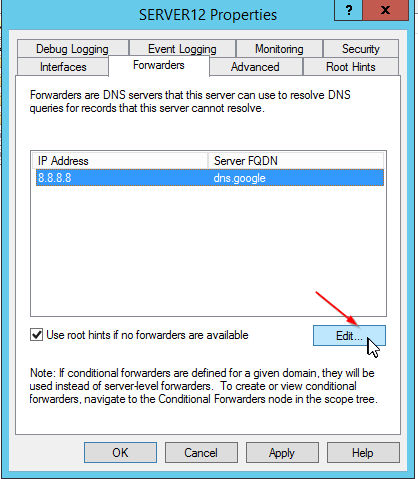
On the DNS manager tap on the local server (our case is SERVER12) context menu =&gt; Properties

[![image-1721165249018.png](https://docs.safedns.com/uploads/images/gallery/2024-07/scaled-1680-/7JgWhKfGVp8pIy1h-image-1721165249018.png)](https://docs.safedns.com/uploads/images/gallery/2024-07/7JgWhKfGVp8pIy1h-image-1721165249018.png)

Tap the Edit Button:

[![image-1721165103211.png](https://docs.safedns.com/uploads/images/gallery/2024-07/scaled-1680-/sDeRc7Hkh1ae35e5-image-1721165103211.png)](https://docs.safedns.com/uploads/images/gallery/2024-07/sDeRc7Hkh1ae35e5-image-1721165103211.png)
Click on the area &lt;Click here to add an IP address or DNS Name&gt;

And enter SafeDNS DNS servers: **195.46.39.39** and **195.46.39.40**

[![image-1721165165466.png](https://docs.safedns.com/uploads/images/gallery/2024-07/scaled-1680-/uXGhHYkiBHBOTrVn-image-1721165165466.png)](https://docs.safedns.com/uploads/images/gallery/2024-07/uXGhHYkiBHBOTrVn-image-1721165165466.png)
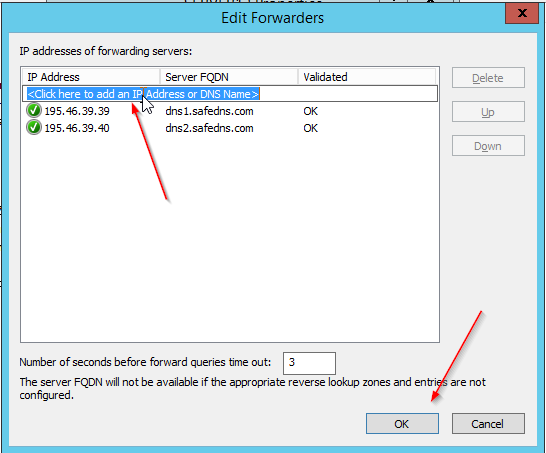
Once finished, tap the OK button. The server’s icon should be green – meaning that the DNS connection to the server can be established.