# Installation guides

# Installation and configuration


# Allow/Denylists And Named Lists

This feature comes in handy when you need to add the same list of domains to the different policies (filtering profiles). You can create or edit a list and then apply it to any of your filtering policies. You can manage lists of allowed or blocked hosts and domains for all of your profiles or group of profiles.

<p class="callout info">Blocking/allowing a domain automatically blocks/allows all its subdomains, overriding Categories settings.</p>

<p class="callout info">It is possible to simultaneously block a domain and allow its subdomain(s), and vice versa.</p>

1. Navigate to the "**Allowlist"** or "**Denylist"** tab to create a new named list.
2. Find the "**Create list"** button and enter the name of the new list into the "**List name"** box on the right and click "**Create list"**. It will appear at the bottom of the page.  
      
    [![1.Allow_DenyLists.png](https://docs.safedns.com/uploads/images/gallery/2024-08/scaled-1680-/P3dogHXd3cRz2BhK-1-allow-denylists.png)](https://docs.safedns.com/uploads/images/gallery/2024-08/P3dogHXd3cRz2BhK-1-allow-denylists.png)
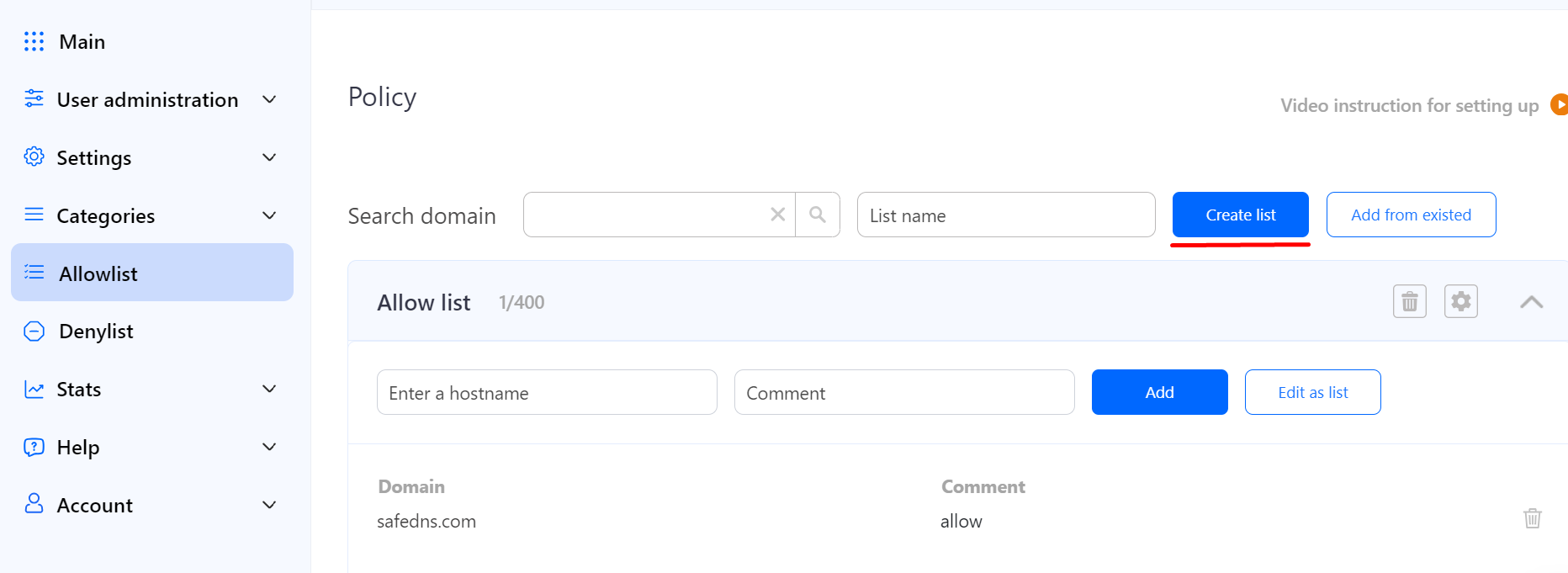
3. Click the **Cogwheel** button on the right, then click "**Save"** to add the newly created named list to the multiple policies (profiles).

[![2.Allow_DenyLists.png](https://docs.safedns.com/uploads/images/gallery/2024-08/scaled-1680-/E6DN6PLZZDF7gVlY-2-allow-denylists.png)](https://docs.safedns.com/uploads/images/gallery/2024-08/E6DN6PLZZDF7gVlY-2-allow-denylists.png)
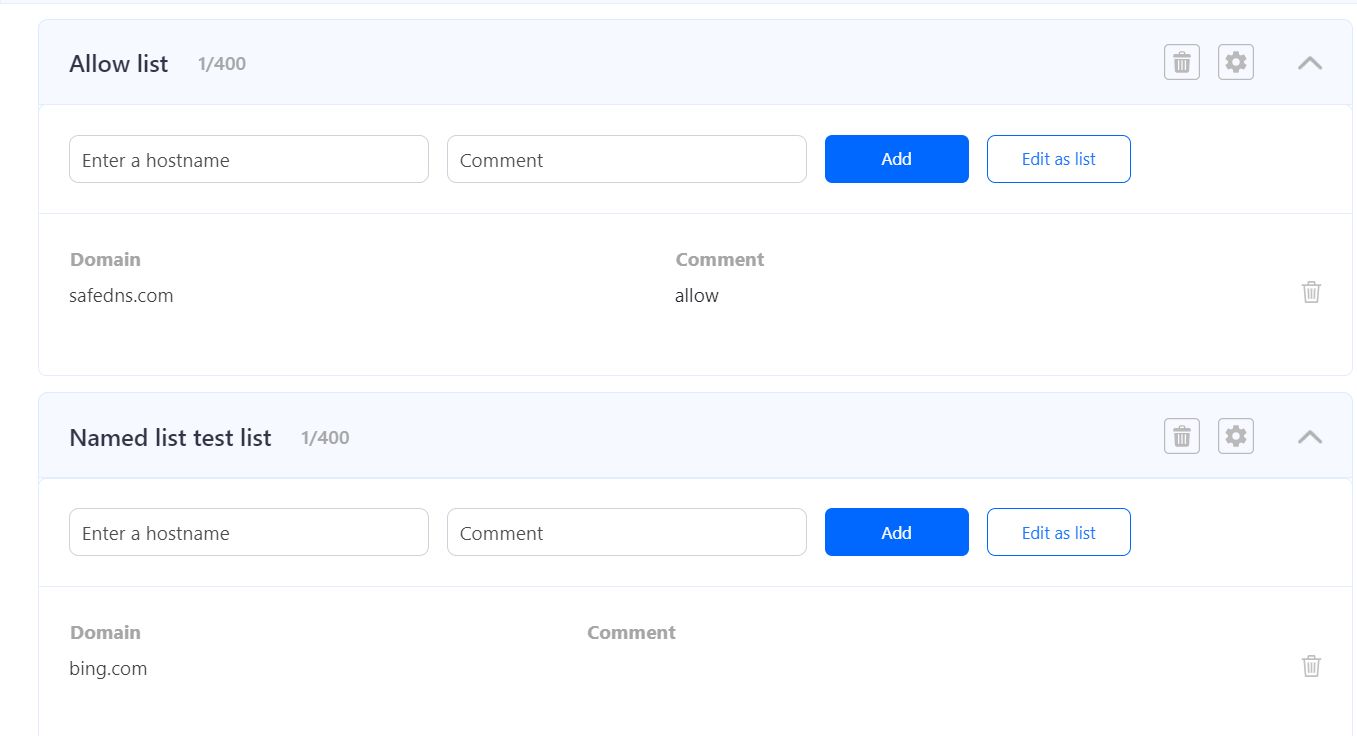
<p class="callout info">The same steps work for the **Denylist** section.</p>

<p class="callout info">Wildcards are not supported at the moment.</p>

<p class="callout warning">Please note that settings take 5-7 minutes to apply.  
Stats and filtering status update every 10 minutes.  
</p>

# General Setup via OpenVPN

Some devices are not yet supported by the SafeDNS Agent or cannot have it installed for various reasons. In this case, you can configure the SafeDNS filtering via the third-party app OpenVPN.

**[⤵Download OpenVPN](https://openvpn.net/download-open-vpn/)**

<figure class="kg-card kg-bookmark-card" id="bkmrk-download-the-world%E2%80%99s"><div class="kg-bookmark-content"><div class="kg-bookmark-title">OpenVPN creates a VPN connection using the SafeDNS **Configuration file** that contains all settings of chosen filtering policy.  
</div></div></figure>OpenVPN does not change or hide your Public IP, as regular VPN services do, it only receives filtering rules from your dashboard.

Multiple devices can use the same filtering policy, but **each device should use its own Configuration file**.

Devices filtered via OpenVPN remain protected in any network.

The installation process is the same for all platforms: you need to download the Configuration file, install OpenVPN, and import the **Configuration file.**

---

#### Guides for the platforms supported by OpenVPN

1. [Windows Filtering Setup via OpenVPN](https://docs.safedns.com/books/installation-guides/page/windows-filtering-setup-via-openvpn)
2. [Mac Filtering Setup via OpenVPN](https://docs.safedns.com/books/installation-guides/page/mac-filtering-setup-via-openvpn)
3. [Linux Filtering Setup via OpenVPN](https://docs.safedns.com/books/installation-guides/page/linux-filtering-setup-via-openvpn)
4. [iOS and Android Filtering Setup via OpenVPN](https://docs.safedns.com/books/installation-guides/page/mobile-devices-filtering-setup)

# Schedule Setup

Unlike other content filtering systems that use simple schedules with complete blocking of internet access based on time, SafeDNS uses a complex system of schedules that can be flexibly configured for any needs and any scenario. However, greater flexibility brings more complexity to the setup of a schedule.

<p class="callout info">Schedule logic: selected custom Policy (profile) is applied at the selected time; Default policy is applied at all other times.</p>

This system allows a much more flexible schedule, that you can apply in advanced scenarios such as:

1. Turning off the internet on schedule, with the filtered internet at the other time. This option is often used by parents to limit kids during school hours.
2. Filtering of unproductive websites at the workplace, with unfiltered access during lunch break, and before and after the workday. This type of scheduling is suitable for use within organizations.
3. Filtered internet in the hours when the computer is used by a child, with different filtering rules in the hours when the computer is used by adults.

---

#### Schedule setup

To set the schedule, you must create an additional Policy (profile) for which the schedule will be enabled.

1. Log in to your SafeDNS Dashboard
2. Go to **Settings &gt; Policy**
3. Enter the name of the policy (e.g. *"Schedule"*), and click "**Create policy**".  
    [![1.Schedule.png](https://docs.safedns.com/uploads/images/gallery/2024-08/scaled-1680-/D3EyhBspQr3q1wKH-1-schedule.png)](https://docs.safedns.com/uploads/images/gallery/2024-08/D3EyhBspQr3q1wKH-1-schedule.png)
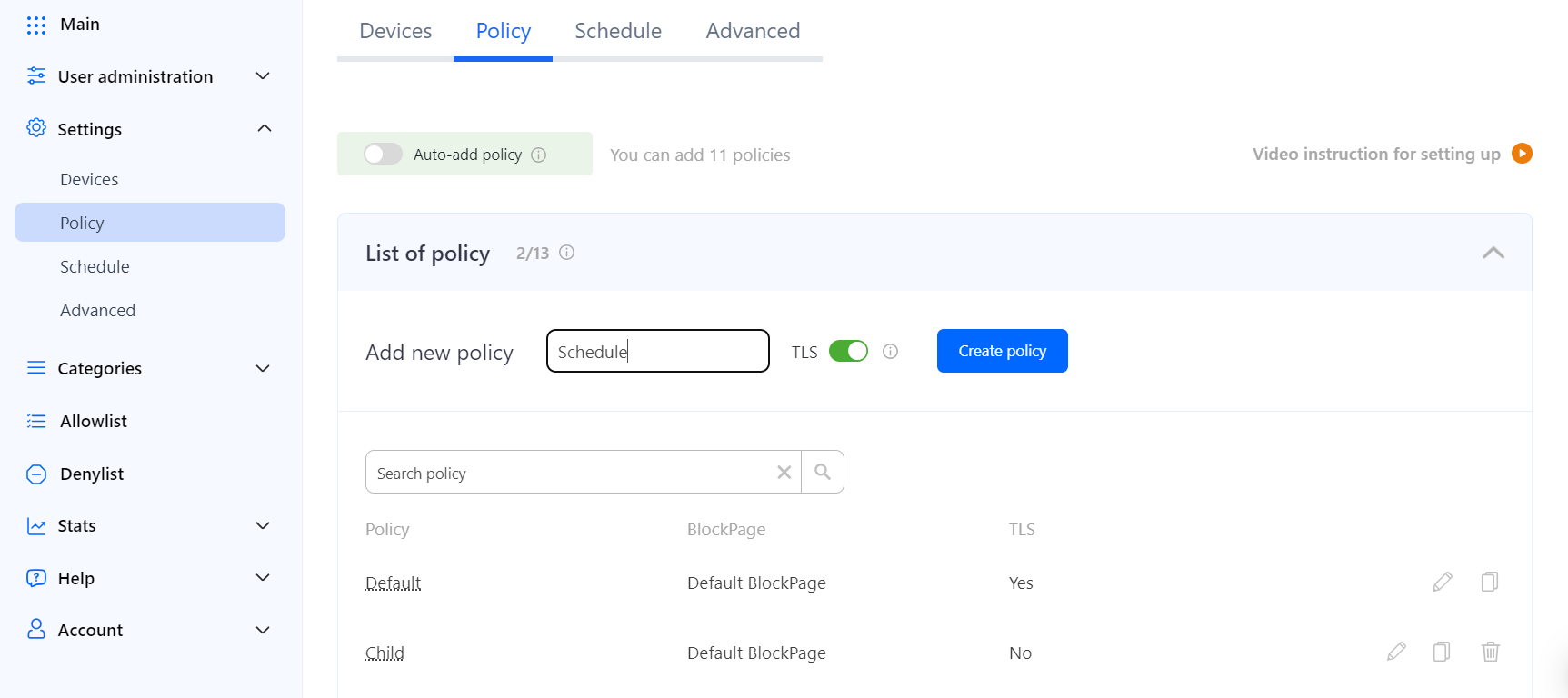
After creating a policy, you can start setting up the schedule.

1. Go to **Settings &gt; Schedule**.
2. Click on the cogwheel to the right from the newly created policy *"Schedule"*.
3. Set the time at which the policy *"Schedule"* should be active. The rest of the time the Default policy will be active. The appearance and functionality of the Schedule depend on your billing plan.
4. Switch on the **Schedule is enabled** on the right.
5. Click "**Save**".[![2.Schedule.png](https://docs.safedns.com/uploads/images/gallery/2024-08/scaled-1680-/Z9ErS6hmGcLw0pc8-2-schedule.png)](https://docs.safedns.com/uploads/images/gallery/2024-08/Z9ErS6hmGcLw0pc8-2-schedule.png)
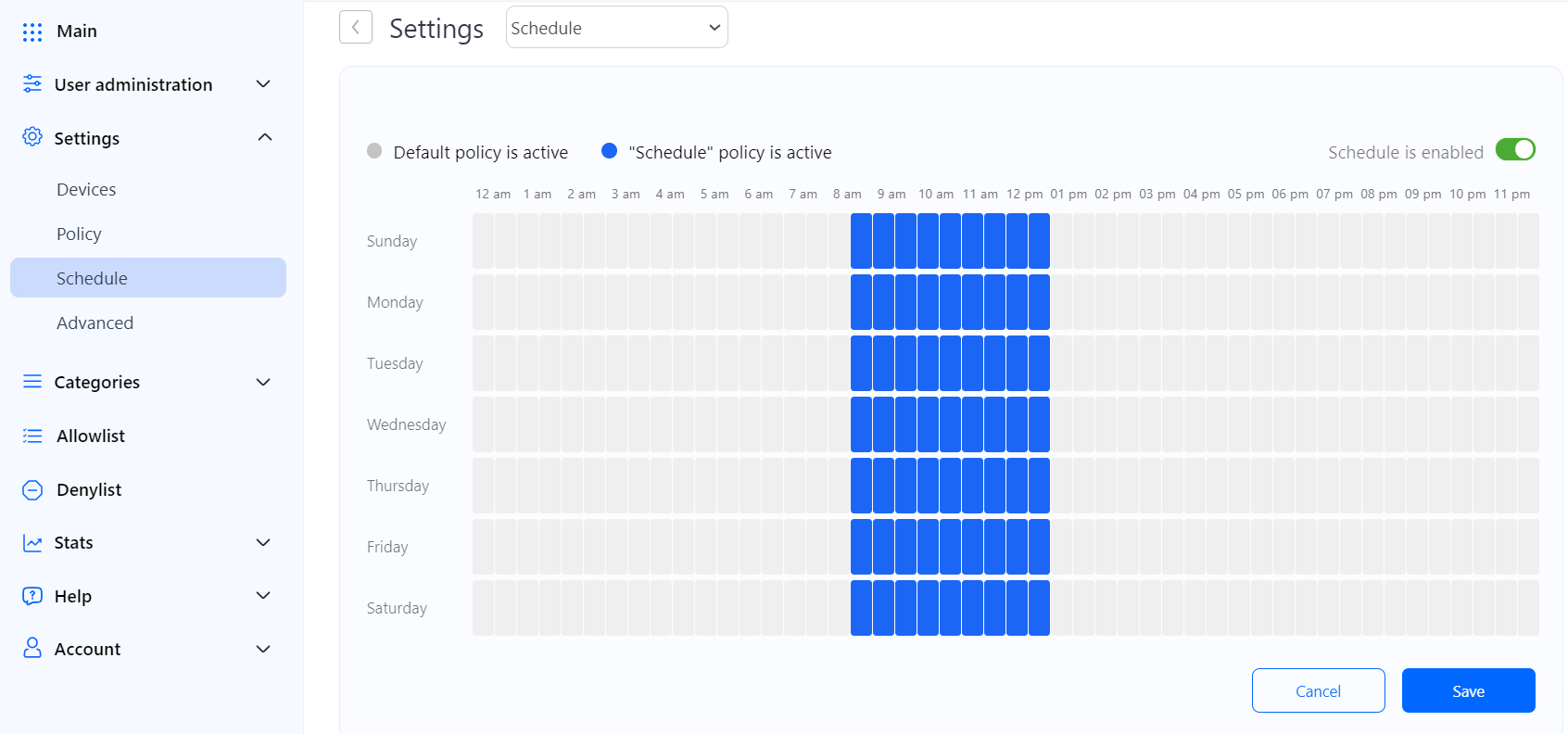
After setting the schedule, you need to apply it to your network or individual computers.

If you use the SafeDNS Agent, you need to open **Settings &gt; Policy** and set the *"Schedule"* policy as active.  
  
[![3. Activating Schedule on Computer.png](https://docs.safedns.com/uploads/images/gallery/2022-08/scaled-1680-/imTL1FaKyO2jOu9Z-3-activating-schedule-on-computer.png)](https://docs.safedns.com/uploads/images/gallery/2022-08/imTL1FaKyO2jOu9Z-3-activating-schedule-on-computer.png)
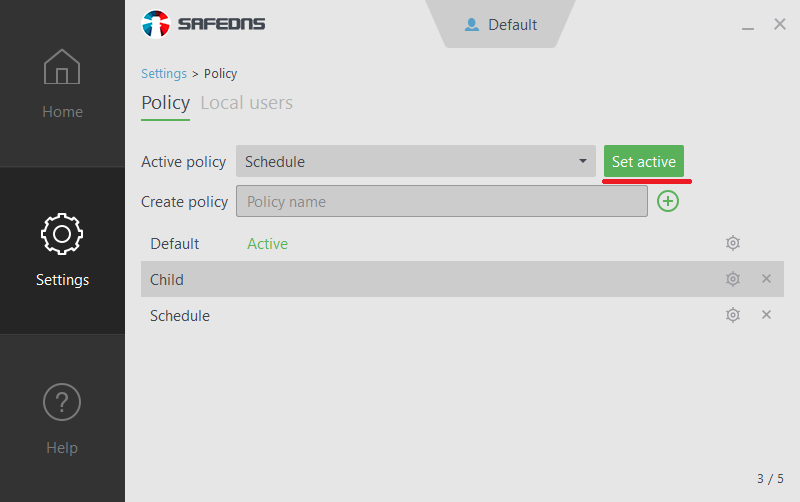
If you use an unattended installation of the Agent for computers in a corporate network, you will need to reinstall it with the scheduling policy as the main policy parameter.

If your filtering is set up at the router/modem, proxy, or gateway, you need to bind your external (public) IP address to the custom *"Schedule"* policy.

1. Go to **Settings &gt; Devices**
2. Navigate to your IP address/DynDNS and click on the edit icon on the right.
3. Change the Policy to the custom *"Schedule"* using the dropdown menu.
4. Click on the green checkmark on the right to apply changes.[![3.Schedule.png](https://docs.safedns.com/uploads/images/gallery/2024-08/scaled-1680-/MbqGbyu8q0ysqB28-3-schedule.png)](https://docs.safedns.com/uploads/images/gallery/2024-08/MbqGbyu8q0ysqB28-3-schedule.png)
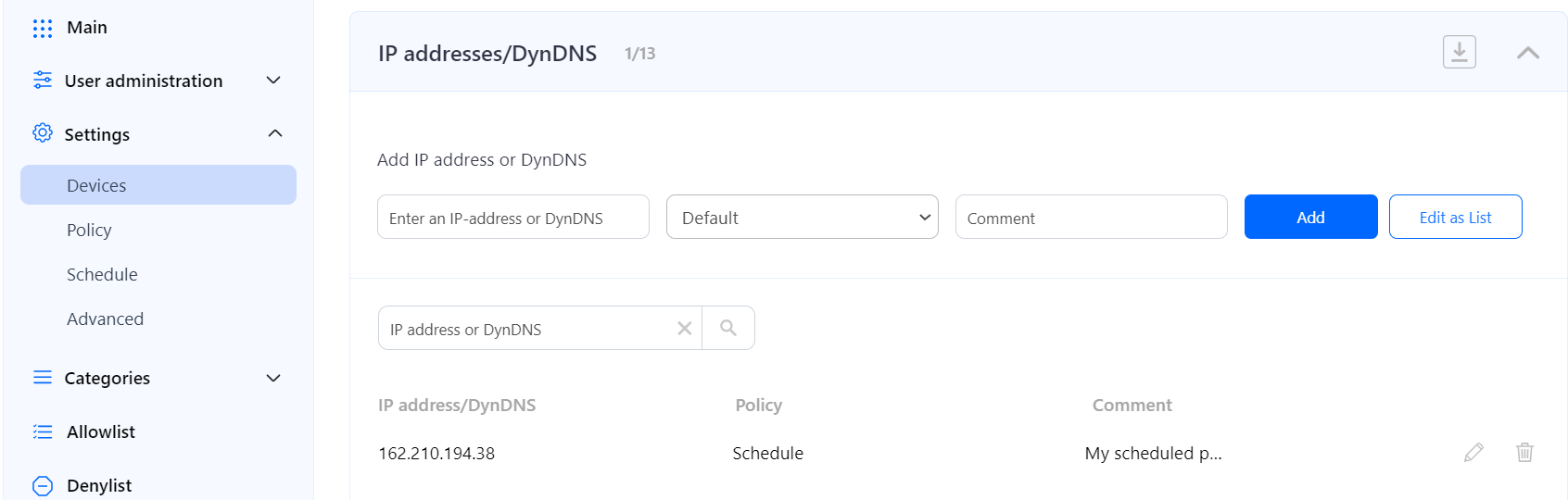
After the settings are applied, the Schedule will be active.

You can have multiple policies with different schedules for different users and networks, but note that the switch will always be between the current policy and the *"Default"* policy.

<p class="callout warning">Please note that settings take 5-7 minutes to apply.  
Stats and filtering status update every 10 minutes.</p>

---

#### Possible problems with the schedule

##### Scheduled settings switch at the wrong time

Make sure that you have the correct time zone applied. In the Dashboard, click on the **Cogwheel** icon in the top right corner, select the correct time zone and click **"Save changes"**.

<p class="callout warning">Please note that settings take 5-7 minutes to apply.</p>

Because of the cache of DNS queries at the system level and in the browser, your computer can not immediately respond to the newly applied settings. To eliminate this, we recommend disabling automatic control of the browser cache.

##### The schedule is not working at all

Make sure that you have followed all steps above. If everything is done correctly and the problem persists, please contact our technical support.

# Block Page Setup

The block page is displayed when a user is trying to access a website blocked by the filtering rules. SafeDNS provides instruments to customize the block page. For example, you can add your logo and contact details on the block page, and an explanation why the website site is blocked.

---

#### Creating custom block page

To create a custom block page, do the following:

1. Log in to SafeDNS Dashboard.
2. Navigate to **Settings &gt; Advanced** and scroll down to the **block page** section.
3. Click "**Add new**".  
    [![1.BlockPage.png](https://docs.safedns.com/uploads/images/gallery/2024-08/scaled-1680-/OydvFnwCz9EewKYd-1-blockpage.png)](https://docs.safedns.com/uploads/images/gallery/2024-08/OydvFnwCz9EewKYd-1-blockpage.png)
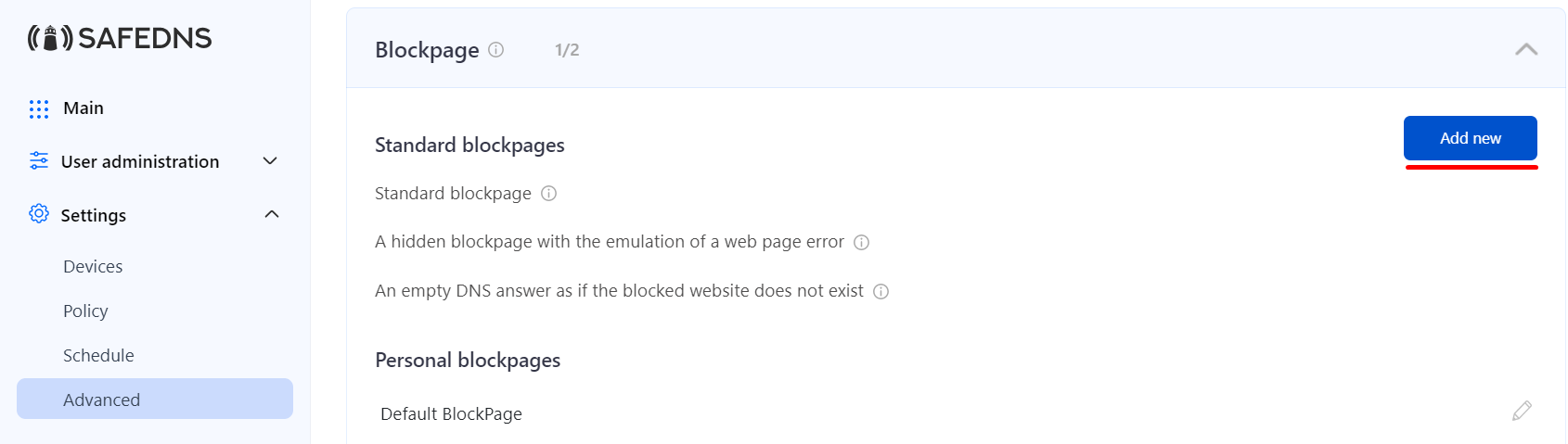
4. Enter the name of the new block page and choose its type from the dropdown menu. Click "Add".  
    [![2.BlockPage.png](https://docs.safedns.com/uploads/images/gallery/2024-08/scaled-1680-/OyAVLhxT1h2sKh7o-2-blockpage.png)](https://docs.safedns.com/uploads/images/gallery/2024-08/OyAVLhxT1h2sKh7o-2-blockpage.png)
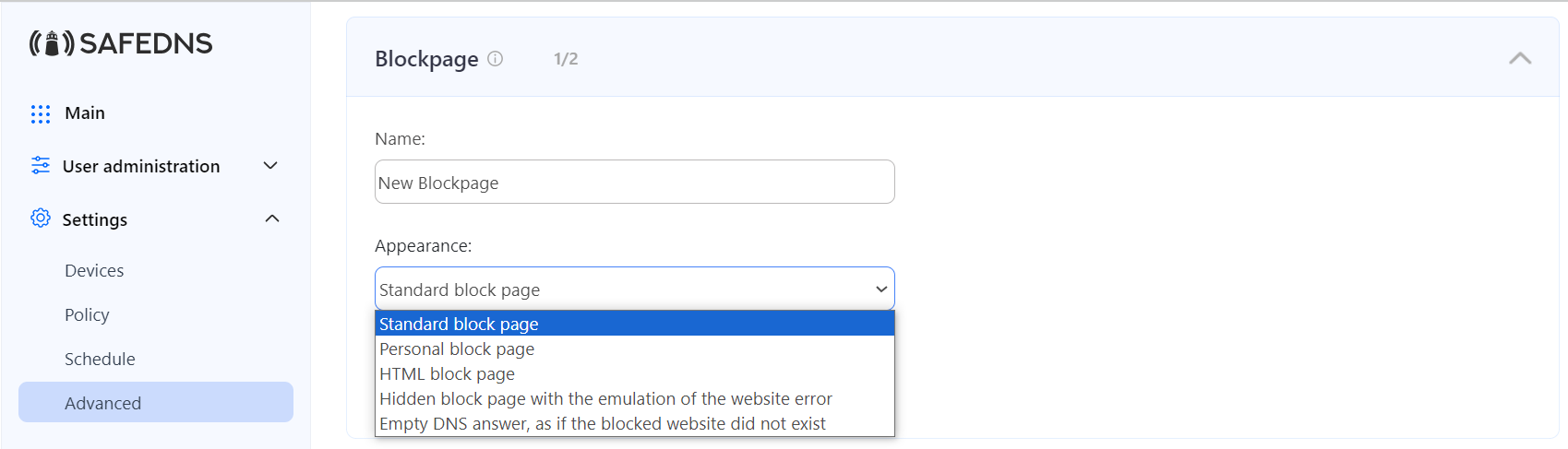
---

#### Block page types

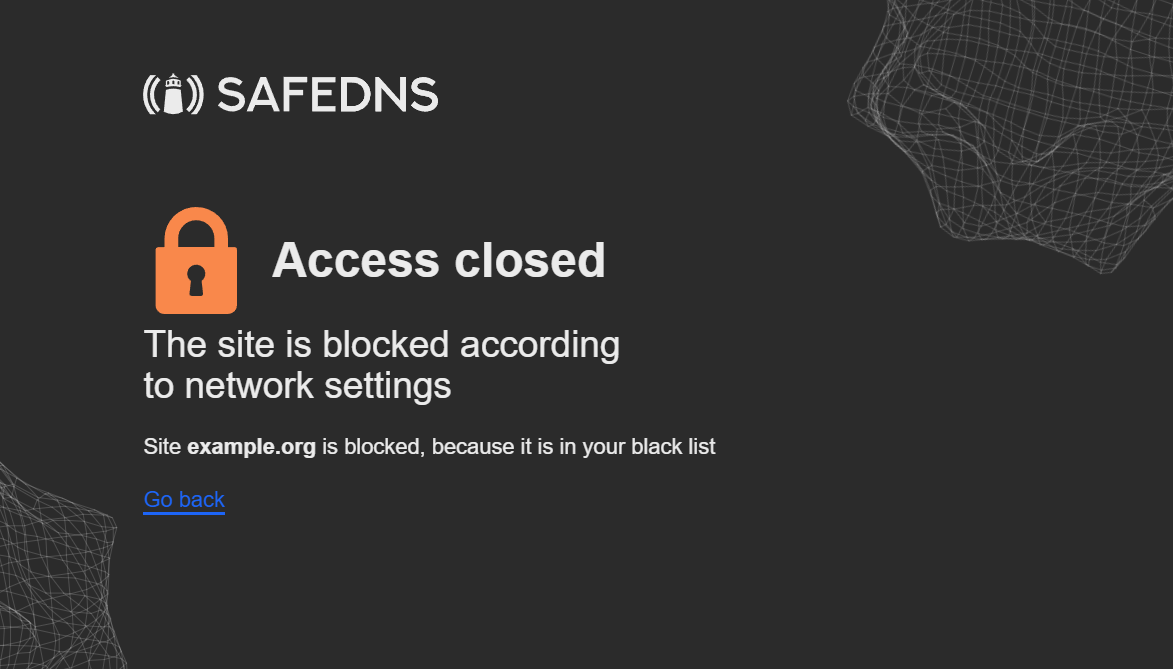
- **Standard block page** - default SafeDNS block page.  
    [![Screenshot_342.png](https://docs.safedns.com/uploads/images/gallery/2025-01/scaled-1680-/VirHFG5lFbYeEsNV-screenshot-342.png)](https://docs.safedns.com/uploads/images/gallery/2025-01/VirHFG5lFbYeEsNV-screenshot-342.png)
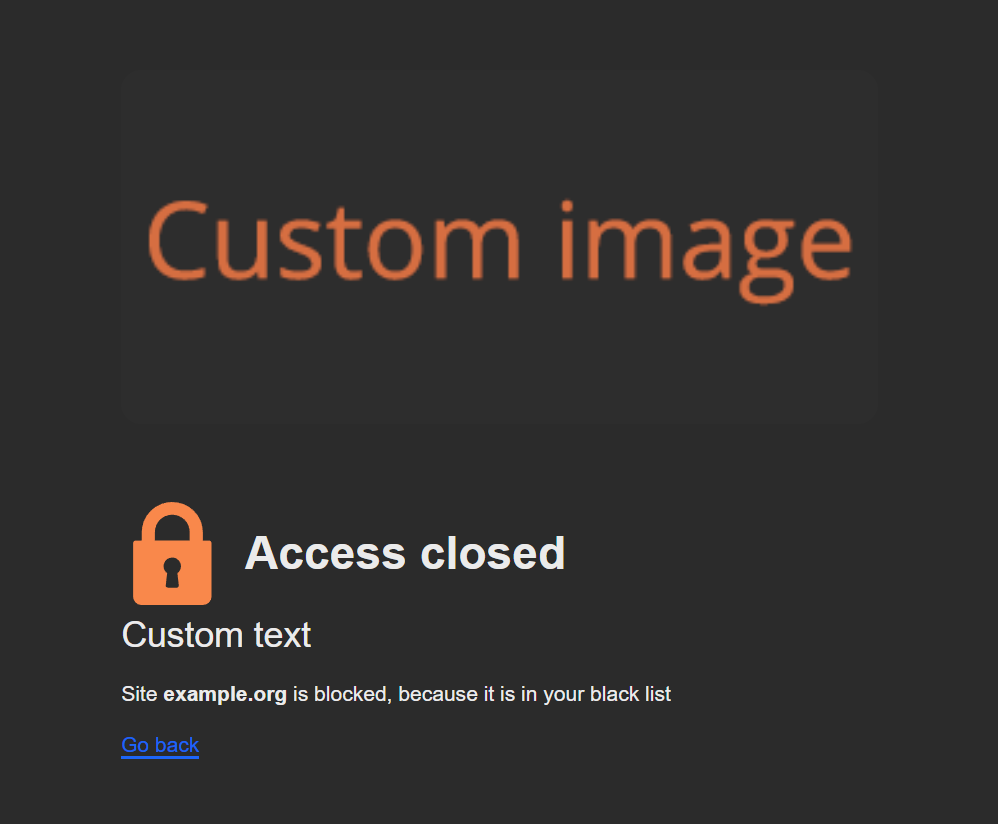
- **Personal block page** - simple block page with the customizable image and description.  
    [![Screenshot_343.png](https://docs.safedns.com/uploads/images/gallery/2025-01/scaled-1680-/H4REGkHQV5EDc0su-screenshot-343.png)](https://docs.safedns.com/uploads/images/gallery/2025-01/H4REGkHQV5EDc0su-screenshot-343.png)
- **HTML block page** - block page with the HTML support.  
    The following variables are supported: 
    - *$website* - shows the address of a blocked website.
    - *$domain* - shows the domain part of the *$website*.
    - *$reason* - shows the reason of the block, supports language prefix.
    - *$category* - shows the filtering category(-ies) of the blocked *$domain*, supports language prefix.

<p class="callout info">You can add a language prefix to translate the *$reason* and *$category* variables (e.g *$fr:reason, $ar:category*).  
List of available languages: sq (Albanian), ar (Arabic), es (Spanish), sv (Swedish), tr (Turkish), it (Italian), en (English), ur (Urdu), pt\_BR (Brazilian Portuguese), fr (French), de (German).</p>

<details id="bkmrk-html-blockpage-examp"><summary>HTML blockpage example</summary>

```HTML

<html lang="en" dir="ltr">
<head>
<meta http-equiv="content-type" content="text/html; charset=utf-8">
<title>Website Blocked</title>
<style media="screen" type="text/css">
body { font-family: Tahoma, sans-serif; font-size: 16px; color: #444; text-align: left; background-color:white; width: 100%; height: 100%; margin: 0; padding: 0; }
h1 { font-size: 32px; letter-spacing: -1px; font-weight: bold; color: #659ebf; text-align: center; margin-top: 20px; margin-bottom: 20px; }
a { color: #659ebf; font-weight: bold; text-decoration: none; }
.micro { font-size: 13px; text-align: center; }
.med { font-size: 13px; }
</style>
</head>
<body>
<table id="f" style="width: 100%; height: 100%; border: 1px solid black; display: none;">
<tbody>
<tr><td style="font:normal 10px Tahoma, sans-serif;color:#333;text- align:center;">Content is Blocked</td></tr>
</tbody>
</table>
<table id="b" style="width: 600px;" align="center">
<tbody>
<tr>
<td>
<div align="center">
<img src="//YOUR.WEBSITE/YOUR-LOGO.PNG" border="0">
</div>
<h1>You have been denied access to this website. For further info please contact YOUR@EMAIL.COM</h1>
<div id="detailed-info">
<p><strong>$website $reason</strong></p>
</div>
<div class="report-form">
<p class="med">If the categories are listed incorrectly, press the 'Report' button below.</p>
<form method="post" action="mailto:YOUR@EMAIL.COM?subject=$website">
<div align="center">
<input name="send" value="Report" style="height:30px;" type="submit">
</div>
</form>
</div>
</td>
</tr>
</tbody>
</table>
</body>
</html>
```

Please change the "**//YOUR.WEBSITE/YOUR-LOGO.PNG**" and "**YOUR@EMAIL.COM**" in the lines 25, 27, and 33 accordingly.  
[![Screenshot_26.png](https://docs.safedns.com/uploads/images/gallery/2023-10/scaled-1680-/cFfR61qN7KqGNg4A-screenshot-26.png)](https://docs.safedns.com/uploads/images/gallery/2023-10/cFfR61qN7KqGNg4A-screenshot-26.png)

</details>- **Hidden block page with the emulation of the website error** - block page that imitates browser's website error.  
    [![Screenshot_28.png](https://docs.safedns.com/uploads/images/gallery/2023-10/scaled-1680-/rscuPVUhsqSdVUkE-screenshot-28.png)](https://docs.safedns.com/uploads/images/gallery/2023-10/rscuPVUhsqSdVUkE-screenshot-28.png)
- **Empty DNS answer, as if the blocked website does not exist** - block page that imitates NXDOMAIN browser error.  
    [![Screenshot_27.png](https://docs.safedns.com/uploads/images/gallery/2023-10/scaled-1680-/qSev1nfKNi4NMd5T-screenshot-27.png)](https://docs.safedns.com/uploads/images/gallery/2023-10/qSev1nfKNi4NMd5T-screenshot-27.png)

<p class="callout info">The availability of a certain block page type depends on your billing plan.</p>

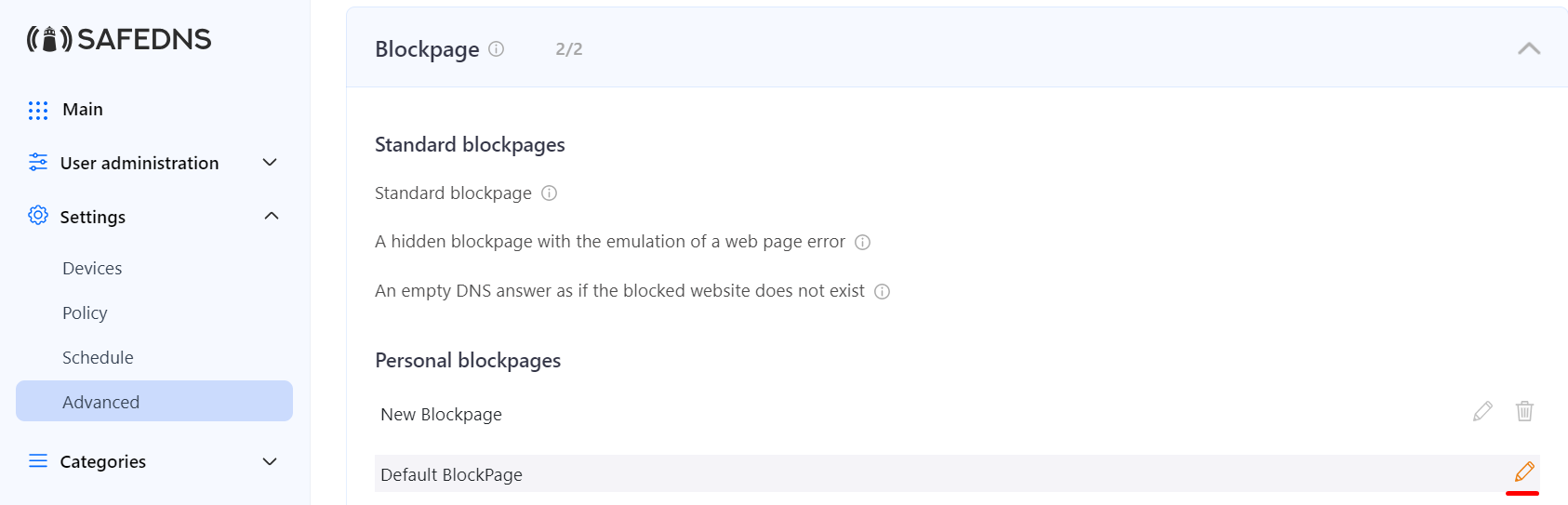
You can always edit the block page type by clicking on the pencil icon to the right.  
[![3.BlockPage.png](https://docs.safedns.com/uploads/images/gallery/2024-08/scaled-1680-/27QoGtcmjHoxfEq1-3-blockpage.png)](https://docs.safedns.com/uploads/images/gallery/2024-08/27QoGtcmjHoxfEq1-3-blockpage.png)
---

#### Applying custom block page

To create a custom block page, do the following:

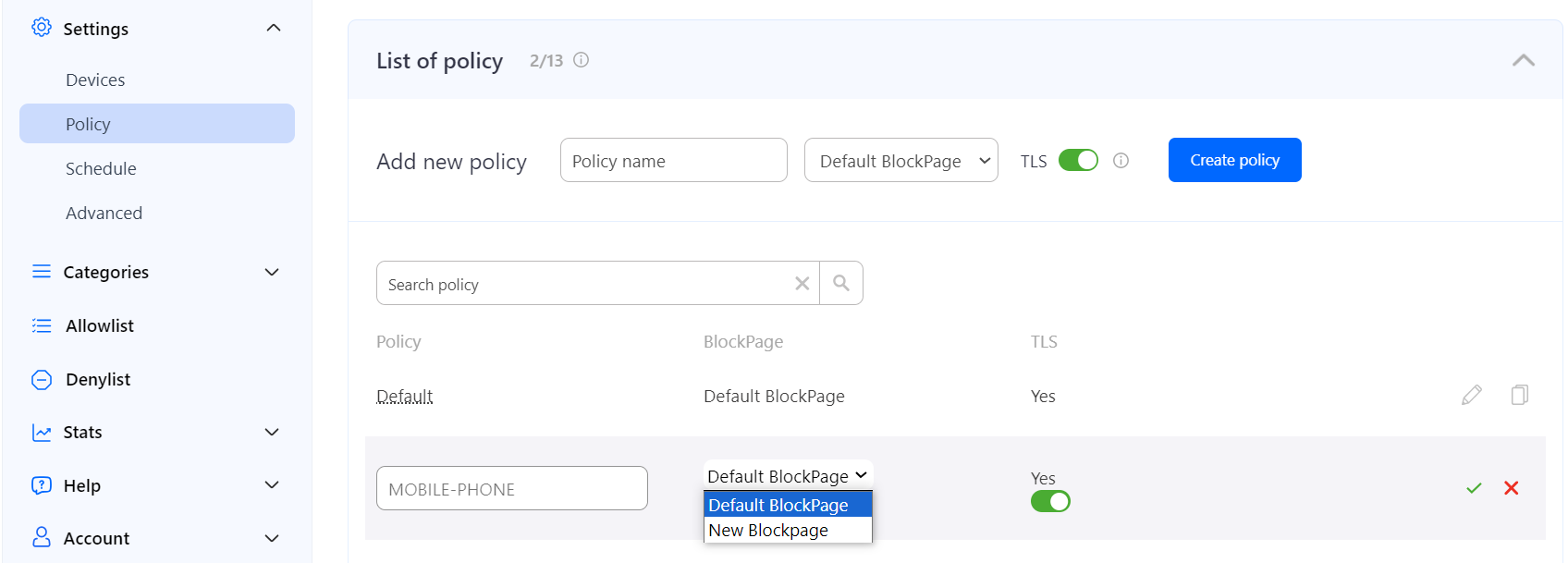
1. Navigate to **Settings &gt; Policy**.
2. Click on the pencil icon to the right from the filtering policy.
3. Select the custom block page from the dropdown menu.
4. Click on the green check mark to save the changes.  
    [![4.BlockPage.png](https://docs.safedns.com/uploads/images/gallery/2024-08/scaled-1680-/gMImjMfPTULXXNUA-4-blockpage.png)](https://docs.safedns.com/uploads/images/gallery/2024-08/gMImjMfPTULXXNUA-4-blockpage.png)
Please note that the SafeDNS TLS certificate should be installed on each end device where you want HTTPS pages to display correctly. Without the certificate, block page will be displayed for HTTP websites only.

[SafeDNS Root CA certificate installation guide](https://docs.safedns.com/books/guides/page/safedns-root-certificate-for-https-pages).

</body></html>

# NAT DNS Setup

<p class="callout warning">This feature is not available for the Safe Home and Basic plans.</p>

- Network Address Translation or NAT is frequently used in corporate networks. It allows network owners and administrators to:  
    • decrease the number of static IPs  
    • secure local networks  
    • prevent unwanted external access to the local hosts  
    • hide the entire internal network structure

**NAT DNS** is a SafeDNS service feature designed to apply different filtering policies to different networking hardware (routers, gateways, etc.) behind NAT with one public IP.

<p class="callout warning">Your networking hardware should be set up according to the SafeDNS instructions.</p>

[![1. NAT DNS Setup Guide.png](https://docs.safedns.com/uploads/images/gallery/2022-08/scaled-1680-/qUL6Dz5F01j0PhjU-1-nat-dns-setup-guide.png)](https://docs.safedns.com/uploads/images/gallery/2022-08/qUL6Dz5F01j0PhjU-1-nat-dns-setup-guide.png)

---

#### NAT DNS setup

1. Enter the **Dashboard &gt; Settings**. Assign the **Public IP** of a NAT device to one of the existing filtering policies under the “IP addresses / DynDNS” section. (to use NAT DNS you must have 2 or more policies).
2. Manually or via DHCP set up the **target DNSes** on the end devices (routers or gateways behind NAT).  
      
    List of target DNS addresses:**  
    <p class="callout info">*195.46.39.101 195.46.39.102 195.46.39.103 195.46.39.104 195.46.39.105* </p>
3. In the **Dashboard &gt; Settings**, scroll down to the bottom, and assign policies to the **Target IPs** (one IP = one policy). Click on the green checkmark to apply settings.[![1.NAT_DNS.png](https://docs.safedns.com/uploads/images/gallery/2024-08/scaled-1680-/tNmfrTRXqOMdQdlU-1-nat-dns.png)](https://docs.safedns.com/uploads/images/gallery/2024-08/tNmfrTRXqOMdQdlU-1-nat-dns.png)

After that, all devices behind NAT will be filtered by the chosen policy.

You can view the stats for each **Target IP** by selecting its policy in the **Stats** tab.

<p class="callout warning">This feature works only for networks behind NAT. If you use a proxy server, the NAT DNS filtering option will not work, because in proxy server’s settings will be applied instead.</p>

<p class="callout warning">Please note that settings take 5-7 minutes to apply.  
Stats and filtering status update every 10 minutes.  
</p>

# Top-level Domains Blocking

If you want to block any top-level domain, just add it without a leading dot to your **Denylist**.

For example, if you want to block access to all websites in the RU domain zone, add **ru** to your Denylist.

[![1.Top_level_domains.png](https://docs.safedns.com/uploads/images/gallery/2024-08/scaled-1680-/qc01gDcM9A0rtJXI-1-top-level-domains.png)](https://docs.safedns.com/uploads/images/gallery/2024-08/qc01gDcM9A0rtJXI-1-top-level-domains.png)

Internationalized country code top-level domains should be added to the Denylist list in the IDN form:   
**中国** (Chinese IDN ccTLD), **рф** (Russian IDN ccTLD), etc.

<p class="callout info">A full list of top-level domains can be found on the [IANA website](https://www.iana.org/domains/root/db) and [Wikipedia](https://en.wikipedia.org/wiki/Country_code_top-level_domain).</p>

<p class="callout warning">Please note that settings take 5-7 minutes to apply.  
Stats and filtering status update every 10 minutes.  
</p>

# Encrypted DNS Setup (DoH/DoT)

This guide explains how to set up **DNS-over-HTTPS (DoH)** / **DNS-over-TLS (DoT)** links using the **Encrypted DNS** section of the SafeDNS Dashboard and how to enable **DoH/DoT** in the **SafeDNS Agent**.

---


#### Creating DoH/DoT link

<p class="callout warning">**Please note that DoH/DoT links with the filtering policy token are available on Pro, Pro Plus, and Education &amp; Non-Profit plans only.**  
**Other plans can use the DoH/DoT link without the filtering policy (explained below).**</p>

##### Links with the filtering policy

<p class="callout info">**This type of link works in any network and does not require adding the IP address of the network in the SafeDNS Dashboard.**</p>

1\. Navigate to the SafeDNS **Dashboard &gt; Settings** and create a new record in the **Encrypted DNS** table with a required filtering policy.

[![1-encrypted-dns-setup.png](https://docs.safedns.com/uploads/images/gallery/2025-07/scaled-1680-/xhOea79Ix5oR1Esa-1-encrypted-dns-setup.png)](https://docs.safedns.com/uploads/images/gallery/2025-07/xhOea79Ix5oR1Esa-1-encrypted-dns-setup.png)

2\. Click **Copy link**.

##### Links without the filtering policy

<p class="callout warning">**Please note that this method works only when the device with the link is located in the network specified in the SafeDNS Dashboard.**</p>

1\. Navigate to the SafeDNS **Dashboard &gt; Settings** and copy your IP address in the "**Enter an IP address or DynDNS**" box. Click "**Add**".

[![2-encrypted-dns-setup.png](https://docs.safedns.com/uploads/images/gallery/2025-07/scaled-1680-/jXq0pdSgi3RxcnSo-2-encrypted-dns-setup.png)](https://docs.safedns.com/uploads/images/gallery/2025-07/jXq0pdSgi3RxcnSo-2-encrypted-dns-setup.png)

2\. Use **https://doh.safedns.com** as a DoH/DoT link.

---

#### Using DoH/DoT links

Links can be used on various devices, operating systems, and browsers. Below are some popular examples.

##### Operating systems

<details id="bkmrk-windows-11-1.-open-s"><summary>Windows 11</summary>

1\. Open **Start** on Windows 11.  
2\. Search for **Settings** and click the top result to open the app.  
3\. Click on **Network &amp; internet**.  
4\. Click the **Ethernet** or **Wi-Fi** tab (depending on the active connection).  
 If you have a Wi-Fi connection, click on the connection properties setting to access the settings.  
5\. Click the **Edit** button in the "DNS server assignment" setting.  
[![1-encrypted-dns-windows-setup.png](https://docs.safedns.com/uploads/images/gallery/2025-07/scaled-1680-/lilyZYQNBGQRZawV-1-encrypted-dns-windows-setup.png)](https://docs.safedns.com/uploads/images/gallery/2025-07/lilyZYQNBGQRZawV-1-encrypted-dns-windows-setup.png)  
6\. Select the **Manual** option from the drop-down menu.  
7\. Turn on the **IPv4** toggle switch.  
8\. Under the **Preferred DNS** and **Alternate DNS** sections, enter the created **DoH/DoT link**.  
[![2-encrypted-dns-windows-setup.png](https://docs.safedns.com/uploads/images/gallery/2025-07/scaled-1680-/FT6Sgds3ZjnPzgkg-2-encrypted-dns-windows-setup.png)](https://docs.safedns.com/uploads/images/gallery/2025-07/FT6Sgds3ZjnPzgkg-2-encrypted-dns-windows-setup.png)  
9\. Use the **DNS over HTTPS** drop-down menu and select the **On (automatic template)** option.  
10\. Turn off the **Fallback to plaintext** toggle.  
11\. Click **Save**.

</details><details id="bkmrk-android-private-dns-"><summary>Android Private DNS</summary>

1\. Navigate to **Settings &gt;** **Network &amp; internet.** (on some devices - More connectivity options).  
2\. Select **Advanced &gt;** **Private DNS**. (on some devices it is under **Advanced** or **More** options).  
[![1-encrypted-dns-android-setup.png](https://docs.safedns.com/uploads/images/gallery/2025-07/scaled-1680-/wa58rFMg6Yh7Z36w-1-encrypted-dns-android-setup.png)](https://docs.safedns.com/uploads/images/gallery/2025-07/wa58rFMg6Yh7Z36w-1-encrypted-dns-android-setup.png)  
3\. Select the **Private DNS provider hostname** option.  
[![2-encrypted-dns-android-setup.png](https://docs.safedns.com/uploads/images/gallery/2025-07/scaled-1680-/uny9wDpsQN1Zr3dt-2-encrypted-dns-android-setup.png)](https://docs.safedns.com/uploads/images/gallery/2025-07/uny9wDpsQN1Zr3dt-2-encrypted-dns-android-setup.png)  
4\. Add the **DoH/DoT link** and select **Save**.  
[![3-encrypted-dns-android-setup.png](https://docs.safedns.com/uploads/images/gallery/2025-07/scaled-1680-/VrYOwY46Fet5hfzT-3-encrypted-dns-android-setup.png)](https://docs.safedns.com/uploads/images/gallery/2025-07/VrYOwY46Fet5hfzT-3-encrypted-dns-android-setup.png)

</details>##### Browsers

<details id="bkmrk-microsoft-edge-1.-op"><summary>Microsoft Edge</summary>

1\. Open **Settings**.  
2\. Navigate to **Privacy, search, and services**.  
3\. Scroll down to **Security**.  
4\. Select **Choose a service provider**.  
5\. Add the **DoH/DoT link**.  
[![1-encrypted-dns-edge-setup.png](https://docs.safedns.com/uploads/images/gallery/2025-07/scaled-1680-/2rdy7HycCb7gHoKb-1-encrypted-dns-edge-setup.png)](https://docs.safedns.com/uploads/images/gallery/2025-07/2rdy7HycCb7gHoKb-1-encrypted-dns-edge-setup.png)

</details><details id="bkmrk-google-chrome-1.-ope"><summary>Google Chrome</summary>

1\. Open **Settings**.  
2\. Navigate to **Privacy and security** and click on the **Security** section.  
3\. Scroll down to **Use secure DNS**.  
4\. Choose **Add custom DNS service provider** from the dropdown menu.  
5\. Add the **DoH/DoT link**.  
[![1-encrypted-dns-chrome-setup.png](https://docs.safedns.com/uploads/images/gallery/2025-07/scaled-1680-/7SQYYwuAiWlLy0uv-1-encrypted-dns-chrome-setup.png)](https://docs.safedns.com/uploads/images/gallery/2025-07/7SQYYwuAiWlLy0uv-1-encrypted-dns-chrome-setup.png)

</details><details id="bkmrk-mozilla-firefox-1.-o"><summary>Mozilla Firefox</summary>

1\. Open **Settings**.  
2\. Select **Privacy &amp; Security** and scroll down to the **DNS over HTTPS** section.  
3\. Select **Max Protection**.  
4\. Click the "**Choose provider**" dropdown menu and select **Custom**.  
5\. Add the **DoH/DoT link**.  
[![1-encrypted-dns-firefox-setup.png](https://docs.safedns.com/uploads/images/gallery/2025-07/scaled-1680-/PU4vWHI62V16QmZn-1-encrypted-dns-firefox-setup.png)](https://docs.safedns.com/uploads/images/gallery/2025-07/PU4vWHI62V16QmZn-1-encrypted-dns-firefox-setup.png)

</details>---

#### DNS-over-TLS

Created links can also be used in devices and applications that support DoT.

You can also set up DoT without creating the link in the Encrypted DNS section [using this guide](https://docs.safedns.com/books/installation-guides/page/dns-over-tls-using-stubby).

---


#### Using DoH/DoT in the SafeDNS Agent


<p class="callout info">**This method does not require a link. It is provided as part of the [Mac](https://docs.safedns.com/books/installation-guides/page/safedns-agent-for-macos-setup) and [Windows](https://docs.safedns.com/books/installation-guides/page/safedns-agent-for-windows-setup) SafeDNS Agents.**</p>

1\. Open the SafeDNS Agent interface.  
2\. Navigate to **Settings**.  
3\. In the **Protocols** section, click on the **DOH** or **DOT** to use the respective protocol.

[![agent doh.png](https://docs.safedns.com/uploads/images/gallery/2026-02/scaled-1680-/9ohue3Fg1vuzhK5k-agent-doh.png)](https://docs.safedns.com/uploads/images/gallery/2026-02/9ohue3Fg1vuzhK5k-agent-doh.png)

# DSL/Wi-Fi routers


# Router Setup

#### **Router with Static IP address configuration**

<figure class="kg-card kg-embed-card" id="bkmrk--2"><div class="fluid-width-video-container"><div class="fluid-width-video-wrapper align-center"><iframe allowfullscreen="allowfullscreen" data-mce-fragment="1" height="314" src="https://www.youtube.com/embed/zzLLldNPnyU" width="560"></iframe>

</div></div></figure>1\. Go to SafeDNS **Dashboard &gt; Settings &gt; Devices** and copy your IP address to the "**IP addresses / DynDNS**" box, choose a policy, and click "**Add**".[![1.Router.png](https://docs.safedns.com/uploads/images/gallery/2024-08/scaled-1680-/63jg66gCUKfurHLu-1-router.png)](https://docs.safedns.com/uploads/images/gallery/2024-08/63jg66gCUKfurHLu-1-router.png)

2\. Change your router’s DNS servers to SafeDNS addresses - **195.46.39.39** and **195.46.39.40**

[![1.Router Setup Guide (IPv4).png](https://docs.safedns.com/uploads/images/gallery/2022-08/scaled-1680-/WzcYdnWVM9FMQWfR-1-router-setup-guide-ipv4.png)](https://docs.safedns.com/uploads/images/gallery/2022-08/WzcYdnWVM9FMQWfR-1-router-setup-guide-ipv4.png)

**You have successfully configured your router.**

<p class="callout warning">Please note that settings take 5-7 minutes to apply.  
Stats and filtering status update every 10 minutes.  
</p>

---

#### **Router with Dynamic IP address configuration**

<figure class="kg-card kg-embed-card" id="bkmrk--5"><div class="fluid-width-video-container"><div class="fluid-width-video-wrapper align-center"><iframe allowfullscreen="allowfullscreen" data-mce-fragment="1" height="314" src="https://www.youtube.com/embed/XuY-UjPULXw" width="560"></iframe>

</div></div></figure>In case you have a Dynamic IP address, you need to configure the DynDNS/DDNS on the router using a Dynamic DNS service.

<p class="callout info">Most modern routers provide their own DynDNS services. We recommend using them.</p>

Here's an example of the DynDNS menu on the TP-Link router with the TP-Link service provider:

[![Screenshot_82.png](https://docs.safedns.com/uploads/images/gallery/2024-01/scaled-1680-/EdVGAlbXabmnREXy-screenshot-82.png)](https://docs.safedns.com/uploads/images/gallery/2024-01/EdVGAlbXabmnREXy-screenshot-82.png)

You only need to create a DynDNS record in the router interface. Then skip to Step 6 below.

---

If your router does not have its own DynDNS service provider, we recommend using third-party NO-IP DynDNS.

1\. In the router setting, go to DynDNS/DDNS settings,

[![3.Router Setup Guide (IPv4).png](https://docs.safedns.com/uploads/images/gallery/2022-08/scaled-1680-/doLiCDLSJKzRoFIe-3-router-setup-guide-ipv4.png)](https://docs.safedns.com/uploads/images/gallery/2022-08/doLiCDLSJKzRoFIe-3-router-setup-guide-ipv4.png)

2\. Check the DynDNS service available for your router. If available, we recommend using the No IP DynDNS service provider.

3\. Go to the website noip.com and sign up.

[![4.Router Setup Guide (IPv4).png](https://docs.safedns.com/uploads/images/gallery/2022-08/scaled-1680-/bceoEIpcnfn4hTTJ-4-router-setup-guide-ipv4.png)](https://docs.safedns.com/uploads/images/gallery/2022-08/bceoEIpcnfn4hTTJ-4-router-setup-guide-ipv4.png)

4\. In your No-IP account, create a hostname (any name you can think of).

[![5.Router Setup Guide (IPv4).png](https://docs.safedns.com/uploads/images/gallery/2022-08/scaled-1680-/iM2lBtwjCMovYUlh-5-router-setup-guide-ipv4.png)](https://docs.safedns.com/uploads/images/gallery/2022-08/iM2lBtwjCMovYUlh-5-router-setup-guide-ipv4.png)[![6.Router Setup Guide (IPv4).png](https://docs.safedns.com/uploads/images/gallery/2022-08/scaled-1680-/9NhUPXUJ6J7Yb6PE-6-router-setup-guide-ipv4.png)](https://docs.safedns.com/uploads/images/gallery/2022-08/9NhUPXUJ6J7Yb6PE-6-router-setup-guide-ipv4.png)

[![7.Router Setup Guide (IPv4).png](https://docs.safedns.com/uploads/images/gallery/2022-08/scaled-1680-/jXwQLcgVhGd8Kuj6-7-router-setup-guide-ipv4.png)](https://docs.safedns.com/uploads/images/gallery/2022-08/jXwQLcgVhGd8Kuj6-7-router-setup-guide-ipv4.png)

5\. Go back to your router and configure DDNS/DynDNS.

- Select No-IP as "**Service provider**".
- Type in the created hostname in the "**Hostname**" field.
- Type in your No-IP account credentials as "Username" and "Password", and click "Save".  
      
    [![8.Router Setup Guide (IPv4).png](https://docs.safedns.com/uploads/images/gallery/2022-08/scaled-1680-/DL3RnBN6JAKMoytg-8-router-setup-guide-ipv4.png)](https://docs.safedns.com/uploads/images/gallery/2022-08/DL3RnBN6JAKMoytg-8-router-setup-guide-ipv4.png)

If everything is correct, DynDNS/DDNS settings will apply.

[![9Router Setup Guide (IPv4).png](https://docs.safedns.com/uploads/images/gallery/2022-08/scaled-1680-/PlNezRO5TgDXeXt6-9router-setup-guide-ipv4.png)](https://docs.safedns.com/uploads/images/gallery/2022-08/PlNezRO5TgDXeXt6-9router-setup-guide-ipv4.png)

6\. Go to SafeDNS **Dashboard &gt; Settings &gt; Devices** and copy your DynDNS hostname to the "**IP addresses / DynDNS**" box, choose a policy, and click "**Add**".[![2.Router.png](https://docs.safedns.com/uploads/images/gallery/2024-08/scaled-1680-/ocIhgqOq9TJOtTIb-2-router.png)](https://docs.safedns.com/uploads/images/gallery/2024-08/ocIhgqOq9TJOtTIb-2-router.png)

Once added, you will see it in the DynDNS section of the Dashboard.

[![3.Router.png](https://docs.safedns.com/uploads/images/gallery/2024-08/scaled-1680-/UQD1MnUfNq6MOHPq-3-router.png)](https://docs.safedns.com/uploads/images/gallery/2024-08/UQD1MnUfNq6MOHPq-3-router.png)

7\. Change your router’s DNS servers to SafeDNS addresses - **195.46.39.39** and **195.46.39.40**

[![1.Router Setup Guide (IPv4).png](https://docs.safedns.com/uploads/images/gallery/2022-08/scaled-1680-/WzcYdnWVM9FMQWfR-1-router-setup-guide-ipv4.png)](https://docs.safedns.com/uploads/images/gallery/2022-08/WzcYdnWVM9FMQWfR-1-router-setup-guide-ipv4.png)

**You have successfully configured your router.**

<p class="callout warning">Please note that settings take 5-7 minutes to apply.  
Stats and filtering status update every 10 minutes.  
</p>

---

#### **Configuring the filter using the DDclient.**

In rare cases when your router does not have a DynDNS/DDNS setting and your IP is Dynamic, you need to use third-party software - **DDclient** - on the PC connected to the network:

1\. [Install DDclient](https://docs.safedns.com/books/installation-guides/page/dd-client-setup) on a PC connected to the network. Once DDclient is installed, all devices connected to the same network will be filtered by the same rules.

2\. Set up DNS servers in your router:

[![12.Router Setup Guide (IPv4).png](https://docs.safedns.com/uploads/images/gallery/2022-08/scaled-1680-/dRpxBDredsMg3qy6-12-router-setup-guide-ipv4.png)](https://docs.safedns.com/uploads/images/gallery/2022-08/dRpxBDredsMg3qy6-12-router-setup-guide-ipv4.png)

<div class="pointer-container" id="bkmrk-%C2%A0-0"><div class="pointer anim is-page-editable"><svg class="svg-icon" data-icon="link" role="presentation" viewbox="0 0 24 24" xmlns="http://www.w3.org/2000/svg"></svg><div class="input-group inline block"> <button class="button outline icon" data-clipboard-target="#pointer-url" title="Copy Link" type="button"><svg class="svg-icon" data-icon="copy" role="presentation" viewbox="0 0 24 24" xmlns="http://www.w3.org/2000/svg"></svg></button></div><svg class="svg-icon" data-icon="edit" role="presentation" viewbox="0 0 24 24" xmlns="http://www.w3.org/2000/svg"></svg></div></div>

# Router Setup (IPv6)

#### **Router with static IP address configuration**

Go to SafeDNS **Dashboard &gt; Settings** **&gt; Devices** and copy your IP address to the "**IP addresses / DynDNS**" box, choose a policy, and click "**Add**".

We recommend adding the whole IPv6 router subnet - first 4 segments with /64 at the end. Example: **2600:1005:b062:61e4::/64** instead of **2600:1005:b062:61e4:1111:2222:3333:4444**.

[![1.Router_ipv6.png](https://docs.safedns.com/uploads/images/gallery/2024-08/scaled-1680-/UQ62iJ0w44xfdeG7-1-router-ipv6.png)](https://docs.safedns.com/uploads/images/gallery/2024-08/UQ62iJ0w44xfdeG7-1-router-ipv6.png)

2\. Change your router’s DNS servers to SafeDNS addresses - **2001:67c:2778::3939** and **2001:67c:2778::3940**

Open the router’s settings page, click the "**Advanced**" tab, and choose **IPv6** in the left menu. Choose "**IPv6 setup**" and type in SafeDNS IPv6 addresses.

[![1.Router Setup Guide (IPv6).png](https://docs.safedns.com/uploads/images/gallery/2022-08/scaled-1680-/HQifvHPddzHEyuFc-1-router-setup-guide-ipv6.png)](https://docs.safedns.com/uploads/images/gallery/2022-08/HQifvHPddzHEyuFc-1-router-setup-guide-ipv6.png)

**You have successfully configured your router.**

<p class="callout warning">Please note that settings take 5-7 minutes to apply.  
Stats and filtering status update every 10 minutes.  
</p>

---

#### **Router with Dynamic IP address configuration**

In case you have a Dynamic IP address, you need to configure the DynDNS/DDNS on the router using a Dynamic DNS service.

<p class="callout info">Most modern routers provide their own DynDNS services. We recommend using them.</p>

Here's an example of the DynDNS menu on the TP-Link router with the TP-Link service provider:

[![Screenshot_82.png](https://docs.safedns.com/uploads/images/gallery/2024-01/scaled-1680-/EdVGAlbXabmnREXy-screenshot-82.png)](https://docs.safedns.com/uploads/images/gallery/2024-01/EdVGAlbXabmnREXy-screenshot-82.png)

You only need to create a DynDNS record in the router interface. Then skip to Step 6 below.

---

If your router does not have its own DynDNS service provider, we recommend using third-party NO-IP DynDNS.

1\. In the router setting, go to **DynDNS/DDNS settings**.

[![3.Router Setup Guide (IPv6).png](https://docs.safedns.com/uploads/images/gallery/2022-08/scaled-1680-/1N7Ed0VzgjDr64OZ-3-router-setup-guide-ipv6.png)](https://docs.safedns.com/uploads/images/gallery/2022-08/1N7Ed0VzgjDr64OZ-3-router-setup-guide-ipv6.png)

2\. Check the DynDNS service available for your router. If available, we recommend using the **No-IP** DynDNS service provider.

[![4.Router Setup Guide (IPv6).png](https://docs.safedns.com/uploads/images/gallery/2022-08/scaled-1680-/72WCrW5SPEp4UfSA-4-router-setup-guide-ipv6.png)](https://docs.safedns.com/uploads/images/gallery/2022-08/72WCrW5SPEp4UfSA-4-router-setup-guide-ipv6.png)

3\. Go to the website [noip.com](http://noip.com/) and sign up.

[![5.Router Setup Guide (IPv6).png](https://docs.safedns.com/uploads/images/gallery/2022-08/scaled-1680-/p0pWYQHApgB0iDF1-5-router-setup-guide-ipv6.png)](https://docs.safedns.com/uploads/images/gallery/2022-08/p0pWYQHApgB0iDF1-5-router-setup-guide-ipv6.png)

4\. In your No-IP account, create a hostname (any name you can think of).

[![6.Router Setup Guide (IPv6).png](https://docs.safedns.com/uploads/images/gallery/2022-08/scaled-1680-/eUu5BvJPRWjUf8WB-6-router-setup-guide-ipv6.png)](https://docs.safedns.com/uploads/images/gallery/2022-08/eUu5BvJPRWjUf8WB-6-router-setup-guide-ipv6.png)

5\. Choose the IPv6 type and create the hostname. Make sure that the "**IPv6 Address**" field is containing your IPv6 address:[![7.Router Setup Guide (IPv6).png](https://docs.safedns.com/uploads/images/gallery/2022-08/scaled-1680-/QPu7swJzdTz6sA82-7-router-setup-guide-ipv6.png)](https://docs.safedns.com/uploads/images/gallery/2022-08/QPu7swJzdTz6sA82-7-router-setup-guide-ipv6.png)

<figure class="kg-card kg-image-card kg-width-wide" id="bkmrk--10">![](https://blog.safedns.com/content/images/2022/01/r8.png)</figure>6\. Go back to your router and configure DDNS/DynDNS

- Select No-IP as "**Service provider**".
- Type in the created hostname in the "**Hostname**" field.
- Type in your No-IP account credentials as "Username" and "Password", and click "Save".
- [![9.Router Setup Guide (IPv6).png](https://docs.safedns.com/uploads/images/gallery/2022-08/scaled-1680-/GUf0ktdzsmRv2Lvo-9-router-setup-guide-ipv6.png)](https://docs.safedns.com/uploads/images/gallery/2022-08/GUf0ktdzsmRv2Lvo-9-router-setup-guide-ipv6.png)

7\. Go to SafeDNS **Dashboard -&gt; Settings** **-&gt; Devices** and copy your DynDNS hostname to the "**IP addresses / DynDNS**" box, choose a policy, and click "**Add**".

[![10.Router Setup Guide (IPv6).png](https://docs.safedns.com/uploads/images/gallery/2022-08/scaled-1680-/tgTvmgpvgRM1m1rc-10-router-setup-guide-ipv6.png)](https://docs.safedns.com/uploads/images/gallery/2022-08/tgTvmgpvgRM1m1rc-10-router-setup-guide-ipv6.png)

Once added, you will see it in the DynDNS section of the Dashboard.

[![2.Router_ipv6.png](https://docs.safedns.com/uploads/images/gallery/2024-08/scaled-1680-/cz20YFZxEVvXDOTk-2-router-ipv6.png)](https://docs.safedns.com/uploads/images/gallery/2024-08/cz20YFZxEVvXDOTk-2-router-ipv6.png)

8\. Change your router’s DNS servers to SafeDNS addresses - **2001:67c:2778::3939** and **2001:67c:2778::3940**

Open the router’s settings page, click the "**Advanced**" tab, and choose **IPv6** in the left menu. Choose "**IPv6 setup**" and type in SafeDNS IPv6 addresses.

[![1.Router Setup Guide (IPv6).png](https://docs.safedns.com/uploads/images/gallery/2022-08/scaled-1680-/HQifvHPddzHEyuFc-1-router-setup-guide-ipv6.png)](https://docs.safedns.com/uploads/images/gallery/2022-08/HQifvHPddzHEyuFc-1-router-setup-guide-ipv6.png)

**You have successfully configured your router.**

<p class="callout warning">Please note that settings take 5-7 minutes to apply.  
Stats and filtering status update every 10 minutes.  
</p>

---

#### Configuring the filter using the DDclient

In rare cases when your router does not have a DynDNS/DDNS setting and your IP is Dynamic, you need to use third-party software - **DDclient** - on the PC connected to the network:

1\. [Install DDclient](https://docs.safedns.com/books/installation-guides/page/dd-client-setup) on a PC connected to the network. Once DDclient is installed, all devices connected to the same network will be filtered by the same rules.

2\. Set up DNS servers in your router:

[![12.Router Setup Guide (IPv6).png](https://docs.safedns.com/uploads/images/gallery/2022-08/scaled-1680-/Rw6iNdGjekBpD4EG-12-router-setup-guide-ipv6.png)](https://docs.safedns.com/uploads/images/gallery/2022-08/Rw6iNdGjekBpD4EG-12-router-setup-guide-ipv6.png)

# Keenetic Router Setup

SafeDNS service in Keenetic routers is implemented as an operating system component. You can add or remove this Internet Safety service from the system and turn it on or off completely, without affecting the parameters of the main Internet connection: SafeDNS will work behind any NAT and with a dynamic IP address.

<p class="callout warning">It is not possible to run SafeDNS, [Cloudflare DNS](https://help.keenetic.com/hc/en-us/articles/360014264779), and [AdGuard DNS](https://help.keenetic.com/hc/en-us/articles/360000582119) services at the same time. Only one of them can be used.</p>

<p class="callout warning">Before setting up the Internet safety service, register your home network devices according to the instruction [Connected devices registration](https://help.keenetic.com/hc/en-us/articles/360000394159).</p>

#### Setup

1\. Select "SafeDNS" in the 'Service' field on the "Internet safety" page.

[![1.Keenetic Router Setup Guide.png](https://docs.safedns.com/uploads/images/gallery/2022-09/scaled-1680-/Lx2OrS3Tvtw4cEU8-1-keenetic-router-setup-guide.png)](https://docs.safedns.com/uploads/images/gallery/2022-09/Lx2OrS3Tvtw4cEU8-1-keenetic-router-setup-guide.png)

2\. Enter your SafeDNS account's parameters by clicking "Log in" in the "SafeDNS account" section. If you do not have a SafeDNS account yet, click "Create account".

[![2.Keenetic Router Setup Guide.png](https://docs.safedns.com/uploads/images/gallery/2022-09/scaled-1680-/cnsAY3XDcfV6P0K4-2-keenetic-router-setup-guide.png)](https://docs.safedns.com/uploads/images/gallery/2022-09/cnsAY3XDcfV6P0K4-2-keenetic-router-setup-guide.png)

3\. Enter your SafeDNS account e-mail/login and password.

[![3.Keenetic Router Setup Guide.png](https://docs.safedns.com/uploads/images/gallery/2022-09/scaled-1680-/UDjvWoq6FyrDaJgb-3-keenetic-router-setup-guide.png)](https://docs.safedns.com/uploads/images/gallery/2022-09/UDjvWoq6FyrDaJgb-3-keenetic-router-setup-guide.png)

4\. Assign filtering policies in the "Assignment of protection policies to devices" section.

You can assign filtering policies to permanent home network devices (registered in Keenetic) and the default policy for all unregistered devices.

[![4.Keenetic Router Setup Guide.png](https://docs.safedns.com/uploads/images/gallery/2022-09/scaled-1680-/ad7KyQSsi0MMRXXj-4-keenetic-router-setup-guide.png)](https://docs.safedns.com/uploads/images/gallery/2022-09/ad7KyQSsi0MMRXXj-4-keenetic-router-setup-guide.png)

Your devices connected to the Keenetic router are now filtered with the assigned SafeDNS filtering policies.

<p class="callout warning">Please note that settings take 5-7 minutes to apply.  
Stats and filtering status update every 10 minutes.  
</p>

# Asus and Asuswrt-Merlin Router Setup

#### **Router with Static IP address configuration**

1\. Go to SafeDNS **Dashboard &gt; Settings &gt; Devices** and copy your IP address to the "**IP addresses / DynDNS**" box, choose a policy, and click "**Add**".

[![1.Asus and Asuswrt.png](https://docs.safedns.com/uploads/images/gallery/2024-08/scaled-1680-/9b59doClFACpRuqQ-1-asus-and-asuswrt.png)](https://docs.safedns.com/uploads/images/gallery/2024-08/9b59doClFACpRuqQ-1-asus-and-asuswrt.png)

2\. Open a browser and type in the Default Gateway address into your browser's URL address bar. By default, it is 192.168.1.1

[![Screenshot_111.png](https://docs.safedns.com/uploads/images/gallery/2024-04/scaled-1680-/4FyTs1nCaBXEJWZJ-screenshot-111.png)](https://docs.safedns.com/uploads/images/gallery/2024-04/4FyTs1nCaBXEJWZJ-screenshot-111.png)

<p class="callout warning">Your router might have a different Default Gateway IP address. Check the backside of your router to find the Default Gateway IP address of your particular router.</p>

3\. Once you log in, click on the WAN tab in the Advanced Settings section.

[![Screenshot_112.png](https://docs.safedns.com/uploads/images/gallery/2024-04/scaled-1680-/4DQ0yaZixbi5NC1o-screenshot-112.png)](https://docs.safedns.com/uploads/images/gallery/2024-04/4DQ0yaZixbi5NC1o-screenshot-112.png)

4\. You will find the WAN DNS Settings tab there. Press on the NO option next to Connect to DNS server automatically.

[![Screenshot_113.png](https://docs.safedns.com/uploads/images/gallery/2024-04/scaled-1680-/L5UgE8uzEcqlOTML-screenshot-113.png)](https://docs.safedns.com/uploads/images/gallery/2024-04/L5UgE8uzEcqlOTML-screenshot-113.png)

5\. In the DNS Server1 and DNS Server2 tabs, enter the following DNS addresses:

- 195.46.39.39
- 195.46.39.40

6\. To save the changes, press Apply and restart your router.

[![Screenshot_114.png](https://docs.safedns.com/uploads/images/gallery/2024-04/scaled-1680-/PjtGJCkMobt2kGYN-screenshot-114.png)](https://docs.safedns.com/uploads/images/gallery/2024-04/PjtGJCkMobt2kGYN-screenshot-114.png)

<p class="callout info">In the Asus router, it's possible to force DNS traffic through port 53. These are the steps:  
 1. Click on WAN and go to Port trigger.  
 2. Enable the Port trigger.  
 3. In the section trigger port list enter:  
 name: SafeDNS  
 trigger port: 53  
 protocol: TCP  
 incoming port: 53  
 protocol: UDP  
 4. Click Add and Apply.  
By blocking port 53, all devices connected to the router will be forced to use the SafeDNS servers.</p>

**You have successfully configured your router.**

<p class="callout warning">Please note that settings take 5-7 minutes to apply.  
Stats and filtering status update every 10 minutes.  
</p>

---

#### **Router with Dynamic IP address configuration**

In case you have a Dynamic IP address, you need to configure the DynDNS/DDNS on the router using a Dynamic DNS service.

<div class="pointer-container" id="bkmrk-%C2%A0"><div class="pointer anim is-page-editable"><svg class="svg-icon" data-icon="link" role="presentation" viewbox="0 0 24 24" xmlns="http://www.w3.org/2000/svg"></svg><div class="input-group inline block"> <button class="button outline icon" data-clipboard-target="#pointer-url" title="Copy Link" type="button"><svg class="svg-icon" data-icon="copy" role="presentation" viewbox="0 0 24 24" xmlns="http://www.w3.org/2000/svg"></svg></button></div><svg class="svg-icon" data-icon="edit" role="presentation" viewbox="0 0 24 24" xmlns="http://www.w3.org/2000/svg"></svg></div></div><p class="callout info">Most modern routers provide their own DynDNS services. We recommend using them.</p>

If your router does not have its own DynDNS service provider, we recommend using third-party NO-IP DynDNS.

1\. Check the DynDNS service available for your router. If available, we recommend using the No IP DynDNS service provider.

2\. Go to the website noip.com and sign up.

[![4.Router Setup Guide (IPv4).png](https://docs.safedns.com/uploads/images/gallery/2022-08/scaled-1680-/bceoEIpcnfn4hTTJ-4-router-setup-guide-ipv4.png)](https://docs.safedns.com/uploads/images/gallery/2022-08/bceoEIpcnfn4hTTJ-4-router-setup-guide-ipv4.png)

3\. In your No-IP account, create a hostname (any name you can think of).

[![5.Router Setup Guide (IPv4).png](https://docs.safedns.com/uploads/images/gallery/2022-08/scaled-1680-/iM2lBtwjCMovYUlh-5-router-setup-guide-ipv4.png)](https://docs.safedns.com/uploads/images/gallery/2022-08/iM2lBtwjCMovYUlh-5-router-setup-guide-ipv4.png)[![6.Router Setup Guide (IPv4).png](https://docs.safedns.com/uploads/images/gallery/2022-08/scaled-1680-/9NhUPXUJ6J7Yb6PE-6-router-setup-guide-ipv4.png)](https://docs.safedns.com/uploads/images/gallery/2022-08/9NhUPXUJ6J7Yb6PE-6-router-setup-guide-ipv4.png)

[![7.Router Setup Guide (IPv4).png](https://docs.safedns.com/uploads/images/gallery/2022-08/scaled-1680-/jXwQLcgVhGd8Kuj6-7-router-setup-guide-ipv4.png)](https://docs.safedns.com/uploads/images/gallery/2022-08/jXwQLcgVhGd8Kuj6-7-router-setup-guide-ipv4.png)

4\. Go back to your router and configure DDNS/DynDNS.

- Select No-IP as "**Server**".
- Type in the created hostname in the "**Host Name**" field.
- Type in your No-IP account credentials as "Username" and "Password", and click "Save".
- Set "**Enablewildcard**" to NO.  
      
    [![Screenshot_115.png](https://docs.safedns.com/uploads/images/gallery/2024-04/scaled-1680-/qOY9bsCXTUwc47eQ-screenshot-115.png)](https://docs.safedns.com/uploads/images/gallery/2024-04/qOY9bsCXTUwc47eQ-screenshot-115.png)

If everything is correct, DynDNS/DDNS settings will apply.

5\. Go to SafeDNS **Dashboard &gt; Settings &gt; Devices** and copy your DynDNS hostname to the "**IP addresses / DynDNS**" box, choose a policy, and click "**Add**".

[![2.Asus and Asuswrt.png](https://docs.safedns.com/uploads/images/gallery/2024-08/scaled-1680-/SlHLst3qUfdzlbUD-2-asus-and-asuswrt.png)](https://docs.safedns.com/uploads/images/gallery/2024-08/SlHLst3qUfdzlbUD-2-asus-and-asuswrt.png)

Once added, you will see it in the DynDNS section of the Dashboard.

[![3.Asus and Asuswrt.png](https://docs.safedns.com/uploads/images/gallery/2024-08/scaled-1680-/5ziWAaoFiu47dYJm-3-asus-and-asuswrt.png)](https://docs.safedns.com/uploads/images/gallery/2024-08/5ziWAaoFiu47dYJm-3-asus-and-asuswrt.png)

6\. Open a browser and type in the Default Gateway address into your browser's URL address bar. By default, it is 192.168.1.1

[![Screenshot_111.png](https://docs.safedns.com/uploads/images/gallery/2024-04/scaled-1680-/4FyTs1nCaBXEJWZJ-screenshot-111.png)](https://docs.safedns.com/uploads/images/gallery/2024-04/4FyTs1nCaBXEJWZJ-screenshot-111.png)

<p class="callout warning">Your router might have a different Default Gateway IP address. Check the backside of your router to find the Default Gateway IP address of your particular router.</p>

7\. Once you log in, click on the WAN tab in the Advanced Settings section.

[![Screenshot_112.png](https://docs.safedns.com/uploads/images/gallery/2024-04/scaled-1680-/4DQ0yaZixbi5NC1o-screenshot-112.png)](https://docs.safedns.com/uploads/images/gallery/2024-04/4DQ0yaZixbi5NC1o-screenshot-112.png)

8\. You will find the WAN DNS Settings tab there. Press on the NO option next to Connect to DNS server automatically.

[![Screenshot_113.png](https://docs.safedns.com/uploads/images/gallery/2024-04/scaled-1680-/L5UgE8uzEcqlOTML-screenshot-113.png)](https://docs.safedns.com/uploads/images/gallery/2024-04/L5UgE8uzEcqlOTML-screenshot-113.png)

9\. In the DNS Server1 and DNS Server2 tabs, enter the following DNS addresses:

- 195.46.39.39
- 195.46.39.40

10\. To save the changes, press Apply and restart your router.

[![Screenshot_114.png](https://docs.safedns.com/uploads/images/gallery/2024-04/scaled-1680-/PjtGJCkMobt2kGYN-screenshot-114.png)](https://docs.safedns.com/uploads/images/gallery/2024-04/PjtGJCkMobt2kGYN-screenshot-114.png)

<p class="callout info">In the Asus router, it's possible to force DNS traffic through port 53. These are the steps:  
 1. Click on WAN and go to Port trigger.  
 2. Enable the Port trigger.  
 3. In the section trigger port list enter:  
 name: SafeDNS  
 trigger port: 53  
 protocol: TCP  
 incoming port: 53  
 protocol: UDP  
 4. Click Add and Apply.  
By blocking port 53, all devices connected to the router will be forced to use the SafeDNS servers.</p>

**You have successfully configured your router.**

<div class="pointer-container" id="bkmrk-%C2%A0-1"><div class="pointer anim is-page-editable"><svg class="svg-icon" data-icon="link" role="presentation" viewbox="0 0 24 24" xmlns="http://www.w3.org/2000/svg"></svg><div class="input-group inline block"> <button class="button outline icon" data-clipboard-target="#pointer-url" title="Copy Link" type="button"><svg class="svg-icon" data-icon="copy" role="presentation" viewbox="0 0 24 24" xmlns="http://www.w3.org/2000/svg"></svg></button></div><svg class="svg-icon" data-icon="edit" role="presentation" viewbox="0 0 24 24" xmlns="http://www.w3.org/2000/svg"></svg></div></div><p class="callout warning">Please note that settings take 5-7 minutes to apply.  
Stats and filtering status update every 10 minutes.</p>

---

#### **Asuswrt-Merlin DNS Director**

<p class="callout warning">This part of the article contains information for Asus routers with custom firmware Asuswrt-Merlin.  
</p>

Asuswrt-Merlin is a third-party alternative firmware for Asus routers ([official page](https://www.asuswrt-merlin.net/)).  
List of the supported devices - [here](https://github.com/RMerl/asuswrt-merlin.ng/wiki/Supported-Devices).

DNS Director is a feature that allows you to force specific devices on your network to use specific DNS. This can be done globally, or on a per-device basis. Each of them can have a different nameserver enforced.

For example, you can have your LAN use a custom DNS server, but force your children's devices to use SafeDNS filtering.  
Safe Family and Business plans users can group devices in up to 6 groups and filter them with different policies using the [NAT DNS feature](https://docs.safedns.com/books/installation-guides/page/nat-dns-setup).

The configuration can be found in the DNS Director tab, located in the LAN section:

[![Screenshot_116 copy.png](https://docs.safedns.com/uploads/images/gallery/2024-04/scaled-1680-/ONyKznM2pVrxR9Fs-screenshot-116-copy.png)](https://docs.safedns.com/uploads/images/gallery/2024-04/ONyKznM2pVrxR9Fs-screenshot-116-copy.png)

---

#### **Configuring the filter using the DDclient**

In rare cases when your router does not have a DynDNS/DDNS setting and your IP is Dynamic, you need to use third-party software - **DDclient** - on the PC connected to the network:

1\. [Install DDclient](https://docs.safedns.com/books/installation-guides/page/dd-client-setup) on a PC connected to the network. Once DDclient is installed, all devices connected to the same network will be filtered by the same rules.

2\. Set up DNS servers in your router:

![Screenshot_113.png](https://docs.safedns.com/uploads/images/gallery/2024-04/scaled-1680-/L5UgE8uzEcqlOTML-screenshot-113.png)

# Unifi/Ubiquiti Router Setup

#### **Router with Static IP address configuration**

  
1\. Go to SafeDNS **Dashboard &gt; Settings &gt; Devices** and copy your IP address to the "**IP addresses / DynDNS**" box, choose a policy, and click "**Add**".

[![1.Unifi:Ubiquiti.png](https://docs.safedns.com/uploads/images/gallery/2024-08/scaled-1680-/aGcuMd72aZ62JJGv-1-unifiubiquiti.png)](https://docs.safedns.com/uploads/images/gallery/2024-08/aGcuMd72aZ62JJGv-1-unifiubiquiti.png)

2\. Start the Unifi Controller Application and wait for the load. Once it is loaded, start the browser.  
3\. Open the Settings menu from the Dashboard:

[![image-1679334506204.png](https://docs.safedns.com/uploads/images/gallery/2023-03/scaled-1680-/yXTKzEmgHSgvbuK2-image-1679334506204.png)](https://docs.safedns.com/uploads/images/gallery/2023-03/yXTKzEmgHSgvbuK2-image-1679334506204.png)

4\. Browse the Networks menu and select the option either Create New Network or Edit. It depends on the requirements, if you are creating a new setup, there might be no networks created – then you need to create a new network. If you are starting to use SafeDNS on the existing network – then select the Edit option:

[![image-1679334535779.png](https://docs.safedns.com/uploads/images/gallery/2023-03/scaled-1680-/8zwV3dZ4HTFznJQu-image-1679334535779.png)](https://docs.safedns.com/uploads/images/gallery/2023-03/8zwV3dZ4HTFznJQu-image-1679334535779.png)

The following configuration can be used as an example of your Local Network setup.

5\. Set the following DHCP Name Server addresses: 195.46.39.39 and 195.46.39.40

[![image-1679334563582.png](https://docs.safedns.com/uploads/images/gallery/2023-03/scaled-1680-/0neDc5SA9EWAKwA7-image-1679334563582.png)](https://docs.safedns.com/uploads/images/gallery/2023-03/0neDc5SA9EWAKwA7-image-1679334563582.png)

6\. After adding SafeDNS Name Servers, Press the Save button and wait for the provisioning process of the Unifi access points – it may take a while.

**You have successfully configured your router.**

<p class="callout warning">Please note that settings take 5-7 minutes to apply.  
Stats and filtering status update every 10 minutes.  
</p>

#### **Router with Dynamic IP address configuration**

In case you have a Dynamic IP address, you need to configure the DynDNS/DDNS on the router using a third-party Dynamic DNS service.

1\. In the router setting, go to DynDNS/DDNS settings.[![3.Router Setup Guide (IPv4).png](https://docs.safedns.com/uploads/images/gallery/2022-08/scaled-1680-/doLiCDLSJKzRoFIe-3-router-setup-guide-ipv4.png)](https://docs.safedns.com/uploads/images/gallery/2022-08/doLiCDLSJKzRoFIe-3-router-setup-guide-ipv4.png)

2\. Check the DynDNS service available for your router. If available, we recommend using the No IP DynDNS service provider.

3\. Go to the website noip.com and sign up.[![4.Router Setup Guide (IPv4).png](https://docs.safedns.com/uploads/images/gallery/2022-08/scaled-1680-/bceoEIpcnfn4hTTJ-4-router-setup-guide-ipv4.png)](https://docs.safedns.com/uploads/images/gallery/2022-08/bceoEIpcnfn4hTTJ-4-router-setup-guide-ipv4.png)

4\. In your No-IP account, create a hostname (any name you can think of).[![5.Router Setup Guide (IPv4).png](https://docs.safedns.com/uploads/images/gallery/2022-08/scaled-1680-/iM2lBtwjCMovYUlh-5-router-setup-guide-ipv4.png)](https://docs.safedns.com/uploads/images/gallery/2022-08/iM2lBtwjCMovYUlh-5-router-setup-guide-ipv4.png)[![6.Router Setup Guide (IPv4).png](https://docs.safedns.com/uploads/images/gallery/2022-08/scaled-1680-/9NhUPXUJ6J7Yb6PE-6-router-setup-guide-ipv4.png)](https://docs.safedns.com/uploads/images/gallery/2022-08/9NhUPXUJ6J7Yb6PE-6-router-setup-guide-ipv4.png)[![7.Router Setup Guide (IPv4).png](https://docs.safedns.com/uploads/images/gallery/2022-08/scaled-1680-/jXwQLcgVhGd8Kuj6-7-router-setup-guide-ipv4.png)](https://docs.safedns.com/uploads/images/gallery/2022-08/jXwQLcgVhGd8Kuj6-7-router-setup-guide-ipv4.png)

5\. Go back to your router and configure DDNS/DynDNS.

- Select No-IP as "**Service provider**".
- Type in the created hostname in the "**Hostname**" field.
- Type in your No-IP account credentials as "Username" and "Password", and click "Save".

[![8.Router Setup Guide (IPv4).png](https://docs.safedns.com/uploads/images/gallery/2022-08/scaled-1680-/DL3RnBN6JAKMoytg-8-router-setup-guide-ipv4.png)](https://docs.safedns.com/uploads/images/gallery/2022-08/DL3RnBN6JAKMoytg-8-router-setup-guide-ipv4.png)

If everything is correct, DynDNS/DDNS settings will apply.[![9Router Setup Guide (IPv4).png](https://docs.safedns.com/uploads/images/gallery/2022-08/scaled-1680-/PlNezRO5TgDXeXt6-9router-setup-guide-ipv4.png)](https://docs.safedns.com/uploads/images/gallery/2022-08/PlNezRO5TgDXeXt6-9router-setup-guide-ipv4.png)

6\. Go to SafeDNS **Dashboard &gt; Settings &gt; Devices** and copy your DynDNS hostname to the "**IP addresses / DynDNS**" box, choose a policy, and click "**Add**".[![2.Unifi:Ubiquiti.png](https://docs.safedns.com/uploads/images/gallery/2024-08/scaled-1680-/LpXHkQFElp5Kb3Nq-2-unifiubiquiti.png)](https://docs.safedns.com/uploads/images/gallery/2024-08/LpXHkQFElp5Kb3Nq-2-unifiubiquiti.png)

Once added, you will see it in the DynDNS section of the Dashboard.[![3.Unifi:Ubiquiti.png](https://docs.safedns.com/uploads/images/gallery/2024-08/scaled-1680-/ISJTfIGJzOkXA3Uu-3-unifiubiquiti.png)](https://docs.safedns.com/uploads/images/gallery/2024-08/ISJTfIGJzOkXA3Uu-3-unifiubiquiti.png)

7\. Start the Unifi Controller Application and wait for the load. Once it is loaded, start the browser.  
8\. Open the Settings menu from the Dashboard:

[![image-1679334506204.png](https://docs.safedns.com/uploads/images/gallery/2023-03/scaled-1680-/yXTKzEmgHSgvbuK2-image-1679334506204.png)](https://docs.safedns.com/uploads/images/gallery/2023-03/yXTKzEmgHSgvbuK2-image-1679334506204.png)

9\. Browse the Networks menu and select the option either Create New Network or Edit. It depends on the requirements, if you are creating a new setup, there might be no networks created – then you need to create a new network. If you are starting to use SafeDNS on the existing network – then select the Edit option:

[![image-1679334535779.png](https://docs.safedns.com/uploads/images/gallery/2023-03/scaled-1680-/8zwV3dZ4HTFznJQu-image-1679334535779.png)](https://docs.safedns.com/uploads/images/gallery/2023-03/8zwV3dZ4HTFznJQu-image-1679334535779.png)

The following configuration can be used as an example of your Local Network setup.

10\. Set the following DHCP Name Server addresses: 195.46.39.39 and 195.46.39.40

[![image-1679334563582.png](https://docs.safedns.com/uploads/images/gallery/2023-03/scaled-1680-/0neDc5SA9EWAKwA7-image-1679334563582.png)](https://docs.safedns.com/uploads/images/gallery/2023-03/0neDc5SA9EWAKwA7-image-1679334563582.png)

11\. After adding SafeDNS Name Servers, Press the Save button and wait for the provisioning process of the Unifi access points – it may take a while.

**You have successfully configured your router.**

<p class="callout warning">Please note that settings take 5-7 minutes to apply.  
Stats and filtering status update every 10 minutes.  
</p>

#### **Configuring the filter using the DDclient.**

In rare cases when your router does not have a DynDNS/DDNS setting and your IP is Dynamic, you need to use third-party software - **DDclient** - on the PC connected to the network:

1\. [Install DDclient](https://docs.safedns.com/books/installation-guides/page/dd-client-setup) on a PC connected to the network. Once DDclient is installed, all devices connected to the same network will be filtered by the same rules.

2\. Set up DNS servers in your router:

[![image-1679334749750.png](https://docs.safedns.com/uploads/images/gallery/2023-03/scaled-1680-/vEgI32ecvjXmZRlB-image-1679334749750.png)](https://docs.safedns.com/uploads/images/gallery/2023-03/vEgI32ecvjXmZRlB-image-1679334749750.png)

# Verizon Router Setup

#### **Router with Static IP address configuration**

1\. Go to SafeDNS **Dashboard &gt; Settings &gt; Devices** and copy your IP address to the "**IP addresses / DynDNS**" box, choose a policy, and click "**Add**".

[![1.Verizon Router.png](https://docs.safedns.com/uploads/images/gallery/2024-08/scaled-1680-/ksLVlEkmxlLYHDTL-1-verizon-router.png)](https://docs.safedns.com/uploads/images/gallery/2024-08/ksLVlEkmxlLYHDTL-1-verizon-router.png)

2\. Locate the network configuration on your router and set the SafeDNS server- 195.46.39.39 and 195.46.39.40  
To do that, click on the icon My Network and browse the Network Connection option:

[![image-1679334841427.png](https://docs.safedns.com/uploads/images/gallery/2023-03/scaled-1680-/TNU8eoj7UtKfLSef-image-1679334841427.png)](https://docs.safedns.com/uploads/images/gallery/2023-03/TNU8eoj7UtKfLSef-image-1679334841427.png)

My Network &gt; Network Connections

  
3\. Locate in the connection list the Broadband Connection with the status: Connected:

[![image-1679334863899.png](https://docs.safedns.com/uploads/images/gallery/2023-03/scaled-1680-/AbDcc691TIrNGGYY-image-1679334863899.png)](https://docs.safedns.com/uploads/images/gallery/2023-03/AbDcc691TIrNGGYY-image-1679334863899.png)

On the next screen locate the Settings button and press it:

[![image-1679334880774.png](https://docs.safedns.com/uploads/images/gallery/2023-03/scaled-1680-/tVJJu15EtUxgEqkj-image-1679334880774.png)](https://docs.safedns.com/uploads/images/gallery/2023-03/tVJJu15EtUxgEqkj-image-1679334880774.png)

  
4\. Change the DNS server option by selecting the “Use the Following DNS Server Addresses”

[![image-1679334900507.png](https://docs.safedns.com/uploads/images/gallery/2023-03/scaled-1680-/gn2xzAqSSTSJiRDW-image-1679334900507.png)](https://docs.safedns.com/uploads/images/gallery/2023-03/gn2xzAqSSTSJiRDW-image-1679334900507.png)

5\. Once the option is changed, the fields are activated where you can set the SafeDNS DNS servers:

[![image-1679334915568.png](https://docs.safedns.com/uploads/images/gallery/2023-03/scaled-1680-/3tgZZp1uDO5GmeTA-image-1679334915568.png)](https://docs.safedns.com/uploads/images/gallery/2023-03/3tgZZp1uDO5GmeTA-image-1679334915568.png)

195.46.39.39 and 195.46.39.40.

**You have successfully configured your router.**

<div class="pointer-container" id="bkmrk-%C2%A0"><div class="pointer anim is-page-editable"><svg class="svg-icon" data-icon="link" role="presentation" viewbox="0 0 24 24" xmlns="http://www.w3.org/2000/svg"></svg><div class="input-group inline block"> <button class="button outline icon" data-clipboard-target="#pointer-url" title="Copy Link" type="button"><svg class="svg-icon" data-icon="copy" role="presentation" viewbox="0 0 24 24" xmlns="http://www.w3.org/2000/svg"></svg></button></div><svg class="svg-icon" data-icon="edit" role="presentation" viewbox="0 0 24 24" xmlns="http://www.w3.org/2000/svg"></svg></div></div><p class="callout warning">Please note that settings take 5-7 minutes to apply.  
Stats and filtering status update every 10 minutes.</p>

# Mikrotik Router Setup

#### **Router with Static IP address configuration**

  
Go to SafeDNS **Dashboard &gt; Settings &gt; Devices** and copy your IP address to the "**IP addresses / DynDNS**" box, choose a policy, and click "**Add**".

[![Screenshot_124.png](https://docs.safedns.com/uploads/images/gallery/2024-08/scaled-1680-/3VPJFjBDwGYLqVXE-screenshot-124.png)](https://docs.safedns.com/uploads/images/gallery/2024-08/3VPJFjBDwGYLqVXE-screenshot-124.png)

2\. Change your router’s DNS servers to SafeDNS addresses - **195.46.39.39** and **195.46.39.40**  
To do that, open the configuration page of the Mikrotik router, and browse the following option:  
Menu &gt; IP &gt;DHCP Server &gt; Networks

[![image-1679334312313.png](https://docs.safedns.com/uploads/images/gallery/2023-03/scaled-1680-/SjvZhBZ84aF1KCre-image-1679334312313.png)](https://docs.safedns.com/uploads/images/gallery/2023-03/SjvZhBZ84aF1KCre-image-1679334312313.png)

3\. Select the “Network” used by the DHCP server and change/add the SafeDNS addresses - 195.46.39.39 and 195.46.39.40. Replace the DNS servers if there was configured any:

[![image-1679334344734.png](https://docs.safedns.com/uploads/images/gallery/2023-03/scaled-1680-/e2rSJDnY8MHSxFBx-image-1679334344734.png)](https://docs.safedns.com/uploads/images/gallery/2023-03/e2rSJDnY8MHSxFBx-image-1679334344734.png)

**You have successfully configured your router.**

<p class="callout warning">Please note that settings take 5-7 minutes to apply.  
Stats and filtering status update every 10 minutes.  
</p>

---

#### **Router with Dynamic IP address configuration**

Mikrotik Routers has the embedded feature of the Dynamic DNS setup named VPN Access.  
It can be activated easily from the router with no configuration needed on any DDNS service.

1\. Open the main page of the router – the Quick Set Menu and scroll down to the VPN setup:

[![image-1679334382392.png](https://docs.safedns.com/uploads/images/gallery/2023-03/scaled-1680-/g0r2HATD0nRUuhT9-image-1679334382392.png)](https://docs.safedns.com/uploads/images/gallery/2023-03/g0r2HATD0nRUuhT9-image-1679334382392.png)

2\. Activate the VPN access and set the VPN Password. Click the button Apply Configuration in order to save and activate the settings. Copy the VPN address to the clipboard.

3\. Go to SafeDNS Dashboard &gt; Settings &gt; Devices paste the VPN address the "IP addresses / DynDNS" box, choose a policy, and click "Add".

[![1.routermikro.png](https://docs.safedns.com/uploads/images/gallery/2024-08/scaled-1680-/NvAUzR1gP8EqSy4I-1-routermikro.png)](https://docs.safedns.com/uploads/images/gallery/2024-08/NvAUzR1gP8EqSy4I-1-routermikro.png)

Once added, you will see it in the DynDNS section of the Dashboard.

[![2.routermikrotik.png](https://docs.safedns.com/uploads/images/gallery/2024-08/scaled-1680-/3arzLM4MOk3g9K9p-2-routermikrotik.png)](https://docs.safedns.com/uploads/images/gallery/2024-08/3arzLM4MOk3g9K9p-2-routermikrotik.png)

4\. Change your router’s DNS servers to SafeDNS addresses - **195.46.39.39** and **195.46.39.40**  
To do that, open the configuration page of the Mikrotik router, and browse the following option:  
Menu &gt; IP &gt;DHCP Server &gt; Networks

[![image-1679334312313.png](https://docs.safedns.com/uploads/images/gallery/2023-03/scaled-1680-/SjvZhBZ84aF1KCre-image-1679334312313.png)](https://docs.safedns.com/uploads/images/gallery/2023-03/SjvZhBZ84aF1KCre-image-1679334312313.png)

5\. Select the “Network” used by the DHCP server and change/add the SafeDNS addresses - 195.46.39.39 and 195.46.39.40. Replace the DNS servers if there was configured any:

[![image-1679334344734.png](https://docs.safedns.com/uploads/images/gallery/2023-03/scaled-1680-/e2rSJDnY8MHSxFBx-image-1679334344734.png)](https://docs.safedns.com/uploads/images/gallery/2023-03/e2rSJDnY8MHSxFBx-image-1679334344734.png)

**You have successfully configured your router.**

<p class="callout warning">Please note that settings take 5-7 minutes to apply.  
Stats and filtering status update every 10 minutes.  
</p>

---

#### DoH setup

<p class="callout warning">DoH is supported on all paid plans.  
DoH links with policy are available on Education &amp; Non-Profit, Pro, and Pro Plus plans only.  
</p>

MikroTik router allows to set up DoH connection to SafeDNS.

##### DoH link without policy

With this setup, all devices connected to the network with IP address added in the SafeDNS Dashboard will be filtered with the selected policy.   
If IP address of the router is changed, you need to add a new IP address in the SafeDNS Dashboard.

Navigate to SafeDNS **Dashboard &gt; Settings &gt; Devices**, copy your IP address to the "**IP addresses/DynDNS**" box, choose a policy, and click "**Add**".

[![Screenshot_124.png](https://docs.safedns.com/uploads/images/gallery/2024-08/scaled-1680-/3VPJFjBDwGYLqVXE-screenshot-124.png)](https://docs.safedns.com/uploads/images/gallery/2024-08/3VPJFjBDwGYLqVXE-screenshot-124.png)

**In the MikroTik router:**  
1\. Navigate to **IP &gt; DNS**, enter "https://doh.safedns.com/" in the **Use DoH Server** field, untick **Verify DoH Certificate**, and save the changes.

[![Screenshot_126.png](https://docs.safedns.com/uploads/images/gallery/2024-08/scaled-1680-/RxbyVBdQ3FyInVB2-screenshot-126.png)](https://docs.safedns.com/uploads/images/gallery/2024-08/RxbyVBdQ3FyInVB2-screenshot-126.png)

  
DoH link with policy

With this setup, all devices connected to the router will be filtered with the selected policy.  
The Router is identified by the policy token in the link. If the IP address of the router changes, it will not affect the filtering.

1\. Navigate to SafeDNS **Dashboard &gt; Settings &gt; Policy**, and copy the DoH link with the policy.

[![Screenshot_127.png](https://docs.safedns.com/uploads/images/gallery/2024-08/scaled-1680-/wbt7FFzc2QoxvIDk-screenshot-127.png)](https://docs.safedns.com/uploads/images/gallery/2024-08/wbt7FFzc2QoxvIDk-screenshot-127.png)

2\. In the MikroTik router, navigate to **IP &gt; DNS**, enter the copied link in the **Use DoH Server** field, untick **Verify DoH Certificate**, and save the changes.

[![image-1760555725062.png](https://docs.safedns.com/uploads/images/gallery/2025-10/scaled-1680-/E75VaDzdDOQu6WcD-image-1760555725062.png)](https://docs.safedns.com/uploads/images/gallery/2025-10/E75VaDzdDOQu6WcD-image-1760555725062.png)

After that, all devices connected to the router will be filtered with the selected policy.

# OpenWRT Router Setup

If you have static IP or use a DynDNS service you can set up SafeDNS on your OpenWRT router just like any other router using [this guide](https://docs.safedns.com/books/installation-guides/page/router-setup).

<p class="callout warning">Only OpenWRT versions 17 or lower are supported.</p>

1. Setup DDNS client. Select in menu **System &gt; Software**.  
      
    [![1.OpenWRT Router Setup Guide.png](https://docs.safedns.com/uploads/images/gallery/2022-08/scaled-1680-/Y0rXTgsHUIM7fsU8-1-openwrt-router-setup-guide.png)](https://docs.safedns.com/uploads/images/gallery/2022-08/Y0rXTgsHUIM7fsU8-1-openwrt-router-setup-guide.png)

2\. Click **Update lists**.

[![2.DD-WRT Router Setup Guide.png](https://docs.safedns.com/uploads/images/gallery/2022-08/scaled-1680-/nSCAXgzaTREjFdP6-2-dd-wrt-router-setup-guide.png)](https://docs.safedns.com/uploads/images/gallery/2022-08/nSCAXgzaTREjFdP6-2-dd-wrt-router-setup-guide.png)

3\. Type `luci-app-ddns` in **Download and install package** and click **OK**.

[![3.OpenWRT Router Setup Guide.png](https://docs.safedns.com/uploads/images/gallery/2022-08/scaled-1680-/iGEUNvxnpUryJggc-3-openwrt-router-setup-guide.png)](https://docs.safedns.com/uploads/images/gallery/2022-08/iGEUNvxnpUryJggc-3-openwrt-router-setup-guide.png)

[![4.OpenWRT Router Setup Guide.png](https://docs.safedns.com/uploads/images/gallery/2022-08/scaled-1680-/WL0JdWU7wu9N29FP-4-openwrt-router-setup-guide.png)](https://docs.safedns.com/uploads/images/gallery/2022-08/WL0JdWU7wu9N29FP-4-openwrt-router-setup-guide.png)

4\. Click **Status** in the menu to refresh the menu. New item **Services** and subitem **Dynamic DNS** will appear in the menu.

[![5.OpenWRT Router Setup Guide.png](https://docs.safedns.com/uploads/images/gallery/2022-08/scaled-1680-/qFqNEATZ3g8OePqA-5-openwrt-router-setup-guide.png)](https://docs.safedns.com/uploads/images/gallery/2022-08/qFqNEATZ3g8OePqA-5-openwrt-router-setup-guide.png)

5\. Fill out the form on page **Dynamic DNS:**

- In **Custom update-URL** insert - `https://[USERNAME]:[PASSWORD]@www.safedns.com/nic/update?hostname=[DOMAIN]`
- In **Hostname** type any unique name for your router
- In **Username** type login for SafeDNS site, in **Password** type password for SafeDNS site.
- Click **Save &amp; Apply**

6\. Enable and start DDNS service.

7\. Select in menu **System &gt; Startup**

[![6.OpenWRT Router Setup Guide.png](https://docs.safedns.com/uploads/images/gallery/2022-08/scaled-1680-/mttUpcXrCbyk7QGW-6-openwrt-router-setup-guide.png)](https://docs.safedns.com/uploads/images/gallery/2022-08/mttUpcXrCbyk7QGW-6-openwrt-router-setup-guide.png)

8\. Click the **Disabled** button for **ddns** service, then click **Start**.

[![7.OpenWRT Router Setup Guide.png](https://docs.safedns.com/uploads/images/gallery/2022-08/scaled-1680-/FShQBOJr1dOKMX7C-7-openwrt-router-setup-guide.png)](https://docs.safedns.com/uploads/images/gallery/2022-08/FShQBOJr1dOKMX7C-7-openwrt-router-setup-guide.png)

9\. Check the string appearing in the system log (**Status &gt; System log**):

<p class="callout info">user.notice ddns-scripts-myddns: Update successful</p>

10\. Navigate to **Network &gt; Interfaces, WAN**.

11\. In **Use custom DNS servers** add **195.46.39.39** and **195.46.39.40**. Click **Save &amp; Apply**.

After that, you can continue configuring your filtering options in the [SafeDNS Dashboard](https://www.safedns.com/cabinet/main/).

<p class="callout warning">Please note that settings take 5-7 minutes to apply.  
Stats and filtering status update every 10 minutes.  
</p>

# DD-WRT Router Setup

If you have static IP or use a DynDNS service, you can set up SafeDNS on your DD-WRT router just like any other router using [this guide](https://docs.safedns.com/books/installation-guides/page/router-setup).

Alternatively, you can configure the SafeDNS filter on a DD-WRT router using its native firmware:

1\. Go to the **“Setup” tab &gt; “Basic setup” &gt;** find the section **“Network Address Server Settings”** and set **195.46.39.39** and **195.46.39.40** as DNS servers.  
[![image1.png](https://docs.safedns.com/uploads/images/gallery/2022-11/scaled-1680-/3AxtoZLA8FtWu1Mn-image1.png)](https://docs.safedns.com/uploads/images/gallery/2022-11/3AxtoZLA8FtWu1Mn-image1.png)

<p class="callout info"><span style="font-weight: 400;">Select the "**Forced DNS Redirection**" to force all DNS requests from the network to use SafeDNS servers, even if the end device has custom DNS servers.</span></p>

2\. In the **"WAN Setup"** section check the **"Ignore WAN DNS"** option.  
[![DDWRT-WAN.png](https://docs.safedns.com/uploads/images/gallery/2023-04/scaled-1680-/2vsVUpWIM4TXMu0l-ddwrt-wan.png)](https://docs.safedns.com/uploads/images/gallery/2023-04/2vsVUpWIM4TXMu0l-ddwrt-wan.png)

3\. Go to the **DDNS** tab.  
4\. Select **Custom** for DDNS Service type.  
5\. Type in ***www.safedns.com*** in the **DYNDNS Server** field.  
6\. Type in your login (email) from the SafeDNS account in the **User Name** field.  
7\. Type in your password in the **Password** field.  
8\. Type in any name (hostname) in the **Host** field.  
9\. Type in ***/nic/update?hostname=*** in the **URL** field.  
10\. **Save and apply** settings.

[![2.DD-WRT Router Setup Guide.png](https://docs.safedns.com/uploads/images/gallery/2022-08/scaled-1680-/nSCAXgzaTREjFdP6-2-dd-wrt-router-setup-guide.png)](https://docs.safedns.com/uploads/images/gallery/2022-08/nSCAXgzaTREjFdP6-2-dd-wrt-router-setup-guide.png)

If all settings are correct, you will see the successful update of your address in the DDNS Status block.

After that, you can continue configuring your filtering options in the [SafeDNS Dashboard](https://www.safedns.com/cabinet/main/).

<p class="callout warning">Please note that settings take 5-7 minutes to apply.  
Stats and filtering status update every 10 minutes.  
</p>

# Huawei iMaster NCE Campus Setup

---

#### Prerequisites

1. Sign up for a Reseller account by contacting the SafeDNS Sales team (<sales@safedns.com>).
2. Create a sub-account for each tenant or group of tenants, implementing the multi-tenant capability of SafeDNS.
3. Configure the filtering rules for each tenant.
4. Receive the public Subscription API key from the SafeDNS manager.  
    To read more about API methods, please check the [Subscription API documentation](https://docs.safedns.com/books/subscription-api/page/subscription-api-guide).

---

#### Setup

##### Connect a SafeDNS account to iMaster NCE controller  


[![Screenshot_245.png](https://docs.safedns.com/uploads/images/gallery/2023-09/scaled-1680-/NEtX66rfGBJDcqpL-screenshot-245.png)](https://docs.safedns.com/uploads/images/gallery/2023-09/NEtX66rfGBJDcqpL-screenshot-245.png)

1. Navigate to **System &gt; System Settings &gt; Third-Party Service &gt; DNS Interconnection Parameters**.
2. Fill information in the following fields: 
    - DNS IP-Address Main: 195.46.39.39
    - DNS IP-Address Secondary: 195.46.39.40
    - Account: sub-account to connect to SafeDNS
    - Public key: public Subscription API key

---

##### Activate URL-Filtering

1. Select a site in iMaster NCE controller, on which you want to use URL Filtering
2. Navigate to **Provision &gt; Physical Network &gt; Site Configuration**.
3. Select a site from the site drop-down list in the upper left corner.
4. Navigate to the **Site Configuration** tab.
5. Navigate to **AP &gt; Advanced**.
6. Enable DHCP.
7. Set DHCP server parameters.
8. Enable Third-party URL Filtering.

[![Screenshot_246.png](https://docs.safedns.com/uploads/images/gallery/2023-09/scaled-1680-/MrFaB5nyVXDLbQ2d-screenshot-246.png)](https://docs.safedns.com/uploads/images/gallery/2023-09/MrFaB5nyVXDLbQ2d-screenshot-246.png)

---

##### (Optional) Update TLS certificate

A SafeDNS certificate is used for unidirectional authentication between iMaster NCE-Campus and a third-party SafeDNS server.  
This operation is involved in URL filtering by SafeDNS.

<p class="callout info">By default, the SafeDNS certificate is preinstalled on iMaster NCE-Campus.  
</p>

Contact SafeDNS if you need an updated certificate.

1. Log in to iMaster NCE Campus as the system administrator.
2. Navigate to **System &gt; System Management &gt; Certificate Management**.
3. Select **Service Certificate Management  
    [![Screenshot_247.png](https://docs.safedns.com/uploads/images/gallery/2023-09/scaled-1680-/I722rD4iDadkBoKd-screenshot-247.png)](https://docs.safedns.com/uploads/images/gallery/2023-09/I722rD4iDadkBoKd-screenshot-247.png)**
4. Select CampusCfgService\_SafeDNS.
5. Click on the Trust Certificate tab.
6. Click Import.  
    [![Screenshot_248.png](https://docs.safedns.com/uploads/images/gallery/2023-09/scaled-1680-/8uTOgnN6EV5lU0En-screenshot-248.png)](https://docs.safedns.com/uploads/images/gallery/2023-09/8uTOgnN6EV5lU0En-screenshot-248.png)
7. Set Certificate Format to DER.
8. Select the certificate file and click Submit.
9. Wait for 2 minutes.
10. Restart the CampusCfgService service for the certificate to apply:  
    
    1. Log in to the management panel.
    2. Navigate to Product &gt; System Monitoring &gt; Service tab.
    3. Search for CampusCfgService.
    4. Select the service.
    5. Click Stop.
    6. Click Start.
11. Log in to the iMaster NCE Campus and check whether the certificate file is successfully uploaded to the following path: `/opt/oss/NCECAMPUS/apps/CampusCfgService/controller/configuration/safedns`

# Comcast Xfinity Router Setup

Most Xfinity routers for both residential and business users come with the firmware that intercepts all DNS requests. Even if DNS addresses are changed, the router will continue redirecting DNS requests to Comcast servers.

---

#### Business users

For business users, DNS interception is controlled by the **Security Edge** feature that can be disabled in your account on the Comcast for Business portal.

---

#### Residential users

Unfortunately, residential users can not disable DNS interception on Xfinity routers.

However, there are several possible solutions on how to bypass DNS interception.

##### Solution 1 - connect a third-party router

Connecting a third-party router to Xfinity router will create a secondary network in which you have full control over router's settings. After that, set up the third-party router using [this guide for routers](https://docs.safedns.com/books/installation-guides/page/router-setup) and connect all your devices to it.

##### Solution 2 - install SafeDNS Agent on devices

<p class="callout info">The Agent is available on the following billing plans: **Safe Family, Pro, Pro Plus,** and archived **Safe@Home, Safe@Office**.</p>

Alternatively, you can install SafeDNS Agents on all devices that require filtering. SafeDNS Agent works in any network.

[Windows](https://docs.safedns.com/books/installation-guides/page/safedns-agent-for-windows-setup), [Mac](https://docs.safedns.com/books/installation-guides/page/safedns-agent-for-macos-setup), [Linux](https://docs.safedns.com/books/installation-guides/page/safedns-agent-for-linux-setup), [Android](https://docs.safedns.com/books/installation-guides/page/safedns-app-for-android-setup)

If you have installed SafeDNS Agent and the filtering doesn't work correctly, please check the parental control feature:

1. Log into [Xfinity dashboard](https://login.xfinity.com/login).
2. Navigate to **Network**.
3. Select your gateway/router*.*
4. Select **device** you need to remove parental controls from.  
    Unfortunately, this setting has to be disabled for each device separately.
5. Scroll down to the **Assigned to** panel and click on the cogwheel icon.
6. Click on the **parental control** option.
7. Select **Off** and click **Apply Changes**.

<p class="callout info">Alternatively, you can enable DoH or DoT in the Agent's Settings to bypass the parental control feature.</p>

##### Solution 3 - use OpenVPN for filtering on devices

The filtering can be set up using a third-party application OpenVPN on all devices that require filtering.

Please follow [this guide](https://docs.safedns.com/books/installation-guides/page/general-setup-via-openvpn) for OpenVPN setup.

##### Solution 4 - use Encrypted DNS (DoH/DoT)

Please follow [this guide](https://docs.safedns.com/books/installation-guides/page/encrypted-dns-setup-dohdot) for Encrypted DNS setup.

# Meraki Router Setup

#### **Router with Static IP address configuration**

1\. Go to SafeDNS **Dashboard** **&gt; Settings &gt; Devices** and copy your IP address to the **"IP addresses / DynDNS"** box, choose a policy, and click **"Add"**.

[![Meraki_router.png](https://docs.safedns.com/uploads/images/gallery/2025-02/scaled-1680-/qj3rySx5DGMSL78x-meraki-router.png)](https://docs.safedns.com/uploads/images/gallery/2025-02/qj3rySx5DGMSL78x-meraki-router.png)

2\. Change your router’s DNS servers to SafeDNS addresses:

To do that, on the Meraki Dashboard, navigate to **Security &amp; SD-WAN &gt; Configure &gt; DHCP &gt; Main subnet/VLAN ID &gt; DNS nameservers** and choose **Specify nameservers**... from the drop-down.

In the **"Custom nameservers"** field indicate SafeDNS addresses **− 195.46.39.39** and **195.46.39.40 [![Meraki_router1.png](https://docs.safedns.com/uploads/images/gallery/2025-02/scaled-1680-/4ao7T3KOuAOAoKPN-meraki-router1.png)](https://docs.safedns.com/uploads/images/gallery/2025-02/4ao7T3KOuAOAoKPN-meraki-router1.png)**


**You have successfully configured your router.**

<p class="callout warning">Please note that settings take 5-7 minutes to apply.  
Stats and filtering status update every 10 minutes.</p>

#### **Router with Dynamic IP address configuration** 

##### **Using Meraki Built-in Dynamic DNS.**

**1.** Once on the **Security &amp; SD-WAN &gt; Monitor &gt; Appliance status** page, select the pencil icon next to **Hostname**, located between the **WAN IP** and **Serial Number** on the left of the page.  
[![Meraki_router4.png](https://docs.safedns.com/uploads/images/gallery/2025-02/scaled-1680-/JDiqGz8VFfBqLxpd-meraki-router4.png)](https://docs.safedns.com/uploads/images/gallery/2025-02/JDiqGz8VFfBqLxpd-meraki-router4.png)

A dialog box will appear for configuring Dynamic DNS. Select **Enabled** in the dialog box and enter a public domain name if necessary, then select **Update**.

[![Meraki_router5.png](https://docs.safedns.com/uploads/images/gallery/2025-02/scaled-1680-/58GvZRzDmKZneo0x-meraki-router5.png)](https://docs.safedns.com/uploads/images/gallery/2025-02/58GvZRzDmKZneo0x-meraki-router5.png)

2\. Go to SafeDNS **Dashboard &gt; Settings &gt; Devices** and copy the DynDNS hostname of the needed WAN to the "**IP addresses / DynDNS**" box, choose a policy, and click "**Add**".  
[![Meraki_router2.png](https://docs.safedns.com/uploads/images/gallery/2025-02/scaled-1680-/52dFFzZvkIQnxPsm-meraki-router2.png)](https://docs.safedns.com/uploads/images/gallery/2025-02/52dFFzZvkIQnxPsm-meraki-router2.png)

Once added, you will see it in the **DynDNS** section of the Dashboard.  
  
[![Meraki_router3.png](https://docs.safedns.com/uploads/images/gallery/2025-02/scaled-1680-/8nyCrDxyjV4DzvcO-meraki-router3.png)](https://docs.safedns.com/uploads/images/gallery/2025-02/8nyCrDxyjV4DzvcO-meraki-router3.png)

<p class="callout info">After **DynDNS** is enabled, you can confirm it is working by performing a DNS query for the MX DDNS hostname. Open a command prompt (cmd) on any workstation and type "nslookup &lt;your dynamic DNS name&gt;." The DNS response should return the current active public IP address.</p>

# Starlink Router and Network Setup

Starlink provides internet access with unique networking characteristics, including **dynamic IP addresses** for all users and **CGNAT (Carrier-Grade NAT)** for most customers. Some Starlink plans offer a **dedicated (but still dynamic) public IP**.

This guide covers methods to configure DNS filtering on Starlink, depending on your setup:

- Users with **dedicated dynamic IPs**.
- Users **behind CGNAT** with shared IPs.
- **Universal solutions** (DoH, VPN, or SafeDNS Agents) that work for all scenarios.

---

#### Starlink with a dedicated dynamic IP

##### 1. Using Starlink Router

This method is suitable for testing the filtering service. However, it is not recommended for the final setup, because the filtering will stop working as soon as the IP changes.

1\. Go to SafeDNS **Dashboard &gt; Settings &gt; Devices** and copy your IP address to the "**IP addresses / DynDNS**" box, choose a policy, and click "**Add**".

[![image-1727269632094.png](https://docs.safedns.com/uploads/images/gallery/2024-09/scaled-1680-/Eaeyj7kJqvBq5RVV-image-1727269632094.png)](https://docs.safedns.com/uploads/images/gallery/2024-09/Eaeyj7kJqvBq5RVV-image-1727269632094.png)  
2\. Change your router’s DNS servers to SafeDNS addresses - **195.46.39.39** and **195.46.39.40**

To change the DNS settings on a Starlink router, follow these steps:

<div class="pointer-container" id="bkmrk-%C2%A0"><div class="pointer anim is-page-editable"><svg class="svg-icon" data-icon="link" role="presentation" viewbox="0 0 24 24" xmlns="http://www.w3.org/2000/svg"></svg><div class="input-group inline block"> <button class="button outline icon" data-clipboard-target="#pointer-url" title="Copy Link" type="button"><svg class="svg-icon" data-icon="copy" role="presentation" viewbox="0 0 24 24" xmlns="http://www.w3.org/2000/svg"></svg></button></div><svg class="svg-icon" data-icon="edit" role="presentation" viewbox="0 0 24 24" xmlns="http://www.w3.org/2000/svg"></svg></div></div>1. Connect to the Starlink Network.
2. Open the Starlink app on your smartphone or tablet. If you don’t have the app, you can download it from the App Store (iOS) or Google Play Store (Android).
3. Log in to your Starlink account.
4. Navigate to **SETTINGS &gt; CUSTOM DNS**.
    
    [![image-1727269134892.png](https://docs.safedns.com/uploads/images/gallery/2024-09/scaled-1680-/WG3UkzFEgTrMD300-image-1727269134892.png)](https://docs.safedns.com/uploads/images/gallery/2024-09/WG3UkzFEgTrMD300-image-1727269134892.png)
5. Toggle "**Enable Custom DNS**" on and enter SafeDNS addresses **195.46.39.39** and **195.46.39.40**.  
    [![image-1727269302493.png](https://docs.safedns.com/uploads/images/gallery/2024-09/scaled-1680-/I7SR7ttGi3K5yNvO-image-1727269302493.png)](https://docs.safedns.com/uploads/images/gallery/2024-09/I7SR7ttGi3K5yNvO-image-1727269302493.png)
6. Save Changes.

<p class="callout warning">Please note that settings take 5-7 minutes to apply.  
Stats and filtering status update every 10 minutes.</p>

##### 2. Using a third-party router with DynDNS

This method is recommended for the final setup. It applies the filtering for all devices connected to the router, and also automatically updates the IP address when it changes.

1. Enable [**Bypass Mode**](https://www.starlink.com/support/article/a0fe8d51-32f7-d2b9-d74a-801e31ad9f6a) on the Starlink router.
2. Connect a third-party router supporting DynDNS (most modern routers should support this feature).
3. Configure DynDNS by following this general [guide for routers with Dynamic IP address configuration](https://docs.safedns.com/books/installation-guides/page/router-setup#bkmrk-router-with-dynamic-).

##### 3. Using DD Client on the end device (local DynDNS)

This method is a compromise between the methods above. It allows updating a dynamic IP automatically without using a third-party router.

You must install a DD Client on a device in the filtered network. Ideally, this device should be on and connected to the Internet most time. DD Client is available for most operating systems.

Please follow the [DD Client guide](https://docs.safedns.com/books/installation-guides/page/dd-client-setup).

---

#### Starlink behind CGNAT (shared public IP)

In rare cases, it might be possible to set up the filtering using the methods for dedicated IP setup. However, there is no guarantee that the filtering will work without interruptions. We strongly suggest using the universal solutions methods listed below.

---

#### Universal solutions (any Starlink configuration)

All methods listed here will work for both dedicated IP and shared IP cases.

##### 1. Encrypted DNS (DoH or DoT) on a third-party router

This method is recommended for the final setup. It applies the filtering for all devices connected to the router.

1. Enable **Bypass Mode** on the Starlink router.
2. Connect a third-party router supporting DoH/DoT (not all routers support this feature).
3. Follow the [Encrypted DNS guide](https://docs.safedns.com/books/installation-guides/page/dns-over-https-setup-doh-url).

##### 2. Encrypted DNS (DoH or DoT) on end devices

This method provides filtering for each end device where the DoH/DoT link is used.

Please follow the [Encrypted DNS guide](https://docs.safedns.com/books/installation-guides/page/dns-over-https-setup-doh-url).

##### 3. SafeDNS Agent

This method requires the installation of SafeDNS Agent on each end device that needs to be filtered.

Please follow the SafeDNS Agent guides:

- [Windows](https://docs.safedns.com/books/installation-guides/page/safedns-agent-for-windows-setup)
- [Mac](https://docs.safedns.com/books/installation-guides/page/safedns-agent-for-macos-setup)
- [Linux](https://docs.safedns.com/books/installation-guides/page/safedns-agent-for-linux-setup)
- [Android](https://docs.safedns.com/books/installation-guides/page/safedns-app-for-android-setup)
- [iOS](https://docs.safedns.com/books/installation-guides/page/safedns-application-deployment-using-mdm-integrators-for-ios) (MDM only)

##### 4. OpenVPN

This method allows connecting to the SafeDNS server using VPN.

Please follow the general [OpenVPN guide](https://docs.safedns.com/books/installation-guides/page/general-setup-via-openvpn).

# Multi-policy filtering on OpenWRT


# OpenWRT Filtering Module Setup

The SafeDNS module for OpenWRT routers allows setting up the filtering on any router that supports OpenWRT firmware. Every end device on the network can be assigned with individual filtering settings.

<p class="callout warning">Only OpenWRT version 21, and versions 17 or <u>lower</u> are supported.</p>

<p class="callout warning">If you are installing version 21, make sure to read the [**Uninstallation notes**](https://docs.safedns.com/link/168#bkmrk-version-21-uninstall) at the bottom</p>

---

#### OpenWRT versions 17 and lower

<details id="bkmrk-openwrt-versions-17-"><summary>OpenWRT versions 17 and lower</summary>

To make sure that your router has OpenWRT firmware, check the [list of compatible OpenWRT routers](https://docs.safedns.com/books/guides/page/compatible-openwrt-routers).

1\. **Log in** to the web interface of the router as administrator.

[![1.OpenWRT Filtering Module Setup Guide.png](https://docs.safedns.com/uploads/images/gallery/2022-08/scaled-1680-/kJuD2NELAH8N8UWU-1-openwrt-filtering-module-setup-guide.png)](https://docs.safedns.com/uploads/images/gallery/2022-08/kJuD2NELAH8N8UWU-1-openwrt-filtering-module-setup-guide.png)

2\. Go to **System &gt; Software**

[![2.OpenWRT Filtering Module Setup Guide.png](https://docs.safedns.com/uploads/images/gallery/2022-08/scaled-1680-/CJVpZi7UUzO5c3XD-2-openwrt-filtering-module-setup-guide.png)](https://docs.safedns.com/uploads/images/gallery/2022-08/CJVpZi7UUzO5c3XD-2-openwrt-filtering-module-setup-guide.png)

3\. Choose the **Configuration tab[![3.OpenWRT Filtering Module Setup Guide.png](https://docs.safedns.com/uploads/images/gallery/2022-08/scaled-1680-/kCJs2NXvgRoAzVie-3-openwrt-filtering-module-setup-guide.png)](https://docs.safedns.com/uploads/images/gallery/2022-08/kCJs2NXvgRoAzVie-3-openwrt-filtering-module-setup-guide.png)**

4\. Comment or remove the line `option check_signature 1` to disable packet signature verification.

[![4.OpenWRT Filtering Module Setup Guide.png](https://docs.safedns.com/uploads/images/gallery/2022-08/scaled-1680-/ZHUlmkQtKXn6glXl-4-openwrt-filtering-module-setup-guide.png)](https://docs.safedns.com/uploads/images/gallery/2022-08/ZHUlmkQtKXn6glXl-4-openwrt-filtering-module-setup-guide.png)

5\. Add line

```
src/gz safedns http://mirror.safedns.com/openwrt/17/ar71xx/generic/packages
```

to the field **"Custom feeds",** as shown in the screenshot, where **"ar71xx"** – is your router architecture type. If you have another architecture please change it to the correct one:

[![5.OpenWRT Filtering Module Setup Guide.png](https://docs.safedns.com/uploads/images/gallery/2022-08/scaled-1680-/2taSZAQQr6O8QqY7-5-openwrt-filtering-module-setup-guide.png)](https://docs.safedns.com/uploads/images/gallery/2022-08/2taSZAQQr6O8QqY7-5-openwrt-filtering-module-setup-guide.png)

6\. Go to the **Actions tab** and click **"Update lists"**

[![6.OpenWRT Filtering Module Setup Guide.png](https://docs.safedns.com/uploads/images/gallery/2022-08/scaled-1680-/6Vn54zqbYe8HNVq1-6-openwrt-filtering-module-setup-guide.png)](https://docs.safedns.com/uploads/images/gallery/2022-08/6Vn54zqbYe8HNVq1-6-openwrt-filtering-module-setup-guide.png)

Wait for the update process to finish.

7\. Find the **"safedns"** package in the filter and click **"install"**

[![7.OpenWRT Filtering Module Setup Guide.png](https://docs.safedns.com/uploads/images/gallery/2022-08/scaled-1680-/5tCkDEgEfz2B1WmB-7-openwrt-filtering-module-setup-guide.png)](https://docs.safedns.com/uploads/images/gallery/2022-08/5tCkDEgEfz2B1WmB-7-openwrt-filtering-module-setup-guide.png)

8\. **Refresh** the page after this.

[![8.OpenWRT Filtering Module Setup Guide.png](https://docs.safedns.com/uploads/images/gallery/2022-08/scaled-1680-/PYqGvnFAsm2KIsEg-8-openwrt-filtering-module-setup-guide.png)](https://docs.safedns.com/uploads/images/gallery/2022-08/PYqGvnFAsm2KIsEg-8-openwrt-filtering-module-setup-guide.png)

9\. Go to **Services &gt; SafeDNS**

[![9.OpenWRT Filtering Module Setup Guide.png](https://docs.safedns.com/uploads/images/gallery/2022-08/scaled-1680-/7loRSwk7sKyupRDc-9-openwrt-filtering-module-setup-guide.png)](https://docs.safedns.com/uploads/images/gallery/2022-08/7loRSwk7sKyupRDc-9-openwrt-filtering-module-setup-guide.png)

10\. Enter your SafeDNS credentials and log in to get the list of available filtering policies. In the "**Default profile**" field choose the filtering policy which will be applied as a default for all of your devices connected to the router.

[![10.OpenWRT Filtering Module Setup Guide.png](https://docs.safedns.com/uploads/images/gallery/2022-08/scaled-1680-/Vg4Tda4o6T0rDKxZ-10-openwrt-filtering-module-setup-guide.png)](https://docs.safedns.com/uploads/images/gallery/2022-08/Vg4Tda4o6T0rDKxZ-10-openwrt-filtering-module-setup-guide.png)

11\. You can also set a specific filtering policy for any device. To do this, click **Add**, **choose** the device, and **select** the filtering policy. **Save** the settings.

[![11.OpenWRT Filtering Module Setup Guide.png](https://docs.safedns.com/uploads/images/gallery/2022-08/scaled-1680-/2eNJdT0rRkeggKuW-11-openwrt-filtering-module-setup-guide.png)](https://docs.safedns.com/uploads/images/gallery/2022-08/2eNJdT0rRkeggKuW-11-openwrt-filtering-module-setup-guide.png)

After that, you can continue configuring your filtering options in the [SafeDNS Dashboard](https://www.safedns.com/cabinet/main/).

</details>---

#### OpenWRT version 21

1\. **Log in** to the web interface of the router as administrator.

[![Screenshot_5.png](https://docs.safedns.com/uploads/images/gallery/2023-09/scaled-1680-/bJymt6bpmJ87106R-screenshot-5.png)](https://docs.safedns.com/uploads/images/gallery/2023-09/bJymt6bpmJ87106R-screenshot-5.png)

2\. Go to **System &gt; Software**

[![Screenshot_6.png](https://docs.safedns.com/uploads/images/gallery/2023-09/scaled-1680-/qWKstB3PdEkUXUjy-screenshot-6.png)](https://docs.safedns.com/uploads/images/gallery/2023-09/qWKstB3PdEkUXUjy-screenshot-6.png)

3\. Press the **Configure opkg...** button

**[![Screenshot_7.png](https://docs.safedns.com/uploads/images/gallery/2023-09/scaled-1680-/hldMFkmiD0ni2ZRj-screenshot-7.png)](https://docs.safedns.com/uploads/images/gallery/2023-09/hldMFkmiD0ni2ZRj-screenshot-7.png)**

4\. Comment or remove the line `option check_signature 1` to disable packet signature verification.

[![Screenshot_8.png](https://docs.safedns.com/uploads/images/gallery/2023-09/scaled-1680-/ZwBszkREKwtkD1eh-screenshot-8.png)](https://docs.safedns.com/uploads/images/gallery/2023-09/ZwBszkREKwtkD1eh-screenshot-8.png)

5\. Add line

```
src/gz safedns http://mirror.safedns.com/openwrt/21/YOUR_ROUTER_ARCHITECTURE/custom
```

to the field **"Custom feeds",** as shown in the screenshot, where **"YOUR\_ROUTER\_ARCHITECTURE"** – is your router architecture type. If you have another architecture please change it to the correct one:

[![Screenshot_10.png](https://docs.safedns.com/uploads/images/gallery/2023-09/scaled-1680-/thDdQn8OenqYi0v8-screenshot-10.png)](https://docs.safedns.com/uploads/images/gallery/2023-09/thDdQn8OenqYi0v8-screenshot-10.png)

6\. Go to the previous menu and press **"Update lists"**

[![Screenshot_9.png](https://docs.safedns.com/uploads/images/gallery/2023-09/scaled-1680-/QT16pnACdHvAuDGQ-screenshot-9.png)](https://docs.safedns.com/uploads/images/gallery/2023-09/QT16pnACdHvAuDGQ-screenshot-9.png)

Wait for the update process to finish.

7\. Find the **"luci-compat"** package in the filter and click **"install"**

[![Screenshot_17.png](https://docs.safedns.com/uploads/images/gallery/2023-09/scaled-1680-/mxNWsezdMR8Ow1Dj-screenshot-17.png)](https://docs.safedns.com/uploads/images/gallery/2023-09/mxNWsezdMR8Ow1Dj-screenshot-17.png)

8\. Find the **"luci-app-safedns"** package in the filter and click **"install"**

[![Screenshot_18.png](https://docs.safedns.com/uploads/images/gallery/2023-09/scaled-1680-/lcMmyONDljsIygmy-screenshot-18.png)](https://docs.safedns.com/uploads/images/gallery/2023-09/lcMmyONDljsIygmy-screenshot-18.png)

<p class="callout warning">**Refresh** the page.  
</p>

9\. Go to **Services &gt; SafeDNS**

[![Screenshot_13.png](https://docs.safedns.com/uploads/images/gallery/2023-09/scaled-1680-/BsjcRKM2QKgLdpDI-screenshot-13.png)](https://docs.safedns.com/uploads/images/gallery/2023-09/BsjcRKM2QKgLdpDI-screenshot-13.png)

10\. Enter your SafeDNS credentials and log in to get the list of available filtering policies. In the "**Default profile**" field choose the filtering policy which will be applied as a default for all of your devices connected to the router.

[![Screenshot_14.png](https://docs.safedns.com/uploads/images/gallery/2023-09/scaled-1680-/PmFAjMYP7w42P6MO-screenshot-14.png)](https://docs.safedns.com/uploads/images/gallery/2023-09/PmFAjMYP7w42P6MO-screenshot-14.png)

11\. You can also set a specific filtering policy for any device. To do this, click **Add**, **choose** the device, and **select** the filtering policy. **Save** the settings.

[![Screenshot_15.png](https://docs.safedns.com/uploads/images/gallery/2023-09/scaled-1680-/OInxDyaMK87KjUab-screenshot-15.png)](https://docs.safedns.com/uploads/images/gallery/2023-09/OInxDyaMK87KjUab-screenshot-15.png)

After that, you can continue configuring your filtering options in the [SafeDNS Dashboard](https://www.safedns.com/cabinet/main/).

---

#### Version 21 uninstallation notes

This version of the module contains a bug, that doesn't set the DNS server port to the default value. You need to do it manually, otherwise, the Internet connection will not work.

1\. Navigate to **Network &gt; DHCP and DNS &gt; Advanced settings.**

[![Screenshot_19.png](https://docs.safedns.com/uploads/images/gallery/2023-09/scaled-1680-/0sjjjnRzqrWsE2JA-screenshot-19.png)](https://docs.safedns.com/uploads/images/gallery/2023-09/0sjjjnRzqrWsE2JA-screenshot-19.png)

2\. Scroll down to the **DNS server port** field and delete the **"0"**. Leave the field empty and press the **"Save &amp; Apply"** button.

[![Screenshot_20.png](https://docs.safedns.com/uploads/images/gallery/2023-09/scaled-1680-/ZZvI0PtTzzx57gGK-screenshot-20.png)](https://docs.safedns.com/uploads/images/gallery/2023-09/ZZvI0PtTzzx57gGK-screenshot-20.png)

---

<p class="callout warning">Please note that settings take 5-7 minutes to apply.  
Stats and filtering status update every 10 minutes.  
</p>

# Compatible OpenWRT Routers

<table class="tg" id="bkmrk-brand-model-version-"><thead><tr><th class="tg-llyw">Brand</th><th class="tg-llyw">Model</th><th class="tg-llyw">Version</th></tr></thead><tbody><tr><td class="tg-btxf">3Com</td><td class="tg-btxf">3CRWER100-75</td><td class="tg-btxf">  
</td></tr><tr><td class="tg-ghqg">4G Systems</td><td class="tg-ghqg">AccessCube (MeshCube)</td><td class="tg-ghqg">  
</td></tr><tr><td class="tg-btxf">7Links</td><td class="tg-btxf">PX-4885</td><td class="tg-btxf">  
</td></tr><tr><td class="tg-ghqg">8devices</td><td class="tg-ghqg">Carambola 2</td><td class="tg-ghqg">  
</td></tr><tr><td class="tg-btxf">8devices</td><td class="tg-btxf">Carambola 1</td><td class="tg-btxf">  
</td></tr><tr><td class="tg-ghqg">A-Link</td><td class="tg-ghqg">RRAP</td><td class="tg-ghqg">  
</td></tr><tr><td class="tg-btxf">ADI Engineering</td><td class="tg-btxf">Pronghorn SBC250</td><td class="tg-btxf">  
</td></tr><tr><td class="tg-ghqg">ALFA Network</td><td class="tg-ghqg">AP120c</td><td class="tg-ghqg">  
</td></tr><tr><td class="tg-btxf">ALFA Network</td><td class="tg-btxf">Hornet-UB / AP121 / AP121U</td><td class="tg-btxf">  
</td></tr><tr><td class="tg-ghqg">ALFA Network</td><td class="tg-ghqg">AP121</td><td class="tg-ghqg">  
</td></tr><tr><td class="tg-btxf">ALFA Network</td><td class="tg-btxf">N2</td><td class="tg-btxf">  
</td></tr><tr><td class="tg-ghqg">ALFA Network</td><td class="tg-ghqg">N5</td><td class="tg-ghqg">  
</td></tr><tr><td class="tg-btxf">ALFA Network</td><td class="tg-btxf">W502U / R36</td><td class="tg-btxf">  
</td></tr><tr><td class="tg-ghqg">ALFA Network</td><td class="tg-ghqg">AP96</td><td class="tg-ghqg">  
</td></tr><tr><td class="tg-btxf">ARC Flex</td><td class="tg-btxf">FreeStation 5</td><td class="tg-btxf">v1</td></tr><tr><td class="tg-ghqg">Abicom International</td><td class="tg-ghqg">Freedom CPE</td><td class="tg-ghqg">Rev 05</td></tr><tr><td class="tg-btxf">Abicom International</td><td class="tg-btxf">Scorpion450</td><td class="tg-btxf">Rev 02</td></tr><tr><td class="tg-ghqg">Accton</td><td class="tg-ghqg">WR6202</td><td class="tg-ghqg">  
</td></tr><tr><td class="tg-btxf">Accton</td><td class="tg-btxf">MR320</td><td class="tg-btxf">1A</td></tr><tr><td class="tg-ghqg">Actiontec</td><td class="tg-ghqg">GT701</td><td class="tg-ghqg">C, D</td></tr><tr><td class="tg-btxf">Actiontec</td><td class="tg-btxf">GT704WG</td><td class="tg-btxf">1A</td></tr><tr><td class="tg-ghqg">Actiontec</td><td class="tg-ghqg">MI424WR</td><td class="tg-ghqg">A</td></tr><tr><td class="tg-btxf">Actiontec</td><td class="tg-btxf">MI424WR</td><td class="tg-btxf">C</td></tr><tr><td class="tg-ghqg">Actiontec</td><td class="tg-ghqg">MI424WR</td><td class="tg-ghqg">D</td></tr><tr><td class="tg-btxf">Actiontec</td><td class="tg-btxf">GT784WNV</td><td class="tg-btxf">5A</td></tr><tr><td class="tg-ghqg">Agestar</td><td class="tg-ghqg">NSB3AS</td><td class="tg-ghqg">  
</td></tr><tr><td class="tg-btxf">Airlink</td><td class="tg-btxf">101AR670W</td><td class="tg-btxf">  
</td></tr><tr><td class="tg-ghqg">Airlink</td><td class="tg-ghqg">101AR725W</td><td class="tg-ghqg">  
</td></tr><tr><td class="tg-btxf">Airlink</td><td class="tg-btxf">101AR430W</td><td class="tg-btxf">  
</td></tr><tr><td class="tg-ghqg">Alcatel-Sbell</td><td class="tg-ghqg">RG100A-AA</td><td class="tg-ghqg">Rev 0</td></tr><tr><td class="tg-btxf">Allnet</td><td class="tg-btxf">ALL0258N</td><td class="tg-btxf">  
</td></tr><tr><td class="tg-ghqg">Allnet</td><td class="tg-ghqg">ALL0305</td><td class="tg-ghqg">  
</td></tr><tr><td class="tg-btxf">Allnet</td><td class="tg-btxf">ALL0256N</td><td class="tg-btxf">  
</td></tr><tr><td class="tg-ghqg">Allnet</td><td class="tg-ghqg">ALL0239-3G</td><td class="tg-ghqg">  
</td></tr><tr><td class="tg-btxf">Allnet</td><td class="tg-btxf">ALL5003</td><td class="tg-btxf">  
</td></tr><tr><td class="tg-ghqg">Allnet</td><td class="tg-ghqg">ALL0277</td><td class="tg-ghqg">  
</td></tr><tr><td class="tg-btxf">Allnet</td><td class="tg-btxf">ALL0258</td><td class="tg-btxf">  
</td></tr><tr><td class="tg-ghqg">Allnet</td><td class="tg-ghqg">ALL5002</td><td class="tg-ghqg">  
</td></tr><tr><td class="tg-btxf">Allnet</td><td class="tg-btxf">ALL0315N</td><td class="tg-btxf">  
</td></tr><tr><td class="tg-ghqg">Alpha Networks</td><td class="tg-ghqg">ASL-26555</td><td class="tg-ghqg">  
</td></tr><tr><td class="tg-btxf">Arcadyan / Astoria</td><td class="tg-btxf">ARV452CPW</td><td class="tg-btxf">  
</td></tr><tr><td class="tg-ghqg">Arcadyan / Astoria</td><td class="tg-ghqg">ARV752DPW22 EasyBox 803A</td><td class="tg-ghqg">  
</td></tr><tr><td class="tg-btxf">Arcadyan / Astoria</td><td class="tg-btxf">ARV4518PWR</td><td class="tg-btxf">1</td></tr><tr><td class="tg-ghqg">Arcadyan / Astoria</td><td class="tg-ghqg">ARV4518PW</td><td class="tg-ghqg">R01A</td></tr><tr><td class="tg-btxf">Arcadyan / Astoria</td><td class="tg-btxf">ARV4525PW</td><td class="tg-btxf">  
</td></tr><tr><td class="tg-ghqg">Arcadyan / Astoria</td><td class="tg-ghqg">ARV7510PW22</td><td class="tg-ghqg">  
</td></tr><tr><td class="tg-btxf">Arcadyan / Astoria</td><td class="tg-btxf">ARV7518PW</td><td class="tg-btxf">  
</td></tr><tr><td class="tg-ghqg">Arcadyan / Astoria</td><td class="tg-ghqg">ARV7519RW22 Livebox 2.1</td><td class="tg-ghqg">  
</td></tr><tr><td class="tg-btxf">Arcadyan / Astoria</td><td class="tg-btxf">VGV7510KW22 o2 Box 6431</td><td class="tg-btxf">  
</td></tr><tr><td class="tg-ghqg">Arcadyan / Astoria</td><td class="tg-ghqg">ARV7510PW</td><td class="tg-ghqg">  
</td></tr><tr><td class="tg-btxf">Arduino.cc</td><td class="tg-btxf">Yun</td><td class="tg-btxf">  
</td></tr><tr><td class="tg-ghqg">Arduino.cc</td><td class="tg-ghqg">Tian</td><td class="tg-ghqg">  
</td></tr><tr><td class="tg-btxf">Asia</td><td class="tg-btxf">RFAWM003</td><td class="tg-btxf">  
</td></tr><tr><td class="tg-ghqg">Asia</td><td class="tg-ghqg">RFAWM002</td><td class="tg-ghqg">  
</td></tr><tr><td class="tg-btxf">Asmax</td><td class="tg-btxf">AR 1004g</td><td class="tg-btxf">1</td></tr><tr><td class="tg-ghqg">Asus</td><td class="tg-ghqg">RT-N12</td><td class="tg-ghqg">B1</td></tr><tr><td class="tg-btxf">Asus</td><td class="tg-btxf">RT-N13U</td><td class="tg-btxf">1</td></tr><tr><td class="tg-ghqg">Asus</td><td class="tg-ghqg">RT-N15U</td><td class="tg-ghqg">  
</td></tr><tr><td class="tg-btxf">Asus</td><td class="tg-btxf">RT-N16</td><td class="tg-btxf">  
</td></tr><tr><td class="tg-ghqg">Asus</td><td class="tg-ghqg">RT-N56U</td><td class="tg-ghqg">v1</td></tr><tr><td class="tg-btxf">Asus</td><td class="tg-btxf">RT-N66U</td><td class="tg-btxf">B1, B2</td></tr><tr><td class="tg-ghqg">Asus</td><td class="tg-ghqg">WL-320gP</td><td class="tg-ghqg">  
</td></tr><tr><td class="tg-btxf">Asus</td><td class="tg-btxf">WL-500g Premium</td><td class="tg-btxf">v1</td></tr><tr><td class="tg-ghqg">Asus</td><td class="tg-ghqg">WL-500g Premium</td><td class="tg-ghqg">v2</td></tr><tr><td class="tg-btxf">Asus</td><td class="tg-btxf">WL-550gE</td><td class="tg-btxf">  
</td></tr><tr><td class="tg-ghqg">Asus</td><td class="tg-ghqg">RT-N10</td><td class="tg-ghqg">1</td></tr><tr><td class="tg-btxf">Asus</td><td class="tg-btxf">RT-N13U B1</td><td class="tg-btxf">1</td></tr><tr><td class="tg-ghqg">Asus</td><td class="tg-ghqg">RT-N15</td><td class="tg-ghqg">  
</td></tr><tr><td class="tg-btxf">Asus</td><td class="tg-btxf">RT-G32</td><td class="tg-btxf">B1</td></tr><tr><td class="tg-ghqg">Asus</td><td class="tg-ghqg">RT-G32</td><td class="tg-ghqg">C1</td></tr><tr><td class="tg-btxf">Asus</td><td class="tg-btxf">WL-HDD2.5</td><td class="tg-btxf">  
</td></tr><tr><td class="tg-ghqg">Asus</td><td class="tg-ghqg">RT-N10+</td><td class="tg-ghqg">1</td></tr><tr><td class="tg-btxf">Asus</td><td class="tg-btxf">RT-N12</td><td class="tg-btxf">D1</td></tr><tr><td class="tg-ghqg">Asus</td><td class="tg-ghqg">WL-500b</td><td class="tg-ghqg">v1</td></tr><tr><td class="tg-btxf">Asus</td><td class="tg-btxf">RT-N14U</td><td class="tg-btxf">1</td></tr><tr><td class="tg-ghqg">Asus</td><td class="tg-ghqg">WL-330gE</td><td class="tg-ghqg">  
</td></tr><tr><td class="tg-btxf">Asus</td><td class="tg-btxf">WL-520gU</td><td class="tg-btxf">  
</td></tr><tr><td class="tg-ghqg">Asus</td><td class="tg-ghqg">WL-600g</td><td class="tg-ghqg">  
</td></tr><tr><td class="tg-btxf">Asus</td><td class="tg-btxf">WL-500W</td><td class="tg-btxf">  
</td></tr><tr><td class="tg-ghqg">Asus</td><td class="tg-ghqg">WL-500g Deluxe</td><td class="tg-ghqg">  
</td></tr><tr><td class="tg-btxf">Asus</td><td class="tg-btxf">WL-500g</td><td class="tg-btxf">  
</td></tr><tr><td class="tg-ghqg">Asus</td><td class="tg-ghqg">RT-N10+D1</td><td class="tg-ghqg">1</td></tr><tr><td class="tg-btxf">Asus</td><td class="tg-btxf">WL-320gE</td><td class="tg-btxf">  
</td></tr><tr><td class="tg-ghqg">Atmel</td><td class="tg-ghqg">ATNGW100</td><td class="tg-ghqg">  
</td></tr><tr><td class="tg-btxf">Aztech</td><td class="tg-btxf">HW550-3G</td><td class="tg-btxf">  
</td></tr><tr><td class="tg-ghqg">BT</td><td class="tg-ghqg">Home Hub 5</td><td class="tg-ghqg">Type A</td></tr><tr><td class="tg-btxf">BT</td><td class="tg-btxf">Home Hub 2</td><td class="tg-btxf">Type A</td></tr><tr><td class="tg-ghqg">BT</td><td class="tg-ghqg">Home Hub 2</td><td class="tg-ghqg">Type B</td></tr><tr><td class="tg-btxf">Barix</td><td class="tg-btxf">Barionet 1000</td><td class="tg-btxf">1</td></tr><tr><td class="tg-ghqg">Belkin</td><td class="tg-ghqg">F7C027</td><td class="tg-ghqg">  
</td></tr><tr><td class="tg-btxf">Belkin</td><td class="tg-btxf">F9K1115 v2 (AC 1750 DB)</td><td class="tg-btxf">v2</td></tr><tr><td class="tg-ghqg">Belkin</td><td class="tg-ghqg">F5D8235-4</td><td class="tg-ghqg">v2</td></tr><tr><td class="tg-btxf">Belkin</td><td class="tg-btxf">F5D8235-4</td><td class="tg-btxf">v1</td></tr><tr><td class="tg-ghqg">Buffalo</td><td class="tg-ghqg">WZR-300HP</td><td class="tg-ghqg">A0A3, B0A0, B0A1</td></tr><tr><td class="tg-btxf">Buffalo</td><td class="tg-btxf">WBMR-HP-G300H</td><td class="tg-btxf">  
</td></tr><tr><td class="tg-ghqg">Buffalo</td><td class="tg-ghqg">WHR-G300N</td><td class="tg-ghqg">v2</td></tr><tr><td class="tg-btxf">Buffalo</td><td class="tg-btxf">WHR-HP-GN</td><td class="tg-btxf">v1</td></tr><tr><td class="tg-ghqg">Buffalo</td><td class="tg-ghqg">WLAE-AG300N</td><td class="tg-ghqg">v1</td></tr><tr><td class="tg-btxf">Buffalo</td><td class="tg-btxf">WLI-TX4-AG300N</td><td class="tg-btxf">v1</td></tr><tr><td class="tg-ghqg">Buffalo</td><td class="tg-ghqg">WZR-HP-AG300H</td><td class="tg-ghqg">v1</td></tr><tr><td class="tg-btxf">Buffalo</td><td class="tg-btxf">WZR-HP-G300NH</td><td class="tg-btxf">v1</td></tr><tr><td class="tg-ghqg">Buffalo</td><td class="tg-ghqg">WZR-HP-G300NH2</td><td class="tg-ghqg">A0A0, A0A1, A1A0, C1A0</td></tr><tr><td class="tg-btxf">Buffalo</td><td class="tg-btxf">WZR-1750DHP(D)</td><td class="tg-btxf">  
</td></tr><tr><td class="tg-ghqg">Buffalo</td><td class="tg-ghqg">WZR-600DHP2</td><td class="tg-ghqg">  
</td></tr><tr><td class="tg-btxf">Buffalo</td><td class="tg-btxf">WZR-600DHP</td><td class="tg-btxf">  
</td></tr><tr><td class="tg-ghqg">Buffalo</td><td class="tg-ghqg">WHR-G301N</td><td class="tg-ghqg">v1</td></tr><tr><td class="tg-btxf">Buffalo</td><td class="tg-btxf">WBMR-G54</td><td class="tg-btxf">  
</td></tr><tr><td class="tg-ghqg">Buffalo</td><td class="tg-ghqg">WLI-TX4-G54HP</td><td class="tg-ghqg">  
</td></tr><tr><td class="tg-btxf">Buffalo</td><td class="tg-btxf">WZR-HP-G450H</td><td class="tg-btxf">v1</td></tr><tr><td class="tg-ghqg">Buffalo</td><td class="tg-ghqg">WHR-HP-G300N</td><td class="tg-ghqg">v1</td></tr><tr><td class="tg-btxf">Buffalo</td><td class="tg-btxf">WHR-HP-G54</td><td class="tg-btxf">  
</td></tr><tr><td class="tg-ghqg">Buffalo</td><td class="tg-ghqg">WHR-G54S</td><td class="tg-ghqg">v1, v2</td></tr><tr><td class="tg-btxf">Buffalo</td><td class="tg-btxf">WHR-G125</td><td class="tg-btxf">  
</td></tr><tr><td class="tg-ghqg">Buffalo</td><td class="tg-ghqg">WMR-300</td><td class="tg-ghqg">  
</td></tr><tr><td class="tg-btxf">COMFAST</td><td class="tg-btxf">CF-E316N</td><td class="tg-btxf">v2</td></tr><tr><td class="tg-ghqg">COMFAST</td><td class="tg-ghqg">CF-WR800N</td><td class="tg-ghqg">v1</td></tr><tr><td class="tg-btxf">Cisco</td><td class="tg-btxf">VEN401</td><td class="tg-btxf">  
</td></tr><tr><td class="tg-ghqg">Cobalt Networks</td><td class="tg-ghqg">Qube 2</td><td class="tg-ghqg">  
</td></tr><tr><td class="tg-btxf">Cobalt Networks</td><td class="tg-btxf">Raq 2</td><td class="tg-btxf">  
</td></tr><tr><td class="tg-ghqg">Compex</td><td class="tg-ghqg">WP54</td><td class="tg-ghqg">6E</td></tr><tr><td class="tg-btxf">Compex</td><td class="tg-btxf">WP54g</td><td class="tg-btxf">6E</td></tr><tr><td class="tg-ghqg">Compex</td><td class="tg-ghqg">WP543</td><td class="tg-ghqg">6.00E+03</td></tr><tr><td class="tg-btxf">Compex</td><td class="tg-btxf">WPJ558</td><td class="tg-btxf">6A06</td></tr><tr><td class="tg-ghqg">Compex</td><td class="tg-ghqg">WPJ344</td><td class="tg-ghqg">6A06</td></tr><tr><td class="tg-btxf">Compex</td><td class="tg-btxf">WPJ531</td><td class="tg-btxf">7A03</td></tr><tr><td class="tg-ghqg">Compex</td><td class="tg-ghqg">WPE72NX</td><td class="tg-ghqg">7A07</td></tr><tr><td class="tg-btxf">Compex</td><td class="tg-btxf">WPJ72Z</td><td class="tg-btxf">7B06</td></tr><tr><td class="tg-ghqg">Compex</td><td class="tg-ghqg">WP546HV</td><td class="tg-ghqg">6B08</td></tr><tr><td class="tg-btxf">Compex</td><td class="tg-btxf">WP543AHV</td><td class="tg-btxf">6.00E+03</td></tr><tr><td class="tg-ghqg">Compex</td><td class="tg-ghqg">MMC543HV</td><td class="tg-ghqg">6.00E+03</td></tr><tr><td class="tg-btxf">Compex</td><td class="tg-btxf">MMC543AHV</td><td class="tg-btxf">6.00E+03</td></tr><tr><td class="tg-ghqg">Compex</td><td class="tg-ghqg">WPJ342</td><td class="tg-ghqg">7A05</td></tr><tr><td class="tg-btxf">Compex</td><td class="tg-btxf">WPE727A07</td><td class="tg-btxf">  
</td></tr><tr><td class="tg-ghqg">Comtrend</td><td class="tg-ghqg">CT-5621</td><td class="tg-ghqg">  
</td></tr><tr><td class="tg-btxf">Comtrend</td><td class="tg-btxf">VR-3025un</td><td class="tg-btxf">  
</td></tr><tr><td class="tg-ghqg">Comtrend</td><td class="tg-ghqg">AR-5387un</td><td class="tg-ghqg">  
</td></tr><tr><td class="tg-btxf">Comtrend</td><td class="tg-btxf">HG-536+</td><td class="tg-btxf">  
</td></tr><tr><td class="tg-ghqg">Comtrend</td><td class="tg-ghqg">CT-5361</td><td class="tg-ghqg">  
</td></tr><tr><td class="tg-btxf">Comtrend</td><td class="tg-btxf">CT-536+</td><td class="tg-btxf">  
</td></tr><tr><td class="tg-ghqg">Comtrend</td><td class="tg-ghqg">CT-6373</td><td class="tg-ghqg">  
</td></tr><tr><td class="tg-btxf">Comtrend</td><td class="tg-btxf">AR-5381u</td><td class="tg-btxf">  
</td></tr><tr><td class="tg-ghqg">Comtrend</td><td class="tg-ghqg">VR-3025u</td><td class="tg-ghqg">  
</td></tr><tr><td class="tg-btxf">Comtrend</td><td class="tg-btxf">WAP-5813n</td><td class="tg-btxf">  
</td></tr><tr><td class="tg-ghqg">Comtrend</td><td class="tg-ghqg">CT-5365</td><td class="tg-ghqg">  
</td></tr><tr><td class="tg-btxf">Creator</td><td class="tg-btxf">Ci40 (Marduk)</td><td class="tg-btxf">02KZ/5+</td></tr><tr><td class="tg-ghqg">D-Link</td><td class="tg-ghqg">DSL-524T</td><td class="tg-ghqg">A1 (EU)</td></tr><tr><td class="tg-btxf">D-Link</td><td class="tg-btxf">DSL-584T</td><td class="tg-btxf">A1 (EU)</td></tr><tr><td class="tg-ghqg">D-Link</td><td class="tg-ghqg">DSL-2650U/BRU/D</td><td class="tg-ghqg">D1, D2 (RU)</td></tr><tr><td class="tg-btxf">D-Link</td><td class="tg-btxf">DSL-2740B/1B</td><td class="tg-btxf">C2</td></tr><tr><td class="tg-ghqg">D-Link</td><td class="tg-ghqg">DSL-2740B/1B</td><td class="tg-ghqg">C3</td></tr><tr><td class="tg-btxf">D-Link</td><td class="tg-btxf">DSL-G684T</td><td class="tg-btxf">A1 (EU)</td></tr><tr><td class="tg-ghqg">D-Link</td><td class="tg-ghqg">DVA-G3810BN/TL</td><td class="tg-ghqg">A1</td></tr><tr><td class="tg-btxf">D-Link</td><td class="tg-btxf">DIR-615</td><td class="tg-btxf">H1</td></tr><tr><td class="tg-ghqg">D-Link</td><td class="tg-ghqg">DAP-1350</td><td class="tg-ghqg">A1</td></tr><tr><td class="tg-btxf">D-Link</td><td class="tg-btxf">DIR-300</td><td class="tg-btxf">A1</td></tr><tr><td class="tg-ghqg">D-Link</td><td class="tg-ghqg">DIR-505</td><td class="tg-ghqg">A1, A2</td></tr><tr><td class="tg-btxf">D-Link</td><td class="tg-btxf">DSL-2750B</td><td class="tg-btxf">D1</td></tr><tr><td class="tg-ghqg">D-Link</td><td class="tg-ghqg">DIR-615</td><td class="tg-ghqg">I3</td></tr><tr><td class="tg-btxf">D-Link</td><td class="tg-btxf">DIR-615</td><td class="tg-btxf">I1</td></tr><tr><td class="tg-ghqg">D-Link</td><td class="tg-ghqg">DIR-615</td><td class="tg-ghqg">C1, C2</td></tr><tr><td class="tg-btxf">D-Link</td><td class="tg-btxf">DSL-2740B/1B</td><td class="tg-btxf">F1</td></tr><tr><td class="tg-ghqg">D-Link</td><td class="tg-ghqg">DIR-320</td><td class="tg-ghqg">B1</td></tr><tr><td class="tg-btxf">D-Link</td><td class="tg-btxf">DIR-615</td><td class="tg-btxf">D1</td></tr><tr><td class="tg-ghqg">D-Link</td><td class="tg-ghqg">DSL-G624T</td><td class="tg-ghqg">A1 (EU)</td></tr><tr><td class="tg-btxf">D-Link</td><td class="tg-btxf">DIR-300</td><td class="tg-btxf">B1, B2, B3</td></tr><tr><td class="tg-ghqg">D-Link</td><td class="tg-ghqg">DIR-300</td><td class="tg-ghqg">B5, B6, B7</td></tr><tr><td class="tg-btxf">D-Link</td><td class="tg-btxf">DIR-601</td><td class="tg-btxf">A1</td></tr><tr><td class="tg-ghqg">D-Link</td><td class="tg-ghqg">DIR-835</td><td class="tg-ghqg">A1</td></tr><tr><td class="tg-btxf">D-Link</td><td class="tg-btxf">DCS-930L/DCS-932L</td><td class="tg-btxf">B1</td></tr><tr><td class="tg-ghqg">D-Link</td><td class="tg-ghqg">DGL-5500</td><td class="tg-ghqg">rev A1</td></tr><tr><td class="tg-btxf">D-Link</td><td class="tg-btxf">DIR-601</td><td class="tg-btxf">B1</td></tr><tr><td class="tg-ghqg">D-Link</td><td class="tg-ghqg">DIR-615</td><td class="tg-ghqg">E2, E3</td></tr><tr><td class="tg-btxf">D-Link</td><td class="tg-btxf">DIR-320</td><td class="tg-btxf">A1</td></tr><tr><td class="tg-ghqg">D-Link</td><td class="tg-ghqg">DIR-860L</td><td class="tg-ghqg">B1</td></tr><tr><td class="tg-btxf">D-Link</td><td class="tg-btxf">DIR-600</td><td class="tg-btxf">A1</td></tr><tr><td class="tg-ghqg">D-Link</td><td class="tg-ghqg">DIR-600</td><td class="tg-ghqg">B1</td></tr><tr><td class="tg-btxf">D-Link</td><td class="tg-btxf">DIR-600</td><td class="tg-btxf">B2</td></tr><tr><td class="tg-ghqg">D-Link</td><td class="tg-ghqg">DIR-615</td><td class="tg-ghqg">D3, D4</td></tr><tr><td class="tg-btxf">D-Link</td><td class="tg-btxf">DWL-2100AP</td><td class="tg-btxf">A2</td></tr><tr><td class="tg-ghqg">D-Link</td><td class="tg-ghqg">DIR-615</td><td class="tg-ghqg">E1</td></tr><tr><td class="tg-btxf">D-Link</td><td class="tg-btxf">DIR-885L</td><td class="tg-btxf">A1</td></tr><tr><td class="tg-ghqg">D-Link</td><td class="tg-ghqg">DIR-810L</td><td class="tg-ghqg">B1</td></tr><tr><td class="tg-btxf">D-Link</td><td class="tg-btxf">DIR-645</td><td class="tg-btxf">A1</td></tr><tr><td class="tg-ghqg">D-Link</td><td class="tg-ghqg">DIR-825</td><td class="tg-ghqg">B1, B2</td></tr><tr><td class="tg-btxf">D-Link</td><td class="tg-btxf">DIR-825</td><td class="tg-btxf">C1</td></tr><tr><td class="tg-ghqg">D-Link</td><td class="tg-ghqg">DIR-615</td><td class="tg-ghqg">E4</td></tr><tr><td class="tg-btxf">D-Link</td><td class="tg-btxf">DNS-120</td><td class="tg-btxf">A2</td></tr><tr><td class="tg-ghqg">D-Link</td><td class="tg-ghqg">DSL-2640U</td><td class="tg-ghqg">B2</td></tr><tr><td class="tg-btxf">D-Link</td><td class="tg-btxf">DIR-620</td><td class="tg-btxf">D1</td></tr><tr><td class="tg-ghqg">D-Link</td><td class="tg-ghqg">DSL-504T</td><td class="tg-ghqg">C3</td></tr><tr><td class="tg-btxf">D-Link</td><td class="tg-btxf">DIR-620</td><td class="tg-btxf">A1</td></tr><tr><td class="tg-ghqg">D-Link</td><td class="tg-ghqg">DSL-2740U</td><td class="tg-ghqg">C2</td></tr><tr><td class="tg-btxf">D-Link</td><td class="tg-btxf">DIR-320</td><td class="tg-btxf">A2</td></tr><tr><td class="tg-ghqg">D-Link</td><td class="tg-ghqg">2750B</td><td class="tg-ghqg">T1</td></tr><tr><td class="tg-btxf">D-Link</td><td class="tg-btxf">DIR-600</td><td class="tg-btxf">B5E</td></tr><tr><td class="tg-ghqg">D-Link</td><td class="tg-ghqg">DSL-2640B</td><td class="tg-ghqg">B2</td></tr><tr><td class="tg-btxf">Davolink</td><td class="tg-btxf">DV-201AMR</td><td class="tg-btxf">  
</td></tr><tr><td class="tg-ghqg">Devolo</td><td class="tg-ghqg">dlan pro wireless 500 plus</td><td class="tg-ghqg">  
</td></tr><tr><td class="tg-btxf">Devolo</td><td class="tg-btxf">dLAN pro 1200+ WiFi ac</td><td class="tg-btxf">  
</td></tr><tr><td class="tg-ghqg">Dovado</td><td class="tg-ghqg">Tiny AC</td><td class="tg-ghqg">  
</td></tr><tr><td class="tg-btxf">Dragino</td><td class="tg-btxf">MS12</td><td class="tg-btxf">  
</td></tr><tr><td class="tg-ghqg">EasyLink</td><td class="tg-ghqg">M-150</td><td class="tg-ghqg">  
</td></tr><tr><td class="tg-btxf">EasyLink</td><td class="tg-btxf">M-mini</td><td class="tg-btxf">  
</td></tr><tr><td class="tg-ghqg">Edimax</td><td class="tg-ghqg">BR-6104K / BR-6104KP</td><td class="tg-ghqg">A</td></tr><tr><td class="tg-btxf">Edimax</td><td class="tg-btxf">BR-6475nD</td><td class="tg-btxf">A</td></tr><tr><td class="tg-ghqg">Edimax</td><td class="tg-ghqg">PS-1208MFg</td><td class="tg-ghqg">  
</td></tr><tr><td class="tg-btxf">Embedded Wireless</td><td class="tg-btxf">Dorin Platform</td><td class="tg-btxf">Rev 1.2</td></tr><tr><td class="tg-ghqg">EnGenius</td><td class="tg-ghqg">ESR6650</td><td class="tg-ghqg">  
</td></tr><tr><td class="tg-btxf">EnGenius</td><td class="tg-btxf">ECB1750</td><td class="tg-btxf">v1</td></tr><tr><td class="tg-ghqg">EnGenius</td><td class="tg-ghqg">ESR1750</td><td class="tg-ghqg">v1.1.0</td></tr><tr><td class="tg-btxf">EnGenius</td><td class="tg-btxf">ESR-9753</td><td class="tg-btxf">  
</td></tr><tr><td class="tg-ghqg">EnGenius</td><td class="tg-ghqg">EPG5000</td><td class="tg-ghqg">v1.0.0</td></tr><tr><td class="tg-btxf">Evaluation boards / unbranded boards</td><td class="tg-btxf">A5-V11</td><td class="tg-btxf">  
</td></tr><tr><td class="tg-ghqg">Evaluation boards / unbranded boards</td><td class="tg-ghqg">XDX-RN502J</td><td class="tg-ghqg">  
</td></tr><tr><td class="tg-btxf">Evaluation boards / unbranded boards</td><td class="tg-btxf">Atheros PB44</td><td class="tg-btxf">  
</td></tr><tr><td class="tg-ghqg">Fon</td><td class="tg-ghqg">Fonera+</td><td class="tg-ghqg">FON2201</td></tr><tr><td class="tg-btxf">Fon</td><td class="tg-btxf">Fonera 2.0n</td><td class="tg-btxf">FON2303A</td></tr><tr><td class="tg-ghqg">Fon</td><td class="tg-ghqg">Fonera 2.0g</td><td class="tg-ghqg">FON2202</td></tr><tr><td class="tg-btxf">Fon</td><td class="tg-btxf">La Fonera</td><td class="tg-btxf">FON2100, FON2200</td></tr><tr><td class="tg-ghqg">Freecom</td><td class="tg-ghqg">FSG-3</td><td class="tg-ghqg">  
</td></tr><tr><td class="tg-btxf">GL.iNet</td><td class="tg-btxf">AR300</td><td class="tg-btxf">v3</td></tr><tr><td class="tg-ghqg">GL.iNet</td><td class="tg-ghqg">AR150</td><td class="tg-ghqg">  
</td></tr><tr><td class="tg-btxf">GL.iNet</td><td class="tg-btxf">6408A</td><td class="tg-btxf">v1.0</td></tr><tr><td class="tg-ghqg">GL.iNet</td><td class="tg-ghqg">GL-MT750</td><td class="tg-ghqg">  
</td></tr><tr><td class="tg-btxf">GL.iNet</td><td class="tg-btxf">GL-MT300A</td><td class="tg-btxf">v1.3</td></tr><tr><td class="tg-ghqg">GL.iNet</td><td class="tg-ghqg">GL-MT300N</td><td class="tg-ghqg">V1</td></tr><tr><td class="tg-btxf">GL.iNet</td><td class="tg-btxf">6416A</td><td class="tg-btxf">v1.0</td></tr><tr><td class="tg-ghqg">GL.iNet</td><td class="tg-ghqg">GL-M9331 Core (Domino Core)</td><td class="tg-ghqg">  
</td></tr><tr><td class="tg-btxf">Gainstrong</td><td class="tg-btxf">MiniBox</td><td class="tg-btxf">v1.0</td></tr><tr><td class="tg-ghqg">Gainstrong</td><td class="tg-ghqg">Oolite</td><td class="tg-ghqg">v1.0</td></tr><tr><td class="tg-btxf">Gateway</td><td class="tg-btxf">7001</td><td class="tg-btxf">a+g</td></tr><tr><td class="tg-ghqg">Gateway</td><td class="tg-ghqg">7001</td><td class="tg-ghqg">g</td></tr><tr><td class="tg-btxf">Gateway</td><td class="tg-btxf">Micro Server</td><td class="tg-btxf">QXXXX</td></tr><tr><td class="tg-ghqg">Gateworks</td><td class="tg-ghqg">Avila GW2342</td><td class="tg-ghqg">  
</td></tr><tr><td class="tg-btxf">Gateworks</td><td class="tg-btxf">Avila GW2348-2</td><td class="tg-btxf">  
</td></tr><tr><td class="tg-ghqg">Gateworks</td><td class="tg-ghqg">Avila GW2348-4</td><td class="tg-ghqg">  
</td></tr><tr><td class="tg-btxf">Gateworks</td><td class="tg-btxf">Avila GW2355</td><td class="tg-btxf">  
</td></tr><tr><td class="tg-ghqg">Gateworks</td><td class="tg-ghqg">Avila GW2357</td><td class="tg-ghqg">  
</td></tr><tr><td class="tg-btxf">Gateworks</td><td class="tg-btxf">Cambria GW2350</td><td class="tg-btxf">  
</td></tr><tr><td class="tg-ghqg">Gateworks</td><td class="tg-ghqg">Cambria GW2358-4</td><td class="tg-ghqg">  
</td></tr><tr><td class="tg-btxf">Gateworks</td><td class="tg-btxf">Laguna GW2380</td><td class="tg-btxf">  
</td></tr><tr><td class="tg-ghqg">Gateworks</td><td class="tg-ghqg">Laguna GW2382</td><td class="tg-ghqg">  
</td></tr><tr><td class="tg-btxf">Gateworks</td><td class="tg-btxf">Laguna GW2387</td><td class="tg-btxf">  
</td></tr><tr><td class="tg-ghqg">Gateworks</td><td class="tg-ghqg">Laguna GW2388</td><td class="tg-ghqg">  
</td></tr><tr><td class="tg-btxf">Gateworks</td><td class="tg-btxf">Laguna GW2391</td><td class="tg-btxf">  
</td></tr><tr><td class="tg-ghqg">Gateworks</td><td class="tg-ghqg">Ventana GW5100</td><td class="tg-ghqg">  
</td></tr><tr><td class="tg-btxf">Gateworks</td><td class="tg-btxf">Ventana GW5200</td><td class="tg-btxf">  
</td></tr><tr><td class="tg-ghqg">Gateworks</td><td class="tg-ghqg">Ventana GW5220</td><td class="tg-ghqg">  
</td></tr><tr><td class="tg-btxf">Gateworks</td><td class="tg-btxf">Ventana GW5300</td><td class="tg-btxf">  
</td></tr><tr><td class="tg-ghqg">Gateworks</td><td class="tg-ghqg">Ventana GW5310</td><td class="tg-ghqg">  
</td></tr><tr><td class="tg-btxf">Gateworks</td><td class="tg-btxf">Ventana GW5400</td><td class="tg-btxf">  
</td></tr><tr><td class="tg-ghqg">Gateworks</td><td class="tg-ghqg">Ventana GW5410</td><td class="tg-ghqg">  
</td></tr><tr><td class="tg-btxf">Gateworks</td><td class="tg-btxf">Ventana GW5510</td><td class="tg-btxf">  
</td></tr><tr><td class="tg-ghqg">Gateworks</td><td class="tg-ghqg">Ventana GW5520</td><td class="tg-ghqg">  
</td></tr><tr><td class="tg-btxf">Gateworks</td><td class="tg-btxf">Avila GW2347</td><td class="tg-btxf">  
</td></tr><tr><td class="tg-ghqg">HAME</td><td class="tg-ghqg">MPR-A2</td><td class="tg-ghqg">v1</td></tr><tr><td class="tg-btxf">HAME</td><td class="tg-btxf">MPR-A1</td><td class="tg-btxf">  
</td></tr><tr><td class="tg-ghqg">Hi-Link</td><td class="tg-ghqg">HLK-RM04</td><td class="tg-ghqg">v1</td></tr><tr><td class="tg-btxf">Hi-Link</td><td class="tg-btxf">HLK-RM04</td><td class="tg-btxf">v2</td></tr><tr><td class="tg-ghqg">HiWiFi</td><td class="tg-ghqg">HC6361</td><td class="tg-ghqg">  
</td></tr><tr><td class="tg-btxf">HiWiFi/Gee</td><td class="tg-btxf">HC5861</td><td class="tg-btxf">  
</td></tr><tr><td class="tg-ghqg">HiWiFi/Gee</td><td class="tg-ghqg">HC5761</td><td class="tg-ghqg">  
</td></tr><tr><td class="tg-btxf">HiWiFi/Gee</td><td class="tg-btxf">HC5661</td><td class="tg-btxf">  
</td></tr><tr><td class="tg-ghqg">HooToo</td><td class="tg-ghqg">HT-TM02 (TripMate Nano)</td><td class="tg-ghqg">v1.5</td></tr><tr><td class="tg-btxf">HooToo</td><td class="tg-btxf">HT-TM01 (TripMate)</td><td class="tg-btxf">  
</td></tr><tr><td class="tg-ghqg">HooToo</td><td class="tg-ghqg">HT-TM04 (TripMate Elite)</td><td class="tg-ghqg">  
</td></tr><tr><td class="tg-btxf">Huawei</td><td class="tg-btxf">HG622</td><td class="tg-btxf">  
</td></tr><tr><td class="tg-ghqg">Huawei</td><td class="tg-ghqg">HG655d</td><td class="tg-ghqg">  
</td></tr><tr><td class="tg-btxf">Huawei</td><td class="tg-btxf">HG520v</td><td class="tg-btxf">  
</td></tr><tr><td class="tg-ghqg">Huawei</td><td class="tg-ghqg">HG553</td><td class="tg-ghqg">  
</td></tr><tr><td class="tg-btxf">Huawei</td><td class="tg-btxf">HG556a</td><td class="tg-btxf">A, B</td></tr><tr><td class="tg-ghqg">Huawei</td><td class="tg-ghqg">HG556a</td><td class="tg-ghqg">C</td></tr><tr><td class="tg-btxf">Huawei</td><td class="tg-btxf">HG655b</td><td class="tg-btxf">  
</td></tr><tr><td class="tg-ghqg">Intellidesign</td><td class="tg-ghqg">Hyrax PCP-100</td><td class="tg-ghqg">A</td></tr><tr><td class="tg-btxf">Iomega</td><td class="tg-btxf">iConnect</td><td class="tg-btxf">  
</td></tr><tr><td class="tg-ghqg">JCG</td><td class="tg-ghqg">JHR-N825R</td><td class="tg-ghqg">  
</td></tr><tr><td class="tg-btxf">JCG</td><td class="tg-btxf">JHR-N805R</td><td class="tg-btxf">  
</td></tr><tr><td class="tg-ghqg">JCG</td><td class="tg-ghqg">JHR-N926R</td><td class="tg-ghqg">  
</td></tr><tr><td class="tg-btxf">Kingston</td><td class="tg-btxf">MLW221</td><td class="tg-btxf">  
</td></tr><tr><td class="tg-ghqg">Kingston</td><td class="tg-ghqg">MLWG2</td><td class="tg-ghqg">  
</td></tr><tr><td class="tg-btxf">Lemaker</td><td class="tg-btxf">Banana Pro</td><td class="tg-btxf">  
</td></tr><tr><td class="tg-ghqg">Lenovo</td><td class="tg-ghqg">Y1</td><td class="tg-ghqg">v1</td></tr><tr><td class="tg-btxf">Lenovo</td><td class="tg-btxf">Y1S</td><td class="tg-btxf">v1</td></tr><tr><td class="tg-ghqg">Linksprite</td><td class="tg-ghqg">pcDuino V3</td><td class="tg-ghqg">  
</td></tr><tr><td class="tg-btxf">Linksys</td><td class="tg-btxf">E1000</td><td class="tg-btxf">2.0, 2.1</td></tr><tr><td class="tg-ghqg">Linksys</td><td class="tg-ghqg">EA3500</td><td class="tg-ghqg">  
</td></tr><tr><td class="tg-btxf">Linksys</td><td class="tg-btxf">EA6300</td><td class="tg-btxf">v1</td></tr><tr><td class="tg-ghqg">Linksys</td><td class="tg-ghqg">WAG354G</td><td class="tg-ghqg">  
</td></tr><tr><td class="tg-btxf">Linksys</td><td class="tg-btxf">WAG354G</td><td class="tg-btxf">v2</td></tr><tr><td class="tg-ghqg">Linksys</td><td class="tg-ghqg">WRT54GS</td><td class="tg-ghqg">1.0, 1.1, 2.0</td></tr><tr><td class="tg-btxf">Linksys</td><td class="tg-btxf">WRT320N</td><td class="tg-btxf">v1</td></tr><tr><td class="tg-ghqg">Linksys</td><td class="tg-ghqg">WRT400N</td><td class="tg-ghqg">1</td></tr><tr><td class="tg-btxf">Linksys</td><td class="tg-btxf">WRT600N</td><td class="tg-btxf">1.1</td></tr><tr><td class="tg-ghqg">Linksys</td><td class="tg-ghqg">WRT1900AC</td><td class="tg-ghqg">v2 (cobra)</td></tr><tr><td class="tg-btxf">Linksys</td><td class="tg-btxf">WRTU54G-TM</td><td class="tg-btxf">  
</td></tr><tr><td class="tg-ghqg">Linksys</td><td class="tg-ghqg">AG241</td><td class="tg-ghqg">v1</td></tr><tr><td class="tg-btxf">Linksys</td><td class="tg-btxf">AG241</td><td class="tg-btxf">v2</td></tr><tr><td class="tg-ghqg">Linksys</td><td class="tg-ghqg">AG241</td><td class="tg-ghqg">v2b</td></tr><tr><td class="tg-btxf">Linksys</td><td class="tg-btxf">E3000</td><td class="tg-btxf">1</td></tr><tr><td class="tg-ghqg">Linksys</td><td class="tg-ghqg">E3200</td><td class="tg-ghqg">1</td></tr><tr><td class="tg-btxf">Linksys</td><td class="tg-btxf">WRT160NL</td><td class="tg-btxf">1.0 (CUR01), 1.6 (CUR06)</td></tr><tr><td class="tg-ghqg">Linksys</td><td class="tg-ghqg">WRT1200AC</td><td class="tg-ghqg">v1 (caiman), v2 (caiman)</td></tr><tr><td class="tg-btxf">Linksys</td><td class="tg-btxf">WRT1900AC</td><td class="tg-btxf">v1 (mamba)</td></tr><tr><td class="tg-ghqg">Linksys</td><td class="tg-ghqg">E1700</td><td class="tg-ghqg">  
</td></tr><tr><td class="tg-btxf">Linksys</td><td class="tg-btxf">E1000</td><td class="tg-btxf">1</td></tr><tr><td class="tg-ghqg">Linksys</td><td class="tg-ghqg">E2000</td><td class="tg-ghqg">1</td></tr><tr><td class="tg-btxf">Linksys</td><td class="tg-btxf">E4200</td><td class="tg-btxf">1</td></tr><tr><td class="tg-ghqg">Linksys</td><td class="tg-ghqg">E4200</td><td class="tg-ghqg">v2</td></tr><tr><td class="tg-btxf">Linksys</td><td class="tg-btxf">E900</td><td class="tg-btxf">1</td></tr><tr><td class="tg-ghqg">Linksys</td><td class="tg-ghqg">EA4500</td><td class="tg-ghqg">v1</td></tr><tr><td class="tg-btxf">Linksys</td><td class="tg-btxf">NSLU2</td><td class="tg-btxf">  
</td></tr><tr><td class="tg-ghqg">Linksys</td><td class="tg-ghqg">WAG54G</td><td class="tg-ghqg">v1.1</td></tr><tr><td class="tg-btxf">Linksys</td><td class="tg-btxf">WRT150N</td><td class="tg-btxf">v1</td></tr><tr><td class="tg-ghqg">Linksys</td><td class="tg-ghqg">WRT310N</td><td class="tg-ghqg">v2</td></tr><tr><td class="tg-btxf">Linksys</td><td class="tg-btxf">WRT350N v2</td><td class="tg-btxf">2.0, 2.1</td></tr><tr><td class="tg-ghqg">Linksys</td><td class="tg-ghqg">WRT54G</td><td class="tg-ghqg">2.0, 2.2, 3.0</td></tr><tr><td class="tg-btxf">Linksys</td><td class="tg-btxf">WRT54G-TM</td><td class="tg-btxf">1</td></tr><tr><td class="tg-ghqg">Linksys</td><td class="tg-ghqg">WRT54G3GV2(-VF)</td><td class="tg-ghqg">1</td></tr><tr><td class="tg-btxf">Linksys</td><td class="tg-btxf">WRT54G</td><td class="tg-btxf">1</td></tr><tr><td class="tg-ghqg">Linksys</td><td class="tg-ghqg">WRT54G</td><td class="tg-ghqg">1.1</td></tr><tr><td class="tg-btxf">Linksys</td><td class="tg-btxf">WRT610N</td><td class="tg-btxf">2</td></tr><tr><td class="tg-ghqg">Linksys</td><td class="tg-ghqg">WRT610N</td><td class="tg-ghqg">v1.0</td></tr><tr><td class="tg-btxf">Linksys</td><td class="tg-btxf">WRT54G</td><td class="tg-btxf">3.1</td></tr><tr><td class="tg-ghqg">Linksys</td><td class="tg-ghqg">WAG54G</td><td class="tg-ghqg">v2</td></tr><tr><td class="tg-btxf">Linksys</td><td class="tg-btxf">WAG54G</td><td class="tg-btxf">v3</td></tr><tr><td class="tg-ghqg">Linksys</td><td class="tg-ghqg">E1200</td><td class="tg-ghqg">v2</td></tr><tr><td class="tg-btxf">Linksys</td><td class="tg-btxf">WRTSL54GS</td><td class="tg-btxf">1.0, 1.1</td></tr><tr><td class="tg-ghqg">Linksys</td><td class="tg-ghqg">WRT54G</td><td class="tg-ghqg">4</td></tr><tr><td class="tg-btxf">Linksys</td><td class="tg-btxf">WRT54GL</td><td class="tg-btxf">1.0, 1.1</td></tr><tr><td class="tg-ghqg">Linksys</td><td class="tg-ghqg">WRT54GS</td><td class="tg-ghqg">3</td></tr><tr><td class="tg-btxf">Linksys</td><td class="tg-btxf">WRT1900ACS</td><td class="tg-btxf">v1 (shelby), v2 (shelby)</td></tr><tr><td class="tg-ghqg">Linksys</td><td class="tg-ghqg">E2500</td><td class="tg-ghqg">v1</td></tr><tr><td class="tg-btxf">MQMakerWiTi Board</td><td class="tg-btxf">v2.0</td><td class="tg-btxf">  
</td></tr><tr><td class="tg-ghqg">MeLE</td><td class="tg-ghqg">M9</td><td class="tg-ghqg">  
</td></tr><tr><td class="tg-btxf">MediaTek</td><td class="tg-btxf">LinkIt Smart 7688</td><td class="tg-btxf">  
</td></tr><tr><td class="tg-ghqg">Medion</td><td class="tg-ghqg">MD86587</td><td class="tg-ghqg">v1</td></tr><tr><td class="tg-btxf">Meraki</td><td class="tg-btxf">Z1</td><td class="tg-btxf">  
</td></tr><tr><td class="tg-ghqg">Meraki</td><td class="tg-ghqg">Mini</td><td class="tg-ghqg">  
</td></tr><tr><td class="tg-btxf">Meraki</td><td class="tg-btxf">MR16</td><td class="tg-btxf">  
</td></tr><tr><td class="tg-ghqg">Meraki</td><td class="tg-ghqg">MR12</td><td class="tg-ghqg">  
</td></tr><tr><td class="tg-btxf">Meraki</td><td class="tg-btxf">MR24</td><td class="tg-btxf">  
</td></tr><tr><td class="tg-ghqg">Meraki</td><td class="tg-ghqg">MX60</td><td class="tg-ghqg">  
</td></tr><tr><td class="tg-btxf">Meraki</td><td class="tg-btxf">MX60W</td><td class="tg-btxf">  
</td></tr><tr><td class="tg-ghqg">Mercury</td><td class="tg-ghqg">MW4530R</td><td class="tg-ghqg">v1</td></tr><tr><td class="tg-btxf">Mercury</td><td class="tg-btxf">MW150R</td><td class="tg-btxf">v8</td></tr><tr><td class="tg-ghqg">MikroTik</td><td class="tg-ghqg">RB951G-2HnD</td><td class="tg-ghqg">  
</td></tr><tr><td class="tg-btxf">MikroTik</td><td class="tg-btxf">RB750GL</td><td class="tg-btxf">  
</td></tr><tr><td class="tg-ghqg">MikroTik</td><td class="tg-ghqg">RB750UP</td><td class="tg-ghqg">  
</td></tr><tr><td class="tg-btxf">MikroTik</td><td class="tg-btxf">RB493G</td><td class="tg-btxf">  
</td></tr><tr><td class="tg-ghqg">MikroTik</td><td class="tg-ghqg">RB450G</td><td class="tg-ghqg">  
</td></tr><tr><td class="tg-btxf">MikroTik</td><td class="tg-btxf">RB435G</td><td class="tg-btxf">  
</td></tr><tr><td class="tg-ghqg">MikroTik</td><td class="tg-ghqg">RB450</td><td class="tg-ghqg">  
</td></tr><tr><td class="tg-btxf">MikroTik</td><td class="tg-btxf">RB532</td><td class="tg-btxf">  
</td></tr><tr><td class="tg-ghqg">MikroTik</td><td class="tg-ghqg">RB411</td><td class="tg-ghqg">  
</td></tr><tr><td class="tg-btxf">MikroTik</td><td class="tg-btxf">RB411AH</td><td class="tg-btxf">  
</td></tr><tr><td class="tg-ghqg">MikroTik</td><td class="tg-ghqg">RB411U</td><td class="tg-ghqg">  
</td></tr><tr><td class="tg-btxf">MikroTik</td><td class="tg-btxf">RB433</td><td class="tg-btxf">  
</td></tr><tr><td class="tg-ghqg">MikroTik</td><td class="tg-ghqg">RB433AH</td><td class="tg-ghqg">  
</td></tr><tr><td class="tg-btxf">MikroTik</td><td class="tg-btxf">RB493</td><td class="tg-btxf">  
</td></tr><tr><td class="tg-ghqg">MikroTik</td><td class="tg-ghqg">RB532A</td><td class="tg-ghqg">  
</td></tr><tr><td class="tg-btxf">MikroTik</td><td class="tg-btxf">RB951Ui-2HnD</td><td class="tg-btxf">  
</td></tr><tr><td class="tg-ghqg">MikroTik</td><td class="tg-ghqg">RB433UAH</td><td class="tg-ghqg">  
</td></tr><tr><td class="tg-btxf">MikroTik</td><td class="tg-btxf">RB411UAHR</td><td class="tg-btxf">  
</td></tr><tr><td class="tg-ghqg">MikroTik</td><td class="tg-ghqg">RB750Gr3</td><td class="tg-ghqg">  
</td></tr><tr><td class="tg-btxf">Multilaser</td><td class="tg-btxf">RE027</td><td class="tg-btxf">v1</td></tr><tr><td class="tg-ghqg">NetComm</td><td class="tg-ghqg">NB6 RTA1320</td><td class="tg-ghqg">Rev1</td></tr><tr><td class="tg-btxf">NetComm</td><td class="tg-btxf">NB6PLUS4W</td><td class="tg-btxf">Rev1</td></tr><tr><td class="tg-ghqg">Netgear</td><td class="tg-ghqg">DG834G</td><td class="tg-ghqg">v3</td></tr><tr><td class="tg-btxf">Netgear</td><td class="tg-btxf">DG834G</td><td class="tg-btxf">v4</td></tr><tr><td class="tg-ghqg">Netgear</td><td class="tg-ghqg">DG834GT</td><td class="tg-ghqg">  
</td></tr><tr><td class="tg-btxf">Netgear</td><td class="tg-btxf">DGN3500</td><td class="tg-btxf">  
</td></tr><tr><td class="tg-ghqg">Netgear</td><td class="tg-ghqg">DGN3500B</td><td class="tg-ghqg">  
</td></tr><tr><td class="tg-btxf">Netgear</td><td class="tg-btxf">DGND3700</td><td class="tg-btxf">v1</td></tr><tr><td class="tg-ghqg">Netgear</td><td class="tg-ghqg">EX2700</td><td class="tg-ghqg">  
</td></tr><tr><td class="tg-btxf">Netgear</td><td class="tg-btxf">R6100</td><td class="tg-btxf">  
</td></tr><tr><td class="tg-ghqg">Netgear</td><td class="tg-ghqg">R7000</td><td class="tg-ghqg">  
</td></tr><tr><td class="tg-btxf">Netgear</td><td class="tg-btxf">R7500</td><td class="tg-btxf">  
</td></tr><tr><td class="tg-ghqg">Netgear</td><td class="tg-ghqg">WAG302</td><td class="tg-ghqg">v1</td></tr><tr><td class="tg-btxf">Netgear</td><td class="tg-btxf">WG302</td><td class="tg-btxf">v1</td></tr><tr><td class="tg-ghqg">Netgear</td><td class="tg-ghqg">WG302</td><td class="tg-ghqg">v2</td></tr><tr><td class="tg-btxf">Netgear</td><td class="tg-btxf">WNDAP360</td><td class="tg-btxf">1</td></tr><tr><td class="tg-ghqg">Netgear</td><td class="tg-ghqg">WNDR3400</td><td class="tg-ghqg">v1</td></tr><tr><td class="tg-btxf">Netgear</td><td class="tg-btxf">WNDR3400</td><td class="tg-btxf">v2</td></tr><tr><td class="tg-ghqg">Netgear</td><td class="tg-ghqg">WNDR3700</td><td class="tg-ghqg">v3</td></tr><tr><td class="tg-btxf">Netgear</td><td class="tg-btxf">WNR854T</td><td class="tg-btxf">  
</td></tr><tr><td class="tg-ghqg">Netgear</td><td class="tg-ghqg">WNR2200</td><td class="tg-ghqg">v3</td></tr><tr><td class="tg-btxf">Netgear</td><td class="tg-btxf">WNR3500L</td><td class="tg-btxf">v1</td></tr><tr><td class="tg-ghqg">Netgear</td><td class="tg-ghqg">WPN824N</td><td class="tg-ghqg">  
</td></tr><tr><td class="tg-btxf">Netgear</td><td class="tg-btxf">R6250</td><td class="tg-btxf">  
</td></tr><tr><td class="tg-ghqg">Netgear</td><td class="tg-ghqg">R8000</td><td class="tg-ghqg">  
</td></tr><tr><td class="tg-btxf">Netgear</td><td class="tg-btxf">D7800</td><td class="tg-btxf">  
</td></tr><tr><td class="tg-ghqg">Netgear</td><td class="tg-ghqg">DG834G</td><td class="tg-ghqg">v1, v2</td></tr><tr><td class="tg-btxf">Netgear</td><td class="tg-btxf">DGND3800B</td><td class="tg-btxf">  
</td></tr><tr><td class="tg-ghqg">Netgear</td><td class="tg-ghqg">R6300</td><td class="tg-ghqg">v2</td></tr><tr><td class="tg-btxf">Netgear</td><td class="tg-btxf">WNDR3300</td><td class="tg-btxf">v1</td></tr><tr><td class="tg-ghqg">Netgear</td><td class="tg-ghqg">WNDR37AV</td><td class="tg-ghqg">v1</td></tr><tr><td class="tg-btxf">Netgear</td><td class="tg-btxf">WNCE2001</td><td class="tg-btxf">  
</td></tr><tr><td class="tg-ghqg">Netgear</td><td class="tg-ghqg">WNDR3400</td><td class="tg-ghqg">v3</td></tr><tr><td class="tg-btxf">Netgear</td><td class="tg-btxf">WNDR3700</td><td class="tg-btxf">v4</td></tr><tr><td class="tg-ghqg">Netgear</td><td class="tg-ghqg">WNDR4000</td><td class="tg-ghqg">  
</td></tr><tr><td class="tg-btxf">Netgear</td><td class="tg-btxf">WNDR4300</td><td class="tg-btxf">v1</td></tr><tr><td class="tg-ghqg">Netgear</td><td class="tg-ghqg">WNR834B</td><td class="tg-ghqg">v2</td></tr><tr><td class="tg-btxf">Netgear</td><td class="tg-btxf">WNR1000</td><td class="tg-btxf">v3</td></tr><tr><td class="tg-ghqg">Netgear</td><td class="tg-ghqg">WNR2000</td><td class="tg-ghqg">v1</td></tr><tr><td class="tg-btxf">Netgear</td><td class="tg-btxf">WNR2000</td><td class="tg-btxf">v3</td></tr><tr><td class="tg-ghqg">Netgear</td><td class="tg-ghqg">WNR2000</td><td class="tg-ghqg">v4</td></tr><tr><td class="tg-btxf">Netgear</td><td class="tg-btxf">WNDR3700</td><td class="tg-btxf">v2</td></tr><tr><td class="tg-ghqg">Netgear</td><td class="tg-ghqg">DGN2200</td><td class="tg-ghqg">v1</td></tr><tr><td class="tg-btxf">Netgear</td><td class="tg-btxf">WGT634U</td><td class="tg-btxf">  
</td></tr><tr><td class="tg-ghqg">Netgear</td><td class="tg-ghqg">WNR2000</td><td class="tg-ghqg">v2</td></tr><tr><td class="tg-btxf">Netgear</td><td class="tg-btxf">WNDR3800</td><td class="tg-btxf">v1</td></tr><tr><td class="tg-ghqg">Netgear</td><td class="tg-ghqg">WNR612</td><td class="tg-ghqg">v2</td></tr><tr><td class="tg-btxf">Netgear</td><td class="tg-btxf">WNDR3700</td><td class="tg-btxf">v1</td></tr><tr><td class="tg-ghqg">Netgear</td><td class="tg-ghqg">WAG302</td><td class="tg-ghqg">v2</td></tr><tr><td class="tg-btxf">Netgear</td><td class="tg-btxf">WNR1000</td><td class="tg-btxf">v2</td></tr><tr><td class="tg-ghqg">Netgear</td><td class="tg-ghqg">WPN824N NA</td><td class="tg-ghqg">  
</td></tr><tr><td class="tg-btxf">Netgear</td><td class="tg-btxf">R7900</td><td class="tg-btxf">  
</td></tr><tr><td class="tg-ghqg">Netgear</td><td class="tg-ghqg">WNDR3800</td><td class="tg-ghqg">1CHNAS</td></tr><tr><td class="tg-btxf">Netgear</td><td class="tg-btxf">DM200</td><td class="tg-btxf">v1</td></tr><tr><td class="tg-ghqg">Netis</td><td class="tg-ghqg">WF-2881</td><td class="tg-ghqg">  
</td></tr><tr><td class="tg-btxf">Netis</td><td class="tg-btxf">M1200AC</td><td class="tg-btxf">  
</td></tr><tr><td class="tg-ghqg">Nexx</td><td class="tg-ghqg">WT1520</td><td class="tg-ghqg">  
</td></tr><tr><td class="tg-btxf">Nexx</td><td class="tg-btxf">WT3020A</td><td class="tg-btxf">  
</td></tr><tr><td class="tg-ghqg">Nexx</td><td class="tg-ghqg">WT3020AD</td><td class="tg-ghqg">  
</td></tr><tr><td class="tg-btxf">Nexx</td><td class="tg-btxf">WT3020F</td><td class="tg-btxf">  
</td></tr><tr><td class="tg-ghqg">Nexx</td><td class="tg-ghqg">WT3020H</td><td class="tg-ghqg">  
</td></tr><tr><td class="tg-btxf">NuCom</td><td class="tg-btxf">R5010UN</td><td class="tg-btxf">v2</td></tr><tr><td class="tg-ghqg">OMYlink</td><td class="tg-ghqg">OMY-G1</td><td class="tg-ghqg">  
</td></tr><tr><td class="tg-btxf">OlimexOlimex A20-OLinuXino-MICRO</td><td class="tg-btxf">  
</td><td class="tg-btxf">  
</td></tr><tr><td class="tg-ghqg">Olimex</td><td class="tg-ghqg">iMX233-OLinuXino-MINI-WiFi</td><td class="tg-ghqg">  
</td></tr><tr><td class="tg-btxf">Olimex</td><td class="tg-btxf">iMX233-OLinuXino-MINI</td><td class="tg-btxf">  
</td></tr><tr><td class="tg-ghqg">Olimex</td><td class="tg-ghqg">iMX233-OLinuXino-NANO</td><td class="tg-ghqg">  
</td></tr><tr><td class="tg-btxf">Olimex</td><td class="tg-btxf">iMX233-OLinuXino-MICRO</td><td class="tg-btxf">  
</td></tr><tr><td class="tg-ghqg">Olimex</td><td class="tg-ghqg">iMX233-OLinuXino-MAXI</td><td class="tg-ghqg">  
</td></tr><tr><td class="tg-btxf">Olimex</td><td class="tg-btxf">Olimex A13-OLinuXino-WIFI</td><td class="tg-btxf">  
</td></tr><tr><td class="tg-ghqg">Olimex</td><td class="tg-ghqg">Olimex A10-OLinuXino-LIME</td><td class="tg-ghqg">  
</td></tr><tr><td class="tg-btxf">Olimex</td><td class="tg-btxf">RT5350F-OLinuXino-EVB</td><td class="tg-btxf">Rev. A</td></tr><tr><td class="tg-ghqg">Olimex</td><td class="tg-ghqg">A20-OLinuXino-LIME</td><td class="tg-ghqg">  
</td></tr><tr><td class="tg-btxf">On Networks</td><td class="tg-btxf">N150R</td><td class="tg-btxf">  
</td></tr><tr><td class="tg-ghqg">Open-Mesh</td><td class="tg-ghqg">MR900</td><td class="tg-ghqg">v1</td></tr><tr><td class="tg-btxf">Open-Mesh</td><td class="tg-btxf">OM2P</td><td class="tg-btxf">  
</td></tr><tr><td class="tg-ghqg">OpenEmbed</td><td class="tg-ghqg">SOM9331</td><td class="tg-ghqg">v1</td></tr><tr><td class="tg-btxf">Option</td><td class="tg-btxf">Globesurfer III</td><td class="tg-btxf">  
</td></tr><tr><td class="tg-ghqg">PC Engines</td><td class="tg-ghqg">ALIX 2d2</td><td class="tg-ghqg">  
</td></tr><tr><td class="tg-btxf">PC Engines</td><td class="tg-btxf">ALIX 2d5</td><td class="tg-btxf">  
</td></tr><tr><td class="tg-ghqg">PC Engines</td><td class="tg-ghqg">ALIX 2d13</td><td class="tg-ghqg">  
</td></tr><tr><td class="tg-btxf">PC Engines</td><td class="tg-btxf">ALIX 3d1</td><td class="tg-btxf">  
</td></tr><tr><td class="tg-ghqg">PC Engines</td><td class="tg-ghqg">ALIX 3d2</td><td class="tg-ghqg">  
</td></tr><tr><td class="tg-btxf">PC Engines</td><td class="tg-btxf">ALIX 3d3</td><td class="tg-btxf">  
</td></tr><tr><td class="tg-ghqg">PC Engines</td><td class="tg-ghqg">ALIX 6f2</td><td class="tg-ghqg">  
</td></tr><tr><td class="tg-btxf">PC Engines</td><td class="tg-btxf">WRAP</td><td class="tg-btxf">  
</td></tr><tr><td class="tg-ghqg">PC Engines</td><td class="tg-ghqg">ALIX 1c</td><td class="tg-ghqg">  
</td></tr><tr><td class="tg-btxf">PC Engines</td><td class="tg-btxf">ALIX 1d</td><td class="tg-btxf">  
</td></tr><tr><td class="tg-ghqg">PC Engines</td><td class="tg-ghqg">ALIX 2d0</td><td class="tg-ghqg">  
</td></tr><tr><td class="tg-btxf">PC Engines</td><td class="tg-btxf">ALIX 2d1</td><td class="tg-btxf">  
</td></tr><tr><td class="tg-ghqg">PC Engines</td><td class="tg-ghqg">ALIX 2d3</td><td class="tg-ghqg">  
</td></tr><tr><td class="tg-btxf">PC Engines</td><td class="tg-btxf">ALIX 2d4</td><td class="tg-btxf">  
</td></tr><tr><td class="tg-ghqg">Pacific Networks</td><td class="tg-ghqg">RT150M</td><td class="tg-ghqg">v1</td></tr><tr><td class="tg-btxf">Petatel</td><td class="tg-btxf">PSR-680W</td><td class="tg-btxf">  
</td></tr><tr><td class="tg-ghqg">Pirelli</td><td class="tg-ghqg">AliceGate AGPF</td><td class="tg-ghqg">  
</td></tr><tr><td class="tg-btxf">Pirelli</td><td class="tg-btxf">FastWeb DRG A226M</td><td class="tg-btxf">  
</td></tr><tr><td class="tg-ghqg">Planex</td><td class="tg-ghqg">MZK-W300NH</td><td class="tg-ghqg">  
</td></tr><tr><td class="tg-btxf">Planex</td><td class="tg-btxf">MZK-W04NU</td><td class="tg-btxf">  
</td></tr><tr><td class="tg-ghqg">Planex</td><td class="tg-ghqg">DB-WRT01</td><td class="tg-ghqg">  
</td></tr><tr><td class="tg-btxf">Pogoplug</td><td class="tg-btxf">Pogoplug V2</td><td class="tg-btxf">POGO-E02</td></tr><tr><td class="tg-ghqg">Pogoplug</td><td class="tg-ghqg">Pogoplug Mobile</td><td class="tg-ghqg">POGO-V4-A1-01</td></tr><tr><td class="tg-btxf">Pogoplug</td><td class="tg-btxf">Pogoplug V4</td><td class="tg-btxf">POGO-V4-A3-01</td></tr><tr><td class="tg-ghqg">Poray</td><td class="tg-ghqg">Poray PRP-X5/X6</td><td class="tg-ghqg">  
</td></tr><tr><td class="tg-btxf">QEMU (i386)</td><td class="tg-btxf">qemu-system-i386</td><td class="tg-btxf">0.12.5</td></tr><tr><td class="tg-ghqg">QEMU (malta)</td><td class="tg-ghqg">qemu-system-mips(el)</td><td class="tg-ghqg">0.12.5</td></tr><tr><td class="tg-btxf">QEMU (realview)</td><td class="tg-btxf">qemu-system-arm</td><td class="tg-btxf">0.12.5</td></tr><tr><td class="tg-ghqg">QEMU (x86\_64)</td><td class="tg-ghqg">qemu-system-x86\_64</td><td class="tg-ghqg">&gt;2.0</td></tr><tr><td class="tg-btxf">Qi hardware</td><td class="tg-btxf">Ben.Nanonote</td><td class="tg-btxf">  
</td></tr><tr><td class="tg-ghqg">Qihoo hardware</td><td class="tg-ghqg">C301</td><td class="tg-ghqg">  
</td></tr><tr><td class="tg-btxf">Raspberry Pi Foundation</td><td class="tg-btxf">Raspberry Pi</td><td class="tg-btxf">B+</td></tr><tr><td class="tg-ghqg">Raspberry Pi Foundation</td><td class="tg-ghqg">Raspberry Pi</td><td class="tg-ghqg">A</td></tr><tr><td class="tg-btxf">Raspberry Pi Foundation</td><td class="tg-btxf">Raspberry Pi</td><td class="tg-btxf">B</td></tr><tr><td class="tg-ghqg">Raspberry Pi Foundation</td><td class="tg-ghqg">Raspberry Pi 2</td><td class="tg-ghqg">B</td></tr><tr><td class="tg-btxf">RavPower</td><td class="tg-btxf">RP-WD02</td><td class="tg-btxf">  
</td></tr><tr><td class="tg-ghqg">Redwave</td><td class="tg-ghqg">RW2458N / AeroMAX 5</td><td class="tg-ghqg">  
</td></tr><tr><td class="tg-btxf">Rosewill</td><td class="tg-btxf">RNX-N150RT</td><td class="tg-btxf">  
</td></tr><tr><td class="tg-ghqg">Rosewill</td><td class="tg-ghqg">RNX-N300RT</td><td class="tg-ghqg">  
</td></tr><tr><td class="tg-btxf">Rosewill</td><td class="tg-btxf">RNX-N360RT</td><td class="tg-btxf">  
</td></tr><tr><td class="tg-ghqg">SFR (Société Française de Radiotéléphonie)</td><td class="tg-ghqg">Neufbox4 (NB4)</td><td class="tg-ghqg">  
</td></tr><tr><td class="tg-btxf">SFR (Société Française de Radiotéléphonie)</td><td class="tg-btxf">Neufbox6 (NB6)</td><td class="tg-btxf">  
</td></tr><tr><td class="tg-ghqg">SMC</td><td class="tg-ghqg">SMCWBR11S-3GN</td><td class="tg-ghqg">  
</td></tr><tr><td class="tg-btxf">SMC</td><td class="tg-btxf">SMC7908ISP-A</td><td class="tg-btxf">  
</td></tr><tr><td class="tg-ghqg">STORYLiNK</td><td class="tg-ghqg">SAP-G3200U3</td><td class="tg-ghqg">  
</td></tr><tr><td class="tg-btxf">Sagem</td><td class="tg-btxf">F@ST2604</td><td class="tg-btxf">  
</td></tr><tr><td class="tg-ghqg">Sagem</td><td class="tg-ghqg">F@ST2704</td><td class="tg-ghqg">V2</td></tr><tr><td class="tg-btxf">Sagem</td><td class="tg-btxf">F@ST2404</td><td class="tg-btxf">  
</td></tr><tr><td class="tg-ghqg">Sagem</td><td class="tg-ghqg">F@ST2504n</td><td class="tg-ghqg">v.6</td></tr><tr><td class="tg-btxf">Seagate</td><td class="tg-btxf">DockStar</td><td class="tg-btxf">  
</td></tr><tr><td class="tg-ghqg">Seagate</td><td class="tg-ghqg">NasRaq</td><td class="tg-ghqg">  
</td></tr><tr><td class="tg-btxf">Sercomm</td><td class="tg-btxf">IP1006RR</td><td class="tg-btxf">v2</td></tr><tr><td class="tg-ghqg">SimpleTech</td><td class="tg-ghqg">SimpleShare</td><td class="tg-ghqg">  
</td></tr><tr><td class="tg-btxf">Sitecom</td><td class="tg-btxf">WL-341</td><td class="tg-btxf">v3 001</td></tr><tr><td class="tg-ghqg">Sitecom</td><td class="tg-ghqg">WL-351</td><td class="tg-ghqg">v1 002</td></tr><tr><td class="tg-btxf">Skyline</td><td class="tg-btxf">SL-R7205</td><td class="tg-btxf">  
</td></tr><tr><td class="tg-ghqg">SolidRun</td><td class="tg-ghqg">ClearFog Prov</td><td class="tg-ghqg">2.1</td></tr><tr><td class="tg-btxf">Sparklan</td><td class="tg-btxf">WCR-150GN</td><td class="tg-btxf">  
</td></tr><tr><td class="tg-ghqg">Synopsys</td><td class="tg-ghqg">AXS101 Software Development Platform</td><td class="tg-ghqg">1.1</td></tr><tr><td class="tg-btxf">Synopsys</td><td class="tg-btxf">AXS103 Software Development Platform</td><td class="tg-btxf">1.1</td></tr><tr><td class="tg-ghqg">T-Com / Telekom</td><td class="tg-ghqg">Speedport W 303V Typ B</td><td class="tg-ghqg">  
</td></tr><tr><td class="tg-btxf">T-Com / Telekom</td><td class="tg-btxf">Speedport W 701V</td><td class="tg-btxf">  
</td></tr><tr><td class="tg-ghqg">T-Com / Telekom</td><td class="tg-ghqg">Speedport W 500V</td><td class="tg-ghqg">  
</td></tr><tr><td class="tg-btxf">TP-Link</td><td class="tg-btxf">TL-WDR4900</td><td class="tg-btxf">2.0 (CN)</td></tr><tr><td class="tg-ghqg">TP-Link</td><td class="tg-ghqg">TL-WDR3320</td><td class="tg-ghqg">2</td></tr><tr><td class="tg-btxf">TP-Link</td><td class="tg-btxf">TL-CPE210</td><td class="tg-btxf">v1</td></tr><tr><td class="tg-ghqg">TP-Link</td><td class="tg-ghqg">TL-WA801ND</td><td class="tg-ghqg">v2</td></tr><tr><td class="tg-btxf">TP-Link</td><td class="tg-btxf">TL-WA830RE</td><td class="tg-btxf">v1</td></tr><tr><td class="tg-ghqg">TP-Link</td><td class="tg-ghqg">TL-WA830RE</td><td class="tg-ghqg">v2</td></tr><tr><td class="tg-btxf">TP-Link</td><td class="tg-btxf">TL-WA850RE</td><td class="tg-btxf">v1</td></tr><tr><td class="tg-ghqg">TP-Link</td><td class="tg-ghqg">TL-WA860RE</td><td class="tg-ghqg">v1 (EU)</td></tr><tr><td class="tg-btxf">TP-Link</td><td class="tg-btxf">TL-WR703N</td><td class="tg-btxf">v1</td></tr><tr><td class="tg-ghqg">TP-Link</td><td class="tg-ghqg">TL-MR10U</td><td class="tg-ghqg">v1</td></tr><tr><td class="tg-btxf">TP-Link</td><td class="tg-btxf">TL-MR12U</td><td class="tg-btxf">1</td></tr><tr><td class="tg-ghqg">TP-Link</td><td class="tg-ghqg">TL-WR710N</td><td class="tg-ghqg">1.1 (EU)</td></tr><tr><td class="tg-btxf">TP-Link</td><td class="tg-btxf">TL-MR3220</td><td class="tg-btxf">V2</td></tr><tr><td class="tg-ghqg">TP-Link</td><td class="tg-ghqg">TL-MR11U</td><td class="tg-ghqg">1</td></tr><tr><td class="tg-btxf">TP-Link</td><td class="tg-btxf">TL-MR13U</td><td class="tg-btxf">1</td></tr><tr><td class="tg-ghqg">TP-Link</td><td class="tg-ghqg">TL-WR740N</td><td class="tg-ghqg">v4.20, v4.21, v4.22, v4.25, v4.26, v4.27, v4.28</td></tr><tr><td class="tg-btxf">TP-Link</td><td class="tg-btxf">TL-WR743ND</td><td class="tg-btxf">2</td></tr><tr><td class="tg-ghqg">TP-Link</td><td class="tg-ghqg">TL-WR941ND</td><td class="tg-ghqg">v5</td></tr><tr><td class="tg-btxf">TP-Link</td><td class="tg-btxf">TL-WR1041N</td><td class="tg-btxf">v2</td></tr><tr><td class="tg-ghqg">TP-Link</td><td class="tg-ghqg">TL-WR1043ND</td><td class="tg-ghqg">v3.x</td></tr><tr><td class="tg-btxf">TP-Link</td><td class="tg-btxf">TL-MR3420</td><td class="tg-btxf">v1, v1.1, v1.2, v1.3</td></tr><tr><td class="tg-ghqg">TP-Link</td><td class="tg-ghqg">TL-WR841N(D)</td><td class="tg-ghqg">v10</td></tr><tr><td class="tg-btxf">TP-Link</td><td class="tg-btxf">TL-WR841N(D)</td><td class="tg-btxf">5</td></tr><tr><td class="tg-ghqg">TP-Link</td><td class="tg-ghqg">TL-WR720N</td><td class="tg-ghqg">v4 (CN)</td></tr><tr><td class="tg-btxf">TP-Link</td><td class="tg-btxf">TL-WR841N(D</td><td class="tg-btxf">)7</td></tr><tr><td class="tg-ghqg">TP-Link</td><td class="tg-ghqg">TL-WR841N(D)</td><td class="tg-ghqg">8</td></tr><tr><td class="tg-btxf">TP-Link</td><td class="tg-btxf">TL-WR841N(D)</td><td class="tg-btxf">9</td></tr><tr><td class="tg-ghqg">TP-Link</td><td class="tg-ghqg">TL-WR841N(D)</td><td class="tg-ghqg">1, 1.5</td></tr><tr><td class="tg-btxf">TP-Link</td><td class="tg-btxf">TL-WA901ND</td><td class="tg-btxf">v1</td></tr><tr><td class="tg-ghqg">TP-Link</td><td class="tg-ghqg">TL-WA901ND</td><td class="tg-ghqg">v2</td></tr><tr><td class="tg-btxf">TP-Link</td><td class="tg-btxf">TL-WA901ND</td><td class="tg-btxf">v3</td></tr><tr><td class="tg-ghqg">TP-Link</td><td class="tg-ghqg">TL-WA750RE</td><td class="tg-ghqg">v1</td></tr><tr><td class="tg-btxf">TP-Link</td><td class="tg-btxf">TL-WDR3500</td><td class="tg-btxf">1</td></tr><tr><td class="tg-ghqg">TP-Link</td><td class="tg-ghqg">Archer C50</td><td class="tg-ghqg">v1</td></tr><tr><td class="tg-btxf">TP-Link</td><td class="tg-btxf">TL-WR743ND</td><td class="tg-btxf">1, 1.1</td></tr><tr><td class="tg-ghqg">TP-Link</td><td class="tg-ghqg">TL-MR3220</td><td class="tg-ghqg">1</td></tr><tr><td class="tg-btxf">TP-Link</td><td class="tg-btxf">TL-WA701ND</td><td class="tg-btxf">v1-v1.1</td></tr><tr><td class="tg-ghqg">TP-Link</td><td class="tg-ghqg">TL-MR3020</td><td class="tg-ghqg">v1</td></tr><tr><td class="tg-btxf">TP-Link</td><td class="tg-btxf">TD-W8970</td><td class="tg-btxf">v1, v1.2</td></tr><tr><td class="tg-ghqg">TP-Link</td><td class="tg-ghqg">TL-WR720N</td><td class="tg-ghqg">v3 (CN)14.07tl-wr720n</td></tr><tr><td class="tg-btxf">TP-Link</td><td class="tg-btxf">TL-WR710N</td><td class="tg-btxf">2.0 (EU)</td></tr><tr><td class="tg-ghqg">TP-Link</td><td class="tg-ghqg">TL-WA701ND</td><td class="tg-ghqg">2</td></tr><tr><td class="tg-btxf">TP-Link</td><td class="tg-btxf">TL-MR3040</td><td class="tg-btxf">v1</td></tr><tr><td class="tg-ghqg">TP-Link</td><td class="tg-ghqg">TL-CPE510</td><td class="tg-ghqg">v1</td></tr><tr><td class="tg-btxf">TP-Link</td><td class="tg-btxf">TL-WR710N</td><td class="tg-btxf">1.2 (EU)</td></tr><tr><td class="tg-ghqg">TP-Link</td><td class="tg-ghqg">TL-WR710N</td><td class="tg-ghqg">2.1 (EU)</td></tr><tr><td class="tg-btxf">TP-Link</td><td class="tg-btxf">TL-WR1043ND</td><td class="tg-btxf">v1.x</td></tr><tr><td class="tg-ghqg">TP-Link</td><td class="tg-ghqg">TL-WR1041ND</td><td class="tg-ghqg">v2</td></tr><tr><td class="tg-btxf">TP-Link</td><td class="tg-btxf">TD-W8960N</td><td class="tg-btxf">v1</td></tr><tr><td class="tg-ghqg">TP-Link</td><td class="tg-ghqg">TL-WR940N</td><td class="tg-ghqg">1</td></tr><tr><td class="tg-btxf">TP-Link</td><td class="tg-btxf">TL-WDR4300</td><td class="tg-btxf">1.0, 1.1, 1.2, 1.3, 1.4, 1.5, 1.6, 1.7</td></tr><tr><td class="tg-ghqg">TP-Link</td><td class="tg-ghqg">TL-WDR4900</td><td class="tg-ghqg">1.0, 1.3</td></tr><tr><td class="tg-btxf">TP-Link</td><td class="tg-btxf">TL-MR3040</td><td class="tg-btxf">v2</td></tr><tr><td class="tg-ghqg">TP-Link</td><td class="tg-ghqg">TL-WDR4310</td><td class="tg-ghqg">1</td></tr><tr><td class="tg-btxf">TP-Link</td><td class="tg-btxf">TL-WDR6500</td><td class="tg-btxf">v2</td></tr><tr><td class="tg-ghqg">TP-Link</td><td class="tg-ghqg">TL-MR3420</td><td class="tg-ghqg">v2, v2.1, v2.2, v2.3, v2.4</td></tr><tr><td class="tg-btxf">TP-Link</td><td class="tg-btxf">TL-WR941ND</td><td class="tg-btxf">v6</td></tr><tr><td class="tg-ghqg">TP-Link</td><td class="tg-ghqg">TL-WR740N</td><td class="tg-ghqg">v5 (EU)</td></tr><tr><td class="tg-btxf">TP-Link</td><td class="tg-btxf">TL-WR841N(D)</td><td class="tg-btxf">3</td></tr><tr><td class="tg-ghqg">TP-Link</td><td class="tg-ghqg">TL-WA730RE</td><td class="tg-ghqg">v1</td></tr><tr><td class="tg-btxf">TP-Link</td><td class="tg-btxf">TL-WR741ND</td><td class="tg-btxf">1, 1.8</td></tr><tr><td class="tg-ghqg">TP-Link</td><td class="tg-ghqg">TL-WR741ND</td><td class="tg-ghqg">v5</td></tr><tr><td class="tg-btxf">TP-Link</td><td class="tg-btxf">TL-WR1043ND</td><td class="tg-btxf">v2.x</td></tr><tr><td class="tg-ghqg">TP-Link</td><td class="tg-ghqg">TL-WA5210G</td><td class="tg-ghqg">v1</td></tr><tr><td class="tg-btxf">TP-Link</td><td class="tg-btxf">TL-WA7510N</td><td class="tg-btxf">v1</td></tr><tr><td class="tg-ghqg">TP-Link</td><td class="tg-ghqg">TL-WR2543ND</td><td class="tg-ghqg">v1.0</td></tr><tr><td class="tg-btxf">TP-Link</td><td class="tg-btxf">TL-WR841N(D)</td><td class="tg-btxf">v11</td></tr><tr><td class="tg-ghqg">TP-Link</td><td class="tg-ghqg">TL-WR741ND</td><td class="tg-ghqg">v4.x</td></tr><tr><td class="tg-btxf">TP-Link</td><td class="tg-btxf">TL-WR740N</td><td class="tg-btxf">v6</td></tr><tr><td class="tg-ghqg">TP-Link</td><td class="tg-ghqg">TL-WR810N</td><td class="tg-ghqg">1.1 (EU)</td></tr><tr><td class="tg-btxf">TP-Link</td><td class="tg-btxf">TL-WR810N</td><td class="tg-btxf">1.0 (US)</td></tr><tr><td class="tg-ghqg">TP-Link</td><td class="tg-ghqg">TD-W8968</td><td class="tg-ghqg">v3</td></tr><tr><td class="tg-btxf">TP-Link</td><td class="tg-btxf">Archer C7R WDR7500</td><td class="tg-btxf">3.0 (CN)</td></tr><tr><td class="tg-ghqg">TP-Link</td><td class="tg-ghqg">TL-WR710N</td><td class="tg-ghqg">1.0 (US)</td></tr><tr><td class="tg-btxf">TP-Link</td><td class="tg-btxf">TL-WR740N</td><td class="tg-btxf">v4.23, v4.24</td></tr><tr><td class="tg-ghqg">TP-Link</td><td class="tg-ghqg">TL-WR740N</td><td class="tg-ghqg">1</td></tr><tr><td class="tg-btxf">TP-Link</td><td class="tg-btxf">TL-WR740N</td><td class="tg-btxf">v3</td></tr><tr><td class="tg-ghqg">TP-Link</td><td class="tg-ghqg">TL-WR842ND</td><td class="tg-ghqg">v2</td></tr><tr><td class="tg-btxf">TP-Link</td><td class="tg-btxf">TL-WR842ND</td><td class="tg-btxf">v1</td></tr><tr><td class="tg-ghqg">TP-Link</td><td class="tg-ghqg">TL-WR941ND</td><td class="tg-ghqg">v3.2</td></tr><tr><td class="tg-btxf">TP-Link</td><td class="tg-btxf">TL-WR941ND</td><td class="tg-btxf">v2</td></tr><tr><td class="tg-ghqg">TP-Link</td><td class="tg-ghqg">TL-WR941ND</td><td class="tg-ghqg">v3</td></tr><tr><td class="tg-btxf">TP-Link</td><td class="tg-btxf">TL-WR941ND</td><td class="tg-btxf">v4</td></tr><tr><td class="tg-ghqg">TP-Link</td><td class="tg-ghqg">Archer C20i AC750</td><td class="tg-ghqg">v1</td></tr><tr><td class="tg-btxf">TP-Link</td><td class="tg-btxf">Archer C5 AC1200</td><td class="tg-btxf">1.2</td></tr><tr><td class="tg-ghqg">TP-Link</td><td class="tg-ghqg">Archer C7 AC1750</td><td class="tg-ghqg">1.0, 1.1</td></tr><tr><td class="tg-btxf">TP-Link</td><td class="tg-btxf">Archer C7 AC1750</td><td class="tg-btxf">2</td></tr><tr><td class="tg-ghqg">TP-Link</td><td class="tg-ghqg">TL-WR740N</td><td class="tg-ghqg">2.1(BR)</td></tr><tr><td class="tg-btxf">TP-Link</td><td class="tg-btxf">TL-WDR3600</td><td class="tg-btxf">1.1, 1.2, 1.3, 1.4, 1.5</td></tr><tr><td class="tg-ghqg">TP-Link</td><td class="tg-ghqg">Archer C20</td><td class="tg-ghqg">v1</td></tr><tr><td class="tg-btxf">Telsey</td><td class="tg-btxf">Alice W-Gate</td><td class="tg-btxf">  
</td></tr><tr><td class="tg-ghqg">Telsey</td><td class="tg-ghqg">CPVA502+</td><td class="tg-ghqg">  
</td></tr><tr><td class="tg-btxf">Telsey</td><td class="tg-btxf">CPVA502+W</td><td class="tg-btxf">  
</td></tr><tr><td class="tg-ghqg">Telsey</td><td class="tg-ghqg">CPA-ZNTE60T</td><td class="tg-ghqg">  
</td></tr><tr><td class="tg-btxf">Teltonika</td><td class="tg-btxf">RUT5XX</td><td class="tg-btxf">  
</td></tr><tr><td class="tg-ghqg">Teltonika</td><td class="tg-ghqg">RUT500</td><td class="tg-ghqg">  
</td></tr><tr><td class="tg-btxf">Tenda</td><td class="tg-btxf">W306R</td><td class="tg-btxf">v2.0</td></tr><tr><td class="tg-ghqg">Trendnet</td><td class="tg-ghqg">TEW-712BR</td><td class="tg-ghqg">1</td></tr><tr><td class="tg-btxf">Trendnet</td><td class="tg-btxf">TEW-691GR</td><td class="tg-btxf">1.0R</td></tr><tr><td class="tg-ghqg">Trendnet</td><td class="tg-ghqg">TEW-673GRU</td><td class="tg-ghqg">1.0R</td></tr><tr><td class="tg-btxf">Trendnet</td><td class="tg-btxf">TEW-823DRU</td><td class="tg-btxf">v1.0R</td></tr><tr><td class="tg-ghqg">Trendnet</td><td class="tg-ghqg">TEW-692GR</td><td class="tg-ghqg">1.0R</td></tr><tr><td class="tg-btxf">Trendnet</td><td class="tg-btxf">TEW-732BR</td><td class="tg-btxf">1.0R</td></tr><tr><td class="tg-ghqg">Trendnet</td><td class="tg-ghqg">TEW-652BRP</td><td class="tg-ghqg">1.0R, 1.1R</td></tr><tr><td class="tg-btxf">Trendnet</td><td class="tg-btxf">TEW-632BRP</td><td class="tg-btxf">1.0R, 1.1R</td></tr><tr><td class="tg-ghqg">Turris CZ.NIC</td><td class="tg-ghqg">Turris</td><td class="tg-ghqg">Omnia</td></tr><tr><td class="tg-btxf">US Robotics</td><td class="tg-btxf">USR9108</td><td class="tg-btxf">A</td></tr><tr><td class="tg-ghqg">Ubiquiti</td><td class="tg-ghqg">AirGrid M5</td><td class="tg-ghqg">  
</td></tr><tr><td class="tg-btxf">Ubiquiti</td><td class="tg-btxf">AirRouter</td><td class="tg-btxf">  
</td></tr><tr><td class="tg-ghqg">Ubiquiti</td><td class="tg-ghqg">Bullet M</td><td class="tg-ghqg">  
</td></tr><tr><td class="tg-btxf">Ubiquiti</td><td class="tg-btxf">EdgeRouter Lite</td><td class="tg-btxf">  
</td></tr><tr><td class="tg-ghqg">Ubiquiti</td><td class="tg-ghqg">LiteStation 2</td><td class="tg-ghqg">  
</td></tr><tr><td class="tg-btxf">Ubiquiti</td><td class="tg-btxf">NanoStation 5</td><td class="tg-btxf">  
</td></tr><tr><td class="tg-ghqg">Ubiquiti</td><td class="tg-ghqg">NanoStation Loco5</td><td class="tg-ghqg">  
</td></tr><tr><td class="tg-btxf">Ubiquiti</td><td class="tg-btxf">NanoStation Loco M2</td><td class="tg-btxf">  
</td></tr><tr><td class="tg-ghqg">Ubiquiti</td><td class="tg-ghqg">PicoStation 2</td><td class="tg-ghqg">  
</td></tr><tr><td class="tg-btxf">Ubiquiti</td><td class="tg-btxf">RouterStation</td><td class="tg-btxf">  
</td></tr><tr><td class="tg-ghqg">Ubiquiti</td><td class="tg-ghqg">RouterStation Pro</td><td class="tg-ghqg">  
</td></tr><tr><td class="tg-btxf">Ubiquiti</td><td class="tg-btxf">UniFi APi</td><td class="tg-btxf">  
</td></tr><tr><td class="tg-ghqg">Ubiquiti</td><td class="tg-ghqg">NanoStation Loco2</td><td class="tg-ghqg">  
</td></tr><tr><td class="tg-btxf">Ubiquiti</td><td class="tg-btxf">NanoStation M5 xw</td><td class="tg-btxf">  
</td></tr><tr><td class="tg-ghqg">Ubiquiti</td><td class="tg-ghqg">NanoStation M5 xm</td><td class="tg-ghqg">  
</td></tr><tr><td class="tg-btxf">Ubiquiti</td><td class="tg-btxf">AirGateway</td><td class="tg-btxf">  
</td></tr><tr><td class="tg-ghqg">Ubiquiti</td><td class="tg-ghqg">AirGrid M2</td><td class="tg-ghqg">  
</td></tr><tr><td class="tg-btxf">Ubiquiti</td><td class="tg-btxf">PicoStation 5</td><td class="tg-btxf">  
</td></tr><tr><td class="tg-ghqg">Ubiquiti</td><td class="tg-ghqg">LiteStation 5</td><td class="tg-ghqg">  
</td></tr><tr><td class="tg-btxf">Ubiquiti</td><td class="tg-btxf">NanoStation M2</td><td class="tg-btxf">  
</td></tr><tr><td class="tg-ghqg">Ubiquiti</td><td class="tg-ghqg">NanoStation 2</td><td class="tg-ghqg">  
</td></tr><tr><td class="tg-btxf">Ubiquiti</td><td class="tg-btxf">PicoStation M2HP</td><td class="tg-btxf">  
</td></tr><tr><td class="tg-ghqg">Upvel</td><td class="tg-ghqg">UR-336UN</td><td class="tg-ghqg">  
</td></tr><tr><td class="tg-btxf">VMware</td><td class="tg-btxf">VMware x86 virtual machine</td><td class="tg-btxf">2015 latest</td></tr><tr><td class="tg-ghqg">WIZnet</td><td class="tg-ghqg">WizFi630A</td><td class="tg-ghqg">  
</td></tr><tr><td class="tg-btxf">WRTnode</td><td class="tg-btxf">WRTnode</td><td class="tg-btxf">1</td></tr><tr><td class="tg-ghqg">Wallys</td><td class="tg-ghqg">DR344-NAS27</td><td class="tg-ghqg">  
</td></tr><tr><td class="tg-btxf">Western Digital</td><td class="tg-btxf">My Net Wi-Fi Range Extender</td><td class="tg-btxf">  
</td></tr><tr><td class="tg-ghqg">Western Digital</td><td class="tg-ghqg">My Net N600</td><td class="tg-ghqg">  
</td></tr><tr><td class="tg-btxf">Western Digital</td><td class="tg-btxf">My Net N750</td><td class="tg-btxf">  
</td></tr><tr><td class="tg-ghqg">Widemac</td><td class="tg-ghqg">SL-R7205</td><td class="tg-ghqg">  
</td></tr><tr><td class="tg-btxf">Xiaomi</td><td class="tg-btxf">MiWiFi Mini</td><td class="tg-btxf">R1CM</td></tr><tr><td class="tg-ghqg">Xiaomi</td><td class="tg-ghqg">MiWiFi Nano</td><td class="tg-ghqg">  
</td></tr><tr><td class="tg-btxf">ZBT</td><td class="tg-btxf">WR8305RT</td><td class="tg-btxf">  
</td></tr><tr><td class="tg-ghqg">ZBT</td><td class="tg-ghqg">WA-05</td><td class="tg-ghqg">  
</td></tr><tr><td class="tg-btxf">ZBT</td><td class="tg-btxf">WG3526</td><td class="tg-btxf">  
</td></tr><tr><td class="tg-ghqg">ZBT</td><td class="tg-ghqg">WE526 (WE1626)</td><td class="tg-ghqg">  
</td></tr><tr><td class="tg-btxf">ZBT</td><td class="tg-btxf">WG2626</td><td class="tg-btxf">3</td></tr><tr><td class="tg-ghqg">ZLMnet</td><td class="tg-ghqg">F8</td><td class="tg-ghqg">v1.3</td></tr><tr><td class="tg-btxf">ZTE</td><td class="tg-btxf">ZXDSL 531B(II)</td><td class="tg-btxf">  
</td></tr><tr><td class="tg-ghqg">ZTE</td><td class="tg-ghqg">ZXHN H108N</td><td class="tg-ghqg">v1</td></tr><tr><td class="tg-btxf">Zcomax</td><td class="tg-btxf">ZCN-1523H-2-8</td><td class="tg-btxf">H/W:0.4</td></tr><tr><td class="tg-ghqg">Zcomax</td><td class="tg-ghqg">ZCN-1523H-5-16</td><td class="tg-ghqg">H/W:0.2</td></tr><tr><td class="tg-btxf">ZyXEL</td><td class="tg-btxf">NBG-419N</td><td class="tg-btxf">1</td></tr><tr><td class="tg-ghqg">ZyXEL</td><td class="tg-ghqg">NBG6616</td><td class="tg-ghqg">A00</td></tr><tr><td class="tg-btxf">ZyXEL</td><td class="tg-btxf">P-2812HNU-F1</td><td class="tg-btxf">  
</td></tr><tr><td class="tg-ghqg">ZyXEL</td><td class="tg-ghqg">WAP3205</td><td class="tg-ghqg">v11</td></tr><tr><td class="tg-btxf">ZyXEL</td><td class="tg-btxf">NBG6716</td><td class="tg-btxf">A01</td></tr><tr><td class="tg-ghqg">ZyXEL</td><td class="tg-ghqg">P-2812HNU-F3</td><td class="tg-ghqg">  
</td></tr><tr><td class="tg-btxf">ZyXEL</td><td class="tg-btxf">P-870HW-51a</td><td class="tg-btxf">v2</td></tr><tr><td class="tg-ghqg">ZyXEL</td><td class="tg-ghqg">Keenetic</td><td class="tg-ghqg">v1</td></tr><tr><td class="tg-btxf">ZyXEL</td><td class="tg-btxf">NSA310</td><td class="tg-btxf">1b</td></tr><tr><td class="tg-ghqg">jjPlus</td><td class="tg-ghqg">JA76PF2</td><td class="tg-ghqg">  
</td></tr><tr><td class="tg-btxf">unbranded</td><td class="tg-btxf">VoCore</td><td class="tg-btxf">v1.0</td></tr></tbody></table>

# Windows OS


# SafeDNS Agent for Windows Setup (old)

#### **Video tutorial #1:** SafeDNS Agent Installation  


<figure class="kg-card kg-embed-card" id="bkmrk-"><div class="fluid-width-video-container"><div class="fluid-width-video-wrapper"><iframe allowfullscreen="allowfullscreen" data-mce-fragment="1" height="314" src="https://www.youtube.com/embed/eF_Z3YplnGw" width="560"></iframe>

</div></div></figure>#### **Video tutorial #2:** SafeDNS Agent Settings and Features

<figure class="kg-card kg-embed-card" id="bkmrk--0"><div class="fluid-width-video-container"><div class="fluid-width-video-wrapper"><iframe allowfullscreen="allowfullscreen" data-mce-fragment="1" height="314" src="https://www.youtube.com/embed/tYstyXkxELI" width="560"></iframe>

</div></div></figure>---

#### **What is Agent created for**

The Agent software is designed to automatically launch and manage the SafeDNS web filtering service on Windows-based computers. The Agent should be installed on the PC when you have a private (local) or a dynamic public address, or you want to have a separate web filtering policy for each Windows-based computer within your network.

**Attention!** If you want to configure the SafeDNS web filtering service for the entire network, you can find information about the available settings in the [Instructions section](https://www.safedns.com/resource/setup-guides) of our website.

---

#### **Agent Installation**

1. Log into your SafeDNS account using your email/login and password.  
    If you have already downloaded the Agent, skip to **Step 3**.
2. Navigate to the **Main page** of the Dashboard and click on the [**Windows 8.1 and earlier**](https://www.safedns.com/downloads/beta/SafeDNS-Agent-Setup.exe) link in the **Getting started** menu.  
    [![Screenshot_304.png](https://docs.safedns.com/uploads/images/gallery/2024-09/scaled-1680-/YhxxSR0EWntl8dB8-screenshot-304.png)](https://docs.safedns.com/uploads/images/gallery/2024-09/YhxxSR0EWntl8dB8-screenshot-304.png)

Make sure your current Windows user account has Administrator rights. Run the **SafeDNS-Agent-Setup.exe** file and install the Agent on your computer following the program prompts.  
If you see a Windows SmartScreen alert, click **More options &gt; Run anyway** to start the installation.

[![2. SafeDNS Agent for Windows Setup Guide.png](https://docs.safedns.com/uploads/images/gallery/2022-08/scaled-1680-/vyMRJLLmhnCLfpOt-2-safedns-agent-for-windows-setup-guide.png)](https://docs.safedns.com/uploads/images/gallery/2022-08/vyMRJLLmhnCLfpOt-2-safedns-agent-for-windows-setup-guide.png)

  
[![3.SafeDNS Agent for Windows Setup Guide.png](https://docs.safedns.com/uploads/images/gallery/2022-08/scaled-1680-/6P7zVAiccKfbuZjf-3-safedns-agent-for-windows-setup-guide.png)](https://docs.safedns.com/uploads/images/gallery/2022-08/6P7zVAiccKfbuZjf-3-safedns-agent-for-windows-setup-guide.png)

  
[![4.SafeDNS Agent for Windows Setup Guide.png](https://docs.safedns.com/uploads/images/gallery/2022-08/scaled-1680-/cK2kjGHEYxVWTJTo-4-safedns-agent-for-windows-setup-guide.png)](https://docs.safedns.com/uploads/images/gallery/2022-08/cK2kjGHEYxVWTJTo-4-safedns-agent-for-windows-setup-guide.png)

<p class="callout info">After the successful installation, the Agent will be launched automatically.</p>

---

#### **Agent Unattended Installation**

You can install the Agent in an unattended automatic way. This allows you to automatically install and launch the service, manage the filtering policies and collect web traffic statistics on several individual computers within your network. [Learn how to install the Agent in unattended mode](https://docs.safedns.com/books/installation-guides/page/agent-unattended-installation).

---

#### **Getting Started with Agent**

Log in to the Agent using your SafeDNS email/login and password.  
If you forgot your password, click "**Forgot my password"**.

[![5.SafeDNS Agent for Windows Setup Guide.png](https://docs.safedns.com/uploads/images/gallery/2022-08/scaled-1680-/41Q3DSD0I9M9ycgO-5-safedns-agent-for-windows-setup-guide.png)](https://docs.safedns.com/uploads/images/gallery/2022-08/41Q3DSD0I9M9ycgO-5-safedns-agent-for-windows-setup-guide.png)

After successful login, the **Home page** of the program will be shown.  
This page contains:

- Current status of the filtering service in the center.
- Active filtering policy at the top.
- On/Off filtering slider button at the bottom.  
      
    [![6.SafeDNS Agent for Windows Setup Guide.png](https://docs.safedns.com/uploads/images/gallery/2022-08/scaled-1680-/Fo3afYBM07FELv0S-6-safedns-agent-for-windows-setup-guide.png)](https://docs.safedns.com/uploads/images/gallery/2022-08/Fo3afYBM07FELv0S-6-safedns-agent-for-windows-setup-guide.png)

You can temporarily shut down the filtering by clicking on the slider button at the bottom of the window. You will be asked for a password if the settings are password protected.

[![7. SafeDNS Agent for Windows Setup Guide.png](https://docs.safedns.com/uploads/images/gallery/2022-08/scaled-1680-/Ry5RSa3ep4oQTWrm-7-safedns-agent-for-windows-setup-guide.png)](https://docs.safedns.com/uploads/images/gallery/2022-08/Ry5RSa3ep4oQTWrm-7-safedns-agent-for-windows-setup-guide.png)

---

#### **Content Filtering Settings**

To set up your filtering rules go to the **Content filtering settings** section.

[![8.SafeDNS Agent for Windows Setup Guide.png](https://docs.safedns.com/uploads/images/gallery/2022-08/scaled-1680-/w6hXkQ030yonxkcy-8-safedns-agent-for-windows-setup-guide.png)](https://docs.safedns.com/uploads/images/gallery/2022-08/w6hXkQ030yonxkcy-8-safedns-agent-for-windows-setup-guide.png)

<p class="callout warning">Please note that settings take 5-7 minutes to apply.  
In some cases, you will need to [clear the cache of your browser](https://docs.safedns.com/books/guides/page/how-to-clear-dns-cache).</p>

If you have more than one filtering policy, you can select the needed one at the top of the window (paid plans only). Click on the **Plus** button to proceed to the **Policy** section where you can create a new policy.

[![9.SafeDNS Agent for Windows Setup Guide.png](https://docs.safedns.com/uploads/images/gallery/2022-08/scaled-1680-/ihAiAnQOhYJ9DCqp-9-safedns-agent-for-windows-setup-guide.png)](https://docs.safedns.com/uploads/images/gallery/2022-08/ihAiAnQOhYJ9DCqp-9-safedns-agent-for-windows-setup-guide.png)

In the **Categories** tab, you can see a full list of content categories of your current filtering policy. In this tab, you can block or allow any of them. The red cross indicates blocked categories and the green checkmark indicates allowed categories. You can also block or allow an entire group of categories by clicking on the group name. The gray cross near a group name means that some categories are blocked and some of them are allowed.

[![10.SafeDNS Agent for Windows Setup Guide.png](https://docs.safedns.com/uploads/images/gallery/2022-08/scaled-1680-/jdVSzQtFUH9JKBN0-10-safedns-agent-for-windows-setup-guide.png)](https://docs.safedns.com/uploads/images/gallery/2022-08/jdVSzQtFUH9JKBN0-10-safedns-agent-for-windows-setup-guide.png)

In the **Exceptions** tab, you can create Allow/Denylists for individual websites (domains). Domains in Denylist will always be blocked even if the category of these domains is allowed. Domains in Allowlist will always be accessible even if the category of these domains is blocked.  
To block a group of subdomains, add the main domain (e.g. google.com) to the Denylist and all subdomains on this domain will be blocked (drive.google.com, translate.google.com, photos.google.com, etc).

[![11.SafeDNS Agent for Windows Setup Guide.png](https://docs.safedns.com/uploads/images/gallery/2022-08/scaled-1680-/W2QIGfl1VnzJeU8i-11-safedns-agent-for-windows-setup-guide.png)](https://docs.safedns.com/uploads/images/gallery/2022-08/W2QIGfl1VnzJeU8i-11-safedns-agent-for-windows-setup-guide.png)

You can also create Named Allow/Denylists and apply them to one or several different policies (this option is available in **Dashboard** only). [Learn more about how to create named lists.](https://docs.safedns.com/books/guides/page/allowdenylists-and-named-lists)

For the correct performance of your Internet Service Provider’s local resources such as media archives, online TV services, or your company’s local resources such as file share servers, printers, etc., add a local domain and IP address of this domain in the **Aliases** tab.

[![12.SafeDNS Agent for Windows Setup Guide.png](https://docs.safedns.com/uploads/images/gallery/2022-08/scaled-1680-/MqTfkvH6XDBBm65w-12-safedns-agent-for-windows-setup-guide.png)](https://docs.safedns.com/uploads/images/gallery/2022-08/MqTfkvH6XDBBm65w-12-safedns-agent-for-windows-setup-guide.png)

You can manage additional settings such as **Force Safe Search**, **Force Restricted Mode for YouTube,** and **Use the Allowlist only** in the **Additional settings** tab.

[![13.SafeDNS Agent for Windows Setup Guide.png](https://docs.safedns.com/uploads/images/gallery/2022-08/scaled-1680-/qXCZ0XKrju8BkH4X-13-safedns-agent-for-windows-setup-guide.png)](https://docs.safedns.com/uploads/images/gallery/2022-08/qXCZ0XKrju8BkH4X-13-safedns-agent-for-windows-setup-guide.png)

<p class="callout warning">All domains which are not added to the Allowlist will be blocked when **Use the** **Allow List only** option is active.</p>

---

#### **Creating Additional Filtering Policies**

The **Default** filtering policy cannot be deleted.  
You can also create additional policies (paid plans only) and use them to apply different filtering policies for:

- a different user accounts on the same PC,
- different PCs with the SafeDNS Agent installed.

To create a new filtering policy follow these steps:  
1\. Go to the **Policy** Section on the **Settings** page.

[![14.SafeDNS Agent for Windows Setup Guide.png](https://docs.safedns.com/uploads/images/gallery/2022-08/scaled-1680-/Ho9umlgfMk7p2p5f-14-safedns-agent-for-windows-setup-guide.png)](https://docs.safedns.com/uploads/images/gallery/2022-08/Ho9umlgfMk7p2p5f-14-safedns-agent-for-windows-setup-guide.png)

2\. Type the name of the new policy in the **Create policy** field. After that, click the **Plus** button on the right to create a policy.

[![15.SafeDNS Agent for Windows Setup Guide.png](https://docs.safedns.com/uploads/images/gallery/2022-08/scaled-1680-/57ucxwFIrPWnKGyy-15-safedns-agent-for-windows-setup-guide.png)](https://docs.safedns.com/uploads/images/gallery/2022-08/57ucxwFIrPWnKGyy-15-safedns-agent-for-windows-setup-guide.png)

Now you can change settings for a new filtering policy in **Settings &gt; Content filtering**. You can use the **Cogwheel** icon near the policy’s name, to open the **Content filtering settings** of this policy.

To delete a policy, press the **Cross** icon near the policy’s name.

You can set up one of your policies as active in the **Active policies** dropdown menu.

[![16.SafeDNS Agent for Windows Setup Guide.png](https://docs.safedns.com/uploads/images/gallery/2022-08/scaled-1680-/7b6R57mGAsw99syS-16-safedns-agent-for-windows-setup-guide.png)](https://docs.safedns.com/uploads/images/gallery/2022-08/7b6R57mGAsw99syS-16-safedns-agent-for-windows-setup-guide.png)

---

#### **Binding Local Users to the Filtering Policies**

If you have several filtering policies, you can bind local users on your PC to these policies. The selected policy will be applied to the selected Windows user after they log into the system.

To bind a user to a filtering policy, go to the **Local user** tab in the **Policy** section. Check the **Bind local users** **to the policies** box to activate binding.

Choose the necessary Windows user in the **User** dropdown menu. Then select the preferred policy from the **Policy** dropdown menu and press the **Plus** icon.

To unbind a Windows user from a policy, press the **Cross** icon near the user’s name.

To turn off local users’ binding, uncheck the **Bind, local users, to the policies** box.

[![17.SafeDNS Agent for Windows Setup Guide.png](https://docs.safedns.com/uploads/images/gallery/2022-08/scaled-1680-/1AhBmI7NSumSpGod-17-safedns-agent-for-windows-setup-guide.png)](https://docs.safedns.com/uploads/images/gallery/2022-08/1AhBmI7NSumSpGod-17-safedns-agent-for-windows-setup-guide.png)

---

#### **Filtering Schedule**

Additional policies can be used for a filtering Schedule. It allows you to apply different settings or limit web access at certain time periods in a single day. Schedule configuration is available in the **Dashboard** on the SafeDNS website only. [Learn how to set up a filtering schedule](https://docs.safedns.com/books/installation-guides/page/schedule-setup).

---

#### **Password Protection**

Actions such as changing settings, Agent uninstall, filtering suspension, and policy changing, are by default protected by your password.

[![18.SafeDNS Agent for Windows Setup Guide.png](https://docs.safedns.com/uploads/images/gallery/2022-08/scaled-1680-/wrcypuEOygUkMfuM-18-safedns-agent-for-windows-setup-guide.png)](https://docs.safedns.com/uploads/images/gallery/2022-08/wrcypuEOygUkMfuM-18-safedns-agent-for-windows-setup-guide.png)

Password protection can be deactivated in **Settings &gt; Common settings**. To turn off password protection, uncheck **Protect settings with the password** box. We recommend it only if you're the sole user of your computer. You can also manage additional settings, such as **show agent icon in the system tray,** and **Automatically check for updates**.

[![19.SafeDNS Agent for Windows Setup Guide.png](https://docs.safedns.com/uploads/images/gallery/2022-08/scaled-1680-/nfZLpdAGV06pEnad-19-safedns-agent-for-windows-setup-guide.png)](https://docs.safedns.com/uploads/images/gallery/2022-08/nfZLpdAGV06pEnad-19-safedns-agent-for-windows-setup-guide.png)

---

#### **Agent's Tray Icon Options**

You can use **Agent’s tray icon** to stop filtering or change the active policy.  
Right-click on it and choose the necessary action.

[![20. SafeDNS Agent for Windows Setup Guide.png](https://docs.safedns.com/uploads/images/gallery/2022-08/scaled-1680-/7Eq7KpcCOJ7bJIvm-20-safedns-agent-for-windows-setup-guide.png)](https://docs.safedns.com/uploads/images/gallery/2022-08/7Eq7KpcCOJ7bJIvm-20-safedns-agent-for-windows-setup-guide.png)

You can temporarily switch the filtering off for 10 minutes, 30 minutes, 1 hour, and until start or reboot.

[![21.SafeDNS Agent for Windows Setup Guide.png](https://docs.safedns.com/uploads/images/gallery/2022-08/scaled-1680-/iLe9cjXeJLxjuPIP-21-safedns-agent-for-windows-setup-guide.png)](https://docs.safedns.com/uploads/images/gallery/2022-08/iLe9cjXeJLxjuPIP-21-safedns-agent-for-windows-setup-guide.png)

You can also change the active filtering policy from the tray icon.

[![22.SafeDNS Agent for Windows Setup Guide.png](https://docs.safedns.com/uploads/images/gallery/2022-08/scaled-1680-/Gt3JZ6VkLF5GUXi4-22-safedns-agent-for-windows-setup-guide.png)](https://docs.safedns.com/uploads/images/gallery/2022-08/Gt3JZ6VkLF5GUXi4-22-safedns-agent-for-windows-setup-guide.png)

If your settings are password-protected, you will be asked to enter the password.

To hide Agent's icon in the system tray uncheck the **Show Agent icon in the system tray** box in **Settings &gt; Common settings.**

[![23.SafeDNS Agent for Windows Setup Guide.png](https://docs.safedns.com/uploads/images/gallery/2022-08/scaled-1680-/gd7R8hpipPWtTBQP-23-safedns-agent-for-windows-setup-guide.png)](https://docs.safedns.com/uploads/images/gallery/2022-08/gd7R8hpipPWtTBQP-23-safedns-agent-for-windows-setup-guide.png)

---

#### **If You Have Issues**

If you have issues with the SafeDNS service or the Agent, feel free to contact our technical support. You can find our contacts on the **Help page** in the Agent. The **Get support** button will redirect you to the support form on the SafeDNS website. The **Check for updates** button allows you to automatically download the most recent version of the SafeDNS Agent.

[![24. SafeDNS Agent for Windows Setup Guide.png](https://docs.safedns.com/uploads/images/gallery/2022-08/scaled-1680-/RLgDXvlwIP2yaxDo-24-safedns-agent-for-windows-setup-guide.png)](https://docs.safedns.com/uploads/images/gallery/2022-08/RLgDXvlwIP2yaxDo-24-safedns-agent-for-windows-setup-guide.png)

If SafeDNS Support asks you to send a system report, you can get it in the Agent. To get the report click the **System information** button on the **Help page**. This operation can take a few minutes. After that, copy the report and send it to the Support team via the [feedback form](https://www.safedns.com/resource/support-ticket).

<p class="callout warning">Please note that settings take 5-7 minutes to apply.  
Stats and filtering status update every 10 minutes.  
</p>

# SafeDNS Agent for Windows Setup

<p class="callout info">The Agent is available on the following billing plans: **Safe Family, Pro, Pro Plus,** and archived **Safe@Home, Safe@Office**.</p>

---

#### What is Agent created for

The Agent software is designed to automatically launch and manage the SafeDNS web filtering service on Windows-based computers. The Agent should be installed on the PC when you have a private (local) or a dynamic public address, or you want to have a separate web filtering policy for each Windows-based computer within your network.

Attention! If you want to configure the SafeDNS web filtering service for the entire network, you can find information about the available settings in the [Instructions section](https://www.safedns.com/resource/setup-guides) of our website.

---

#### Agent Installation

1. Log into your SafeDNS account using your email/login and password.  
    If you have already downloaded the Agent, make sure you are using the latest version and go to "[Getting Started with Agent](https://docs.safedns.com/books/installation-guides/page/safedns-agent-for-windows-setup-beta#bkmrk-getting-started-with)".
2. Navigate to Main, scroll down, and click the "beta release" button under "Windows".  
      
    [![1.Agent for Windows.png](https://docs.safedns.com/uploads/images/gallery/2024-08/scaled-1680-/xFPzMe2yqjZMIWzc-1-agent-for-windows.png)](https://docs.safedns.com/uploads/images/gallery/2024-08/xFPzMe2yqjZMIWzc-1-agent-for-windows.png)

Make sure your current Windows user account has Administrator rights. Run the SafeDNS-Agent-Setup.exe file and install the Agent on your computer.

You will see the warning about SafeDNS Certificate installation, please click Next.

[![Screenshot 2023-09-16 003926.png](https://docs.safedns.com/uploads/images/gallery/2023-09/scaled-1680-/I6s8fSYq9xlHmxmJ-screenshot-2023-09-16-003926.png)](https://docs.safedns.com/uploads/images/gallery/2023-09/I6s8fSYq9xlHmxmJ-screenshot-2023-09-16-003926.png)  
[![Screenshot 2023-09-16 004501.png](https://docs.safedns.com/uploads/images/gallery/2023-09/scaled-1680-/HXEl7KTbMUVR3tej-screenshot-2023-09-16-004501.png)](https://docs.safedns.com/uploads/images/gallery/2023-09/HXEl7KTbMUVR3tej-screenshot-2023-09-16-004501.png)

[![Screenshot 2023-09-16 004534.png](https://docs.safedns.com/uploads/images/gallery/2023-09/scaled-1680-/tqOC2I7aBDQLeKKv-screenshot-2023-09-16-004534.png)](https://docs.safedns.com/uploads/images/gallery/2023-09/tqOC2I7aBDQLeKKv-screenshot-2023-09-16-004534.png)

---

#### Agent Unattended Installation

You can install the Agent in an unattended automatic way. This allows you to automatically install and launch the service, manage the filtering policies, and collect web traffic statistics on several individual computers within your network. [Learn how to install the Agent in unattended mode](https://docs.safedns.com/books/installation-guides/page/agent-unattended-installation).

---

#### Getting Started with Agent

1\. Log in to the Agent using your SafeDNS email/login and password.  
If you forgot your password, click this link to reset your password: [https://www.safedns.com/auth/forgot](https://www.safedns.com/auth/forgot)

[![Screenshot 2023-09-16 005446.png](https://docs.safedns.com/uploads/images/gallery/2023-09/scaled-1680-/wSoZCJi8FCvxFnAH-screenshot-2023-09-16-005446.png)](https://docs.safedns.com/uploads/images/gallery/2023-09/wSoZCJi8FCvxFnAH-screenshot-2023-09-16-005446.png)

2\. Set up the security PIN that will be used later to restrict access to the Agent.  
The PIN code must be between 4 and 20 characters in length and may consist of digits, letters, or special symbols.

[![Screenshot 2023-09-16 005612.png](https://docs.safedns.com/uploads/images/gallery/2023-09/scaled-1680-/POWWLERfYrNB385b-screenshot-2023-09-16-005612.png)](https://docs.safedns.com/uploads/images/gallery/2023-09/POWWLERfYrNB385b-screenshot-2023-09-16-005612.png)

3\. Enter the PIN once again to sign in to the Agent.

[![Screenshot 2023-09-16 005638.png](https://docs.safedns.com/uploads/images/gallery/2023-09/scaled-1680-/RZ1ewM1PwSl1EueQ-screenshot-2023-09-16-005638.png)](https://docs.safedns.com/uploads/images/gallery/2023-09/RZ1ewM1PwSl1EueQ-screenshot-2023-09-16-005638.png)

---

#### Agent overview

1\. In the main window of the Agent you can view your account information, current IP address, your Billing Plan, and the Subscription expiration date.  
All filtering rules changes can be made in the [SafeDNS Dashboard.](https://safedns.com/cabinet/main/)

<div class="pointer-container" id="bkmrk-%C2%A0"><div class="pointer anim "><svg class="svg-icon" data-icon="link" role="presentation" viewbox="0 0 24 24" xmlns="http://www.w3.org/2000/svg"></svg><div class="input-group inline block"> <button class="button outline icon" data-clipboard-target="#pointer-url" title="Копировать ссылку" type="button"><svg class="svg-icon" data-icon="copy" role="presentation" viewbox="0 0 24 24" xmlns="http://www.w3.org/2000/svg"></svg></button></div></div></div>Use the **Policy** menu to view and change the current filtering Policy.

Filtering can be stopped in Agent using the "Filtering enabled" button at the right top corner of the app.

<p class="callout warning">Please note that settings take 5-7 minutes to apply.  
In some cases, you will need to [clear the cache of your browser](https://docs.safedns.com/books/guides/page/how-to-clear-dns-cache).</p>

[![Screenshot 2023-09-16 005915.png](https://docs.safedns.com/uploads/images/gallery/2023-09/scaled-1680-/HLGuVgDq2AzWIyaB-screenshot-2023-09-16-005915.png)](https://docs.safedns.com/uploads/images/gallery/2023-09/HLGuVgDq2AzWIyaB-screenshot-2023-09-16-005915.png)

2\. The **system information** menu shows brief information about the Agent, current filtering policies, and network interfaces. The information in this menu can be copied to the clipboard by clicking the "Copy to clipboard" button.

[![Screenshot 2023-09-16 010213.png](https://docs.safedns.com/uploads/images/gallery/2023-09/scaled-1680-/sgb5J5sjohEXRLBx-screenshot-2023-09-16-010213.png)](https://docs.safedns.com/uploads/images/gallery/2023-09/sgb5J5sjohEXRLBx-screenshot-2023-09-16-010213.png)

3\. The **Debug** menu displays the results of the diagnostic commands required for troubleshooting. To send the debug information to SafeDNS, click the "Send report" button.

[![Screenshot 2023-09-16 014107.png](https://docs.safedns.com/uploads/images/gallery/2023-09/scaled-1680-/P0qBCEXZtP3pnjag-screenshot-2023-09-16-014107.png)](https://docs.safedns.com/uploads/images/gallery/2023-09/P0qBCEXZtP3pnjag-screenshot-2023-09-16-014107.png)

---

#### **Additional settings**

To ensure the Agent was installed correctly, please navigate to the "Settings" tab in the [SafeDNS Dashboard](https://www.safedns.com/cabinet/devices) and scroll to the bottom.

<div class="pointer-container" id="bkmrk-%C2%A0-0"><div class="pointer anim "><svg class="svg-icon" data-icon="link" role="presentation" viewbox="0 0 24 24" xmlns="http://www.w3.org/2000/svg"></svg><div class="input-group inline block"> <button class="button outline icon" data-clipboard-target="#pointer-url" title="Копировать ссылку" type="button"><svg class="svg-icon" data-icon="copy" role="presentation" viewbox="0 0 24 24" xmlns="http://www.w3.org/2000/svg"></svg></button></div></div></div>If you see the record with the Device name and your IP address, it means that the filtering is working.

[![2.Agent for Windows.png](https://docs.safedns.com/uploads/images/gallery/2024-08/scaled-1680-/tsP5PJ4QIU5UFMoI-2-agent-for-windows.png)](https://docs.safedns.com/uploads/images/gallery/2024-08/tsP5PJ4QIU5UFMoI-2-agent-for-windows.png)

After that, you can adjust the filtering Policy according to your needs. You can select categories to block in the SafeDNS [Dashboard ](https://www.safedns.com/cabinet/main/)under the [Categories](https://www.safedns.com/cabinet/categories) tab.

[![3.Agent for Windows.png](https://docs.safedns.com/uploads/images/gallery/2024-08/scaled-1680-/kgyEGccoXUV79xnn-3-agent-for-windows.png)](https://docs.safedns.com/uploads/images/gallery/2024-08/kgyEGccoXUV79xnn-3-agent-for-windows.png)

<p class="callout info">Don't forget to click the "Save changes" button.</p>

The setup is finished!  
A blocked website will display an error message that the Access is closed.

[![wPoDDhGm7AwMhbSc-13-safedns-agent-for-macos-setup-guide.png](https://docs.safedns.com/uploads/images/gallery/2023-09/scaled-1680-/JcPNSgebraEmPBIf-wpoddhgm7awmhbsc-13-safedns-agent-for-macos-setup-guide.png)](https://docs.safedns.com/uploads/images/gallery/2023-09/JcPNSgebraEmPBIf-wpoddhgm7awmhbsc-13-safedns-agent-for-macos-setup-guide.png)

If the filtering doesn't work according to your policy settings, clear the cache of your browser using this [guide](https://docs.safedns.com/books/installation-guides/page/how-to-clear-dns-cache).

<p class="callout warning">**Please note, that settings take 5-7 minutes to apply**  
**Stats and filtering status update hourly**</p>

#### **Uninstallation**

<div class="pointer-container" id="bkmrk-%C2%A0-1"><div class="pointer anim "><svg class="svg-icon" data-icon="link" role="presentation" viewbox="0 0 24 24" xmlns="http://www.w3.org/2000/svg"></svg><div class="input-group inline block"> <button class="button outline icon" data-clipboard-target="#pointer-url" title="Копировать ссылку" type="button"><svg class="svg-icon" data-icon="copy" role="presentation" viewbox="0 0 24 24" xmlns="http://www.w3.org/2000/svg"></svg></button></div></div></div>To uninstall the Agent please quit it first.

[![Screenshot 2023-09-16 015841.png](https://docs.safedns.com/uploads/images/gallery/2023-09/scaled-1680-/DDBe9mUO5eLQaPJP-screenshot-2023-09-16-015841.png)](https://docs.safedns.com/uploads/images/gallery/2023-09/DDBe9mUO5eLQaPJP-screenshot-2023-09-16-015841.png)

Then click **Start**, type **Control Panel,** and open it.[![Screenshot 2023-09-16 020130111.png](https://docs.safedns.com/uploads/images/gallery/2023-09/scaled-1680-/oE3wOh8Uv8CwqweT-screenshot-2023-09-16-020130111.png)](https://docs.safedns.com/uploads/images/gallery/2023-09/oE3wOh8Uv8CwqweT-screenshot-2023-09-16-020130111.png)

Select **Category** in **View by** dropdown menu.

[![Screenshot 2023-09-16 020557.png](https://docs.safedns.com/uploads/images/gallery/2023-09/scaled-1680-/SvVq2amCCW6tTDIb-screenshot-2023-09-16-020557.png)](https://docs.safedns.com/uploads/images/gallery/2023-09/SvVq2amCCW6tTDIb-screenshot-2023-09-16-020557.png)

All settings in the Control Panel will be divided into categories. Click **Uninstall a program**.

[![Screenshot 2023-09-16 0205571.png](https://docs.safedns.com/uploads/images/gallery/2023-09/scaled-1680-/0EiscPIeZqNIm3VI-screenshot-2023-09-16-0205571.png)](https://docs.safedns.com/uploads/images/gallery/2023-09/0EiscPIeZqNIm3VI-screenshot-2023-09-16-0205571.png)

---

Find **SafeDNS Agent** in the list of all programs, click it once, and click **Uninstall**

[![Screenshot 2023-09-16 020830.png](https://docs.safedns.com/uploads/images/gallery/2023-09/scaled-1680-/4Awz70vIS8adw3Qy-screenshot-2023-09-16-020830.png)](https://docs.safedns.com/uploads/images/gallery/2023-09/4Awz70vIS8adw3Qy-screenshot-2023-09-16-020830.png)

Click **Yes** in appeared window of deletion confirmation  
[![Screenshot 2023-09-16 021205.png](https://docs.safedns.com/uploads/images/gallery/2023-09/scaled-1680-/jPcSAp8szF6TpTgE-screenshot-2023-09-16-021205.png)](https://docs.safedns.com/uploads/images/gallery/2023-09/jPcSAp8szF6TpTgE-screenshot-2023-09-16-021205.png)

---

If the User Account Control window appears and asks "Do you want to allow this app to make changes to your device?', then click **Yes**   
![Screenshot 2023-09-16 021139.png](https://docs.safedns.com/uploads/images/gallery/2023-09/scaled-1680-/Nod4FUkOh1DTiEYC-screenshot-2023-09-16-021139.png)

Click **OK** and the SafeDNS agent will be successfully uninstalled.   
![Screenshot 2023-09-16 021237.png](https://docs.safedns.com/uploads/images/gallery/2023-09/scaled-1680-/8wvKLo8RkiWookPw-screenshot-2023-09-16-021237.png)

# Windows Filtering Setup via OpenVPN

Please note, that this filtering option works via the third-party app OpenVPN. If you encounter any issues, please contact our Technical Support.

---

1\. Open the SafeDNS Dashboard and navigate to **Settings &gt; Devices**.

[![1. Setup via OpenVPN.png](https://docs.safedns.com/uploads/images/gallery/2024-08/scaled-1680-/W9tSNDMnI4YnE5hF-1-setup-via-openvpn.png)](https://docs.safedns.com/uploads/images/gallery/2024-08/W9tSNDMnI4YnE5hF-1-setup-via-openvpn.png)

2\. Scroll down to the VPN section, enter any name for a new VPN connection, and click Add.

Choose a filtering policy before adding a VPN connection, if needed.

[![2. Setup via OpenVPN.png](https://docs.safedns.com/uploads/images/gallery/2024-08/scaled-1680-/3uveYN4gbwKLLFYH-2-setup-via-openvpn.png)](https://docs.safedns.com/uploads/images/gallery/2024-08/3uveYN4gbwKLLFYH-2-setup-via-openvpn.png)

3\. Upon creating the connection, two icons will appear in the "Certificate" column. One is for downloading the Certificate, and the other is for sending it by email. Press the "Cloud download" icon.

Multiple devices can use the same filtering policy, but **each device should use its own VPN certificate**.

You can also change the filtering policy of the created VPN connection by clicking on the pencil icon to the right. Please note, that you don't need to redownload your VPN certificate on your mobile device if you change its filtering policy.

[![3. Setup via OpenVPN.png](https://docs.safedns.com/uploads/images/gallery/2024-08/scaled-1680-/t5xMpC48I6j1DzUk-3-setup-via-openvpn.png)](https://docs.safedns.com/uploads/images/gallery/2024-08/t5xMpC48I6j1DzUk-3-setup-via-openvpn.png)

4\. Download [**OpenVPN Connect**](https://openvpn.net/client/).

5\. Install OpenVPN Connect from the downloaded file.

[![opvpn_win1.png](https://docs.safedns.com/uploads/images/gallery/2024-08/scaled-1680-/9HAb2f3DAoLK1kZb-opvpn-win1.png)](https://docs.safedns.com/uploads/images/gallery/2024-08/9HAb2f3DAoLK1kZb-opvpn-win1.png)

6\. Follow the on-screen instructions to finish the installation process.

[![opvpn_win4.png](https://docs.safedns.com/uploads/images/gallery/2024-08/scaled-1680-/q8mQs6E4QIOn48S5-opvpn-win4.png)](https://docs.safedns.com/uploads/images/gallery/2024-08/q8mQs6E4QIOn48S5-opvpn-win4.png)

7\. Open the installed application and click **Agree** in the Privacy Policy pop-up.

[![opvpn_win5.png](https://docs.safedns.com/uploads/images/gallery/2024-08/scaled-1680-/84uq29EZjivxdMkg-opvpn-win5.png)](https://docs.safedns.com/uploads/images/gallery/2024-08/84uq29EZjivxdMkg-opvpn-win5.png)

8\. Select the **Upload File** menu and import the downloaded .ovpn certificate file.

The Certificate has the following name format: **safedns-123456.ovpn**

[![opvpn_win6.png](https://docs.safedns.com/uploads/images/gallery/2024-08/scaled-1680-/t8r4MxThGLPcm6qU-opvpn-win6.png)](https://docs.safedns.com/uploads/images/gallery/2024-08/t8r4MxThGLPcm6qU-opvpn-win6.png)

9\. Click on the **Connect** button.

[![opvpn_win7.png](https://docs.safedns.com/uploads/images/gallery/2024-08/scaled-1680-/NC8EBE7FrbgES5t7-opvpn-win7.png)](https://docs.safedns.com/uploads/images/gallery/2024-08/NC8EBE7FrbgES5t7-opvpn-win7.png)  
10\. Wait until the VPN connection is established.

[![opvpn_win9.png](https://docs.safedns.com/uploads/images/gallery/2024-08/scaled-1680-/YXm6edBb4syT5OsM-opvpn-win9.png)](https://docs.safedns.com/uploads/images/gallery/2024-08/YXm6edBb4syT5OsM-opvpn-win9.png)

Your Windows device is now filtered with the SafeDNS filtering policy.

<div class="pointer-container" id="bkmrk-%C2%A0"><div class="pointer anim is-page-editable"><svg class="svg-icon" data-icon="link" role="presentation" viewbox="0 0 24 24" xmlns="http://www.w3.org/2000/svg"></svg><div class="input-group inline block"> <button class="button outline icon" data-clipboard-target="#pointer-url" title="Copy Link" type="button"><svg class="svg-icon" data-icon="copy" role="presentation" viewbox="0 0 24 24" xmlns="http://www.w3.org/2000/svg"></svg></button></div><svg class="svg-icon" data-icon="edit" role="presentation" viewbox="0 0 24 24" xmlns="http://www.w3.org/2000/svg"></svg></div></div><p class="callout warning">Please note that settings take 5-7 minutes to apply.  
Stats and filtering status update every 10 minutes.  
</p>

# Windows DNS Setup

#### Video tutorial

<div class="pointer-container" id="bkmrk-%C2%A0"><div class="pointer anim is-page-editable"><svg class="svg-icon" data-icon="link" role="presentation" viewbox="0 0 24 24" xmlns="http://www.w3.org/2000/svg"></svg><div class="input-group inline block"> <button class="button outline icon" data-clipboard-target="#pointer-url" title="Copy Link" type="button"><svg class="svg-icon" data-icon="copy" role="presentation" viewbox="0 0 24 24" xmlns="http://www.w3.org/2000/svg"></svg></button></div><svg class="svg-icon" data-icon="edit" role="presentation" viewbox="0 0 24 24" xmlns="http://www.w3.org/2000/svg"></svg></div></div>Watch this video tutorial to learn how to deploy SafeDNS on a Windows-based PC with a static IP without the installation of any software.

<p class="callout warning">This video tutorial was recorded for Windows 10. Navigate to the section below for a specific Windows version.</p>

<iframe allowfullscreen="allowfullscreen" data-mce-fragment="1" height="358" src="https://www.youtube.com/embed/sQdADlMYRmA" style="width: 640px; height: 358px;" width="640"></iframe>

---

#### Step-by-step guide

1\. Navigate to the SafeDNS **Dashboard &gt; Settings** and copy your IP address in the "**Enter an IP address or DynDNS**" box. Click "**Add**".

[![1-windows-dns-setup.png](https://docs.safedns.com/uploads/images/gallery/2025-07/scaled-1680-/ELqD5GkcHUB30IBM-1-windows-dns-setup.png)](https://docs.safedns.com/uploads/images/gallery/2025-07/ELqD5GkcHUB30IBM-1-windows-dns-setup.png)

**If you have Windows 7 or 8**

<details id="bkmrk-windows-7-network-se"><summary>Windows 7 network settings</summary>

2\. From the Taskbar pane, **right-click** on the Wi-Fi (or LAN) icon and select **Open Network and Sharing Center**:

[![2-windows-7-dns-setup.png](https://docs.safedns.com/uploads/images/gallery/2025-07/scaled-1680-/OwofiKauMTzANQu9-2-windows-7-dns-setup.png)](https://docs.safedns.com/uploads/images/gallery/2025-07/OwofiKauMTzANQu9-2-windows-7-dns-setup.png)

3\. Select **Change adapter settings**.

[![3-windows-7-dns-setup.png](https://docs.safedns.com/uploads/images/gallery/2025-07/scaled-1680-/vpajBrMpKBmXtUgC-3-windows-7-dns-setup.png)](https://docs.safedns.com/uploads/images/gallery/2025-07/vpajBrMpKBmXtUgC-3-windows-7-dns-setup.png)

4\. **Right-click** on the current internet connection, and select **Properties**. If the system shows the security notification, click Yes.

[![4-windows-7-dns-setup.png](https://docs.safedns.com/uploads/images/gallery/2025-07/scaled-1680-/DjbMf9wR5tIlUUFc-4-windows-7-dns-setup.png)](https://docs.safedns.com/uploads/images/gallery/2025-07/DjbMf9wR5tIlUUFc-4-windows-7-dns-setup.png)

<div class="pointer-container" id="bkmrk-%C2%A0-6"><div class="pointer anim "><svg class="svg-icon" data-icon="link" role="presentation" viewbox="0 0 24 24" xmlns="http://www.w3.org/2000/svg"></svg><div class="input-group inline block"> <button class="button outline icon" data-clipboard-target="#pointer-url" title="Copy Link" type="button"><svg class="svg-icon" data-icon="copy" role="presentation" viewbox="0 0 24 24" xmlns="http://www.w3.org/2000/svg"></svg></button></div></div></div></details>**If you have Windows 10**

<details id="bkmrk-windows-10-network-s"><summary>Windows 10 network settings</summary>

2\. From the Taskbar pane, **right-click** on the Wi-Fi (or LAN) icon and select **Open Network and Sharing Center**:

[![2-windows-10-dns-setup.png](https://docs.safedns.com/uploads/images/gallery/2025-07/scaled-1680-/K2JoY670nnfQOfof-2-windows-10-dns-setup.png)](https://docs.safedns.com/uploads/images/gallery/2025-07/K2JoY670nnfQOfof-2-windows-10-dns-setup.png)

3\. Select **Change adapter settings**.

[![3-windows-10-dns-setup.png](https://docs.safedns.com/uploads/images/gallery/2025-07/scaled-1680-/dQDIKowLPjrogXCe-3-windows-10-dns-setup.png)](https://docs.safedns.com/uploads/images/gallery/2025-07/dQDIKowLPjrogXCe-3-windows-10-dns-setup.png)

<div class="pointer-container" id="bkmrk-%C2%A0-7"><div class="pointer anim "><svg class="svg-icon" data-icon="link" role="presentation" viewbox="0 0 24 24" xmlns="http://www.w3.org/2000/svg"></svg><div class="input-group inline block"> <button class="button outline icon" data-clipboard-target="#pointer-url" title="Copy Link" type="button"><svg class="svg-icon" data-icon="copy" role="presentation" viewbox="0 0 24 24" xmlns="http://www.w3.org/2000/svg"></svg></button></div></div></div>4\. **Right-click** on the current internet connection, and select **Properties**. If the system shows the security notification, click Yes.

[![4-windows-10-dns-setup.png](https://docs.safedns.com/uploads/images/gallery/2025-07/scaled-1680-/dIOBXbY4zO6IHIEw-4-windows-10-dns-setup.png)](https://docs.safedns.com/uploads/images/gallery/2025-07/dIOBXbY4zO6IHIEw-4-windows-10-dns-setup.png)

</details>**If you have Windows 11**

<details id="bkmrk-windows-11-network-s"><summary>Windows 11 network settings</summary>

2\. From the Taskbar pane, **right-click** on the Wi-Fi (or LAN) icon and select **Open Network and Sharing Center**:

[![2-windows-11-dns-setup.png](https://docs.safedns.com/uploads/images/gallery/2025-07/scaled-1680-/se6h7NlCc6gDz6Ut-2-windows-11-dns-setup.png)](https://docs.safedns.com/uploads/images/gallery/2025-07/se6h7NlCc6gDz6Ut-2-windows-11-dns-setup.png)

3\. Select **Advanced network settings**.

[![3-windows-11-dns-setup.png](https://docs.safedns.com/uploads/images/gallery/2025-07/scaled-1680-/jV1whCw01imtdjoG-3-windows-11-dns-setup.png)](https://docs.safedns.com/uploads/images/gallery/2025-07/jV1whCw01imtdjoG-3-windows-11-dns-setup.png)

 4. Click on the active network adapter (usually the top one), and click **Edit** in the **More adapter options** section.

[![4-windows-11-dns-setup.png](https://docs.safedns.com/uploads/images/gallery/2025-07/scaled-1680-/rsTvmtqKNNmjHlG9-4-windows-11-dns-setup.png)](https://docs.safedns.com/uploads/images/gallery/2025-07/rsTvmtqKNNmjHlG9-4-windows-11-dns-setup.png)

</details><p class="callout info">We recommend disabling **Internet Protocol Version 6**.  
This will simplify the installation process and will not affect the quality of your internet connection.  
If you wish to use IPv6 DNS, you will need to add your IPv6 address to the SafeDNS Dashboard (Step 1) and enter IPv6 DNS addresses similar to Step 6 below for **Internet Protocol Version 6**.</p>

5\. Select **Internet Protocol Version 4**, and click on **Properties.**

**[![5-windows-dns-setup.png](https://docs.safedns.com/uploads/images/gallery/2025-07/scaled-1680-/npnVQps4dTprnn5g-5-windows-dns-setup.png)](https://docs.safedns.com/uploads/images/gallery/2025-07/npnVQps4dTprnn5g-5-windows-dns-setup.png)**

6\. Select the option **Use the following DNS server addresses**, enter the following SafeDNS addresses:

**Preferred DNS server: 195.46.39.39**  
**Alternate DNS server: 195.46.39.40**

**[![6-windows-dns-setup.png](https://docs.safedns.com/uploads/images/gallery/2025-07/scaled-1680-/8l0Tl0w3PPAqqcaD-6-windows-dns-setup.png)](https://docs.safedns.com/uploads/images/gallery/2025-07/8l0Tl0w3PPAqqcaD-6-windows-dns-setup.png)**

7\. Click the **OK** button to save your settings and close the network properties window.

<div class="pointer-container" id="bkmrk-%C2%A0-4"><div class="pointer anim "><svg class="svg-icon" data-icon="link" role="presentation" viewbox="0 0 24 24" xmlns="http://www.w3.org/2000/svg"></svg><div class="input-group inline block"> <button class="button outline icon" data-clipboard-target="#pointer-url" title="Copy Link" type="button"><svg class="svg-icon" data-icon="copy" role="presentation" viewbox="0 0 24 24" xmlns="http://www.w3.org/2000/svg"></svg></button></div></div></div>**You have successfully configured the filtering for a Windows-based device.**

---

#### Troubleshooting

Please note that Windows may still be using the addresses saved in the local DNS cache. It is recommended to clean it using the following steps:

1\. Press "**Start**"

2\. Search for "**cmd**" and open the suggested application

[![7-windows-dns-setup.png](https://docs.safedns.com/uploads/images/gallery/2025-07/scaled-1680-/CLiN6an8lZQ1ybIU-7-windows-dns-setup.png)](https://docs.safedns.com/uploads/images/gallery/2025-07/CLiN6an8lZQ1ybIU-7-windows-dns-setup.png)

3\. Enter and run the following command in the opened window **ipconfig /flushdns**

**[![8-windows-dns-setup.png](https://docs.safedns.com/uploads/images/gallery/2025-07/scaled-1680-/F8ZaPZmKlNNwe6Vi-8-windows-dns-setup.png)](https://docs.safedns.com/uploads/images/gallery/2025-07/F8ZaPZmKlNNwe6Vi-8-windows-dns-setup.png)**

[Learn more about how to clear the DNS cache.](https://docs.safedns.com/books/guides/page/how-to-clear-dns-cache)

<div class="pointer-container" id="bkmrk-%C2%A0-5"><div class="pointer anim "><svg class="svg-icon" data-icon="link" role="presentation" viewbox="0 0 24 24" xmlns="http://www.w3.org/2000/svg"></svg><div class="input-group inline block"> <button class="button outline icon" data-clipboard-target="#pointer-url" title="Copy Link" type="button"><svg class="svg-icon" data-icon="copy" role="presentation" viewbox="0 0 24 24" xmlns="http://www.w3.org/2000/svg"></svg></button></div></div></div><p class="callout warning">Please note that settings take 5-7 minutes to apply.  
Stats and filtering status update every 10 minutes.</p>

# DNS configuration on the AD Controller

There are 2 scenarios for how to configure DNS in the AD environment:

##### 1. Configuration of the SafeDNS servers for each user via DHCP.

<p class="callout info">The user can not benefit from the faster DNS resolve – DNS cache using this configuration. We are not recommending using that option within the AD environment.</p>

Open Control Panel =&gt; Administrative Tools=&gt; DHCP

Configure the scope using the example below:

[![image-1721165235154.png](https://docs.safedns.com/uploads/images/gallery/2024-07/scaled-1680-/3XFjSbQlXFVID8Je-image-1721165235154.png)](https://docs.safedns.com/uploads/images/gallery/2024-07/3XFjSbQlXFVID8Je-image-1721165235154.png)

##### 2. Configuration of the local DNS server.

The role of the DNS server should be installed on the server and the DNS server should be configured using the following example:

Open Control Panel =&gt; Administrative Tools =&gt; DNS

On the DNS manager tap on the local server (our case is SERVER12) context menu =&gt; Properties

[![image-1721165249018.png](https://docs.safedns.com/uploads/images/gallery/2024-07/scaled-1680-/7JgWhKfGVp8pIy1h-image-1721165249018.png)](https://docs.safedns.com/uploads/images/gallery/2024-07/7JgWhKfGVp8pIy1h-image-1721165249018.png)

Tap the Edit Button:

[![image-1721165103211.png](https://docs.safedns.com/uploads/images/gallery/2024-07/scaled-1680-/sDeRc7Hkh1ae35e5-image-1721165103211.png)](https://docs.safedns.com/uploads/images/gallery/2024-07/sDeRc7Hkh1ae35e5-image-1721165103211.png)

Click on the area &lt;Click here to add an IP address or DNS Name&gt;

And enter SafeDNS DNS servers: **195.46.39.39** and **195.46.39.40**

[![image-1721165165466.png](https://docs.safedns.com/uploads/images/gallery/2024-07/scaled-1680-/uXGhHYkiBHBOTrVn-image-1721165165466.png)](https://docs.safedns.com/uploads/images/gallery/2024-07/uXGhHYkiBHBOTrVn-image-1721165165466.png)

Once finished, tap the OK button. The server’s icon should be green – meaning that the DNS connection to the server can be established.

# Mac OS


# SafeDNS Agent for macOS Setup

<p class="callout info">Installation requirements: **macOS 14 (Sonoma)** or newer.  
The Agent is available on the following billing plans: **Safe Family, Pro, Pro Plus,** and archived **Safe@Home, Safe@Office**.</p>

---

### Getting started

1. Log in to your [SafeDNS account](https://www.safedns.com/cabinet/) with your registration email and password.
2. Navigate to the **Getting Started** widget on the main page of the **Dashboard** and select the macOS button.
3. Click on the download link below and wait for the Agent to download.

Alternatively, you can use the direct link to download the Agent from the SafeDNS website - [SafeDNS macOS Agent](https://www.safedns.com/downloads/AgentSafeDNS.pkg).

[![1. Agent for Mac OS.png](https://docs.safedns.com/uploads/images/gallery/2024-08/scaled-1680-/JmAA4gUR9g5txYmV-1-agent-for-mac-os.png)](https://docs.safedns.com/uploads/images/gallery/2024-08/JmAA4gUR9g5txYmV-1-agent-for-mac-os.png)

---

### Installation

1\. After downloading, open the Downloads directory and double-click on the downloaded package to start the installation process.

[![2.SafeDNS Agent for macOS Setup Guide.png](https://docs.safedns.com/uploads/images/gallery/2022-09/scaled-1680-/woF6urRD576KGzs9-2-safedns-agent-for-macos-setup-guide.png)](https://docs.safedns.com/uploads/images/gallery/2022-09/woF6urRD576KGzs9-2-safedns-agent-for-macos-setup-guide.png)

2\. If you see a message before installing that says “*macOS can’t verify the developer of AgentSafeDNS.pkg…*”, please hold the Control button, right-click on AgentSafeDNS.pkg, and click Open in the opened context menu.

3\. In the appeared dialogue, click Open and follow the instructions of the installer. During the installation process you will be asked to enter the administrator password.

[![3.SafeDNS Agent for macOS Setup Guide.png](https://docs.safedns.com/uploads/images/gallery/2022-09/scaled-1680-/DySZ7PdO1m5xTjbm-3-safedns-agent-for-macos-setup-guide.png)](https://docs.safedns.com/uploads/images/gallery/2022-09/DySZ7PdO1m5xTjbm-3-safedns-agent-for-macos-setup-guide.png)

---

### First launch

1\. After installation, launch the SafeDNS Agent from the Launchpad.  
The Agent will be accessible by clicking on the icon in the system tray after the launch.

[![image-1716458310576.39.49.png](https://docs.safedns.com/uploads/images/gallery/2024-05/scaled-1680-/U0ibAx3luVgGM5YI-image-1716458310576-39-49.png)](https://docs.safedns.com/uploads/images/gallery/2024-05/U0ibAx3luVgGM5YI-image-1716458310576-39-49.png)

2\. Enter your SafeDNS account credentials in the opened window. If you don’t have an account yet, please choose a suitable plan and register using the [registration page](https://www.safedns.com/auth/signup/).

[![image-1716458376783.png](https://docs.safedns.com/uploads/images/gallery/2024-05/scaled-1680-/ilkhBdCFErHqlAKy-image-1716458376783.png)](https://docs.safedns.com/uploads/images/gallery/2024-05/ilkhBdCFErHqlAKy-image-1716458376783.png)

3\. Set up the security PIN that will be used later to restrict access to the Agent.

[![image-1716458407227.png](https://docs.safedns.com/uploads/images/gallery/2024-05/scaled-1680-/cnbQZZ8h8hu2gpkE-image-1716458407227.png)](https://docs.safedns.com/uploads/images/gallery/2024-05/cnbQZZ8h8hu2gpkE-image-1716458407227.png)

4\. Enter the PIN once again to sign in to the Agent.

[![image-1716455958175.13.35.png](https://docs.safedns.com/uploads/images/gallery/2024-05/scaled-1680-/aZyS4Pv3nqr2qAcm-image-1716455958175-13-35.png)](https://docs.safedns.com/uploads/images/gallery/2024-05/aZyS4Pv3nqr2qAcm-image-1716455958175-13-35.png)

---

### Agent overview

1\. In the main window of the Agent, you can view your account information, current IP address, your Billing Plan, and the Subscription expiration date.  
All filtering rules changes can be made in the [SafeDNS Dashboard.](https://safedns.com/cabinet/main/)

Use the **Policy** menu to view and change the current filtering Policy.

[![image-1716455983790.12.20.png](https://docs.safedns.com/uploads/images/gallery/2024-05/scaled-1680-/ZIXZ0FTOc2y5t7xT-image-1716455983790-12-20.png)](https://docs.safedns.com/uploads/images/gallery/2024-05/ZIXZ0FTOc2y5t7xT-image-1716455983790-12-20.png)

2\. The **system information** menu shows brief information about the Agent, current filtering policies, and network interfaces. The information in this menu can be copied to the clipboard by clicking the "Copy to clipboard" button.

[![image-1716455993813.56.21.png](https://docs.safedns.com/uploads/images/gallery/2024-05/scaled-1680-/V5T3cRRdN8IWhAVS-image-1716455993813-56-21.png)](https://docs.safedns.com/uploads/images/gallery/2024-05/V5T3cRRdN8IWhAVS-image-1716455993813-56-21.png)

3\. The **Debug** menu displays the results of the diagnostic commands that are required in case of troubleshooting. To send the debug information to SafeDNS, click the "Send report" button.

[![10.SafeDNS Agent for macOS Setup Guide.png](https://docs.safedns.com/uploads/images/gallery/2022-09/scaled-1680-/SuqVEOz6Eg4pXmwu-10-safedns-agent-for-macos-setup-guide.png)](https://docs.safedns.com/uploads/images/gallery/2022-09/SuqVEOz6Eg4pXmwu-10-safedns-agent-for-macos-setup-guide.png)

### Additional settings

To make sure the Agent was installed correctly, please navigate to the "Settings" tab in the [SafeDNS Dashboard](https://www.safedns.com/cabinet/devices) and scroll to the bottom.

If you see the record with the Device name and your IP address, it means that the filtering is working.  
[![2. Agent for Mac OS.png](https://docs.safedns.com/uploads/images/gallery/2024-08/scaled-1680-/74MgtBuuWUiZe4as-2-agent-for-mac-os.png)](https://docs.safedns.com/uploads/images/gallery/2024-08/74MgtBuuWUiZe4as-2-agent-for-mac-os.png)

After that, you can adjust the filtering Policy according to your needs. You can select categories to block in the SafeDNS [Dashboard ](https://www.safedns.com/cabinet/main/)under the [Categories](https://www.safedns.com/cabinet/categories) tab.

[![3. Agent for Mac OS.png](https://docs.safedns.com/uploads/images/gallery/2024-08/scaled-1680-/FPKbPCXzkGEoGSHV-3-agent-for-mac-os.png)](https://docs.safedns.com/uploads/images/gallery/2024-08/FPKbPCXzkGEoGSHV-3-agent-for-mac-os.png)

<p class="callout info">Don't forget to click the "Save changes" button.</p>

The setup is finished!  
A blocked website will display an error message that the Access is closed.

[![13.SafeDNS Agent for macOS Setup Guide.png](https://docs.safedns.com/uploads/images/gallery/2022-09/scaled-1680-/wPoDDhGm7AwMhbSc-13-safedns-agent-for-macos-setup-guide.png)](https://docs.safedns.com/uploads/images/gallery/2022-09/wPoDDhGm7AwMhbSc-13-safedns-agent-for-macos-setup-guide.png)

If the filtering doesn't work according to your policy settings, clear the cache of your browser using this [guide](https://docs.safedns.com/books/installation-guides/page/how-to-clear-dns-cache).

**!Please note, that settings take 5-7 minutes to apply.**  
**!Stats and filtering status update hourly.**

---

### Uninstallation

To uninstall the Agent from the Mac device, do the following:

1. Download the uninstallation script: [uninstall.sh](https://docs.safedns.com/attachments/5)
2. Run this file.

For MDM users:

1. Download the uninstallation script: [uninstall.sh](https://docs.safedns.com/attachments/5)
2. Navigate to the **Scripts** tab
3. Create a new script and insert the contents of `uninstall.sh`
4. Run the script on target devices

# Mac Filtering Setup via OpenVPN

<p class="callout info">Please note, that this filtering option works via the third-party app OpenVPN.  
If you encounter any issues, please contact our Technical Support.</p>

---

1\. Open the SafeDNS Dashboard and navigate to **Settings &gt; Devices**.

[![1. Mac Setup via OpenVPN.png](https://docs.safedns.com/uploads/images/gallery/2024-08/scaled-1680-/8ZOwvntzy8VI30Tj-1-mac-setup-via-openvpn.png)](https://docs.safedns.com/uploads/images/gallery/2024-08/8ZOwvntzy8VI30Tj-1-mac-setup-via-openvpn.png)

2\. Scroll down to the VPN section, enter any name for a new VPN connection, and click Add.

Choose a filtering policy before adding a VPN connection, if needed.

[![2. Mac Setup via OpenVPN.png](https://docs.safedns.com/uploads/images/gallery/2024-08/scaled-1680-/Fl50olp2muz0S5MJ-2-mac-setup-via-openvpn.png)](https://docs.safedns.com/uploads/images/gallery/2024-08/Fl50olp2muz0S5MJ-2-mac-setup-via-openvpn.png)

3\. Upon creating the connection, two icons will appear in the "Certificate" column. One is for downloading the Certificate, and the other is for sending it by email. Press the "Cloud download" icon.

Multiple devices can use the same filtering policy, but **each device should use its own VPN certificate**.

You can also change the filtering policy of the created VPN connection by clicking on the pencil icon to the right. Please note, that you don't need to redownload your VPN certificate on your mobile device if you change its filtering policy.

[![3. Mac Setup via OpenVPN.png](https://docs.safedns.com/uploads/images/gallery/2024-08/scaled-1680-/wpTuivQkR3WFNlQk-3-mac-setup-via-openvpn.png)](https://docs.safedns.com/uploads/images/gallery/2024-08/wpTuivQkR3WFNlQk-3-mac-setup-via-openvpn.png)

4\. Download [**OpenVPN Connect**](https://openvpn.net/client/).

5\. Choose the installer for your Mac device.

[![Screenshot 2024-08-08 at 13.40.34.png](https://docs.safedns.com/uploads/images/gallery/2024-08/scaled-1680-/FQtjAHRVj5CaMtDi-screenshot-2024-08-08-at-13-40-34.png)](https://docs.safedns.com/uploads/images/gallery/2024-08/FQtjAHRVj5CaMtDi-screenshot-2024-08-08-at-13-40-34.png)

6\. Follow the on-screen instructions to finish the installation process.

[![Screenshot 2024-08-08 at 13.44.50.png](https://docs.safedns.com/uploads/images/gallery/2024-08/scaled-1680-/MYvgllQmqlUNXAtR-screenshot-2024-08-08-at-13-44-50.png)](https://docs.safedns.com/uploads/images/gallery/2024-08/MYvgllQmqlUNXAtR-screenshot-2024-08-08-at-13-44-50.png)

7\. Select the **Upload File** menu and import the downloaded .ovpn certificate file.

The Certificate has the following name format: **safedns-123456.ovpn**

[![Screenshot 2024-08-08 at 13.46.00.png](https://docs.safedns.com/uploads/images/gallery/2024-08/scaled-1680-/bTBEROkoGVgV8gBO-screenshot-2024-08-08-at-13-46-00.png)](https://docs.safedns.com/uploads/images/gallery/2024-08/bTBEROkoGVgV8gBO-screenshot-2024-08-08-at-13-46-00.png)

8\. Click on the **Connect** button.

[![Screenshot 2024-08-08 at 13.47.44.png](https://docs.safedns.com/uploads/images/gallery/2024-08/scaled-1680-/1TpBegrWT46hArs8-screenshot-2024-08-08-at-13-47-44.png)](https://docs.safedns.com/uploads/images/gallery/2024-08/1TpBegrWT46hArs8-screenshot-2024-08-08-at-13-47-44.png)

9\. Wait until the VPN connection is established.

[![Screenshot 2024-08-08 at 13.48.12.png](https://docs.safedns.com/uploads/images/gallery/2024-08/scaled-1680-/Vg2JC3LIp5FzrjPM-screenshot-2024-08-08-at-13-48-12.png)](https://docs.safedns.com/uploads/images/gallery/2024-08/Vg2JC3LIp5FzrjPM-screenshot-2024-08-08-at-13-48-12.png)

Your Mac is now filtered with the SafeDNS filtering policy.

<div class="pointer-container" id="bkmrk-%C2%A0"><div class="pointer anim is-page-editable"><svg class="svg-icon" data-icon="link" role="presentation" viewbox="0 0 24 24" xmlns="http://www.w3.org/2000/svg"></svg><div class="input-group inline block"> <button class="button outline icon" data-clipboard-target="#pointer-url" title="Copy Link" type="button"><svg class="svg-icon" data-icon="copy" role="presentation" viewbox="0 0 24 24" xmlns="http://www.w3.org/2000/svg"></svg></button></div><svg class="svg-icon" data-icon="edit" role="presentation" viewbox="0 0 24 24" xmlns="http://www.w3.org/2000/svg"></svg></div></div><p class="callout warning">Please note that settings take 5-7 minutes to apply.  
Stats and filtering status update every 10 minutes.  
</p>

# Mac DNS Setup

1\. Navigate to the SafeDNS **Dashboard &gt; Settings** and copy your IP address in the "**Enter an IP address or DynDNS**" box. Click "**Add**".

[![1. Mac DNS Setup.png](https://docs.safedns.com/uploads/images/gallery/2024-08/scaled-1680-/jNWQl17nHFcV6zLU-1-mac-dns-setup.png)](https://docs.safedns.com/uploads/images/gallery/2024-08/jNWQl17nHFcV6zLU-1-mac-dns-setup.png)

2\. Navigate to the Mac OS "System Preferences"**.**

[![1.Mac DNS Setup Guide.png](https://docs.safedns.com/uploads/images/gallery/2022-08/scaled-1680-/K7JmXM9DrOtlOHzQ-1-mac-dns-setup-guide.png)](https://docs.safedns.com/uploads/images/gallery/2022-08/K7JmXM9DrOtlOHzQ-1-mac-dns-setup-guide.png)

3\. Click on the "Network" in the "Internet &amp; Wireless" section of the opened window.

[![2.Mac DNS Setup Guide.png](https://docs.safedns.com/uploads/images/gallery/2022-08/scaled-1680-/qSIaX0DkQKLgCwmp-2-mac-dns-setup-guide.png)](https://docs.safedns.com/uploads/images/gallery/2022-08/qSIaX0DkQKLgCwmp-2-mac-dns-setup-guide.png)

4\. Choose an active connection from the list and click the "Advanced" button.

[![3.Mac DNS Setup Guide.png](https://docs.safedns.com/uploads/images/gallery/2022-08/scaled-1680-/YGfHSQZBfyHGa3SD-3-mac-dns-setup-guide.png)](https://docs.safedns.com/uploads/images/gallery/2022-08/YGfHSQZBfyHGa3SD-3-mac-dns-setup-guide.png)

5\. Select the "DNS" tab, add SafeDNS servers **195.46.39.39** and **195.46.39.40**, and click "OK".

[![4.Mac DNS Setup Guide.png](https://docs.safedns.com/uploads/images/gallery/2022-08/scaled-1680-/LetXbZDtuT8oNkuz-4-mac-dns-setup-guide.png)](https://docs.safedns.com/uploads/images/gallery/2022-08/LetXbZDtuT8oNkuz-4-mac-dns-setup-guide.png)

**Your Mac is now filtered with the SafeDNS filtering policy.**

<div class="pointer-container" id="bkmrk-%C2%A0"><div class="pointer anim is-page-editable"><svg class="svg-icon" data-icon="link" role="presentation" viewbox="0 0 24 24" xmlns="http://www.w3.org/2000/svg"></svg><div class="input-group inline block"> <button class="button outline icon" data-clipboard-target="#pointer-url" title="Copy Link" type="button"><svg class="svg-icon" data-icon="copy" role="presentation" viewbox="0 0 24 24" xmlns="http://www.w3.org/2000/svg"></svg></button></div><svg class="svg-icon" data-icon="edit" role="presentation" viewbox="0 0 24 24" xmlns="http://www.w3.org/2000/svg"></svg></div></div><p class="callout warning">Please note that settings take 5-7 minutes to apply.  
Stats and filtering status update every 10 minutes.  
</p>

# SafeDNS Agent for macOS MDM integration (Archived)

<p class="callout warning">System requirements: macOS 14 or newer.</p>

<p class="callout info">Currently, each installation package is created and signed individually.</p>

1. Download and install the macOS Agent either from the SafeDNS Dashboard or using this link — [https://safedns.com/downloads/AgentSafeDNS-signed.pkg](https://safedns.com/downloads/AgentSafeDNS-signed.pkg)
2. Log into the Agent using the SafeDNS account credentials.
3. Follow the on-screen prompts for the PIN code.
4. Navigate to the /private/etc/agentsafedns/ folder.  
    You can use the following command in the Terminal: `open /etc/agentsafedns/`
5. Send the **settings.conf** file from this folder to support@safedns.com
6. Receive the **Create\_settings\_conf.sh** file from Support.
7. Open the file in a text editor and **add your** **PIN code** that you've set up for the previous installation in this line: **`<string>ENTER YOUR CURRENT PIN</string>`**.   
    Just put your digits instead of **"ENTER YOUR CURRENT PIN"** and save the changes.
8. When the file is ready, deploy it via an MDM on your machines.
9. After deploying the **.sh** file, deploy the previously downloaded **.pkg** package of the Agent via the MDM.
10. We are using Hexnode as an example. Navigate to the **Apps** tab:  
    [![2.png](https://docs.safedns.com/uploads/images/gallery/2024-09/scaled-1680-/A8wgOduZIt5BMSjg-2.png)](https://docs.safedns.com/uploads/images/gallery/2024-09/A8wgOduZIt5BMSjg-2.png)
11. Click **Add Apps &gt; Enterprise app**.  
    [![3.png](https://docs.safedns.com/uploads/images/gallery/2024-09/scaled-1680-/dQeGvXd4DyJ1vY4T-3.png)](https://docs.safedns.com/uploads/images/gallery/2024-09/dQeGvXd4DyJ1vY4T-3.png)
12. Select the macOS platform.
13. Choose any name for App Name.
14. Choose .pkg file type.
15. Add any description.
16. Upload the AgentSafeDNS.pkg file.
17. Click Add.  
    [![4.png](https://docs.safedns.com/uploads/images/gallery/2024-09/scaled-1680-/pdRhrC2lSA9CxRFa-4.png)](https://docs.safedns.com/uploads/images/gallery/2024-09/pdRhrC2lSA9CxRFa-4.png)
18. Wait for the MDM integrator to check the file. It usually takes around 10 seconds.  
    [![5.png](https://docs.safedns.com/uploads/images/gallery/2024-09/scaled-1680-/im96DSfmZsP91emn-5.png)](https://docs.safedns.com/uploads/images/gallery/2024-09/im96DSfmZsP91emn-5.png)
19. The app will receive a Success status.  
    [![6.png](https://docs.safedns.com/uploads/images/gallery/2024-09/scaled-1680-/fLw2bBqcaPRukDBl-6.png)](https://docs.safedns.com/uploads/images/gallery/2024-09/fLw2bBqcaPRukDBl-6.png)
20. The app is ready to be installed on the devices.  
      
    The installation process features are different for each MDM integrator.  
    In general, MDM integrators group devices or users so you can assign the Agent to them.  
    Hexnode, for example, allows the app to be installed for a group of users, a group of devices, or individual devices.
21. To launch the agent after MDM installation, share the following script through MDM and wait 2-5 minutes:

```Powershell
#!/bin/bash

APP_PATH="/Applications/AgentSafeDNS/SafeDNS Agent.app"

CURRENT_USER=$(stat -f "%Su" /dev/console)

if [ -d "$APP_PATH" ]; then
    echo "SafeDNS Agent found, attempting to launch..."

    sudo -u "$CURRENT_USER" osascript -e "tell application \"$APP_PATH\" to activate"

    if [ $? -eq 0 ]; then
        echo "SafeDNS Agent launched successfully."
    else
        echo "Failed to launch SafeDNS Agent."
    fi
else
    echo "SafeDNS Agent not found at $APP_PATH."
fi
```

---

#### Uninstallation

1. Download the [uninstall.sh](https://docs.safedns.com/attachments/4) script.
2. Navigate to the Scripts tab
3. Create a new script and paste the contents of the *uninstall.sh* file
4. Apply the script for target devices.

# Deploying SafeDNS Endpoint Lite for macOS via MDM

<p class="callout info"><span style="font-weight: 400;">System requirements: **macOS Tahoe 26** or later, Mac with **Apple silicon — M1 chip** or later.  
The Agent is available on the following billing plans: **Safe Family, Pro, Pro Plus,** and archived **Safe@Home, Safe@Office**.</span></p>

#### <span style="font-weight: 400;">This guide explains how to deploy </span>**SafeDNS Endpoint Lite for macOS**<span style="font-weight: 400;"> to multiple macOS devices using an MDM solution.</span>

##### **The deployment consists of the following stages:**

- <span style="font-weight: 400;"> Create the </span>**Config.plist**<span style="font-weight: 400;"> **script file** on the target devices.</span>
- <span style="font-weight: 400;"> Create and install the required configuration profiles on the target devices using the script and </span><span style="font-weight: 400;">.mobileconfig</span><span style="font-weight: 400;"> files.</span>
- <span style="font-weight: 400;"> Install the SafeDNS daemon on the target devices using the [**safedns-daemon-20260515-1335-signed.pkg**](https://docs.safedns.com/attachments/6)</span><span style="font-weight: 400;"> package.</span>
- <span style="font-weight: 400;"> Install the SafeDNS Endpoint Lite host and filtering module using the **[SafeDNSMacProxy\_2026-05-14\_1744.pkg](https://docs.safedns.com/attachments/13)**</span><span style="font-weight: 400;"> package. (Provided from SafeDNS)</span>

#### **1. Installing the agent on client devices**

##### <span style="font-weight: 400;">Before deploying the agent at scale, complete the preparation steps below.</span>

- <span style="font-weight: 400;"> Ask SafeDNS technical support (support@safedns.com) to enable the required features for your account.</span>
- <span style="font-weight: 400;"> Obtain your </span>**Base64-encoded AuthKey**<span style="font-weight: 400;"> from SafeDNS.</span>
- <span style="font-weight: 400;"> Deploy the </span>**[create-conf.sh](https://docs.safedns.com/attachments/7)**<span style="font-weight: 400;"> script to the target devices according to **[these instructions](https://docs.safedns.com/books/installation-guides/page/creating-the-configplist-file-for-safedns-endpoint-lite-on-macos)**.</span>
- <span style="font-weight: 400;"> Create and install the two required configuration profiles on the target devices according to </span><span style="font-weight: 400;">**[this guide](https://docs.safedns.com/books/installation-guides/page/create-and-deploy-configuration-profiles-for-safedns-endpoint-lite-on-macos).**</span>
- <span style="font-weight: 400;"> Deploy the SafeDNS daemon to the target devices according to the </span>[**SafeDNSDaemon installation guide**](https://docs.safedns.com/books/installation-guides/page/safednsdaemon-installation-via-mdm-on-macos)<span style="font-weight: 400;">.</span>

<span style="font-weight: 400;">After these steps are complete, you can deploy the **SafeDNS Endpoint Lite agent**.</span>

<span style="font-weight: 400;">Install the agent package, which includes the host and filtering module, in the same way as the SafeDNS daemon package, using the attached installer package.</span>

#### **2. Uninstalling the agent**

##### <span style="font-weight: 400;">To remove SafeDNS Endpoint Lite from target devices:</span>

- <span style="font-weight: 400;"> Add the </span>**SafeDNS Uninstaller**<span style="font-weight: 400;"> script to </span>**Scripts**<span style="font-weight: 400;"> in SimpleMDM according to the **[Running the SafeDNS Uninstaller script](https://docs.safedns.com/books/installation-guides/page/running-the-safedns-uninstaller-script)** guide</span><span style="font-weight: 400;">.</span>
- <span style="font-weight: 400;"> Deploy the uninstaller script to the target devices in the same way as the **[create-conf.sh](https://docs.safedns.com/attachments/7)**</span><span style="font-weight: 400;"> script.</span>
- <span style="font-weight: 400;"> Remove the **SafeDNS configuration profiles**, the **SafeDNS Endpoint Lite agent**, and the **SafeDNS daemon** from the target devices.</span>

<p class="callout warning">**IMPORTANT**<span style="font-weight: 400;">  
</span><span style="font-weight: 400;">After removing the agent and the daemon, **RESTART** each target device.</span><span style="font-weight: 400;">  
</span><span style="font-weight: 400;">The agent operates at the kernel level. After removal, some runtime records remain in the kernel until the device is restarted. If the device is not restarted, reinstalling the agent on the same device may cause errors or unstable behavior.</span></p>

#### **3. Additional information**  


#### Preventing DNS-over-HTTPS bypass in browsers

<span style="font-weight: 400;">Advanced users **may try to bypass** system DNS filtering by configuring a custom DNS-over-HTTPS (DoH) resolver in Chromium-based browsers. The SafeDNS agent works with system DNS, so additional protection is required to reduce this risk.</span>

<p class="callout success">SafeDNS provides two layers of protection against this scenario:</p>

##### **1. Browser DNS policy configuration profile**

<span style="font-weight: 400;">Create and deploy the </span>**Safedns\_browser\_dns\_policy**<span style="font-weight: 400;"> custom configuration profile using the [**Safedns\_browser\_dns\_policy.mobileconfig**](https://docs.safedns.com/attachments/8)</span><span style="font-weight: 400;"> file.</span>

<span style="font-weight: 400;">This profile is deployed in the same way as the </span>**SafeDNS\_DNS\_Proxy**<span style="font-weight: 400;"> custom configuration profile.</span>

<span style="font-weight: 400;">The profile restricts access to DNS-related settings in major browsers.   
However, it does not cover all browsers. </span>**Firefox is not included**<span style="font-weight: 400;"> in this policy.</span>

##### **2. Built-in DoH bypass detection**

<span style="font-weight: 400;">The SafeDNS filtering module includes a mechanism that detects attempts to bypass filtering through third-party DoH services and blocks those connections.</span>

<p class="callout warning">**Known limitation** <span style="font-weight: 400;">If an advanced user manually configures a **self-hosted DoH resolver** or another non-standard **custom DoH solution** in the browser, DNS filtering may not work as expected.</span></p>

####   
  

# Creating the config.plist file for SafeDNS Endpoint Lite on macOS

<p class="callout info"><span style="font-weight: 400;">System requirements: **macOS Tahoe 26** or later, Mac with **Apple silicon — M1 chip** or later.  
The Agent is available on the following billing plans: **Safe Family, Pro, Pro Plus,** and archived **Safe@Home, Safe@Office**.</span></p>

#### <span style="font-weight: 400;">Use this guide to create the </span>**Config.plist**<span style="font-weight: 400;"> file on target macOS devices before deploying SafeDNS Endpoint Lite.</span>

#### **1. Add the AuthKey to the script**

<span style="font-weight: 400;">Open [**create-conf.sh**](https://docs.safedns.com/attachments/9)</span><span style="font-weight: 400;"> and replace **"123zZGNlOGYtN2Nokd00M2ZlLWAKD2UtNTU000NlNjc5Maaa" (line 9)**</span><span style="font-weight: 400;"> with your **Base64-encoded AuthKey**.</span>

```


LOG_FILE="/var/log/safedns-installer.log"

AUTH_KEY="123zZGNlOGYtN2Nokd00M2ZlLWAKD2UtNTU000NlNjc5Maaa" — the part to modify
DEVICE_NAME=$(scutil --get ComputerName 2>/dev/null || hostname)
```

<p class="callout warning">**It won't work with the sample key from the original script** </p>

#### **2. Upload the script to SimpleMDM**

1\. Go to **Scripts  
[![macos_instruction1.png](https://docs.safedns.com/uploads/images/gallery/2026-05/scaled-1680-/Mx6XTa26lfpTByBY-macos-instruction1.png)](https://docs.safedns.com/uploads/images/gallery/2026-05/Mx6XTa26lfpTByBY-macos-instruction1.png)**

<span style="font-weight: 400;">2. Click on **Create Script  
[![macos_instruction2.png](https://docs.safedns.com/uploads/images/gallery/2026-05/scaled-1680-/AvCtllV1nuaddewH-macos-instruction2.png)](https://docs.safedns.com/uploads/images/gallery/2026-05/AvCtllV1nuaddewH-macos-instruction2.png)**  
  
</span>

<span style="font-weight: 400;">3. Give it a name, for example </span>**SafeDNS\_Installer**<span style="font-weight: 400;">, upload the updated </span>**create-conf.sh**<span style="font-weight: 400;">, and click </span>**Save**<span style="font-weight: 400;">.</span>

#### **3. Run the script on target devices**

<span style="font-weight: 400;">1. Go to </span>**Jobs**<span style="font-weight: 400;"> &gt; </span>**Create Job**<span style="font-weight: 400;">.</span>

<span style="font-weight: 400;">[![macos_instruction3.png](https://docs.safedns.com/uploads/images/gallery/2026-05/scaled-1680-/nqIZRq7eQczih7f7-macos-instruction3.png)](https://docs.safedns.com/uploads/images/gallery/2026-05/nqIZRq7eQczih7f7-macos-instruction3.png)</span>

<span style="font-weight: 400;">2. Select the script you created with your AuthKey, choose the target devices or device groups, configure the run option, and run the job.</span>

#### **4. Verify the result**

<span style="font-weight: 400;">After the job runs, check that the following files were created on the target Mac:</span>

- **Config.plist**
- **/var/log/safedns-installer.log**

<span style="font-weight: 400;">The log file confirms that the script was delivered and executed.</span>

# Create and deploy configuration profiles for SafeDNS Endpoint Lite on macOS

<p class="callout info"><span style="font-weight: 400;">System requirements: **macOS Tahoe 26** or later, Mac with **Apple silicon — M1 chip** or later.  
The Agent is available on the following billing plans: **Safe Family, Pro, Pro Plus,** and archived **Safe@Home, Safe@Office**.</span></p>

##### <span style="font-weight: 400;">Before deploying the SafeDNS daemon and filtering module, install two configuration profiles on the target macOS devices:</span>

- **SafeDNS\_DNS\_Proxy - Custom Configuration Profile**
- **SafeDNS\_Profile\_for\_System\_Extension - System Extension Policy**

<span style="font-weight: 400;">The steps below use SimpleMDM as an example. Other MDM platforms may use different menu names.</span>

#### **1. Create the SafeDNS DNS Proxy profile**

1. <span style="font-weight: 400;"> Go to **Configs** &gt; **Profiles**  
    [![config_profile1.png](https://docs.safedns.com/uploads/images/gallery/2026-05/scaled-1680-/PkdegPn0hWzVKYWl-config-profile1.png)](https://docs.safedns.com/uploads/images/gallery/2026-05/PkdegPn0hWzVKYWl-config-profile1.png)</span>
2. <span style="font-weight: 400;">**Click Create Profile.**</span><span style="font-weight: 400;">[![config_profile2.png](https://docs.safedns.com/uploads/images/gallery/2026-05/scaled-1680-/KbMHNfXGJL3iA4ns-config-profile2.png)](https://docs.safedns.com/uploads/images/gallery/2026-05/KbMHNfXGJL3iA4ns-config-profile2.png)</span>
3. <span style="font-weight: 400;"> Select **Custom Configuration Profile**.  
    [![config_profile3.png](https://docs.safedns.com/uploads/images/gallery/2026-05/scaled-1680-/caO6iRFhF9yDFVJe-config-profile3.png)](https://docs.safedns.com/uploads/images/gallery/2026-05/caO6iRFhF9yDFVJe-config-profile3.png)  
    </span>
4. <span style="font-weight: 400;"> Name the profile **SafeDNS\_DNS\_Proxy** (as an example).  
    </span>
5. <span style="font-weight: 400;"> Upload **[SafeDNS-DNSProxy.mobileconfig](https://docs.safedns.com/attachments/15)** without changing the file (Provided by Sad). This file has all the required parameters.</span>
6. <span style="font-weight: 400;">Click Save.</span>

#### **2. Create the System Extension profile**

1. <span style="font-weight: 400;"> Go to **Configs** &gt; **Profiles** &gt; **Create Profile.**</span>
2. <span style="font-weight: 400;"> Select **System Extension Policy**.  
    [![config_profile4.png](https://docs.safedns.com/uploads/images/gallery/2026-05/scaled-1680-/4h7RxrBjSOFshtgf-config-profile4.png)](https://docs.safedns.com/uploads/images/gallery/2026-05/4h7RxrBjSOFshtgf-config-profile4.png)  
    </span>
3. <span style="font-weight: 400;"> Name the profile **SafeDNS\_Profile\_for\_System\_Extension** (as an example).</span>
4. <span style="font-weight: 400;"> Use the following values:</span>
    - Team Identifier — **B2TN6DQ93U**
    - Bundle Identifier — **com.safedns.agent.SafeDNSMacProxy.dnsProxy**
    - Notes (optional) — **SafeDNS DNS Proxy system extension** (SafeDNSMacProxyDNS)
5. <span style="font-weight: 400;">Allow the following extension types:</span>
    
    
    - **Driver Extension**
    - **Network Extension**
    - **Endpoint Security Extension**

<span style="font-weight: 400;">[![config_profile5.png](https://docs.safedns.com/uploads/images/gallery/2026-05/scaled-1680-/dRSrYVoFpX7MA6aS-config-profile5.png)](https://docs.safedns.com/uploads/images/gallery/2026-05/dRSrYVoFpX7MA6aS-config-profile5.png)</span>

6. <span style="font-weight: 400;"> Click **Save**.</span>

#### **3. Assign the profiles to target devices**

1. <span style="font-weight: 400;"> Go to **Groups** and select the target device group.</span>
2. <span style="font-weight: 400;"> Open the **Profiles** tab.</span>
3. <span style="font-weight: 400;"> Add both profiles created earlier:</span>
    - **SafeDNS\_DNS\_Proxy**
    - **SafeDNS\_Profile\_for\_System\_Extension**

**[![config_profile6.png](https://docs.safedns.com/uploads/images/gallery/2026-05/scaled-1680-/gzLIumQzsHZOFc1F-config-profile6.png)](https://docs.safedns.com/uploads/images/gallery/2026-05/gzLIumQzsHZOFc1F-config-profile6.png)**

4. <span style="font-weight: 400;"> Click **Review** **&gt;** **Save changes**.</span>
5. <span style="font-weight: 400;"> Run **Group Actions** **&gt;** **Sync Profile**.</span>

<span style="font-weight: 400;">The profiles should appear in 2-5 seconds on the target Mac under **System Settings &gt; General &gt; Device Management**.</span>

#### **How to remove the profiles**

<span style="font-weight: 400;">To remove the profiles, unassign both profiles from the device group, save the changes, and run Sync Profile again.</span>

<span style="font-weight: 400;">After synchronization, check **System Settings &gt; General &gt; Device Managemen**t on the target Mac. The SafeDNS profiles should no longer be listed.</span>

# SafeDNSDaemon installation via MDM on macOS

<p class="callout info"><span style="font-weight: 400;">System requirements: **macOS Tahoe 26** or later, Mac with **Apple silicon — M1 chip** or later.  
The Agent is available on the following billing plans: **Safe Family, Pro, Pro Plus,** and archived **Safe@Home, Safe@Office**.</span></p>

##### <span style="font-weight: 400;">SafeDNSDaemon registers each managed macOS device in the SafeDNS dashboard and obtains the DNS token required for filtering. </span>

<p class="callout info"><span style="font-weight: 400;">The example below uses SimpleMDM, but the same logic applies to other MDM platforms.</span></p>

#### **Deployment steps**

1. **Download the package [safedns-daemon-20260515-1335-signed.pkg](https://docs.safedns.com/attachments/11)**
2. **Upload the package to the MDM catalog:** <span style="font-weight: 400;">Go to **Apps &amp; Media** -&gt; **Catalog** -&gt;  
    [![deamon1.png](https://docs.safedns.com/uploads/images/gallery/2026-05/scaled-1680-/RfUBtkzHYQkvhxA3-deamon1.png)](https://docs.safedns.com/uploads/images/gallery/2026-05/RfUBtkzHYQkvhxA3-deamon1.png)  
    </span>
3. Select **Add App**<span style="font-weight: 400;"> -&gt; </span>**Custom App.  
    [![deamon2.png](https://docs.safedns.com/uploads/images/gallery/2026-05/scaled-1680-/aBPnHMs6WFl06ta5-deamon2.png)](https://docs.safedns.com/uploads/images/gallery/2026-05/aBPnHMs6WFl06ta5-deamon2.png)**
4. <span style="font-weight: 400;">Upload the **SafeDNSDaemon** package downloaded earlier:  
    [![deamon3.png](https://docs.safedns.com/uploads/images/gallery/2026-05/scaled-1680-/z5urFksHtzlKPAGk-deamon3.png)](https://docs.safedns.com/uploads/images/gallery/2026-05/z5urFksHtzlKPAGk-deamon3.png)  
    After uploading, **SafeDNSDaemon** appears in the app catalog.  
      
    </span>
5. **Assign the daemon to devices:** <span style="font-weight: 400;">Go to **Groups**, select the target device group, open the **Apps** section, and add **SafeDNSDaemon**.</span>
6. **Save and deploy:** <span style="font-weight: 400;">Click **Review** -&gt; Save Changes. Then open **Group Actions** and select **Install Apps and Media** to deploy the daemon to the target devices.</span>

#### **Verify the installation**

<span style="font-weight: 400;">You can confirm that **SafeDNSDaemon** is working in either of these ways:</span>

- <span style="font-weight: 400;">Check the s**afedns-daemon.log** file on the target Mac.</span>
- <span style="font-weight: 400;">Open the **SafeDNS dashboard** and confirm that the newly registered devices are displayed.</span>

# Running the SafeDNS Uninstaller script

#### Use this guide to upload the **SafeDNS Uninstaller.sh** file to uninstall **SafeDNS Endpoint Lite**

#### **1. Download the file** 

Download link: [SafeDNS Uninstaller.sh](https://docs.safedns.com/attachments/12)

#### **2. Upload the script to SimpleMDM**

1. Go to **Scripts  
    [![macos_instruction1.png](https://docs.safedns.com/uploads/images/gallery/2026-05/scaled-1680-/Mx6XTa26lfpTByBY-macos-instruction1.png)](https://docs.safedns.com/uploads/images/gallery/2026-05/Mx6XTa26lfpTByBY-macos-instruction1.png)**
2. Click on **Create Script  
    [![macos_instruction2.png](https://docs.safedns.com/uploads/images/gallery/2026-05/scaled-1680-/AvCtllV1nuaddewH-macos-instruction2.png)](https://docs.safedns.com/uploads/images/gallery/2026-05/AvCtllV1nuaddewH-macos-instruction2.png)**
3. Give it a name, for example **SafeDNS\_uninstaller**, upload the **SafeDNS Uninstaller.sh** file, and click **Save**.

#### **3. Run the script on target devices**

1. **Go to Jobs &gt; Create Job.  
    [![macos_instruction3.png](https://docs.safedns.com/uploads/images/gallery/2026-05/scaled-1680-/nqIZRq7eQczih7f7-macos-instruction3.png)](https://docs.safedns.com/uploads/images/gallery/2026-05/nqIZRq7eQczih7f7-macos-instruction3.png)**
2. Select the **SafeDNS Uninstaller.sh** file downloaded earlier, choose the target devices or device groups, configure the run option, and run the job.

# Linux OS


# SafeDNS Agent for Linux Setup

<p class="callout info">Installation requirements: Debian 9, Ubuntu 18–22, PopOS, CentOS 7.  
The Agent is available on the following billing plans: **Safe Family, Pro, Pro Plus,** and archived **Safe@Home, Safe@Office**.</p>

#### Getting Started

1\. Log in to your SafeDNS account with your registration email and password.

2\. Navigate to the **Getting Started** tab on the main page of the **Dashboard** and select the Linux button. Choose and download the needed package: .**rpm** or .**deb**.

[![1. Agent for Linux.png](https://docs.safedns.com/uploads/images/gallery/2024-08/scaled-1680-/Q3kh72Gu7GAAPf32-1-agent-for-linux.png)](https://docs.safedns.com/uploads/images/gallery/2024-08/Q3kh72Gu7GAAPf32-1-agent-for-linux.png)

---

#### .rpm package

Use the following command for the installation from the Terminal app:

<p class="callout info">sudo rpm -Uvh /home/user/Downloads/safedns-agent-1.3.1-x86\_64.rpm</p>

Please note, that the path to the file and/or package name might be different.

---

#### .deb package

<p class="callout warning">For experienced users. You can use this command to install from the Terminal app:</p>

<p class="callout info">sudo dpkg -i /home/user/Downloads/safedns-agent-1.3.1-x86\_64.deb</p>

Please note, that the path to the file and/or package name might be different.

1\. Open the “Downloads” folder:

[![2.SafeDNS Agent for Linux Setup Guide.png](https://docs.safedns.com/uploads/images/gallery/2022-08/scaled-1680-/HVvgRZxYFe53qLBa-2-safedns-agent-for-linux-setup-guide.png)](https://docs.safedns.com/uploads/images/gallery/2022-08/HVvgRZxYFe53qLBa-2-safedns-agent-for-linux-setup-guide.png)

2\. Run the downloaded file and install the Agent. Enter the Admin password if prompted.

[![3.SafeDNS Agent for Linux Setup Guide.png](https://docs.safedns.com/uploads/images/gallery/2022-08/scaled-1680-/FS0RiJsxaIqAI8vD-3-safedns-agent-for-linux-setup-guide.png)](https://docs.safedns.com/uploads/images/gallery/2022-08/FS0RiJsxaIqAI8vD-3-safedns-agent-for-linux-setup-guide.png)

3\. You will see the following window once the installation finishes:

[![4.SafeDNS Agent for Linux Setup Guide.png](https://docs.safedns.com/uploads/images/gallery/2022-08/scaled-1680-/yw203JCrHYfnFVzy-4-safedns-agent-for-linux-setup-guide.png)](https://docs.safedns.com/uploads/images/gallery/2022-08/yw203JCrHYfnFVzy-4-safedns-agent-for-linux-setup-guide.png)

---

### Agent Setup

1\. **Restart your system.** The Agent icon will appear in the system tray.

2\. Open the Agent by clicking on the icon in the system tray.

[![5.SafeDNS Agent for Linux Setup Guide.png](https://docs.safedns.com/uploads/images/gallery/2022-08/scaled-1680-/izt2g2YelRWKgcO4-5-safedns-agent-for-linux-setup-guide.png)](https://docs.safedns.com/uploads/images/gallery/2022-08/izt2g2YelRWKgcO4-5-safedns-agent-for-linux-setup-guide.png)

**!**On **Debian 9,** click on the black line in the bottom right corner, if the tray icon is hidden.

[![6.SafeDNS Agent for Linux Setup Guide.png](https://docs.safedns.com/uploads/images/gallery/2022-08/scaled-1680-/TDKs5dzNnjhmccGF-6-safedns-agent-for-linux-setup-guide.png)](https://docs.safedns.com/uploads/images/gallery/2022-08/TDKs5dzNnjhmccGF-6-safedns-agent-for-linux-setup-guide.png)

3\. Enter your SafeDNS account credentials in the opened window.

[![7.SafeDNS Agent for Linux Setup Guide.png](https://docs.safedns.com/uploads/images/gallery/2022-08/scaled-1680-/vF0cquBQSFeDSXuA-7-safedns-agent-for-linux-setup-guide.png)](https://docs.safedns.com/uploads/images/gallery/2022-08/vF0cquBQSFeDSXuA-7-safedns-agent-for-linux-setup-guide.png)

4\. Set up the security PIN that will be used later to restrict access to the Agent:

[![8.SafeDNS Agent for Linux Setup Guide.png](https://docs.safedns.com/uploads/images/gallery/2022-08/scaled-1680-/hNSAFymCcphNmIkj-8-safedns-agent-for-linux-setup-guide.png)](https://docs.safedns.com/uploads/images/gallery/2022-08/hNSAFymCcphNmIkj-8-safedns-agent-for-linux-setup-guide.png)

5\. Enter the PIN once again to sign in to the Agent:

[![9.SafeDNS Agent for Linux Setup Guide.png](https://docs.safedns.com/uploads/images/gallery/2022-08/scaled-1680-/PDw0sl1xAaGuRc5k-9-safedns-agent-for-linux-setup-guide.png)](https://docs.safedns.com/uploads/images/gallery/2022-08/PDw0sl1xAaGuRc5k-9-safedns-agent-for-linux-setup-guide.png)

---

### Agent Overview

The main window of the Agent. Here you can view your account information, current IP address, your Billing Plan, and Subscription expiration date.

Use the Policy menu to view and change the current filtering Policy.

[![10.SafeDNS Agent for Linux Setup Guide.png](https://docs.safedns.com/uploads/images/gallery/2022-08/scaled-1680-/bhn8pTmowq1cAM1w-10-safedns-agent-for-linux-setup-guide.png)](https://docs.safedns.com/uploads/images/gallery/2022-08/bhn8pTmowq1cAM1w-10-safedns-agent-for-linux-setup-guide.png)

The system information menu shows brief information about the Agent, current filtering policies, and the network interfaces. The information in this menu can be copied to the clipboard by clicking the "Copy to clipboard" button.

[![11.SafeDNS Agent for Linux Setup Guide.png](https://docs.safedns.com/uploads/images/gallery/2022-08/scaled-1680-/p7JqcY6tW9q1Qlvs-11-safedns-agent-for-linux-setup-guide.png)](https://docs.safedns.com/uploads/images/gallery/2022-08/p7JqcY6tW9q1Qlvs-11-safedns-agent-for-linux-setup-guide.png)

The Debug menu displays the results of the diagnostic commands that are required in case of troubleshooting. To send the debug information to SafeDNS, click the "Send report" button.

[![12.SafeDNS Agent for Linux Setup Guide.png](https://docs.safedns.com/uploads/images/gallery/2022-08/scaled-1680-/IHvKJUtPNnqSRzDx-12-safedns-agent-for-linux-setup-guide.png)](https://docs.safedns.com/uploads/images/gallery/2022-08/IHvKJUtPNnqSRzDx-12-safedns-agent-for-linux-setup-guide.png)

---

### Additional settings

To ensure the Agent was installed correctly, please navigate to the "**Settings"** tab in the [SafeDNS Dashboard](https://www.safedns.com/cabinet/devices/) and scroll down to the bottom.

If you see the record with the Device name and your IP address, it means that the filtering is working.

[![2. Agent for Linux.png](https://docs.safedns.com/uploads/images/gallery/2024-08/scaled-1680-/IloMTdvzXkOiZUu1-2-agent-for-linux.png)](https://docs.safedns.com/uploads/images/gallery/2024-08/IloMTdvzXkOiZUu1-2-agent-for-linux.png)

After that, you can adjust the filtering Policy according to your needs. You can select categories to block [here](https://www.safedns.com/cabinet/categories/).  
**Don't forget to click the "Save changes" button.**

[![3. Agent for Linux.png](https://docs.safedns.com/uploads/images/gallery/2024-08/scaled-1680-/0kRBpl5gpfGg3BPz-3-agent-for-linux.png)](https://docs.safedns.com/uploads/images/gallery/2024-08/0kRBpl5gpfGg3BPz-3-agent-for-linux.png)

The setup is complete!

A blocked website will display an error message that the Access is closed:

[![15.SafeDNS Agent for Linux Setup Guide.png](https://docs.safedns.com/uploads/images/gallery/2022-08/scaled-1680-/TLGTKFCY84b9x2Ke-15-safedns-agent-for-linux-setup-guide.png)](https://docs.safedns.com/uploads/images/gallery/2022-08/TLGTKFCY84b9x2Ke-15-safedns-agent-for-linux-setup-guide.png)

If the filtering doesn't work according to your policy settings, [clear the cache of your browser](https://docs.safedns.com/books/installation-guides/page/how-to-clear-dns-cache).

<p class="callout warning">Please note, that settings take 5-7 minutes to apply.  
Stats and filtering status update every 10 minutes.  
</p>

---

### Uninstallation

##### .rpm package

Use the following command in the Terminal:

<p class="callout info">sudo rpm -e agentsafedns</p>

To remove the config file, manually delete the following folder:

<p class="callout warning">/etc/agentsafedns</p>

Enter **"y"** if prompted to confirm the Agent removal.

##### .deb package

Use the following command in the Terminal:

<p class="callout info">sudo apt-get remove agentsafedns</p>

To remove the config file, use the following command:

<p class="callout warning">sudo apt-get purge agentsafedns</p>

Enter **"y"** if prompted to confirm the Agent removal.

# Linux Filtering Setup via OpenVPN

<p class="callout info">Please note, that this filtering option works via the third-party app OpenVPN.  
If you encounter any issues, please contact our Technical Support.</p>

---

1\. Open the SafeDNS Dashboard and navigate to **Settings &gt; Devices**.

[![1. Linux Setup via OpenVPN.png](https://docs.safedns.com/uploads/images/gallery/2024-08/scaled-1680-/01Ru6Y2RIJpi3PSl-1-linux-setup-via-openvpn.png)](https://docs.safedns.com/uploads/images/gallery/2024-08/01Ru6Y2RIJpi3PSl-1-linux-setup-via-openvpn.png)

2\. Scroll down to the VPN section, enter any name for a new VPN connection, and click Add.

Choose a filtering policy before adding a VPN connection, if needed.

[![2. Linux Setup via OpenVPN.png](https://docs.safedns.com/uploads/images/gallery/2024-08/scaled-1680-/IYhwViDE6xhimucP-2-linux-setup-via-openvpn.png)](https://docs.safedns.com/uploads/images/gallery/2024-08/IYhwViDE6xhimucP-2-linux-setup-via-openvpn.png)

3\. Upon creating the connection, two icons will appear in the "Certificate" column. One is for downloading the Certificate, and the other is for sending it by email. Press the "Cloud download" icon.

Multiple devices can use the same filtering policy, but **each device should use its own VPN certificate**.

You can also change the filtering policy of the created VPN connection by clicking on the pencil icon to the right. Please note, that you don't need to redownload your VPN certificate on your mobile device if you change its filtering policy.

[![3. Linux Setup via OpenVPN.png](https://docs.safedns.com/uploads/images/gallery/2024-08/scaled-1680-/KQJd4Jrgw27TjZWH-3-linux-setup-via-openvpn.png)](https://docs.safedns.com/uploads/images/gallery/2024-08/KQJd4Jrgw27TjZWH-3-linux-setup-via-openvpn.png)

---

Some Linux distributions have the OpenVPN application pre-installed. In this case, skip to **Step 5**.

4\. Install the OpenVPN application on your device with the following command:

<p class="callout info">sudo apt install openvpn</p>

5\. Enter the administrator account password and approve the installation if prompted.

6\. Copy the downloaded Certificate to */etc/openvpn* You can use this command with Terminal opened in folder with the certificate:

<p class="callout info">sudo cp safedns-123456.ovpn /etc/openvpn/</p>

7\. Start OpenVPN with the following command:

<p class="callout info">sudo openvpn --config /etc/openvpn/safedns-123456.ovpn</p>

8\. Enter the administrator account password if prompted. If the connection is established correctly, you will see the following notification:

[![4.Linux Filtering Setup via OpenVPN Guide .png](https://docs.safedns.com/uploads/images/gallery/2022-08/scaled-1680-/zmeHzKymtCRV3feh-4-linux-filtering-setup-via-openvpn-guide.png)](https://docs.safedns.com/uploads/images/gallery/2022-08/zmeHzKymtCRV3feh-4-linux-filtering-setup-via-openvpn-guide.png)

Your Linux device is now filtered with the SafeDNS filtering policy.

---

You can check the OpenVPN connection with the ***ifconfig*** command. OpenVPN interface has the name ***tun***:

[![5.Linux Filtering Setup via OpenVPN Guide .png](https://docs.safedns.com/uploads/images/gallery/2022-08/scaled-1680-/WP53ij1Befj4kAqK-5-linux-filtering-setup-via-openvpn-guide.png)](https://docs.safedns.com/uploads/images/gallery/2022-08/WP53ij1Befj4kAqK-5-linux-filtering-setup-via-openvpn-guide.png)

---

<div class="pointer-container" id="bkmrk-%C2%A0"><div class="pointer anim is-page-editable"><svg class="svg-icon" data-icon="link" role="presentation" viewbox="0 0 24 24" xmlns="http://www.w3.org/2000/svg"></svg><div class="input-group inline block"> <button class="button outline icon" data-clipboard-target="#pointer-url" title="Copy Link" type="button"><svg class="svg-icon" data-icon="copy" role="presentation" viewbox="0 0 24 24" xmlns="http://www.w3.org/2000/svg"></svg></button></div><svg class="svg-icon" data-icon="edit" role="presentation" viewbox="0 0 24 24" xmlns="http://www.w3.org/2000/svg"></svg></div></div><p class="callout warning">Please note that settings take 5-7 minutes to apply.  
Stats and filtering status update every 10 minutes.  
</p>

# Linux DNS Setup

#### Static IP address

1\. Navigate to the SafeDNS **Dashboard &gt; Settings** and copy your IP address in the "**Enter an IP address or DynDNS**" box. Click "**Add**".

[![1. Linux DNS Setup.png](https://docs.safedns.com/uploads/images/gallery/2024-08/scaled-1680-/qurQz4uZ4kx8NCoe-1-linux-dns-setup.png)](https://docs.safedns.com/uploads/images/gallery/2024-08/qurQz4uZ4kx8NCoe-1-linux-dns-setup.png)

2\. Change your system’s DNS servers to SafeDNS addresses - **195.46.39.39** and **195.46.39.40**

If you configure the network through NetworkManager, it will be sufficient to add SafeDNS servers there.

Open the settings of the current Network Interface.

[![1.Linux DNS Setup Guide.png](https://docs.safedns.com/uploads/images/gallery/2022-08/scaled-1680-/AGQcYoyf5jiLIPFD-1-linux-dns-setup-guide.png)](https://docs.safedns.com/uploads/images/gallery/2022-08/AGQcYoyf5jiLIPFD-1-linux-dns-setup-guide.png)  
Add SafeDNS servers: **195.46.39.39** and **195.46.39.40**.

<p class="callout warning">Please note, that servers must be separated by a comma.  
</p>

[![2.Linux DNS Setup Guide.png](https://docs.safedns.com/uploads/images/gallery/2022-08/scaled-1680-/I4zYcf6G4A6u7hmJ-2-linux-dns-setup-guide.png)](https://docs.safedns.com/uploads/images/gallery/2022-08/I4zYcf6G4A6u7hmJ-2-linux-dns-setup-guide.png)

Otherwise, you need to find out which application is used for the network settings and add SafeDNS servers there.

**Your Linux device is now filtered with the SafeDNS filtering policy.**

<p class="callout warning">Please note that settings take 5-7 minutes to apply.  
Stats and filtering status update every 10 minutes.  
</p>

---

#### Dynamic IP address

1\. Install and configure **ddclient**.

**ddclient** package is shipped with most Linux distributions.

If your Linux distribution doesn’t have ddclient, you can download it from [GitHub](https://github.com/ddclient/ddclient).

After ddclient is installed, you need to insert the next configuration in its config file (/etc/ddclient.conf or /etc/ddclient/ddclient.conf):

<p class="callout info">daemon=300  
syslog=yes  
ssl=yes  
  
protocol=dyndns2  
server=www.safedns.com  
  
use=web  
web=http://www.safedns.com/nic/myip  
  
\# Replace with your email and password for www.safedns.com  
login=you@yourmail.com  
password=your\_password  
  
\# Enter any name for your device.  
\# If you have several computers with dynamic IPs their names must differ.  
laptop</p>

Reboot your device and start ddclient.

If the similar string is shown in the system logs (/var/log/syslog, /var/log/daemon.log or /var/log/messages), ddclient is successfully configured:

<p class="callout info">Aug 14 12:49:13 laptop ddclient\[4105\]: SUCCESS: updating laptop: good: IP address set to 18.26.28.10</p>

2\. Change your system’s DNS servers to SafeDNS addresses - **195.46.39.39** and **195.46.39.40**

If you configure the network through NetworkManager, it will be sufficient to add SafeDNS servers there.

Open the settings of the current Network Interface.

[![1.Linux DNS Setup Guide.png](https://docs.safedns.com/uploads/images/gallery/2022-08/scaled-1680-/AGQcYoyf5jiLIPFD-1-linux-dns-setup-guide.png)](https://docs.safedns.com/uploads/images/gallery/2022-08/AGQcYoyf5jiLIPFD-1-linux-dns-setup-guide.png)  
Add SafeDNS servers: **195.46.39.39** and **195.46.39.40**.

<p class="callout warning">Please note, that servers must be separated by a comma.  
</p>

[![2.Linux DNS Setup Guide.png](https://docs.safedns.com/uploads/images/gallery/2022-08/scaled-1680-/I4zYcf6G4A6u7hmJ-2-linux-dns-setup-guide.png)](https://docs.safedns.com/uploads/images/gallery/2022-08/I4zYcf6G4A6u7hmJ-2-linux-dns-setup-guide.png)

Otherwise, you need to find out which application is used for the network settings and add SafeDNS servers there.

Your Linux device is now filtered with the SafeDNS filtering policy.

<div class="pointer-container" id="bkmrk-%C2%A0"><div class="pointer anim is-page-editable"><svg class="svg-icon" data-icon="link" role="presentation" viewbox="0 0 24 24" xmlns="http://www.w3.org/2000/svg"></svg><div class="input-group inline block"> <button class="button outline icon" data-clipboard-target="#pointer-url" title="Copy Link" type="button"><svg class="svg-icon" data-icon="copy" role="presentation" viewbox="0 0 24 24" xmlns="http://www.w3.org/2000/svg"></svg></button></div><svg class="svg-icon" data-icon="edit" role="presentation" viewbox="0 0 24 24" xmlns="http://www.w3.org/2000/svg"></svg></div></div><p class="callout warning">Please note that settings take 5-7 minutes to apply.  
Stats and filtering status update every 10 minutes.  
</p>

# Mobile & tablet


# SafeDNS App for Android Setup

SafeDNS Agent is an application that allows you to use SafeDNS filtering on mobile devices running Android.

<p class="callout info">Supported Android versions: **5 or higher**.  
Supported devices: **Samsung, Pixel, Lenovo**.  
The Agent is available on the following billing plans: **Safe Family, Pro, Pro Plus,** and archived **Safe@Home, Safe@Office**.</p>

<figure class="kg-card kg-bookmark-card" id="bkmrk-safedns-agent---apps"><div class="kg-bookmark-content"><div class="kg-bookmark-title">[⤵SafeDNS Agent - App on Google Play](https://play.google.com/store/apps/details?id=com.safedns.agent)</div><div class="kg-bookmark-title">Alternative .apk installation file download: [https://safedns.com/downloads/safedns-2\_1\_6\_3-debug.apk](https://safedns.com/downloads/safedns-2_1_6_3-debug.apk)</div></div></figure>---

#### Getting started

1\. Install the app from Google Play, and run the SafeDNS Agent app.

[![1.SafeDNS App for Android Setup Guide .png](https://docs.safedns.com/uploads/images/gallery/2022-08/scaled-1680-/hf5HbB7WKu4CCwOV-1-safedns-app-for-android-setup-guide.png)](https://docs.safedns.com/uploads/images/gallery/2022-08/hf5HbB7WKu4CCwOV-1-safedns-app-for-android-setup-guide.png)

2\. Press the "Get started" button.

[![2.SafeDNS App for Android Setup Guide .png](https://docs.safedns.com/uploads/images/gallery/2022-08/scaled-1680-/UUmq4gs0etKBWrGz-2-safedns-app-for-android-setup-guide.png)](https://docs.safedns.com/uploads/images/gallery/2022-08/UUmq4gs0etKBWrGz-2-safedns-app-for-android-setup-guide.png)

3\. Press "Sign in" if you already have a SafeDNS account, and go to **Step 5**.

Otherwise, press "Register".

[![3.SafeDNS App for Android Setup Guide .png](https://docs.safedns.com/uploads/images/gallery/2022-08/scaled-1680-/itSOEB0w25EauNnH-3-safedns-app-for-android-setup-guide.png)](https://docs.safedns.com/uploads/images/gallery/2022-08/itSOEB0w25EauNnH-3-safedns-app-for-android-setup-guide.png)

4\. Fill in the required fields and press "Register".

[![4.SafeDNS App for Android Setup Guide .png](https://docs.safedns.com/uploads/images/gallery/2022-08/scaled-1680-/gth23HslcmAlLVsW-4-safedns-app-for-android-setup-guide.png)](https://docs.safedns.com/uploads/images/gallery/2022-08/gth23HslcmAlLVsW-4-safedns-app-for-android-setup-guide.png)

5\. Enter your SafeDNS account email (or username) and password, and press "Sign in".

[![5.SafeDNS App for Android Setup Guide .png](https://docs.safedns.com/uploads/images/gallery/2022-08/scaled-1680-/WStX8cqxJp3JKRwJ-5-safedns-app-for-android-setup-guide.png)](https://docs.safedns.com/uploads/images/gallery/2022-08/WStX8cqxJp3JKRwJ-5-safedns-app-for-android-setup-guide.png)

6\. Create and confirm a PIN code for quick access to the application.

[![6.SafeDNS App for Android Setup Guide .png](https://docs.safedns.com/uploads/images/gallery/2022-08/scaled-1680-/Bf0BJXOOejZhJHgv-6-safedns-app-for-android-setup-guide.png)](https://docs.safedns.com/uploads/images/gallery/2022-08/Bf0BJXOOejZhJHgv-6-safedns-app-for-android-setup-guide.png)

7\. Press "Download certificate" to install the SafeDNS root certificate. This step is necessary for the correct display of the block page on HTTPS sites.

Please note that the filtering still works without the installed certificate.

[![7.SafeDNS App for Android Setup Guide .png](https://docs.safedns.com/uploads/images/gallery/2022-08/scaled-1680-/OGpBb236YiQoSrVy-7-safedns-app-for-android-setup-guide.png)](https://docs.safedns.com/uploads/images/gallery/2022-08/OGpBb236YiQoSrVy-7-safedns-app-for-android-setup-guide.png)

8\. Press "Activate now" and "Activate device admin" to enable the feature that prevents unauthorized users from deleting the application and disabling filtering on the device.

[![8.SafeDNS App for Android Setup Guide .png](https://docs.safedns.com/uploads/images/gallery/2022-08/scaled-1680-/0X0apXBdU6LavzMH-8-safedns-app-for-android-setup-guide.png)](https://docs.safedns.com/uploads/images/gallery/2022-08/0X0apXBdU6LavzMH-8-safedns-app-for-android-setup-guide.png)

[![9.SafeDNS App for Android Setup Guide .png](https://docs.safedns.com/uploads/images/gallery/2022-08/scaled-1680-/JXOa3QVdTfHuIjFt-9-safedns-app-for-android-setup-guide.png)](https://docs.safedns.com/uploads/images/gallery/2022-08/JXOa3QVdTfHuIjFt-9-safedns-app-for-android-setup-guide.png)

9\. Press "Allow now", then find the SafeDNS app in the suggested list and set the permission switch to **ON**.

[![10.SafeDNS App for Android Setup Guide .png](https://docs.safedns.com/uploads/images/gallery/2022-08/scaled-1680-/MhZ9LNMRhV5XyQAk-10-safedns-app-for-android-setup-guide.png)](https://docs.safedns.com/uploads/images/gallery/2022-08/MhZ9LNMRhV5XyQAk-10-safedns-app-for-android-setup-guide.png)

[![11.SafeDNS App for Android Setup Guide .png](https://docs.safedns.com/uploads/images/gallery/2022-08/scaled-1680-/TzcRqisR95lX7psU-11-safedns-app-for-android-setup-guide.png)](https://docs.safedns.com/uploads/images/gallery/2022-08/TzcRqisR95lX7psU-11-safedns-app-for-android-setup-guide.png)

10\. Press "Allow now", then find the SafeDNS app in the suggested list and set the permission switch to **ON**.

[![12. SafeDNS App for Android Setup Guide .png](https://docs.safedns.com/uploads/images/gallery/2022-08/scaled-1680-/xoGZ9HrNGKHJmpI5-12-safedns-app-for-android-setup-guide.png)](https://docs.safedns.com/uploads/images/gallery/2022-08/xoGZ9HrNGKHJmpI5-12-safedns-app-for-android-setup-guide.png)

[![13.SafeDNS App for Android Setup Guide .png](https://docs.safedns.com/uploads/images/gallery/2022-08/scaled-1680-/SvRUfYOzkxpP03kq-13-safedns-app-for-android-setup-guide.png)](https://docs.safedns.com/uploads/images/gallery/2022-08/SvRUfYOzkxpP03kq-13-safedns-app-for-android-setup-guide.png)

11\. Press "Allow now", then tap "Ok" to allow SafeDNS Agent to create a VPN connection.

[![14.SafeDNS App for Android Setup Guide .png](https://docs.safedns.com/uploads/images/gallery/2022-08/scaled-1680-/I1vsETcuttKL9WK1-14-safedns-app-for-android-setup-guide.png)](https://docs.safedns.com/uploads/images/gallery/2022-08/I1vsETcuttKL9WK1-14-safedns-app-for-android-setup-guide.png)

[![15.SafeDNS App for Android Setup Guide .png](https://docs.safedns.com/uploads/images/gallery/2022-08/scaled-1680-/19emxzdygrNiy1DP-15-safedns-app-for-android-setup-guide.png)](https://docs.safedns.com/uploads/images/gallery/2022-08/19emxzdygrNiy1DP-15-safedns-app-for-android-setup-guide.png)

12\. Press "Go to website" to visit the SafeDNS Dashboard and set up the filtering.

If the filtering is already configured, swipe this screen to the left and press "Got it" to complete the installation.

[![16.SafeDNS App for Android Setup Guide .png](https://docs.safedns.com/uploads/images/gallery/2022-08/scaled-1680-/OOkRelWzv9XuicE1-16-safedns-app-for-android-setup-guide.png)](https://docs.safedns.com/uploads/images/gallery/2022-08/OOkRelWzv9XuicE1-16-safedns-app-for-android-setup-guide.png)

[![17.SafeDNS App for Android Setup Guide .png](https://docs.safedns.com/uploads/images/gallery/2022-08/scaled-1680-/cwUFiogGzM5qjzKr-17-safedns-app-for-android-setup-guide.png)](https://docs.safedns.com/uploads/images/gallery/2022-08/cwUFiogGzM5qjzKr-17-safedns-app-for-android-setup-guide.png)

---

#### App settings

If you want to change the filtering settings after installing the application, open the SafeDNS Agent application and enter your PIN code.

[![18.SafeDNS App for Android Setup Guide .png](https://docs.safedns.com/uploads/images/gallery/2022-08/scaled-1680-/spLaU3kSbNvCRFMY-18-safedns-app-for-android-setup-guide.png)](https://docs.safedns.com/uploads/images/gallery/2022-08/spLaU3kSbNvCRFMY-18-safedns-app-for-android-setup-guide.png)

You will be taken to the main screen of the application. Here you can disable filtering using the slider, change the filtering policy (after installation, the Default policy is applied), or go to the SafeDNS Dashboard. To go to the Dashboard, press on the three bars in the upper left corner and pick "Filtering settings".

[![19.SafeDNS App for Android Setup Guide .png](https://docs.safedns.com/uploads/images/gallery/2022-08/scaled-1680-/1gtYTMmF7fOMsNw7-19-safedns-app-for-android-setup-guide.png)](https://docs.safedns.com/uploads/images/gallery/2022-08/1gtYTMmF7fOMsNw7-19-safedns-app-for-android-setup-guide.png)

In your Dashboard, you can configure filtering categories, manage exceptions in Allow/Deny lists, and much more.

[![SafeDNS App for Android Setup 1.png](https://docs.safedns.com/uploads/images/gallery/2024-08/scaled-1680-/K6xC3ByH1BQtwxee-safedns-app-for-android-setup-1.png)](https://docs.safedns.com/uploads/images/gallery/2024-08/K6xC3ByH1BQtwxee-safedns-app-for-android-setup-1.png)

[![SafeDNS App for Android Setup 2.png](https://docs.safedns.com/uploads/images/gallery/2024-08/scaled-1680-/72vc0cmpWhlym9jn-safedns-app-for-android-setup-2.png)](https://docs.safedns.com/uploads/images/gallery/2024-08/72vc0cmpWhlym9jn-safedns-app-for-android-setup-2.png)

[![22.SafeDNS App for Android Setup Guide .png](https://docs.safedns.com/uploads/images/gallery/2022-08/scaled-1680-/5HZ3rJxv7ZRK2B49-22-safedns-app-for-android-setup-guide.png)](https://docs.safedns.com/uploads/images/gallery/2022-08/5HZ3rJxv7ZRK2B49-22-safedns-app-for-android-setup-guide.png)

After setting up the filtering, check its operation by trying to access one of the sites you blocked. If you see the block page instead of the site, everything is configured correctly.

<div class="pointer-container" id="bkmrk-%C2%A0"><div class="pointer anim is-page-editable"><svg class="svg-icon" data-icon="link" role="presentation" viewbox="0 0 24 24" xmlns="http://www.w3.org/2000/svg"></svg><div class="input-group inline block"> <button class="button outline icon" data-clipboard-target="#pointer-url" title="Copy Link" type="button"><svg class="svg-icon" data-icon="copy" role="presentation" viewbox="0 0 24 24" xmlns="http://www.w3.org/2000/svg"></svg></button></div><svg class="svg-icon" data-icon="edit" role="presentation" viewbox="0 0 24 24" xmlns="http://www.w3.org/2000/svg"></svg></div></div><p class="callout warning">Please note that settings take 5-7 minutes to apply.  
Stats and filtering status update every 10 minutes.  
</p>

# Android DNS Setup

This guide explains how to set up the DNS filtering by changing the DNS server on the Android device.

For the Android Private DNS setup, please [use this guide](https://docs.safedns.com/books/installation-guides/page/encrypted-dns-setup-dohdot).

---

1\. Navigate to the SafeDNS **Dashboard &gt; Settings** and copy your IP address in the "**Enter an IP address or DynDNS**" box. Click "**Add**".

[![1. Android DNS Setup.png](https://docs.safedns.com/uploads/images/gallery/2024-08/scaled-1680-/8Y0tYayR50H9IAFz-1-android-dns-setup.png)](https://docs.safedns.com/uploads/images/gallery/2024-08/8Y0tYayR50H9IAFz-1-android-dns-setup.png)

<p class="callout warning">Please note, that the Android user interface varies depending on the device model.</p>

2\. Open the "Settings" app and navigate to the Wi-Fi menu.

[![1.Android DNS Setup Guide.png](https://docs.safedns.com/uploads/images/gallery/2022-08/scaled-1680-/tHxDhQfbHOwjwrbl-1-android-dns-setup-guide.png)](https://docs.safedns.com/uploads/images/gallery/2022-08/tHxDhQfbHOwjwrbl-1-android-dns-setup-guide.png)

3\. Press on arrow icon of your current Wi-Fi connection.

[![2.Android DNS Setup Guide.png](https://docs.safedns.com/uploads/images/gallery/2022-08/scaled-1680-/eK51sixfU330tKjS-2-android-dns-setup-guide.png)](https://docs.safedns.com/uploads/images/gallery/2022-08/eK51sixfU330tKjS-2-android-dns-setup-guide.png)

4\. In the Network Details press on the "IP settings – DHCP".

[![3.Android DNS Setup Guide.png](https://docs.safedns.com/uploads/images/gallery/2022-08/scaled-1680-/jd4IOYRpXnqERY6S-3-android-dns-setup-guide.png)](https://docs.safedns.com/uploads/images/gallery/2022-08/jd4IOYRpXnqERY6S-3-android-dns-setup-guide.png)

5\. Select the Static option and add the following addresses to DNS1 and DNS2 fields: **195.46.39.39** and **195.46.39.40**

Once the addresses are added, press the checkmark icon to save the settings.

[![4.Android DNS Setup Guide.png](https://docs.safedns.com/uploads/images/gallery/2022-08/scaled-1680-/CjZcQXpKtlXuxH7B-4-android-dns-setup-guide.png)](https://docs.safedns.com/uploads/images/gallery/2022-08/CjZcQXpKtlXuxH7B-4-android-dns-setup-guide.png)

**Your Android device is now filtered with the SafeDNS filtering policy.**

<div class="pointer-container" id="bkmrk-%C2%A0"><div class="pointer anim is-page-editable"><svg class="svg-icon" data-icon="link" role="presentation" viewbox="0 0 24 24" xmlns="http://www.w3.org/2000/svg"></svg><div class="input-group inline block"> <button class="button outline icon" data-clipboard-target="#pointer-url" title="Copy Link" type="button"><svg class="svg-icon" data-icon="copy" role="presentation" viewbox="0 0 24 24" xmlns="http://www.w3.org/2000/svg"></svg></button></div><svg class="svg-icon" data-icon="edit" role="presentation" viewbox="0 0 24 24" xmlns="http://www.w3.org/2000/svg"></svg></div></div><p class="callout warning">Please note that settings take 5-7 minutes to apply.  
Stats and filtering status update every 10 minutes.  
</p>

# Mobile Devices Filtering Setup

<p class="callout warning">Please note, that this filtering option works via the third-party app OpenVPN.  
If you encounter any issues, please contact our Technical Support.</p>

---

#### iPhone and iPad

1\. Open the SafeDNS Dashboard and navigate to **Settings &gt; Devices**.

[![1. Mobile Devices Filtering Setup.png](https://docs.safedns.com/uploads/images/gallery/2024-08/scaled-1680-/LfDQGqhce3heupYk-1-mobile-devices-filtering-setup.png)](https://docs.safedns.com/uploads/images/gallery/2024-08/LfDQGqhce3heupYk-1-mobile-devices-filtering-setup.png)

2\. Scroll down to the VPN section, enter any name for a new VPN connection, and click Add.

Choose a filtering policy before adding a VPN connection, if needed.

[![2. Mobile Devices Filtering Setup.png](https://docs.safedns.com/uploads/images/gallery/2024-08/scaled-1680-/ankK8STLVWedwhVj-2-mobile-devices-filtering-setup.png)](https://docs.safedns.com/uploads/images/gallery/2024-08/ankK8STLVWedwhVj-2-mobile-devices-filtering-setup.png)

3\. Upon creating the connection, two icons will appear in the "Certificate" column. One is for downloading the Certificate, and the other is for sending it by email. Open your SafeDNS Dashboard on your mobile device, and press the "Cloud download" icon.  
Alternatively, you can click the "Letter" icon to send the configuration file to your SafeDNS account email.

Multiple devices can use the same filtering policy, but **each device should use its own VPN certificate**.

You can also change the filtering policy of the created VPN connection by clicking on the pencil icon to the right. Please note, that you don't need to redownload your VPN certificate on your mobile device if you change its filtering policy.

[![3. Mobile Devices Filtering Setup.png](https://docs.safedns.com/uploads/images/gallery/2024-08/scaled-1680-/LL1Nr5ToJlJuy48U-3-mobile-devices-filtering-setup.png)](https://docs.safedns.com/uploads/images/gallery/2024-08/LL1Nr5ToJlJuy48U-3-mobile-devices-filtering-setup.png)

4\. Install the **OpenVPN Connect** client from the App Store (the app is free of charge).

5\. Open the installed application and click **Agree** in the Privacy Policy pop-up.

[![opvpn_ipad1.png](https://docs.safedns.com/uploads/images/gallery/2024-08/scaled-1680-/qGlR4IboZWUM2tNl-opvpn-ipad1.png)](https://docs.safedns.com/uploads/images/gallery/2024-08/qGlR4IboZWUM2tNl-opvpn-ipad1.png)

6\. Select the **Upload File** menu and import the downloaded .ovpn certificate file either from the Files or from the received mail.

The Certificate has the following name format: **safedns-123456.ovpn**

[![opvpn_ipad2.png](https://docs.safedns.com/uploads/images/gallery/2024-08/scaled-1680-/i5DCmF0m3zCirzXz-opvpn-ipad2.png)](https://docs.safedns.com/uploads/images/gallery/2024-08/i5DCmF0m3zCirzXz-opvpn-ipad2.png)

[![opvpn_ipad3.png](https://docs.safedns.com/uploads/images/gallery/2024-08/scaled-1680-/lBKQXfqfRjESd9Bw-opvpn-ipad3.png)](https://docs.safedns.com/uploads/images/gallery/2024-08/lBKQXfqfRjESd9Bw-opvpn-ipad3.png)7. Tap the **Connect** button.

[![opvpn_ipad4.png](https://docs.safedns.com/uploads/images/gallery/2024-08/scaled-1680-/8VagO9MtcpHoijHp-opvpn-ipad4.png)](https://docs.safedns.com/uploads/images/gallery/2024-08/8VagO9MtcpHoijHp-opvpn-ipad4.png)

8\. Wait until the VPN connection is established.

[![opvpn_ipad5.png](https://docs.safedns.com/uploads/images/gallery/2024-08/scaled-1680-/CyzYJRKsu4hOCiPd-opvpn-ipad5.png)](https://docs.safedns.com/uploads/images/gallery/2024-08/CyzYJRKsu4hOCiPd-opvpn-ipad5.png)

Your iPhone/iPad is now filtered with the SafeDNS filtering policy.

---

#### Android Devices

1\. Open the SafeDNS Dashboard and navigate to **Settings &gt; Devices**.

[![1. Mobile Devices Filtering Setup.png](https://docs.safedns.com/uploads/images/gallery/2024-08/scaled-1680-/LfDQGqhce3heupYk-1-mobile-devices-filtering-setup.png)](https://docs.safedns.com/uploads/images/gallery/2024-08/LfDQGqhce3heupYk-1-mobile-devices-filtering-setup.png)

2\. Scroll down to the VPN section, enter any name for a new VPN connection, and click Add.

Choose a filtering policy before adding a VPN connection, if needed.

[![2. Mobile Devices Filtering Setup.png](https://docs.safedns.com/uploads/images/gallery/2024-08/scaled-1680-/ankK8STLVWedwhVj-2-mobile-devices-filtering-setup.png)](https://docs.safedns.com/uploads/images/gallery/2024-08/ankK8STLVWedwhVj-2-mobile-devices-filtering-setup.png)

3\. Upon creating the connection, two icons will appear in the "Certificate" column. One is for downloading the Certificate, and the other is for sending it by email. Open your SafeDNS Dashboard on your mobile device, and press the "Cloud download" icon.  
Alternatively, you can click the "Letter" icon to send the configuration file to your SafeDNS account email.

Multiple devices can use the same filtering policy, but **each device should use its own VPN certificate**.

You can also change the filtering policy of the created VPN connection by clicking on the pencil icon to the right. Please note, that you don't need to redownload your VPN certificate on your mobile device if you change its filtering policy.

[![4. Mobile Devices Filtering Setup.png](https://docs.safedns.com/uploads/images/gallery/2024-08/scaled-1680-/6BmHN6eN3WidtQh6-4-mobile-devices-filtering-setup.png)](https://docs.safedns.com/uploads/images/gallery/2024-08/6BmHN6eN3WidtQh6-4-mobile-devices-filtering-setup.png)

4\. Install the **OpenVPN Connect** app from Google Play (the app is free of charge).

5\. Open the installed application and click **Agree** in the Privacy Policy pop-up.

[![opvpn_and1.jpg](https://docs.safedns.com/uploads/images/gallery/2024-08/4pVLfK2EXq7adEed-opvpn-and1.jpg)](https://docs.safedns.com/uploads/images/gallery/2024-08/4pVLfK2EXq7adEed-opvpn-and1.jpg)

6\. Select the **Upload File** menu and import the downloaded .ovpn certificate file either from the File Manager or from the received mail.

The Certificate has the following name format: **safedns-123456.ovpn**

**[![opvpn_and2.jpg](https://docs.safedns.com/uploads/images/gallery/2024-08/t0ZfqckKX4O04fCt-opvpn-and2.jpg)](https://docs.safedns.com/uploads/images/gallery/2024-08/t0ZfqckKX4O04fCt-opvpn-and2.jpg)**

7\. Tap the **Connect** button.

[![opvpn_and4.jpg](https://docs.safedns.com/uploads/images/gallery/2024-08/1iSvrPYZ8OAMgOQo-opvpn-and4.jpg)](https://docs.safedns.com/uploads/images/gallery/2024-08/1iSvrPYZ8OAMgOQo-opvpn-and4.jpg)

8\. Wait until the VPN connection is established.

[![opvpn_and6.jpg](https://docs.safedns.com/uploads/images/gallery/2024-08/Metf549Yh60ylMnn-opvpn-and6.jpg)](https://docs.safedns.com/uploads/images/gallery/2024-08/Metf549Yh60ylMnn-opvpn-and6.jpg)

Your Android device is now filtered with the SafeDNS filtering policy.

---

<p class="callout warning">Please note that settings take 5-7 minutes to apply.  
Stats and filtering status update every 10 minutes.  
</p>

# Network Analyzer Guide

This guide shows how to troubleshoot the internet issues on iOS and Android devices using Network Analyzer.

---

#####   


##### **Installation**

To run the diagnostics, please download and install the Network Analyzer app from the Google Play:  
[https://play.google.com/store/apps/details?id=net.techet.netanalyzerlite.an](https://play.google.com/store/apps/details?id=net.techet.netanalyzerlite.an)

Or from the App Store:  
[https://apps.apple.com/us/app/network-analyzer/id562315041](https://apps.apple.com/us/app/network-analyzer/id562315041)

---

How to use the app

Once the Application installed, please run it and open the Tools tab:

[![1.Network Analyzer Guide.png](https://docs.safedns.com/uploads/images/gallery/2022-09/scaled-1680-/XcbZnhtFFPaqbmjX-1-network-analyzer-guide.png)](https://docs.safedns.com/uploads/images/gallery/2022-09/XcbZnhtFFPaqbmjX-1-network-analyzer-guide.png)

Select the Query type: **DNS** and the Settings: **TXT**.

Set the query address: **black.safedns.com** and press the **Start** button.

[![2.Network Analyzer Guide.png](https://docs.safedns.com/uploads/images/gallery/2022-09/scaled-1680-/yND9Kxn0QqMErSf9-2-network-analyzer-guide.png)](https://docs.safedns.com/uploads/images/gallery/2022-09/yND9Kxn0QqMErSf9-2-network-analyzer-guide.png)

This is an example of the correct response:

[![4.Network Analyzer Guide.png](https://docs.safedns.com/uploads/images/gallery/2022-09/scaled-1680-/9ZXXjL3SYhUxCtDA-4-network-analyzer-guide.png)](https://docs.safedns.com/uploads/images/gallery/2022-09/9ZXXjL3SYhUxCtDA-4-network-analyzer-guide.png)

The first underlined part shows the public IP address of your network.

The second underlined part shows the ID of your filtering policy that can also be found here - [https://www.safedns.com/cabinet/policy/](https://www.safedns.com/cabinet/policy/)

### Troubleshooting

If you haven't added the IP address to the SafeDNS Dashboard, the second underlined number will show “0”.

[![5.Network Analyzer Guide.png](https://docs.safedns.com/uploads/images/gallery/2022-09/scaled-1680-/7iQ2NxChOyDXo2dd-5-network-analyzer-guide.png)](https://docs.safedns.com/uploads/images/gallery/2022-09/7iQ2NxChOyDXo2dd-5-network-analyzer-guide.png)

If the response contains the status message only, it usually means that DNS servers are not configured on your router or your device.

[![6.Network Analyzer Guide.png](https://docs.safedns.com/uploads/images/gallery/2022-09/scaled-1680-/Uw4nuDYTmB3JeXAI-6-network-analyzer-guide.png)](https://docs.safedns.com/uploads/images/gallery/2022-09/Uw4nuDYTmB3JeXAI-6-network-analyzer-guide.png)

# Chromebook OS


# Chromebook Filtering Setup

#### How to set up the filtering on Chromebook

---

##### Changing DNS in the network settings

1. Go to SafeDNS **Dashboard &gt; Settings &gt; Devices**, copy your IP address to the "**IP addresses / DynDNS**" box, choose a policy, and click "**Add**".  
    [![Step1.png](https://docs.safedns.com/uploads/images/gallery/2025-06/scaled-1680-/VAMs5kKdioirRinh-step1.png)](https://docs.safedns.com/uploads/images/gallery/2025-06/VAMs5kKdioirRinh-step1.png)
2. From the Homepage of your Chromebook, click on the menu icon in the top right of the screen and navigate to Settings.  
    Alternatively, you can click on the notification tray and then press the gear-shaped Settings icon.  
      
    [![Chromebook1.png](https://docs.safedns.com/uploads/images/gallery/2025-06/scaled-1680-/ttBEI8DKqEe1ArYG-chromebook1.png)](https://docs.safedns.com/uploads/images/gallery/2025-06/ttBEI8DKqEe1ArYG-chromebook1.png)
3. Navigate to Network and select your connection (Wi-Fi or Ethernet).
4. Click the network name &gt; Network.
5. In the Network section of your Chromebook settings, scroll down and select the Custom name servers option from the dropdown menu.  
    [![Chromebook2.png](https://docs.safedns.com/uploads/images/gallery/2025-06/scaled-1680-/Pj8SeWPmzfRgozu1-chromebook2.png)](https://docs.safedns.com/uploads/images/gallery/2025-06/Pj8SeWPmzfRgozu1-chromebook2.png)
6. Enter the addresses of SafeDNS servers in the Custom name servers fields:  
    **195.46.39.39**  
    **195.46.39.40**

---

##### DNS-over-HTTPS (DoH) in Chrome Browser

1. Go to SafeDNS **Dashboard &gt; Settings &gt;** Devices, copy your IP address to the "**IP addresses / DynDNS**" box, choose a policy, and click "**Add**".  
    [![Step1.png](https://docs.safedns.com/uploads/images/gallery/2025-06/scaled-1680-/VAMs5kKdioirRinh-step1.png)](https://docs.safedns.com/uploads/images/gallery/2025-06/VAMs5kKdioirRinh-step1.png)
2. Open Chrome Browser
3. Select Settings from the dropdown menu after clicking on the three vertical dots (menu) in the upper-right corner of the browser.  
    Alternatively, enter chrome://settings/security in the URL field, and press Enter. Go to Step 6.
4. Click Privacy and Security on the left panel.
5. Click on Security.
6. In the Advanced section of the security settings, you will see an option labeled Use secure DNS.
7. Toggle the switch to On.
8. In the section "Select DNS Provider", click on Add custom DNS provider
9. Paste URL: https://doh.safedns.com/

<p class="callout warning">Please note that the **doh.safedns.com** URL works only if your network's IP address is added to the SafeDNS Dashboard.</p>

<p class="callout info">Pro, Pro Plus, Education &amp; Non-profit plans offer DoH links that work in any network without adding an IP address.</p>

---

##### Filtering setup via OpenVPN

<p class="callout warning">This method works on Chromebooks that support Google Play Store apps.</p>

1. Open the SafeDNS Dashboard and navigate to **Settings &gt; Devices**.  
    [![ovpn1.png](https://docs.safedns.com/uploads/images/gallery/2025-06/scaled-1680-/XwlLhpG1q14RECxB-ovpn1.png)](https://docs.safedns.com/uploads/images/gallery/2025-06/XwlLhpG1q14RECxB-ovpn1.png)
2. Scroll down to the VPN section, enter any name for a new VPN connection, and click Add.  
    Choose a filtering policy before adding a VPN connection, if needed.  
    [![ovpn2.png](https://docs.safedns.com/uploads/images/gallery/2025-06/scaled-1680-/lXYXIU9dHtIMHcF7-ovpn2.png)](https://docs.safedns.com/uploads/images/gallery/2025-06/lXYXIU9dHtIMHcF7-ovpn2.png)
3. Upon creating the connection, two icons will appear in the "Certificate" column. One is for downloading the Certificate, and the other is for sending it by email. Press the "Cloud download" icon.  
    Multiple devices can use the same filtering policy, but each device should use its own VPN certificate.  
    You can also change the filtering policy of the created VPN connection by clicking on the pencil icon to the right. Please note that you don't need to redownload your VPN certificate on your mobile device if you change its filtering policy.  
    [![ovpn3.png](https://docs.safedns.com/uploads/images/gallery/2025-06/scaled-1680-/Y7rOi3gXFAX42KrT-ovpn3.png)](https://docs.safedns.com/uploads/images/gallery/2025-06/Y7rOi3gXFAX42KrT-ovpn3.png)
4. Install OpenVPN from the Google Play Store.
5. Launch the app and add the previously downloaded certificate.

---

#### How to restrict DNS changes on Chromebook

Administrators can restrict network changes and enforce DNS policies if the Chromebook is enrolled in a Google Workspace account.

##### Enforcing a DNS server on managed Chromebooks

1. Log in to Google Admin Console.
2. Navigate to **Devices &gt; Chrome &gt; Settings &gt; Users &amp; Browsers**.
3. Scroll to Network settings and disable the "**Allow user to configure network**" option. This prevents users from modifying DNS settings.
4. Set Enforced DNS servers to **195.46.39.39** and **195.46.39.40**
5. Save and apply changes.

Policies automatically sync to enrolled Chromebooks.

##### Enforcing DoH (DNS-over-HTTPS) on managed Chromebooks

Configuring DoH can be done locally in a browser, and can be managed via your Google Workspace Admin.

1. Log in to Google Admin Console.
2. Navigate to **Devices &gt; Chrome &gt; Settings &gt; Users &amp; Browsers**.
3. Navigate to the DNS-over-HTTPS option.
4. Select "**Enable DNS-over-HTTPS without insecure fallback**", and enter the DoH URL - **doh.safedns.com**.
5. Save and apply changes.

This will make the Secure DNS option in Chrome disabled for users.

<p class="callout warning">Please note that the **doh.safedns.com** URL works only if your network's IP address is added to the SafeDNS Dashboard.</p>

<p class="callout info">Pro, Pro Plus, Education &amp; Non-profit plans offer DoH links that work in any network without adding an IP address.</p>

---

##### Unmanaged Chromebooks

Without management tools, direct control over local DNS settings is not possible. However, you can enforce DNS restrictions indirectly.

- Set up the filtering on the [router level](https://docs.safedns.com/books/installation-guides/page/router-setup). All connected devices will be filtered automatically.
- If supported by the router, redirect or block unauthorized DNS traffic on ports 53 and 853.

# Advanced


# How To Check The Filtering Status

Since our filter is DNS-based, the best way to check the filtering is the **nslookup** command. Here you will find the checking methods for different platforms.

<p class="callout warning">Please note that settings take 5-7 minutes to apply.  
Stats and filtering status update every 10 minutes.  
</p>

---

#### Windows

Take a look at the video guide.

<figure class="kg-card kg-embed-card" id="bkmrk--0"><div class="fluid-width-video-container"><div class="fluid-width-video-wrapper"><iframe allowfullscreen="allowfullscreen" data-mce-fragment="1" height="314" src="https://www.youtube.com/embed/ufkxHCrL-g0" width="560"></iframe>

</div></div></figure>1. Open the "**Start**" menu
2. Type "**cmd**"
3. Select the suggested application - **Command Prompt**
4. Enter and run the command **nslookup -q=txt black.safedns.com** or **nslookup -q=txt black.safedns.com 127.0.0.1** if you are using the SafeDNS Agent

<p class="callout info">To check via IPv6 (if it was set up), use the command **nslookup -q=txt black.safedns.com 2001:67c:2778::3939**</p>

Correct results should show your external IP address ("ip"), policy ID ("p"), and also SafeDNS Agent ID ("t") in case it is installed. If you see the results similar to *screenshot 01*, it means that the filtering is active.

If the "p":0, check if the IP address in the Dashboard &gt; Settings &gt; Devices is added correctly.

[![1.How To Check The Filtering Status .png](https://docs.safedns.com/uploads/images/gallery/2022-08/scaled-1680-/dT9b1nVAHAz3ZpB5-1-how-to-check-the-filtering-status.png)](https://docs.safedns.com/uploads/images/gallery/2022-08/dT9b1nVAHAz3ZpB5-1-how-to-check-the-filtering-status.png)

If you see the results similar to *screenshot 02,* it means that the filtering is not configured, and the primary and secondary DNS servers on your device or router are set up incorrectly. Please check your DNS settings.

[![2.How To Check The Filtering Status .png](https://docs.safedns.com/uploads/images/gallery/2022-08/scaled-1680-/xjBLsU0ve7mYpSjM-2-how-to-check-the-filtering-status.png)](https://docs.safedns.com/uploads/images/gallery/2022-08/xjBLsU0ve7mYpSjM-2-how-to-check-the-filtering-status.png)

---

#### Linux

1. Navigate to "**Menu**"
2. Run the "**Terminal**" app
3. Enter and run the command **host -t txt black.safedns.com**

<p class="callout info">To check via IPv6 (if it was set up), use the command **nslookup -q=txt black.safedns.com 2001:67c:2778::3939**</p>

Correct results should show your external IP address ("ip"), policy ID ("p"), and also SafeDNS Agent ID ("t") in case it is installed. If you see the results similar to *screenshot 03*, it means that the filtering is active.

If the "p":0, check if the IP address in the Dashboard &gt; Settings &gt; Devices is added correctly.

[![3.How To Check The Filtering Status .png](https://docs.safedns.com/uploads/images/gallery/2022-08/scaled-1680-/TId5o6sQhkWTHEdy-3-how-to-check-the-filtering-status.png)](https://docs.safedns.com/uploads/images/gallery/2022-08/TId5o6sQhkWTHEdy-3-how-to-check-the-filtering-status.png)

If you see the results similar to *screenshot 04,* it means that the filtering is not configured, and the primary and secondary DNS servers on your device or router are set up incorrectly. Please check your DNS settings.

[![4.How To Check The Filtering Status .png](https://docs.safedns.com/uploads/images/gallery/2022-08/scaled-1680-/6bv6qLzXjIjNBhQ8-4-how-to-check-the-filtering-status.png)](https://docs.safedns.com/uploads/images/gallery/2022-08/6bv6qLzXjIjNBhQ8-4-how-to-check-the-filtering-status.png)

---

#### Mac

1. Launch "**Spotlight"** with ⌘ + SPACE or by clicking on the magnifying glass in your menu
2. Search for and launch the "**Terminal"** app
3. Enter and run the command **host -t txt black.safedns.com**

<p class="callout info">To check via IPv6 (if it was set up), use the command **nslookup -q=txt black.safedns.com 2001:67c:2778::3939**</p>

Correct results should show your external IP address ("ip"), policy ID ("p"), and also SafeDNS Agent ID ("t") in case it is installed. If you see the results similar to *screenshot 05*, it means that the filtering is active.

If the "p":0, check if the IP address in the Dashboard &gt; Settings &gt; Devices is added correctly.

[![5.How To Check The Filtering Status .png](https://docs.safedns.com/uploads/images/gallery/2022-08/scaled-1680-/D3DaWl43vmPREgpn-5-how-to-check-the-filtering-status.png)](https://docs.safedns.com/uploads/images/gallery/2022-08/D3DaWl43vmPREgpn-5-how-to-check-the-filtering-status.png)

If you see the results similar to *screenshot 06,* it means that the filtering is not configured, and the primary and secondary DNS servers on your device or router are set up incorrectly. Please check your DNS settings.

<div class="pointer-container" id="bkmrk-%C2%A0"><div class="pointer anim is-page-editable"><svg class="svg-icon" data-icon="link" role="presentation" viewbox="0 0 24 24" xmlns="http://www.w3.org/2000/svg"></svg><div class="input-group inline block"> <button class="button outline icon" data-clipboard-target="#pointer-url" title="Copy Link" type="button"><svg class="svg-icon" data-icon="copy" role="presentation" viewbox="0 0 24 24" xmlns="http://www.w3.org/2000/svg"></svg></button></div><svg class="svg-icon" data-icon="edit" role="presentation" viewbox="0 0 24 24" xmlns="http://www.w3.org/2000/svg"></svg></div></div>[![6.How To Check The Filtering Status .png](https://docs.safedns.com/uploads/images/gallery/2022-08/scaled-1680-/t5kSJLvacEx0p53f-6-how-to-check-the-filtering-status.png)](https://docs.safedns.com/uploads/images/gallery/2022-08/t5kSJLvacEx0p53f-6-how-to-check-the-filtering-status.png)

# New Page


# How to Clear DNS Cache

DNS cache refers to the temporary storage of information about previous DNS lookups on a router, machine's OS, or web browser.  
Keeping a local copy of a DNS lookup allows your router, OS, or browser to quickly retrieve it and thus a domain can be resolved to its corresponding IP **much more efficiently**.

However, sometimes it can cause a problem when the new filtering settings conflict with the information saved in the cache. Usually, the problem resolves after clearing the cache on a browser level.

---

#### Browser level

##### Chrome, Edge, Opera, Firefox, and many others

Press **Ctrl** + **Shift** + **Delete** simultaneously on the keyboard to open the appropriate window. Select "Cache" and click "Clear".  
**Please note, that you don't need to delete cookies and saved passwords.**

Alternatively, you can use the browser's Settings menu, search for the "cache" setting, and select the suggested option.

<details id="bkmrk-advanced-cache-clear"><summary>Advanced cache clearing for Chrome browser</summary>

Certain popular, high-traffic websites might open even after the cache is cleared. To fix this, do the following:

1. Enter **chrome://net-internals/#dns** in the address bar and press **Clear host cache**.
2. Enter **chrome://net-internals/#sockets** in the address bar and press **Flush socket pools**.
3. Clear DNS cache of the operating system ([read below](https://docs.safedns.com/link/183#bkmrk-system-level)).

</details>##### Safari

1. Click on Safari on the top menu bar.
2. Click Preferences.
3. Click the Privacy tab.
4. Click Manage Website Data...
5. Click Remove All.
6. Click Remove Now.
7. Go to the Safari menu on the top menu bar.
8. Select Quit to close Safari and save your changes.

##### iOS, iPadOS

Safari browser:  
1\. Go to **Settings** (the app with the gear icon).  
2\. Scroll down until you see **Safari.** Tap it.  
3\. Press **Clear History and Website Data.**  
4\. Press **Clear History and Data** again in the warning notification.

Chrome browser:  
1\. On your iPhone or iPad, open the Chrome app.  
2\. At the bottom, press More **...**  
3\. Press **History &gt; Clear browsing data**.  
4\. Select **Cookies, Site Data** and **Cached Images and Files**.  
5\. Press **Clear browsing data**.

##### Android

1. Long press on the app in the app menu.
2. Select **App info** in the pop-up window.
3. Press **Storage usage** in the app's info page.
4. Press **Clear cache**.

---

#### System level

##### Windows

1. Open the **Start** menu and type **cmd**.
2. Right-click on the suggested **Command Prompt** app and choose the **Run as administrator** option.
3. Type *ipconfig /flushdns* inside the terminal window.
4. Press **Enter**.

##### Mac

1. Search for the **Terminal** in the applications list or press **CMD+Space**.
2. Enter the following command:  
    *sudo dscacheutil -flushcache; sudo killall -HUP mDNSResponder*
3. Press **Enter**.
4. If prompted, type your administrator account password.
5. Press **Enter** again to submit your password.

##### Linux

1. Search for the **Terminal** in the applications list or press **Ctrl+Alt+T**.
2. Enter the following command:  
    *sudo systemd-resolve --flush-caches*
3. Press **Enter**.
4. If prompted, type your administrator account password.
5. Press **Enter** again to submit your password.

##### iOS, iPadOS, Android

1. Turn Airplane mode on
2. Reboot device
3. Turn Airplane mode off

---

#### Router level

Reboot the router using the router's interface.

Alternatively, turn the router off by pressing its power button, wait for 15 seconds, and turn the router back on.

# How to troubleshoot access to domains using Network Tools

---

This guide shows how to troubleshoot the issue when a domain is loading partially or some additional services from the main domain are not accessible.

---

#### Prerequisites:

Browser with the support of the Developers Tools. All popular modern browsers have this feature.

---

#### How to troubleshoot:

Start the browser and press **F12**, or go to **Menu &gt; Tools &gt; Browser Tools &gt; Web Developer Tools**.

<p class="callout warning">Path to the Developer Tools might be different in various browser</p>

Navigate to the Network Tab. The list below shows all the items from the page that were loaded or blocked.  
The list will be empty if the Network tab is opened after the page is loaded. In this case, refresh the page.

The HTTP status can have different values, including:

- **200 (OK)** — the access was not blocked and the item has been loaded.
- **451** — Unavailable for Legal Reasons.
- **Blocked icon** — the access was forbidden and the item had not been loaded.

Using these statuses, you can identify the blocked domain.

---

#### Example:

[![FBCDN.NET_blocked.png](https://docs.safedns.com/uploads/images/gallery/2023-09/scaled-1680-/OhWevU9daiTCARXx-fbcdn-net-blocked.png)](https://docs.safedns.com/uploads/images/gallery/2023-09/OhWevU9daiTCARXx-fbcdn-net-blocked.png)

The access to **facebook.com** is not blocked, and the Facebook logo has been loaded.  
However, all other data on the page was not loaded, because it is located on the blocked **fbcdn.net** domain.

To unblock this domain, please check its category here: [https://www.safedns.com/check/](https://www.safedns.com/check/)  
After that, navigate to the SafeDNS Dashboard and unblock that category.

If you want to keep the category blocked, you can add this domain to Allowlist instead.

# How to check domain category

<main class="content-wrap card" id="bkmrk-you-can-always-check">You can always check your domain category [here.](https://www.safedns.com/check-website)

</main>

# Agent Unattended Installation

#### New Agent, versions 1.4.1+ (Windows only)

##### Installation

To initialize the unattended installation, run the installer with **/verysilent** switch in the command line.

You can use the additional keys:

- **/login=&lt; login &gt;** **/password=&lt; password &gt; /pin=&lt; pin code &gt;** to specify your login, password, and pin code.  
    Pin-code can be any 4-digit number that will be used instead of a password to access the Agent interface. It can be different for different devices.  
    **It is mandatory to use the /login, /password, and /pin keys together**. If only one of the keys is used, login, password, and pin will be requested via GUI at the first launch.  
    Example: `/verysilent /login=email@email.com /password=StrongPass /pin=1234`
- **/token= &lt;token&gt;** to pass the authentication key instead of the login, password, and pin code.
- **/noad**<span style="font-family: -apple-system, BlinkMacSystemFont, 'Segoe UI', Oxygen, Ubuntu, Roboto, Cantarell, 'Fira Sans', 'Droid Sans', 'Helvetica Neue', sans-serif; font-size: 14px; font-style: normal; font-variant-ligatures: normal; font-variant-caps: normal; font-weight: 400;"> key can be used in cases when the Agent needs to be installed in an Active Directory environment as a regular Agent without AD GPO integration.</span>

<span style="font-family: -apple-system, BlinkMacSystemFont, 'Segoe UI', Oxygen, Ubuntu, Roboto, Cantarell, 'Fira Sans', 'Droid Sans', 'Helvetica Neue', sans-serif; font-size: 14px; font-style: normal; font-variant-ligatures: normal; font-variant-caps: normal; font-weight: 400;"> </span>Keys from the old Agent will be added in the subsequent releases.

##### Uninstallation

To initialize the unattended uninstallation, run the uninstaller with **/verysilent** switch in the command line.

---

#### Old Agent

<details id="bkmrk-to-initialize-the-un-1"><summary></summary>

To initialize the unattended installation, run the installer with **/S** switch in the command line (**S** must be uppercase).

You can use the additional keys:

- **/login=&lt; login &gt;** and **/pass=&lt; password &gt;** to specify your login and password.  
    Example: `safedns-agent-setup /S /login=email@email.com /pass=qwerty`  
    **It is mandatory to use the /login and /pass keys together**. If only one of the keys is used, both login and password will be requested via GUI at the first launch.
- **/prof=&lt; profile &gt;** to specify the filtering policy.  
    Example: `safedns-agent-setup /S /login=email@email.com /pass=qwerty /prof=My policy`  
    If the key is not used or the wrong policy is specified, a new policy will be created.
- **/conn=&lt; interface &gt;** to specify the network interface which needs to be protected.  
    Example: `safedns-agent-setup /S /login=email@email.com /pass=qwerty /conn=Wi-Fi`
- **/pall** to protect all network interfaces.  
    If both **/conn** and **/pall** are used, then only the former takes action. If neither key is used, only the default network interface will be protected.
- **/dupd** turns off automatic checks for the new versions of the Agent.
- **/darun** disables automatic startup of the SafeDNS Agent GUI when the system starts (no icon will be shown in the system tray). This switch does not affect the SafeDNS Agent system service.
- **/D=&lt; path &gt;** to specify the installation directory (**D** must be uppercase). It must be the last option used in the command line and must not contain any quotation marks, even if the path contains whitespace characters.  
    Example: `safedns-agent-setup /S /login=email@email.com /pass=qwerty /D=c:\program files (x86)\SafeDNS Agent`  
    Only absolute paths are supported.
- **/nogui** disables installation of the graphical user interface (GUI). When you use the key, all components will be installed, except for the dns-agent.exe file. **You must specify the login and password with this key**

<div class="pointer-container" id="bkmrk-%C2%A0"><div class="pointer anim is-page-editable"><svg class="svg-icon" data-icon="link" role="presentation" viewbox="0 0 24 24" xmlns="http://www.w3.org/2000/svg"></svg><div class="input-group inline block"> <button class="button outline icon" data-clipboard-target="#pointer-url" title="Copy Link" type="button"><svg class="svg-icon" data-icon="copy" role="presentation" viewbox="0 0 24 24" xmlns="http://www.w3.org/2000/svg"></svg></button></div><svg class="svg-icon" data-icon="edit" role="presentation" viewbox="0 0 24 24" xmlns="http://www.w3.org/2000/svg"></svg></div></div>Don't enclose options containing whitespace characters in quotation marks (i.e. **/prof=My policy**).

#####   


##### Old Agent, special version for Active Directory

This version supports all commands above and one additional key:

- **/DNS=&lt; IP address &gt;** to specify the DNS forwarder.  
    Example: `safedns-agent-catserver-setup /S /login=email@email.com /pass=qwerty /DNS=192.168.0.1`

</details>

# Web Filtering Bypass Prevention

#### Common recommendations:

1. Block the **Proxies &amp; Anonymizers** category.
2. Block the **Firefox/Chrome Secure DNS** feature in the **VPN and Proxy** section of AppBlocker.
3. Make sure that all of your **users have restricted operating system rights**. If a user has no administrator rights, it will be impossible for them to delete the SafeDNS Agent, install any VPN/proxy, change the "hosts" file, or change the DNS server in the network settings.
4. **Prohibit access to any other DNS.** If devices connect to the internet via a gateway or router, prohibit access to all DNS servers, except the SafeDNS public DNS servers. We recommend excluding the **195.46.39.0/24** network as well, as this is a whole SafeDNS network. If you are using a caching server in your corporate network, exclude its address instead.
5. **Prohibit access to HTTP proxies.** To do that, restrict packet transfer to all IP addresses by TCP and UDP protocols on ports **3128** and **8080** in the firewall settings of your router.
6. **Prohibit access to DNS over TLS.** To do that, restrict packet transfer to all IP addresses, except SafeDNS network **195.46.39.0/24**, on TCP port **853**.
7. **Disable IPv6 protocol.** Even though SafeDNS does support IPv6 addresses, we generally recommend disabling this protocol on your router or in the network settings of your device. Please note, that this will not have any effect on the quality of your internet connection.

#### Recommendations for system administrators:

<div class="pointer-container" id="bkmrk-%C2%A0"><div class="pointer anim is-page-editable"><svg class="svg-icon" data-icon="link" role="presentation" viewbox="0 0 24 24" xmlns="http://www.w3.org/2000/svg"></svg><div class="input-group inline block"> <button class="button outline icon" data-clipboard-target="#pointer-url" title="Copy Link" type="button"><svg class="svg-icon" data-icon="copy" role="presentation" viewbox="0 0 24 24" xmlns="http://www.w3.org/2000/svg"></svg></button></div><svg class="svg-icon" data-icon="edit" role="presentation" viewbox="0 0 24 24" xmlns="http://www.w3.org/2000/svg"></svg></div></div>1. Set up DNS requests rerouting to the SafeDNS public DNS server or to the caching server of your corporate network.
2. Prohibit access to any external proxy servers.
3. Restrict direct access to any website via its IP address.
4. Restrict connection to unknown external VPN servers.
5. Restrict running any unknown application.
6. Restrict using any unknown hardware.

# DD Client Setup

This guide explains how to install ddclient software in the case when you have a Dynamic IP address and your router does not have a Dynamic DNS feature.

---

#### Install and configure DDclient software  


[![1.DD Client Setup Guide .png](https://docs.safedns.com/uploads/images/gallery/2022-08/scaled-1680-/Rv5eziO3KgIGT0DO-1-dd-client-setup-guide.png)](https://docs.safedns.com/uploads/images/gallery/2022-08/Rv5eziO3KgIGT0DO-1-dd-client-setup-guide.png)

1. Install DDclient ([download link](https://www.safedns.com/downloads/ddclient.exe)).
2. Click **"Next"** until your reach the **"Select Dynamic DNS server"** window (see screenshot above).
3. Enter **any preferred name** in the **"Client hostname"** field. (please do not use the space in this field)
4. Enter **www.safedns.com** in the **"Dynamic DNS server"**.
5. Select **HTTPS** in the **"Connection"**.
6. Select **dyndns2** in the **"Dynamic DNS protocol"**.
7. Enter your SafeDNS **account login** in the **"Dynamic DNS username"**.
8. Enter your SafeDNS **password** in the **"Dynamic DNS password"**.
9. Continue clicking **"Next"** until the setup process is finished.

---

#### After the installation

Check if the IP address is successfully bound to service in the **ddclient.log** file. There should be a line like this:

*SUCCESS: updating my computer name: good: IP address set to 18.26.28.10*

On **Windows 10, 11** you can find the log file here:

- C:\\Windows\\ServiceProfiles\\NetworkService\\AppData\\Local\\ddclient.log

On **Windows 7**:

- C:\\windows\\ServiceProfiles\\NetworkService\\AppData\\Local\\ddclient.log
- C:\\windows\\ServiceProfiles\\LocalService\\AppData\\Local\\ddclient.log
- C:\\Users\\username\\AppData\\Local\\ddclient.log

On **Windows XP**:

- C:\\Documents and Settings\\LocalService\\Local Settings\\Application Data\\ddclient.log
- C:\\Documents and Settings\\NetworkService\\Local Settings\\Application Data\\ddclient.log
- C:\\Documents and Settings\\username\\Local Settings\\Application Data\\ddclient.log

If the log file is correct, the **DD Client** table in **Dashboard &gt; Settings &gt; Devices** ([link](https://www.safedns.com/cabinet/devices/)) will be updated automatically.

[![DD Client Setup.png](https://docs.safedns.com/uploads/images/gallery/2024-08/scaled-1680-/PcsJGkPB6TC5RUgy-dd-client-setup.png)](https://docs.safedns.com/uploads/images/gallery/2024-08/PcsJGkPB6TC5RUgy-dd-client-setup.png)

<p class="callout info">By default, DD Client checks the IP every 15 minutes. If the IP is changed, it will be updated in the SafeDNS Dashboard.</p>

<div class="pointer-container" id="bkmrk-%C2%A0"><div class="pointer anim is-page-editable"><svg class="svg-icon" data-icon="link" role="presentation" viewbox="0 0 24 24" xmlns="http://www.w3.org/2000/svg"></svg><div class="input-group inline block"> <button class="button outline icon" data-clipboard-target="#pointer-url" title="Copy Link" type="button"><svg class="svg-icon" data-icon="copy" role="presentation" viewbox="0 0 24 24" xmlns="http://www.w3.org/2000/svg"></svg></button></div><svg class="svg-icon" data-icon="edit" role="presentation" viewbox="0 0 24 24" xmlns="http://www.w3.org/2000/svg"></svg></div></div><p class="callout warning">Please note that settings take 5-7 minutes to apply.  
Stats and filtering status update every 10 minutes.  
</p>

# DNS-over-TLS using Stubby

The goal of the DNS-over-TLS protocol is to increase user privacy and security by preventing eavesdropping and manipulation of DNS data via man-in-the-middle attacks. With DoT, the content and response of the DNS query are encrypted.

Using this feature the SafeDNS service can identify users by their public IP address only. This feature does not work with the SafeDNS Agent or the SafeDNS VPN solution.

Before you start, please open your **SafeDNS** **Dashboard &gt; Settings &gt; Devices**. Enter your public IP address in the "**Enter an IP address or DynDNS**" field and click the "**Add**" button.

[![DNS-over-TLS Setup.png](https://docs.safedns.com/uploads/images/gallery/2024-08/scaled-1680-/3htrW0L4jUUOONjk-dns-over-tls-setup.png)](https://docs.safedns.com/uploads/images/gallery/2024-08/3htrW0L4jUUOONjk-dns-over-tls-setup.png)

---

#### Windows 10

1\. [Download](https://dnsprivacy.org/wiki/display/DP/Windows+installer+for+Stubby) and install a Stubby .msi package.

2\. Run the Windows Command Prompt as administrator:

[![2.DNS-over-TLS Setup Guide .png](https://docs.safedns.com/uploads/images/gallery/2022-08/scaled-1680-/71VLBAOxyleQiwmq-2-dns-over-tls-setup-guide.png)](https://docs.safedns.com/uploads/images/gallery/2022-08/71VLBAOxyleQiwmq-2-dns-over-tls-setup-guide.png)

3\. Go to the Stubby directory using the Command Prompt and open **stubby.yml** configuration file with Notepad:

[![3.DNS-over-TLS Setup Guide .png](https://docs.safedns.com/uploads/images/gallery/2022-08/scaled-1680-/iEbdzMlvrh6wN6ss-3-dns-over-tls-setup-guide.png)](https://docs.safedns.com/uploads/images/gallery/2022-08/iEbdzMlvrh6wN6ss-3-dns-over-tls-setup-guide.png)

4\. Set settings following the example below:

<p class="callout info">resolution\_type: GETDNS\_RESOLUTION\_STUB  
dns\_transport\_list: GETDNS\_TRANSPORT\_TLS  
tls\_authentication: GETDNS\_AUTHENTICATION\_NONE tls\_query\_padding\_blocksize: 128  
edns\_client\_subnet\_private: 0  
idle\_timeout: 100000  
listen\_addresses: - 127.0.0.1@53  
round\_robin\_upstreams: 1  
upstream\_recursive\_servers:  
- address\_data: 195.46.39.41  
tls\_auth\_name: "dns-s.safedns.com" tls\_pubkey\_pinset:  
- digest: "sha256"  
value: kbv1ODr8gP7FV9/h2lp5t3sP4TdYZEwqUYj0mk0IBzg=</p>

5\. Run the following command to replace the default DNS server with a local Stubby:

<p class="callout info">PowerShell -ExecutionPolicy bypass -file "**C:\\Program Files\\Stubby\\stubby\_setdns\_windows.ps1**"</p>

6\. Run the **stubby.bat** file

[![4.DNS-over-TLS Setup Guide .png](https://docs.safedns.com/uploads/images/gallery/2022-08/scaled-1680-/XsSPiGAE7UCI4iFl-4-dns-over-tls-setup-guide.png)](https://docs.safedns.com/uploads/images/gallery/2022-08/XsSPiGAE7UCI4iFl-4-dns-over-tls-setup-guide.png)

7\. Check the filtering.

---

#### Linux (Ubuntu)

1\. Install the Stubby package from a repository:

<p class="callout info">$ sudo apt install stubby</p>

2\. Set the configuration file **/etc/stubby/stubby.yml** as follows:

<p class="callout info">resolution\_type: GETDNS\_RESOLUTION\_STUB  
dns\_transport\_list: - GETDNS\_TRANSPORT\_TLS  
tls\_authentication: GETDNS\_AUTHENTICATION\_NONE  
tls\_query\_padding\_blocksize: 128  
edns\_client\_subnet\_private : 0  
idle\_timeout: 100000  
listen\_addresses: - 127.0.0.2@53  
round\_robin\_upstreams: 1  
upstream\_recursive\_servers:  
- address\_data: 195.46.39.41  
tls\_auth\_name: "dns-s.safedns.com" tls\_pubkey\_pinset:  
- digest: "sha256"  
value: kbv1ODr8gP7FV9/h2lp5t3sP4TdYZEwqUYj0mk0IBzg=</p>

3\. Change DNS in **/etc/resolv.conf** file to **127.0.0.2**:

<p class="callout info">nameserver 127.0.0.2</p>

4\. Start the filtering service

<p class="callout info">service stubby start</p>

5\. Check the filtering.

---

#### MacOS

1\. [Download](https://dnsprivacy.org/dns_privacy_daemon_-_stubby/installation/macos_homebrew/) and install the Stubby Manager package.

If you get a security alert, click on "**Open Anyway**" in the security settings.

[![5.DNS-over-TLS Setup Guide .png](https://docs.safedns.com/uploads/images/gallery/2022-08/scaled-1680-/bXud5Q8gZWwB4tfL-5-dns-over-tls-setup-guide.png)](https://docs.safedns.com/uploads/images/gallery/2022-08/bXud5Q8gZWwB4tfL-5-dns-over-tls-setup-guide.png)

2\. Launch a Stubby Manager app after installation and click the "**Advanced**" button.

[![6.DNS-over-TLS Setup Guide .png](https://docs.safedns.com/uploads/images/gallery/2022-08/scaled-1680-/hTyr6BBhVgeFD6VA-6-dns-over-tls-setup-guide.png)](https://docs.safedns.com/uploads/images/gallery/2022-08/hTyr6BBhVgeFD6VA-6-dns-over-tls-setup-guide.png)

3\. Set the configuration file as follows:

<p class="callout info">resolution\_type: GETDNS\_RESOLUTION\_STUB  
dns\_transport\_list: - GETDNS\_TRANSPORT\_TLS  
tls\_authentication: GETDNS\_AUTHENTICATION\_NONE  
tls\_query\_padding\_blocksize: 128  
edns\_client\_subnet\_private : 0  
idle\_timeout: 100000  
listen\_addresses: - 127.0.0.1@53  
round\_robin\_upstreams: 1  
upstream\_recursive\_servers:  
- address\_data: 195.46.39.41  
tls\_auth\_name: "dns-s.safedns.com" tls\_pubkey\_pinset:  
- digest: "sha256"  
value: kbv1ODr8gP7FV9/h2lp5t3sP4TdYZEwqUYj0mk0IBzg=</p>

4\. Apply the settings and click **"Start"**.

5\. Open **"Network Properties"** and set **127.0.0.1** as the DNS server.

[![7.DNS-over-TLS Setup Guide .png](https://docs.safedns.com/uploads/images/gallery/2022-08/scaled-1680-/aEqeug0rbnRICY5L-7-dns-over-tls-setup-guide.png)](https://docs.safedns.com/uploads/images/gallery/2022-08/aEqeug0rbnRICY5L-7-dns-over-tls-setup-guide.png)

6\. Check the filtering.

# SafeDNS Root Certificate For HTTPS Pages

#### About the certificate  


**Root certificate** or **SSL certificate** is the main part of the website security. SSL certificate is required for the correct operation of sites with a secure (HTTPS) connection. If you have issues with displaying the SafeDNS block page (your internet browser shows a message "Unable to access the site"), you need to download a SafeDNS certificate and configure it to use in your browser.

<p class="callout warning">Please note that the certificate should be installed on each end device where you want HTTPS pages to display correctly.</p>

[⤵Download **SafeDNS** certificate](https://safedns.com/downloads/safedns_root.crt)

If the browser starts installing the certificate after you click on the button, cancel it, right-click on the button and choose "**Save as…**"

<div dir="auto" id="bkmrk-">---

</div>#### Windows (Chrome, Edge, Opera browsers)

<p class="callout info">For Mozilla Firefox, see the next section.</p>

1\. Open the **Start menu**, type in **'Control Panel'**, and open the suggested app.

[![1.SafeDNS Root Certificate For HTTPS Pages.png](https://docs.safedns.com/uploads/images/gallery/2022-08/scaled-1680-/EH47xzYL5JOpIgla-1-safedns-root-certificate-for-https-pages.png)](https://docs.safedns.com/uploads/images/gallery/2022-08/EH47xzYL5JOpIgla-1-safedns-root-certificate-for-https-pages.png)

2\. Open **Internet Options**.

[![2.SafeDNS Root Certificate For HTTPS Pages.png](https://docs.safedns.com/uploads/images/gallery/2022-08/scaled-1680-/EeuikQdFFRGUBNxt-2-safedns-root-certificate-for-https-pages.png)](https://docs.safedns.com/uploads/images/gallery/2022-08/EeuikQdFFRGUBNxt-2-safedns-root-certificate-for-https-pages.png)

3\. Navigate to the **Content** tab and click **Certificates**.

[![3.SafeDNS Root Certificate For HTTPS Pages.png](https://docs.safedns.com/uploads/images/gallery/2022-08/scaled-1680-/BDO7gLR2MCE5Niuq-3-safedns-root-certificate-for-https-pages.png)](https://docs.safedns.com/uploads/images/gallery/2022-08/BDO7gLR2MCE5Niuq-3-safedns-root-certificate-for-https-pages.png)

4\. Navigate to the **Trusted** **Root** **Certification** **Authorities** tab, and click **Import**.

[![4.SafeDNS Root Certificate For HTTPS Pages.png](https://docs.safedns.com/uploads/images/gallery/2022-08/scaled-1680-/cSnSGno6TwpbWWQl-4-safedns-root-certificate-for-https-pages.png)](https://docs.safedns.com/uploads/images/gallery/2022-08/cSnSGno6TwpbWWQl-4-safedns-root-certificate-for-https-pages.png)

5\. Click **Next** in **Certificate Import Wizard**.

[![5.SafeDNS Root Certificate For HTTPS Pages.png](https://docs.safedns.com/uploads/images/gallery/2022-08/scaled-1680-/LEcB73AGmz3HVE7O-5-safedns-root-certificate-for-https-pages.png)](https://docs.safedns.com/uploads/images/gallery/2022-08/LEcB73AGmz3HVE7O-5-safedns-root-certificate-for-https-pages.png)

6\. Click **Browse** and select a downloaded SafeDNS certificate file.

[![6.SafeDNS Root Certificate For HTTPS Pages.png](https://docs.safedns.com/uploads/images/gallery/2022-08/scaled-1680-/cidG7g4x8eQG6LgC-6-safedns-root-certificate-for-https-pages.png)](https://docs.safedns.com/uploads/images/gallery/2022-08/cidG7g4x8eQG6LgC-6-safedns-root-certificate-for-https-pages.png)

7\. Make sure that the certificate is placed in the store **Trusted Root Certification Authorities**.

[![7.SafeDNS Root Certificate For HTTPS Pages.png](https://docs.safedns.com/uploads/images/gallery/2022-08/scaled-1680-/GnrtMcCEx2zjraqJ-7-safedns-root-certificate-for-https-pages.png)](https://docs.safedns.com/uploads/images/gallery/2022-08/GnrtMcCEx2zjraqJ-7-safedns-root-certificate-for-https-pages.png)

8\. Close the window by clicking on **Finish**.

[![8.SafeDNS Root Certificate For HTTPS Pages.png](https://docs.safedns.com/uploads/images/gallery/2022-08/scaled-1680-/DEvvPKW3YTNfjhtR-8-safedns-root-certificate-for-https-pages.png)](https://docs.safedns.com/uploads/images/gallery/2022-08/DEvvPKW3YTNfjhtR-8-safedns-root-certificate-for-https-pages.png)

9\. Click on **Yes** when **Security Warning** appears.

[![9.SafeDNS Root Certificate For HTTPS Pages.png](https://docs.safedns.com/uploads/images/gallery/2022-08/scaled-1680-/Z3TSri5lEA6R3rQk-9-safedns-root-certificate-for-https-pages.png)](https://docs.safedns.com/uploads/images/gallery/2022-08/Z3TSri5lEA6R3rQk-9-safedns-root-certificate-for-https-pages.png)

10\. Close Certificate Import Wizard by clicking **OK**.

[![10.SafeDNS Root Certificate For HTTPS Pages.png](https://docs.safedns.com/uploads/images/gallery/2022-08/scaled-1680-/92n9pCZg3MAI0mbv-10-safedns-root-certificate-for-https-pages.png)](https://docs.safedns.com/uploads/images/gallery/2022-08/92n9pCZg3MAI0mbv-10-safedns-root-certificate-for-https-pages.png)

<div class="page-content clearfix" id="bkmrk--0" page-display="51"><div class="page-content clearfix" page-display="51"><div dir="auto">---

</div></div></div>#### Mozilla Firefox (all platforms)

1\. Click on the **Menu button** in the top right corner of the browser and select **Settings**.

2\. Choose **Privacy &amp; Security** in the left menu, scroll to the bottom of the page, and click **View Certificates**.

[![11.SafeDNS Root Certificate For HTTPS Pages.png](https://docs.safedns.com/uploads/images/gallery/2022-08/scaled-1680-/7EuQn6AYIvr9xM5d-11-safedns-root-certificate-for-https-pages.png)](https://docs.safedns.com/uploads/images/gallery/2022-08/7EuQn6AYIvr9xM5d-11-safedns-root-certificate-for-https-pages.png)

3\. Select the **Authorities** tab and click **Import**.

[![12.SafeDNS Root Certificate For HTTPS Pages.png](https://docs.safedns.com/uploads/images/gallery/2022-08/scaled-1680-/vyfNATgVn6ZgD5y9-12-safedns-root-certificate-for-https-pages.png)](https://docs.safedns.com/uploads/images/gallery/2022-08/vyfNATgVn6ZgD5y9-12-safedns-root-certificate-for-https-pages.png)

4\. Select the downloaded SafeDNS Certificate, tick the box **Trust this CA to identify websites**, and click **OK**.

<div class="page-content clearfix" id="bkmrk--12" page-display="51"><div class="page-content clearfix" page-display="51"><div dir="auto">---

</div></div></div>#### Mac OSX

1\. Press the hotkey **CTRL + SPACE** and type **'Keychain'** in the Spotlight search. Open the **Keychain Access application**.

[![13.SafeDNS Root Certificate For HTTPS Pages.png](https://docs.safedns.com/uploads/images/gallery/2022-08/scaled-1680-/AbgckkFXIewvvPAS-13-safedns-root-certificate-for-https-pages.png)](https://docs.safedns.com/uploads/images/gallery/2022-08/AbgckkFXIewvvPAS-13-safedns-root-certificate-for-https-pages.png)

2\. Navigate to **Login &gt; System**.[![14.SafeDNS Root Certificate For HTTPS Pages.png](https://docs.safedns.com/uploads/images/gallery/2022-08/scaled-1680-/1Izltzl1Cif6z2SF-14-safedns-root-certificate-for-https-pages.png)](https://docs.safedns.com/uploads/images/gallery/2022-08/1Izltzl1Cif6z2SF-14-safedns-root-certificate-for-https-pages.png)

3\. Drag and drop the downloaded SafeDNS certificate on the right side of the Keychain Access application where the rest of the certificates are stored.

4\. Double-click on the SafeDNS certificate and select **Properties certificate**. In the opened window, choose when to use this certificate, and select **'Always trust'**. Close the window.

[![15.SafeDNS Root Certificate For HTTPS Pages.png](https://docs.safedns.com/uploads/images/gallery/2022-08/scaled-1680-/gSMpsIhVNqDdnj7D-15-safedns-root-certificate-for-https-pages.png)](https://docs.safedns.com/uploads/images/gallery/2022-08/gSMpsIhVNqDdnj7D-15-safedns-root-certificate-for-https-pages.png)

5\. Make sure that the SafeDNS certificate is marked as trusted for this account in the Keychain Access application.

[![16.SafeDNS Root Certificate For HTTPS Pages.png](https://docs.safedns.com/uploads/images/gallery/2022-08/scaled-1680-/wnNFAtmlpcsmPPGz-16-safedns-root-certificate-for-https-pages.png)](https://docs.safedns.com/uploads/images/gallery/2022-08/wnNFAtmlpcsmPPGz-16-safedns-root-certificate-for-https-pages.png)

<div class="page-content clearfix" id="bkmrk--15" page-display="51"><div class="page-content clearfix" page-display="51"><div dir="auto">---

</div></div></div>#### iPhone and iPad

1\. Download the **SafeDNS certificate.**

2\. **Allow** the website to open **Settings**.

[![17.SafeDNS Root Certificate For HTTPS Pages.png](https://docs.safedns.com/uploads/images/gallery/2022-08/scaled-1680-/2hxC0yXFEvLyuW0m-17-safedns-root-certificate-for-https-pages.png)](https://docs.safedns.com/uploads/images/gallery/2022-08/2hxC0yXFEvLyuW0m-17-safedns-root-certificate-for-https-pages.png)

3\. Tap **Install**.

[![18.SafeDNS Root Certificate For HTTPS Pages.png](https://docs.safedns.com/uploads/images/gallery/2022-08/scaled-1680-/BafMW89CfwqDOUKg-18-safedns-root-certificate-for-https-pages.png)](https://docs.safedns.com/uploads/images/gallery/2022-08/BafMW89CfwqDOUKg-18-safedns-root-certificate-for-https-pages.png)

4\. Tap on **Install** in the system warning window.

[![19.SafeDNS Root Certificate For HTTPS Pages.png](https://docs.safedns.com/uploads/images/gallery/2022-08/scaled-1680-/r3TBgT81TfaZwjr0-19-safedns-root-certificate-for-https-pages.png)](https://docs.safedns.com/uploads/images/gallery/2022-08/r3TBgT81TfaZwjr0-19-safedns-root-certificate-for-https-pages.png)

5\. Tap **Install** in the confirmation window.

[![20.SafeDNS Root Certificate For HTTPS Pages.png](https://docs.safedns.com/uploads/images/gallery/2022-08/scaled-1680-/KK4M9oxdU3CGdInk-20-safedns-root-certificate-for-https-pages.png)](https://docs.safedns.com/uploads/images/gallery/2022-08/KK4M9oxdU3CGdInk-20-safedns-root-certificate-for-https-pages.png)

6\. Tap **Done**.

[![21.SafeDNS Root Certificate For HTTPS Pages.png](https://docs.safedns.com/uploads/images/gallery/2022-08/scaled-1680-/jGTNP7yJkF6n4MIi-21-safedns-root-certificate-for-https-pages.png)](https://docs.safedns.com/uploads/images/gallery/2022-08/jGTNP7yJkF6n4MIi-21-safedns-root-certificate-for-https-pages.png)

7\. Navigate to Settings &gt; General &gt; About &gt; Certificate Trust Settings  
8\. Enable full trust for the SafeDNS Root CA certificate  
[![IMG_0500.PNG](https://docs.safedns.com/uploads/images/gallery/2022-12/scaled-1680-/o35v8w38cB4jL57O-img-0500.PNG)](https://docs.safedns.com/uploads/images/gallery/2022-12/o35v8w38cB4jL57O-img-0500.PNG)

<div dir="auto" id="bkmrk--20">---

</div>#### Android

<p class="callout warning">Menu items and the system interface might be different on your device.</p>

1\. Open the Settings app.

2\. Start typing "certificate" in the search box.

3\. Choose the option related to the certificate installation, a new window will open.

4\. Choose "Install certificates from storage".

[![22.SafeDNS Root Certificate For HTTPS Pages.png](https://docs.safedns.com/uploads/images/gallery/2022-08/scaled-1680-/xfQCQKLJKrdLKsEh-22-safedns-root-certificate-for-https-pages.png)](https://docs.safedns.com/uploads/images/gallery/2022-08/xfQCQKLJKrdLKsEh-22-safedns-root-certificate-for-https-pages.png)

5\. Press "CA certificate".

[![23.SafeDNS Root Certificate For HTTPS Pages.png](https://docs.safedns.com/uploads/images/gallery/2022-08/scaled-1680-/X0PjN0UiGjEJcoln-23-safedns-root-certificate-for-https-pages.png)](https://docs.safedns.com/uploads/images/gallery/2022-08/X0PjN0UiGjEJcoln-23-safedns-root-certificate-for-https-pages.png)

6\. Follow the on-screen instructions to install the certificate.

---

#### Chromebooks and Google Workspace

In case the .crt certificate is not accepted, export it as a .pem file and import it into Workspace Admin.

<div dir="auto" id="bkmrk--28">---

</div>#### Troubleshooting

<p class="callout info">If you don't see the block page on HTTPS pages after the certificate installation, or there is a browser warning about an invalid certificate, please, try reinstalling the certificate.</p>

If the issue remains, [⤵contact our technical support team](mailto:support@safedns.com)

# How to enable two-factor authentication (2FA)

#### Enabling 2FA

To enable two-factor authentication, do the following:

1\. Navigate to [https://www.safedns.com/dashboard/account/](https://www.safedns.com/dashboard/account/)

2\. Scroll down to the **Two-Factor Authentication (2FA)** panel

[![Screenshot_568.png](https://docs.safedns.com/uploads/images/gallery/2026-03/scaled-1680-/OYuQQREM8rcUVLLB-screenshot-568.png)](https://docs.safedns.com/uploads/images/gallery/2026-03/OYuQQREM8rcUVLLB-screenshot-568.png)

3\. Choose the preferred method for authentication.

<p class="callout success">We recommend using the **Authenticator App** for better security.</p>

4\. Press **Enable** and follow the on-screen instructions for the selected method.

5\. Save the backup codes when prompted.

<p class="callout warning">Backup codes are shown only once. We strongly recommend keeping them on a different device or writing them down. Each code can be used only once.  
Backup codes can be regenerated by pressing the **Regenerate** button. Previously generated codes will be invalidated.</p>

If needed, you can enable both authentication methods. To do that, press **Enable** under the other method, then follow the on-screen instructions.

---

#### Using 2FA

2FA will be prompted on each login after entering the valid login and password.

[![Screenshot_571.png](https://docs.safedns.com/uploads/images/gallery/2026-03/scaled-1680-/tTmsUr9Tk43z9scE-screenshot-571.png)](https://docs.safedns.com/uploads/images/gallery/2026-03/tTmsUr9Tk43z9scE-screenshot-571.png)

If both authentication methods are enabled, you can use the other method via the **Use the other method** option.

[![Screenshot_569.png](https://docs.safedns.com/uploads/images/gallery/2026-03/scaled-1680-/KicbSoBOIXqg6eHV-screenshot-569.png)](https://docs.safedns.com/uploads/images/gallery/2026-03/KicbSoBOIXqg6eHV-screenshot-569.png)

---

#### Using Backup Codes

If you lost access to the authentication method(s), you can use the backup codes instead via the **Use a backup code** option.

[![Screenshot_570.png](https://docs.safedns.com/uploads/images/gallery/2026-03/scaled-1680-/gdCEwE5g9JSpdGdo-screenshot-570.png)](https://docs.safedns.com/uploads/images/gallery/2026-03/gdCEwE5g9JSpdGdo-screenshot-570.png)

<p class="callout warning"> Each backup code can be used only once.</p>

---

#### Disabling 2FA

You can disable 2FA by pressing the Disable button in the Two-Factor Authentication (2FA) panel.

[![Screenshot_572.png](https://docs.safedns.com/uploads/images/gallery/2026-03/scaled-1680-/fDXGeT4gjtYjrjsv-screenshot-572.png)](https://docs.safedns.com/uploads/images/gallery/2026-03/fDXGeT4gjtYjrjsv-screenshot-572.png)

If both authentication methods are enabled, you can disable one or both.

---

#### Disabling 2FA via SafeDNS Support

If you lost access to authentication methods and backup codes, you can request to disable 2FA via the **Use a backup code &gt; Send Request** option.

[![Screenshot_573.png](https://docs.safedns.com/uploads/images/gallery/2026-03/scaled-1680-/eQjZVajo1FzBH0VU-screenshot-573.png)](https://docs.safedns.com/uploads/images/gallery/2026-03/eQjZVajo1FzBH0VU-screenshot-573.png)

After the request is sent, the SafeDNS Support team will respond within 3 hours to the email address of your SafeDNS account.

If you need Support to reply to the other email, please send the request manually to <support@safedns.com>. Alternatively, you can use the live chat on any page of the SafeDNS website.

<p class="callout warning">Please note that for security reasons, Support will ask additional questions to verify the account ownership.</p>

# More


# SafeDNS Global Anycast Network

SafeDNS Global Anycast Network consists of servers located throughout the world to ensure a fast and reliable DNS resolving from any point worldwide.

[![image-1717662519283.png](https://docs.safedns.com/uploads/images/gallery/2024-06/scaled-1680-/ISB820buNVu7AMsl-image-1717662519283.png)](https://docs.safedns.com/uploads/images/gallery/2024-06/ISB820buNVu7AMsl-image-1717662519283.png)

# List of SafeDNS Categories

<table class="tg" id="bkmrk-category-description" style="width: 100%; height: 2456.31px;"><thead><tr style="height: 29.7969px;"><th style="width: 5.93325%; height: 29.7969px;">ID</th><th class="tg-y6fn" style="width: 19.0345%; height: 29.7969px;">Category</th><th class="tg-y6fn" style="width: 75.0323%; height: 29.7969px;">Description</th></tr></thead><tbody><tr style="height: 35.3984px;"><td class="align-center" style="width: 5.93325%; height: 35.3984px;">1</td><td style="width: 19.0345%; height: 35.3984px;">NRD</td><td style="width: 75.0323%; height: 35.3984px;">Newly registered domains

</td></tr><tr style="height: 102.594px;"><td class="align-center" style="width: 5.93325%; height: 102.594px;">2</td><td style="width: 19.0345%; height: 102.594px;">Unknown Sites</td><td style="width: 75.0323%; height: 102.594px;">All uncategorized websites. Most of them are technical domains that are parts of many websites. They are not categorized intentionally in some cases.  
We generally recommend blocking Unknown websites only when you need access to certain websites.

</td></tr><tr style="height: 29.7969px;"><td class="align-center" style="width: 5.93325%; height: 29.7969px;">3</td><td style="width: 19.0345%; height: 29.7969px;">Malware  
</td><td style="width: 75.0323%; height: 29.7969px;">Sites spreading malware</td></tr><tr style="height: 46.5938px;"><td class="align-center" style="width: 5.93325%; height: 46.5938px;">4</td><td style="width: 19.0345%; height: 46.5938px;">Phishing &amp; Typosquatting   
</td><td style="width: 75.0323%; height: 46.5938px;">Sites deceiving internet users (e.g. fake pages, scams, fraud)</td></tr><tr style="height: 29.7969px;"><td class="align-center" style="width: 5.93325%; height: 29.7969px;">5</td><td class="tg-0lax" style="width: 19.0345%; height: 29.7969px;">Online Ads</td><td class="tg-0lax" style="width: 75.0323%; height: 29.7969px;">Advertising systems and banner networks</td></tr><tr style="height: 29.7969px;"><td class="align-center" style="width: 5.93325%; height: 29.7969px;">6</td><td class="tg-buh4" style="width: 19.0345%; height: 29.7969px;">Drugs</td><td class="tg-buh4" style="width: 75.0323%; height: 29.7969px;">Sites advertising or selling drugs</td></tr><tr style="height: 29.7969px;"><td class="align-center" style="width: 5.93325%; height: 29.7969px;">7</td><td class="tg-0lax" style="width: 19.0345%; height: 29.7969px;">Tasteless</td><td class="tg-0lax" style="width: 75.0323%; height: 29.7969px;">Sites containing excessive amounts of tasteless language or unmoderated forums</td></tr><tr style="height: 29.7969px;"><td class="align-center" style="width: 5.93325%; height: 29.7969px;">8</td><td class="tg-buh4" style="width: 19.0345%; height: 29.7969px;">Academic Fraud</td><td class="tg-buh4" style="width: 75.0323%; height: 29.7969px;">Sites with plagiarism, academic fraud, etc.</td></tr><tr style="height: 46.5938px;"><td class="align-center" style="width: 5.93325%; height: 46.5938px;">9</td><td class="tg-0lax" style="width: 19.0345%; height: 46.5938px;">Parked Domains</td><td class="tg-0lax" style="width: 75.0323%; height: 46.5938px;">Sites without any content that are temporarily placed at the domain registrar; are often used for virus propagation</td></tr><tr style="height: 46.5938px;"><td class="align-center" style="width: 5.93325%; height: 46.5938px;">10</td><td class="tg-buh4" style="width: 19.0345%; height: 46.5938px;">Hate &amp; Discrimination</td><td class="tg-buh4" style="width: 75.0323%; height: 46.5938px;">Sites spreading the propaganda of aggression, racism, terrorism</td></tr><tr style="height: 46.5938px;"><td class="align-center" style="width: 5.93325%; height: 46.5938px;">11</td><td class="tg-0lax" style="width: 19.0345%; height: 46.5938px;">VPN, Proxies &amp; Anonymizers</td><td class="tg-0lax" style="width: 75.0323%; height: 46.5938px;">Sites containing ways to bypass content filters</td></tr><tr style="height: 29.7969px;"><td class="align-center" style="width: 5.93325%; height: 29.7969px;">12</td><td style="width: 19.0345%; height: 29.7969px;">Botnets &amp; C2C  
</td><td style="width: 75.0323%; height: 29.7969px;">Infected devices, networks and malicious websites</td></tr><tr style="height: 29.7969px;"><td class="align-center" style="width: 5.93325%; height: 29.7969px;">13</td><td class="tg-buh4" style="width: 19.0345%; height: 29.7969px;">Adult Sites</td><td class="tg-buh4" style="width: 75.0323%; height: 29.7969px;">Adult content, mostly about sex but without pornography</td></tr><tr style="height: 46.5938px;"><td class="align-center" style="width: 5.93325%; height: 46.5938px;">14</td><td class="tg-0lax" style="width: 19.0345%; height: 46.5938px;">Alcohol &amp; Tobacco</td><td class="tg-0lax" style="width: 75.0323%; height: 46.5938px;">Sites selling or containing information about alcohol and tobacco</td></tr><tr style="height: 29.7969px;"><td class="align-center" style="width: 5.93325%; height: 29.7969px;">15</td><td class="tg-buh4" style="width: 19.0345%; height: 29.7969px;">Dating</td><td class="tg-buh4" style="width: 75.0323%; height: 29.7969px;">Dating websites</td></tr><tr style="height: 46.5938px;"><td class="align-center" style="width: 5.93325%; height: 46.5938px;">16</td><td class="tg-0lax" style="width: 19.0345%; height: 46.5938px;">Pornography &amp; Sexuality</td><td class="tg-0lax" style="width: 75.0323%; height: 46.5938px;">Sites containing pornography in any form</td></tr><tr style="height: 29.7969px;"><td class="align-center" style="width: 5.93325%; height: 29.7969px;">17</td><td class="tg-0lax" style="width: 19.0345%; height: 29.7969px;">Astrology</td><td class="tg-0lax" style="width: 75.0323%; height: 29.7969px;">Occult and astrology sites</td></tr><tr style="height: 29.7969px;"><td class="align-center" style="width: 5.93325%; height: 29.7969px;">18</td><td class="tg-buh4" style="width: 19.0345%; height: 29.7969px;">Gambling</td><td class="tg-buh4" style="width: 75.0323%; height: 29.7969px;">Casinos, lotteries, and other gambling systems</td></tr><tr style="height: 46.5938px;"><td class="align-center" style="width: 5.93325%; height: 46.5938px;">19</td><td class="tg-buh4" style="width: 19.0345%; height: 46.5938px;">Child Sexual Abuse (IWF)</td><td class="tg-buh4" style="width: 75.0323%; height: 46.5938px;">Sites containing child sexual abuse images, criminally obscene adult and child sexual abuse content from a list compiled by Internet Watch Foundation/IWF (UK)</td></tr><tr style="height: 29.7969px;"><td class="align-center" style="width: 5.93325%; height: 29.7969px;">20</td><td class="tg-0lax" style="width: 19.0345%; height: 29.7969px;">Torrents &amp; P2P</td><td class="tg-0lax" style="width: 75.0323%; height: 29.7969px;">Torrent trackers and peer-to-peer networks</td></tr><tr style="height: 29.7969px;"><td class="align-center" style="width: 5.93325%; height: 29.7969px;">21</td><td class="tg-buh4" style="width: 19.0345%; height: 29.7969px;">File Storage</td><td class="tg-buh4" style="width: 75.0323%; height: 29.7969px;">File-sharing sites, file archives</td></tr><tr style="height: 29.7969px;"><td class="align-center" style="width: 5.93325%; height: 29.7969px;">22</td><td class="tg-0lax" style="width: 19.0345%; height: 29.7969px;">Movies &amp; Video</td><td class="tg-0lax" style="width: 75.0323%; height: 29.7969px;">Online movies and videos</td></tr><tr style="height: 29.7969px;"><td class="align-center" style="width: 5.93325%; height: 29.7969px;">23</td><td class="tg-buh4" style="width: 19.0345%; height: 29.7969px;">Music &amp; Radio</td><td class="tg-buh4" style="width: 75.0323%; height: 29.7969px;">Internet radio and music archives</td></tr><tr style="height: 29.7969px;"><td class="align-center" style="width: 5.93325%; height: 29.7969px;">24</td><td class="tg-0lax" style="width: 19.0345%; height: 29.7969px;">Photo Sharing</td><td class="tg-0lax" style="width: 75.0323%; height: 29.7969px;">Archives of photos, photo galleries</td></tr><tr style="height: 46.5938px;"><td class="align-center" style="width: 5.93325%; height: 46.5938px;">25</td><td style="width: 19.0345%; height: 46.5938px;">Content Delivery Networks  
</td><td style="width: 75.0323%; height: 46.5938px;">CDNs are used for delivering images, audio, video, static content, software packages, and updates, as well as related CDN and proxy resources for API access, caching, routing, protected resources, service integrations, and hosting of media or web assets.

**Warning:** blocking this category can break a very large portion of web services and may effectively block up to 80% of the Internet. Only do this if you fully understand the impact.

</td></tr><tr style="height: 46.5938px;"><td class="align-center" style="width: 5.93325%; height: 46.5938px;">26</td><td class="tg-buh4" style="width: 19.0345%; height: 46.5938px;">Chats &amp; Messengers</td><td class="tg-buh4" style="width: 75.0323%; height: 46.5938px;">Online chats and instant messengers, messaging systems servers</td></tr><tr style="height: 29.7969px;"><td class="align-center" style="width: 5.93325%; height: 29.7969px;">27</td><td class="tg-0lax" style="width: 19.0345%; height: 29.7969px;">Forums</td><td class="tg-0lax" style="width: 75.0323%; height: 29.7969px;">Web forums</td></tr><tr style="height: 29.7969px;"><td class="align-center" style="width: 5.93325%; height: 29.7969px;">28</td><td class="tg-buh4" style="width: 19.0345%; height: 29.7969px;">Games</td><td class="tg-buh4" style="width: 75.0323%; height: 29.7969px;">Computer and videogames websites</td></tr><tr style="height: 29.7969px;"><td class="align-center" style="width: 5.93325%; height: 29.7969px;">29</td><td class="tg-0lax" style="width: 19.0345%; height: 29.7969px;">Social Networks</td><td class="tg-0lax" style="width: 75.0323%; height: 29.7969px;">Social networking services (e.g. Facebook)</td></tr><tr style="height: 29.7969px;"><td class="align-center" style="width: 5.93325%; height: 29.7969px;">30</td><td class="tg-buh4" style="width: 19.0345%; height: 29.7969px;">Entertainment</td><td class="tg-buh4" style="width: 75.0323%; height: 29.7969px;">Entertainment portals; cafes and restaurants; sites with information about leisure</td></tr><tr style="height: 46.5938px;"><td class="align-center" style="width: 5.93325%; height: 46.5938px;">31</td><td class="tg-buh4" style="width: 19.0345%; height: 46.5938px;">German Youth Protection</td><td class="tg-buh4" style="width: 75.0323%; height: 46.5938px;">Sites considered unsafe by the Federal Department for media harmful to young persons (BPjM, Germany)</td></tr><tr style="height: 29.7969px;"><td class="align-center" style="width: 5.93325%; height: 29.7969px;">32</td><td class="tg-0lax" style="width: 19.0345%; height: 29.7969px;">Automotive</td><td class="tg-0lax" style="width: 75.0323%; height: 29.7969px;">Sites about cars and other types of transport</td></tr><tr style="height: 29.7969px;"><td class="align-center" style="width: 5.93325%; height: 29.7969px;">33</td><td class="tg-buh4" style="width: 19.0345%; height: 29.7969px;">Blogs</td><td class="tg-buh4" style="width: 75.0323%; height: 29.7969px;">Systems of mass hosting, personal websites, blogs</td></tr><tr style="height: 29.7969px;"><td class="align-center" style="width: 5.93325%; height: 29.7969px;">34</td><td class="tg-0lax" style="width: 19.0345%; height: 29.7969px;">Corporate Sites</td><td class="tg-0lax" style="width: 75.0323%; height: 29.7969px;">Sites of commercial organizations</td></tr><tr style="height: 29.7969px;"><td class="align-center" style="width: 5.93325%; height: 29.7969px;">35</td><td class="tg-buh4" style="width: 19.0345%; height: 29.7969px;">E-commerce</td><td class="tg-buh4" style="width: 75.0323%; height: 29.7969px;">Online shops</td></tr><tr style="height: 29.7969px;"><td class="align-center" style="width: 5.93325%; height: 29.7969px;">36</td><td class="tg-0lax" style="width: 19.0345%; height: 29.7969px;">Education</td><td class="tg-0lax" style="width: 75.0323%; height: 29.7969px;">Websites of educational institutions, educational portals</td></tr><tr style="height: 29.7969px;"><td class="align-center" style="width: 5.93325%; height: 29.7969px;">37</td><td class="tg-buh4" style="width: 19.0345%; height: 29.7969px;">Finances</td><td class="tg-buh4" style="width: 75.0323%; height: 29.7969px;">Sites of banks and other financial institutions</td></tr><tr style="height: 29.7969px;"><td class="align-center" style="width: 5.93325%; height: 29.7969px;">38</td><td class="tg-0lax" style="width: 19.0345%; height: 29.7969px;">Government</td><td class="tg-0lax" style="width: 75.0323%; height: 29.7969px;">Official government sites</td></tr><tr style="height: 29.7969px;"><td class="align-center" style="width: 5.93325%; height: 29.7969px;">39</td><td class="tg-buh4" style="width: 19.0345%; height: 29.7969px;">Health &amp; Fitness</td><td class="tg-buh4" style="width: 75.0323%; height: 29.7969px;">Sites of hospitals, medical centers, and health care organizations; health portals</td></tr><tr style="height: 29.7969px;"><td class="align-center" style="width: 5.93325%; height: 29.7969px;">40</td><td class="tg-0lax" style="width: 19.0345%; height: 29.7969px;">Humor</td><td class="tg-0lax" style="width: 75.0323%; height: 29.7969px;">Humorous and entertaining sites, often tasteless</td></tr><tr style="height: 29.7969px;"><td class="align-center" style="width: 5.93325%; height: 29.7969px;">41</td><td class="tg-buh4" style="width: 19.0345%; height: 29.7969px;">Jobs &amp; Career</td><td class="tg-buh4" style="width: 75.0323%; height: 29.7969px;">Job portals</td></tr><tr style="height: 29.7969px;"><td class="align-center" style="width: 5.93325%; height: 29.7969px;">42</td><td class="tg-0lax" style="width: 19.0345%; height: 29.7969px;">Weapons</td><td class="tg-0lax" style="width: 75.0323%; height: 29.7969px;">Websites about weapons and army</td></tr><tr style="height: 46.5938px;"><td class="align-center" style="width: 5.93325%; height: 46.5938px;">43</td><td class="tg-buh4" style="width: 19.0345%; height: 46.5938px;">Politics, Society, and Law</td><td class="tg-buh4" style="width: 75.0323%; height: 46.5938px;">Political news; political parties and organizations; legal organizations; laws</td></tr><tr style="height: 29.7969px;"><td class="align-center" style="width: 5.93325%; height: 29.7969px;">44</td><td class="tg-0lax" style="width: 19.0345%; height: 29.7969px;">News &amp; Media</td><td class="tg-0lax" style="width: 75.0323%; height: 29.7969px;">News agencies, media sites</td></tr><tr style="height: 29.7969px;"><td class="align-center" style="width: 5.93325%; height: 29.7969px;">45</td><td class="tg-buh4" style="width: 19.0345%; height: 29.7969px;">Non-profit</td><td class="tg-buh4" style="width: 75.0323%; height: 29.7969px;">Sites of non-profit organizations</td></tr><tr style="height: 29.7969px;"><td class="align-center" style="width: 5.93325%; height: 29.7969px;">46</td><td class="tg-0lax" style="width: 19.0345%; height: 29.7969px;">Portals</td><td class="tg-0lax" style="width: 75.0323%; height: 29.7969px;">Common portals</td></tr><tr style="height: 29.7969px;"><td class="align-center" style="width: 5.93325%; height: 29.7969px;">47</td><td class="tg-buh4" style="width: 19.0345%; height: 29.7969px;">Religious</td><td class="tg-buh4" style="width: 75.0323%; height: 29.7969px;">Sites of religious and anti-religious organizations</td></tr><tr style="height: 29.7969px;"><td class="align-center" style="width: 5.93325%; height: 29.7969px;">48</td><td class="tg-0lax" style="width: 19.0345%; height: 29.7969px;">Search Engines</td><td class="tg-0lax" style="width: 75.0323%; height: 29.7969px;">Google, Bing, DuckDuckGo, etc.</td></tr><tr style="height: 46.5938px;"><td class="align-center" style="width: 5.93325%; height: 46.5938px;">49</td><td class="tg-buh4" style="width: 19.0345%; height: 46.5938px;">Computers &amp; Internet</td><td class="tg-buh4" style="width: 75.0323%; height: 46.5938px;">Sites about IT, software, internet, and computers</td></tr><tr style="height: 29.7969px;"><td class="align-center" style="width: 5.93325%; height: 29.7969px;">50</td><td class="tg-0lax" style="width: 19.0345%; height: 29.7969px;">Sports</td><td class="tg-0lax" style="width: 75.0323%; height: 29.7969px;">Sites about sports or sports organizations</td></tr><tr style="height: 46.5938px;"><td class="align-center" style="width: 5.93325%; height: 46.5938px;">51</td><td class="tg-buh4" style="width: 19.0345%; height: 46.5938px;">Science &amp; Technology</td><td class="tg-buh4" style="width: 75.0323%; height: 46.5938px;">Scientific organizations sites; science news</td></tr><tr style="height: 29.7969px;"><td class="align-center" style="width: 5.93325%; height: 29.7969px;">52</td><td class="tg-0lax" style="width: 19.0345%; height: 29.7969px;">Travel</td><td class="tg-0lax" style="width: 75.0323%; height: 29.7969px;">Sites about tourism and travel</td></tr><tr style="height: 29.7969px;"><td class="align-center" style="width: 5.93325%; height: 29.7969px;">53</td><td class="tg-buh4" style="width: 19.0345%; height: 29.7969px;">Home &amp; Family</td><td class="tg-buh4" style="width: 75.0323%; height: 29.7969px;">Sites about home, family, and hobbies</td></tr><tr style="height: 29.7969px;"><td class="align-center" style="width: 5.93325%; height: 29.7969px;">54</td><td class="tg-0lax" style="width: 19.0345%; height: 29.7969px;">Shopping</td><td class="tg-0lax" style="width: 75.0323%; height: 29.7969px;">Sites with shopping unrelated to online stores</td></tr><tr style="height: 29.7969px;"><td class="align-center" style="width: 5.93325%; height: 29.7969px;">55</td><td class="tg-buh4" style="width: 19.0345%; height: 29.7969px;">Arts</td><td class="tg-buh4" style="width: 75.0323%; height: 29.7969px;">Museums, art portals, and galleries</td></tr><tr style="height: 29.7969px;"><td class="align-center" style="width: 5.93325%; height: 29.7969px;">56</td><td class="tg-0lax" style="width: 19.0345%; height: 29.7969px;">Webmail</td><td class="tg-0lax" style="width: 75.0323%; height: 29.7969px;">Webmail systems</td></tr><tr style="height: 29.7969px;"><td class="align-center" style="width: 5.93325%; height: 29.7969px;">57</td><td class="tg-buh4" style="width: 19.0345%; height: 29.7969px;">Real Estate</td><td class="tg-buh4" style="width: 75.0323%; height: 29.7969px;">Sites with information about sales and purchases of the real estate</td></tr><tr style="height: 29.7969px;"><td class="align-center" style="width: 5.93325%; height: 29.7969px;">58</td><td class="tg-0lax" style="width: 19.0345%; height: 29.7969px;">Classifieds</td><td class="tg-0lax" style="width: 75.0323%; height: 29.7969px;">Classifieds</td></tr><tr style="height: 29.7969px;"><td class="align-center" style="width: 5.93325%; height: 29.7969px;">59</td><td class="tg-buh4" style="width: 19.0345%; height: 29.7969px;">Business</td><td class="tg-buh4" style="width: 75.0323%; height: 29.7969px;">Sites about businesses and economics</td></tr><tr style="height: 29.7969px;"><td class="align-center" style="width: 5.93325%; height: 29.7969px;">60</td><td class="tg-0lax" style="width: 19.0345%; height: 29.7969px;">Kids</td><td class="tg-0lax" style="width: 75.0323%; height: 29.7969px;">Sites for children</td></tr><tr style="height: 46.5938px;"><td class="align-center" style="width: 5.93325%; height: 46.5938px;">63</td><td class="tg-buh4" style="width: 19.0345%; height: 46.5938px;">Trackers &amp; Analytics</td><td class="tg-buh4" style="width: 75.0323%; height: 46.5938px;">Web analytics systems, including user tracking</td></tr><tr style="height: 46.5938px;"><td class="align-center" style="width: 5.93325%; height: 46.5938px;">65</td><td class="tg-0lax" style="width: 19.0345%; height: 46.5938px;">Child Sexual Abuse (Arachnid)</td><td class="tg-0lax" style="width: 75.0323%; height: 46.5938px;">Sites containing child sexual abuse material from a list compiled by the Canadian Centre for Child Protection (CAN) as part of its Project Arachnid</td></tr><tr style="height: 29.7969px;"><td class="align-center" style="width: 5.93325%; height: 29.7969px;">66</td><td class="tg-0lax" style="width: 19.0345%; height: 29.7969px;">Cryptojacking</td><td class="tg-0lax" style="width: 75.0323%; height: 29.7969px;">Sites illegally mining cryptocurrencies</td></tr><tr style="height: 29.7969px;"><td class="align-center" style="width: 5.93325%; height: 29.7969px;">67</td><td class="tg-buh4" style="width: 19.0345%; height: 29.7969px;">Online Libraries</td><td class="tg-buh4" style="width: 75.0323%; height: 29.7969px;">Sites of online libraries</td></tr><tr style="height: 82.9766px;"><td class="align-center" style="width: 5.93325%; height: 82.9766px;">70</td><td style="width: 19.0345%; height: 82.9766px;">DGA  
</td><td style="width: 75.0323%; height: 82.9766px;">DGAs are algorithms detected in various malware families, which are used to periodically generate a large number of domain names that can be used as a default with their management and control servers.

</td></tr><tr style="height: 29.7969px;"><td class="align-center" style="width: 5.93325%; height: 29.7969px;">71</td><td style="width: 19.0345%; height: 29.7969px;">Ransomware</td><td style="width: 75.0323%; height: 29.7969px;">Sites spreading ransomware</td></tr><tr style="height: 29.7969px;"><td class="align-center" style="width: 5.93325%; height: 29.7969px;">72</td><td style="width: 19.0345%; height: 29.7969px;">Generative AI</td><td style="width: 75.0323%; height: 29.7969px;">Sites of well-known AI services, chatbots, and text/picture generators</td></tr><tr style="height: 46.5938px;"><td class="align-center" style="width: 5.93325%; height: 46.5938px;">100</td><td style="width: 19.0345%; height: 46.5938px;">Contentless Domains</td><td style="width: 75.0323%; height: 46.5938px;">These sites may lack any meaningful or legitimate content, making their purpose unclear or unreliable, and due to their dubious nature, they pose potential risks to users</td></tr></tbody></table>

# List of AppBlocker apps

<table class="tg" id="bkmrk-category-description" style="width: 100%; height: 6542.6px;"><colgroup><col style="width: 24.3449%;"></col><col style="width: 75.6551%;"></col></colgroup><thead><tr style="height: 29.8px;"><th class="tg-y6fn" style="height: 29.8px;">Category</th><th class="tg-y6fn" style="height: 29.8px;">Description</th></tr></thead><tbody><tr style="height: 29.8px;"><td class="tg-btxf" style="height: 29.8px;">  
</td><td class="tg-btxf" style="height: 29.8px;">  
</td></tr><tr style="height: 29.8px;"><td class="tg-0pky" style="height: 29.8px;">CyberSecurity</td><td class="tg-0pky" style="height: 29.8px;">  
</td></tr><tr style="height: 46.6px;"><td class="tg-btxf" style="height: 46.6px;">Shodan</td><td class="tg-btxf" style="height: 46.6px;">Search engine that lets users search for various types of servers connected to the internet using a variety of filters.</td></tr><tr style="height: 46.6px;"><td class="tg-0pky" style="height: 46.6px;">Zscaler</td><td class="tg-0pky" style="height: 46.6px;">Standalone cloud proxy, that monitors your organization's traffic enabling you to set policies for blocking transactions.</td></tr><tr style="height: 29.8px;"><td class="tg-btxf" style="height: 29.8px;">Tor</td><td class="tg-btxf" style="height: 29.8px;">Software for enabling anonymous communication.</td></tr><tr style="height: 29.8px;"><td class="tg-0pky" style="height: 29.8px;">Dr.Web  
</td><td class="tg-0pky" style="height: 29.8px;">Antivirus software.  
</td></tr><tr style="height: 29.8px;"><td style="height: 29.8px;">AVG  
</td><td style="height: 29.8px;">Antivirus software.</td></tr><tr style="height: 29.8px;"><td style="height: 29.8px;">Kaspersky  
</td><td style="height: 29.8px;">Antivirus software.</td></tr><tr style="height: 29.8px;"><td style="height: 29.8px;">Norton  
</td><td style="height: 29.8px;">Antivirus software.</td></tr><tr style="height: 29.8px;"><td style="height: 29.8px;">Bitdefender  
</td><td style="height: 29.8px;">Antivirus software.</td></tr><tr style="height: 29.8px;"><td style="height: 29.8px;">ESET  
</td><td style="height: 29.8px;">Antivirus software.</td></tr><tr style="height: 29.8px;"><td style="height: 29.8px;">Avira  
</td><td style="height: 29.8px;">Antivirus software.</td></tr><tr style="height: 29.8px;"><td style="height: 29.8px;">Malwarebytes  
</td><td style="height: 29.8px;">Antivirus software.</td></tr><tr style="height: 29.8px;"><td style="height: 29.8px;">McAfee  
</td><td style="height: 29.8px;">Antivirus software.</td></tr><tr style="height: 29.8px;"><td style="height: 29.8px;">1Password  
</td><td style="height: 29.8px;">Password manager.  
</td></tr><tr style="height: 29.8px;"><td style="height: 29.8px;">  
</td><td style="height: 29.8px;">  
</td></tr><tr style="height: 46.6px;"><td class="tg-btxf" style="height: 46.6px;">Ecosystem Applications</td><td class="tg-btxf" style="height: 46.6px;">  
</td></tr><tr style="height: 29.8px;"><td class="tg-0pky" style="height: 29.8px;">WeChat</td><td class="tg-0pky" style="height: 29.8px;">Chinese instant messaging, social media, and mobile payment app developed by Tencent.</td></tr><tr style="height: 29.8px;"><td class="tg-btxf" style="height: 29.8px;">Apple</td><td class="tg-btxf" style="height: 29.8px;">Apple Inc. online services.</td></tr><tr style="height: 29.8px;"><td class="tg-0pky" style="height: 29.8px;">Cisco</td><td class="tg-0pky" style="height: 29.8px;">Cisco Systems Inc. online services.</td></tr><tr style="height: 29.8px;"><td class="tg-btxf" style="height: 29.8px;">Google</td><td class="tg-btxf" style="height: 29.8px;">Google online services.</td></tr><tr style="height: 29.8px;"><td class="tg-0pky" style="height: 29.8px;">Microsoft</td><td class="tg-0pky" style="height: 29.8px;">Microsoft Corporation online services.</td></tr><tr style="height: 46.6px;"><td style="height: 46.6px;">Samsung  
</td><td style="height: 46.6px;">Samsung Ads, Samsung Apps, Samsung Mobile, Samsung Push, Samsung SDS,Samsung TV.</td></tr><tr style="height: 29.8px;"><td class="tg-btxf" style="height: 29.8px;">  
</td><td class="tg-btxf" style="height: 29.8px;">  
</td></tr><tr style="height: 29.8px;"><td class="tg-0pky" style="height: 29.8px;">Entertainment</td><td class="tg-0pky" style="height: 29.8px;">  
</td></tr><tr style="height: 29.8px;"><td class="tg-btxf" style="height: 29.8px;">YouTube</td><td class="tg-btxf" style="height: 29.8px;">Online video sharing and social media platform.</td></tr><tr style="height: 29.8px;"><td class="tg-0pky" style="height: 29.8px;">Amazon Prime Video</td><td class="tg-0pky" style="height: 29.8px;">Video on-demand, streaming and rental service of Amazon.</td></tr><tr style="height: 29.8px;"><td class="tg-btxf" style="height: 29.8px;">Disney+</td><td class="tg-btxf" style="height: 29.8px;">Video on-demand, streaming service of The Walt Disney Company.</td></tr><tr style="height: 29.8px;"><td class="tg-0pky" style="height: 29.8px;">Netflix</td><td class="tg-0pky" style="height: 29.8px;">Streaming service and production company.</td></tr><tr style="height: 29.8px;"><td class="tg-btxf" style="height: 29.8px;">Sony TV  
</td><td class="tg-btxf" style="height: 29.8px;">Sony's streaming platform.</td></tr><tr style="height: 29.8px;"><td style="height: 29.8px;">HBO  
</td><td style="height: 29.8px;">Streaming platform.</td></tr><tr style="height: 29.8px;"><td style="height: 29.8px;">Paramount +  
</td><td style="height: 29.8px;">Streaming service.</td></tr><tr style="height: 29.8px;"><td style="height: 29.8px;">Hulu  
</td><td style="height: 29.8px;">Streaming service.</td></tr><tr style="height: 29.8px;"><td style="height: 29.8px;">Vimeo  
</td><td style="height: 29.8px;">Video-sharing platform.</td></tr><tr style="height: 29.8px;"><td style="height: 29.8px;">Dailymotion  
</td><td style="height: 29.8px;">Video-sharing platform.</td></tr><tr style="height: 29.8px;"><td style="height: 29.8px;">  
</td><td style="height: 29.8px;">  
</td></tr><tr style="height: 29.8px;"><td class="tg-0pky" style="height: 29.8px;">File Sharing</td><td class="tg-0pky" style="height: 29.8px;">  
</td></tr><tr style="height: 29.8px;"><td class="tg-btxf" style="height: 29.8px;">4shared</td><td class="tg-btxf" style="height: 29.8px;">File-sharing website.</td></tr><tr style="height: 29.8px;"><td class="tg-0pky" style="height: 29.8px;">BitTorrent Client</td><td class="tg-0pky" style="height: 29.8px;">BitTorrent client used for uploading and downloading files via the BitTorrent protocol.</td></tr><tr style="height: 29.8px;"><td class="tg-btxf" style="height: 29.8px;">Box</td><td class="tg-btxf" style="height: 29.8px;">Cloud based file hosting and collaboration tool.</td></tr><tr style="height: 29.8px;"><td class="tg-0pky" style="height: 29.8px;">Dropbox</td><td class="tg-0pky" style="height: 29.8px;">Cloud based file hosting service.</td></tr><tr style="height: 29.8px;"><td class="tg-btxf" style="height: 29.8px;">FASTdrive</td><td class="tg-btxf" style="height: 29.8px;">UK-based cloud storage.</td></tr><tr style="height: 29.8px;"><td class="tg-0pky" style="height: 29.8px;">FileFactory</td><td class="tg-0pky" style="height: 29.8px;">Online file storage service.</td></tr><tr style="height: 29.8px;"><td class="tg-btxf" style="height: 29.8px;">Leechers Paradise</td><td class="tg-btxf" style="height: 29.8px;">Service that provides downloads from various file hostings.</td></tr><tr style="height: 29.8px;"><td class="tg-0pky" style="height: 29.8px;">NZB.su</td><td class="tg-0pky" style="height: 29.8px;">Usenet file downloader.</td></tr><tr style="height: 29.8px;"><td class="tg-btxf" style="height: 29.8px;">MediaFire</td><td class="tg-btxf" style="height: 29.8px;">Online file hosting and cloud storage.</td></tr><tr style="height: 29.8px;"><td class="tg-0pky" style="height: 29.8px;">OpenTrackr</td><td class="tg-0pky" style="height: 29.8px;">BitTorrent peer tracker software.</td></tr><tr style="height: 29.8px;"><td class="tg-btxf" style="height: 29.8px;">qBittorrent Client</td><td class="tg-btxf" style="height: 29.8px;">Cross-platform free and open-source BitTorrent client.</td></tr><tr style="height: 29.8px;"><td class="tg-0pky" style="height: 29.8px;">ShareFile</td><td class="tg-0pky" style="height: 29.8px;">Content collaboration, file sharing and sync software.</td></tr><tr style="height: 29.8px;"><td class="tg-btxf" style="height: 29.8px;">Syncthing</td><td class="tg-btxf" style="height: 29.8px;">Peer-to-peer file synchronization application.</td></tr><tr style="height: 29.8px;"><td class="tg-0pky" style="height: 29.8px;">Syncplicity</td><td class="tg-0pky" style="height: 29.8px;">File share and synchronization service.</td></tr><tr style="height: 29.8px;"><td class="tg-btxf" style="height: 29.8px;">The Pirate Bay</td><td class="tg-btxf" style="height: 29.8px;">Online index of digital content of entertainment media and software.</td></tr><tr style="height: 29.8px;"><td class="tg-0pky" style="height: 29.8px;">torrent.eu.org</td><td class="tg-0pky" style="height: 29.8px;">BitTorrent tracker.</td></tr><tr style="height: 29.8px;"><td class="tg-btxf" style="height: 29.8px;">Xender</td><td class="tg-btxf" style="height: 29.8px;">File transfer application.</td></tr><tr style="height: 29.8px;"><td class="tg-0pky" style="height: 29.8px;">uTorrent Client</td><td class="tg-0pky" style="height: 29.8px;">BitTorrent client used for uploading and downloading files via the BitTorrent protocol.</td></tr><tr style="height: 29.8px;"><td class="tg-btxf" style="height: 29.8px;">Zer0day Tracker</td><td class="tg-btxf" style="height: 29.8px;">BitTorrent tracker.</td></tr><tr style="height: 29.8px;"><td class="tg-0pky" style="height: 29.8px;">  
</td><td class="tg-0pky" style="height: 29.8px;">  
</td></tr><tr style="height: 29.8px;"><td class="tg-btxf" style="height: 29.8px;">Financial</td><td class="tg-btxf" style="height: 29.8px;">  
</td></tr><tr style="height: 29.8px;"><td class="tg-0pky" style="height: 29.8px;">Ethermine</td><td class="tg-0pky" style="height: 29.8px;">Cryptocurrency mining pool.</td></tr><tr style="height: 29.8px;"><td class="tg-btxf" style="height: 29.8px;">Flypool BEAM</td><td class="tg-btxf" style="height: 29.8px;">Cryptocurrency mining pool.</td></tr><tr style="height: 29.8px;"><td class="tg-0pky" style="height: 29.8px;">Flypool Ravencoin</td><td class="tg-0pky" style="height: 29.8px;">Cryptocurrency mining pool.</td></tr><tr style="height: 29.8px;"><td class="tg-btxf" style="height: 29.8px;">Flypool Ycash</td><td class="tg-btxf" style="height: 29.8px;">Cryptocurrency mining pool.</td></tr><tr style="height: 29.8px;"><td class="tg-0pky" style="height: 29.8px;">Flypool Zcash</td><td class="tg-0pky" style="height: 29.8px;">Cryptocurrency mining pool.</td></tr><tr style="height: 29.8px;"><td class="tg-btxf" style="height: 29.8px;">Binance  
</td><td class="tg-btxf" style="height: 29.8px;">Cryptocurrency exchange platform.  
</td></tr><tr style="height: 29.8px;"><td style="height: 29.8px;">Coinbase  
</td><td style="height: 29.8px;">Cryptocurrency exchange platform.</td></tr><tr style="height: 29.8px;"><td style="height: 29.8px;">PayPal  
</td><td style="height: 29.8px;">Online payment platform.  
</td></tr><tr style="height: 29.8px;"><td style="height: 29.8px;">Stripe  
</td><td style="height: 29.8px;">Online payment processing service.</td></tr><tr style="height: 29.8px;"><td style="height: 29.8px;">Alipay  
</td><td style="height: 29.8px;">Chinese digital payment platform.</td></tr><tr style="height: 46.6px;"><td style="height: 46.6px;">TransUnion  
</td><td style="height: 46.6px;">A major credit agency providing reports, risk management, and credit services to businesses and individuals.</td></tr><tr style="height: 29.8px;"><td style="height: 29.8px;">Venmo  
</td><td style="height: 29.8px;">Mobile app that lets users send and receive money instantly with friends and businesses.</td></tr><tr style="height: 46.6px;"><td style="height: 46.6px;">Yodlee  
</td><td style="height: 46.6px;">financial data aggregation platform that provides tools for accessing and analyzing account information across various financial institutions.</td></tr><tr style="height: 29.8px;"><td style="height: 29.8px;">  
</td><td style="height: 29.8px;">  
</td></tr><tr style="height: 29.8px;"><td class="tg-0pky" style="height: 29.8px;">Games</td><td class="tg-0pky" style="height: 29.8px;">  
</td></tr><tr style="height: 46.6px;"><td class="tg-btxf" style="height: 46.6px;">Xbox network</td><td class="tg-btxf" style="height: 46.6px;">Online multiplayer gaming and digital media delivery service created and operated by Microsoft.</td></tr><tr style="height: 46.6px;"><td class="tg-0pky" style="height: 46.6px;">Sony PlayStation Network</td><td class="tg-0pky" style="height: 46.6px;">Digital media entertainment service provided by Sony Interactive Entertainment.</td></tr><tr style="height: 29.8px;"><td class="tg-btxf" style="height: 29.8px;">Nintendo network</td><td class="tg-btxf" style="height: 29.8px;">Nintendo's online services.</td></tr><tr style="height: 29.8px;"><td class="tg-0pky" style="height: 29.8px;">GOG</td><td class="tg-0pky" style="height: 29.8px;">Digital distribution platform for video games and films.</td></tr><tr style="height: 29.8px;"><td class="tg-btxf" style="height: 29.8px;">Steam</td><td class="tg-btxf" style="height: 29.8px;">Video game digital distribution service and storefront.</td></tr><tr style="height: 29.8px;"><td class="tg-0pky" style="height: 29.8px;">Fortnite</td><td class="tg-0pky" style="height: 29.8px;">Online video game.</td></tr><tr style="height: 29.8px;"><td class="tg-btxf" style="height: 29.8px;">Epic Games Store</td><td class="tg-btxf" style="height: 29.8px;">Digital video game storefront.</td></tr><tr style="height: 29.8px;"><td style="height: 29.8px;">PUBG-mobile</td><td style="height: 29.8px;">Mobile video game.  
</td></tr><tr style="height: 29.8px;"><td class="tg-0pky" style="height: 29.8px;">1xBet  
</td><td class="tg-0pky" style="height: 29.8px;">Online betting platform.</td></tr><tr style="height: 46.6px;"><td style="height: 46.6px;">Roblox  
</td><td style="height: 46.6px;">Online platform that allows users to create, share, and play games created by other users in a virtual environment.</td></tr><tr style="height: 29.8px;"><td style="height: 29.8px;">Call Of Duty  
</td><td style="height: 29.8px;">Video game.  
</td></tr><tr style="height: 29.8px;"><td style="height: 29.8px;">Electronic Arts  
</td><td style="height: 29.8px;">Video game company.</td></tr><tr style="height: 29.8px;"><td style="height: 29.8px;">Rockstar  
</td><td style="height: 29.8px;">Video game developer.</td></tr><tr style="height: 29.8px;"><td style="height: 29.8px;">Riot  
</td><td style="height: 29.8px;">Video game developer.</td></tr><tr style="height: 29.8px;"><td style="height: 29.8px;">Big Fish  
</td><td style="height: 29.8px;">Video game developer.</td></tr><tr style="height: 29.8px;"><td style="height: 29.8px;">Wargaming  
</td><td style="height: 29.8px;">Video game developer.</td></tr><tr style="height: 29.8px;"><td style="height: 29.8px;">Microsoft Games  
</td><td style="height: 29.8px;">Video game developer.</td></tr><tr style="height: 29.8px;"><td style="height: 29.8px;">Blizzard  
</td><td style="height: 29.8px;">Video game developer.</td></tr><tr style="height: 29.8px;"><td style="height: 29.8px;">Clash of Clans  
</td><td style="height: 29.8px;">Mobile strategy game.</td></tr><tr style="height: 29.8px;"><td style="height: 29.8px;">2K Gaming  
</td><td style="height: 29.8px;">Video game publisher.</td></tr><tr style="height: 29.8px;"><td style="height: 29.8px;">Gameloft  
</td><td style="height: 29.8px;">Video game developer.</td></tr><tr style="height: 29.8px;"><td style="height: 29.8px;">Minecraft  
</td><td style="height: 29.8px;">Video game.  
</td></tr><tr style="height: 29.8px;"><td style="height: 29.8px;">Ubisoft  
</td><td style="height: 29.8px;">Video game developer.</td></tr><tr style="height: 29.8px;"><td style="height: 29.8px;">  
</td><td style="height: 29.8px;">  
</td></tr><tr style="height: 29.8px;"><td class="tg-btxf" style="height: 29.8px;">Mail</td><td class="tg-btxf" style="height: 29.8px;">  
</td></tr><tr style="height: 29.8px;"><td class="tg-0pky" style="height: 29.8px;">GMX</td><td class="tg-0pky" style="height: 29.8px;">Email service provided by Global Mail eXchange.</td></tr><tr style="height: 29.8px;"><td class="tg-btxf" style="height: 29.8px;">ProtonMail</td><td class="tg-btxf" style="height: 29.8px;">End-to-end encrypted email service.</td></tr><tr style="height: 29.8px;"><td class="tg-0pky" style="height: 29.8px;">Hushmail</td><td class="tg-0pky" style="height: 29.8px;">Encrypted web-based email service.</td></tr><tr style="height: 29.8px;"><td class="tg-btxf" style="height: 29.8px;">SendGrid</td><td class="tg-btxf" style="height: 29.8px;">Customer communication platform for transactional and marketing email.</td></tr><tr style="height: 29.8px;"><td class="tg-0pky" style="height: 29.8px;">Thunderbird</td><td class="tg-0pky" style="height: 29.8px;">Email client by the Mozilla Foundation.</td></tr><tr style="height: 29.8px;"><td class="tg-btxf" style="height: 29.8px;">Yahoo Mail</td><td class="tg-btxf" style="height: 29.8px;">Email service by Yahoo, Inc.</td></tr><tr style="height: 29.8px;"><td class="tg-0pky" style="height: 29.8px;">  
</td><td class="tg-0pky" style="height: 29.8px;">  
</td></tr><tr style="height: 29.8px;"><td class="tg-btxf" style="height: 29.8px;">Messaging</td><td class="tg-btxf" style="height: 29.8px;">  
</td></tr><tr style="height: 29.8px;"><td class="tg-0pky" style="height: 29.8px;">Slack</td><td class="tg-0pky" style="height: 29.8px;">Messaging program for the office and personal use.</td></tr><tr style="height: 29.8px;"><td class="tg-btxf" style="height: 29.8px;">Skype</td><td class="tg-btxf" style="height: 29.8px;">Telecommunications application.</td></tr><tr style="height: 29.8px;"><td class="tg-0pky" style="height: 29.8px;">Discord</td><td class="tg-0pky" style="height: 29.8px;">VoIP, instant messaging and digital distribution platform.</td></tr><tr style="height: 29.8px;"><td class="tg-btxf" style="height: 29.8px;">Disqus</td><td class="tg-btxf" style="height: 29.8px;">Blog comment hosting service.</td></tr><tr style="height: 29.8px;"><td class="tg-0pky" style="height: 29.8px;">ICQ</td><td class="tg-0pky" style="height: 29.8px;">Cross-platform instant messaging and VoIP client.</td></tr><tr style="height: 29.8px;"><td class="tg-btxf" style="height: 29.8px;">Kakao Talk</td><td class="tg-btxf" style="height: 29.8px;">Mobile messaging app for smartphones by Kakao Corporation.</td></tr><tr style="height: 29.8px;"><td class="tg-0pky" style="height: 29.8px;">KIK</td><td class="tg-0pky" style="height: 29.8px;">Instant messaging mobile app.</td></tr><tr style="height: 29.8px;"><td class="tg-btxf" style="height: 29.8px;">Pushover</td><td class="tg-btxf" style="height: 29.8px;">Push notification service on smartphones and computers.</td></tr><tr style="height: 29.8px;"><td class="tg-0pky" style="height: 29.8px;">Rocket.Chat</td><td class="tg-0pky" style="height: 29.8px;">Enterprise communication and collaboration platform.</td></tr><tr style="height: 29.8px;"><td class="tg-btxf" style="height: 29.8px;">Signal</td><td class="tg-btxf" style="height: 29.8px;">Encrypted instant messaging service.</td></tr><tr style="height: 29.8px;"><td class="tg-0pky" style="height: 29.8px;">Tencent QQ</td><td class="tg-0pky" style="height: 29.8px;">Chinese instant messaging service and web portal.</td></tr><tr style="height: 29.8px;"><td class="tg-btxf" style="height: 29.8px;">Zalo</td><td class="tg-btxf" style="height: 29.8px;">Vietnamese messaging service.</td></tr><tr style="height: 29.8px;"><td class="tg-0pky" style="height: 29.8px;">Viber</td><td class="tg-0pky" style="height: 29.8px;">Japanese VoIP and instant messaging service.</td></tr><tr style="height: 29.8px;"><td class="tg-btxf" style="height: 29.8px;">Facebook messenger</td><td class="tg-btxf" style="height: 29.8px;">Instant messaging app and platform by Meta.</td></tr><tr style="height: 29.8px;"><td class="tg-0pky" style="height: 29.8px;">Telegram</td><td class="tg-0pky" style="height: 29.8px;">Cloud-based instant messaging service.</td></tr><tr style="height: 29.8px;"><td class="tg-btxf" style="height: 29.8px;">WhatsApp</td><td class="tg-btxf" style="height: 29.8px;">Instant messaging and VoIP service by Meta.</td></tr><tr style="height: 29.8px;"><td class="tg-0pky" style="height: 29.8px;">  
</td><td class="tg-0pky" style="height: 29.8px;">  
</td></tr><tr style="height: 29.8px;"><td class="tg-btxf" style="height: 29.8px;">Portal</td><td class="tg-btxf" style="height: 29.8px;">  
</td></tr><tr style="height: 29.8px;"><td class="tg-0pky" style="height: 29.8px;">Baidu</td><td class="tg-0pky" style="height: 29.8px;">Chinese search engine and online services.</td></tr><tr style="height: 29.8px;"><td class="tg-btxf" style="height: 29.8px;">Daum</td><td class="tg-btxf" style="height: 29.8px;">South Korean web portal.</td></tr><tr style="height: 29.8px;"><td class="tg-0pky" style="height: 29.8px;">Hao123</td><td class="tg-0pky" style="height: 29.8px;">Chinese online listings portal.</td></tr><tr style="height: 29.8px;"><td class="tg-btxf" style="height: 29.8px;">Mail.Ru</td><td class="tg-btxf" style="height: 29.8px;">Russian web portal.</td></tr><tr style="height: 29.8px;"><td class="tg-0pky" style="height: 29.8px;">So 360</td><td class="tg-0pky" style="height: 29.8px;">Chinese search engine.</td></tr><tr style="height: 29.8px;"><td class="tg-btxf" style="height: 29.8px;">Sogou</td><td class="tg-btxf" style="height: 29.8px;">Chinese search engine.</td></tr><tr style="height: 29.8px;"><td class="tg-0pky" style="height: 29.8px;">Sohu</td><td class="tg-0pky" style="height: 29.8px;">Chinese web portal.</td></tr><tr style="height: 29.8px;"><td class="tg-btxf" style="height: 29.8px;">TouTiao</td><td class="tg-btxf" style="height: 29.8px;">Chinese news and information content platform.</td></tr><tr style="height: 29.8px;"><td class="tg-0pky" style="height: 29.8px;">Yahoo</td><td class="tg-0pky" style="height: 29.8px;">Web services provider.</td></tr><tr style="height: 29.8px;"><td class="tg-btxf" style="height: 29.8px;">eBay  
</td><td class="tg-btxf" style="height: 29.8px;">Online marketplace.</td></tr><tr style="height: 29.8px;"><td style="height: 29.8px;">  
</td><td style="height: 29.8px;">  
</td></tr><tr style="height: 29.8px;"><td class="tg-0pky" style="height: 29.8px;">Remote Desktop</td><td class="tg-0pky" style="height: 29.8px;">  
</td></tr><tr style="height: 29.8px;"><td class="tg-btxf" style="height: 29.8px;">RemotePC</td><td class="tg-btxf" style="height: 29.8px;">Remote access and remote control software application.</td></tr><tr style="height: 29.8px;"><td class="tg-0pky" style="height: 29.8px;">AnyDesk</td><td class="tg-0pky" style="height: 29.8px;">Remote desktop application.</td></tr><tr style="height: 29.8px;"><td class="tg-btxf" style="height: 29.8px;">TeamViewer</td><td class="tg-btxf" style="height: 29.8px;">Remote access and remote control computer software.</td></tr><tr style="height: 29.8px;"><td class="tg-0pky" style="height: 29.8px;">BeyondTrust</td><td class="tg-0pky" style="height: 29.8px;">Identity management / access management, and remote access software.</td></tr><tr style="height: 29.8px;"><td class="tg-btxf" style="height: 29.8px;">VNC</td><td class="tg-btxf" style="height: 29.8px;">Remote access software.</td></tr><tr style="height: 29.8px;"><td class="tg-0pky" style="height: 29.8px;">Zoho Assist</td><td class="tg-0pky" style="height: 29.8px;">Indian web-based business tools.</td></tr><tr style="height: 46.6px;"><td class="tg-btxf" style="height: 46.6px;">Chrome Remote Desktop</td><td class="tg-btxf" style="height: 46.6px;">Remote desktop software tool by Google.</td></tr><tr style="height: 29.8px;"><td class="tg-0pky" style="height: 29.8px;">Splashtop</td><td class="tg-0pky" style="height: 29.8px;">Remote desktop software and remote support software.</td></tr><tr style="height: 29.8px;"><td class="tg-btxf" style="height: 29.8px;">Webex</td><td class="tg-btxf" style="height: 29.8px;">Web conferencing, videoconferencing, and unified communications service.</td></tr><tr style="height: 29.8px;"><td class="tg-0pky" style="height: 29.8px;">GoTo (Logmein)</td><td class="tg-0pky" style="height: 29.8px;">Cloud-based remote work tools.</td></tr><tr style="height: 29.8px;"><td class="tg-btxf" style="height: 29.8px;">ISL light</td><td class="tg-btxf" style="height: 29.8px;">Remote support software.</td></tr><tr style="height: 29.8px;"><td style="height: 29.8px;">Glance  
</td><td style="height: 29.8px;">Lock screen content service.</td></tr><tr style="height: 29.8px;"><td class="tg-0pky" style="height: 29.8px;">  
</td><td class="tg-0pky" style="height: 29.8px;">  
</td></tr><tr style="height: 29.8px;"><td class="tg-btxf" style="height: 29.8px;">Social networks</td><td class="tg-btxf" style="height: 29.8px;">  
</td></tr><tr style="height: 29.8px;"><td class="tg-0pky" style="height: 29.8px;">Snapchat</td><td class="tg-0pky" style="height: 29.8px;">Instant messaging app and multimedia services.</td></tr><tr style="height: 29.8px;"><td class="tg-btxf" style="height: 29.8px;">Instagram</td><td class="tg-btxf" style="height: 29.8px;">Photo and video sharing social networking service by Meta.</td></tr><tr style="height: 29.8px;"><td class="tg-0pky" style="height: 29.8px;">Facebook</td><td class="tg-0pky" style="height: 29.8px;">Online social media and social networking service by Meta.</td></tr><tr style="height: 29.8px;"><td class="tg-btxf" style="height: 29.8px;">X</td><td class="tg-btxf" style="height: 29.8px;">X is the new name of the social media company and platform formerly known as Twitter.</td></tr><tr style="height: 29.8px;"><td class="tg-0pky" style="height: 29.8px;">TikTok</td><td class="tg-0pky" style="height: 29.8px;">Chinese video hosting service.</td></tr><tr style="height: 29.8px;"><td class="tg-btxf" style="height: 29.8px;">Pinterest</td><td class="tg-btxf" style="height: 29.8px;">Image sharing and social media service.</td></tr><tr style="height: 29.8px;"><td class="tg-0pky" style="height: 29.8px;">LinkedIn</td><td class="tg-0pky" style="height: 29.8px;">Business and employment-oriented online service.</td></tr><tr style="height: 29.8px;"><td class="tg-btxf" style="height: 29.8px;">Reddit  
</td><td class="tg-btxf" style="height: 29.8px;">Social news aggregation and discussion website.</td></tr><tr style="height: 29.8px;"><td style="height: 29.8px;">Nextdoor  
</td><td style="height: 29.8px;">Social networking service that connects neighbors and local communities.</td></tr><tr style="height: 29.8px;"><td style="height: 29.8px;">Weibo  
</td><td style="height: 29.8px;">Chinese social media platform.</td></tr><tr style="height: 29.8px;"><td style="height: 29.8px;">  
</td><td style="height: 29.8px;">  
</td></tr><tr style="height: 29.8px;"><td class="tg-0pky" style="height: 29.8px;">Technology</td><td class="tg-0pky" style="height: 29.8px;">  
</td></tr><tr style="height: 29.8px;"><td class="tg-btxf" style="height: 29.8px;">GitLab</td><td class="tg-btxf" style="height: 29.8px;">DevOps software package service.</td></tr><tr style="height: 29.8px;"><td class="tg-0pky" style="height: 29.8px;">GitHub</td><td class="tg-0pky" style="height: 29.8px;">Software development and version control service.</td></tr><tr style="height: 29.8px;"><td class="tg-btxf" style="height: 29.8px;">Sourceforge</td><td class="tg-btxf" style="height: 29.8px;">Software control and management service.</td></tr><tr style="height: 29.8px;"><td class="tg-0pky" style="height: 29.8px;">ChatGPT  
</td><td class="tg-0pky" style="height: 29.8px;">AI language model.</td></tr><tr style="height: 36.4px;"><td style="height: 36.4px;">Atlassian  
</td><td style="height: 36.4px;">Confluence, Trello, Bitbucket, Opsgenie, Crowd, Guard, Compass, Loom.</td></tr><tr style="height: 29.8px;"><td style="height: 29.8px;">Jetbrains  
</td><td style="height: 29.8px;">Jetbrains IDEs, Qodana, Datalore, YouTrack, Academy.</td></tr><tr style="height: 29.8px;"><td style="height: 29.8px;">  
</td><td style="height: 29.8px;">  
</td></tr><tr style="height: 29.8px;"><td class="tg-btxf" style="height: 29.8px;">VoIP/Conferencing</td><td class="tg-btxf" style="height: 29.8px;">  
</td></tr><tr style="height: 29.8px;"><td class="tg-0pky" style="height: 29.8px;">3CX</td><td class="tg-0pky" style="height: 29.8px;">VoIP software.</td></tr><tr style="height: 29.8px;"><td class="tg-btxf" style="height: 29.8px;">Houseparty</td><td class="tg-btxf" style="height: 29.8px;">Group video chatting app.</td></tr><tr style="height: 29.8px;"><td class="tg-0pky" style="height: 29.8px;">LINE</td><td class="tg-0pky" style="height: 29.8px;">Instant communications application.</td></tr><tr style="height: 29.8px;"><td class="tg-btxf" style="height: 29.8px;">Blue Jeans Network</td><td class="tg-btxf" style="height: 29.8px;">Cloud-based video conferencing service.</td></tr><tr style="height: 29.8px;"><td class="tg-0pky" style="height: 29.8px;">Jive Communications</td><td class="tg-0pky" style="height: 29.8px;">Online conferencing service.</td></tr><tr style="height: 29.8px;"><td class="tg-btxf" style="height: 29.8px;">RingCentral</td><td class="tg-btxf" style="height: 29.8px;">Cloud-based communication and collaboration services.</td></tr><tr style="height: 29.8px;"><td class="tg-0pky" style="height: 29.8px;">Telehop</td><td class="tg-0pky" style="height: 29.8px;">Voice services, and VoIP.</td></tr><tr style="height: 46.6px;"><td class="tg-btxf" style="height: 46.6px;">Twilio</td><td class="tg-btxf" style="height: 46.6px;">Communication tools for making and receiving phone calls, sending and receiving text messages.</td></tr><tr style="height: 29.8px;"><td class="tg-0pky" style="height: 29.8px;">VoIP.ms</td><td class="tg-0pky" style="height: 29.8px;">Communication services.</td></tr><tr style="height: 29.8px;"><td class="tg-btxf" style="height: 29.8px;">Voyant</td><td class="tg-btxf" style="height: 29.8px;">Cloud-based telecommunication services.  
</td></tr><tr style="height: 29.8px;"><td class="tg-0pky" style="height: 29.8px;">Zoom Video</td><td class="tg-0pky" style="height: 29.8px;">Videotelephony software.</td></tr><tr style="height: 29.8px;"><td class="tg-btxf" style="height: 29.8px;">Google Voice</td><td class="tg-btxf" style="height: 29.8px;">Telephone service by Google.</td></tr><tr style="height: 29.8px;"><td class="tg-0pky" style="height: 29.8px;">Microsoft Teams</td><td class="tg-0pky" style="height: 29.8px;">Business communication platform by Microsoft.</td></tr><tr style="height: 29.8px;"><td class="tg-btxf" style="height: 29.8px;">FreeConferenceCall</td><td class="tg-btxf" style="height: 29.8px;">Online conference call services.</td></tr><tr style="height: 29.8px;"><td class="tg-0pky" style="height: 29.8px;">Ooma</td><td class="tg-0pky" style="height: 29.8px;">Phone service provider for business and home.</td></tr><tr style="height: 29.8px;"><td class="tg-btxf" style="height: 29.8px;">  
</td><td class="tg-btxf" style="height: 29.8px;">  
</td></tr><tr style="height: 29.8px;"><td class="tg-0pky" style="height: 29.8px;">VPN And Proxy</td><td class="tg-0pky" style="height: 29.8px;">  
</td></tr><tr style="height: 29.8px;"><td class="tg-btxf" style="height: 29.8px;">CyberGhost VPN</td><td class="tg-btxf" style="height: 29.8px;">Online traffic encryption service.</td></tr><tr style="height: 29.8px;"><td class="tg-0pky" style="height: 29.8px;">Hide.me VPN</td><td class="tg-0pky" style="height: 29.8px;">VPN service.</td></tr><tr style="height: 29.8px;"><td class="tg-btxf" style="height: 29.8px;">Hola VPN</td><td class="tg-btxf" style="height: 29.8px;">Peer-to-peer VPN service.</td></tr><tr style="height: 29.8px;"><td class="tg-0pky" style="height: 29.8px;">NordVPN</td><td class="tg-0pky" style="height: 29.8px;">VPN service.</td></tr><tr style="height: 29.8px;"><td class="tg-btxf" style="height: 29.8px;">Surfshark</td><td class="tg-btxf" style="height: 29.8px;">VPN service.</td></tr><tr style="height: 46.6px;"><td class="tg-0pky" style="height: 46.6px;">Avast SecureLine VPN</td><td class="tg-0pky" style="height: 46.6px;">VPN service.</td></tr><tr style="height: 29.8px;"><td style="height: 29.8px;">X-VPN  
</td><td style="height: 29.8px;">VPN service.</td></tr><tr style="height: 29.8px;"><td style="height: 29.8px;">Hotspot Shield  
</td><td style="height: 29.8px;">VPN service.</td></tr><tr style="height: 29.8px;"><td style="height: 29.8px;">Opera VPN  
</td><td style="height: 29.8px;">VPN service.</td></tr><tr style="height: 29.8px;"><td style="height: 29.8px;">Apple Private Relay  
</td><td style="height: 29.8px;">Privacy feature that masks users' IP addresses and encrypts their internet traffic.</td></tr><tr style="height: 46.6px;"><td style="height: 46.6px;">Chrome/Firefox Secure DNS  
</td><td style="height: 46.6px;">Feature that encrypts DNS queries between your browser and DNS servers.</td></tr><tr style="height: 29.8px;"><td style="height: 29.8px;">Private Internet Access  
</td><td style="height: 29.8px;">VPN service.</td></tr><tr style="height: 29.8px;"><td style="height: 29.8px;">Express VPN  
</td><td style="height: 29.8px;">VPN service.</td></tr><tr style="height: 29.8px;"><td style="height: 29.8px;">ProtonVPN  
</td><td style="height: 29.8px;">VPN service.</td></tr><tr style="height: 29.8px;"><td style="height: 29.8px;">TunnekBear  
</td><td style="height: 29.8px;">VPN service.</td></tr><tr style="height: 29.8px;"><td style="height: 29.8px;">Turbo VPN  
</td><td style="height: 29.8px;">VPN service.</td></tr><tr style="height: 29.8px;"><td style="height: 29.8px;">StrongVPN  
</td><td style="height: 29.8px;">VPN service.</td></tr><tr style="height: 29.8px;"><td style="height: 29.8px;">Speedify  
</td><td style="height: 29.8px;">VPN service.</td></tr><tr style="height: 29.8px;"><td style="height: 29.8px;">PureVPN  
</td><td style="height: 29.8px;">VPN service.</td></tr><tr style="height: 29.8px;"><td style="height: 29.8px;">IvacyVPN  
</td><td style="height: 29.8px;">VPN service.</td></tr><tr style="height: 29.8px;"><td style="height: 29.8px;">FrootVPN  
</td><td style="height: 29.8px;">VPN service.</td></tr><tr style="height: 29.8px;"><td style="height: 29.8px;">IPVanish  
</td><td style="height: 29.8px;">VPN service.</td></tr><tr style="height: 29.8px;"><td style="height: 29.8px;">Windscribe  
</td><td style="height: 29.8px;">VPN service.</td></tr><tr style="height: 29.8px;"><td style="height: 29.8px;">Mullvad  
</td><td style="height: 29.8px;">VPN service.</td></tr></tbody></table>

# Wireshark Guide

<main class="site-main" id="bkmrk-this-guide-shows-how"><article class="article post no-image "><section class="gh-content gh-canvas">This guide shows how to troubleshoot the issues when an application or a domain, and Stats are not working properly.

---

### Installation

Please download and install Wireshark. Choose x32 version, if you don't know the architecture of your operating system:  
[https://www.wireshark.org/download.html](https://www.wireshark.org/download.html)

According to Wireshark requirements, you will need to install either WinPcap or Npcap capture driver. Please select the option most suitable for you.

---

### How to use the app

Once Wireshark is installed, the system should be restarted.

Please run the Wireshark application with the administrator rights. During the first run you will be prompted to select the source interface. Please select one of the network adapters:  
**Adapter for loopback traffic capture** – if you are using SafeDNS Agent.  
**Wi-Fi or Local Area Connection** – if the settings are configured on the network level.

[![1.Wireshark Guide.png](https://docs.safedns.com/uploads/images/gallery/2022-09/scaled-1680-/66knKL5uHaTha0Oy-1-wireshark-guide.png)](https://docs.safedns.com/uploads/images/gallery/2022-09/66knKL5uHaTha0Oy-1-wireshark-guide.png)

Configure the capture protocol by typing the **dns** in the Display Filter field and press the Enter button.

[![2.Wireshark Guide.png](https://docs.safedns.com/uploads/images/gallery/2022-09/scaled-1680-/hwXZpVC8yhQVkble-2-wireshark-guide.png)](https://docs.safedns.com/uploads/images/gallery/2022-09/hwXZpVC8yhQVkble-2-wireshark-guide.png)

This step will filter all network requests to show DNS requests only.

Start the application that requires troubleshooting.

The screen of Wireshark shows the list of the hostname addresses, their corresponding IP addresses, and additional service information.

[![3.Wireshark Guide.png](https://docs.safedns.com/uploads/images/gallery/2022-09/scaled-1680-/QAAN3V0heyqvzDE9-3-wireshark-guide.png)](https://docs.safedns.com/uploads/images/gallery/2022-09/QAAN3V0heyqvzDE9-3-wireshark-guide.png)

In the example above, the domain csi.gstatic.com was resolved to the IP address 195.46.39.13 - SafeDNS BlockPage address.  
This means that the domain csi.gstatic.com is currently blocked either because its category is blocked or because it is on the Denylist.

Please note, that SafeDNS BlockPages can use the following addresses:  
195.46.39.1, 195.46.39.2, 195.46.39.3, 195.46.39.11, 195.46.39.12, and 195.46.39.13.

---

### How to solve the issue?

Please look up for the category of the domain with the SafeDNS online tool: [https://www.safedns.com/check-website](https://www.safedns.com/check-website)

After that, check if this category is not blocked in your SafeDNS Dashboard or is not on the Denylist.

Using Wireshark to capture DNS requests is usually enough to solve any issues related to DNS web filtering. However, you can also try advanced Wireshark features - network packet capture, packet analyzer, and USB traffic capture.

</section></article></main>

# DNSQuerySniffer Guide

This guide shows how to troubleshoot the issues when an application or a domain, and Stats are not working properly.

---

### Installation

Please download and install DNSQuerySniffer. Choose x32 version, if you don't know the architecture of your operating system:  
[https://www.nirsoft.net/utils/dns\_query\_sniffer.html](https://www.nirsoft.net/utils/dns_query_sniffer.html)

According to the DNSQuerySniffer requirements, you will need to install either WinPcap capture driver or Microsoft network Monitor Driver. Please find below links to these drivers:  
[http://www.winpcap.org/install/default.htm](http://www.winpcap.org/install/default.htm)  
[http://www.microsoft.com/downloads/details.aspx?FamilyID=983b941d-06cb-4658-b7f6-3088333d062f&amp;displaylang=en](http://www.microsoft.com/downloads/details.aspx?FamilyID=983b941d-06cb-4658-b7f6-3088333d062f&displaylang=en)

---

### How to use the app

Once installed, please run the DNSQuerySniffer with the administrator rights. During the first run, you will be prompted to select the driver for the capture method and the source interface. Please select **Raw Sockets** method and choose one of the following network adapters:  
**127.0.0.0** – if you are using SafeDNS Agent.  
**192.168.X.X** or **10.X.X.X** – if the settings are configured on the network level.

[![1.DNSQuerySniffer Guide.jpeg](https://docs.safedns.com/uploads/images/gallery/2022-09/0jBGQhrxJdkryCZI-1-dnsquerysniffer-guide.jpeg)](https://docs.safedns.com/uploads/images/gallery/2022-09/0jBGQhrxJdkryCZI-1-dnsquerysniffer-guide.jpeg)

Start the application that requires troubleshooting.

The screen of the DNSQuerySniffer shows the list of the hostname addresses, their corresponding IP addresses, and additional service information.

In the example below, the domain csi.gstatic.com was resolved to the IP address 195.46.39.13 - SafeDNS BlockPage address.  
This means that the domain csi.gstatic.com is currently blocked either because its category is blocked or because it is on the Denylist.

[![2.DNSQuerySniffer Guide.jpeg](https://docs.safedns.com/uploads/images/gallery/2022-09/2IfGVCGqkn7OOO6m-2-dnsquerysniffer-guide.jpeg)](https://docs.safedns.com/uploads/images/gallery/2022-09/2IfGVCGqkn7OOO6m-2-dnsquerysniffer-guide.jpeg)

Please note, that SafeDNS BlockPages can the following addresses:  
195.46.39.1, 195.46.39.2, 195.46.39.3, 195.46.39.11, 195.46.39.12, and 195.46.39.13.

---

### How to solve the issue?

Please look up for the category of the domain with the SafeDNS online tool: [https://www.safedns.com/check-website](https://www.safedns.com/check-website)

After that, check if this category is not blocked in your SafeDNS Dashboard or is not on the Denylist.

# Resellers


# White Labeling - SafeDNS

This guide will describe how to deploy a white-labeled edition of SafeDNS service for your customers.

####  Prerequisites

 To deploy a white-labeled version of the SafeDNS service you should prepare the following images and send them to your Account Manager.:

1. logo for login page (size 270x150, png with transparency)

2. logo for dashboard pages (size 165x25, png)

3. logo for a favicon (size 40x40, png with transparency)

After becoming a white-labeled reseller you will be able to define custom text and links to show your customers on the welcome screen (first page of the dashboard).

Also please send to your Account Manager information on the name and IP address of the host where your user's dashboard will be accessed by your customers. e.g. *control.yourdomain.com

Then you should complete the following tasks on your side:

1. Get an SSL certificate for your domain (yourdomain.com in your case) or a single host (control.yourdomain.com). If you will use the certificate for the domain then it should be a wildcarded certificate.

2. Set Nginx or Apache server that will proxy requests to our dashboard (host [https://resellers.safedns.com](https://resellers.safedns.com/)) from your host control.yourdomain.com.

We offer such variants to provide full white labeling, not like others where only the entry portal has your URL.

---

####  Example of Nginx config file

```
server {
listen 80;
listen 443 ssl;
root /var/www/html;

ssl_certificate /etc/ssl/private/control.yourdomain.com.combined.pem;
ssl_certificate_key /etc/ssl/private/control.yourdomain.com.key;
ssl_protocols TLSv1 TLSv1.1 TLSv1.2;

server_name control.yourdomain.com;

if ( $request_uri ~ ^(/downloads/|/nic/) ) { break; }
if ( $scheme = "http" ) { rewrite ^/(.*)$
https://control.yourdomain.com/$1 permanent; }

location / {
proxy_set_header X-Forwarded-Host "control.yourdomain.com";
proxy_set_header X-Real-IP WL_PORTAL_IP_ADDRESS;
proxy_set_header X-Forwarded-For $proxy_add_x_forwarded_for;
proxy_pass https://resellers.safedns.com;

}

}
```

You need to replace **WL\_PORTAL\_IP\_ADDRESS** in string 18 to the **IP address** of your WL portal.  
For example, if IP is 33.44.55.66, then it should be **proxy\_set\_header X-Real-IP 33.44.55.66;**

---

#### Example of Apache configuration

Install apache2:

```
  sudo apt-get install apache2
```

Connect needed modules:

```
sudo a2enmod proxy remoteip
```

Tune configuration file for Apache Web Server:

<div class="pointer-container" id="bkmrk-%C2%A0-0"><div class="pointer anim is-page-editable"><svg class="svg-icon" data-icon="link" role="presentation" viewbox="0 0 24 24" xmlns="http://www.w3.org/2000/svg"></svg><div class="input-group inline block"> <button class="button outline icon" data-clipboard-target="#pointer-url" title="Copy Link" type="button"><svg class="svg-icon" data-icon="copy" role="presentation" viewbox="0 0 24 24" xmlns="http://www.w3.org/2000/svg"></svg></button></div><svg class="svg-icon" data-icon="edit" role="presentation" viewbox="0 0 24 24" xmlns="http://www.w3.org/2000/svg"></svg></div></div>Example of Apache config file:

```
<VirtualHost *:80>
    ServerAdmin  serveradmin@control.yourdomain.com
    Redirect permanent / https://control.yourdomain.com/
</VirtualHost>

<VirtualHost *:443>
    ServerName control.yourdomain.com
    SSLEngine on
    SSLCertificateKeyFile /etc/ssl/private/control.yourdomain.com.key
    SSLCertificateFile /etc/ssl/private/control.yourdomain.com.combined.pem
    ServerAdmin  serveradmin@control.yourdomain.com
    SSLProxyEngine On
    SSLProtocol -all +TLSv1 +TLSv1.1 +TLSv1.2
    ProxyPass         /  https://resellers.safedns.com/
    ProxyPassReverse  /  https://resellers.safedns.com/
    RemoteIPHeader X-Real-IP
    RemoteIPHeader X-Forwarded-For
</VirtualHost>
```

Restart Apache Web Server:

```
sudo service apache2 restart
```

We'll identify requests from your users by the combination of X-Forwarded-Host header and IP address of your host and will show a white-labeled edition for your users.

---

#### Screenshots of the white-labeled version

Login screen:  
[![Screenshot_22.png](https://docs.safedns.com/uploads/images/gallery/2023-10/scaled-1680-/1BejJ06eRRGbwnBI-screenshot-22.png)](https://docs.safedns.com/uploads/images/gallery/2023-10/1BejJ06eRRGbwnBI-screenshot-22.png)

Main page of the Dashboard:

[![image-1726718914116.png](https://docs.safedns.com/uploads/images/gallery/2024-09/scaled-1680-/ZtlbvafL7xO7bIFY-image-1726718914116.png)](https://docs.safedns.com/uploads/images/gallery/2024-09/ZtlbvafL7xO7bIFY-image-1726718914116.png)

Customization page:

[![image-1726718940297.png](https://docs.safedns.com/uploads/images/gallery/2024-09/scaled-1680-/1dTZBdO7u0GFoC1i-image-1726718940297.png)](https://docs.safedns.com/uploads/images/gallery/2024-09/1dTZBdO7u0GFoC1i-image-1726718940297.png)

---

#### Further customization

Additionally, we offer customization of the dashboard so you can change the dashboard appearance for your users.

You can change:

- Brand data - company name, contact emails
- Styles – change color scheme and icons
- Favicon – change favicon logo
- Dashboard logo – change the dashboard logo
- Main page content – change the main page content, links to instruction, text, images, etc.
- Footer content – change the information section at the bottom of the dashboard
- Links to social networks – add your social media to stay in touch with your customers
- Logo on the login page – change the logo on the main login page of the White-Labeled portal

For sending emails from your domain, connect your email in the “Brand data” section of the “Settings” tab on the SafeDNS dashboard. Then, send your SMTP hostname to SafeDNS support team (<support@safedns.com>). Set up email sending without authentication from mail.safedns.com IP address in your mail server.

Also branding of SafeDNS Agent is available for an additional fee.

Please contact your Account Manager to get further information and pricing.

# OpenDNS and Cisco Umbrella migration


# OpenDNS to SafeDNS migration

In this guide, we will tell you how to migrate from OpenDNS to SafeDNS while keeping all settings and preferences.  
The guide includes an example of router setup, filtering policy settings migration, and categories migration.

---

#### 1. Set up the router

Change the DNS servers in your router to **195.46.39.39** and **195.46.39.40**.  
Please note, that your router's interface might be different from the one in the picture.

[![1. OpenDNS to SafeDNS migration.png](https://docs.safedns.com/uploads/images/gallery/2022-09/scaled-1680-/LgsG0QONyUrQGcbS-1-opendns-to-safedns-migration.png)](https://docs.safedns.com/uploads/images/gallery/2022-09/LgsG0QONyUrQGcbS-1-opendns-to-safedns-migration.png)

---

#### 2. Add public IP address

Add the public IP address of your network to the [SafeDNS Dashboard &gt; Settings &gt; Devices.](https://www.safedns.com/cabinet/devices/) For your convenience, it is always shown at the top of the page, under "Your IP address". This setting is similar to the OpenDNS's Network Settings section.

**OpenDNS**

[![2. OpenDNS to SafeDNS migration.png](https://docs.safedns.com/uploads/images/gallery/2022-09/scaled-1680-/G3UYrkJvBpKrDxKN-2-opendns-to-safedns-migration.png)](https://docs.safedns.com/uploads/images/gallery/2022-09/G3UYrkJvBpKrDxKN-2-opendns-to-safedns-migration.png)

**SafeDNS** Just copy your public IP address, paste it into the IP address field, and click "Add".

[![1. OpenDNS to SafeDNS migration.png](https://docs.safedns.com/uploads/images/gallery/2024-08/scaled-1680-/zqNro5a3qJtf5ptr-1-opendns-to-safedns-migration.png)](https://docs.safedns.com/uploads/images/gallery/2024-08/zqNro5a3qJtf5ptr-1-opendns-to-safedns-migration.png)

SafeDNS also supports Dynamic IP addresses, DynDNS hostnames, and IPv6.  
More information about router setup can be found here: https://docs.safedns.com/books/installation-guides/page/router-setup  
IPv6 router setup: https://docs.safedns.com/books/installation-guides/page/router-setup-ipv6

---

#### 3. Create a custom filtering policy

If you need more than one filtering policy, you can always create a new one in the [SafeDNS Dashboard &gt; Settings &gt; Policy tab](https://www.safedns.com/cabinet/policy/).

[![2. OpenDNS to SafeDNS migration.png](https://docs.safedns.com/uploads/images/gallery/2024-08/scaled-1680-/g3kUt9f3y8zJUPco-2-opendns-to-safedns-migration.png)](https://docs.safedns.com/uploads/images/gallery/2024-08/g3kUt9f3y8zJUPco-2-opendns-to-safedns-migration.png)

Each filtering policy has its settings for the [Advanced Settings](https://www.safedns.com/cabinet/advanced/), [filtering Categories](https://www.safedns.com/cabinet/categories/), [AppBlocker](https://www.safedns.com/cabinet/app_blocker/), and [Allow](https://www.safedns.com/cabinet/allowlist/)/[Denylists](https://www.safedns.com/cabinet/denylist/).

[![3. OpenDNS to SafeDNS migration.png](https://docs.safedns.com/uploads/images/gallery/2024-08/scaled-1680-/zmADbv2UsDoRuHCf-3-opendns-to-safedns-migration.png)](https://docs.safedns.com/uploads/images/gallery/2024-08/zmADbv2UsDoRuHCf-3-opendns-to-safedns-migration.png)

---

#### 4. Apply filtering categories

OpenDNS security settings are built into the SafeDNS filtering Categories.

For example, Malware/Botnet protection, and Phishing Attacks options of OpenDNS are identical to SafeDNS Botnets, Phishing &amp; Typosquatting, and Malware categories.  
These categories are already blocked by default in the [SafeDNS Dashboard &gt; Categories tab](https://www.safedns.com/cabinet/categories/).

[![4. OpenDNS to SafeDNS migration.png](https://docs.safedns.com/uploads/images/gallery/2024-08/scaled-1680-/5kgP5VWy4TC52wfn-4-opendns-to-safedns-migration.png)](https://docs.safedns.com/uploads/images/gallery/2024-08/5kgP5VWy4TC52wfn-4-opendns-to-safedns-migration.png)

The "Allowlist only" feature blocks access to any domain not listed on the Allowlist (see below).

SafeDNS also has the "Unknown Sites" category for the new non-categorized domains.

[![5. OpenDNS to SafeDNS migration.png](https://docs.safedns.com/uploads/images/gallery/2024-08/scaled-1680-/cTBiU0YmqHWkBXbR-5-opendns-to-safedns-migration.png)](https://docs.safedns.com/uploads/images/gallery/2024-08/cTBiU0YmqHWkBXbR-5-opendns-to-safedns-migration.png)

Transfer settings from the Web Content Filtering tab of OpenDNS to more than 65+ SafeDNS Categories.

##### **OpenDNS**

[![8. OpenDNS to SafeDNS migration.png](https://docs.safedns.com/uploads/images/gallery/2022-09/scaled-1680-/G5rqCcrayXmndsnE-8-opendns-to-safedns-migration.png)](https://docs.safedns.com/uploads/images/gallery/2022-09/G5rqCcrayXmndsnE-8-opendns-to-safedns-migration.png)

##### **SafeDNS**

[![6. OpenDNS to SafeDNS migration.png](https://docs.safedns.com/uploads/images/gallery/2024-08/scaled-1680-/M81aqZ8T7J6ljMwj-6-opendns-to-safedns-migration.png)](https://docs.safedns.com/uploads/images/gallery/2024-08/M81aqZ8T7J6ljMwj-6-opendns-to-safedns-migration.png)

Here is a transfer list of content filtering categories of OpenDNS vs SafeDNS.

<table id="bkmrk-opendns-category-saf"><tbody><tr><td width="208">**OpenDNS category**

</td><td width="208">**SafeDNS primary category**

</td><td width="208">**SafeDNS additional category**

</td></tr><tr><td width="208">Academic Fraud

</td><td width="208">Academic Fraud

</td><td width="208"></td></tr><tr><td width="208">Adult Themes

</td><td width="208">Adult Sites

</td><td width="208"></td></tr><tr><td width="208">Adware

</td><td width="208">Online Ads

</td><td width="208"></td></tr><tr><td width="208">Alcohol

</td><td width="208">Alcohol &amp; Tobacco

</td><td width="208"></td></tr><tr><td width="208">Anime/Manga/Webcomic

</td><td width="208">Adult Sites

</td><td width="208"></td></tr><tr><td width="208">Auctions

</td><td width="208">Trackers &amp; Analytics

</td><td width="208"></td></tr><tr><td width="208">Automotive

</td><td width="208">Automotive

</td><td width="208"></td></tr><tr><td width="208">Blogs

</td><td width="208">Blogs

</td><td width="208"></td></tr><tr><td width="208">Business Services

</td><td width="208">Business

</td><td width="208">Corporate Sites

</td></tr><tr><td width="208">Chat

</td><td width="208">Chats &amp; Messengers

</td><td width="208"></td></tr><tr><td width="208">Classifieds

</td><td width="208">Classifieds

</td><td width="208"></td></tr><tr><td width="208">Dating

</td><td width="208">Dating

</td><td width="208"></td></tr><tr><td width="208">Drugs

</td><td width="208">Drugs

</td><td width="208"></td></tr><tr><td width="208">E-commerce/Shopping

</td><td width="208">E-commerce

</td><td width="208">Shopping

</td></tr><tr><td width="208">Educational Institutions

</td><td width="208">Education

</td><td width="208"></td></tr><tr><td width="208">File Storage

</td><td width="208">File Storage

</td><td width="208"></td></tr><tr><td width="208">Financial Institutions

</td><td width="208">Finances

</td><td width="208"></td></tr><tr><td width="208">Forums/Message boards

</td><td width="208">Forums

</td><td width="208"></td></tr><tr><td width="208">Gambling

</td><td width="208">Gambling

</td><td width="208"></td></tr><tr><td width="208">Games

</td><td width="208">Games

</td><td width="208"></td></tr><tr><td width="208">German Youth Protection

</td><td width="208">German Youth Protection

</td><td width="208">Child Sexual Abuse (IWF)

</td></tr><tr><td width="208">Government

</td><td width="208">Government

</td><td width="208"></td></tr><tr><td width="208">Hate/Discrimination

</td><td width="208">Hate &amp; Discrimination

</td><td width="208"></td></tr><tr><td width="208">Health and Fitness

</td><td width="208">Health &amp; Fitness

</td><td width="208"></td></tr><tr><td width="208">Humor

</td><td width="208">Humor

</td><td width="208"></td></tr><tr><td width="208">Instant Messaging

</td><td width="208">Chats and messengers

</td><td width="208"></td></tr><tr><td width="208">Jobs/Employment

</td><td width="208">Jobs &amp; Career

</td><td width="208"></td></tr><tr><td width="208">Lingerie/Bikini

</td><td width="208">Adult Sites

</td><td width="208"></td></tr><tr><td width="208">Movies

</td><td width="208">Movies &amp; Video

</td><td width="208"></td></tr><tr><td width="208">Music

</td><td width="208">Music &amp; Radio

</td><td width="208"></td></tr><tr><td width="208">News/Media

</td><td width="208">News &amp; Media

</td><td width="208"></td></tr><tr><td width="208">Non-Profits

</td><td width="208">Non-profit

</td><td width="208"></td></tr><tr><td width="208">Nudity

</td><td width="208">Adult Sites

</td><td width="208"></td></tr><tr><td width="208">P2P/File sharing

</td><td width="208">Torrents &amp; P2P

</td><td width="208"></td></tr><tr><td width="208">Parked Domains

</td><td width="208">Parked Domains

</td><td width="208"></td></tr><tr><td width="208">Photo Sharing

</td><td width="208">Photo Sharing

</td><td width="208"></td></tr><tr><td width="208">Podcasts

</td><td width="208">Music &amp; Radio

</td><td width="208"></td></tr><tr><td width="208">Politics

</td><td width="208">Politics

</td><td width="208"></td></tr><tr><td width="208">Pornography

</td><td width="208">Pornography &amp; Sexuality

</td><td width="208"></td></tr><tr><td width="208">Portals

</td><td width="208">Portals

</td><td width="208"></td></tr><tr><td width="208">Proxy/Anonymizer

</td><td width="208">Proxies &amp; Anonymizers

</td><td width="208"></td></tr><tr><td width="208">Radio

</td><td width="208">Music &amp; Radio

</td><td width="208"></td></tr><tr><td width="208">Religious

</td><td width="208">Religious

</td><td width="208"></td></tr><tr><td width="208">Research/Reference

</td><td width="208">Science &amp; Technology

</td><td width="208"></td></tr><tr><td width="208">Search Engines

</td><td width="208">Search Engines

</td><td width="208"></td></tr><tr><td width="208">Sexuality

</td><td width="208">Pornography and sexuality

</td><td width="208"></td></tr><tr><td width="208">Social Networking

</td><td width="208">Social Networks

</td><td width="208"></td></tr><tr><td width="208">Software/Technology

</td><td width="208">Computers &amp; Internet

</td><td width="208">Science &amp; Technology

</td></tr><tr><td width="208">Sports

</td><td width="208">Sports

</td><td width="208"></td></tr><tr><td width="208">Tasteless

</td><td width="208">Tasteless

</td><td width="208"></td></tr><tr><td width="208">Television

</td><td width="208">Movies &amp; Video

</td><td width="208"></td></tr><tr><td width="208">Tobacco

</td><td width="208">Alcohol &amp; Tobacco

</td><td width="208"></td></tr><tr><td width="208">Travel

</td><td width="208">Travel

</td><td width="208"></td></tr><tr><td width="208">Video Sharing

</td><td width="208">Movies &amp; Video

</td><td width="208">File Storage

</td></tr><tr><td width="208">Visual Search Engines

</td><td width="208">Search Engines

</td><td width="208"></td></tr><tr><td width="208">Weapons

</td><td width="208">Weapons

</td><td width="208"></td></tr><tr><td width="208">Web Spam

</td><td width="208">Botnets

</td><td width="208">Phishing &amp; Typosquatting

</td></tr><tr><td width="208">Webmail

</td><td width="208">Webmail

</td><td width="208"></td></tr></tbody></table>

---

#### 5. Set up Allow/Denylists

You can always allow or block custom domains using Allow/Denylist.  
Simply enter a domain you want to allow or deny to the list and click "Add". You can also add domains in bulk using the "Edit as list" button.

[![7. OpenDNS to SafeDNS migration.png](https://docs.safedns.com/uploads/images/gallery/2024-08/scaled-1680-/rDORP8WA67gCyCsq-7-opendns-to-safedns-migration.png)](https://docs.safedns.com/uploads/images/gallery/2024-08/rDORP8WA67gCyCsq-7-opendns-to-safedns-migration.png)

More information about Allow/Denylists and Named lists can be found **[here](https://docs.safedns.com/books/guides/page/allowdenylists-and-named-lists)**.

---

#### 6. Explore additional features

##### Advanced settings

Here you can enable Safe Search for Google and Bing, force the Restricted mode for Youtube, create a custom Blockpage, set up the filtering in the Active Directory environment, and redirect domains to different IP addresses with the Aliases.

[![8. OpenDNS to SafeDNS migration.png](https://docs.safedns.com/uploads/images/gallery/2024-08/scaled-1680-/z1EIMR7ghsiJSmL2-8-opendns-to-safedns-migration.png)](https://docs.safedns.com/uploads/images/gallery/2024-08/z1EIMR7ghsiJSmL2-8-opendns-to-safedns-migration.png)

##### Schedule

Unlike other content filtering systems that use simple schedules with complete blocking of internet access based on time, SafeDNS uses a complex system of schedules that can be flexibly configured for any needs and any scenario.

[![9. OpenDNS to SafeDNS migration.png](https://docs.safedns.com/uploads/images/gallery/2024-08/scaled-1680-/CxiRwJu6XmycOXu9-9-opendns-to-safedns-migration.png)](https://docs.safedns.com/uploads/images/gallery/2024-08/CxiRwJu6XmycOXu9-9-opendns-to-safedns-migration.png)

##### AppBlocker

Here you can block individual applications or ecosystems. It is similar to Categories - just select the app you need to block and press "Save changes".

[![10. OpenDNS to SafeDNS migration.png](https://docs.safedns.com/uploads/images/gallery/2024-08/scaled-1680-/qSCMTrciYXKBCosX-10-opendns-to-safedns-migration.png)](https://docs.safedns.com/uploads/images/gallery/2024-08/qSCMTrciYXKBCosX-10-opendns-to-safedns-migration.png)

---

#### 7. Download the SafeDNS Agent app

Our service can also be set up on the individual devices.  
SafeDNS Agent is available for Windows, Linux, and Android systems. iOS and macOS agents are coming soon.

More information about the Agent can be found here:  
Windows - [https://docs.safedns.com/books/installation-guides/page/safedns-agent-for-windows-setup](https://docs.safedns.com/books/installation-guides/page/safedns-agent-for-windows-setup)  
Linux - [https://docs.safedns.com/books/installation-guides/page/safedns-agent-for-linux-setup](https://docs.safedns.com/books/installation-guides/page/safedns-agent-for-linux-setup)  
Android - [https://docs.safedns.com/books/installation-guides/page/safedns-app-for-android-setup](https://docs.safedns.com/books/installation-guides/page/safedns-app-for-android-setup)  
Unsupported mobile devices (yet) - [https://docs.safedns.com/books/installation-guides/page/mobile-devices-filtering-setup](https://docs.safedns.com/books/installation-guides/page/mobile-devices-filtering-setup)

---

#### Support

<div class="pointer-container" id="bkmrk-%C2%A0"><div class="pointer anim is-page-editable"><svg class="svg-icon" data-icon="link" role="presentation" viewbox="0 0 24 24" xmlns="http://www.w3.org/2000/svg"></svg><div class="input-group inline block"> <button class="button outline icon" data-clipboard-target="#pointer-url" title="Copy Link" type="button"><svg class="svg-icon" data-icon="copy" role="presentation" viewbox="0 0 24 24" xmlns="http://www.w3.org/2000/svg"></svg></button></div><svg class="svg-icon" data-icon="edit" role="presentation" viewbox="0 0 24 24" xmlns="http://www.w3.org/2000/svg"></svg></div></div>If you have any questions about the migration to SafeDNS, please contact our support team via online chat or by email at <u><support@safedns.com></u><u></u>

# Cisco Umbrella to SafeDNS migration

In this guide, we will tell you how to migrate from Cisco Umbrella to SafeDNS while keeping all settings and preferences.  
The guide includes an example of router setup, filtering policy settings migration, and categories migration.

---

#### 1. Set up the router

Change the DNS servers in your router to **195.46.39.39** and **195.46.39.40**.  
Please note, that your router's interface might be different from the one in the picture.

[![1. OpenDNS to SafeDNS migration.png](https://docs.safedns.com/uploads/images/gallery/2022-09/scaled-1680-/LgsG0QONyUrQGcbS-1-opendns-to-safedns-migration.png)](https://docs.safedns.com/uploads/images/gallery/2022-09/LgsG0QONyUrQGcbS-1-opendns-to-safedns-migration.png)

---

#### 2. Add public IP address

Add the public IP address of your network to the [SafeDNS Dashboard &gt; Settings &gt; Devices.](https://www.safedns.com/cabinet/devices/) For your convenience, it is always shown at the top of the page, under "Your IP address". This setting is similar to the Cisco Umbrella's Networks section.

**Cisco Umbrella**

[![Screenshot_33.png](https://docs.safedns.com/uploads/images/gallery/2023-12/scaled-1680-/4Nx2Aeso1GRlJ6OI-screenshot-33.png)](https://docs.safedns.com/uploads/images/gallery/2023-12/4Nx2Aeso1GRlJ6OI-screenshot-33.png)

**SafeDNS** Just copy your public IP address, paste it into the IP address field, and click "Add".

[![1. Cisco Umbrella to SafeDNS.png](https://docs.safedns.com/uploads/images/gallery/2024-08/scaled-1680-/SndtyST7bVLJIJ9l-1-cisco-umbrella-to-safedns.png)](https://docs.safedns.com/uploads/images/gallery/2024-08/SndtyST7bVLJIJ9l-1-cisco-umbrella-to-safedns.png)

SafeDNS also supports Dynamic IP addresses, DynDNS hostnames, and IPv6.  
More information about router setup can be found here: [https://docs.safedns.com/books/installation-guides/page/router-setup](https://docs.safedns.com/books/installation-guides/page/router-setup)  
IPv6 router setup: [https://docs.safedns.com/books/installation-guides/page/router-setup-ipv6](https://docs.safedns.com/books/installation-guides/page/router-setup-ipv6)

---

#### 3. Create a custom filtering policy

If you need more than one filtering policy, you can always create a new one in the [SafeDNS Dashboard &gt; Settings &gt; Policy tab](https://www.safedns.com/cabinet/policy/).

[![2. Cisco Umbrella to SafeDNS.png](https://docs.safedns.com/uploads/images/gallery/2024-08/scaled-1680-/Sj1CzY1Nxfnq3DiO-2-cisco-umbrella-to-safedns.png)](https://docs.safedns.com/uploads/images/gallery/2024-08/Sj1CzY1Nxfnq3DiO-2-cisco-umbrella-to-safedns.png)

Each filtering policy has its settings for the [Advanced Settings](https://www.safedns.com/cabinet/advanced/), [filtering Categories](https://www.safedns.com/cabinet/categories/), [AppBlocker](https://www.safedns.com/cabinet/app_blocker/), and [Allow](https://www.safedns.com/cabinet/allowlist/)/[Denylists](https://www.safedns.com/cabinet/denylist/).

[![3. Cisco Umbrella to SafeDNS.png](https://docs.safedns.com/uploads/images/gallery/2024-08/scaled-1680-/ydown960utwax24r-3-cisco-umbrella-to-safedns.png)](https://docs.safedns.com/uploads/images/gallery/2024-08/ydown960utwax24r-3-cisco-umbrella-to-safedns.png)

---

#### 4. Apply filtering categories

Cisco Umbrella security settings are built into the SafeDNS filtering Categories.

For example, Malware/Botnet protection, and Phishing Attacks options of Cisco Umbrella are identical to SafeDNS Botnets, Phishing &amp; Typosquatting, and Malware categories.  
These categories are already blocked by default in the [SafeDNS Dashboard &gt; Categories tab](https://www.safedns.com/cabinet/categories/).

[![4. Cisco Umbrella to SafeDNS.png](https://docs.safedns.com/uploads/images/gallery/2024-08/scaled-1680-/K5fLVCaZZGYR1dR7-4-cisco-umbrella-to-safedns.png)](https://docs.safedns.com/uploads/images/gallery/2024-08/K5fLVCaZZGYR1dR7-4-cisco-umbrella-to-safedns.png)

The "Allowlist only" feature blocks access to any domain not listed on the Allowlist (see below).

SafeDNS also has the "Unknown Sites" category for the new non-categorized domains.

[![5. Cisco Umbrella to SafeDNS.png](https://docs.safedns.com/uploads/images/gallery/2024-08/scaled-1680-/7Mzyzo6XI9rySKmE-5-cisco-umbrella-to-safedns.png)](https://docs.safedns.com/uploads/images/gallery/2024-08/7Mzyzo6XI9rySKmE-5-cisco-umbrella-to-safedns.png)

Transfer settings from the DNS Policies page of Cisco Umbrella to SafeDNS Categories.

##### **Cisco Umbrella**

[![Screenshot_34.png](https://docs.safedns.com/uploads/images/gallery/2023-12/scaled-1680-/Y5n5KmeK1k4kX3gC-screenshot-34.png)](https://docs.safedns.com/uploads/images/gallery/2023-12/Y5n5KmeK1k4kX3gC-screenshot-34.png)[![Screenshot_35.png](https://docs.safedns.com/uploads/images/gallery/2023-12/scaled-1680-/DzsktxDZL7NxHze3-screenshot-35.png)](https://docs.safedns.com/uploads/images/gallery/2023-12/DzsktxDZL7NxHze3-screenshot-35.png)[![Screenshot_36.png](https://docs.safedns.com/uploads/images/gallery/2023-12/scaled-1680-/89YRQjB87wrRpAcJ-screenshot-36.png)](https://docs.safedns.com/uploads/images/gallery/2023-12/89YRQjB87wrRpAcJ-screenshot-36.png)[![Screenshot_37.png](https://docs.safedns.com/uploads/images/gallery/2023-12/scaled-1680-/B0TTNaMu7yRjGnfl-screenshot-37.png)](https://docs.safedns.com/uploads/images/gallery/2023-12/B0TTNaMu7yRjGnfl-screenshot-37.png)[![Screenshot_38.png](https://docs.safedns.com/uploads/images/gallery/2023-12/scaled-1680-/chfgRzBd7UxuDqaM-screenshot-38.png)](https://docs.safedns.com/uploads/images/gallery/2023-12/chfgRzBd7UxuDqaM-screenshot-38.png)

##### **SafeDNS**

[![6. Cisco Umbrella to SafeDNS.png](https://docs.safedns.com/uploads/images/gallery/2024-08/scaled-1680-/gFFzkm7IIS17NMx6-6-cisco-umbrella-to-safedns.png)](https://docs.safedns.com/uploads/images/gallery/2024-08/gFFzkm7IIS17NMx6-6-cisco-umbrella-to-safedns.png)

Here is a transfer list of content filtering categories of Cisco Umbrella vs SafeDNS.

<table id="bkmrk-opendns-category-saf" style="width: 98.5185%; height: 3319.58px;"><tbody><tr style="height: 57.7812px;"><td style="width: 37.2599%; height: 57.7812px;" width="208">**Cisco Umbrella category**

</td><td style="width: 30.7452%; height: 57.7812px;" width="208">**SafeDNS primary category**

</td><td style="width: 31.995%; height: 57.7812px;" width="208">**SafeDNS additional category**

</td></tr><tr style="height: 35.3906px;"><td height="20" style="height: 35.3906px; width: 37.2599%;" width="64">Adult</td><td style="width: 30.7452%; height: 35.3906px;" width="208">Adult Sites

</td><td style="width: 31.995%; height: 35.3906px;" width="208"></td></tr><tr style="height: 35.3906px;"><td height="20" style="height: 35.3906px; width: 37.2599%;">Advertisements</td><td style="width: 30.7452%; height: 35.3906px;" width="208">Online Ads

</td><td style="width: 31.995%; height: 35.3906px;" width="208"></td></tr><tr style="height: 35.3906px;"><td height="20" style="height: 35.3906px; width: 37.2599%;">Alcohol</td><td style="width: 30.7452%; height: 35.3906px;" width="208">Alcohol &amp; Tobacco

</td><td style="width: 31.995%; height: 35.3906px;" width="208"></td></tr><tr style="height: 35.3906px;"><td height="20" style="height: 35.3906px; width: 37.2599%;">Animals and Pets</td><td style="width: 30.7452%; height: 35.3906px;" width="208">Blogs

</td><td style="width: 31.995%; height: 35.3906px;" width="208"></td></tr><tr style="height: 35.3906px;"><td height="20" style="height: 35.3906px; width: 37.2599%;">Arts</td><td style="width: 30.7452%; height: 35.3906px;" width="208">Arts

</td><td style="width: 31.995%; height: 35.3906px;" width="208"></td></tr><tr style="height: 35.3906px;"><td height="20" style="height: 35.3906px; width: 37.2599%;">Astrology</td><td style="width: 30.7452%; height: 35.3906px;" width="208">Astrology

</td><td style="width: 31.995%; height: 35.3906px;" width="208"></td></tr><tr style="height: 35.3906px;"><td height="20" style="height: 35.3906px; width: 37.2599%;">Auctions</td><td style="width: 30.7452%; height: 35.3906px;" width="208">Business

</td><td style="width: 31.995%; height: 35.3906px;" width="208">E-commerce

</td></tr><tr style="height: 35.3906px;"><td height="20" style="height: 35.3906px; width: 37.2599%;">Business and Industry</td><td style="width: 30.7452%; height: 35.3906px;" width="208">Business

</td><td style="width: 31.995%; height: 35.3906px;" width="208">E-commerce

</td></tr><tr style="height: 35.3906px;"><td height="20" style="height: 35.3906px; width: 37.2599%;">Cannabis</td><td style="width: 30.7452%; height: 35.3906px;" width="208">Drugs

</td><td style="width: 31.995%; height: 35.3906px;" width="208"></td></tr><tr style="height: 35.3906px;"><td height="20" style="height: 35.3906px; width: 37.2599%;">Chat and Instant Messaging</td><td style="width: 30.7452%; height: 35.3906px;" width="208">Chats &amp; Messengers

</td><td style="width: 31.995%; height: 35.3906px;" width="208"></td></tr><tr style="height: 35.3906px;"><td height="20" style="height: 35.3906px; width: 37.2599%;">Cheating and Plagiarism</td><td style="width: 30.7452%; height: 35.3906px;" width="208">Academic Fraud

</td><td style="width: 31.995%; height: 35.3906px;" width="208"></td></tr><tr style="height: 35.3906px;"><td height="20" style="height: 35.3906px; width: 37.2599%;">Cloud and Data Centers</td><td style="width: 30.7452%; height: 35.3906px;" width="208">Computers &amp; Internet

</td><td style="width: 31.995%; height: 35.3906px;" width="208"></td></tr><tr style="height: 35.3906px;"><td height="20" style="height: 35.3906px; width: 37.2599%;">Computer Security</td><td style="width: 30.7452%; height: 35.3906px;" width="208">Security section

</td><td style="width: 31.995%; height: 35.3906px;" width="208"></td></tr><tr style="height: 35.3906px;"><td height="20" style="height: 35.3906px; width: 37.2599%;">Computers and Internet</td><td style="width: 30.7452%; height: 35.3906px;" width="208">Computers &amp; Internet

</td><td style="width: 31.995%; height: 35.3906px;" width="208"></td></tr><tr style="height: 49.5938px;"><td height="20" style="height: 49.5938px; width: 37.2599%;">Conventions, Conferences, and Trade Shows</td><td style="width: 30.7452%; height: 49.5938px;" width="208">Business

</td><td style="width: 31.995%; height: 49.5938px;" width="208"></td></tr><tr style="height: 35.3906px;"><td height="20" style="height: 35.3906px; width: 37.2599%;">Cryptocurrency</td><td style="width: 30.7452%; height: 35.3906px;" width="208">E-commerce

</td><td style="width: 31.995%; height: 35.3906px;" width="208">Cryptojacking

</td></tr><tr style="height: 35.3906px;"><td height="20" style="height: 35.3906px; width: 37.2599%;">Dating</td><td style="width: 30.7452%; height: 35.3906px;" width="208">Dating

</td><td style="width: 31.995%; height: 35.3906px;" width="208"></td></tr><tr style="height: 35.3906px;"><td height="20" style="height: 35.3906px; width: 37.2599%;">Digital Postcards</td><td style="width: 30.7452%; height: 35.3906px;" width="208">Computers &amp; Internet

</td><td style="width: 31.995%; height: 35.3906px;" width="208">Entertainment

</td></tr><tr style="height: 35.3906px;"><td height="20" style="height: 35.3906px; width: 37.2599%;">Dining and Drinking</td><td style="width: 30.7452%; height: 35.3906px;" width="208">Alcohol &amp; Tobacco

</td><td style="width: 31.995%; height: 35.3906px;" width="208"></td></tr><tr style="height: 35.3906px;"><td height="20" style="height: 35.3906px; width: 37.2599%;">DIY Projects</td><td style="width: 30.7452%; height: 35.3906px;" width="208">Blogs

</td><td style="width: 31.995%; height: 35.3906px;" width="208">E-commerce

</td></tr><tr style="height: 29.7969px;"><td height="20" style="height: 29.7969px; width: 37.2599%;">DoH and DoT</td><td style="width: 30.7452%; height: 29.7969px;" width="208">Computers &amp; Internet</td><td style="width: 31.995%; height: 29.7969px;" width="208">  
</td></tr><tr style="height: 35.3906px;"><td height="20" style="height: 35.3906px; width: 37.2599%;">Dynamic and Residential</td><td style="width: 30.7452%; height: 35.3906px;" width="208">Computers &amp; Internet</td><td style="width: 31.995%; height: 35.3906px;" width="208"></td></tr><tr style="height: 35.3906px;"><td height="20" style="height: 35.3906px; width: 37.2599%;">Education</td><td style="width: 30.7452%; height: 35.3906px;" width="208">Education</td><td style="width: 31.995%; height: 35.3906px;" width="208"></td></tr><tr style="height: 35.3906px;"><td height="20" style="height: 35.3906px; width: 37.2599%;">Entertainment</td><td style="width: 30.7452%; height: 35.3906px;" width="208">Entertainment</td><td style="width: 31.995%; height: 35.3906px;" width="208"></td></tr><tr style="height: 35.3906px;"><td height="20" style="height: 35.3906px; width: 37.2599%;">Extreme</td><td style="width: 30.7452%; height: 35.3906px;" width="208">Adult Sites</td><td style="width: 31.995%; height: 35.3906px;" width="208">Hate &amp; Discrimination

</td></tr><tr style="height: 35.3906px;"><td height="20" style="height: 35.3906px; width: 37.2599%;">Fashion</td><td style="width: 30.7452%; height: 35.3906px;" width="208">Shopping</td><td style="width: 31.995%; height: 35.3906px;" width="208"></td></tr><tr style="height: 35.3906px;"><td height="20" style="height: 35.3906px; width: 37.2599%;">File Transfer Services</td><td style="width: 30.7452%; height: 35.3906px;" width="208">File Storage</td><td style="width: 31.995%; height: 35.3906px;" width="208"></td></tr><tr style="height: 35.3906px;"><td height="20" style="height: 35.3906px; width: 37.2599%;">Filter Avoidance</td><td style="width: 30.7452%; height: 35.3906px;" width="208">VPN, Proxies, and Anonymizers</td><td style="width: 31.995%; height: 35.3906px;" width="208"></td></tr><tr style="height: 35.3906px;"><td height="20" style="height: 35.3906px; width: 37.2599%;">Finance</td><td style="width: 30.7452%; height: 35.3906px;" width="208">Finance</td><td style="width: 31.995%; height: 35.3906px;" width="208"></td></tr><tr style="height: 35.3906px;"><td height="20" style="height: 35.3906px; width: 37.2599%;">Freeware and Shareware</td><td style="width: 30.7452%; height: 35.3906px;" width="208">Computers &amp; Internet</td><td style="width: 31.995%; height: 35.3906px;" width="208"></td></tr><tr style="height: 35.3906px;"><td height="20" style="height: 35.3906px; width: 37.2599%;">Gambling</td><td style="width: 30.7452%; height: 35.3906px;" width="208">Gambling</td><td style="width: 31.995%; height: 35.3906px;" width="208"></td></tr><tr style="height: 35.3906px;"><td height="20" style="height: 35.3906px; width: 37.2599%;">Games</td><td style="width: 30.7452%; height: 35.3906px;" width="208">Games</td><td style="width: 31.995%; height: 35.3906px;" width="208"></td></tr><tr style="height: 35.3906px;"><td height="20" style="height: 35.3906px; width: 37.2599%;">Government and Law</td><td style="width: 30.7452%; height: 35.3906px;" width="208">Politics, Society, and Law</td><td style="width: 31.995%; height: 35.3906px;" width="208">Government

</td></tr><tr style="height: 35.3906px;"><td height="20" style="height: 35.3906px; width: 37.2599%;">Hacking</td><td style="width: 30.7452%; height: 35.3906px;" width="208">Phishing &amp; Typosquatting</td><td style="width: 31.995%; height: 35.3906px;" width="208">Malware and Ransomware

</td></tr><tr style="height: 35.3906px;"><td height="20" style="height: 35.3906px; width: 37.2599%;">Hate Speech</td><td style="width: 30.7452%; height: 35.3906px;" width="208">Hate &amp; Discrimination</td><td style="width: 31.995%; height: 35.3906px;" width="208"></td></tr><tr style="height: 35.3906px;"><td height="20" style="height: 35.3906px; width: 37.2599%;">Health and Medicine</td><td style="width: 30.7452%; height: 35.3906px;" width="208">Health &amp; Fitness</td><td style="width: 31.995%; height: 35.3906px;" width="208"></td></tr><tr style="height: 35.3906px;"><td height="20" style="height: 35.3906px; width: 37.2599%;">Humor</td><td style="width: 30.7452%; height: 35.3906px;" width="208">Humor</td><td style="width: 31.995%; height: 35.3906px;" width="208"></td></tr><tr style="height: 35.3906px;"><td height="20" style="height: 35.3906px; width: 37.2599%;">Hunting</td><td style="width: 30.7452%; height: 35.3906px;" width="208">Weapons</td><td style="width: 31.995%; height: 35.3906px;" width="208"></td></tr><tr style="height: 35.3906px;"><td height="20" style="height: 35.3906px; width: 37.2599%;">Illegal Activities</td><td style="width: 30.7452%; height: 35.3906px;" width="208">Illegal Activity section</td><td style="width: 31.995%; height: 35.3906px;" width="208"></td></tr><tr style="height: 35.3906px;"><td height="20" style="height: 35.3906px; width: 37.2599%;">Illegal Downloads</td><td style="width: 30.7452%; height: 35.3906px;" width="208">Torrents &amp; P2P</td><td style="width: 31.995%; height: 35.3906px;" width="208"></td></tr><tr style="height: 35.3906px;"><td height="20" style="height: 35.3906px; width: 37.2599%;">Illegal Drugs</td><td style="width: 30.7452%; height: 35.3906px;" width="208">Drugs</td><td style="width: 31.995%; height: 35.3906px;" width="208"></td></tr><tr style="height: 49.5938px;"><td height="20" style="height: 49.5938px; width: 37.2599%;">Infrastructure and Content Delivery Networks</td><td style="width: 30.7452%; height: 49.5938px;" width="208">Computers &amp; Internet</td><td style="width: 31.995%; height: 49.5938px;" width="208"></td></tr><tr style="height: 35.3906px;"><td height="20" style="height: 35.3906px; width: 37.2599%;">Internet of Things</td><td style="width: 30.7452%; height: 35.3906px;" width="208">Computers &amp; Internet</td><td style="width: 31.995%; height: 35.3906px;" width="208"></td></tr><tr style="height: 35.3906px;"><td height="20" style="height: 35.3906px; width: 37.2599%;">Internet Telephony</td><td style="width: 30.7452%; height: 35.3906px;" width="208">Computers &amp; Internet</td><td style="width: 31.995%; height: 35.3906px;" width="208">AppBlocker's VoIP

</td></tr><tr style="height: 35.3906px;"><td height="20" style="height: 35.3906px; width: 37.2599%;">Job Search</td><td style="width: 30.7452%; height: 35.3906px;" width="208">Jobs &amp; Career</td><td style="width: 31.995%; height: 35.3906px;" width="208"></td></tr><tr style="height: 35.3906px;"><td height="20" style="height: 35.3906px; width: 37.2599%;">Lingerie and Swimsuits</td><td style="width: 30.7452%; height: 35.3906px;" width="208">Adult Sites</td><td style="width: 31.995%; height: 35.3906px;" width="208">Shopping

</td></tr><tr style="height: 35.3906px;"><td height="20" style="height: 35.3906px; width: 37.2599%;">Lotteries</td><td style="width: 30.7452%; height: 35.3906px;" width="208">Gambling</td><td style="width: 31.995%; height: 35.3906px;" width="208"></td></tr><tr style="height: 29.7969px;"><td height="20" style="height: 29.7969px; width: 37.2599%;">Military</td><td style="width: 30.7452%; height: 29.7969px;" width="208">Weapons</td><td style="width: 31.995%; height: 29.7969px;" width="208">  
</td></tr><tr style="height: 29.7969px;"><td height="20" style="height: 29.7969px; width: 37.2599%;">Mobile Phones</td><td style="width: 30.7452%; height: 29.7969px;" width="208">Computers &amp; Internet</td><td style="width: 31.995%; height: 29.7969px;" width="208">Science &amp; Technology</td></tr><tr style="height: 29.7969px;"><td height="20" style="height: 29.7969px; width: 37.2599%;">Museums</td><td style="width: 30.7452%; height: 29.7969px;" width="208">Arts</td><td style="width: 31.995%; height: 29.7969px;" width="208">  
</td></tr><tr style="height: 29.7969px;"><td height="20" style="height: 29.7969px; width: 37.2599%;">Nature and Conservation</td><td style="width: 30.7452%; height: 29.7969px;" width="208">Blogs</td><td style="width: 31.995%; height: 29.7969px;" width="208">  
</td></tr><tr style="height: 29.7969px;"><td height="20" style="height: 29.7969px; width: 37.2599%;">News</td><td style="width: 30.7452%; height: 29.7969px;" width="208">News &amp; Media</td><td style="width: 31.995%; height: 29.7969px;" width="208">  
</td></tr><tr style="height: 46.5938px;"><td height="20" style="height: 46.5938px; width: 37.2599%;">Non-governmental Organizations</td><td style="width: 30.7452%; height: 46.5938px;" width="208">Business</td><td style="width: 31.995%; height: 46.5938px;" width="208">Non-profit</td></tr><tr style="height: 29.7969px;"><td height="20" style="height: 29.7969px; width: 37.2599%;">Non-sexual Nudity</td><td style="width: 30.7452%; height: 29.7969px;" width="208">Adult Sites</td><td style="width: 31.995%; height: 29.7969px;" width="208">  
</td></tr><tr style="height: 29.7969px;"><td height="20" style="height: 29.7969px; width: 37.2599%;">Not Actionable</td><td style="width: 30.7452%; height: 29.7969px;" width="208">Contentless Domains</td><td style="width: 31.995%; height: 29.7969px;" width="208">  
</td></tr><tr style="height: 29.7969px;"><td height="20" style="height: 29.7969px; width: 37.2599%;">Online Communities</td><td style="width: 30.7452%; height: 29.7969px;" width="208">Forums</td><td style="width: 31.995%; height: 29.7969px;" width="208">Social Networks</td></tr><tr style="height: 46.5938px;"><td height="20" style="height: 46.5938px; width: 37.2599%;">Online Document Sharing and Collaboration</td><td style="width: 30.7452%; height: 46.5938px;" width="208">File Storage</td><td style="width: 31.995%; height: 46.5938px;" width="208">  
</td></tr><tr style="height: 35.3906px;"><td height="20" style="height: 35.3906px; width: 37.2599%;">Online Meetings</td><td style="width: 30.7452%; height: 35.3906px;" width="208">Chats &amp; Messengers</td><td style="width: 31.995%; height: 35.3906px;" width="208"></td></tr><tr style="height: 29.7969px;"><td height="20" style="height: 29.7969px; width: 37.2599%;">Online Storage and Backup</td><td style="width: 30.7452%; height: 29.7969px;">File Storage</td><td style="width: 31.995%; height: 29.7969px;">  
</td></tr><tr style="height: 29.7969px;"><td height="20" style="height: 29.7969px; width: 37.2599%;">Online Trading</td><td style="width: 30.7452%; height: 29.7969px;">Finance</td><td style="width: 31.995%; height: 29.7969px;">E-commerce</td></tr><tr style="height: 29.7969px;"><td height="20" style="height: 29.7969px; width: 37.2599%;">Organizational Email</td><td style="width: 30.7452%; height: 29.7969px;">Webmail</td><td style="width: 31.995%; height: 29.7969px;">  
</td></tr><tr style="height: 29.7969px;"><td height="20" style="height: 29.7969px; width: 37.2599%;">Paranormal</td><td style="width: 30.7452%; height: 29.7969px;">Astrology</td><td style="width: 31.995%; height: 29.7969px;">  
</td></tr><tr style="height: 29.7969px;"><td height="20" style="height: 29.7969px; width: 37.2599%;">Parked Domains</td><td style="width: 30.7452%; height: 29.7969px;">Parked Domains</td><td style="width: 31.995%; height: 29.7969px;">  
</td></tr><tr style="height: 29.7969px;"><td height="20" style="height: 29.7969px; width: 37.2599%;">Peer File Transfer</td><td style="width: 30.7452%; height: 29.7969px;">File Storage</td><td style="width: 31.995%; height: 29.7969px;">  
</td></tr><tr style="height: 29.7969px;"><td height="20" style="height: 29.7969px; width: 37.2599%;">Personal Sites</td><td style="width: 30.7452%; height: 29.7969px;">Blogs</td><td style="width: 31.995%; height: 29.7969px;">  
</td></tr><tr style="height: 29.7969px;"><td height="20" style="height: 29.7969px; width: 37.2599%;">Personal VPN</td><td style="width: 30.7452%; height: 29.7969px;">VPN, Proxies, and Anonymizers</td><td style="width: 31.995%; height: 29.7969px;">  
</td></tr><tr style="height: 29.7969px;"><td height="20" style="height: 29.7969px; width: 37.2599%;">Photo Search and Images</td><td style="width: 30.7452%; height: 29.7969px;">Photo Sharing</td><td style="width: 31.995%; height: 29.7969px;">  
</td></tr><tr style="height: 29.7969px;"><td height="20" style="height: 29.7969px; width: 37.2599%;">Politics</td><td style="width: 30.7452%; height: 29.7969px;">Politics, Society, and Law</td><td style="width: 31.995%; height: 29.7969px;">  
</td></tr><tr style="height: 29.7969px;"><td height="20" style="height: 29.7969px; width: 37.2599%;">Pornography</td><td style="width: 30.7452%; height: 29.7969px;">Pornography &amp; Sexuality</td><td style="width: 31.995%; height: 29.7969px;">  
</td></tr><tr style="height: 29.7969px;"><td height="20" style="height: 29.7969px; width: 37.2599%;">Private IP Addresses as Host</td><td style="width: 30.7452%; height: 29.7969px;">Computers &amp; Internet</td><td style="width: 31.995%; height: 29.7969px;">  
</td></tr><tr style="height: 29.7969px;"><td height="20" style="height: 29.7969px; width: 37.2599%;">Professional Networking</td><td style="width: 30.7452%; height: 29.7969px;">Computers &amp; Internet</td><td style="width: 31.995%; height: 29.7969px;">  
</td></tr><tr style="height: 29.7969px;"><td height="20" style="height: 29.7969px; width: 37.2599%;">Real Estate</td><td style="width: 30.7452%; height: 29.7969px;">Real Estate</td><td style="width: 31.995%; height: 29.7969px;">  
</td></tr><tr style="height: 29.7969px;"><td height="20" style="height: 29.7969px; width: 37.2599%;">Recipes and Food</td><td style="width: 30.7452%; height: 29.7969px;">Health &amp; Fitness</td><td style="width: 31.995%; height: 29.7969px;">  
</td></tr><tr style="height: 29.7969px;"><td height="20" style="height: 29.7969px; width: 37.2599%;">Reference</td><td style="width: 30.7452%; height: 29.7969px;">Computers &amp; Internet</td><td style="width: 31.995%; height: 29.7969px;">  
</td></tr><tr><td style="width: 37.2599%;">Regional Restricted Sites (Germany)  
</td><td style="width: 30.7452%;">German Youth Protection</td><td style="width: 31.995%;">  
</td></tr><tr style="height: 29.7969px;"><td height="20" style="height: 29.7969px; width: 37.2599%;">Religion</td><td style="width: 30.7452%; height: 29.7969px;">Religious</td><td style="width: 31.995%; height: 29.7969px;">  
</td></tr><tr style="height: 29.7969px;"><td height="20" style="height: 29.7969px; width: 37.2599%;">SaaS and B2B</td><td style="width: 30.7452%; height: 29.7969px;">Corporate sites</td><td style="width: 31.995%; height: 29.7969px;">Business</td></tr><tr style="height: 29.7969px;"><td height="20" style="height: 29.7969px; width: 37.2599%;">Safe for Kids</td><td style="width: 30.7452%; height: 29.7969px;">Kids, Home &amp; Family</td><td style="width: 31.995%; height: 29.7969px;">Education</td></tr><tr style="height: 29.7969px;"><td height="20" style="height: 29.7969px; width: 37.2599%;">Science and Technology</td><td style="width: 30.7452%; height: 29.7969px;">Science &amp; Technology</td><td style="width: 31.995%; height: 29.7969px;">  
</td></tr><tr style="height: 29.7969px;"><td height="20" style="height: 29.7969px; width: 37.2599%;">Search Engines and Portals</td><td style="width: 30.7452%; height: 29.7969px;">Search Engines, Portals</td><td style="width: 31.995%; height: 29.7969px;">  
</td></tr><tr style="height: 29.7969px;"><td height="20" style="height: 29.7969px; width: 37.2599%;">Sex Education</td><td style="width: 30.7452%; height: 29.7969px;">Adult sites</td><td style="width: 31.995%; height: 29.7969px;">Education</td></tr><tr style="height: 29.7969px;"><td height="20" style="height: 29.7969px; width: 37.2599%;">Shopping</td><td style="width: 30.7452%; height: 29.7969px;">Shopping</td><td style="width: 31.995%; height: 29.7969px;">  
</td></tr><tr style="height: 29.7969px;"><td height="20" style="height: 29.7969px; width: 37.2599%;">Social Networking</td><td style="width: 30.7452%; height: 29.7969px;">Social Networks</td><td style="width: 31.995%; height: 29.7969px;">  
</td></tr><tr style="height: 29.7969px;"><td height="20" style="height: 29.7969px; width: 37.2599%;">Social Science</td><td style="width: 30.7452%; height: 29.7969px;">Science &amp; Technology</td><td style="width: 31.995%; height: 29.7969px;">  
</td></tr><tr style="height: 29.7969px;"><td height="20" style="height: 29.7969px; width: 37.2599%;">Society and Culture</td><td style="width: 30.7452%; height: 29.7969px;">Politics, Society &amp; Law</td><td style="width: 31.995%; height: 29.7969px;">  
</td></tr><tr style="height: 29.7969px;"><td height="20" style="height: 29.7969px; width: 37.2599%;">Software Updates</td><td style="width: 30.7452%; height: 29.7969px;">Computers &amp; Internet</td><td style="width: 31.995%; height: 29.7969px;">  
</td></tr><tr style="height: 29.7969px;"><td height="20" style="height: 29.7969px; width: 37.2599%;">Sports and Recreation</td><td style="width: 30.7452%; height: 29.7969px;">Sports</td><td style="width: 31.995%; height: 29.7969px;">  
</td></tr><tr style="height: 29.7969px;"><td height="20" style="height: 29.7969px; width: 37.2599%;">Streaming Audio</td><td style="width: 30.7452%; height: 29.7969px;">Music &amp; Radio</td><td style="width: 31.995%; height: 29.7969px;">  
</td></tr><tr style="height: 29.7969px;"><td height="20" style="height: 29.7969px; width: 37.2599%;">Streaming Video</td><td style="width: 30.7452%; height: 29.7969px;">Movies &amp; Video</td><td style="width: 31.995%; height: 29.7969px;">  
</td></tr><tr style="height: 46.5938px;"><td height="20" style="height: 46.5938px; width: 37.2599%;">Terrorism and Violent Extremism</td><td style="width: 30.7452%; height: 46.5938px;">Hate &amp; Discrimination</td><td style="width: 31.995%; height: 46.5938px;">  
</td></tr><tr style="height: 29.7969px;"><td height="20" style="height: 29.7969px; width: 37.2599%;">Tobacco</td><td style="width: 30.7452%; height: 29.7969px;">Alcohol &amp; Tobacco</td><td style="width: 31.995%; height: 29.7969px;">  
</td></tr><tr style="height: 29.7969px;"><td height="20" style="height: 29.7969px; width: 37.2599%;">Transportation</td><td style="width: 30.7452%; height: 29.7969px;">Automotive</td><td style="width: 31.995%; height: 29.7969px;">  
</td></tr><tr style="height: 29.7969px;"><td height="20" style="height: 29.7969px; width: 37.2599%;">Travel</td><td style="width: 30.7452%; height: 29.7969px;">Travel</td><td style="width: 31.995%; height: 29.7969px;">  
</td></tr><tr style="height: 29.7969px;"><td height="20" style="height: 29.7969px; width: 37.2599%;">URL Shorteners</td><td style="width: 30.7452%; height: 29.7969px;">Computers &amp; Internet</td><td style="width: 31.995%; height: 29.7969px;">  
</td></tr><tr style="height: 29.7969px;"><td height="20" style="height: 29.7969px; width: 37.2599%;">Weapons</td><td style="width: 30.7452%; height: 29.7969px;">Weapons</td><td style="width: 31.995%; height: 29.7969px;">  
</td></tr><tr style="height: 29.7969px;"><td height="20" style="height: 29.7969px; width: 37.2599%;">Web Cache and Archives</td><td style="width: 30.7452%; height: 29.7969px;">Computers &amp; Internet</td><td style="width: 31.995%; height: 29.7969px;">  
</td></tr><tr style="height: 29.7969px;"><td height="20" style="height: 29.7969px; width: 37.2599%;">Web Hosting</td><td style="width: 30.7452%; height: 29.7969px;">Computers &amp; Internet</td><td style="width: 31.995%; height: 29.7969px;">  
</td></tr><tr style="height: 29.7969px;"><td height="20" style="height: 29.7969px; width: 37.2599%;">Web Page Translation</td><td style="width: 30.7452%; height: 29.7969px;">Computers &amp; Internet</td><td style="width: 31.995%; height: 29.7969px;">  
</td></tr><tr style="height: 29.7969px;"><td height="20" style="height: 29.7969px; width: 37.2599%;">Web-based Email</td><td style="width: 30.7452%; height: 29.7969px;">Webmail</td><td style="width: 31.995%; height: 29.7969px;">  
</td></tr></tbody></table>


---

#### 5. Set up Allow/Denylists

You can always allow or block custom domains using Allow/Denylist.  
Simply enter a domain you want to allow or deny to the list and click "Add". You can also add domains in bulk using the "Edit as list" button.

[![7. Cisco Umbrella to SafeDNS.png](https://docs.safedns.com/uploads/images/gallery/2024-08/scaled-1680-/iqek5dZ7omtvvcIx-7-cisco-umbrella-to-safedns.png)](https://docs.safedns.com/uploads/images/gallery/2024-08/iqek5dZ7omtvvcIx-7-cisco-umbrella-to-safedns.png)

More information about Allow/Denylists and Named lists can be found **[here](https://docs.safedns.com/books/guides/page/allowdenylists-and-named-lists)**.

---

#### 6. Explore additional features

##### Advanced settings

Here you can enable Safe Search for Google and Bing, force the Restricted mode for Youtube, create a custom Blockpage, set up the filtering in the Active Directory environment, and redirect domains to different IP addresses with the Aliases.

[![8. Cisco Umbrella to SafeDNS.png](https://docs.safedns.com/uploads/images/gallery/2024-08/scaled-1680-/bxHGbkwN8mU83Y7P-8-cisco-umbrella-to-safedns.png)](https://docs.safedns.com/uploads/images/gallery/2024-08/bxHGbkwN8mU83Y7P-8-cisco-umbrella-to-safedns.png)

##### Schedule

Unlike other content filtering systems that use simple schedules with complete blocking of internet access based on time, SafeDNS uses a complex system of schedules that can be flexibly configured for any needs and any scenario.

[![9. Cisco Umbrella to SafeDNS.png](https://docs.safedns.com/uploads/images/gallery/2024-08/scaled-1680-/UQKHYKDE3jhnWP7S-9-cisco-umbrella-to-safedns.png)](https://docs.safedns.com/uploads/images/gallery/2024-08/UQKHYKDE3jhnWP7S-9-cisco-umbrella-to-safedns.png)

##### AppBlocker

Here you can block individual applications or ecosystems. It is similar to Categories - just select the app you need to block and press "Save changes".

[![10. Cisco Umbrella to SafeDNS.png](https://docs.safedns.com/uploads/images/gallery/2024-08/scaled-1680-/gWJe71H3kOUnMb6S-10-cisco-umbrella-to-safedns.png)](https://docs.safedns.com/uploads/images/gallery/2024-08/gWJe71H3kOUnMb6S-10-cisco-umbrella-to-safedns.png)

---

#### 7. Download the SafeDNS Agent app

Our service can also be set up on the individual devices.  
SafeDNS Agent is available for Windows, Linux, and Android systems. iOS and macOS agents are coming soon.

More information about the Agent can be found here:  
Windows - [https://docs.safedns.com/books/installation-guides/page/safedns-agent-for-windows-setup](https://docs.safedns.com/books/installation-guides/page/safedns-agent-for-windows-setup)  
Linux - [https://docs.safedns.com/books/installation-guides/page/safedns-agent-for-linux-setup](https://docs.safedns.com/books/installation-guides/page/safedns-agent-for-linux-setup)  
Android - [https://docs.safedns.com/books/installation-guides/page/safedns-app-for-android-setup](https://docs.safedns.com/books/installation-guides/page/safedns-app-for-android-setup)  
Unsupported mobile devices (yet) - [https://docs.safedns.com/books/installation-guides/page/mobile-devices-filtering-setup](https://docs.safedns.com/books/installation-guides/page/mobile-devices-filtering-setup)

---

#### Support

<div class="pointer-container" id="bkmrk-%C2%A0"><div class="pointer anim is-page-editable"><svg class="svg-icon" data-icon="link" role="presentation" viewbox="0 0 24 24" xmlns="http://www.w3.org/2000/svg"></svg><div class="input-group inline block"> <button class="button outline icon" data-clipboard-target="#pointer-url" title="Copy Link" type="button"><svg class="svg-icon" data-icon="copy" role="presentation" viewbox="0 0 24 24" xmlns="http://www.w3.org/2000/svg"></svg></button></div><svg class="svg-icon" data-icon="edit" role="presentation" viewbox="0 0 24 24" xmlns="http://www.w3.org/2000/svg"></svg></div></div>If you have any questions about the migration to SafeDNS, please contact our support team via online chat or by email at <u><support@safedns.com></u><u></u>

# Active Directory


# Active Directory setup: SafeDNS Dashboard configuration.

##### 1. Create the domain on the SafeDNS Dashboard.  


After receiving the SafeDNS AD Agent from SafeDNS support, you need to add the name of your local domain controller to the dashboard. This is necessary to authorize your AD environment on the SafeDNS dashboard. Before adding, please make sure your subscription plan is one of the business plans and not the Reseller one.

Filtering rules of AD users can be managed under the “Active Directory" tab:

[https://ad.safedns.com/users](https://ad.safedns.com/users)

[![image-1722110364688.png](https://docs.safedns.com/uploads/images/gallery/2024-07/scaled-1680-/tguukSWEH1wonUeh-image-1722110364688.png)](https://docs.safedns.com/uploads/images/gallery/2024-07/tguukSWEH1wonUeh-image-1722110364688.png)

Please go to the Domains Tab and create a domain. Please note that the domain name should be the real one used on the AD server. We are using the domain name SafeDNS.local as an example.

Enter the domain name and press the "Create" button:

[![image-1722110669310.png](https://docs.safedns.com/uploads/images/gallery/2024-07/scaled-1680-/CvsPOEX3RT03QKuK-image-1722110669310.png)](https://docs.safedns.com/uploads/images/gallery/2024-07/CvsPOEX3RT03QKuK-image-1722110669310.png)

After adding the DC to the list, please install the Agent application file.

The agent is a signed MSI file with added user authorization credentials.

<p class="callout info">The credentials can either be an identification token for installation with AD functionality, or a login and password if you are installing the agent without AD functionality. If you install the agent without the credentials, you will need to log into each agent manually.</p>

The client installs the package via GPO for the required number of users.

<p class="callout info">The guide below shows the process of the Agent application installation on the Active Directory environment:</p>

##### [https://docs.safedns.com/books/installation-guides/page/safedns-ad-agent-environment-configuration](https://docs.safedns.com/books/installation-guides/page/safedns-ad-agent-environment-configuration)

##### 2. SafeDNS Dashboard configuration (continue)  


After the Agent`s installation is complete, the agent starts automatically when the user logs in and transmits information about the user to the Dashboard on the "ActiveDirectory" page, "Users" submenu. Once the User appears on the list, he is not associated with any filtering profile. To allocate the user with the filtering profile please go to the Collections tab.

[![image-1722110978059.png](https://docs.safedns.com/uploads/images/gallery/2024-07/scaled-1680-/FhmGEGT33lzOPEsL-image-1722110978059.png)](https://docs.safedns.com/uploads/images/gallery/2024-07/FhmGEGT33lzOPEsL-image-1722110978059.png)

##### 3. Allocating users with the filtering Policy.  


To start filtering create a Collection in the "Collections" tab:

[![image-1722111108970.png](https://docs.safedns.com/uploads/images/gallery/2024-07/scaled-1680-/3xvYzF98sD3mc2OW-image-1722111108970.png)](https://docs.safedns.com/uploads/images/gallery/2024-07/3xvYzF98sD3mc2OW-image-1722111108970.png)

1\. Enter the name of the Collection;

2\. Choose the domain name;

3\. Press the "Save Collection" button;

[![image-1722115683684.png](https://docs.safedns.com/uploads/images/gallery/2024-07/scaled-1680-/uPt4sAVTcFpCQSlt-image-1722115683684.png)](https://docs.safedns.com/uploads/images/gallery/2024-07/uPt4sAVTcFpCQSlt-image-1722115683684.png)

Once the collection is created, the following window will appear:

[![image-1722116750272.png](https://docs.safedns.com/uploads/images/gallery/2024-07/scaled-1680-/4O7F4FHEh1XlGBF4-image-1722116750272.png)](https://docs.safedns.com/uploads/images/gallery/2024-07/4O7F4FHEh1XlGBF4-image-1722116750272.png)

##### 4. Collection Overview

Once the Users are allocated with the Filtering policy, the Collection tab looks the following way:

[![image-1722116823435.png](https://docs.safedns.com/uploads/images/gallery/2024-07/scaled-1680-/0acAUb2gEyXIgjcG-image-1722116823435.png)](https://docs.safedns.com/uploads/images/gallery/2024-07/0acAUb2gEyXIgjcG-image-1722116823435.png)

[![image-1722117616284.png](https://docs.safedns.com/uploads/images/gallery/2024-07/scaled-1680-/zL4TPIgRPHB6zgAc-image-1722117616284.png)](https://docs.safedns.com/uploads/images/gallery/2024-07/zL4TPIgRPHB6zgAc-image-1722117616284.png)

##### 5. Users tab overview  


Once the Users are allocated with the Policies, the User tab shows the detailed information:

[![image-1722117823217.png](https://docs.safedns.com/uploads/images/gallery/2024-07/scaled-1680-/4iVJay5KJsc9TvgL-image-1722117823217.png)](https://docs.safedns.com/uploads/images/gallery/2024-07/4iVJay5KJsc9TvgL-image-1722117823217.png)

# SafeDNS and local resources

This guide explains how to set up the SafeDNS service in the Active Directory environment with the SafeDNS Dashboard.

#### Manual Setup in the Dashboard

One of the main ways to gain access to AD resources without using the safeDNS agent is to use special options available on Office/Enterprise plans.

You must add SafeDNS DNS-servers addresses - **195.46.39.39** and **195.46.39.40** - to the DNS forwarder on your Primary Domain Controller (and secondary, if applicable), so all devices in a filtered network receive SafeDNS IP addresses as the DNS. After this you need to add your external IP address to the dashboard.

Navigate to **Dashboard -&gt; Settings -&gt; Devices** and add your external IP in the section "IP addresses/DynDNS".

[![1. SafeDNS and Active Directory.png](https://docs.safedns.com/uploads/images/gallery/2024-08/scaled-1680-/FIP0HKxn982piWKP-1-safedns-and-active-directory.png)](https://docs.safedns.com/uploads/images/gallery/2024-08/FIP0HKxn982piWKP-1-safedns-and-active-directory.png)

#### Grant access to local resources.

1\. Navigate to **Dashboard -&gt; Settings -&gt; Advanced -&gt; Active Directory**.

2\. Enter and add your AD **domain** in the form.

[![2. SafeDNS and Active Directory.png](https://docs.safedns.com/uploads/images/gallery/2024-08/scaled-1680-/Y113X9uER9P6bTlW-2-safedns-and-active-directory.png)](https://docs.safedns.com/uploads/images/gallery/2024-08/Y113X9uER9P6bTlW-2-safedns-and-active-directory.png)

3\. Enter and add the **name** of the PDC (Primary Domain Controller) and its **IP address** in the local network.

[![3. SafeDNS and Active Directory.png](https://docs.safedns.com/uploads/images/gallery/2024-08/scaled-1680-/u5MYiddKxF8Wsm2D-3-safedns-and-active-directory.png)](https://docs.safedns.com/uploads/images/gallery/2024-08/u5MYiddKxF8Wsm2D-3-safedns-and-active-directory.png)

4\. Add **secondary** domain controllers, if applicable. You can change the **PDC** by clicking on the pencil icon on the right.

[![4. SafeDNS and Active Directory.png](https://docs.safedns.com/uploads/images/gallery/2024-08/scaled-1680-/Zf21sGriNmPyuBkP-4-safedns-and-active-directory.png)](https://docs.safedns.com/uploads/images/gallery/2024-08/Zf21sGriNmPyuBkP-4-safedns-and-active-directory.png)

5\. Set aliases for all required local resources in the **Aliases** table below. Enter the **name of a local resource** and its **local IP address**.[![5. SafeDNS and Active Directory.png](https://docs.safedns.com/uploads/images/gallery/2024-08/scaled-1680-/3mlFsPYGtzJlYrw9-5-safedns-and-active-directory.png)](https://docs.safedns.com/uploads/images/gallery/2024-08/3mlFsPYGtzJlYrw9-5-safedns-and-active-directory.png)

6\. Wait about **5-7 minutes** until all local resources become accessible.

<div class="pointer-container" id="bkmrk-%C2%A0"><div class="pointer anim is-page-editable"><svg class="svg-icon" data-icon="link" role="presentation" viewbox="0 0 24 24" xmlns="http://www.w3.org/2000/svg"></svg><div class="input-group inline block"> <button class="button outline icon" data-clipboard-target="#pointer-url" title="Copy Link" type="button"><svg class="svg-icon" data-icon="copy" role="presentation" viewbox="0 0 24 24" xmlns="http://www.w3.org/2000/svg"></svg></button></div><svg class="svg-icon" data-icon="edit" role="presentation" viewbox="0 0 24 24" xmlns="http://www.w3.org/2000/svg"></svg></div></div><p class="callout warning">Please note that settings take 5-7 minutes to apply.  
Stats and filtering status update every 10 minutes.  
</p>

# SafeDNS Agent Intune installation

#### 1. Setting up the Intune environment

Firstly, need to set up the user, and domain in the Intune panel, add the software, configure it, and then log in to the Microsoft/Intune account from the client's computer.

To install the SafeDNS agent, download the **.exe** installation file from the SafeDNS Dashboard. Then the installation file should be converted into a **.intunewin** file.

<p class="callout info">Before starting the installation ensure that the necessary licenses are active.  
If there are no licenses, go to **Marketplace** &gt; **All Products** &gt; **Security and Identity** and select needed licences.</p>

1\. Open Microsoft 365 Admin Center: [https://admin.microsoft.com.](https://admin.microsoft.com/) Select **Billing** &gt; **Licenses**  
Make sure that the following licenses are active:

1\. Intune  
2\. Microsoft Entra licenses ID P2

[![image-1719870095958.png](https://docs.safedns.com/uploads/images/gallery/2024-07/scaled-1680-/48IYhjbKDHAyP2CA-image-1719870095958.png)](https://docs.safedns.com/uploads/images/gallery/2024-07/48IYhjbKDHAyP2CA-image-1719870095958.png)

2\. If there are no licenses, go to **Marketplace** &gt; **All Products** &gt; **Security and Identity**, select the licenses listed above, and order them.

[![intune installation1.png](https://docs.safedns.com/uploads/images/gallery/2025-06/scaled-1680-/qvhHGZNbPCHQcfNH-intune-installation1.png)](https://docs.safedns.com/uploads/images/gallery/2025-06/qvhHGZNbPCHQcfNH-intune-installation1.png)

3\. The next step is creating/adding users to log in from client computers. New users can be created or invited to existing external users.

[![image-1719870128052.png](https://docs.safedns.com/uploads/images/gallery/2024-07/scaled-1680-/m6zFpqjEV7eFMyXB-image-1719870128052.png)](https://docs.safedns.com/uploads/images/gallery/2024-07/m6zFpqjEV7eFMyXB-image-1719870128052.png)

4\. Creating the username, nickname, display name, and password:

[![image-1719870156017.png](https://docs.safedns.com/uploads/images/gallery/2024-07/scaled-1680-/5KJkNlKmggYvE4b3-image-1719870156017.png)](https://docs.safedns.com/uploads/images/gallery/2024-07/5KJkNlKmggYvE4b3-image-1719870156017.png)

5\. Review and check the parameters, then finish the process of user creation:

[![image-1719870225845.png](https://docs.safedns.com/uploads/images/gallery/2024-07/scaled-1680-/rJN3nilchm3l0Ck9-image-1719870225845.png)](https://docs.safedns.com/uploads/images/gallery/2024-07/rJN3nilchm3l0Ck9-image-1719870225845.png)

6\. Go to the Intune admin panel: [https://intune.microsoft.com](https://intune.microsoft.com/)  
There might be a need to enter a password or use the Microsoft authenticator from the phone  
Go to **Devices** &gt; **Windows:**

[![image-1719870242916.png](https://docs.safedns.com/uploads/images/gallery/2024-07/scaled-1680-/nabGlgkbWmcTwvZs-image-1719870242916.png)](https://docs.safedns.com/uploads/images/gallery/2024-07/nabGlgkbWmcTwvZs-image-1719870242916.png)

7\. Select **Enrollment** &gt; **Automatic Enrollment:**

[![image-1719870250730.png](https://docs.safedns.com/uploads/images/gallery/2024-07/scaled-1680-/LPQdvRZtQIF4TeVt-image-1719870250730.png)](https://docs.safedns.com/uploads/images/gallery/2024-07/LPQdvRZtQIF4TeVt-image-1719870250730.png)

8\. Activate **MDM user Scope** &gt; **All** and **Save** the settings:

[![image-1719870265104.png](https://docs.safedns.com/uploads/images/gallery/2024-07/scaled-1680-/804T1LQepmucYIxQ-image-1719870265104.png)](https://docs.safedns.com/uploads/images/gallery/2024-07/804T1LQepmucYIxQ-image-1719870265104.png)

9\. Set the PIN code to unlock the device using the Windows Hello for Business feature:

[![image-1719870315636.png](https://docs.safedns.com/uploads/images/gallery/2024-07/scaled-1680-/4wHjc1rHpnfE71W9-image-1719870315636.png)](https://docs.safedns.com/uploads/images/gallery/2024-07/4wHjc1rHpnfE71W9-image-1719870315636.png)

10\. The settings are on the right-side panel. Once the settings are configured, save the changes.

Now using the credentials created above user can log in to the Azure Active Directory

#### 2. Preparing application for Intune Portal  


<p class="callout info">Prepare the application to be loaded into the Intune Portal. The supported format of the application is the \***.intunewin** To create the application, use the tool `IntuneWinAppUtil.exe`   
  
For more information on how to prepare the \***.intunewin** application, follow the guide below:  
</p>

1\. Microsoft Win32 Content Prep Tool link: [https://go.microsoft.com/fwlink/?linkid=2065730](https://go.microsoft.com/fwlink/?linkid=2065730)  
The tool creates the \***.intunewin** application that is ready to upload into Intune. Here is the [link ](https://learn.microsoft.com/en-us/mem/intune/apps/apps-win32-prepare)on how to do it.

2\. The next step is to configure the application:  
Go to **Apps** &gt; **Windows**

[![image-1719870336808.png](https://docs.safedns.com/uploads/images/gallery/2024-07/scaled-1680-/srmf1L69SWVwNVia-image-1719870336808.png)](https://docs.safedns.com/uploads/images/gallery/2024-07/srmf1L69SWVwNVia-image-1719870336808.png)

3\. Add the newly created \***.intunewin** application:

[![image-1719870509233.png](https://docs.safedns.com/uploads/images/gallery/2024-07/scaled-1680-/PiokZv7SzJgUBqfQ-image-1719870509233.png)](https://docs.safedns.com/uploads/images/gallery/2024-07/PiokZv7SzJgUBqfQ-image-1719870509233.png)

4\. Select from the list of Windows app **Win32**, and tap **Select**:

[![image-1719870523295.png](https://docs.safedns.com/uploads/images/gallery/2024-07/scaled-1680-/UTlWGBMnbdK9EK96-image-1719870523295.png)](https://docs.safedns.com/uploads/images/gallery/2024-07/UTlWGBMnbdK9EK96-image-1719870523295.png)

5\. Press the **Select app** package file button, select the recently created **.intunewin** file, and tap **OK**:

[![image-1719870722594.png](https://docs.safedns.com/uploads/images/gallery/2024-07/scaled-1680-/WVu7uc5kI4S8WJDN-image-1719870722594.png)](https://docs.safedns.com/uploads/images/gallery/2024-07/WVu7uc5kI4S8WJDN-image-1719870722594.png)

<div class="js-content-block content-block content-image level-0" data-key="9e68a75c-0e64-47b5-aeec-375d42cc704c" id="bkmrk-6.-please-fill-in-th"><div class="js-content-block content-block content-image level-0" data-key="9e68a75c-0e64-47b5-aeec-375d42cc704c"><div class="image-container" data-v-6f901876=""><div class="image-wrapper" data-v-6f901876=""><div class="image-preview-container" data-v-0d9bde58="" data-v-6f901876=""><div class="preview-image" data-v-0d9bde58=""><div class="image-previewer" data-v-0d9bde58="" data-v-6f901876=""><div class="image-mask" data-v-0d9bde58="" data-v-6f901876=""><div class="js-content-block content-block content-image level-0" data-key="89bfa8b8-35e0-4a6f-a6ad-75e21ead6280"><div class="image-container" data-v-6f901876=""><div class="image-wrapper" data-v-6f901876=""><div class="image-preview-container" data-v-0d9bde58="" data-v-6f901876=""><div class="preview-image" data-v-0d9bde58=""><div class="image-previewer" data-v-0d9bde58="" data-v-6f901876="">6. Please fill in the fields using the example below:  
  
</div><div class="image-previewer" data-v-0d9bde58="" data-v-6f901876="">**Example** Install command: SafeDNS-Agent-Setup_3.1.1.exe /verysilent /login=demo@safedns.com /password=safedns6789  
Uninstall command: "%ProgramFiles%\unins000.exe" /verysilent  
  
</div></div></div></div></div></div></div></div></div></div></div></div></div></div>[![image-1719870729665.png](https://docs.safedns.com/uploads/images/gallery/2024-07/scaled-1680-/TNpbpkBf2LjLLd9u-image-1719870729665.png)](https://docs.safedns.com/uploads/images/gallery/2024-07/TNpbpkBf2LjLLd9u-image-1719870729665.png)

7\. Install commands that are available in the following guide:  
[https://docs.safedns.com/books/installation-guides/page/agent-unattended-installation](https://docs.safedns.com/books/installation-guides/page/agent-unattended-installation)

8\. In the next tab select both ОS Operating system architecture **32-bit and 64-bit** and Minimum operating system - **Windows 10 1607**

[![image-1719870744119.png](https://docs.safedns.com/uploads/images/gallery/2024-07/scaled-1680-/orHsamFRIYM643Fw-image-1719870744119.png)](https://docs.safedns.com/uploads/images/gallery/2024-07/orHsamFRIYM643Fw-image-1719870744119.png)

9\. It is important to configure the Detection rule options:

[![Intune installation9.png](https://docs.safedns.com/uploads/images/gallery/2025-06/scaled-1680-/cKYQCKfFMkmtKxVf-intune-installation9.png)](https://docs.safedns.com/uploads/images/gallery/2025-06/cKYQCKfFMkmtKxVf-intune-installation9.png)

10\. Review and Save:

[![image-1719870814038.png](https://docs.safedns.com/uploads/images/gallery/2024-07/scaled-1680-/EkhUCzIaqghnNW8N-image-1719870814038.png)](https://docs.safedns.com/uploads/images/gallery/2024-07/EkhUCzIaqghnNW8N-image-1719870814038.png)

#### 3. Configuring Compliance Policy

1\. The policy is used to configure the hardware, and software setup of the computer joining Intune.

2\. Create a new policy and name it:

[![image-1719870840719.png](https://docs.safedns.com/uploads/images/gallery/2024-07/scaled-1680-/6XoYnKLc9nVrXxzE-image-1719870840719.png)](https://docs.safedns.com/uploads/images/gallery/2024-07/6XoYnKLc9nVrXxzE-image-1719870840719.png)

[![image-1719870846703.png](https://docs.safedns.com/uploads/images/gallery/2024-07/scaled-1680-/VtMpzO6KFVQW3Zt4-image-1719870846703.png)](https://docs.safedns.com/uploads/images/gallery/2024-07/VtMpzO6KFVQW3Zt4-image-1719870846703.png)

[![image-1719870870280.png](https://docs.safedns.com/uploads/images/gallery/2024-07/scaled-1680-/twjpTqXIq4Va5wLI-image-1719870870280.png)](https://docs.safedns.com/uploads/images/gallery/2024-07/twjpTqXIq4Va5wLI-image-1719870870280.png)

<div class="js-content-block content-block content-image level-0" data-key="39d0479d-3f80-4c88-b1bf-4268627016ba" id="bkmrk-the-example-below-sh"><div class="js-content-block content-block content-image level-0" data-key="39d0479d-3f80-4c88-b1bf-4268627016ba"><div class="image-container" data-v-6f901876=""><div class="image-wrapper" data-v-6f901876=""><div class="image-preview-container" data-v-0d9bde58="" data-v-6f901876=""><div class="preview-image" data-v-0d9bde58=""><div class="image-previewer" data-v-0d9bde58="" data-v-6f901876=""><div class="image-mask" data-v-0d9bde58="" data-v-6f901876="">The example below shows only the Minimum OS version: **10.0.17134.1**  
</div></div></div></div><div class="image-mask" data-v-0d9bde58="" data-v-6f901876="">  
</div></div></div></div></div>[![image-1719870921442.png](https://docs.safedns.com/uploads/images/gallery/2024-07/scaled-1680-/XvXEiUuW5PCxdOrt-image-1719870921442.png)](https://docs.safedns.com/uploads/images/gallery/2024-07/XvXEiUuW5PCxdOrt-image-1719870921442.png)

<div class="js-content-block content-block content-image level-0" data-key="39d0479d-3f80-4c88-b1bf-4268627016ba" id="bkmrk-there-might-be-addit"><div class="image-container" data-v-6f901876=""><div class="image-wrapper" data-v-6f901876=""><div class="image-mask" data-v-0d9bde58="" data-v-6f901876="">There might be additional OS or hardware requirements, that need to be configured accordingly.</div></div></div></div>  
3\. Once finished, apply the Policy to **All Devices**:

[![image-1719870939083.png](https://docs.safedns.com/uploads/images/gallery/2024-07/scaled-1680-/mMEl7MFlQUw3kyKJ-image-1719870939083.png)](https://docs.safedns.com/uploads/images/gallery/2024-07/mMEl7MFlQUw3kyKJ-image-1719870939083.png)

4\. The example of the Policy created above has the following summary:

[![image-1719870955247.png](https://docs.safedns.com/uploads/images/gallery/2024-07/scaled-1680-/IN4xCiF3hJ9nuVQp-image-1719870955247.png)](https://docs.safedns.com/uploads/images/gallery/2024-07/IN4xCiF3hJ9nuVQp-image-1719870955247.png)

#### 4. Login on the clients' computers  


1\. Switch on the computer and go to the **Settings** (the computer should be connected to the internet):

[![image-1719871032257.png](https://docs.safedns.com/uploads/images/gallery/2024-07/scaled-1680-/LtY7cYfYRKGG5hON-image-1719871032257.png)](https://docs.safedns.com/uploads/images/gallery/2024-07/LtY7cYfYRKGG5hON-image-1719871032257.png)

2\. Then **Accounts** &gt; **Access Work or School**

[![image-1719871041517.png](https://docs.safedns.com/uploads/images/gallery/2024-07/scaled-1680-/6rhSa1gZt8BGMsp6-image-1719871041517.png)](https://docs.safedns.com/uploads/images/gallery/2024-07/6rhSa1gZt8BGMsp6-image-1719871041517.png)

3\. The next step is to **Add a work or school account** &gt; **Connect**

<div class="js-content-block content-block content-image level-0" data-key="9e68a75c-0e64-47b5-aeec-375d42cc704c" id="bkmrk--26"><div class="js-content-block content-block content-image level-0" data-key="9e68a75c-0e64-47b5-aeec-375d42cc704c"><div class="image-container" data-v-6f901876=""><div class="image-wrapper" data-v-6f901876=""><div class="image-preview-container" data-v-0d9bde58="" data-v-6f901876=""><div class="preview-image" data-v-0d9bde58=""><div class="image-previewer" data-v-0d9bde58="" data-v-6f901876=""><div class="image-mask" data-v-0d9bde58="" data-v-6f901876=""><div class="js-content-block content-block content-image level-0" data-key="15ca40e2-41bf-4e2c-80b1-859109f7471f"><div class="image-container" data-v-6f901876=""><div class="image-wrapper" data-v-6f901876=""><div class="image-preview-container" data-v-0d9bde58="" data-v-6f901876=""><div class="preview-image" data-v-0d9bde58=""><div class="image-previewer" data-v-0d9bde58="" data-v-6f901876="">  
</div></div></div></div></div></div></div></div></div></div></div></div></div></div>[![image-1719871051905.png](https://docs.safedns.com/uploads/images/gallery/2024-07/scaled-1680-/fBOO5Rx0h0mVTfgP-image-1719871051905.png)](https://docs.safedns.com/uploads/images/gallery/2024-07/fBOO5Rx0h0mVTfgP-image-1719871051905.png)

4\. Add the user credentials of the user created in Intune:

[![image-1719871061248.png](https://docs.safedns.com/uploads/images/gallery/2024-07/scaled-1680-/0ieGzKcwRTQlq6WK-image-1719871061248.png)](https://docs.safedns.com/uploads/images/gallery/2024-07/0ieGzKcwRTQlq6WK-image-1719871061248.png)

5\. Add the password of the account and configure the PIN code of the Windows Hello feature. The system may ask to configure/use Microsoft Authenticator.

[![image-1719871076641.png](https://docs.safedns.com/uploads/images/gallery/2024-07/scaled-1680-/z1Fdi1ADw5BGQFBA-image-1719871076641.png)](https://docs.safedns.com/uploads/images/gallery/2024-07/z1Fdi1ADw5BGQFBA-image-1719871076641.png)

[![image-1719871086632.png](https://docs.safedns.com/uploads/images/gallery/2024-07/scaled-1680-/wJO4GYDBCaUCvIM3-image-1719871086632.png)](https://docs.safedns.com/uploads/images/gallery/2024-07/wJO4GYDBCaUCvIM3-image-1719871086632.png)

[![image-1719871113613.png](https://docs.safedns.com/uploads/images/gallery/2024-07/scaled-1680-/4qyz4gFDBB8z3bQJ-image-1719871113613.png)](https://docs.safedns.com/uploads/images/gallery/2024-07/4qyz4gFDBB8z3bQJ-image-1719871113613.png)

[![image-1719871119217.png](https://docs.safedns.com/uploads/images/gallery/2024-07/scaled-1680-/m7QlL4eoaThle4Mj-image-1719871119217.png)](https://docs.safedns.com/uploads/images/gallery/2024-07/m7QlL4eoaThle4Mj-image-1719871119217.png)

6\. Once the login process is finished, the menu **Accounts** &gt; **Access work or school** is looking the following way:

[![image-1719871138871.png](https://docs.safedns.com/uploads/images/gallery/2024-07/scaled-1680-/yXoq9t5oRH4C9Brl-image-1719871138871.png)](https://docs.safedns.com/uploads/images/gallery/2024-07/yXoq9t5oRH4C9Brl-image-1719871138871.png)

#### 5. Agent Installation

<article class="article-content-wrapper" data-v-1d18c12d="" data-v-ce0989e4="" id="bkmrk-the-installation-of-"><p class="callout info">The installation of the Agent starts immediately after the successful login to the local computer.</p>

<div class="blocks-container" data-v-ce0989e4=""><div class="blocks-container" data-v-ce0989e4=""><div class="js-content-block content-block content-image level-0" data-key="2ba91f08-ae91-4b3d-9aa4-bddec216987e"><div class="image-container" data-v-6f901876=""><div class="image-wrapper" data-v-6f901876=""><div class="image-preview-container" data-v-0d9bde58="" data-v-6f901876=""><div class="preview-image" data-v-0d9bde58=""><div class="image-previewer" data-v-0d9bde58="" data-v-6f901876="">  
</div></div></div></div></div></div></div></div>[![image-1719871147070.png](https://docs.safedns.com/uploads/images/gallery/2024-07/scaled-1680-/tqcc9jkPRNXIbpmW-image-1719871147070.png)](https://docs.safedns.com/uploads/images/gallery/2024-07/tqcc9jkPRNXIbpmW-image-1719871147070.png)

1\. The Agent is installed using the **silent mode**, and filtering is automatically enabled and started working:

[![image-1719871263868.png](https://docs.safedns.com/uploads/images/gallery/2024-07/scaled-1680-/pWc9Rnw27O9BteLs-image-1719871263868.png)](https://docs.safedns.com/uploads/images/gallery/2024-07/pWc9Rnw27O9BteLs-image-1719871263868.png)

2\. The installation finished successfully, to see the installation results, open **the Intune admin panel** &gt; **Apps** &gt; **Windows** and select the initially created app record:

[![image-1719871278311.png](https://docs.safedns.com/uploads/images/gallery/2024-07/scaled-1680-/8fz5aI2AYJVcIdPL-image-1719871278311.png)](https://docs.safedns.com/uploads/images/gallery/2024-07/8fz5aI2AYJVcIdPL-image-1719871278311.png)

</article>

# SafeDNS AD Agent environment configuration

The manual below describes the whole process of the preparation, configuration, and installation of the Agent under the Active Directory environment. The user operating system used is Windows 11 while the server version OS: Windows Server 2019 Standard.

Prerequisites: fresh installed Windows Server 2019 Standard, fresh installed Windows 11

<p class="callout success">Important Notice:</p>

<p class="callout info">I: If the Active Directory is already installed and configured, while the Group Policy Management is not configured, please proceed with the installation of the Group Policy Management.</p>

<p class="callout info">II: If the Active Directory and Group Policy Management are already installed and configured, please proceed to step 3 - Creating Users/Groups.</p>

<p class="callout info">III: If the Active Directory and Group Policy Management are already installed and configured and Users/Groups exist, please proceed to step 4 - MSI File Preparation on the Server</p>

<details id="bkmrk-installing-agent-in-"><summary>Installing Agent in the AD environment without AD functionality</summary>

If you need to set up the Agent in the AD environment without using the AD functionality (e.g. adding AD users to SafeDNS Dashboard), you need the special build of the .msi file.

To get the special .msi build, please follow these steps:

1. Send the request for the .msi file to the Support (<support@safedns.com>) or your SafeDNS Manager.  
    The request should contain username, password and PIN code.  
    PIN code is required to enter the Agent GUI. If PIN is not provided, it will be generated randomly.
2. Wait until the .msi file is created and sent to you.
3. Upload the .msi file to the server and hosted in the folder that is available on the network to the end-user computer - we recommend setting the access level to Everyone.
4. Add the .msi file to the following path using the Group Policy Management console:  
    **Computer Configuration &gt; Policies &gt; Software Settings &gt; Software Installation**

The .msi file installation will start after the end-user computer restart.  
The installation can be forced by running the following command on the end-user computer: gpupdate /force

</details><p class="callout info">This process for the NOAD agent installation follows exactly the same steps as described below. The only difference is that the NOAD agent uses credentials instead of an AD key and has the AD module disabled using the /noad key.</p>

#### 1. Server installation Part. Installation of the Roles and Features.

Start the Server Manager and initiate the installation of the Roles:

[![image-1719873513183.png](https://docs.safedns.com/uploads/images/gallery/2024-07/scaled-1680-/fpeMuWymNxnDmtvG-image-1719873513183.png)](https://docs.safedns.com/uploads/images/gallery/2024-07/fpeMuWymNxnDmtvG-image-1719873513183.png)

[![image-1719873557001.png](https://docs.safedns.com/uploads/images/gallery/2024-07/scaled-1680-/EfqtjYupHPZW2LJ8-image-1719873557001.png)](https://docs.safedns.com/uploads/images/gallery/2024-07/EfqtjYupHPZW2LJ8-image-1719873557001.png)

Selecting Role-based or feature-based installation:

[![image-1719873584888.png](https://docs.safedns.com/uploads/images/gallery/2024-07/scaled-1680-/NZaPRJDhOlIHVdWU-image-1719873584888.png)](https://docs.safedns.com/uploads/images/gallery/2024-07/NZaPRJDhOlIHVdWU-image-1719873584888.png)

Selecting the local server from the Server Pool:

[![image-1719873617241.png](https://docs.safedns.com/uploads/images/gallery/2024-07/scaled-1680-/mwXzwdmtXlpzkKOc-image-1719873617241.png)](https://docs.safedns.com/uploads/images/gallery/2024-07/mwXzwdmtXlpzkKOc-image-1719873617241.png)

Selecting the Active Directory Domain Services role and in the small window taping the Add Features button:

[![image-1719873688795.png](https://docs.safedns.com/uploads/images/gallery/2024-07/scaled-1680-/jcatm5dCsvL2KF7B-image-1719873688795.png)](https://docs.safedns.com/uploads/images/gallery/2024-07/jcatm5dCsvL2KF7B-image-1719873688795.png)

The next step is to select the Role of the DNS Server, accepting the proposed Features list:

[![image-1719873785690.png](https://docs.safedns.com/uploads/images/gallery/2024-07/scaled-1680-/4r12SwKMJB7OZWrZ-image-1719873785690.png)](https://docs.safedns.com/uploads/images/gallery/2024-07/4r12SwKMJB7OZWrZ-image-1719873785690.png)

Accept the selected before Roles and tap the Next button:

[![image-1719873996913.png](https://docs.safedns.com/uploads/images/gallery/2024-07/scaled-1680-/9PS6JD1zXy3kYnmL-image-1719873996913.png)](https://docs.safedns.com/uploads/images/gallery/2024-07/9PS6JD1zXy3kYnmL-image-1719873996913.png)

Select the Group Policy Management feature:

[![image-1719874023816.png](https://docs.safedns.com/uploads/images/gallery/2024-07/scaled-1680-/sKXFcyvJKcI9CLpV-image-1719874023816.png)](https://docs.safedns.com/uploads/images/gallery/2024-07/sKXFcyvJKcI9CLpV-image-1719874023816.png)

Brief information about Azure Active Directory Domain Services(promo):

[![image-1719874060407.png](https://docs.safedns.com/uploads/images/gallery/2024-07/scaled-1680-/iYaSkmOClSoYSQoz-image-1719874060407.png)](https://docs.safedns.com/uploads/images/gallery/2024-07/iYaSkmOClSoYSQoz-image-1719874060407.png)

Brief information about installing DNS server:

[![image-1719874123270.png](https://docs.safedns.com/uploads/images/gallery/2024-07/scaled-1680-/fNf1c3a3GhOlmLa6-image-1719874123270.png)](https://docs.safedns.com/uploads/images/gallery/2024-07/fNf1c3a3GhOlmLa6-image-1719874123270.png)

The summary with the list of installing Roles and Features:

[![image-1719874166388.png](https://docs.safedns.com/uploads/images/gallery/2024-07/scaled-1680-/4SSatQaKOjxOS9Dc-image-1719874166388.png)](https://docs.safedns.com/uploads/images/gallery/2024-07/4SSatQaKOjxOS9Dc-image-1719874166388.png)

The installtion process begins:

[![image-1719874227531.png](https://docs.safedns.com/uploads/images/gallery/2024-07/scaled-1680-/CSR3qbOZm9wlfilj-image-1719874227531.png)](https://docs.safedns.com/uploads/images/gallery/2024-07/CSR3qbOZm9wlfilj-image-1719874227531.png)

Once installed, the wizard shows the results of the installation:

[![image-1719875358686.png](https://docs.safedns.com/uploads/images/gallery/2024-07/scaled-1680-/0YvPjebw88vapdEu-image-1719875358686.png)](https://docs.safedns.com/uploads/images/gallery/2024-07/0YvPjebw88vapdEu-image-1719875358686.png)

We are set with the installation of the Roles &amp; Features. Please close the window.

#### 2. Active Directory Configuration process.

Start the Server Management and promote the server as a domain controller:

[![image-1719875481886.png](https://docs.safedns.com/uploads/images/gallery/2024-07/scaled-1680-/pzQmE0vTiGlegThW-image-1719875481886.png)](https://docs.safedns.com/uploads/images/gallery/2024-07/pzQmE0vTiGlegThW-image-1719875481886.png)

Creating a new forest and name it accordingly:

[![image-1719875665812.png](https://docs.safedns.com/uploads/images/gallery/2024-07/scaled-1680-/lbcZdskoYVHBfApm-image-1719875665812.png)](https://docs.safedns.com/uploads/images/gallery/2024-07/lbcZdskoYVHBfApm-image-1719875665812.png)

Leaving the options by default. Please set the DSRM password:

[![image-1719875707416.png](https://docs.safedns.com/uploads/images/gallery/2024-07/scaled-1680-/dnJrC5lzt7YDgImt-image-1719875707416.png)](https://docs.safedns.com/uploads/images/gallery/2024-07/dnJrC5lzt7YDgImt-image-1719875707416.png)

Configure the delegation options (if there is a need for that):

[![image-1719876092400.png](https://docs.safedns.com/uploads/images/gallery/2024-07/scaled-1680-/a0Ccc7AVXAjt53Ue-image-1719876092400.png)](https://docs.safedns.com/uploads/images/gallery/2024-07/a0Ccc7AVXAjt53Ue-image-1719876092400.png)

Configure the NETBIOS name:

[![image-1719876146683.png](https://docs.safedns.com/uploads/images/gallery/2024-07/scaled-1680-/JmRLtDbkHTaTXhNH-image-1719876146683.png)](https://docs.safedns.com/uploads/images/gallery/2024-07/JmRLtDbkHTaTXhNH-image-1719876146683.png)

Configuring the system folders:

[![image-1719876165886.png](https://docs.safedns.com/uploads/images/gallery/2024-07/scaled-1680-/zsRtbf2hQRKLULUJ-image-1719876165886.png)](https://docs.safedns.com/uploads/images/gallery/2024-07/zsRtbf2hQRKLULUJ-image-1719876165886.png)

The preview of the installing options:

[![image-1719876207394.png](https://docs.safedns.com/uploads/images/gallery/2024-07/scaled-1680-/PR5xlNh44RCtEzmX-image-1719876207394.png)](https://docs.safedns.com/uploads/images/gallery/2024-07/PR5xlNh44RCtEzmX-image-1719876207394.png)

Prerequisites check and install:

[![image-1719876234499.png](https://docs.safedns.com/uploads/images/gallery/2024-07/scaled-1680-/9AYI8ZxAkLPuF2ia-image-1719876234499.png)](https://docs.safedns.com/uploads/images/gallery/2024-07/9AYI8ZxAkLPuF2ia-image-1719876234499.png)

#### 3. Creating User/Groups on the AD.

The new group and user should be created for the Agent Software delivery to the end-user computers. The application installation starts immediately after first user logon to the computer.

##### 3.1. Creating a new user.

Open the Active Directory Users and Computers, select the recently created domain, then Users =&gt; New =&gt; User:

[![image-1719876407599.png](https://docs.safedns.com/uploads/images/gallery/2024-07/scaled-1680-/OWyGJA8HutQyRBRD-image-1719876407599.png)](https://docs.safedns.com/uploads/images/gallery/2024-07/OWyGJA8HutQyRBRD-image-1719876407599.png)

Setting the username:

[![image-1719876466036.png](https://docs.safedns.com/uploads/images/gallery/2024-07/scaled-1680-/9c9wpUT3XszoJAyv-image-1719876466036.png)](https://docs.safedns.com/uploads/images/gallery/2024-07/9c9wpUT3XszoJAyv-image-1719876466036.png)

Password:

[![image-1719876540954.png](https://docs.safedns.com/uploads/images/gallery/2024-07/scaled-1680-/ARMWzVmE1HaW3QS5-image-1719876540954.png)](https://docs.safedns.com/uploads/images/gallery/2024-07/ARMWzVmE1HaW3QS5-image-1719876540954.png)

Reviewing the object(User) summary and finishing the process:

[![image-1719876563571.png](https://docs.safedns.com/uploads/images/gallery/2024-07/scaled-1680-/hEo8BBESpq15vzcE-image-1719876563571.png)](https://docs.safedns.com/uploads/images/gallery/2024-07/hEo8BBESpq15vzcE-image-1719876563571.png)

##### 3.2. Creating of the User Group.

Users can be part of one group within the AD environment. The application can be applied to a group of users optimizing the configuration and management of the Application Rollout.

Active Directory Users and Computers, Selecting our domain, and then tap on the Users =&gt; New =&gt; Group:

[![image-1719876621028.png](https://docs.safedns.com/uploads/images/gallery/2024-07/scaled-1680-/LDtUAcgSefihSowG-image-1719876621028.png)](https://docs.safedns.com/uploads/images/gallery/2024-07/LDtUAcgSefihSowG-image-1719876621028.png)

Entering the data of the Group and tap OK:

[![image-1719876851444.png](https://docs.safedns.com/uploads/images/gallery/2024-07/scaled-1680-/4C2uISBze4B0isC5-image-1719876851444.png)](https://docs.safedns.com/uploads/images/gallery/2024-07/4C2uISBze4B0isC5-image-1719876851444.png)

Please check that User and group has been created:

[![image-1719876932012.png](https://docs.safedns.com/uploads/images/gallery/2024-07/scaled-1680-/LBSU3zYSaxBADlnn-image-1719876932012.png)](https://docs.safedns.com/uploads/images/gallery/2024-07/LBSU3zYSaxBADlnn-image-1719876932012.png)

##### 3.3. User added to the group.

Select the group and in the context menu tap the Properties:

[![image-1719876972656.png](https://docs.safedns.com/uploads/images/gallery/2024-07/scaled-1680-/DBNkH9v9DEZSwFDi-image-1719876972656.png)](https://docs.safedns.com/uploads/images/gallery/2024-07/DBNkH9v9DEZSwFDi-image-1719876972656.png)

On the appeared window select Members and tap the Add button. Enter the username in the search field and press OK:

[![image-1719877100730.png](https://docs.safedns.com/uploads/images/gallery/2024-07/scaled-1680-/SsrQYSXGxmQ6Sa9c-image-1719877100730.png)](https://docs.safedns.com/uploads/images/gallery/2024-07/SsrQYSXGxmQ6Sa9c-image-1719877100730.png)

Select the user safedns\_win11\_test and tap OK button:

[![image-1719877211354.png](https://docs.safedns.com/uploads/images/gallery/2024-07/scaled-1680-/ha4q9uhlYv2PbKPs-image-1719877211354.png)](https://docs.safedns.com/uploads/images/gallery/2024-07/ha4q9uhlYv2PbKPs-image-1719877211354.png)

Check the result and press OK button:

[![image-1719877253089.png](https://docs.safedns.com/uploads/images/gallery/2024-07/scaled-1680-/fm9wQPjrx3C5A5ny-image-1719877253089.png)](https://docs.safedns.com/uploads/images/gallery/2024-07/fm9wQPjrx3C5A5ny-image-1719877253089.png)

The user creation part is over, now we need to configure GPO.

#### 4. MSI file Preparation on the server.

The MSI Agent package should be prepared and copied to the folder on the Active Directory Server.

<p class="callout info">The MSI Agent package is prepared by SafeDNS. Our technical team generates and inserts your personal identification token into the package.  
</p>

The folder with the Agent package should be avalable from the client's computer.

[![image-1719877376881.png](https://docs.safedns.com/uploads/images/gallery/2024-07/scaled-1680-/fTqbKW70mD2CHv1m-image-1719877376881.png)](https://docs.safedns.com/uploads/images/gallery/2024-07/fTqbKW70mD2CHv1m-image-1719877376881.png)

The folder permissions should be the following. User Everyone should have access to the read&amp;execute:

[![image-1719930007444.png](https://docs.safedns.com/uploads/images/gallery/2024-07/scaled-1680-/V5E5cpGwUYE9HX8x-image-1719930007444.png)](https://docs.safedns.com/uploads/images/gallery/2024-07/V5E5cpGwUYE9HX8x-image-1719930007444.png)

The preparation of the file process is over.

#### 5. Group Policy Configuration.

Open the Group Policy Management console

Select the current domain, then Group Policy Objects and open the context menu =&gt; New

[![image-1719930175238.png](https://docs.safedns.com/uploads/images/gallery/2024-07/scaled-1680-/m2fPOCTbXggQW51T-image-1719930175238.png)](https://docs.safedns.com/uploads/images/gallery/2024-07/m2fPOCTbXggQW51T-image-1719930175238.png)

Please name the Group Policy accordingly:

[![image-1719930314761.png](https://docs.safedns.com/uploads/images/gallery/2024-07/scaled-1680-/7SAcLCuN7K0pqu61-image-1719930314761.png)](https://docs.safedns.com/uploads/images/gallery/2024-07/7SAcLCuN7K0pqu61-image-1719930314761.png)

Once the policy is created, please set the User/Group applied the GPO installation:

[![image-1719930359537.png](https://docs.safedns.com/uploads/images/gallery/2024-07/scaled-1680-/UJPr3QIrAuGWQN3x-image-1719930359537.png)](https://docs.safedns.com/uploads/images/gallery/2024-07/UJPr3QIrAuGWQN3x-image-1719930359537.png)

In the appeared window select the Group safedns\_agent - with the user safedns\_win11\_test:

[![image-1719930504658.png](https://docs.safedns.com/uploads/images/gallery/2024-07/scaled-1680-/efT9y6Y6Vc4Zw0Tb-image-1719930504658.png)](https://docs.safedns.com/uploads/images/gallery/2024-07/efT9y6Y6Vc4Zw0Tb-image-1719930504658.png)

Once the GPO is created, tap the context menu of the object and click on Edit button:

[![image-1719930644053.png](https://docs.safedns.com/uploads/images/gallery/2024-07/scaled-1680-/prutRLgRGrRSaA7p-image-1719930644053.png)](https://docs.safedns.com/uploads/images/gallery/2024-07/prutRLgRGrRSaA7p-image-1719930644053.png)

<p class="callout warning">Important notice: There are 2 possible ways of the MSI package installation:</p>

1. ##### Installation Policy applied to the computer - Computer Configuration
2. ##### Installation Policy applied to the user - User configuration

[![image-1719930802132.png](https://docs.safedns.com/uploads/images/gallery/2024-07/scaled-1680-/LcZajQiSLYmUqyLk-image-1719930802132.png)](https://docs.safedns.com/uploads/images/gallery/2024-07/LcZajQiSLYmUqyLk-image-1719930802132.png)

<p class="callout success">It is recommended to use Computer Configuration - the software installation will start without user interaction and the user can not stop/close installation.</p>

<p class="callout success">The second option - User Configuration requires user actions on the computer to start the package installation and will require Administrator credentials.</p>

In the Group Policy Management Editor select Computer Configuration then Policies =&gt; Software Settings =&gt; Software Installation.

Tap the context menu button and select New=&gt;Package:

[![image-1719931149148.png](https://docs.safedns.com/uploads/images/gallery/2024-07/scaled-1680-/bgZow6vtrilY4MJ2-image-1719931149148.png)](https://docs.safedns.com/uploads/images/gallery/2024-07/bgZow6vtrilY4MJ2-image-1719931149148.png)

Select the SafeDNS Agent installation package. The path should be the following: \\\\server\\share\\SafeDNS\_AD\_Agent\_3.0.5.msi

[![image-1719931222454.png](https://docs.safedns.com/uploads/images/gallery/2024-07/scaled-1680-/AHJc3A0eMPvbD9B5-image-1719931222454.png)](https://docs.safedns.com/uploads/images/gallery/2024-07/AHJc3A0eMPvbD9B5-image-1719931222454.png)

Select the Assigned deploy method:

[![image-1719931383646.png](https://docs.safedns.com/uploads/images/gallery/2024-07/scaled-1680-/eC9ZDldz9Hn6R5ep-image-1719931383646.png)](https://docs.safedns.com/uploads/images/gallery/2024-07/eC9ZDldz9Hn6R5ep-image-1719931383646.png)

Once the Application package is added, the new record should appear in the list:

[![image-1719931442193.png](https://docs.safedns.com/uploads/images/gallery/2024-07/scaled-1680-/U6YkIda8czGHyHQO-image-1719931442193.png)](https://docs.safedns.com/uploads/images/gallery/2024-07/U6YkIda8czGHyHQO-image-1719931442193.png)

<p class="callout info">The installation is finished, the Agent should be installed after the next login to the computer.</p>

Depending on the MSI package settings, after the installation the following objects should appear:

1. SafeDNS Agen icon on the Desktop
2. SafeDNS Agent service
3. SafeDNS icon on the system tray

[![image-1719931503726.png](https://docs.safedns.com/uploads/images/gallery/2024-07/scaled-1680-/emJMNg8RQNwpMXq8-image-1719931503726.png)](https://docs.safedns.com/uploads/images/gallery/2024-07/emJMNg8RQNwpMXq8-image-1719931503726.png)

If there is a need to start the MSI package installation before restarting/new login please start the CMD command line and run the following command:

##### gpupdate /force

This command will initiate the installation process:

[![image-1719931829481.png](https://docs.safedns.com/uploads/images/gallery/2024-07/scaled-1680-/ipkxenlzPF9pVrhG-image-1719931829481.png)](https://docs.safedns.com/uploads/images/gallery/2024-07/ipkxenlzPF9pVrhG-image-1719931829481.png)

Once the computer restarted, the applicaation will appear on the Desktop, the service created and the icon appeared in the system tray:

[![image-1719931964437.png](https://docs.safedns.com/uploads/images/gallery/2024-07/scaled-1680-/oqjBY0YeodbeDvXt-image-1719931964437.png)](https://docs.safedns.com/uploads/images/gallery/2024-07/oqjBY0YeodbeDvXt-image-1719931964437.png)

# SafeDNS iOS/iPad Agents Enterprise


# Application deployment using MDM Integrators With File Addition [Archived]

This guide covers the deployment of the application with the addition of a .mobileConfig, .xml, or .plist files.

---

#### Installation example

<p class="callout info">**We are using HexNode Integrator as an example.**</p>

1\. Obtain a personal authKey (also known as AD authKey) from SafeDNS support. The authKey should be provided as a string (Base64 encoding is done on our side).  
Here's an example of such key: MGCjbnYyYWItMTQxNy00MjVlqTkzNjEtMDMzY2I2MTU4YzVi.

[![beta products 1.png](https://docs.safedns.com/uploads/images/gallery/2024-08/scaled-1680-/0blGK1Px6PzpBnkB-beta-products-1.png)](https://docs.safedns.com/uploads/images/gallery/2024-08/0blGK1Px6PzpBnkB-beta-products-1.png)

2\. Install the SafeDNS Agent Enterprise application in the Integrator's Personal Account by adding the .ipa file to the app catalog as an application for the Enterprise segment.

3\. Create a configuration file with the key. When creating a configuration file in .xml format, use the Sample.xml template.  
In the Sample.xml file, change only one line: replace the highlighted fragment with your AD key.

[![beta products 2.png](https://docs.safedns.com/uploads/images/gallery/2024-08/scaled-1680-/IWgPcccgT2OS80IZ-beta-products-2.png)](https://docs.safedns.com/uploads/images/gallery/2024-08/IWgPcccgT2OS80IZ-beta-products-2.png)

4\. Upload the previously downloaded SafeDNS Agent Enterprise application from the SafeDNS Personal Account in .ipa format. During the application installation, select the option to add the .ipa file and **Send Application Configuration**. Choose the previously created configuration file with your key, "Sample.xml", and click **Add**.

[![beta products 3.png](https://docs.safedns.com/uploads/images/gallery/2024-08/scaled-1680-/GuSENCTeWLH9Jx4t-beta-products-3.png)](https://docs.safedns.com/uploads/images/gallery/2024-08/GuSENCTeWLH9Jx4t-beta-products-3.png)

After uploading, the application will appear in the Integrator's application catalog in the Enterprise app section.

To view the AD key, select the application in the catalog, then navigate to **Settings cogwheel &gt; App Configuration**.

[![MDM Integrators with File Addition 4.png](https://docs.safedns.com/uploads/images/gallery/2024-08/scaled-1680-/ncA0HmWc3TcwKYzo-mdm-integrators-with-file-addition-4.png)](https://docs.safedns.com/uploads/images/gallery/2024-08/ncA0HmWc3TcwKYzo-mdm-integrators-with-file-addition-4.png)

You can also verify the presence of the added configuration file and, if necessary, re-upload it.

[![MDM Integrators with File Addition 5.png](https://docs.safedns.com/uploads/images/gallery/2024-08/scaled-1680-/p3BLqwP1mdrd28tX-mdm-integrators-with-file-addition-5.png)](https://docs.safedns.com/uploads/images/gallery/2024-08/p3BLqwP1mdrd28tX-mdm-integrators-with-file-addition-5.png)

5\. Continue the application installation for all devices.

1. To do that, select all devices in the Management section, then open **Settings &gt; Install Application**.
2. In the drop-down list, find the application using the search and install it.
3. After sending the command for mass deployment of the application to the devices, you will need to configure the application after about 1-2 minutes. To do this, simply launch the application and go through all the setup steps until you reach the main screen.
4. During the installation, a notification will appear indicating that the authKey has been detected and applied.
5. After that, just enter the email of the registered device and proceed to the main screen. The installation is complete.

---

#### DNS-Proxy

After the application is installed, the DNS-Proxy will not be present on the device; it needs to be added via a Custom Mobile Profile. Navigate to the Policies section on the Integrator's website and select **New Policy**.

[![MDM Integrators with File Addition 6.png](https://docs.safedns.com/uploads/images/gallery/2024-08/scaled-1680-/j665IiaEuCblFOUq-mdm-integrators-with-file-addition-6.png)](https://docs.safedns.com/uploads/images/gallery/2024-08/j665IiaEuCblFOUq-mdm-integrators-with-file-addition-6.png)

Choose **New Blank Policy** when selecting a template.

[![MDM Integrators with File Addition 7.png](https://docs.safedns.com/uploads/images/gallery/2024-08/scaled-1680-/1okxVGexBfp1gFpB-mdm-integrators-with-file-addition-7.png)](https://docs.safedns.com/uploads/images/gallery/2024-08/1okxVGexBfp1gFpB-mdm-integrators-with-file-addition-7.png)

Enter any name and description. On the left side, select **Configuration &gt; Deploy Custom Configuration** and click **Configure**.

[![MDM Integrators with File Addition 8.png](https://docs.safedns.com/uploads/images/gallery/2024-08/scaled-1680-/C26TkYrReAzZqelk-mdm-integrators-with-file-addition-8.png)](https://docs.safedns.com/uploads/images/gallery/2024-08/C26TkYrReAzZqelk-mdm-integrators-with-file-addition-8.png)

Select **Choose File** in the opened window, and pick the **SafeDNSProxy Enterprise.mobileconfig** file.

<p class="callout info">Please find below the link to the file: [SafeDNSProxy\_Enterprise.mobileconfig](https://docs.safedns.com/attachments/2)</p>

<p class="callout warning">**Do not change anything in the file. It contains configuration settings for the DNS-Proxy.**</p>

[![MDM Integrators with File Addition 9.png](https://docs.safedns.com/uploads/images/gallery/2024-08/scaled-1680-/YwsL3a2Gz9vQdbgx-mdm-integrators-with-file-addition-9.png)](https://docs.safedns.com/uploads/images/gallery/2024-08/YwsL3a2Gz9vQdbgx-mdm-integrators-with-file-addition-9.png)

---

#### Adding Policy

<p class="callout warning">**The application installation and its setup must be completed before proceeding to the next step.**</p>

Add the policy to the the devices by associating it through the **Associate Policy** tab.

[![MDM Integrators with File Addition 10.png](https://docs.safedns.com/uploads/images/gallery/2024-08/scaled-1680-/j3YcKQ8uS40BrDT3-mdm-integrators-with-file-addition-10.png)](https://docs.safedns.com/uploads/images/gallery/2024-08/j3YcKQ8uS40BrDT3-mdm-integrators-with-file-addition-10.png)

Within 1-3 minutes, the policy will be propagated and automatically installed on the devices.  
You can check this in **Settings &gt; General &gt; VPN and Management &gt; DNS** as well as in the Integrator's profile on the devices, where a DNS-Proxy section will appear.

With this, the installation is complete. Filtering will typically start within 10 minutes. The filtering policy and status are automatically updated in the application.

# SafeDNS Application deployment using MDM Integrators for iOS

#### **General guide**

1\. <span style="color: #444444;">Obtain a personal **AuthKey** from SafeDNS support in your Personal Account in the form of a String (Base64 encoding is handled on our side). Example format: MGNjYnYyYWItMTQxNy00MjVlqTkzNjEtMDMzY2I2MTU4YzVi.</span>

<span style="color: #444444;">2. </span>Install the SafeDNS application in the **MDM Integrator**'s Personal Account by adding it through Apple Store App in the Apps catalog.

3\. Wait for the application to be deployed on the devices.

4\. Once the initial setup is complete and the device is registered in the SafeDNS Dashboard, create a Custom Configuration Profile in the Integrator's menu. This profile should include our DNSProxy.mobileconfig with the AppBundleIdentifier and the AuthKey: com.safedns.agent and ProviderBundleIdentifier: com.safedns.agent.dnsProxy. Then, this profile is deployed to the devices. After the profile is installed, a new DNS Proxy Server section will appear in the smartphone's settings with SafeDNS parameters, initiating the traffic interception, redirection, and filtering module.

The filtering process may take 3-5 minutes to start.

---

##### **SimpleMDM example**

1\. Create an account on [https://simplemdm.com](https://simplemdm.com) and add your Apple id.

2\. Obtain a personal **authKey** from SafeDNS support in your Personal Account in the form of a String (Base64 encoding is handled on our side). Example format: MGNjYnYyYWItMTQxNy00MjVlqTkzNjEtMDMzY2I2MTU4YzVi.

[![MDM Integrators Without File Addition guide 1.png](https://docs.safedns.com/uploads/images/gallery/2024-08/scaled-1680-/k8oj39NU9xEzuUlm-mdm-integrators-without-file-addition-guide-1.png)](https://docs.safedns.com/uploads/images/gallery/2024-08/k8oj39NU9xEzuUlm-mdm-integrators-without-file-addition-guide-1.png)

2\. Install the **SafeDNS** application in the SimpleMDM Personal Account by adding it through **Apple Store App** in the Apps catalog.

[![MDM Integrators Without File Addition.png](https://docs.safedns.com/uploads/images/gallery/2024-10/scaled-1680-/nzVjGXOqEdn3g0pu-mdm-integrators-without-file-addition.png)](https://docs.safedns.com/uploads/images/gallery/2024-10/nzVjGXOqEdn3g0pu-mdm-integrators-without-file-addition.png)

[![MDM Integrators Without File Addition 1.png](https://docs.safedns.com/uploads/images/gallery/2024-10/scaled-1680-/Kr1cthQSuQuO1c29-mdm-integrators-without-file-addition-1.png)](https://docs.safedns.com/uploads/images/gallery/2024-10/Kr1cthQSuQuO1c29-mdm-integrators-without-file-addition-1.png)

3\. Now the application can be deployed on the devices.  
  
If your devices are already enrolled the deployment will be done automatically.  
If not you first need to enroll them in SimpleMDM: Go to Devices &gt; Enrollments &gt; Add Enrollment.  
[![MDM Integrators Without File Addition 4.png](https://docs.safedns.com/uploads/images/gallery/2024-10/scaled-1680-/wnaRLqBIs3H9kxCo-mdm-integrators-without-file-addition-4.png)](https://docs.safedns.com/uploads/images/gallery/2024-10/wnaRLqBIs3H9kxCo-mdm-integrators-without-file-addition-4.png)  
  
After a successful installation, the application **does not need to be launched** on end devices.  
  
4\. After the application is installed on the devices, complete the full configuration of the app by adding the **profile** with the **authKey**.  
  
Once the initial setup is complete and the device is registered in the SafeDNS Dashboard, create a Custom Configuration Profile in the Integrator's Personal Account. Upload the custom DNSProxy.mobileconfig profile (received from SafeDNS).  
This profile includes DNS-Proxy details showed below where you need to change **one line** by adding the AuthKey:

<p class="callout info">` <key>AuthKeyBase64</key>`` <string><strong>!!!! Enter here your AuthKey</strong></string>`</p>

<p class="callout info">`"!!!! Enter here your <strong>AuthKEY</strong>" − needs to be replaced with the A<strong>uthKey</strong> received from SafeDNS support`</p>

[![SafeDNS Application deployment using MDM .png](https://docs.safedns.com/uploads/images/gallery/2025-06/scaled-1680-/HOypa32SNbsbx5rT-safedns-application-deployment-using-mdm.png)](https://docs.safedns.com/uploads/images/gallery/2025-06/HOypa32SNbsbx5rT-safedns-application-deployment-using-mdm.png)

<p class="callout info">Please find below the link to the file: [SafeDNS-Proxy.mobileconfig](https://docs.safedns.com/attachments/3)</p>

Depending on the connection speed and profile propagation on the devices, a DNS-Proxy section with our settings will be added to the Device Management and VPN menu in the device settings. After this, the application and filtering module will synchronize, and filtering will begin based on the configuration settings in the SafeDNS.com Personal Account.

The filtering process may take 3-5 minutes to start.

# SafeDNS Agent Enterprise Application initial setup

This step follows the mass deployment of the Agent application. It must be completed to enable the filtering on the device.

<p class="callout warning">**Before installation, please ensure that the device's battery level is at least 50% and that you have a stable internet connection.**</p>

---

#### Initial setup

1\. Open the application after it is installed on the device.

[![Enterprise Application initial setup guide 1.png](https://docs.safedns.com/uploads/images/gallery/2024-08/scaled-1680-/adORn52QNoe0j1eH-enterprise-application-initial-setup-guide-1.png)](https://docs.safedns.com/uploads/images/gallery/2024-08/adORn52QNoe0j1eH-enterprise-application-initial-setup-guide-1.png)On this screen, the user can review **Terms of Service** and **Privacy Policy**.  
Press **Get started** to continue.

2\. Enter your work email (Apple ID under control) or another identifier controlled by the IT admin.

[![Enterprise Application initial setup guide 2.png](https://docs.safedns.com/uploads/images/gallery/2024-08/scaled-1680-/nHEJC0LHcOs8GadV-enterprise-application-initial-setup-guide-2.png)](https://docs.safedns.com/uploads/images/gallery/2024-08/nHEJC0LHcOs8GadV-enterprise-application-initial-setup-guide-2.png)

A manual entry option for the AuthKey is also available in case of any key delivery issues with the MDM integrator server (rare scenario). The user will have fields to enter the authKey and email.

3\. Press the **Next** button on the MDM system notification screen.

[![Enterprise Application initial setup guide 3.png](https://docs.safedns.com/uploads/images/gallery/2024-08/scaled-1680-/CBHQOIyoWjdKOuZT-enterprise-application-initial-setup-guide-3.png)](https://docs.safedns.com/uploads/images/gallery/2024-08/CBHQOIyoWjdKOuZT-enterprise-application-initial-setup-guide-3.png)

This completes the initial setup and opens the Agent interface.

#### Agent interface

The main screen shows the status of the filtering, and the current filtering policy. Both can be adjusted by the admin in the SafeDNS Dashboard.

[![Enterprise Application initial setup guide 4.png](https://docs.safedns.com/uploads/images/gallery/2024-08/scaled-1680-/LdCs3G7RKzbKTamW-enterprise-application-initial-setup-guide-4.png)](https://docs.safedns.com/uploads/images/gallery/2024-08/LdCs3G7RKzbKTamW-enterprise-application-initial-setup-guide-4.png)

You can find the application version and build information in the **About Application** section in the settings menu.

[![Enterprise Application initial setup guide 5.png](https://docs.safedns.com/uploads/images/gallery/2024-08/scaled-1680-/bcRB1PYh8jEXbkLd-enterprise-application-initial-setup-guide-5.png)](https://docs.safedns.com/uploads/images/gallery/2024-08/bcRB1PYh8jEXbkLd-enterprise-application-initial-setup-guide-5.png)

If the internet connection is lost, the user will be simply notified on some screens, while on others, the interface will be disabled to reduce the likelihood of errors.