Your router might have a different Default Gateway IP address. Check the backside of your router to find the Default Gateway IP address of your particular router.
3\. Once you log in, click on the WAN tab in the Advanced Settings section. [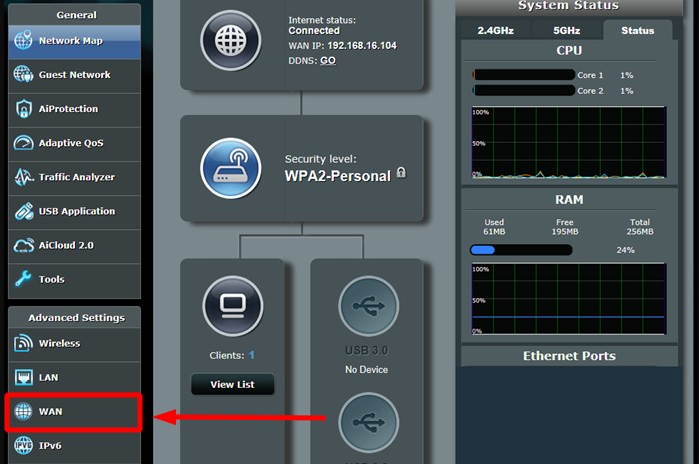](https://docs.safedns.com/uploads/images/gallery/2024-04/4DQ0yaZixbi5NC1o-screenshot-112.png) 4\. You will find the WAN DNS Settings tab there. Press on the NO option next to Connect to DNS server automatically. [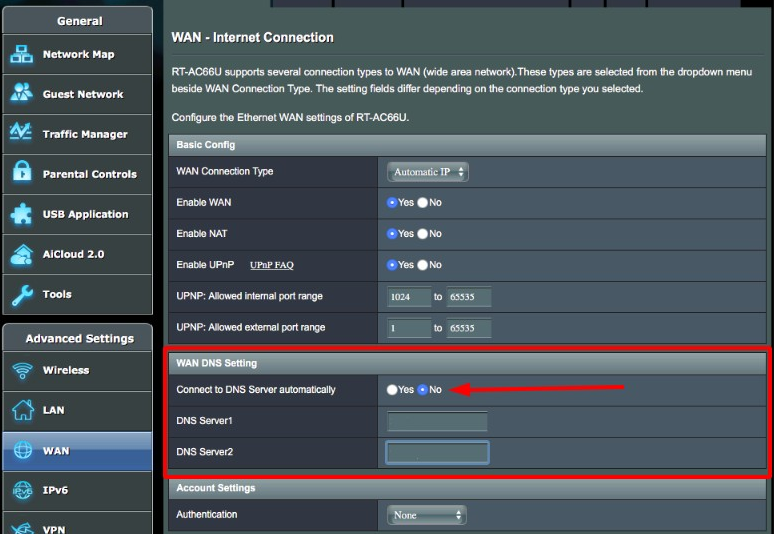](https://docs.safedns.com/uploads/images/gallery/2024-04/L5UgE8uzEcqlOTML-screenshot-113.png) 5\. In the DNS Server1 and DNS Server2 tabs, enter the following DNS addresses: - 195.46.39.39 - 195.46.39.40 6\. To save the changes, press Apply and restart your router. [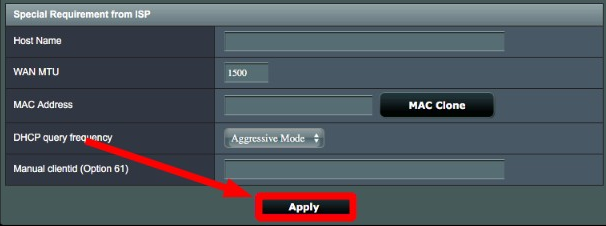](https://docs.safedns.com/uploads/images/gallery/2024-04/PjtGJCkMobt2kGYN-screenshot-114.png)In the Asus router, it's possible to force DNS traffic through port 53. These are the steps: 1. Click on WAN and go to Port trigger. 2. Enable the Port trigger. 3. In the section trigger port list enter: name: SafeDNS trigger port: 53 protocol: TCP incoming port: 53 protocol: UDP 4. Click Add and Apply. By blocking port 53, all devices connected to the router will be forced to use the SafeDNS servers.
**You have successfully configured your router.**Please note that settings take 5-7 minutes to apply. Stats and filtering status update every 10 minutes.
--- #### **Router with Dynamic IP address configuration** In case you have a Dynamic IP address, you need to configure the DynDNS/DDNS on the router using a Dynamic DNS service.Most modern routers provide their own DynDNS services. We recommend using them.
If your router does not have its own DynDNS service provider, we recommend using third-party NO-IP DynDNS. 1\. Check the DynDNS service available for your router. If available, we recommend using the No IP DynDNS service provider. 2\. Go to the website noip.com and sign up. [](https://docs.safedns.com/uploads/images/gallery/2022-08/bceoEIpcnfn4hTTJ-4-router-setup-guide-ipv4.png) 3\. In your No-IP account, create a hostname (any name you can think of). [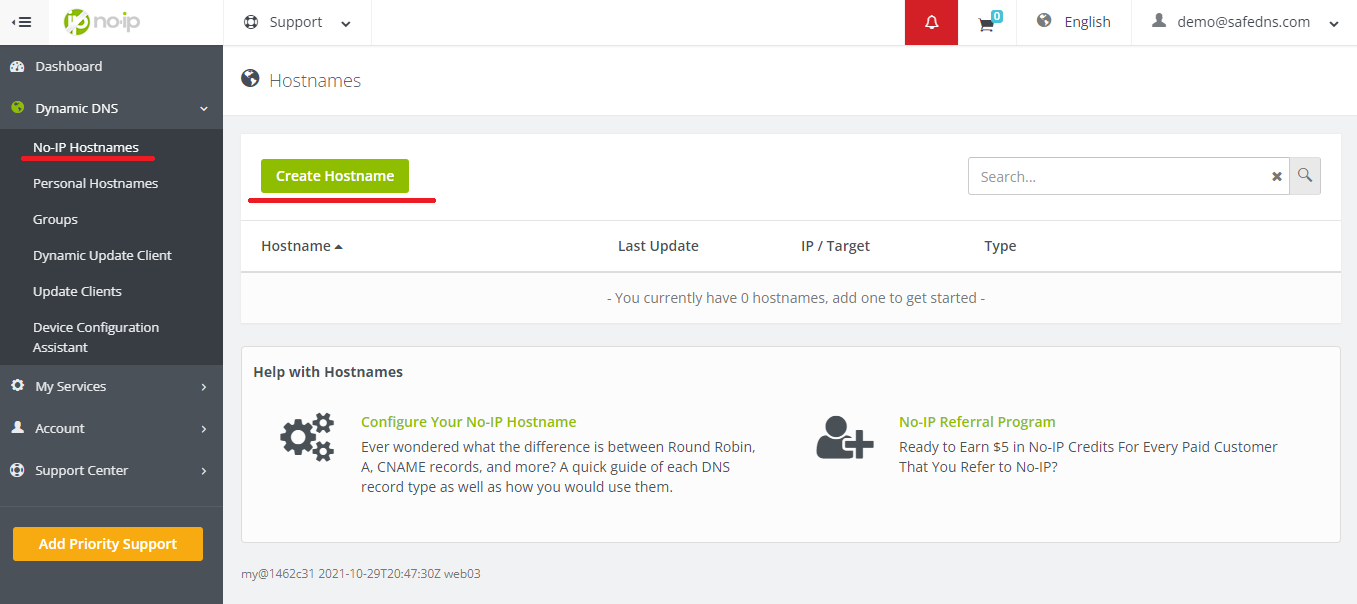](https://docs.safedns.com/uploads/images/gallery/2022-08/iM2lBtwjCMovYUlh-5-router-setup-guide-ipv4.png)[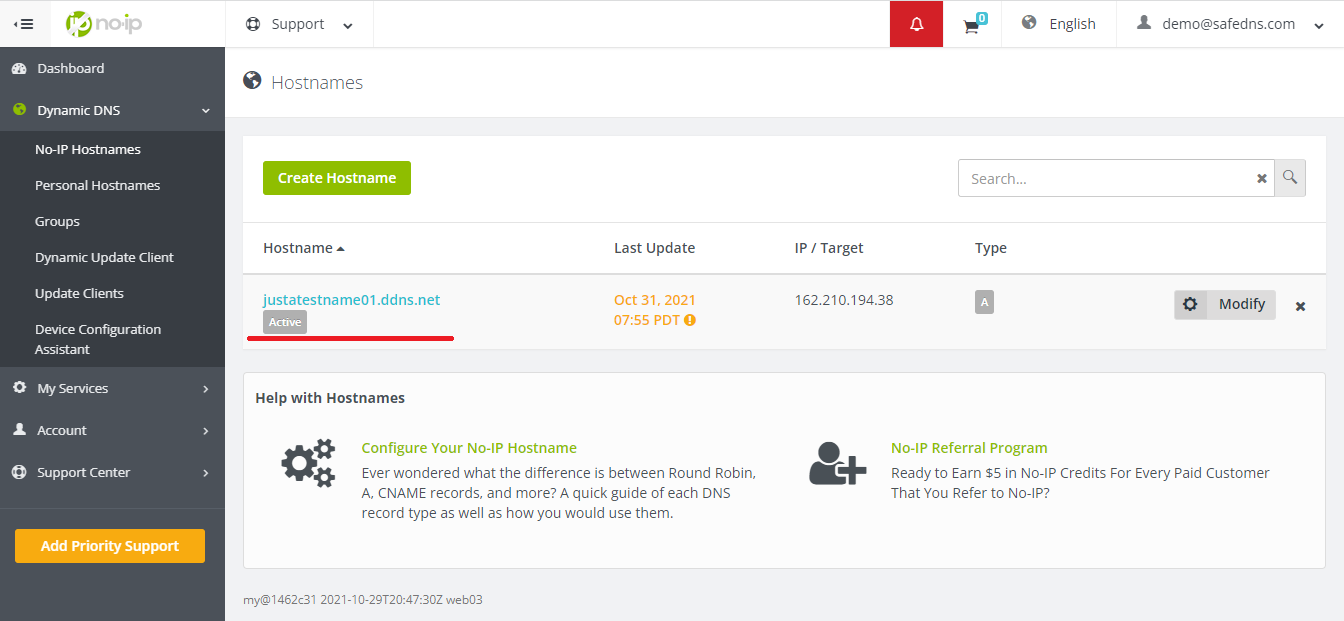](https://docs.safedns.com/uploads/images/gallery/2022-08/9NhUPXUJ6J7Yb6PE-6-router-setup-guide-ipv4.png) [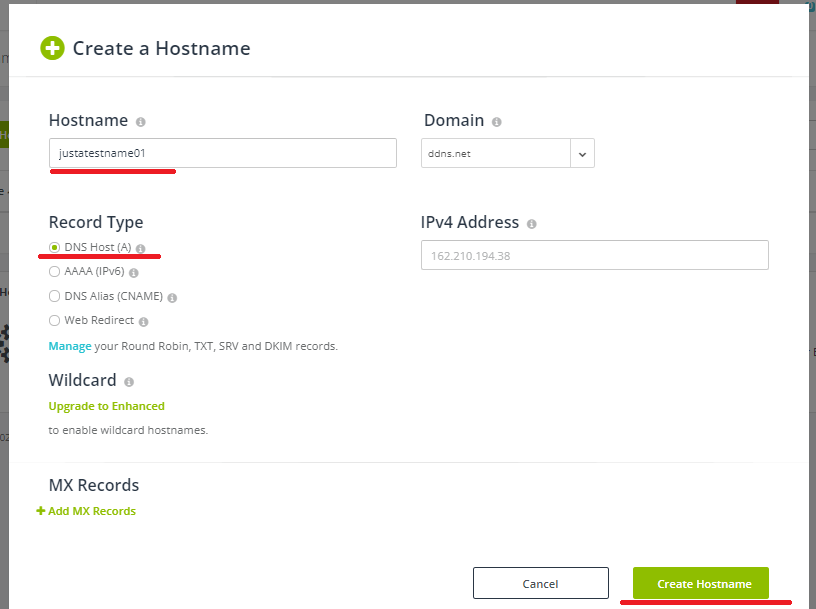](https://docs.safedns.com/uploads/images/gallery/2022-08/jXwQLcgVhGd8Kuj6-7-router-setup-guide-ipv4.png) 4\. Go back to your router and configure DDNS/DynDNS. - Select No-IP as "**Server**". - Type in the created hostname in the "**Host Name**" field. - Type in your No-IP account credentials as "Username" and "Password", and click "Save". - Set "**Enablewildcard**" to NO. [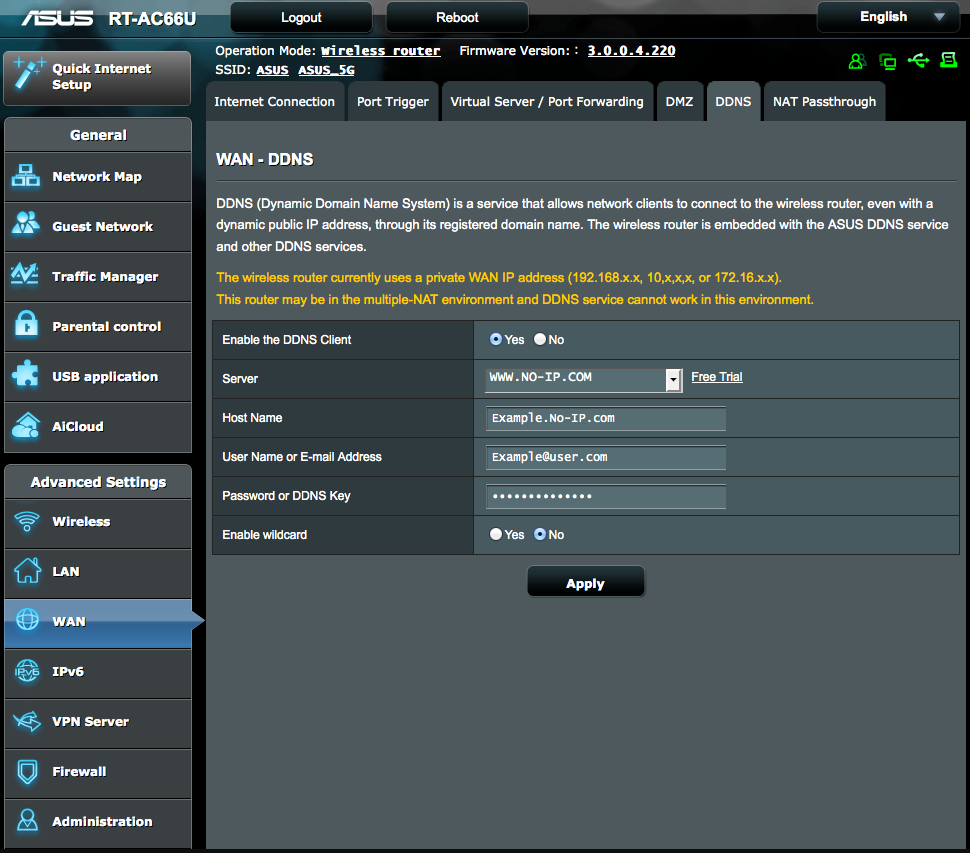](https://docs.safedns.com/uploads/images/gallery/2024-04/qOY9bsCXTUwc47eQ-screenshot-115.png) If everything is correct, DynDNS/DDNS settings will apply. 5\. Go to SafeDNS **Dashboard > Settings > Devices** and copy your DynDNS hostname to the "**IP addresses / DynDNS**" box, choose a policy, and click "**Add**". [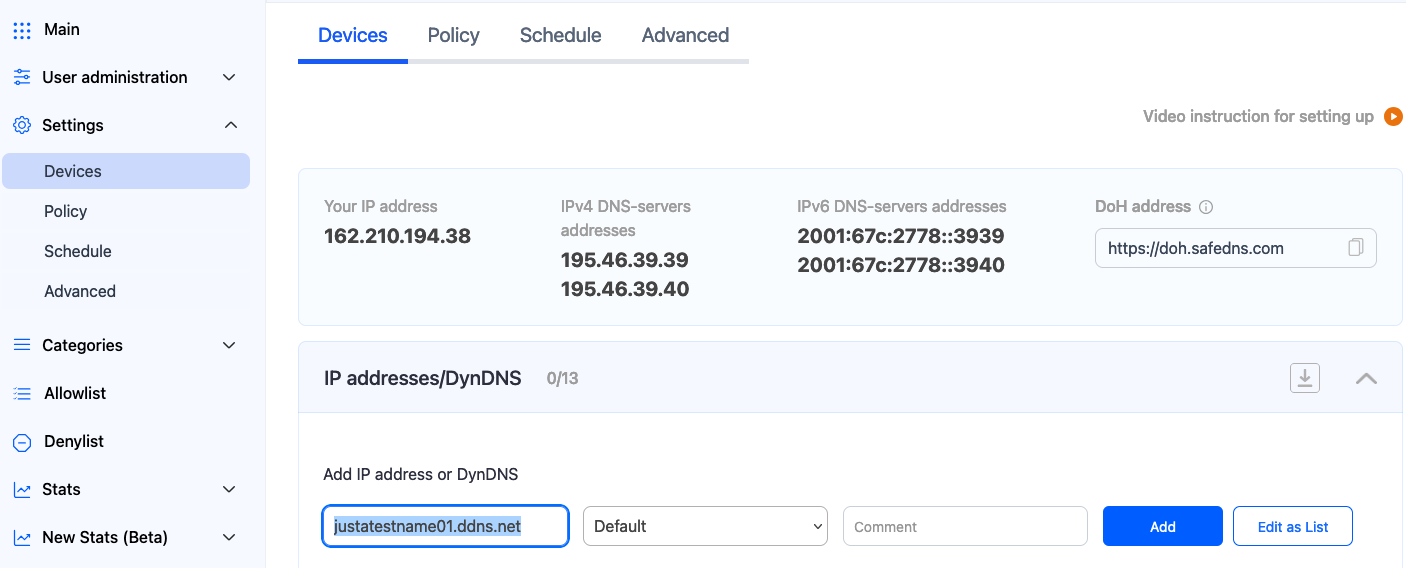](https://docs.safedns.com/uploads/images/gallery/2024-08/SlHLst3qUfdzlbUD-2-asus-and-asuswrt.png) Once added, you will see it in the DynDNS section of the Dashboard. [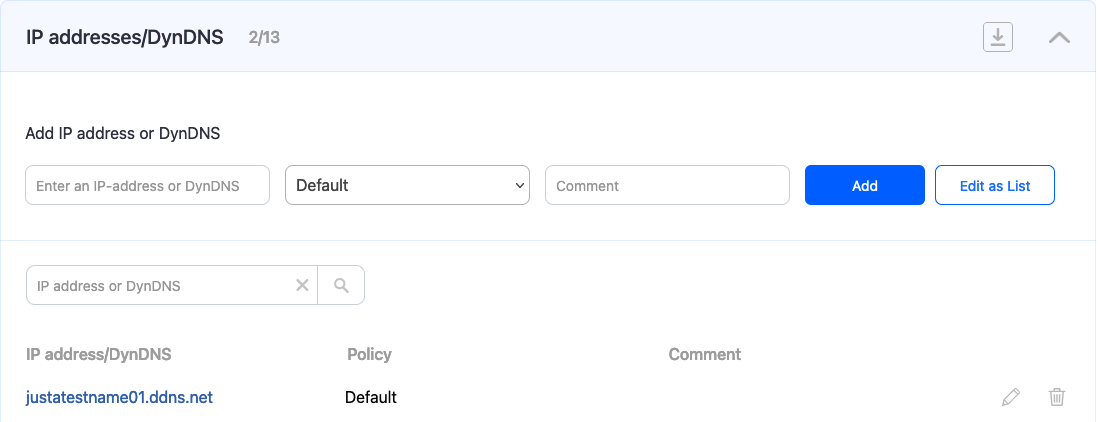](https://docs.safedns.com/uploads/images/gallery/2024-08/5ziWAaoFiu47dYJm-3-asus-and-asuswrt.png) 6\. Open a browser and type in the Default Gateway address into your browser's URL address bar. By default, it is 192.168.1.1 [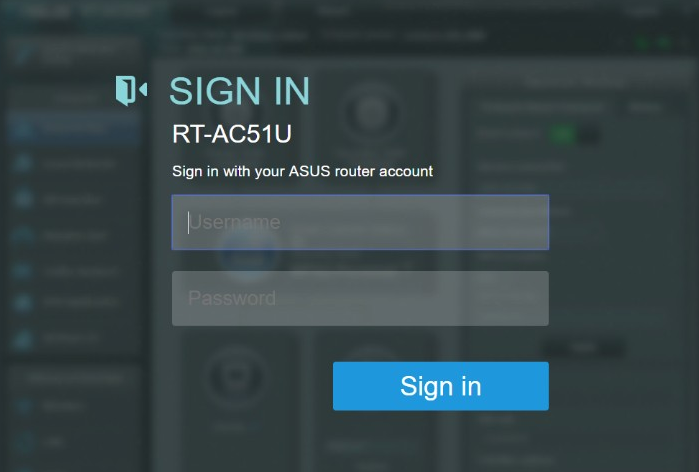](https://docs.safedns.com/uploads/images/gallery/2024-04/4FyTs1nCaBXEJWZJ-screenshot-111.png)Your router might have a different Default Gateway IP address. Check the backside of your router to find the Default Gateway IP address of your particular router.
7\. Once you log in, click on the WAN tab in the Advanced Settings section. [](https://docs.safedns.com/uploads/images/gallery/2024-04/4DQ0yaZixbi5NC1o-screenshot-112.png) 8\. You will find the WAN DNS Settings tab there. Press on the NO option next to Connect to DNS server automatically. [](https://docs.safedns.com/uploads/images/gallery/2024-04/L5UgE8uzEcqlOTML-screenshot-113.png) 9\. In the DNS Server1 and DNS Server2 tabs, enter the following DNS addresses: - 195.46.39.39 - 195.46.39.40 10\. To save the changes, press Apply and restart your router. [](https://docs.safedns.com/uploads/images/gallery/2024-04/PjtGJCkMobt2kGYN-screenshot-114.png)In the Asus router, it's possible to force DNS traffic through port 53. These are the steps: 1. Click on WAN and go to Port trigger. 2. Enable the Port trigger. 3. In the section trigger port list enter: name: SafeDNS trigger port: 53 protocol: TCP incoming port: 53 protocol: UDP 4. Click Add and Apply. By blocking port 53, all devices connected to the router will be forced to use the SafeDNS servers.
**You have successfully configured your router.**Please note that settings take 5-7 minutes to apply. Stats and filtering status update every 10 minutes.
--- #### **Asuswrt-Merlin DNS Director**This part of the article contains information for Asus routers with custom firmware Asuswrt-Merlin.
Asuswrt-Merlin is a third-party alternative firmware for Asus routers ([official page](https://www.asuswrt-merlin.net/)). List of the supported devices - [here](https://github.com/RMerl/asuswrt-merlin.ng/wiki/Supported-Devices). DNS Director is a feature that allows you to force specific devices on your network to use specific DNS. This can be done globally, or on a per-device basis. Each of them can have a different nameserver enforced. For example, you can have your LAN use a custom DNS server, but force your children's devices to use SafeDNS filtering. Safe Family and Business plans users can group devices in up to 6 groups and filter them with different policies using the [NAT DNS feature](https://docs.safedns.com/books/installation-guides/page/nat-dns-setup). The configuration can be found in the DNS Director tab, located in the LAN section: [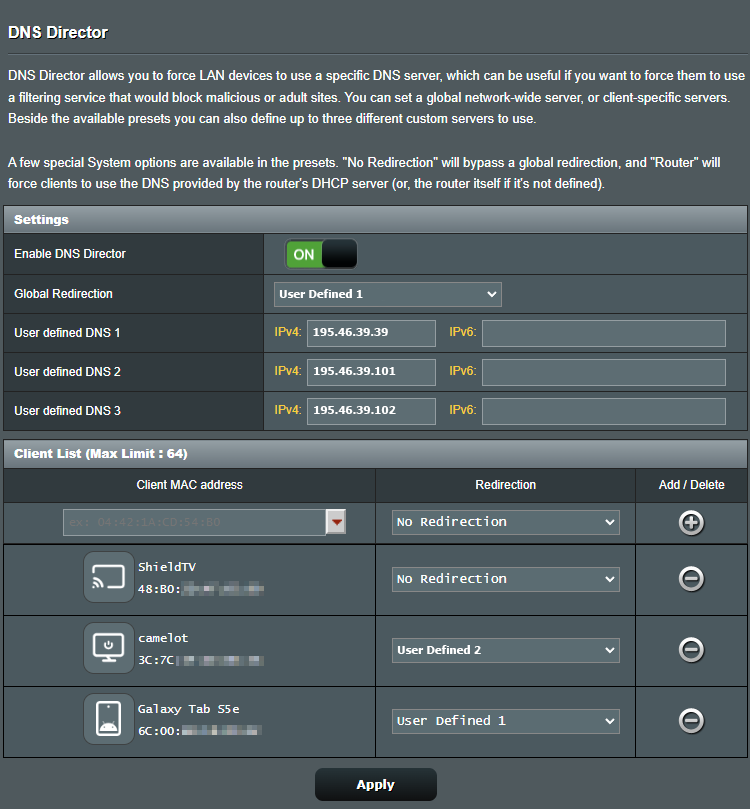](https://docs.safedns.com/uploads/images/gallery/2024-04/ONyKznM2pVrxR9Fs-screenshot-116-copy.png) --- #### **Configuring the filter using the DDclient** In rare cases when your router does not have a DynDNS/DDNS setting and your IP is Dynamic, you need to use third-party software - **DDclient** - on the PC connected to the network: 1\. [Install DDclient](https://docs.safedns.com/books/installation-guides/page/dd-client-setup) on a PC connected to the network. Once DDclient is installed, all devices connected to the same network will be filtered by the same rules. 2\. Set up DNS servers in your router: 