System requirements: **macOS Tahoe 26** or later, Mac with **Apple silicon — M1 chip** or later. The Agent is available on the following billing plans: **Safe Family, Pro, Pro Plus,** and archived **Safe@Home, Safe@Office**.
##### Before deploying the SafeDNS daemon and filtering module, install two configuration profiles on the target macOS devices: - **SafeDNS\_DNS\_Proxy - Custom Configuration Profile** - **SafeDNS\_Profile\_for\_System\_Extension - System Extension Policy** The steps below use SimpleMDM as an example. Other MDM platforms may use different menu names. #### **1. Create the SafeDNS DNS Proxy profile** 1. Go to **Configs** > **Profiles** [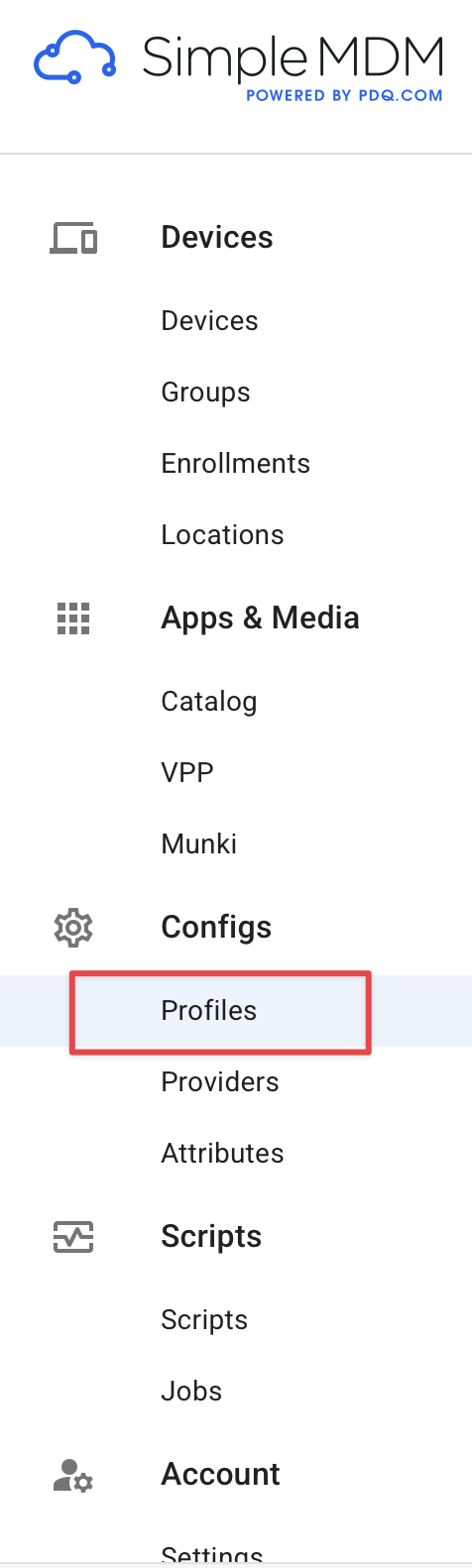](https://docs.safedns.com/uploads/images/gallery/2026-05/PkdegPn0hWzVKYWl-config-profile1.png) 2. **Click Create Profile.**[](https://docs.safedns.com/uploads/images/gallery/2026-05/KbMHNfXGJL3iA4ns-config-profile2.png) 3. Select **Custom Configuration Profile**. [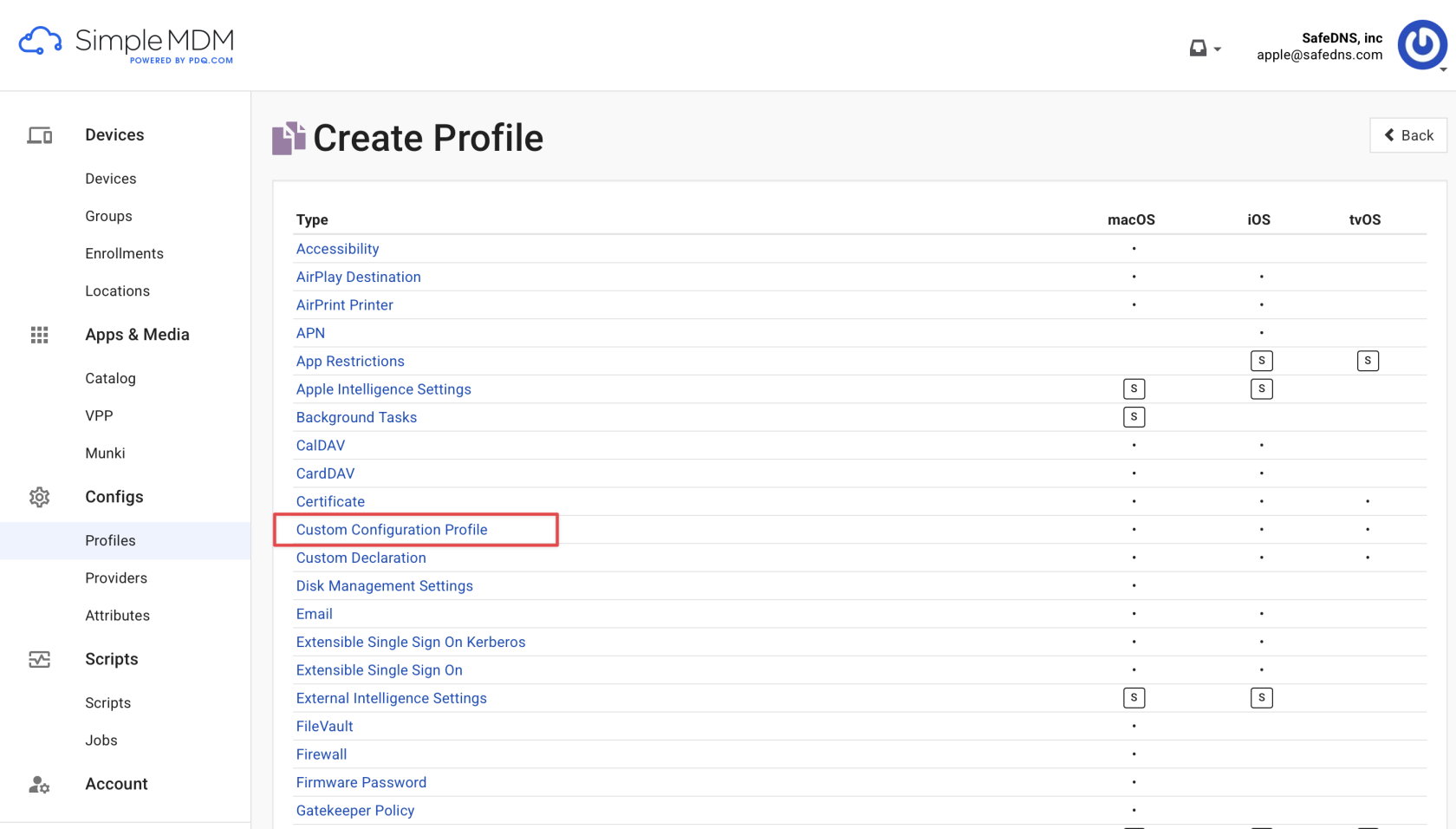](https://docs.safedns.com/uploads/images/gallery/2026-05/caO6iRFhF9yDFVJe-config-profile3.png) 4. Name the profile **SafeDNS\_DNS\_Proxy** (as an example). 5. Upload **[SafeDNS-DNSProxy.mobileconfig](https://docs.safedns.com/attachments/15)** without changing the file (Provided by Sad). This file has all the required parameters. 6. Click Save. #### **2. Create the System Extension profile** 1. Go to **Configs** > **Profiles** > **Create Profile.** 2. Select **System Extension Policy**. [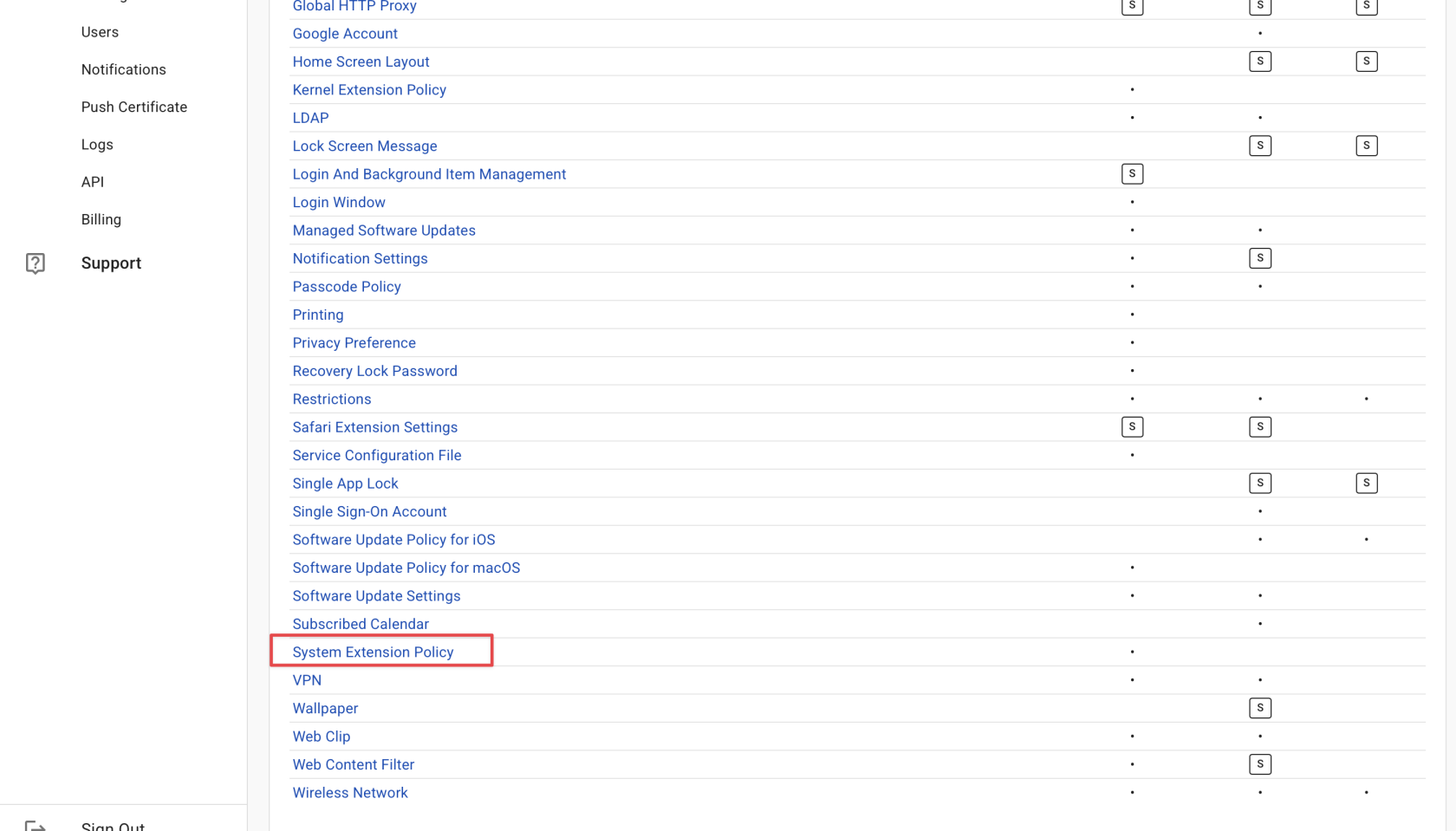](https://docs.safedns.com/uploads/images/gallery/2026-05/4h7RxrBjSOFshtgf-config-profile4.png) 3. Name the profile **SafeDNS\_Profile\_for\_System\_Extension** (as an example). 4. Use the following values: - Team Identifier — **B2TN6DQ93U** - Bundle Identifier — **com.safedns.agent.SafeDNSMacProxy.dnsProxy** - Notes (optional) — **SafeDNS DNS Proxy system extension** (SafeDNSMacProxyDNS) 5. Allow the following extension types: - **Driver Extension** - **Network Extension** - **Endpoint Security Extension** [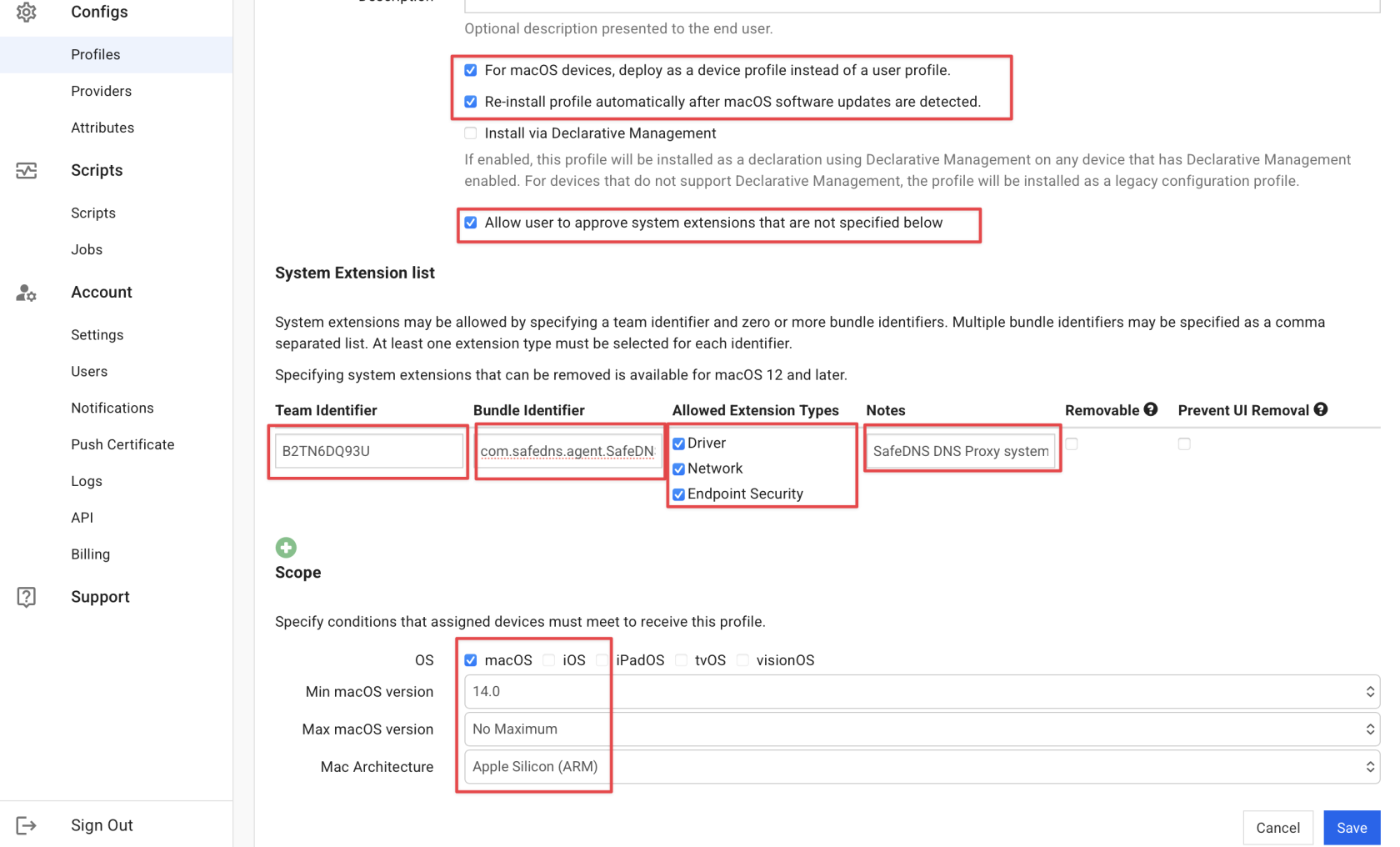](https://docs.safedns.com/uploads/images/gallery/2026-05/dRSrYVoFpX7MA6aS-config-profile5.png) 6. Click **Save**. #### **3. Assign the profiles to target devices** 1. Go to **Groups** and select the target device group. 2. Open the **Profiles** tab. 3. Add both profiles created earlier: - **SafeDNS\_DNS\_Proxy** - **SafeDNS\_Profile\_for\_System\_Extension** **[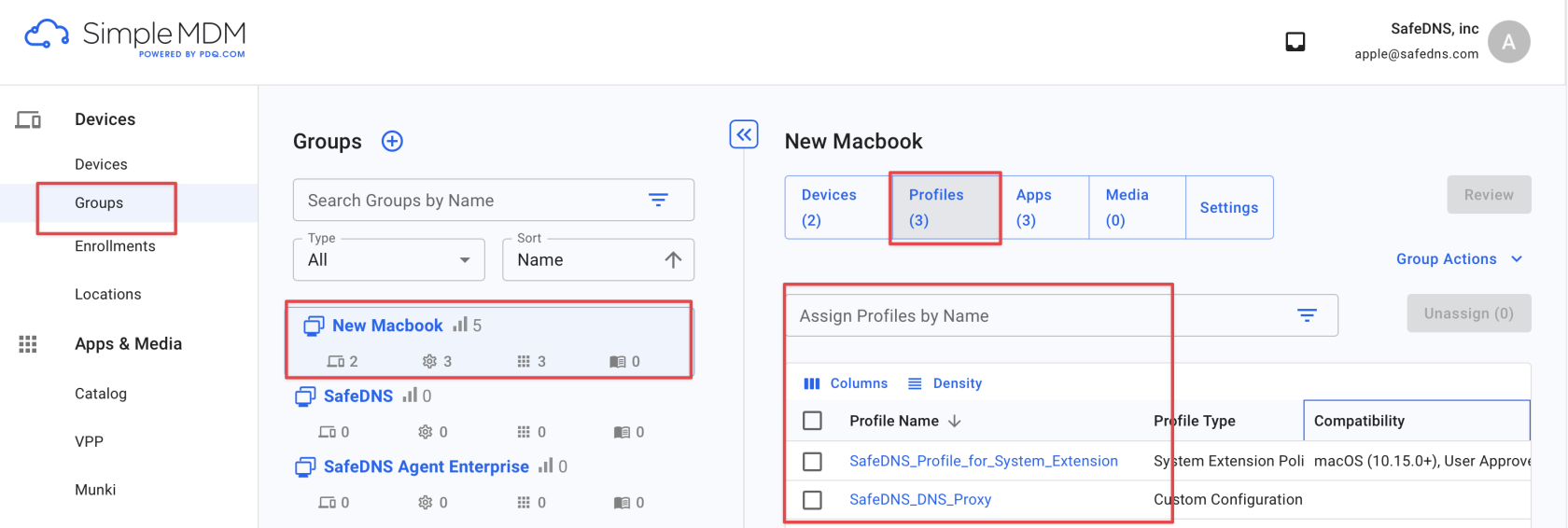](https://docs.safedns.com/uploads/images/gallery/2026-05/gzLIumQzsHZOFc1F-config-profile6.png)** 4. Click **Review** **>** **Save changes**. 5. Run **Group Actions** **>** **Sync Profile**. The profiles should appear in 2-5 seconds on the target Mac under **System Settings > General > Device Management**. #### **How to remove the profiles** To remove the profiles, unassign both profiles from the device group, save the changes, and run Sync Profile again. After synchronization, check **System Settings > General > Device Managemen**t on the target Mac. The SafeDNS profiles should no longer be listed.