# DD Client Setup
This guide explains how to install ddclient software in the case when you have a Dynamic IP address and your router does not have a Dynamic DNS feature.
---
#### Install and configure DDclient software
[](https://docs.safedns.com/uploads/images/gallery/2022-08/Rv5eziO3KgIGT0DO-1-dd-client-setup-guide.png)
1. Install DDclient ([download link](https://www.safedns.com/downloads/ddclient.exe)).
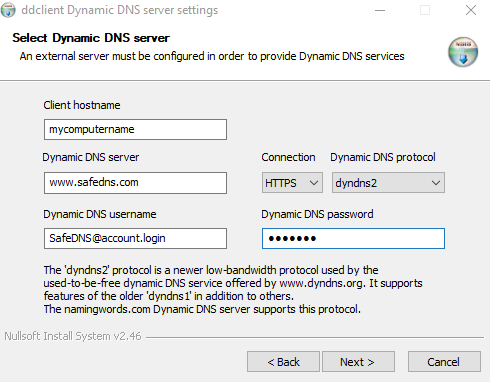
2. Click **"Next"** until your reach the **"Select Dynamic DNS server"** window (see screenshot above).
3. Enter **any preferred name** in the **"Client hostname"** field. (please do not use the space in this field)
4. Enter **www.safedns.com** in the **"Dynamic DNS server"**.
5. Select **HTTPS** in the **"Connection"**.
6. Select **dyndns2** in the **"Dynamic DNS protocol"**.
7. Enter your SafeDNS **account login** in the **"Dynamic DNS username"**.
8. Enter your SafeDNS **password** in the **"Dynamic DNS password"**.
9. Continue clicking **"Next"** until the setup process is finished.
---
#### After the installation
Check if the IP address is successfully bound to service in the **ddclient.log** file. There should be a line like this:
*SUCCESS: updating my computer name: good: IP address set to 18.26.28.10*
On **Windows 10, 11** you can find the log file here:
- C:\\Windows\\ServiceProfiles\\NetworkService\\AppData\\Local\\ddclient.log
On **Windows 7**:
- C:\\windows\\ServiceProfiles\\NetworkService\\AppData\\Local\\ddclient.log
- C:\\windows\\ServiceProfiles\\LocalService\\AppData\\Local\\ddclient.log
- C:\\Users\\username\\AppData\\Local\\ddclient.log
On **Windows XP**:
- C:\\Documents and Settings\\LocalService\\Local Settings\\Application Data\\ddclient.log
- C:\\Documents and Settings\\NetworkService\\Local Settings\\Application Data\\ddclient.log
- C:\\Documents and Settings\\username\\Local Settings\\Application Data\\ddclient.log
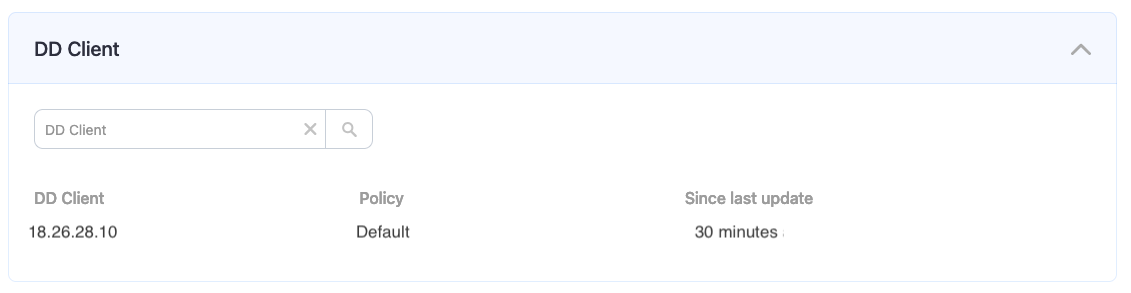
If the log file is correct, the **DD Client** table in **Dashboard > Settings > Devices** ([link](https://www.safedns.com/cabinet/devices/)) will be updated automatically.
[](https://docs.safedns.com/uploads/images/gallery/2024-08/PcsJGkPB6TC5RUgy-dd-client-setup.png)
By default, DD Client checks the IP every 15 minutes. If the IP is changed, it will be updated in the SafeDNS Dashboard.
Please note that settings take 5-7 minutes to apply.
Stats and filtering status update every 10 minutes.