# Encrypted DNS Setup (DoH/DoT)
This guide explains how to set up **DNS-over-HTTPS (DoH)** / **DNS-over-TLS (DoT)** links using the **Encrypted DNS** section of the SafeDNS Dashboard and how to enable **DoH/DoT** in the **SafeDNS Agent**.
---
#### Creating DoH/DoT link
**Please note that DoH/DoT links with the filtering policy token are available on Pro, Pro Plus, and Education & Non-Profit plans only.**
**Other plans can use the DoH/DoT link without the filtering policy (explained below).**
##### Links with the filtering policy
**This type of link works in any network and does not require adding the IP address of the network in the SafeDNS Dashboard.**
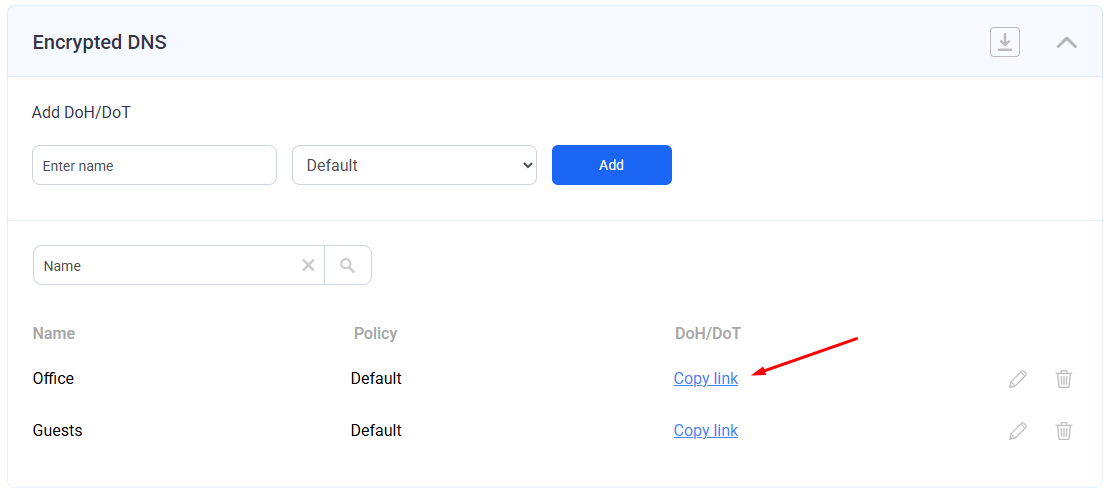
1\. Navigate to the SafeDNS **Dashboard > Settings** and create a new record in the **Encrypted DNS** table with a required filtering policy.
[](https://docs.safedns.com/uploads/images/gallery/2025-07/xhOea79Ix5oR1Esa-1-encrypted-dns-setup.png)
2\. Click **Copy link**.
##### Links without the filtering policy
**Please note that this method works only when the device with the link is located in the network specified in the SafeDNS Dashboard.**
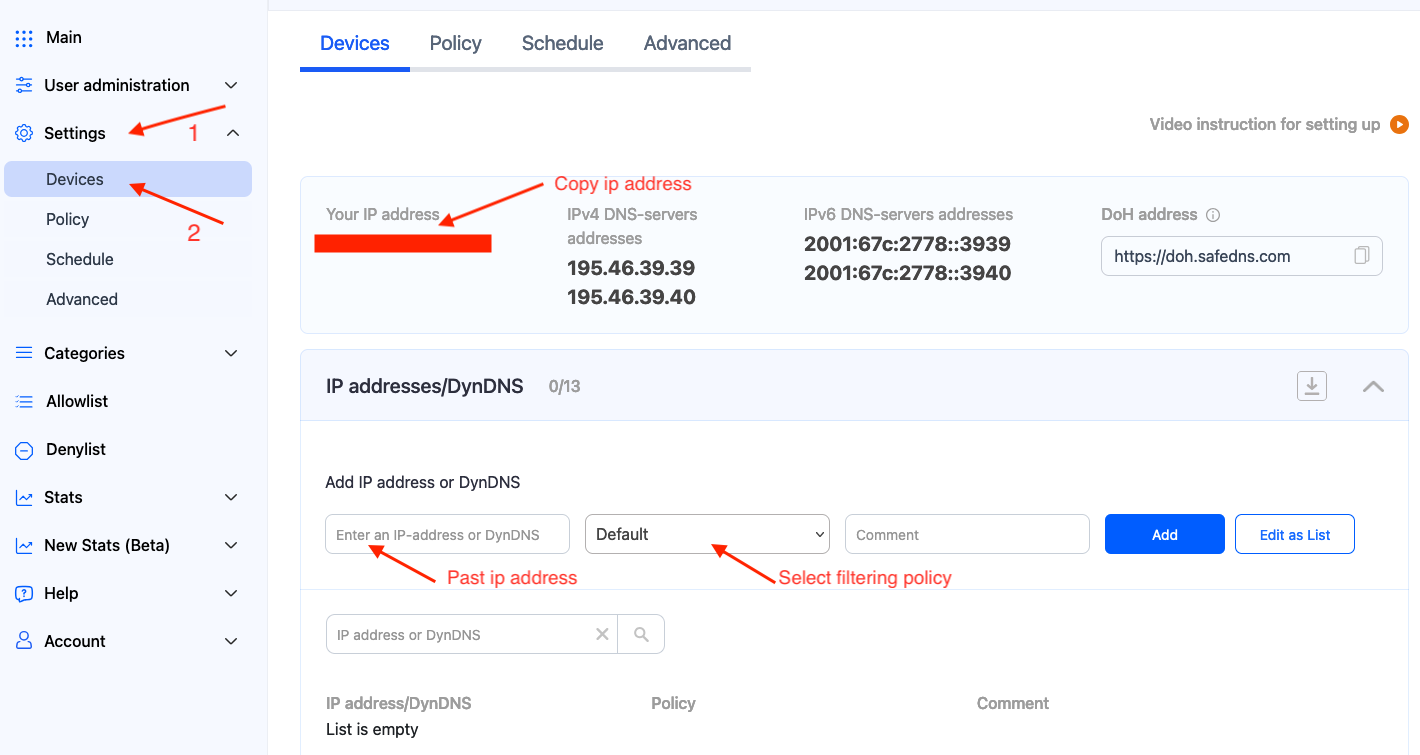
1\. Navigate to the SafeDNS **Dashboard > Settings** and copy your IP address in the "**Enter an IP address or DynDNS**" box. Click "**Add**".
[](https://docs.safedns.com/uploads/images/gallery/2025-07/jXq0pdSgi3RxcnSo-2-encrypted-dns-setup.png)
2\. Use **https://doh.safedns.com** as a DoH/DoT link.
---
#### Using DoH/DoT links
Links can be used on various devices, operating systems, and browsers. Below are some popular examples.
##### Operating systems
Windows 11
1\. Open **Start** on Windows 11.
2\. Search for **Settings** and click the top result to open the app.
3\. Click on **Network & internet**.
4\. Click the **Ethernet** or **Wi-Fi** tab (depending on the active connection).
If you have a Wi-Fi connection, click on the connection properties setting to access the settings.
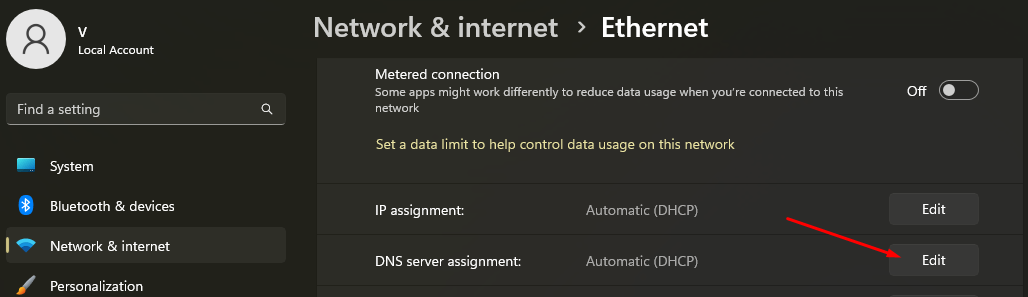
5\. Click the **Edit** button in the "DNS server assignment" setting.
[](https://docs.safedns.com/uploads/images/gallery/2025-07/lilyZYQNBGQRZawV-1-encrypted-dns-windows-setup.png)
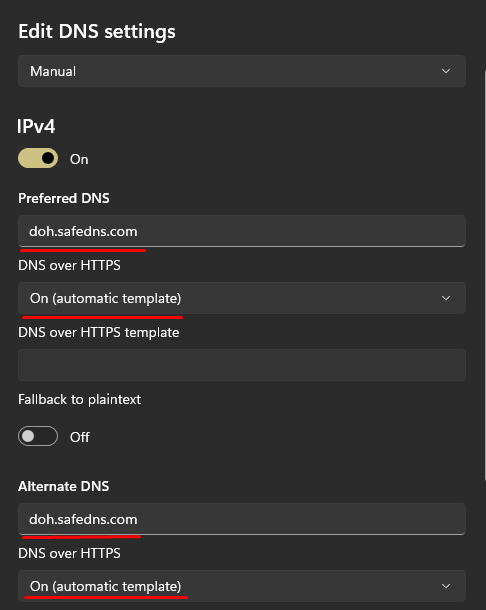
6\. Select the **Manual** option from the drop-down menu.
7\. Turn on the **IPv4** toggle switch.
8\. Under the **Preferred DNS** and **Alternate DNS** sections, enter the created **DoH/DoT link**.
[](https://docs.safedns.com/uploads/images/gallery/2025-07/FT6Sgds3ZjnPzgkg-2-encrypted-dns-windows-setup.png)
9\. Use the **DNS over HTTPS** drop-down menu and select the **On (automatic template)** option.
10\. Turn off the **Fallback to plaintext** toggle.
11\. Click **Save**.
Android Private DNS
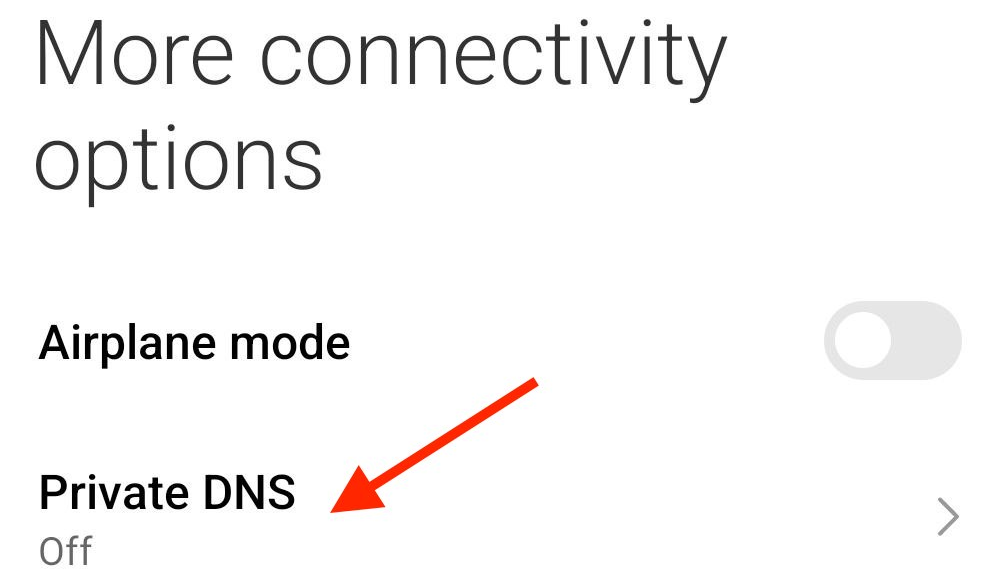
1\. Navigate to **Settings >** **Network & internet.** (on some devices - More connectivity options).
2\. Select **Advanced >** **Private DNS**. (on some devices it is under **Advanced** or **More** options).
[](https://docs.safedns.com/uploads/images/gallery/2025-07/wa58rFMg6Yh7Z36w-1-encrypted-dns-android-setup.png)
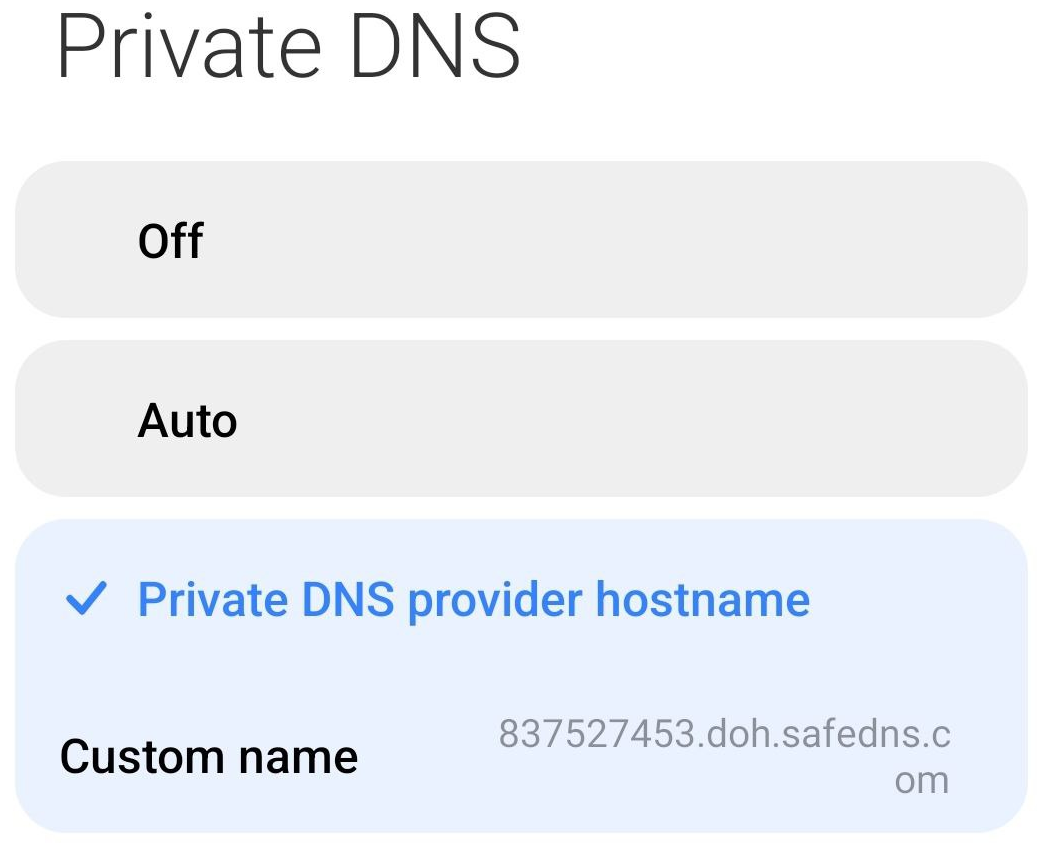
3\. Select the **Private DNS provider hostname** option.
[](https://docs.safedns.com/uploads/images/gallery/2025-07/uny9wDpsQN1Zr3dt-2-encrypted-dns-android-setup.png)
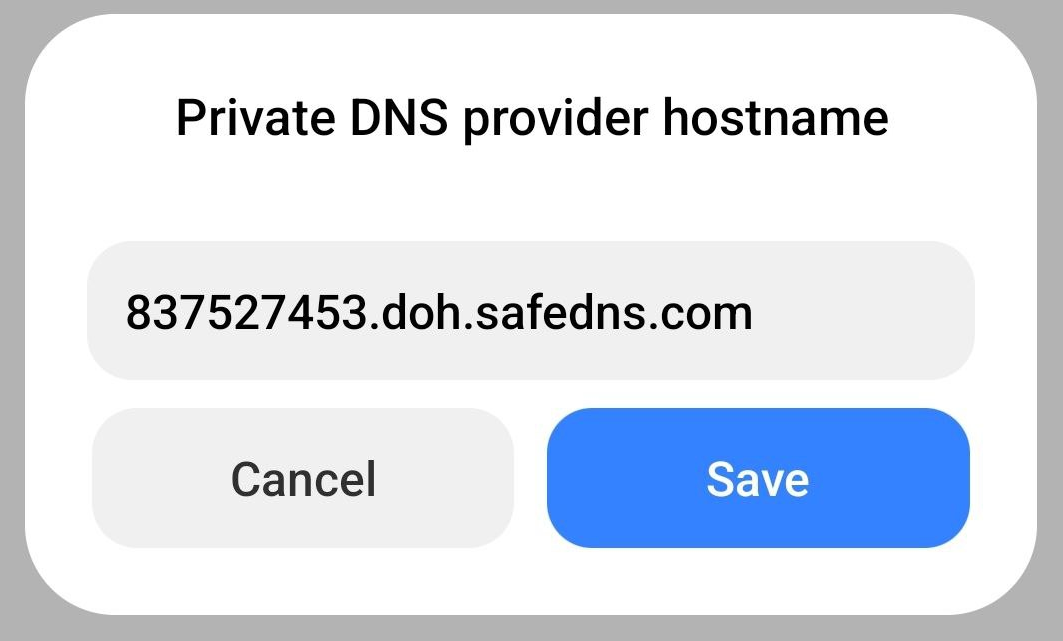
4\. Add the **DoH/DoT link** and select **Save**.
[](https://docs.safedns.com/uploads/images/gallery/2025-07/VrYOwY46Fet5hfzT-3-encrypted-dns-android-setup.png)
Microsoft Edge
1\. Open **Settings**.
2\. Navigate to **Privacy, search, and services**.
3\. Scroll down to **Security**.
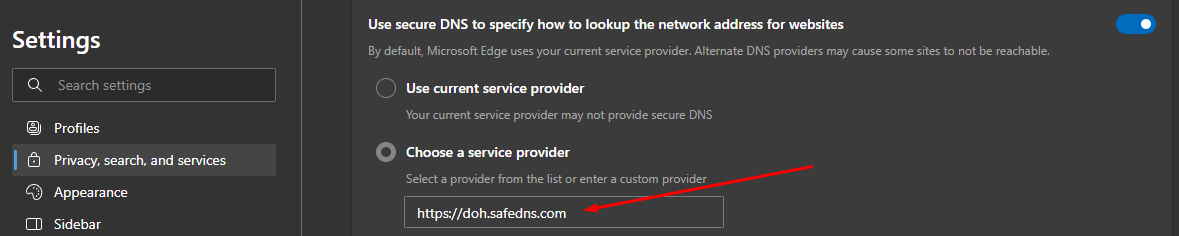
4\. Select **Choose a service provider**.
5\. Add the **DoH/DoT link**.
[](https://docs.safedns.com/uploads/images/gallery/2025-07/2rdy7HycCb7gHoKb-1-encrypted-dns-edge-setup.png)
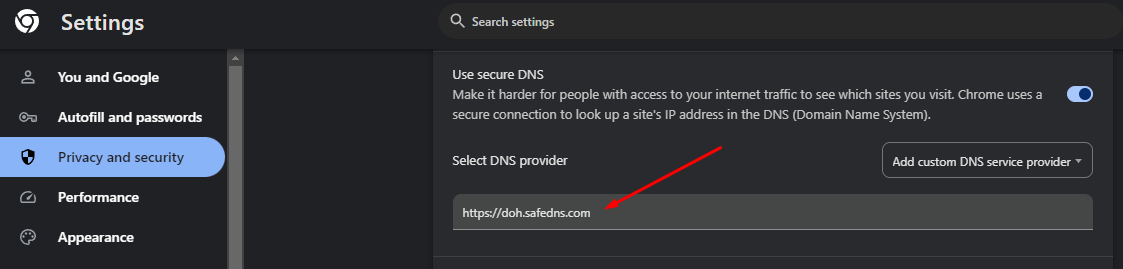
Google Chrome
1\. Open **Settings**.
2\. Navigate to **Privacy and security** and click on the **Security** section.
3\. Scroll down to **Use secure DNS**.
4\. Choose **Add custom DNS service provider** from the dropdown menu.
5\. Add the **DoH/DoT link**.
[](https://docs.safedns.com/uploads/images/gallery/2025-07/7SQYYwuAiWlLy0uv-1-encrypted-dns-chrome-setup.png)
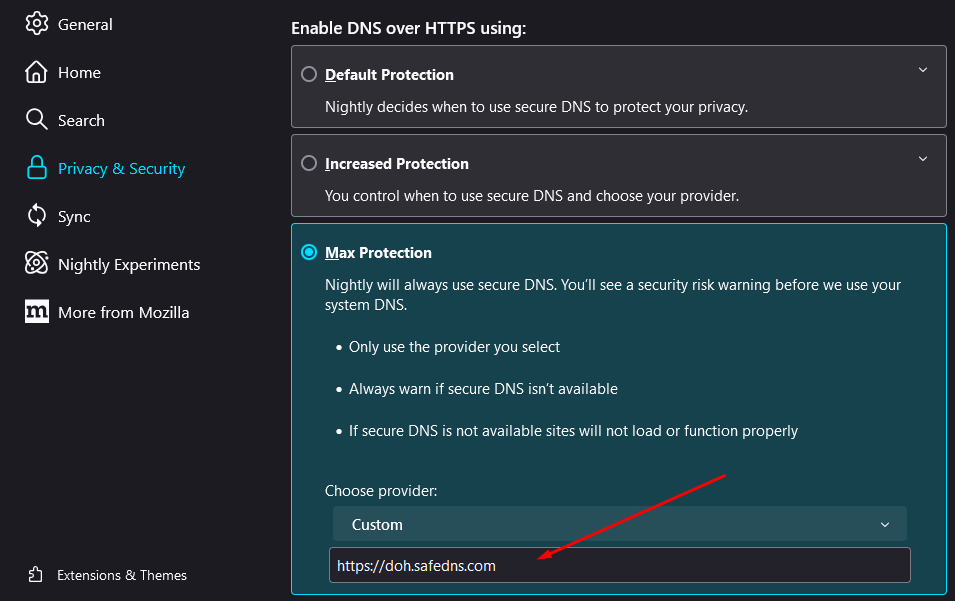
Mozilla Firefox
1\. Open **Settings**.
2\. Select **Privacy & Security** and scroll down to the **DNS over HTTPS** section.
3\. Select **Max Protection**.
4\. Click the "**Choose provider**" dropdown menu and select **Custom**.
5\. Add the **DoH/DoT link**.
[](https://docs.safedns.com/uploads/images/gallery/2025-07/PU4vWHI62V16QmZn-1-encrypted-dns-firefox-setup.png)
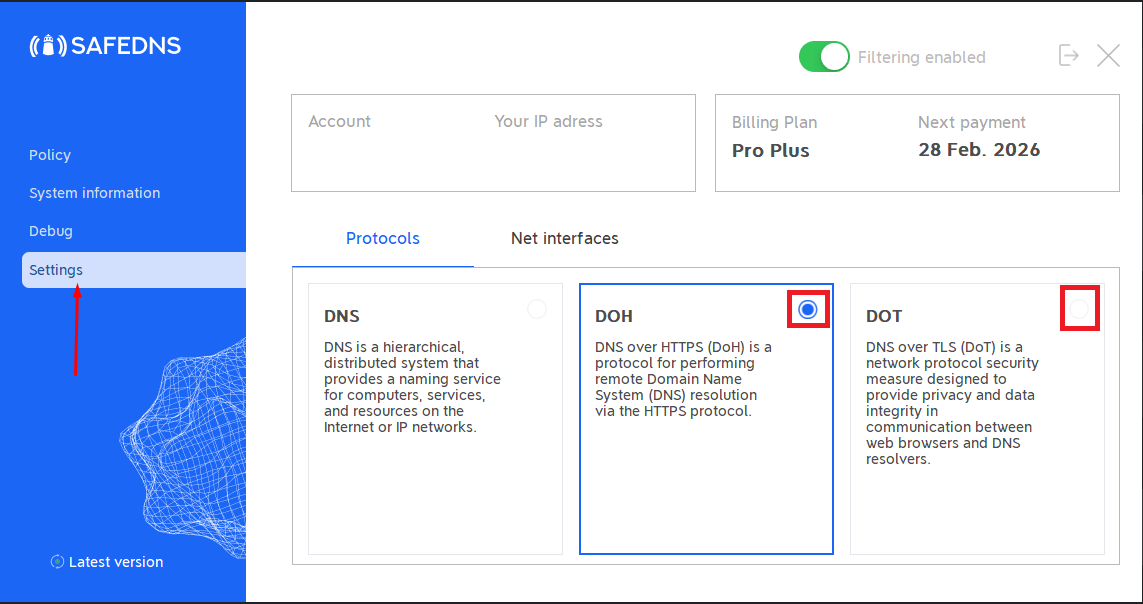
**This method does not require a link. It is provided as part of the [Mac](https://docs.safedns.com/books/installation-guides/page/safedns-agent-for-macos-setup) and [Windows](https://docs.safedns.com/books/installation-guides/page/safedns-agent-for-windows-setup) SafeDNS Agents.**
1\. Open the SafeDNS Agent interface.
2\. Navigate to **Settings**.
3\. In the **Protocols** section, click on the **DOH** or **DOT** to use the respective protocol.
[](https://docs.safedns.com/uploads/images/gallery/2026-02/9ohue3Fg1vuzhK5k-agent-doh.png)