We recommend using the **Authenticator App** for better security.
4\. Press **Enable** and follow the on-screen instructions for the selected method. 5\. Save the backup codes when prompted.Backup codes are shown only once. We strongly recommend keeping them on a different device or writing them down. Each code can be used only once. Backup codes can be regenerated by pressing the **Regenerate** button. Previously generated codes will be invalidated.
If needed, you can enable both authentication methods. To do that, press **Enable** under the other method, then follow the on-screen instructions. --- #### Using 2FA 2FA will be prompted on each login after entering the valid login and password. [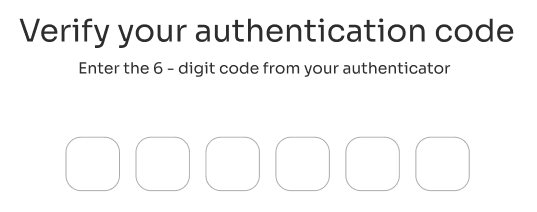](https://docs.safedns.com/uploads/images/gallery/2026-03/tTmsUr9Tk43z9scE-screenshot-571.png) If both authentication methods are enabled, you can use the other method via the **Use the other method** option. [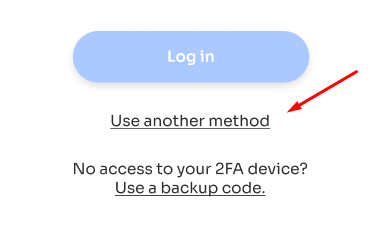](https://docs.safedns.com/uploads/images/gallery/2026-03/KicbSoBOIXqg6eHV-screenshot-569.png) --- #### Using Backup Codes If you lost access to the authentication method(s), you can use the backup codes instead via the **Use a backup code** option. [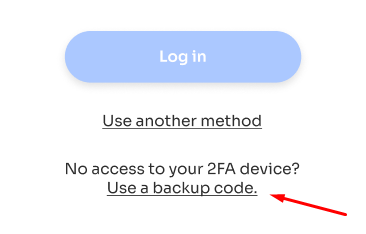](https://docs.safedns.com/uploads/images/gallery/2026-03/gdCEwE5g9JSpdGdo-screenshot-570.png)Each backup code can be used only once.
--- #### Disabling 2FA You can disable 2FA by pressing the Disable button in the Two-Factor Authentication (2FA) panel. [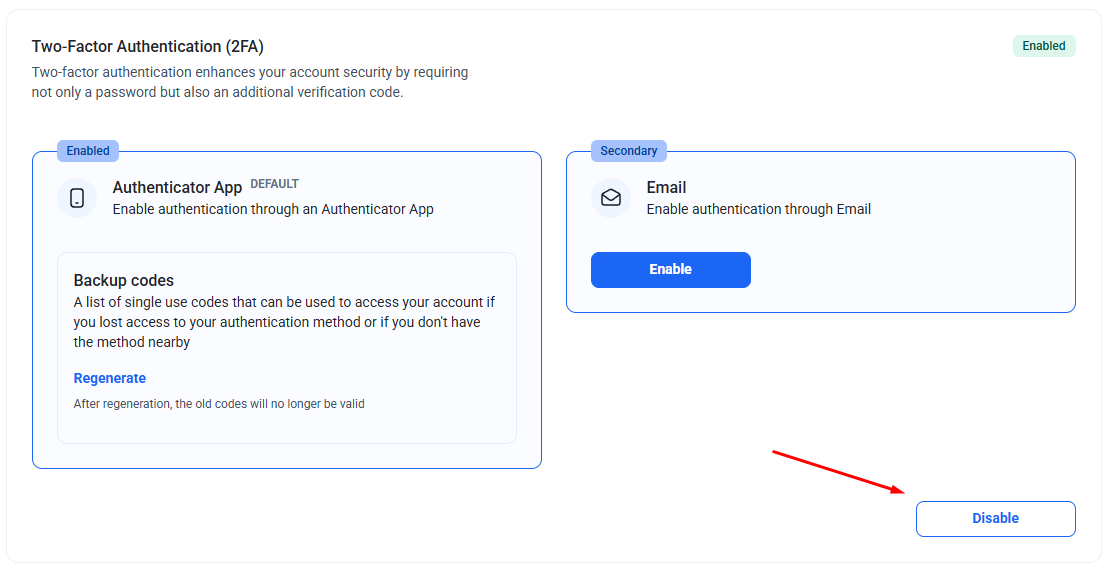](https://docs.safedns.com/uploads/images/gallery/2026-03/fDXGeT4gjtYjrjsv-screenshot-572.png) If both authentication methods are enabled, you can disable one or both. --- #### Disabling 2FA via SafeDNS Support If you lost access to authentication methods and backup codes, you can request to disable 2FA via the **Use a backup code > Send Request** option. [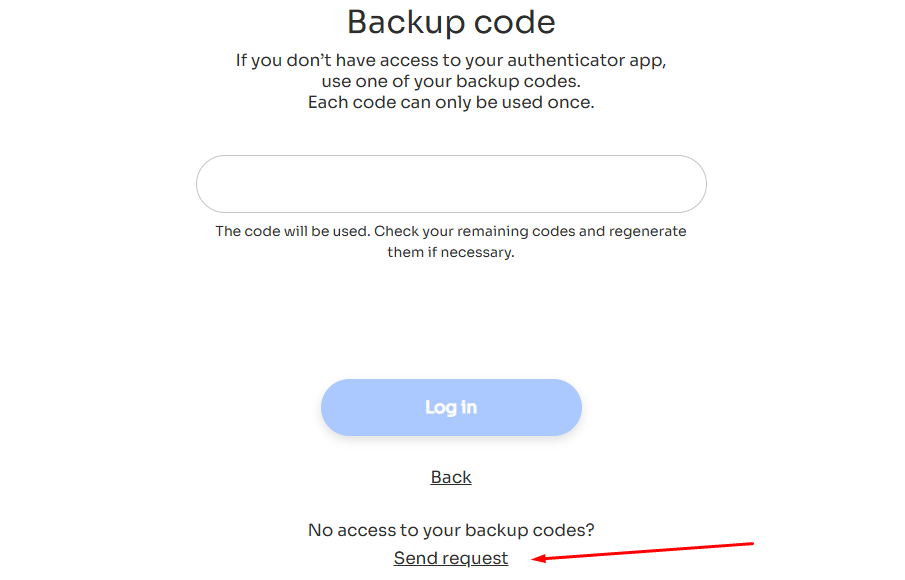](https://docs.safedns.com/uploads/images/gallery/2026-03/eQjZVajo1FzBH0VU-screenshot-573.png) After the request is sent, the SafeDNS Support team will respond within 3 hours to the email address of your SafeDNS account. If you need Support to reply to the other email, please send the request manually toPlease note that for security reasons, Support will ask additional questions to verify the account ownership.