Please note, that servers must be separated by a comma.
[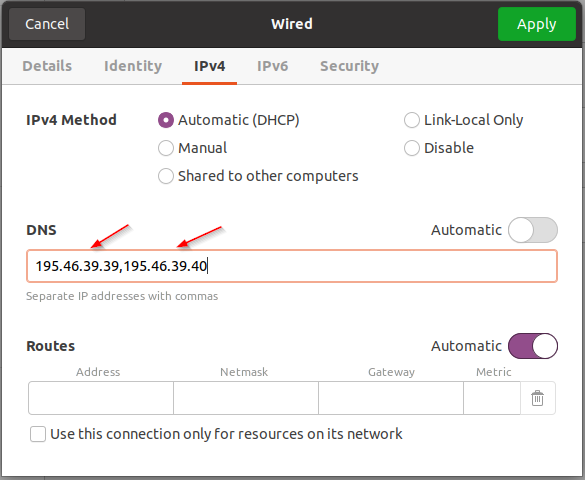](https://docs.safedns.com/uploads/images/gallery/2022-08/I4zYcf6G4A6u7hmJ-2-linux-dns-setup-guide.png) Otherwise, you need to find out which application is used for the network settings and add SafeDNS servers there. **Your Linux device is now filtered with the SafeDNS filtering policy.**Please note that settings take 5-7 minutes to apply. Stats and filtering status update every 10 minutes.
--- #### Dynamic IP address 1\. Install and configure **ddclient**. **ddclient** package is shipped with most Linux distributions. If your Linux distribution doesn’t have ddclient, you can download it from [GitHub](https://github.com/ddclient/ddclient). After ddclient is installed, you need to insert the next configuration in its config file (/etc/ddclient.conf or /etc/ddclient/ddclient.conf):daemon=300 syslog=yes ssl=yes protocol=dyndns2 server=www.safedns.com use=web web=http://www.safedns.com/nic/myip \# Replace with your email and password for www.safedns.com login=you@yourmail.com password=your\_password \# Enter any name for your device. \# If you have several computers with dynamic IPs their names must differ. laptop
Reboot your device and start ddclient. If the similar string is shown in the system logs (/var/log/syslog, /var/log/daemon.log or /var/log/messages), ddclient is successfully configured:Aug 14 12:49:13 laptop ddclient\[4105\]: SUCCESS: updating laptop: good: IP address set to 18.26.28.10
2\. Change your system’s DNS servers to SafeDNS addresses - **195.46.39.39** and **195.46.39.40** If you configure the network through NetworkManager, it will be sufficient to add SafeDNS servers there. Open the settings of the current Network Interface. [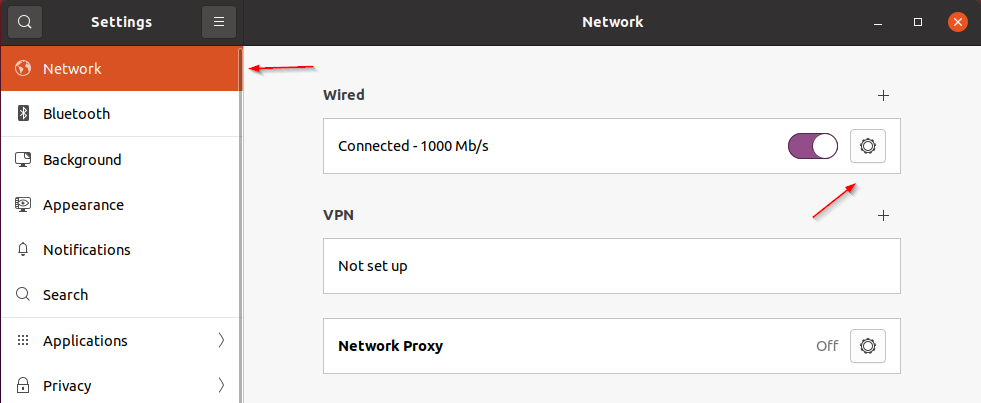](https://docs.safedns.com/uploads/images/gallery/2022-08/AGQcYoyf5jiLIPFD-1-linux-dns-setup-guide.png) Add SafeDNS servers: **195.46.39.39** and **195.46.39.40**.Please note, that servers must be separated by a comma.
[](https://docs.safedns.com/uploads/images/gallery/2022-08/I4zYcf6G4A6u7hmJ-2-linux-dns-setup-guide.png) Otherwise, you need to find out which application is used for the network settings and add SafeDNS servers there. Your Linux device is now filtered with the SafeDNS filtering policy.Please note that settings take 5-7 minutes to apply. Stats and filtering status update every 10 minutes.