# Mac DNS Setup

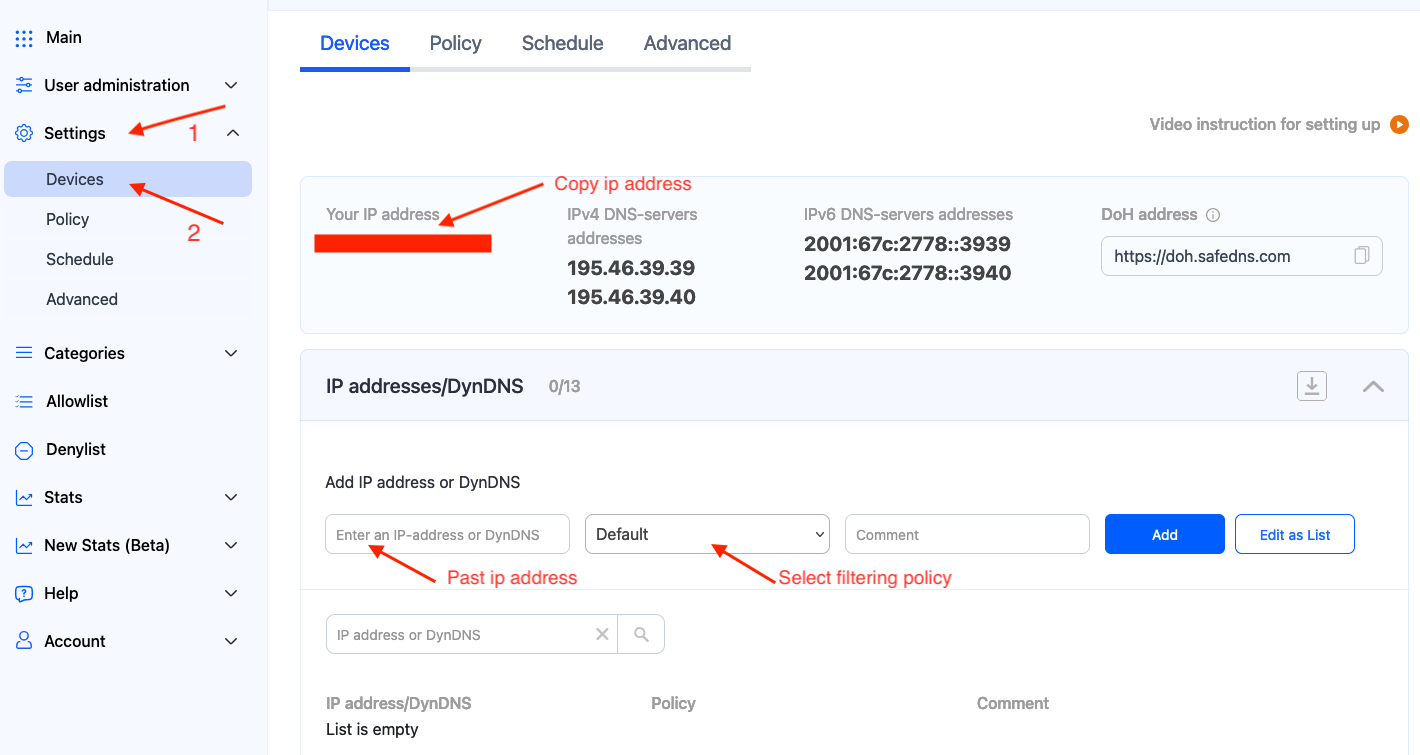
1\. Navigate to the SafeDNS **Dashboard &gt; Settings** and copy your IP address in the "**Enter an IP address or DynDNS**" box. Click "**Add**".

[![1. Mac DNS Setup.png](https://docs.safedns.com/uploads/images/gallery/2024-08/scaled-1680-/jNWQl17nHFcV6zLU-1-mac-dns-setup.png)](https://docs.safedns.com/uploads/images/gallery/2024-08/jNWQl17nHFcV6zLU-1-mac-dns-setup.png)
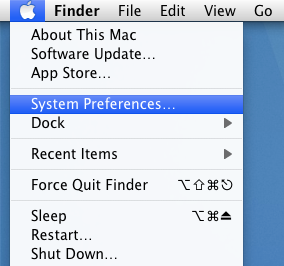
2\. Navigate to the Mac OS "System Preferences"**.**

[![1.Mac DNS Setup Guide.png](https://docs.safedns.com/uploads/images/gallery/2022-08/scaled-1680-/K7JmXM9DrOtlOHzQ-1-mac-dns-setup-guide.png)](https://docs.safedns.com/uploads/images/gallery/2022-08/K7JmXM9DrOtlOHzQ-1-mac-dns-setup-guide.png)
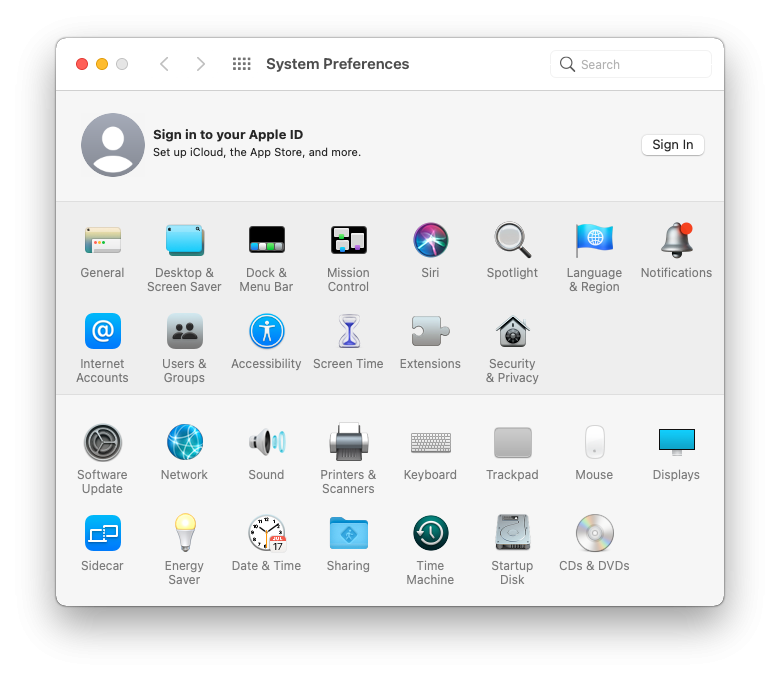
3\. Click on the "Network" in the "Internet &amp; Wireless" section of the opened window.

[![2.Mac DNS Setup Guide.png](https://docs.safedns.com/uploads/images/gallery/2022-08/scaled-1680-/qSIaX0DkQKLgCwmp-2-mac-dns-setup-guide.png)](https://docs.safedns.com/uploads/images/gallery/2022-08/qSIaX0DkQKLgCwmp-2-mac-dns-setup-guide.png)
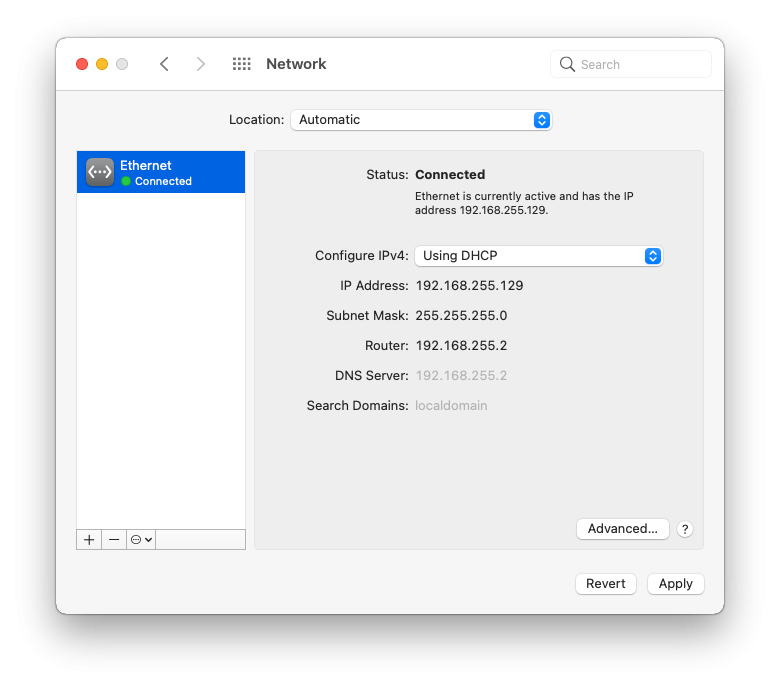
4\. Choose an active connection from the list and click the "Advanced" button.

[![3.Mac DNS Setup Guide.png](https://docs.safedns.com/uploads/images/gallery/2022-08/scaled-1680-/YGfHSQZBfyHGa3SD-3-mac-dns-setup-guide.png)](https://docs.safedns.com/uploads/images/gallery/2022-08/YGfHSQZBfyHGa3SD-3-mac-dns-setup-guide.png)
5\. Select the "DNS" tab, add SafeDNS servers **195.46.39.39** and **195.46.39.40**, and click "OK".

[![4.Mac DNS Setup Guide.png](https://docs.safedns.com/uploads/images/gallery/2022-08/scaled-1680-/LetXbZDtuT8oNkuz-4-mac-dns-setup-guide.png)](https://docs.safedns.com/uploads/images/gallery/2022-08/LetXbZDtuT8oNkuz-4-mac-dns-setup-guide.png)
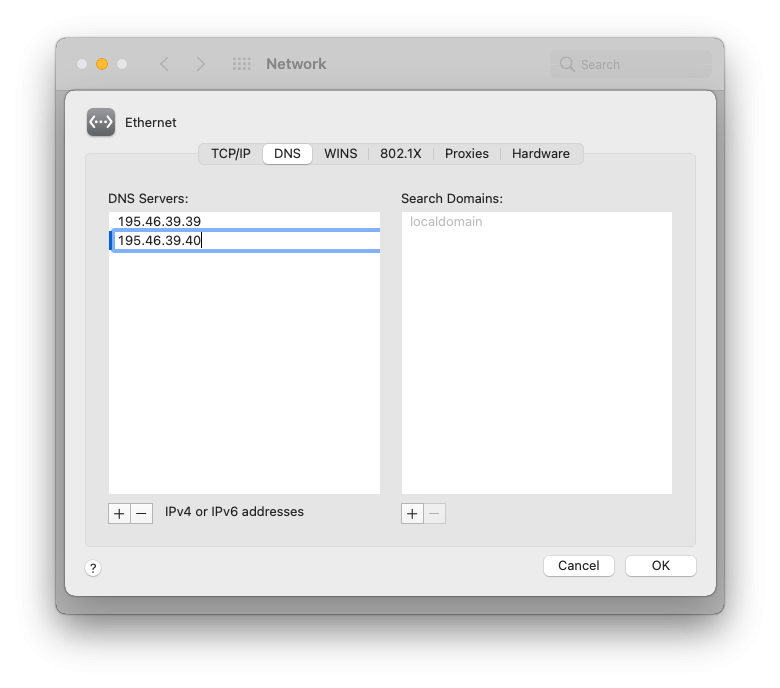
**Your Mac is now filtered with the SafeDNS filtering policy.**

<div class="pointer-container" id="bkmrk-%C2%A0"><div class="pointer anim is-page-editable"><svg class="svg-icon" data-icon="link" role="presentation" viewbox="0 0 24 24" xmlns="http://www.w3.org/2000/svg"></svg><div class="input-group inline block"> <button class="button outline icon" data-clipboard-target="#pointer-url" title="Copy Link" type="button"><svg class="svg-icon" data-icon="copy" role="presentation" viewbox="0 0 24 24" xmlns="http://www.w3.org/2000/svg"></svg></button></div><svg class="svg-icon" data-icon="edit" role="presentation" viewbox="0 0 24 24" xmlns="http://www.w3.org/2000/svg"></svg></div></div><p class="callout warning">Please note that settings take 5-7 minutes to apply.  
Stats and filtering status update every 10 minutes.  
</p>