# Meraki Router Setup

#### **Router with Static IP address configuration**

1\. Go to SafeDNS **Dashboard** **&gt; Settings &gt; Devices** and copy your IP address to the **"IP addresses / DynDNS"** box, choose a policy, and click **"Add"**.

[![Meraki_router.png](https://docs.safedns.com/uploads/images/gallery/2025-02/scaled-1680-/qj3rySx5DGMSL78x-meraki-router.png)](https://docs.safedns.com/uploads/images/gallery/2025-02/qj3rySx5DGMSL78x-meraki-router.png)

2\. Change your router’s DNS servers to SafeDNS addresses:

To do that, on the Meraki Dashboard, navigate to **Security &amp; SD-WAN &gt; Configure &gt; DHCP &gt; Main subnet/VLAN ID &gt; DNS nameservers** and choose **Specify nameservers**... from the drop-down.

In the **"Custom nameservers"** field indicate SafeDNS addresses **− 195.46.39.39** and **195.46.39.40 [![Meraki_router1.png](https://docs.safedns.com/uploads/images/gallery/2025-02/scaled-1680-/4ao7T3KOuAOAoKPN-meraki-router1.png)](https://docs.safedns.com/uploads/images/gallery/2025-02/4ao7T3KOuAOAoKPN-meraki-router1.png)**


**You have successfully configured your router.**

<p class="callout warning">Please note that settings take 5-7 minutes to apply.  
Stats and filtering status update every 10 minutes.</p>

#### **Router with Dynamic IP address configuration** 

##### **Using Meraki Built-in Dynamic DNS.**

**1.** Once on the **Security &amp; SD-WAN &gt; Monitor &gt; Appliance status** page, select the pencil icon next to **Hostname**, located between the **WAN IP** and **Serial Number** on the left of the page.  
[![Meraki_router4.png](https://docs.safedns.com/uploads/images/gallery/2025-02/scaled-1680-/JDiqGz8VFfBqLxpd-meraki-router4.png)](https://docs.safedns.com/uploads/images/gallery/2025-02/JDiqGz8VFfBqLxpd-meraki-router4.png)
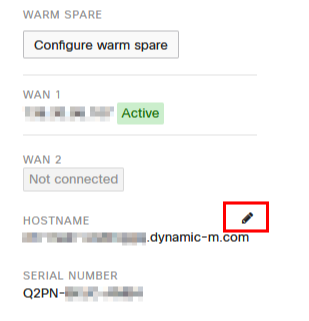
A dialog box will appear for configuring Dynamic DNS. Select **Enabled** in the dialog box and enter a public domain name if necessary, then select **Update**.

[![Meraki_router5.png](https://docs.safedns.com/uploads/images/gallery/2025-02/scaled-1680-/58GvZRzDmKZneo0x-meraki-router5.png)](https://docs.safedns.com/uploads/images/gallery/2025-02/58GvZRzDmKZneo0x-meraki-router5.png)
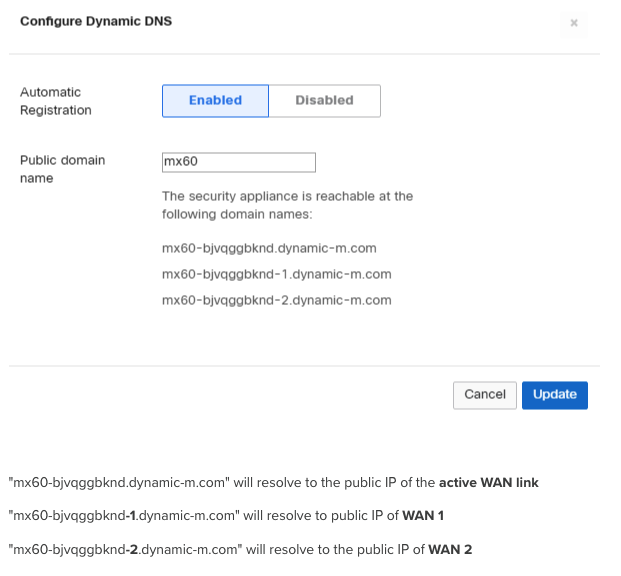
2\. Go to SafeDNS **Dashboard &gt; Settings &gt; Devices** and copy the DynDNS hostname of the needed WAN to the "**IP addresses / DynDNS**" box, choose a policy, and click "**Add**".  
[![Meraki_router2.png](https://docs.safedns.com/uploads/images/gallery/2025-02/scaled-1680-/52dFFzZvkIQnxPsm-meraki-router2.png)](https://docs.safedns.com/uploads/images/gallery/2025-02/52dFFzZvkIQnxPsm-meraki-router2.png)
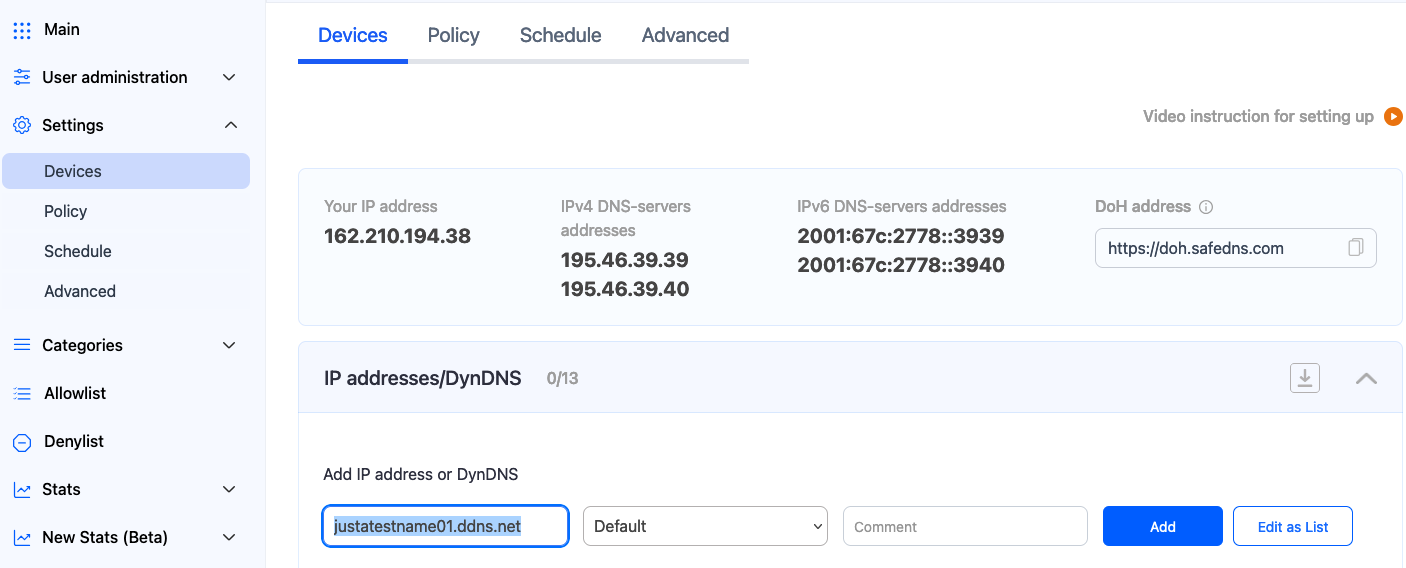
Once added, you will see it in the **DynDNS** section of the Dashboard.  
  
[![Meraki_router3.png](https://docs.safedns.com/uploads/images/gallery/2025-02/scaled-1680-/8nyCrDxyjV4DzvcO-meraki-router3.png)](https://docs.safedns.com/uploads/images/gallery/2025-02/8nyCrDxyjV4DzvcO-meraki-router3.png)
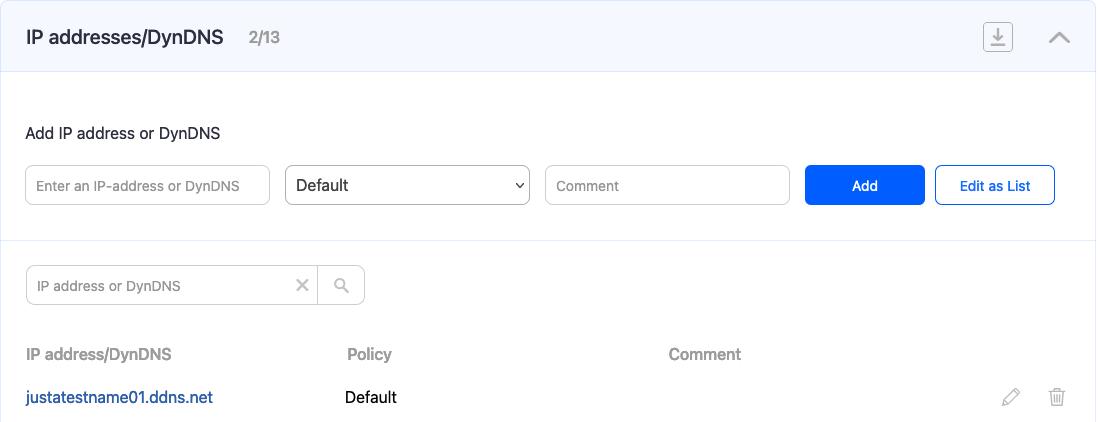
<p class="callout info">After **DynDNS** is enabled, you can confirm it is working by performing a DNS query for the MX DDNS hostname. Open a command prompt (cmd) on any workstation and type "nslookup &lt;your dynamic DNS name&gt;." The DNS response should return the current active public IP address.</p>