Only OpenWRT versions 17 or lower are supported.
1. Setup DDNS client. Select in menu **System > Software**. [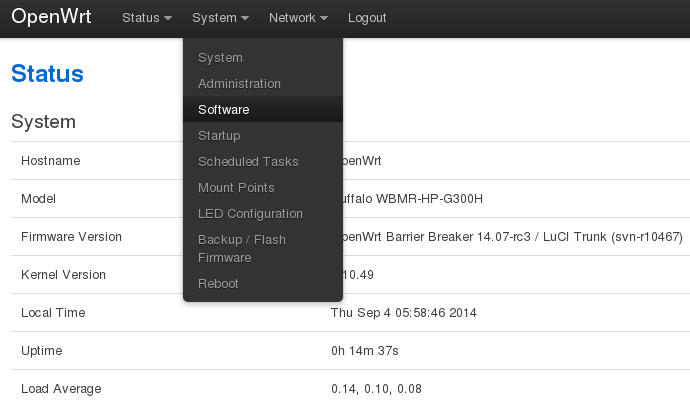](https://docs.safedns.com/uploads/images/gallery/2022-08/Y0rXTgsHUIM7fsU8-1-openwrt-router-setup-guide.png) 2\. Click **Update lists**. [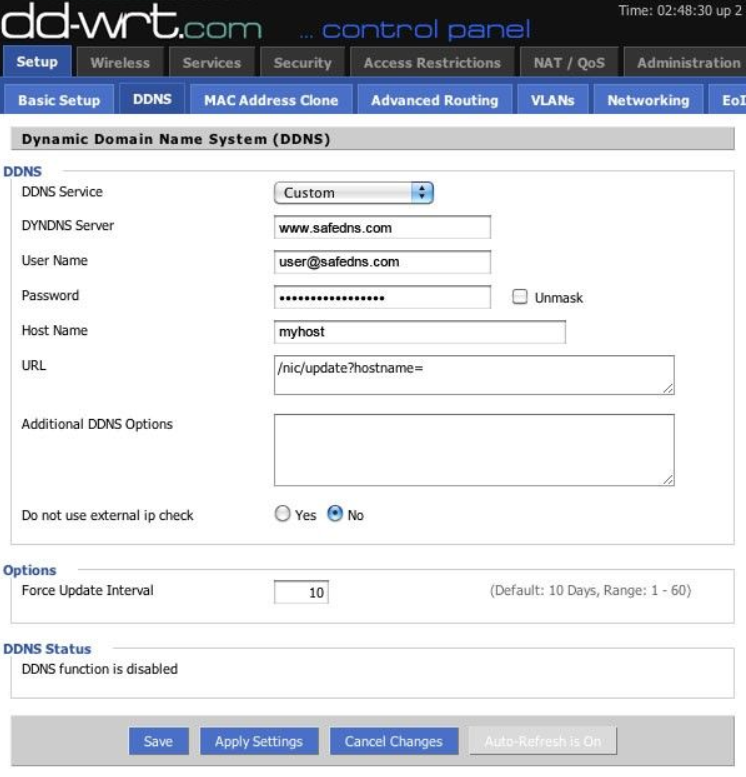](https://docs.safedns.com/uploads/images/gallery/2022-08/nSCAXgzaTREjFdP6-2-dd-wrt-router-setup-guide.png) 3\. Type `luci-app-ddns` in **Download and install package** and click **OK**. [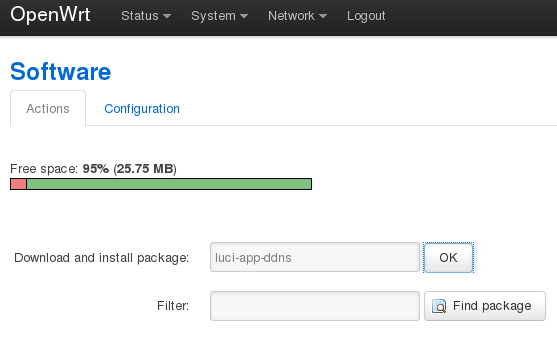](https://docs.safedns.com/uploads/images/gallery/2022-08/iGEUNvxnpUryJggc-3-openwrt-router-setup-guide.png) [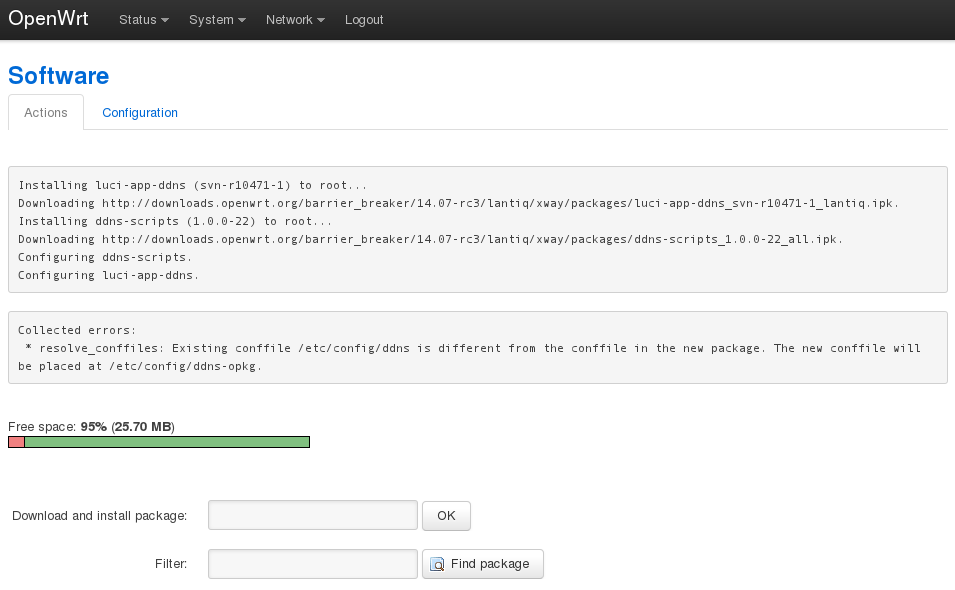](https://docs.safedns.com/uploads/images/gallery/2022-08/WL0JdWU7wu9N29FP-4-openwrt-router-setup-guide.png) 4\. Click **Status** in the menu to refresh the menu. New item **Services** and subitem **Dynamic DNS** will appear in the menu. [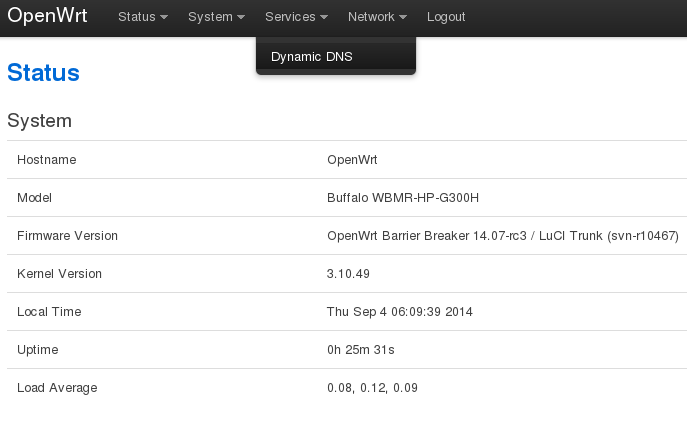](https://docs.safedns.com/uploads/images/gallery/2022-08/qFqNEATZ3g8OePqA-5-openwrt-router-setup-guide.png) 5\. Fill out the form on page **Dynamic DNS:** - In **Custom update-URL** insert - `https://[USERNAME]:[PASSWORD]@www.safedns.com/nic/update?hostname=[DOMAIN]` - In **Hostname** type any unique name for your router - In **Username** type login for SafeDNS site, in **Password** type password for SafeDNS site. - Click **Save & Apply** 6\. Enable and start DDNS service. 7\. Select in menu **System > Startup** [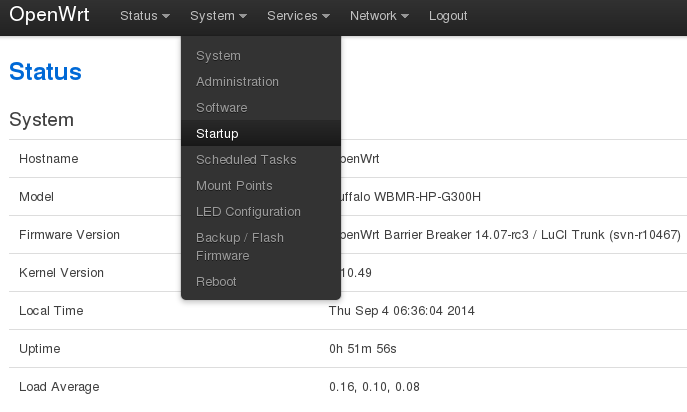](https://docs.safedns.com/uploads/images/gallery/2022-08/mttUpcXrCbyk7QGW-6-openwrt-router-setup-guide.png) 8\. Click the **Disabled** button for **ddns** service, then click **Start**. [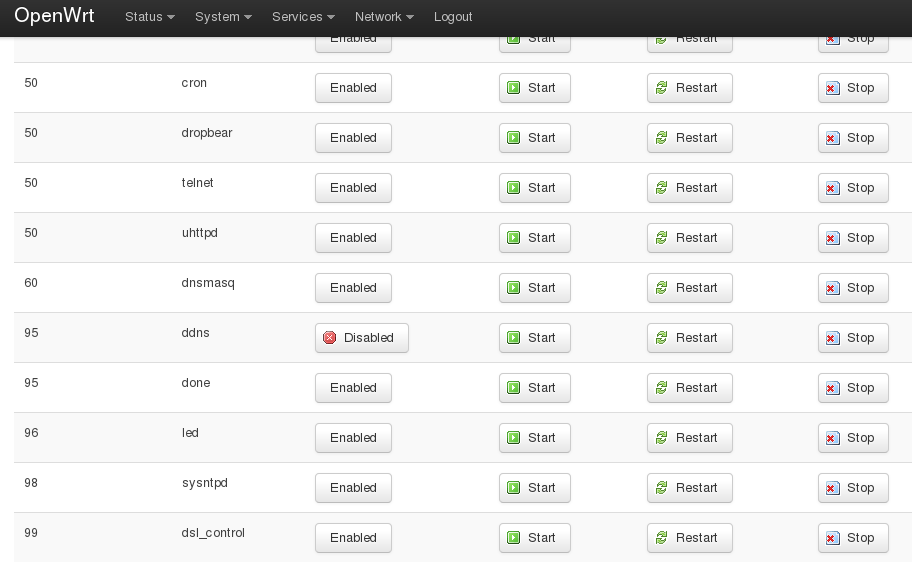](https://docs.safedns.com/uploads/images/gallery/2022-08/FShQBOJr1dOKMX7C-7-openwrt-router-setup-guide.png) 9\. Check the string appearing in the system log (**Status > System log**):user.notice ddns-scripts-myddns: Update successful
10\. Navigate to **Network > Interfaces, WAN**. 11\. In **Use custom DNS servers** add **195.46.39.39** and **195.46.39.40**. Click **Save & Apply**. After that, you can continue configuring your filtering options in the [SafeDNS Dashboard](https://www.safedns.com/cabinet/main/).Please note that settings take 5-7 minutes to apply. Stats and filtering status update every 10 minutes.