# Router Setup (IPv6)

#### **Router with static IP address configuration**

Go to SafeDNS **Dashboard &gt; Settings** **&gt; Devices** and copy your IP address to the "**IP addresses / DynDNS**" box, choose a policy, and click "**Add**".

We recommend adding the whole IPv6 router subnet - first 4 segments with /64 at the end. Example: **2600:1005:b062:61e4::/64** instead of **2600:1005:b062:61e4:1111:2222:3333:4444**.

[![1.Router_ipv6.png](https://docs.safedns.com/uploads/images/gallery/2024-08/scaled-1680-/UQ62iJ0w44xfdeG7-1-router-ipv6.png)](https://docs.safedns.com/uploads/images/gallery/2024-08/UQ62iJ0w44xfdeG7-1-router-ipv6.png)

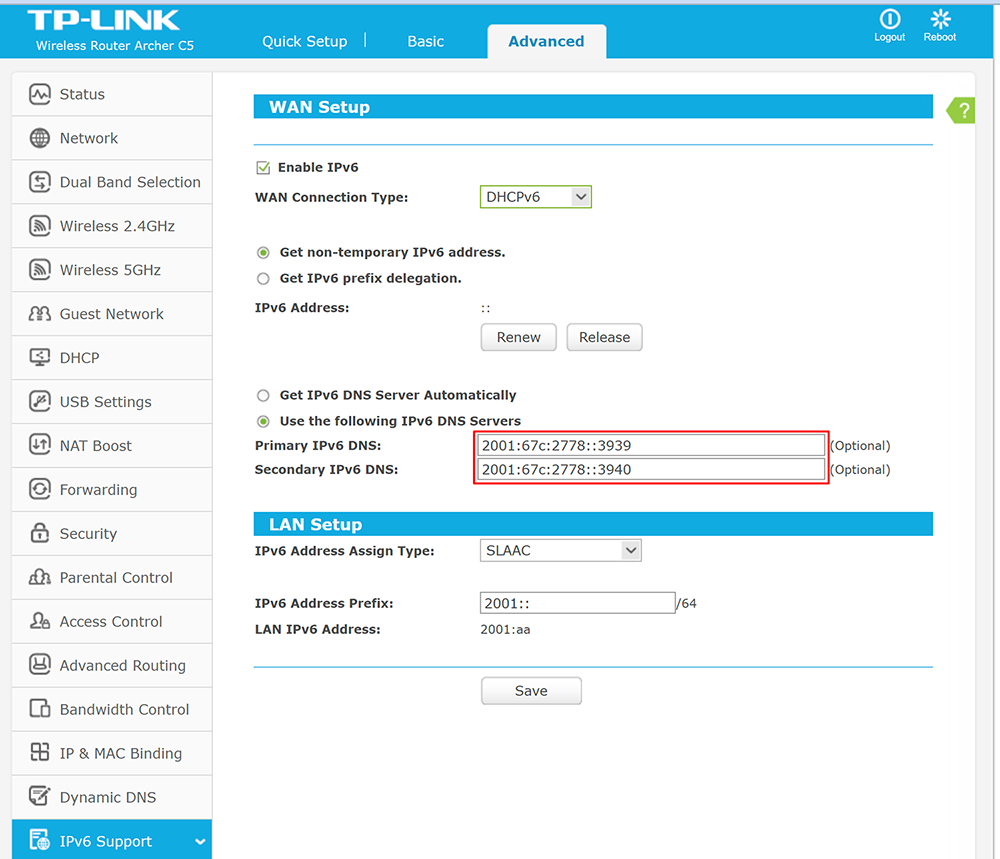
2\. Change your router’s DNS servers to SafeDNS addresses - **2001:67c:2778::3939** and **2001:67c:2778::3940**

Open the router’s settings page, click the "**Advanced**" tab, and choose **IPv6** in the left menu. Choose "**IPv6 setup**" and type in SafeDNS IPv6 addresses.

[![1.Router Setup Guide (IPv6).png](https://docs.safedns.com/uploads/images/gallery/2022-08/scaled-1680-/HQifvHPddzHEyuFc-1-router-setup-guide-ipv6.png)](https://docs.safedns.com/uploads/images/gallery/2022-08/HQifvHPddzHEyuFc-1-router-setup-guide-ipv6.png)

**You have successfully configured your router.**

<p class="callout warning">Please note that settings take 5-7 minutes to apply.  
Stats and filtering status update every 10 minutes.  
</p>

---

#### **Router with Dynamic IP address configuration**

In case you have a Dynamic IP address, you need to configure the DynDNS/DDNS on the router using a Dynamic DNS service.

<p class="callout info">Most modern routers provide their own DynDNS services. We recommend using them.</p>

Here's an example of the DynDNS menu on the TP-Link router with the TP-Link service provider:

[![Screenshot_82.png](https://docs.safedns.com/uploads/images/gallery/2024-01/scaled-1680-/EdVGAlbXabmnREXy-screenshot-82.png)](https://docs.safedns.com/uploads/images/gallery/2024-01/EdVGAlbXabmnREXy-screenshot-82.png)
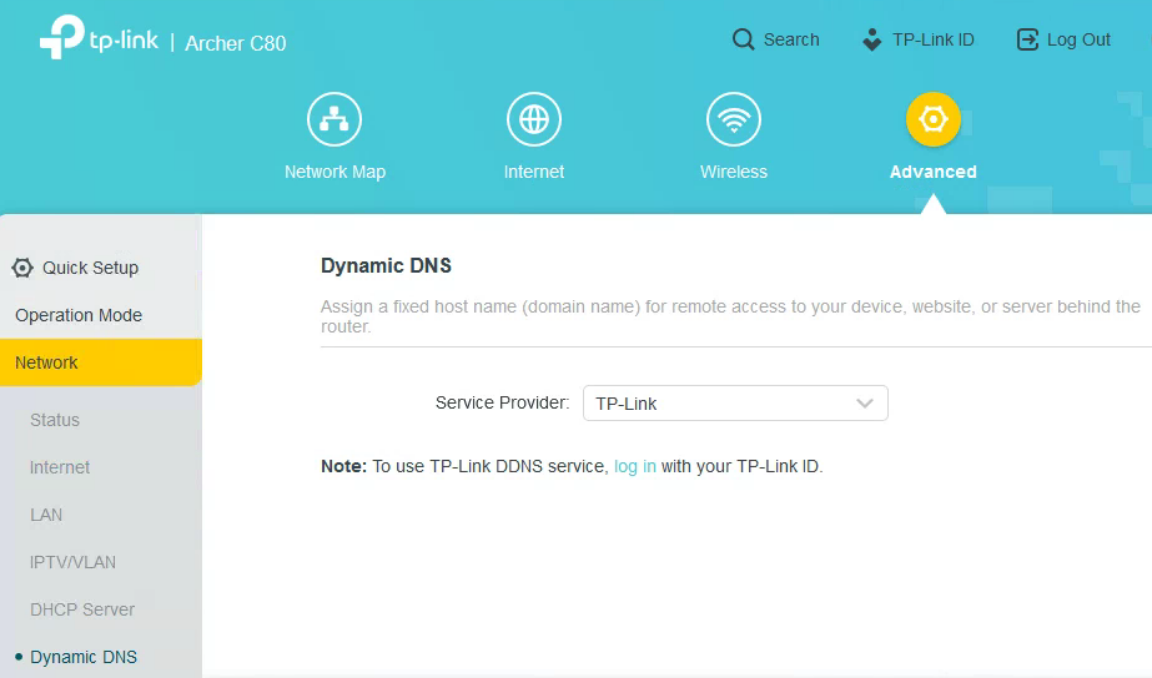
You only need to create a DynDNS record in the router interface. Then skip to Step 6 below.

---

If your router does not have its own DynDNS service provider, we recommend using third-party NO-IP DynDNS.

1\. In the router setting, go to **DynDNS/DDNS settings**.

[![3.Router Setup Guide (IPv6).png](https://docs.safedns.com/uploads/images/gallery/2022-08/scaled-1680-/1N7Ed0VzgjDr64OZ-3-router-setup-guide-ipv6.png)](https://docs.safedns.com/uploads/images/gallery/2022-08/1N7Ed0VzgjDr64OZ-3-router-setup-guide-ipv6.png)
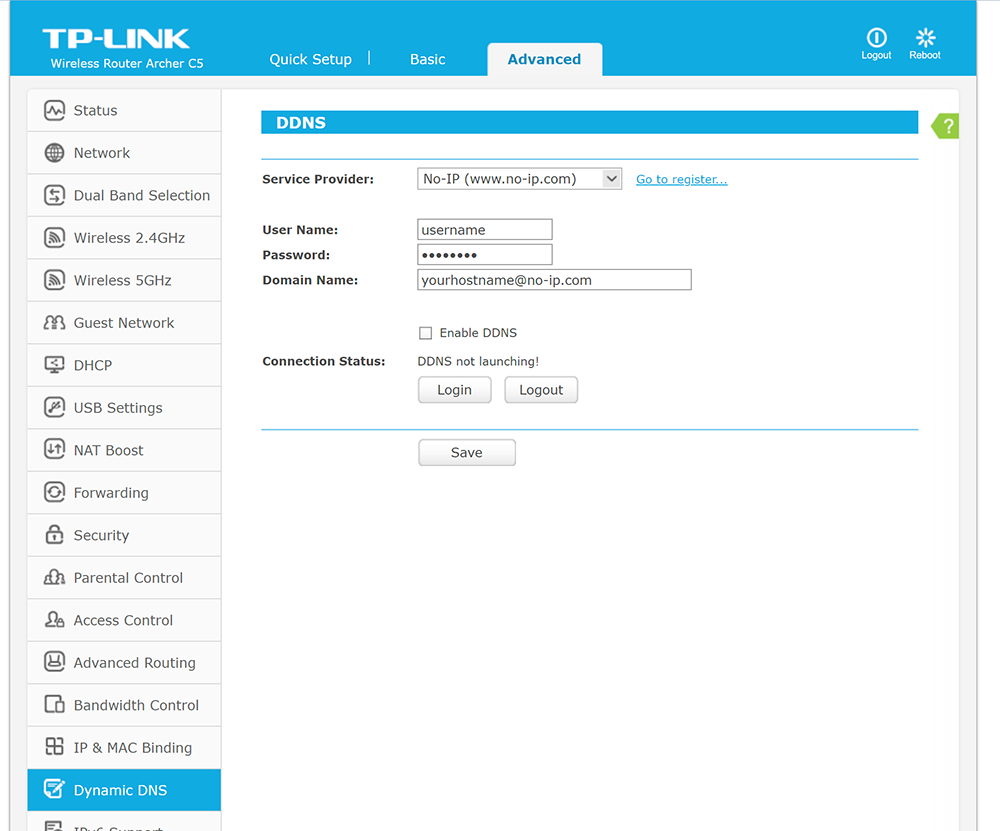
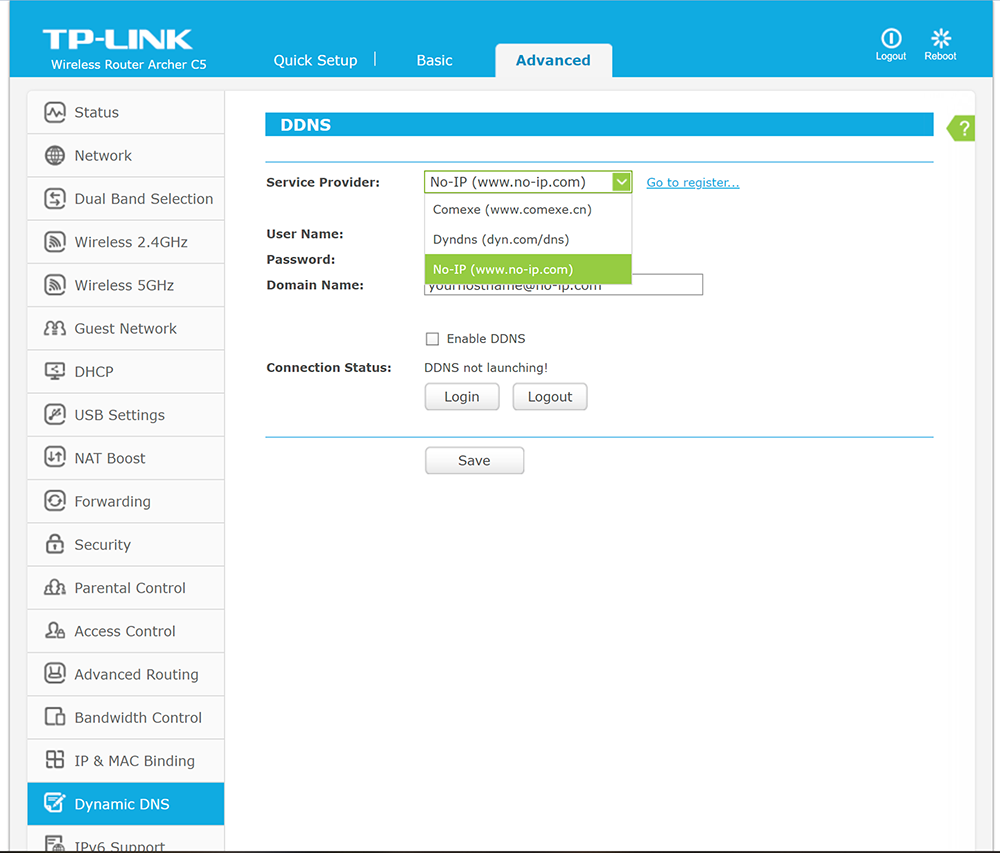
2\. Check the DynDNS service available for your router. If available, we recommend using the **No-IP** DynDNS service provider.

[![4.Router Setup Guide (IPv6).png](https://docs.safedns.com/uploads/images/gallery/2022-08/scaled-1680-/72WCrW5SPEp4UfSA-4-router-setup-guide-ipv6.png)](https://docs.safedns.com/uploads/images/gallery/2022-08/72WCrW5SPEp4UfSA-4-router-setup-guide-ipv6.png)
3\. Go to the website [noip.com](http://noip.com/) and sign up.

[![5.Router Setup Guide (IPv6).png](https://docs.safedns.com/uploads/images/gallery/2022-08/scaled-1680-/p0pWYQHApgB0iDF1-5-router-setup-guide-ipv6.png)](https://docs.safedns.com/uploads/images/gallery/2022-08/p0pWYQHApgB0iDF1-5-router-setup-guide-ipv6.png)

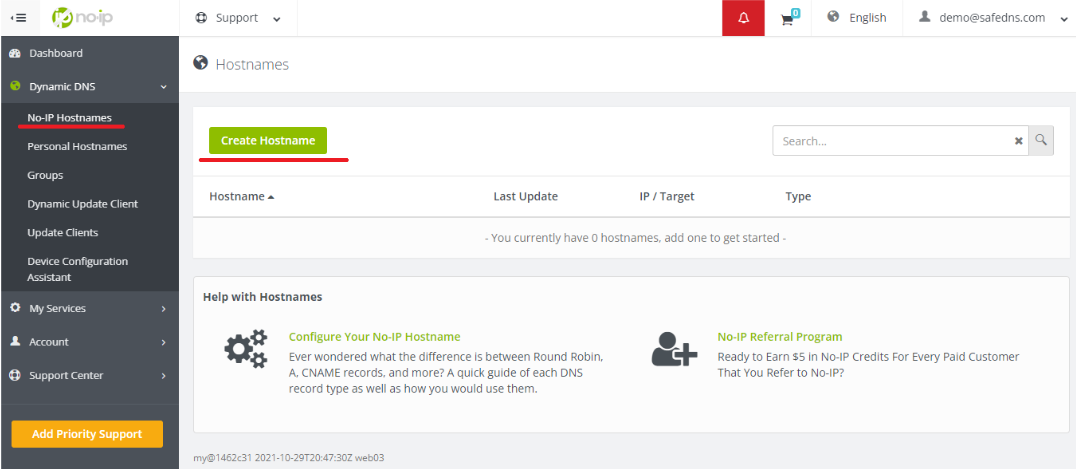
4\. In your No-IP account, create a hostname (any name you can think of).

[![6.Router Setup Guide (IPv6).png](https://docs.safedns.com/uploads/images/gallery/2022-08/scaled-1680-/eUu5BvJPRWjUf8WB-6-router-setup-guide-ipv6.png)](https://docs.safedns.com/uploads/images/gallery/2022-08/eUu5BvJPRWjUf8WB-6-router-setup-guide-ipv6.png)
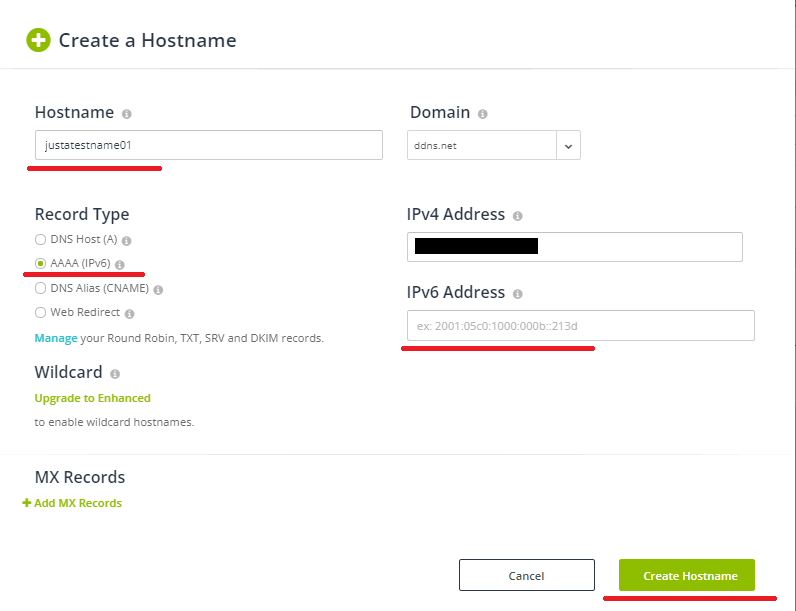
5\. Choose the IPv6 type and create the hostname. Make sure that the "**IPv6 Address**" field is containing your IPv6 address:[![7.Router Setup Guide (IPv6).png](https://docs.safedns.com/uploads/images/gallery/2022-08/scaled-1680-/QPu7swJzdTz6sA82-7-router-setup-guide-ipv6.png)](https://docs.safedns.com/uploads/images/gallery/2022-08/QPu7swJzdTz6sA82-7-router-setup-guide-ipv6.png)
<figure class="kg-card kg-image-card kg-width-wide" id="bkmrk--10">![](https://blog.safedns.com/content/images/2022/01/r8.png)</figure>6\. Go back to your router and configure DDNS/DynDNS

- Select No-IP as "**Service provider**".
- Type in the created hostname in the "**Hostname**" field.
- Type in your No-IP account credentials as "Username" and "Password", and click "Save".
- [![9.Router Setup Guide (IPv6).png](https://docs.safedns.com/uploads/images/gallery/2022-08/scaled-1680-/GUf0ktdzsmRv2Lvo-9-router-setup-guide-ipv6.png)](https://docs.safedns.com/uploads/images/gallery/2022-08/GUf0ktdzsmRv2Lvo-9-router-setup-guide-ipv6.png)

7\. Go to SafeDNS **Dashboard -&gt; Settings** **-&gt; Devices** and copy your DynDNS hostname to the "**IP addresses / DynDNS**" box, choose a policy, and click "**Add**".

[![10.Router Setup Guide (IPv6).png](https://docs.safedns.com/uploads/images/gallery/2022-08/scaled-1680-/tgTvmgpvgRM1m1rc-10-router-setup-guide-ipv6.png)](https://docs.safedns.com/uploads/images/gallery/2022-08/tgTvmgpvgRM1m1rc-10-router-setup-guide-ipv6.png)

Once added, you will see it in the DynDNS section of the Dashboard.

[![2.Router_ipv6.png](https://docs.safedns.com/uploads/images/gallery/2024-08/scaled-1680-/cz20YFZxEVvXDOTk-2-router-ipv6.png)](https://docs.safedns.com/uploads/images/gallery/2024-08/cz20YFZxEVvXDOTk-2-router-ipv6.png)

8\. Change your router’s DNS servers to SafeDNS addresses - **2001:67c:2778::3939** and **2001:67c:2778::3940**

Open the router’s settings page, click the "**Advanced**" tab, and choose **IPv6** in the left menu. Choose "**IPv6 setup**" and type in SafeDNS IPv6 addresses.

[![1.Router Setup Guide (IPv6).png](https://docs.safedns.com/uploads/images/gallery/2022-08/scaled-1680-/HQifvHPddzHEyuFc-1-router-setup-guide-ipv6.png)](https://docs.safedns.com/uploads/images/gallery/2022-08/HQifvHPddzHEyuFc-1-router-setup-guide-ipv6.png)

**You have successfully configured your router.**

<p class="callout warning">Please note that settings take 5-7 minutes to apply.  
Stats and filtering status update every 10 minutes.  
</p>

---

#### Configuring the filter using the DDclient

In rare cases when your router does not have a DynDNS/DDNS setting and your IP is Dynamic, you need to use third-party software - **DDclient** - on the PC connected to the network:

1\. [Install DDclient](https://docs.safedns.com/books/installation-guides/page/dd-client-setup) on a PC connected to the network. Once DDclient is installed, all devices connected to the same network will be filtered by the same rules.

2\. Set up DNS servers in your router:

[![12.Router Setup Guide (IPv6).png](https://docs.safedns.com/uploads/images/gallery/2022-08/scaled-1680-/Rw6iNdGjekBpD4EG-12-router-setup-guide-ipv6.png)](https://docs.safedns.com/uploads/images/gallery/2022-08/Rw6iNdGjekBpD4EG-12-router-setup-guide-ipv6.png)