After the successful installation, the Agent will be launched automatically.
--- #### **Agent Unattended Installation** You can install the Agent in an unattended automatic way. This allows you to automatically install and launch the service, manage the filtering policies and collect web traffic statistics on several individual computers within your network. [Learn how to install the Agent in unattended mode](https://docs.safedns.com/books/installation-guides/page/agent-unattended-installation). --- #### **Getting Started with Agent** Log in to the Agent using your SafeDNS email/login and password. If you forgot your password, click "**Forgot my password"**. [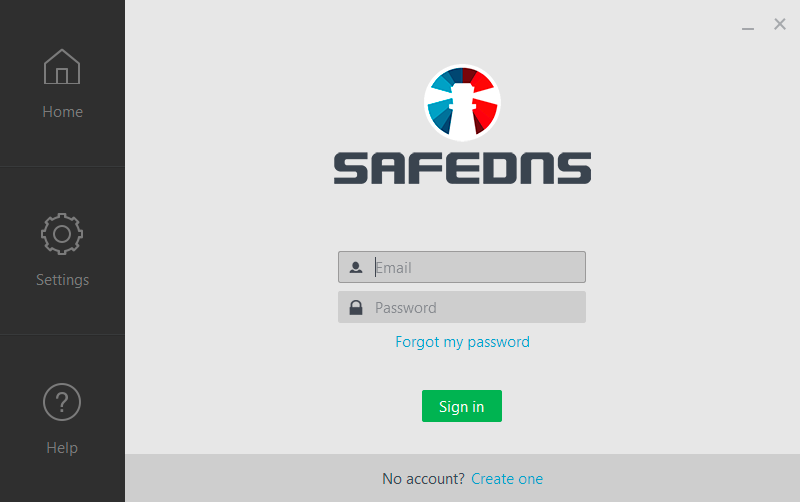](https://docs.safedns.com/uploads/images/gallery/2022-08/41Q3DSD0I9M9ycgO-5-safedns-agent-for-windows-setup-guide.png) After successful login, the **Home page** of the program will be shown. This page contains: - Current status of the filtering service in the center. - Active filtering policy at the top. - On/Off filtering slider button at the bottom. [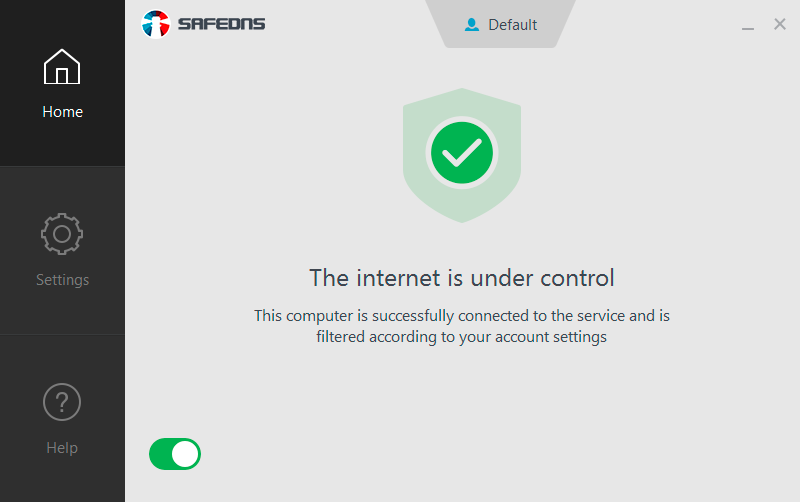](https://docs.safedns.com/uploads/images/gallery/2022-08/Fo3afYBM07FELv0S-6-safedns-agent-for-windows-setup-guide.png) You can temporarily shut down the filtering by clicking on the slider button at the bottom of the window. You will be asked for a password if the settings are password protected. [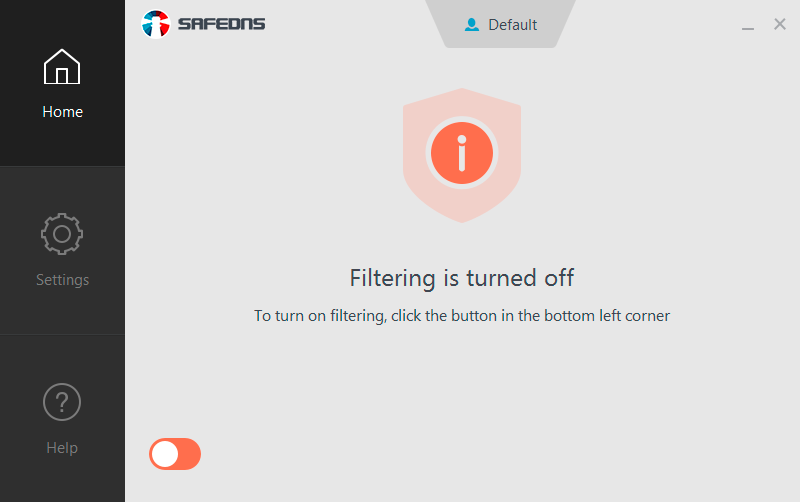](https://docs.safedns.com/uploads/images/gallery/2022-08/Ry5RSa3ep4oQTWrm-7-safedns-agent-for-windows-setup-guide.png) --- #### **Content Filtering Settings** To set up your filtering rules go to the **Content filtering settings** section. [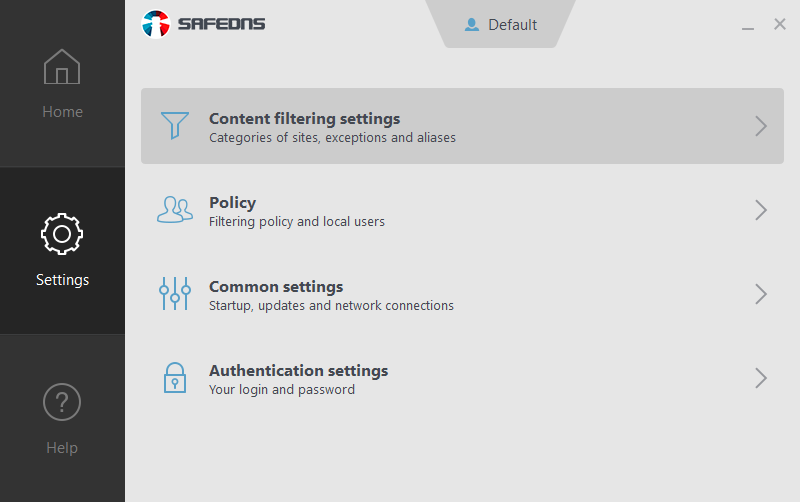](https://docs.safedns.com/uploads/images/gallery/2022-08/w6hXkQ030yonxkcy-8-safedns-agent-for-windows-setup-guide.png)Please note that settings take 5-7 minutes to apply. In some cases, you will need to [clear the cache of your browser](https://docs.safedns.com/books/guides/page/how-to-clear-dns-cache).
If you have more than one filtering policy, you can select the needed one at the top of the window (paid plans only). Click on the **Plus** button to proceed to the **Policy** section where you can create a new policy. [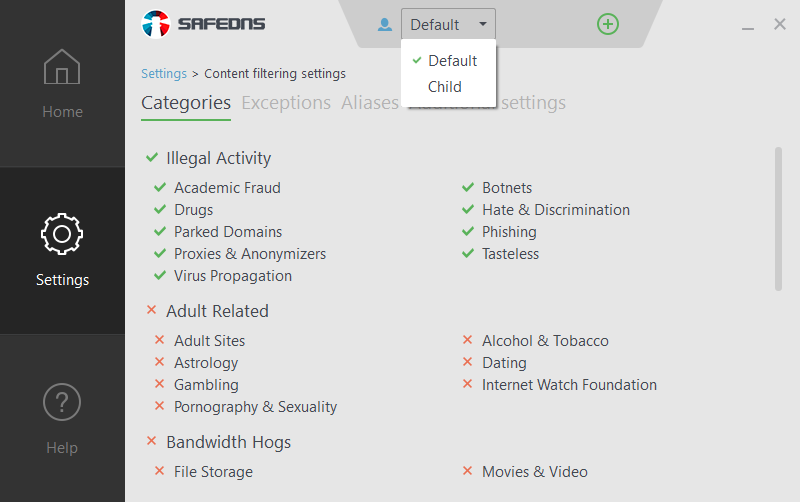](https://docs.safedns.com/uploads/images/gallery/2022-08/ihAiAnQOhYJ9DCqp-9-safedns-agent-for-windows-setup-guide.png) In the **Categories** tab, you can see a full list of content categories of your current filtering policy. In this tab, you can block or allow any of them. The red cross indicates blocked categories and the green checkmark indicates allowed categories. You can also block or allow an entire group of categories by clicking on the group name. The gray cross near a group name means that some categories are blocked and some of them are allowed. [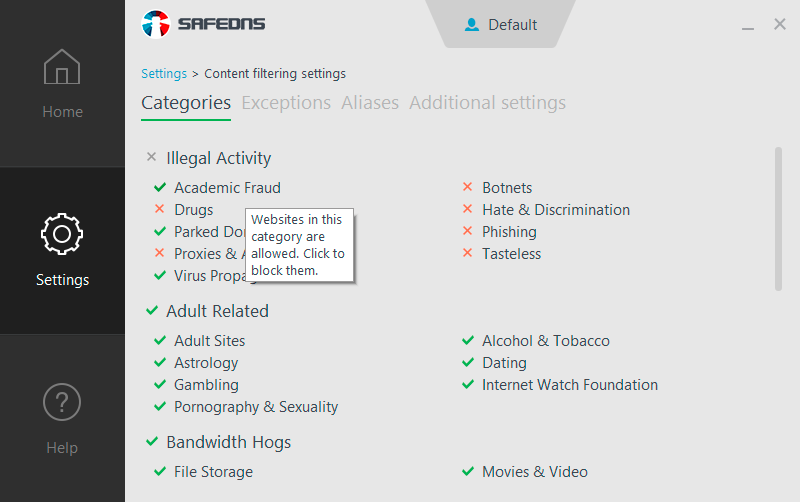](https://docs.safedns.com/uploads/images/gallery/2022-08/jdVSzQtFUH9JKBN0-10-safedns-agent-for-windows-setup-guide.png) In the **Exceptions** tab, you can create Allow/Denylists for individual websites (domains). Domains in Denylist will always be blocked even if the category of these domains is allowed. Domains in Allowlist will always be accessible even if the category of these domains is blocked. To block a group of subdomains, add the main domain (e.g. google.com) to the Denylist and all subdomains on this domain will be blocked (drive.google.com, translate.google.com, photos.google.com, etc). [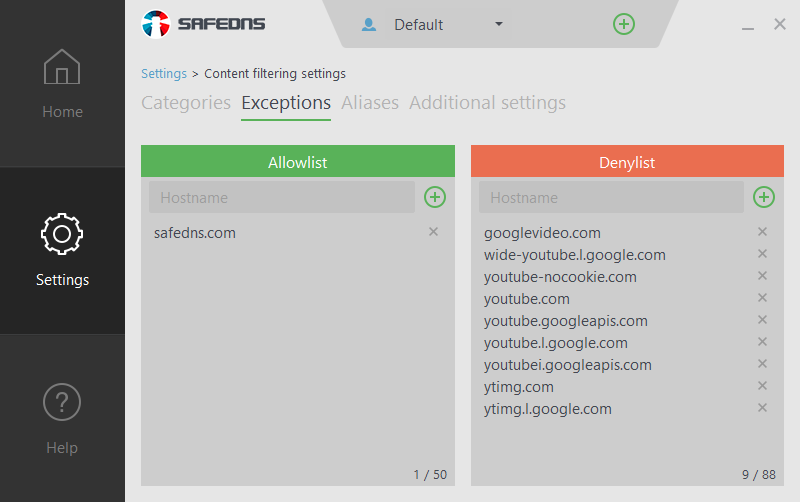](https://docs.safedns.com/uploads/images/gallery/2022-08/W2QIGfl1VnzJeU8i-11-safedns-agent-for-windows-setup-guide.png) You can also create Named Allow/Denylists and apply them to one or several different policies (this option is available in **Dashboard** only). [Learn more about how to create named lists.](https://docs.safedns.com/books/guides/page/allowdenylists-and-named-lists) For the correct performance of your Internet Service Provider’s local resources such as media archives, online TV services, or your company’s local resources such as file share servers, printers, etc., add a local domain and IP address of this domain in the **Aliases** tab. [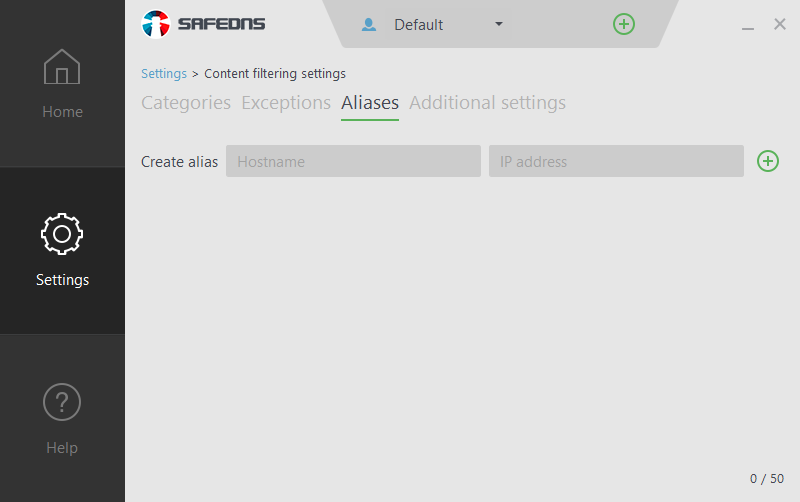](https://docs.safedns.com/uploads/images/gallery/2022-08/MqTfkvH6XDBBm65w-12-safedns-agent-for-windows-setup-guide.png) You can manage additional settings such as **Force Safe Search**, **Force Restricted Mode for YouTube,** and **Use the Allowlist only** in the **Additional settings** tab. [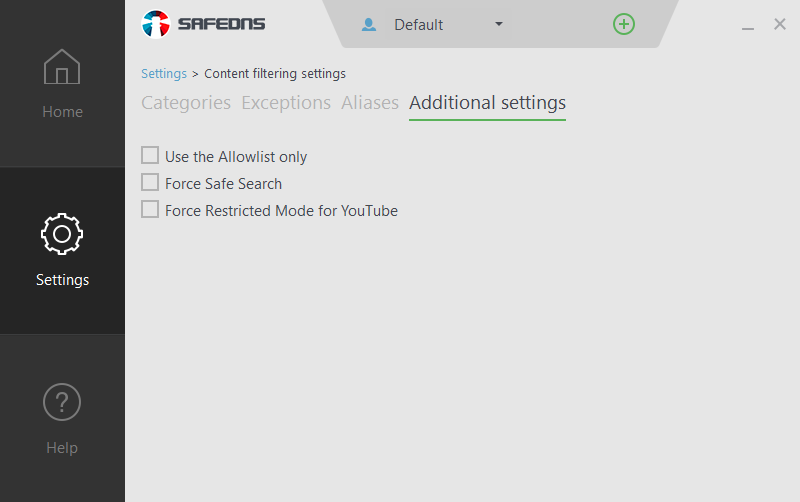](https://docs.safedns.com/uploads/images/gallery/2022-08/qXCZ0XKrju8BkH4X-13-safedns-agent-for-windows-setup-guide.png)All domains which are not added to the Allowlist will be blocked when **Use the** **Allow List only** option is active.
--- #### **Creating Additional Filtering Policies** The **Default** filtering policy cannot be deleted. You can also create additional policies (paid plans only) and use them to apply different filtering policies for: - a different user accounts on the same PC, - different PCs with the SafeDNS Agent installed. To create a new filtering policy follow these steps: 1\. Go to the **Policy** Section on the **Settings** page. [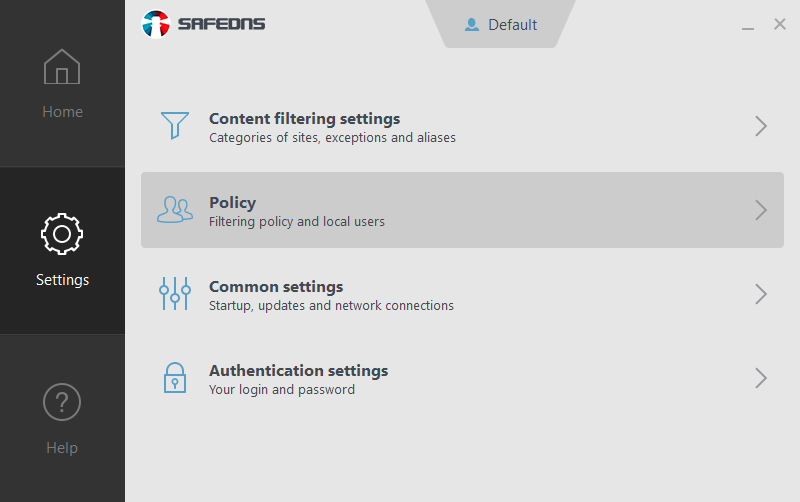](https://docs.safedns.com/uploads/images/gallery/2022-08/Ho9umlgfMk7p2p5f-14-safedns-agent-for-windows-setup-guide.png) 2\. Type the name of the new policy in the **Create policy** field. After that, click the **Plus** button on the right to create a policy. [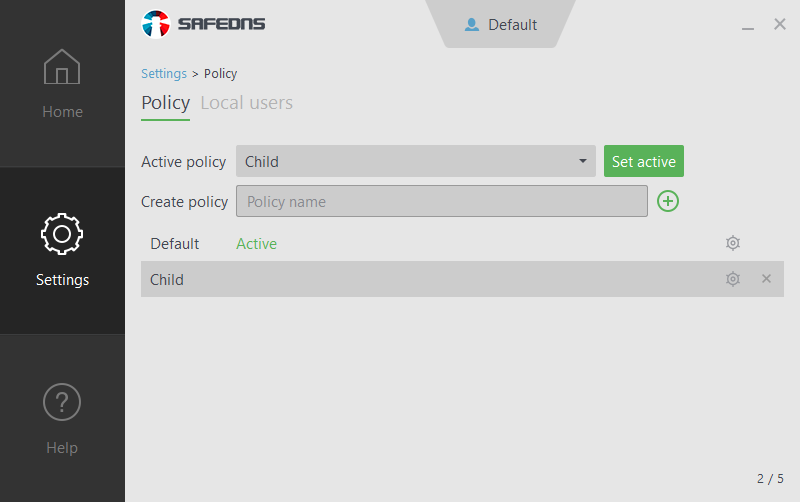](https://docs.safedns.com/uploads/images/gallery/2022-08/57ucxwFIrPWnKGyy-15-safedns-agent-for-windows-setup-guide.png) Now you can change settings for a new filtering policy in **Settings > Content filtering**. You can use the **Cogwheel** icon near the policy’s name, to open the **Content filtering settings** of this policy. To delete a policy, press the **Cross** icon near the policy’s name. You can set up one of your policies as active in the **Active policies** dropdown menu. [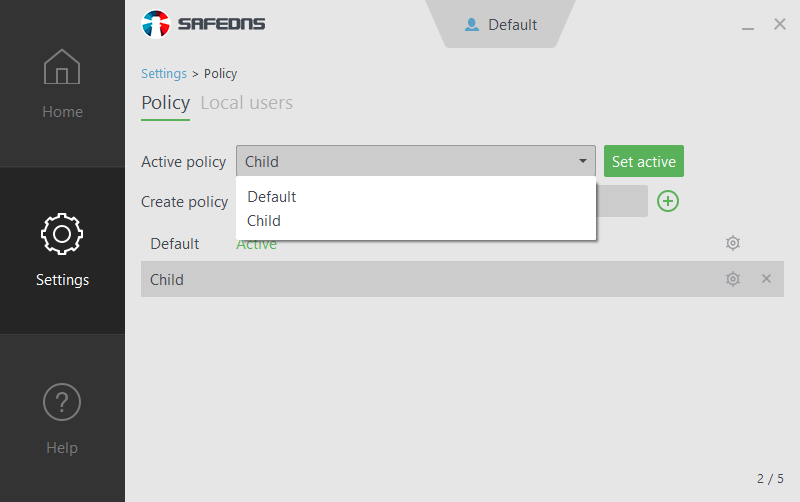](https://docs.safedns.com/uploads/images/gallery/2022-08/7b6R57mGAsw99syS-16-safedns-agent-for-windows-setup-guide.png) --- #### **Binding Local Users to the Filtering Policies** If you have several filtering policies, you can bind local users on your PC to these policies. The selected policy will be applied to the selected Windows user after they log into the system. To bind a user to a filtering policy, go to the **Local user** tab in the **Policy** section. Check the **Bind local users** **to the policies** box to activate binding. Choose the necessary Windows user in the **User** dropdown menu. Then select the preferred policy from the **Policy** dropdown menu and press the **Plus** icon. To unbind a Windows user from a policy, press the **Cross** icon near the user’s name. To turn off local users’ binding, uncheck the **Bind, local users, to the policies** box. [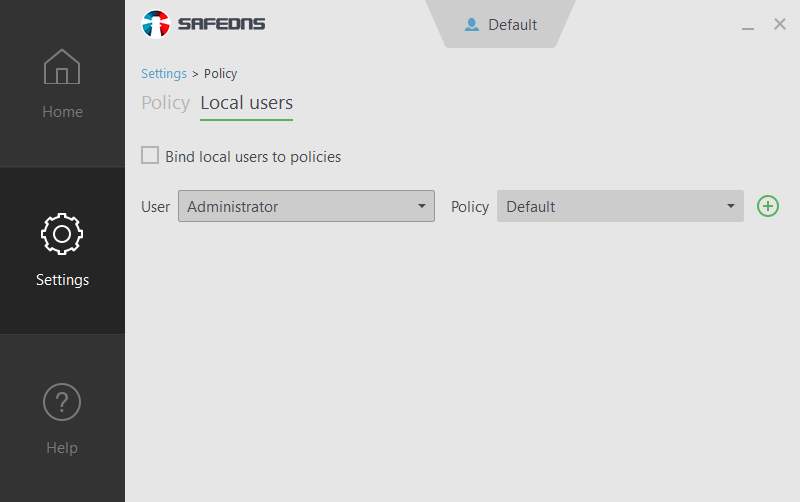](https://docs.safedns.com/uploads/images/gallery/2022-08/1AhBmI7NSumSpGod-17-safedns-agent-for-windows-setup-guide.png) --- #### **Filtering Schedule** Additional policies can be used for a filtering Schedule. It allows you to apply different settings or limit web access at certain time periods in a single day. Schedule configuration is available in the **Dashboard** on the SafeDNS website only. [Learn how to set up a filtering schedule](https://docs.safedns.com/books/installation-guides/page/schedule-setup). --- #### **Password Protection** Actions such as changing settings, Agent uninstall, filtering suspension, and policy changing, are by default protected by your password. [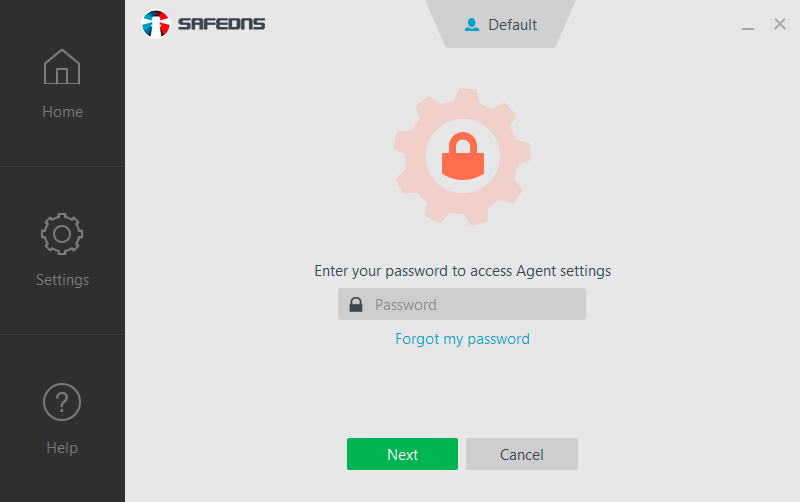](https://docs.safedns.com/uploads/images/gallery/2022-08/wrcypuEOygUkMfuM-18-safedns-agent-for-windows-setup-guide.png) Password protection can be deactivated in **Settings > Common settings**. To turn off password protection, uncheck **Protect settings with the password** box. We recommend it only if you're the sole user of your computer. You can also manage additional settings, such as **show agent icon in the system tray,** and **Automatically check for updates**. [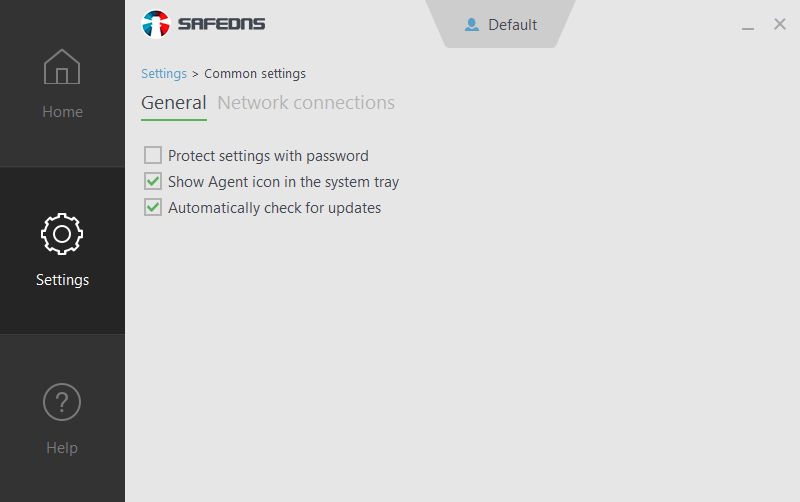](https://docs.safedns.com/uploads/images/gallery/2022-08/nfZLpdAGV06pEnad-19-safedns-agent-for-windows-setup-guide.png) --- #### **Agent's Tray Icon Options** You can use **Agent’s tray icon** to stop filtering or change the active policy. Right-click on it and choose the necessary action. [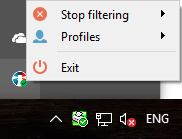](https://docs.safedns.com/uploads/images/gallery/2022-08/7Eq7KpcCOJ7bJIvm-20-safedns-agent-for-windows-setup-guide.png) You can temporarily switch the filtering off for 10 minutes, 30 minutes, 1 hour, and until start or reboot. [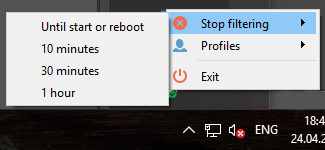](https://docs.safedns.com/uploads/images/gallery/2022-08/iLe9cjXeJLxjuPIP-21-safedns-agent-for-windows-setup-guide.png) You can also change the active filtering policy from the tray icon. [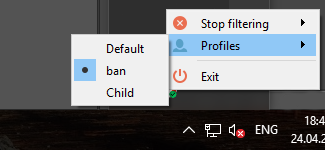](https://docs.safedns.com/uploads/images/gallery/2022-08/Gt3JZ6VkLF5GUXi4-22-safedns-agent-for-windows-setup-guide.png) If your settings are password-protected, you will be asked to enter the password. To hide Agent's icon in the system tray uncheck the **Show Agent icon in the system tray** box in **Settings > Common settings.** [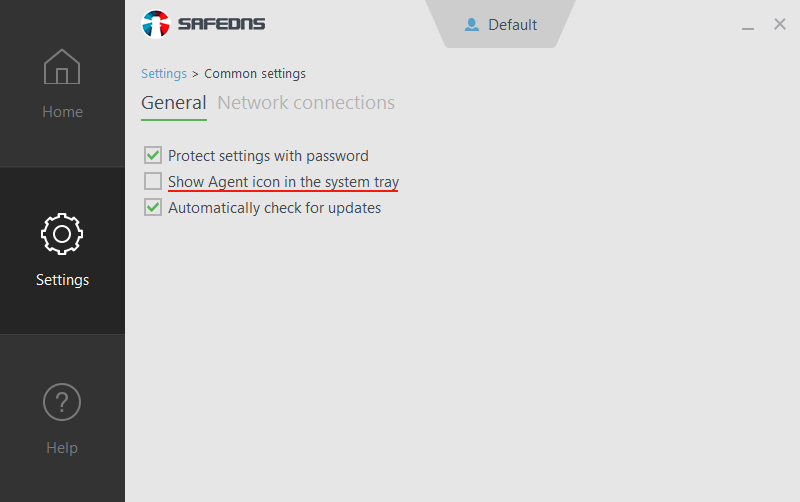](https://docs.safedns.com/uploads/images/gallery/2022-08/gd7R8hpipPWtTBQP-23-safedns-agent-for-windows-setup-guide.png) --- #### **If You Have Issues** If you have issues with the SafeDNS service or the Agent, feel free to contact our technical support. You can find our contacts on the **Help page** in the Agent. The **Get support** button will redirect you to the support form on the SafeDNS website. The **Check for updates** button allows you to automatically download the most recent version of the SafeDNS Agent. [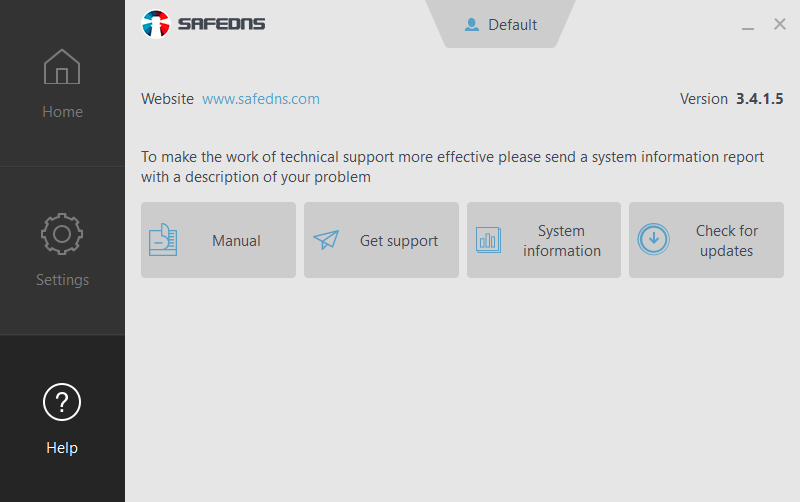](https://docs.safedns.com/uploads/images/gallery/2022-08/RLgDXvlwIP2yaxDo-24-safedns-agent-for-windows-setup-guide.png) If SafeDNS Support asks you to send a system report, you can get it in the Agent. To get the report click the **System information** button on the **Help page**. This operation can take a few minutes. After that, copy the report and send it to the Support team via the [feedback form](https://www.safedns.com/resource/support-ticket).Please note that settings take 5-7 minutes to apply. Stats and filtering status update every 10 minutes.