# SafeDNS Agent Intune installation

#### 1. Setting up the Intune environment

Firstly, need to set up the user, and domain in the Intune panel, add the software, configure it, and then log in to the Microsoft/Intune account from the client's computer.

To install the SafeDNS agent, download the **.exe** installation file from the SafeDNS Dashboard. Then the installation file should be converted into a **.intunewin** file.

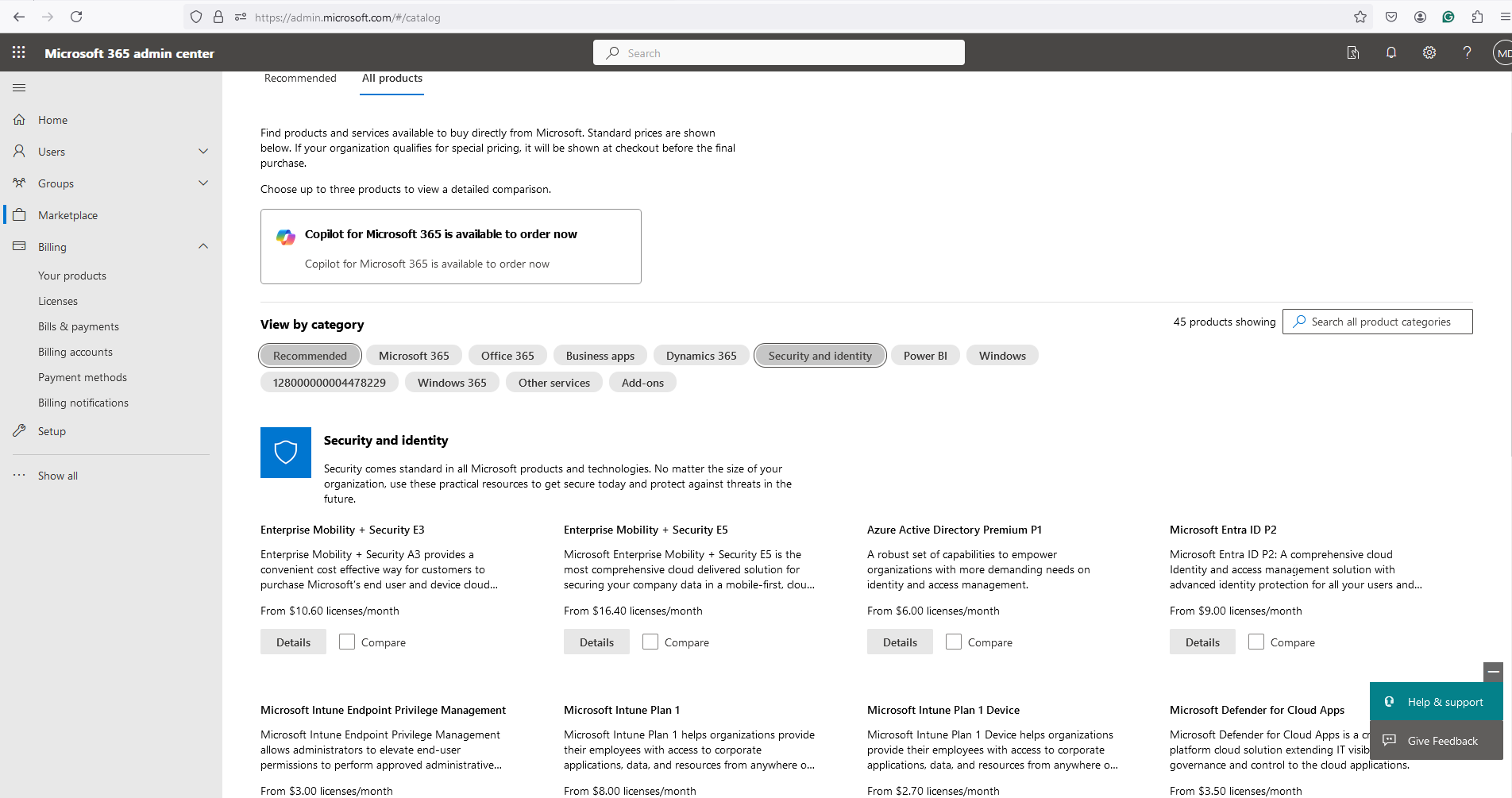
<p class="callout info">Before starting the installation ensure that the necessary licenses are active.  
If there are no licenses, go to **Marketplace** &gt; **All Products** &gt; **Security and Identity** and select needed licences.</p>

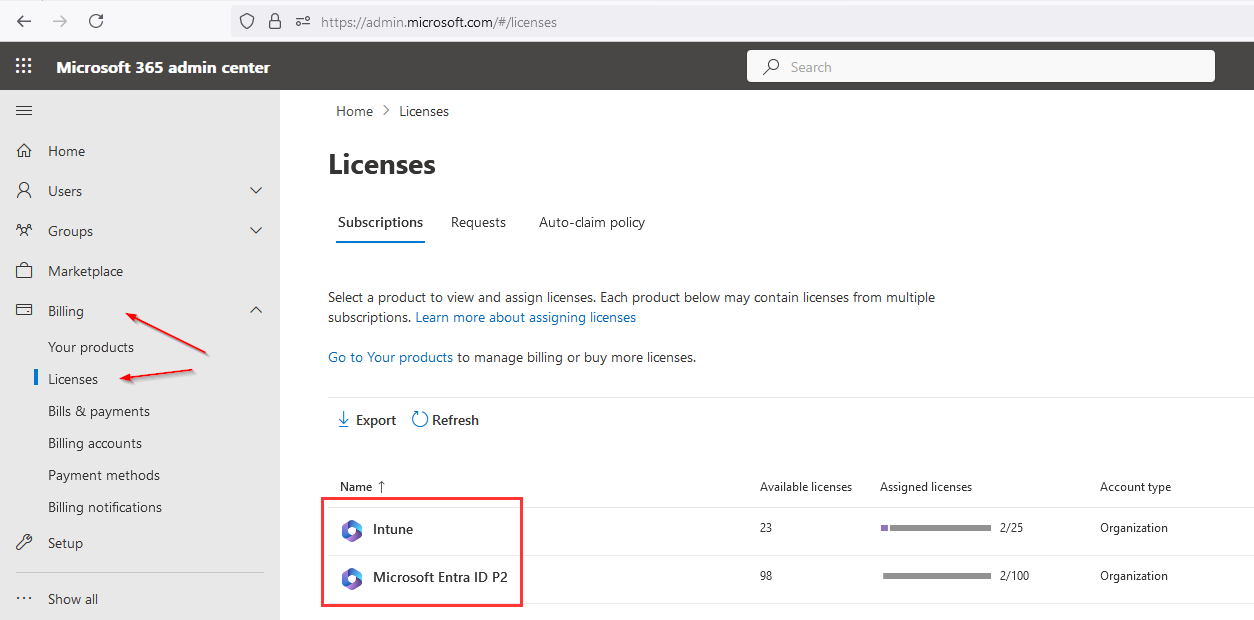
1\. Open Microsoft 365 Admin Center: [https://admin.microsoft.com.](https://admin.microsoft.com/) Select **Billing** &gt; **Licenses**  
Make sure that the following licenses are active:

1\. Intune  
2\. Microsoft Entra licenses ID P2

[![image-1719870095958.png](https://docs.safedns.com/uploads/images/gallery/2024-07/scaled-1680-/48IYhjbKDHAyP2CA-image-1719870095958.png)](https://docs.safedns.com/uploads/images/gallery/2024-07/48IYhjbKDHAyP2CA-image-1719870095958.png)
2\. If there are no licenses, go to **Marketplace** &gt; **All Products** &gt; **Security and Identity**, select the licenses listed above, and order them.

[![intune installation1.png](https://docs.safedns.com/uploads/images/gallery/2025-06/scaled-1680-/qvhHGZNbPCHQcfNH-intune-installation1.png)](https://docs.safedns.com/uploads/images/gallery/2025-06/qvhHGZNbPCHQcfNH-intune-installation1.png)
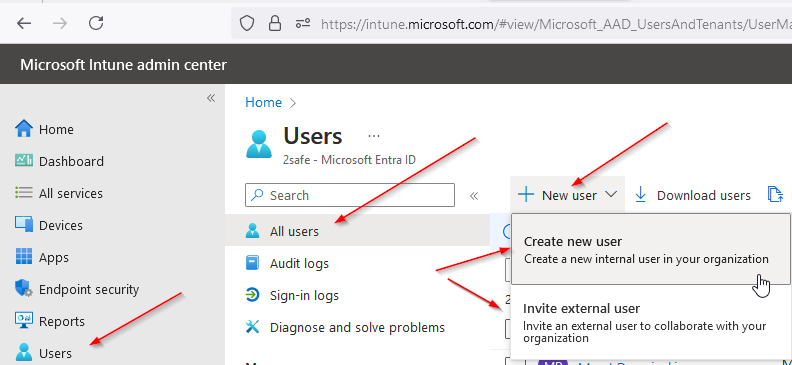
3\. The next step is creating/adding users to log in from client computers. New users can be created or invited to existing external users.

[![image-1719870128052.png](https://docs.safedns.com/uploads/images/gallery/2024-07/scaled-1680-/m6zFpqjEV7eFMyXB-image-1719870128052.png)](https://docs.safedns.com/uploads/images/gallery/2024-07/m6zFpqjEV7eFMyXB-image-1719870128052.png)
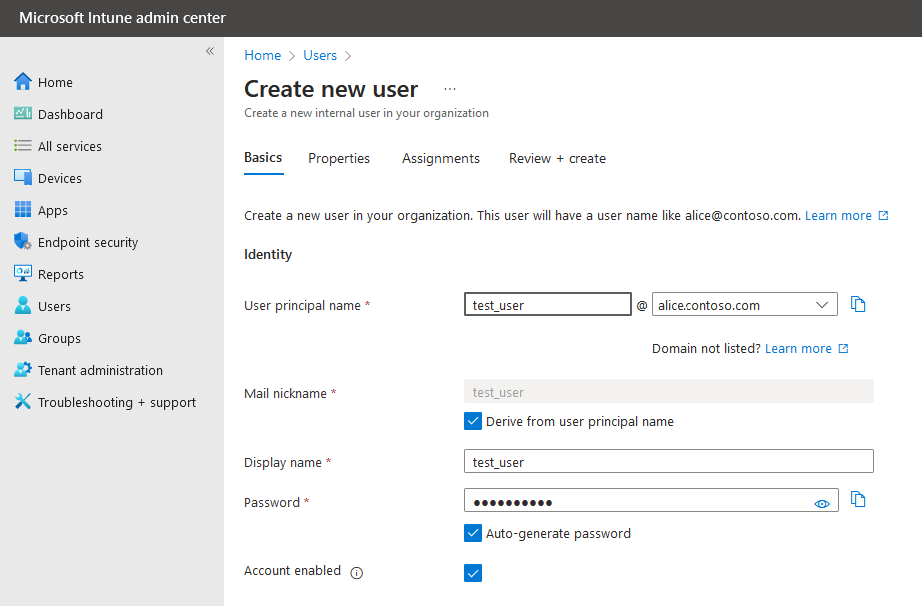
4\. Creating the username, nickname, display name, and password:

[![image-1719870156017.png](https://docs.safedns.com/uploads/images/gallery/2024-07/scaled-1680-/5KJkNlKmggYvE4b3-image-1719870156017.png)](https://docs.safedns.com/uploads/images/gallery/2024-07/5KJkNlKmggYvE4b3-image-1719870156017.png)
5\. Review and check the parameters, then finish the process of user creation:

[![image-1719870225845.png](https://docs.safedns.com/uploads/images/gallery/2024-07/scaled-1680-/rJN3nilchm3l0Ck9-image-1719870225845.png)](https://docs.safedns.com/uploads/images/gallery/2024-07/rJN3nilchm3l0Ck9-image-1719870225845.png)
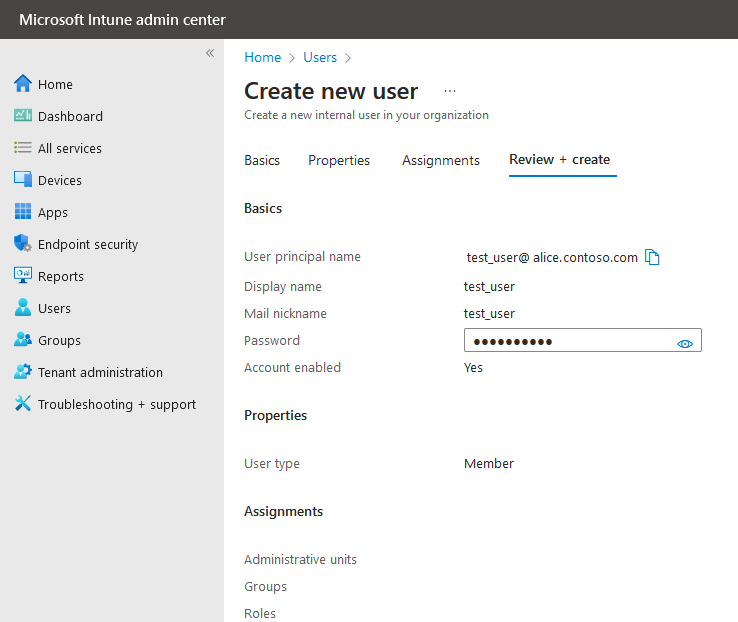
6\. Go to the Intune admin panel: [https://intune.microsoft.com](https://intune.microsoft.com/)  
There might be a need to enter a password or use the Microsoft authenticator from the phone  
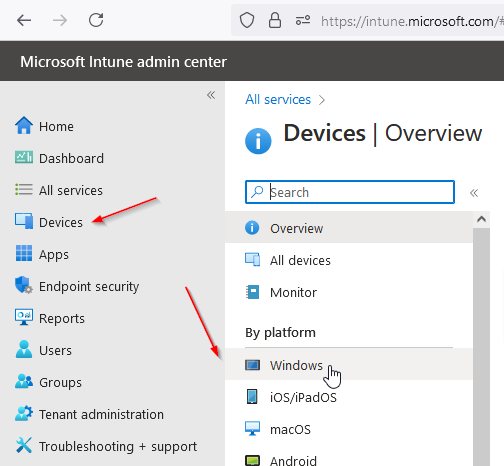
Go to **Devices** &gt; **Windows:**

[![image-1719870242916.png](https://docs.safedns.com/uploads/images/gallery/2024-07/scaled-1680-/nabGlgkbWmcTwvZs-image-1719870242916.png)](https://docs.safedns.com/uploads/images/gallery/2024-07/nabGlgkbWmcTwvZs-image-1719870242916.png)

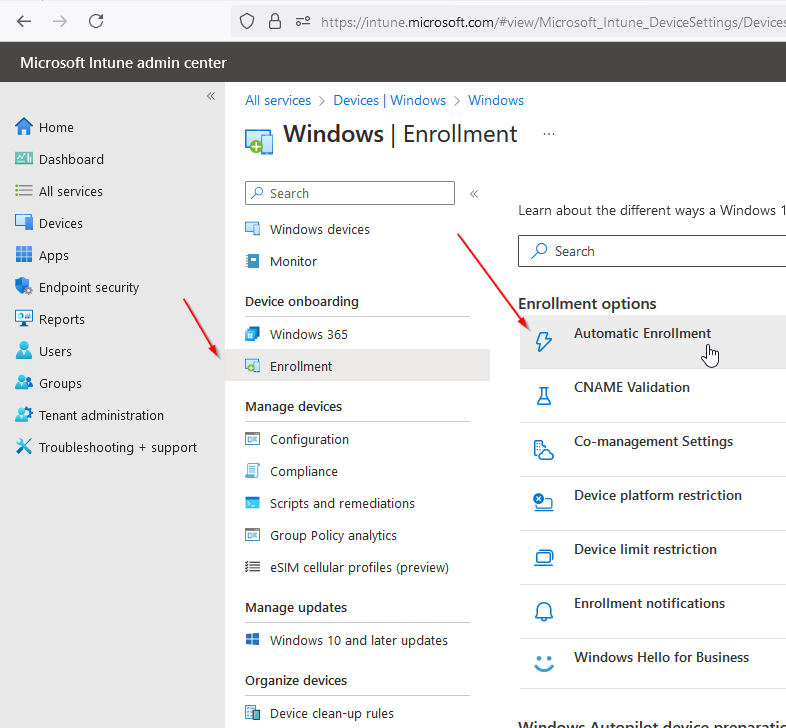
7\. Select **Enrollment** &gt; **Automatic Enrollment:**

[![image-1719870250730.png](https://docs.safedns.com/uploads/images/gallery/2024-07/scaled-1680-/LPQdvRZtQIF4TeVt-image-1719870250730.png)](https://docs.safedns.com/uploads/images/gallery/2024-07/LPQdvRZtQIF4TeVt-image-1719870250730.png)

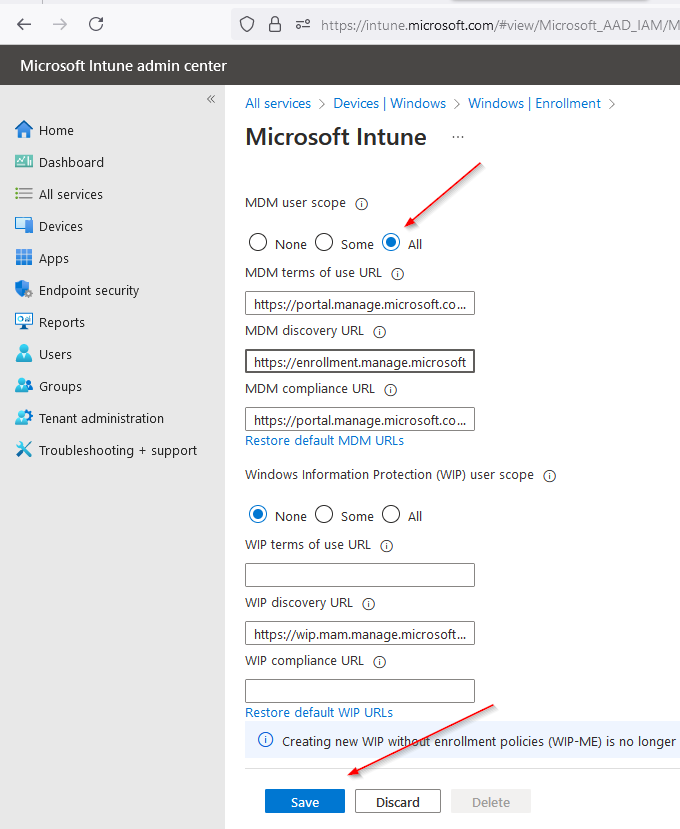
8\. Activate **MDM user Scope** &gt; **All** and **Save** the settings:

[![image-1719870265104.png](https://docs.safedns.com/uploads/images/gallery/2024-07/scaled-1680-/804T1LQepmucYIxQ-image-1719870265104.png)](https://docs.safedns.com/uploads/images/gallery/2024-07/804T1LQepmucYIxQ-image-1719870265104.png)

9\. Set the PIN code to unlock the device using the Windows Hello for Business feature:

[![image-1719870315636.png](https://docs.safedns.com/uploads/images/gallery/2024-07/scaled-1680-/4wHjc1rHpnfE71W9-image-1719870315636.png)](https://docs.safedns.com/uploads/images/gallery/2024-07/4wHjc1rHpnfE71W9-image-1719870315636.png)
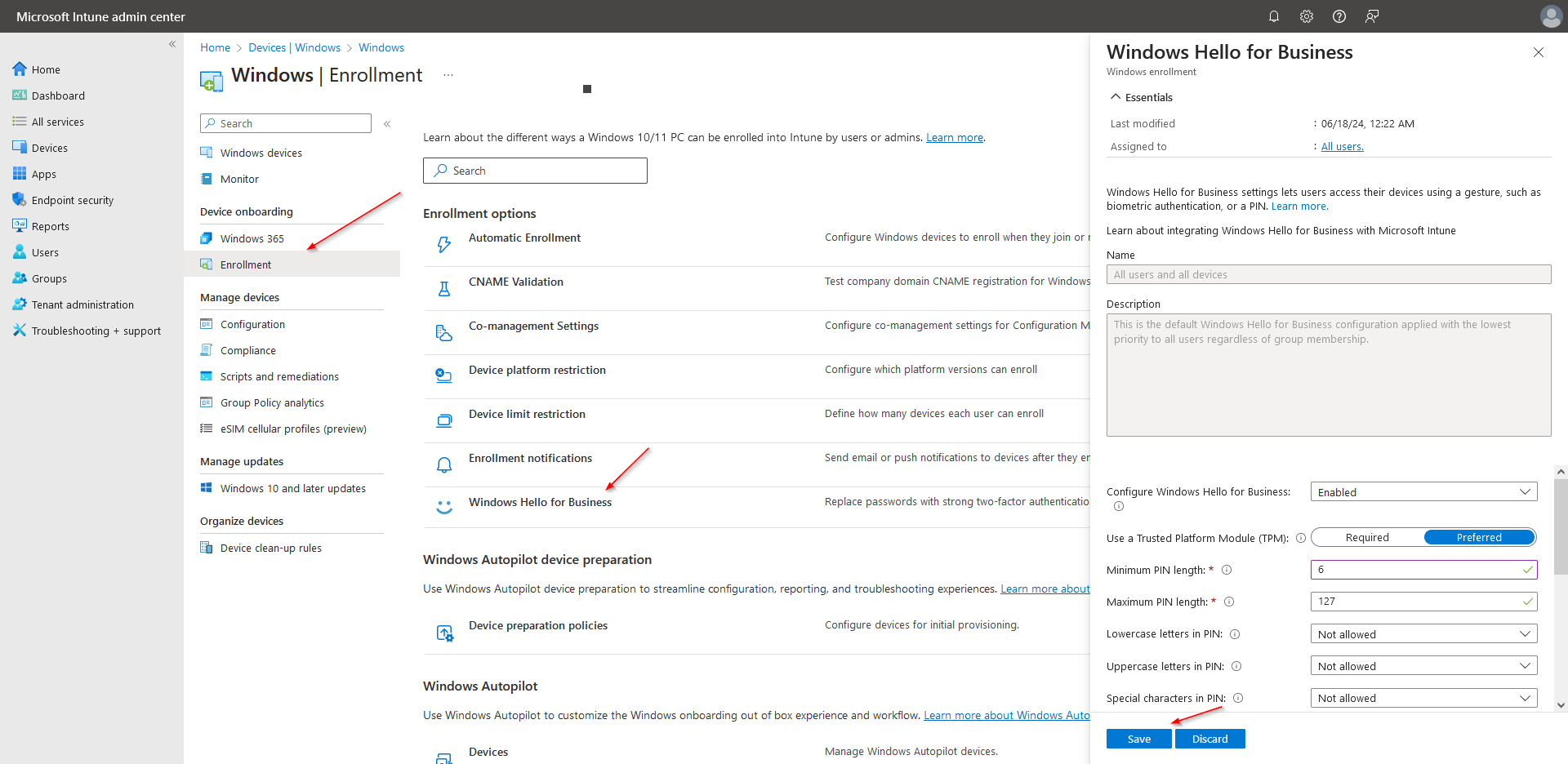
10\. The settings are on the right-side panel. Once the settings are configured, save the changes.

Now using the credentials created above user can log in to the Azure Active Directory

#### 2. Preparing application for Intune Portal  


<p class="callout info">Prepare the application to be loaded into the Intune Portal. The supported format of the application is the \***.intunewin** To create the application, use the tool `IntuneWinAppUtil.exe`   
  
For more information on how to prepare the \***.intunewin** application, follow the guide below:  
</p>

1\. Microsoft Win32 Content Prep Tool link: [https://go.microsoft.com/fwlink/?linkid=2065730](https://go.microsoft.com/fwlink/?linkid=2065730)  
The tool creates the \***.intunewin** application that is ready to upload into Intune. Here is the [link ](https://learn.microsoft.com/en-us/mem/intune/apps/apps-win32-prepare)on how to do it.

2\. The next step is to configure the application:  
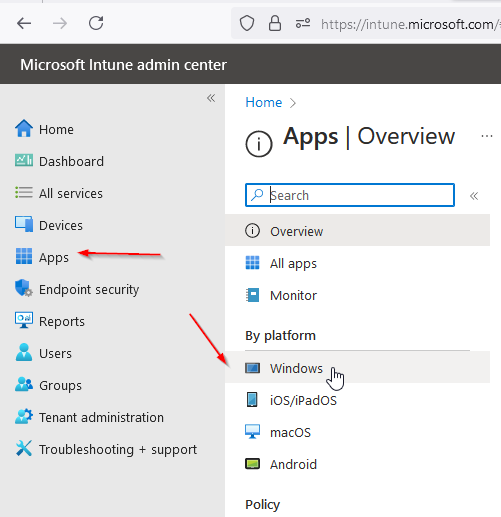
Go to **Apps** &gt; **Windows**

[![image-1719870336808.png](https://docs.safedns.com/uploads/images/gallery/2024-07/scaled-1680-/srmf1L69SWVwNVia-image-1719870336808.png)](https://docs.safedns.com/uploads/images/gallery/2024-07/srmf1L69SWVwNVia-image-1719870336808.png)

3\. Add the newly created \***.intunewin** application:

[![image-1719870509233.png](https://docs.safedns.com/uploads/images/gallery/2024-07/scaled-1680-/PiokZv7SzJgUBqfQ-image-1719870509233.png)](https://docs.safedns.com/uploads/images/gallery/2024-07/PiokZv7SzJgUBqfQ-image-1719870509233.png)
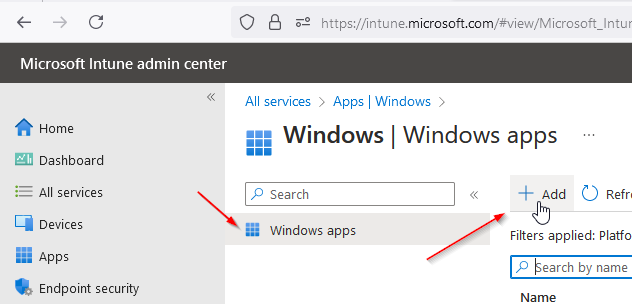
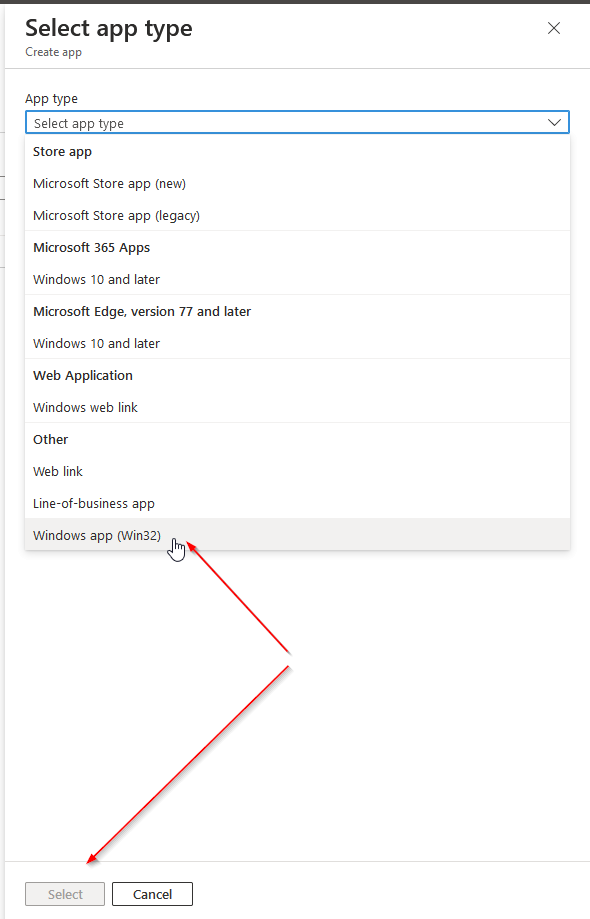
4\. Select from the list of Windows app **Win32**, and tap **Select**:

[![image-1719870523295.png](https://docs.safedns.com/uploads/images/gallery/2024-07/scaled-1680-/UTlWGBMnbdK9EK96-image-1719870523295.png)](https://docs.safedns.com/uploads/images/gallery/2024-07/UTlWGBMnbdK9EK96-image-1719870523295.png)
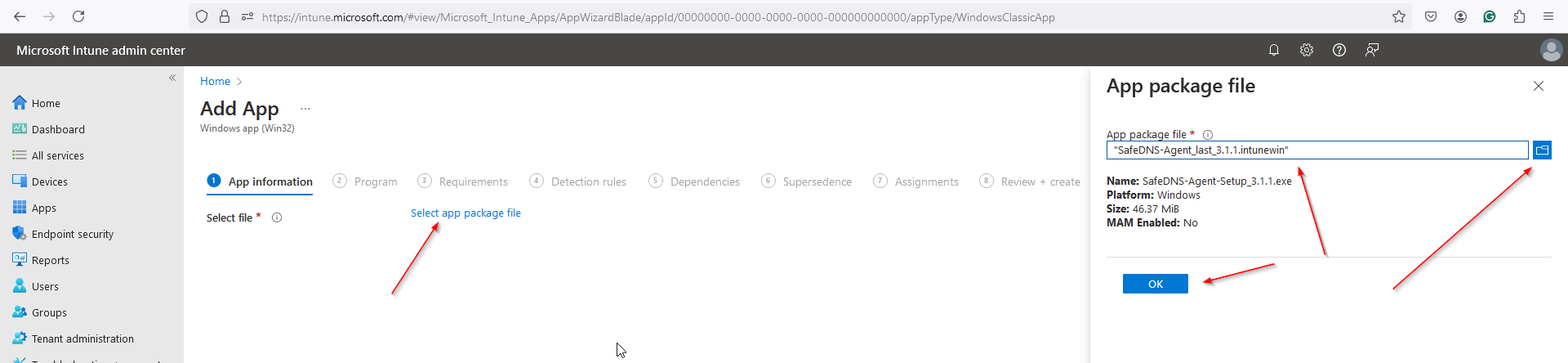
5\. Press the **Select app** package file button, select the recently created **.intunewin** file, and tap **OK**:

[![image-1719870722594.png](https://docs.safedns.com/uploads/images/gallery/2024-07/scaled-1680-/WVu7uc5kI4S8WJDN-image-1719870722594.png)](https://docs.safedns.com/uploads/images/gallery/2024-07/WVu7uc5kI4S8WJDN-image-1719870722594.png)
<div class="js-content-block content-block content-image level-0" data-key="9e68a75c-0e64-47b5-aeec-375d42cc704c" id="bkmrk-6.-please-fill-in-th"><div class="js-content-block content-block content-image level-0" data-key="9e68a75c-0e64-47b5-aeec-375d42cc704c"><div class="image-container" data-v-6f901876=""><div class="image-wrapper" data-v-6f901876=""><div class="image-preview-container" data-v-0d9bde58="" data-v-6f901876=""><div class="preview-image" data-v-0d9bde58=""><div class="image-previewer" data-v-0d9bde58="" data-v-6f901876=""><div class="image-mask" data-v-0d9bde58="" data-v-6f901876=""><div class="js-content-block content-block content-image level-0" data-key="89bfa8b8-35e0-4a6f-a6ad-75e21ead6280"><div class="image-container" data-v-6f901876=""><div class="image-wrapper" data-v-6f901876=""><div class="image-preview-container" data-v-0d9bde58="" data-v-6f901876=""><div class="preview-image" data-v-0d9bde58=""><div class="image-previewer" data-v-0d9bde58="" data-v-6f901876="">6. Please fill in the fields using the example below:  
  
</div><div class="image-previewer" data-v-0d9bde58="" data-v-6f901876="">**Example** Install command: SafeDNS-Agent-Setup_3.1.1.exe /verysilent /login=demo@safedns.com /password=safedns6789  
Uninstall command: "%ProgramFiles%\unins000.exe" /verysilent  
  
</div></div></div></div></div></div></div></div></div></div></div></div></div></div>[![image-1719870729665.png](https://docs.safedns.com/uploads/images/gallery/2024-07/scaled-1680-/TNpbpkBf2LjLLd9u-image-1719870729665.png)](https://docs.safedns.com/uploads/images/gallery/2024-07/TNpbpkBf2LjLLd9u-image-1719870729665.png)

7\. Install commands that are available in the following guide:  
[https://docs.safedns.com/books/installation-guides/page/agent-unattended-installation](https://docs.safedns.com/books/installation-guides/page/agent-unattended-installation)

8\. In the next tab select both ОS Operating system architecture **32-bit and 64-bit** and Minimum operating system - **Windows 10 1607**

[![image-1719870744119.png](https://docs.safedns.com/uploads/images/gallery/2024-07/scaled-1680-/orHsamFRIYM643Fw-image-1719870744119.png)](https://docs.safedns.com/uploads/images/gallery/2024-07/orHsamFRIYM643Fw-image-1719870744119.png)

9\. It is important to configure the Detection rule options:

[![Intune installation9.png](https://docs.safedns.com/uploads/images/gallery/2025-06/scaled-1680-/cKYQCKfFMkmtKxVf-intune-installation9.png)](https://docs.safedns.com/uploads/images/gallery/2025-06/cKYQCKfFMkmtKxVf-intune-installation9.png)

10\. Review and Save:

[![image-1719870814038.png](https://docs.safedns.com/uploads/images/gallery/2024-07/scaled-1680-/EkhUCzIaqghnNW8N-image-1719870814038.png)](https://docs.safedns.com/uploads/images/gallery/2024-07/EkhUCzIaqghnNW8N-image-1719870814038.png)

#### 3. Configuring Compliance Policy

1\. The policy is used to configure the hardware, and software setup of the computer joining Intune.

2\. Create a new policy and name it:

[![image-1719870840719.png](https://docs.safedns.com/uploads/images/gallery/2024-07/scaled-1680-/6XoYnKLc9nVrXxzE-image-1719870840719.png)](https://docs.safedns.com/uploads/images/gallery/2024-07/6XoYnKLc9nVrXxzE-image-1719870840719.png)

[![image-1719870846703.png](https://docs.safedns.com/uploads/images/gallery/2024-07/scaled-1680-/VtMpzO6KFVQW3Zt4-image-1719870846703.png)](https://docs.safedns.com/uploads/images/gallery/2024-07/VtMpzO6KFVQW3Zt4-image-1719870846703.png)

[![image-1719870870280.png](https://docs.safedns.com/uploads/images/gallery/2024-07/scaled-1680-/twjpTqXIq4Va5wLI-image-1719870870280.png)](https://docs.safedns.com/uploads/images/gallery/2024-07/twjpTqXIq4Va5wLI-image-1719870870280.png)

<div class="js-content-block content-block content-image level-0" data-key="39d0479d-3f80-4c88-b1bf-4268627016ba" id="bkmrk-the-example-below-sh"><div class="js-content-block content-block content-image level-0" data-key="39d0479d-3f80-4c88-b1bf-4268627016ba"><div class="image-container" data-v-6f901876=""><div class="image-wrapper" data-v-6f901876=""><div class="image-preview-container" data-v-0d9bde58="" data-v-6f901876=""><div class="preview-image" data-v-0d9bde58=""><div class="image-previewer" data-v-0d9bde58="" data-v-6f901876=""><div class="image-mask" data-v-0d9bde58="" data-v-6f901876="">The example below shows only the Minimum OS version: **10.0.17134.1**  
</div></div></div></div><div class="image-mask" data-v-0d9bde58="" data-v-6f901876="">  
</div></div></div></div></div>[![image-1719870921442.png](https://docs.safedns.com/uploads/images/gallery/2024-07/scaled-1680-/XvXEiUuW5PCxdOrt-image-1719870921442.png)](https://docs.safedns.com/uploads/images/gallery/2024-07/XvXEiUuW5PCxdOrt-image-1719870921442.png)

<div class="js-content-block content-block content-image level-0" data-key="39d0479d-3f80-4c88-b1bf-4268627016ba" id="bkmrk-there-might-be-addit"><div class="image-container" data-v-6f901876=""><div class="image-wrapper" data-v-6f901876=""><div class="image-mask" data-v-0d9bde58="" data-v-6f901876="">There might be additional OS or hardware requirements, that need to be configured accordingly.</div></div></div></div>  
3\. Once finished, apply the Policy to **All Devices**:

[![image-1719870939083.png](https://docs.safedns.com/uploads/images/gallery/2024-07/scaled-1680-/mMEl7MFlQUw3kyKJ-image-1719870939083.png)](https://docs.safedns.com/uploads/images/gallery/2024-07/mMEl7MFlQUw3kyKJ-image-1719870939083.png)

4\. The example of the Policy created above has the following summary:

[![image-1719870955247.png](https://docs.safedns.com/uploads/images/gallery/2024-07/scaled-1680-/IN4xCiF3hJ9nuVQp-image-1719870955247.png)](https://docs.safedns.com/uploads/images/gallery/2024-07/IN4xCiF3hJ9nuVQp-image-1719870955247.png)

#### 4. Login on the clients' computers  


1\. Switch on the computer and go to the **Settings** (the computer should be connected to the internet):

[![image-1719871032257.png](https://docs.safedns.com/uploads/images/gallery/2024-07/scaled-1680-/LtY7cYfYRKGG5hON-image-1719871032257.png)](https://docs.safedns.com/uploads/images/gallery/2024-07/LtY7cYfYRKGG5hON-image-1719871032257.png)

2\. Then **Accounts** &gt; **Access Work or School**

[![image-1719871041517.png](https://docs.safedns.com/uploads/images/gallery/2024-07/scaled-1680-/6rhSa1gZt8BGMsp6-image-1719871041517.png)](https://docs.safedns.com/uploads/images/gallery/2024-07/6rhSa1gZt8BGMsp6-image-1719871041517.png)

3\. The next step is to **Add a work or school account** &gt; **Connect**

<div class="js-content-block content-block content-image level-0" data-key="9e68a75c-0e64-47b5-aeec-375d42cc704c" id="bkmrk--26"><div class="js-content-block content-block content-image level-0" data-key="9e68a75c-0e64-47b5-aeec-375d42cc704c"><div class="image-container" data-v-6f901876=""><div class="image-wrapper" data-v-6f901876=""><div class="image-preview-container" data-v-0d9bde58="" data-v-6f901876=""><div class="preview-image" data-v-0d9bde58=""><div class="image-previewer" data-v-0d9bde58="" data-v-6f901876=""><div class="image-mask" data-v-0d9bde58="" data-v-6f901876=""><div class="js-content-block content-block content-image level-0" data-key="15ca40e2-41bf-4e2c-80b1-859109f7471f"><div class="image-container" data-v-6f901876=""><div class="image-wrapper" data-v-6f901876=""><div class="image-preview-container" data-v-0d9bde58="" data-v-6f901876=""><div class="preview-image" data-v-0d9bde58=""><div class="image-previewer" data-v-0d9bde58="" data-v-6f901876="">  
</div></div></div></div></div></div></div></div></div></div></div></div></div></div>[![image-1719871051905.png](https://docs.safedns.com/uploads/images/gallery/2024-07/scaled-1680-/fBOO5Rx0h0mVTfgP-image-1719871051905.png)](https://docs.safedns.com/uploads/images/gallery/2024-07/fBOO5Rx0h0mVTfgP-image-1719871051905.png)

4\. Add the user credentials of the user created in Intune:

[![image-1719871061248.png](https://docs.safedns.com/uploads/images/gallery/2024-07/scaled-1680-/0ieGzKcwRTQlq6WK-image-1719871061248.png)](https://docs.safedns.com/uploads/images/gallery/2024-07/0ieGzKcwRTQlq6WK-image-1719871061248.png)

5\. Add the password of the account and configure the PIN code of the Windows Hello feature. The system may ask to configure/use Microsoft Authenticator.

[![image-1719871076641.png](https://docs.safedns.com/uploads/images/gallery/2024-07/scaled-1680-/z1Fdi1ADw5BGQFBA-image-1719871076641.png)](https://docs.safedns.com/uploads/images/gallery/2024-07/z1Fdi1ADw5BGQFBA-image-1719871076641.png)

[![image-1719871086632.png](https://docs.safedns.com/uploads/images/gallery/2024-07/scaled-1680-/wJO4GYDBCaUCvIM3-image-1719871086632.png)](https://docs.safedns.com/uploads/images/gallery/2024-07/wJO4GYDBCaUCvIM3-image-1719871086632.png)

[![image-1719871113613.png](https://docs.safedns.com/uploads/images/gallery/2024-07/scaled-1680-/4qyz4gFDBB8z3bQJ-image-1719871113613.png)](https://docs.safedns.com/uploads/images/gallery/2024-07/4qyz4gFDBB8z3bQJ-image-1719871113613.png)

[![image-1719871119217.png](https://docs.safedns.com/uploads/images/gallery/2024-07/scaled-1680-/m7QlL4eoaThle4Mj-image-1719871119217.png)](https://docs.safedns.com/uploads/images/gallery/2024-07/m7QlL4eoaThle4Mj-image-1719871119217.png)

6\. Once the login process is finished, the menu **Accounts** &gt; **Access work or school** is looking the following way:

[![image-1719871138871.png](https://docs.safedns.com/uploads/images/gallery/2024-07/scaled-1680-/yXoq9t5oRH4C9Brl-image-1719871138871.png)](https://docs.safedns.com/uploads/images/gallery/2024-07/yXoq9t5oRH4C9Brl-image-1719871138871.png)

#### 5. Agent Installation

<article class="article-content-wrapper" data-v-1d18c12d="" data-v-ce0989e4="" id="bkmrk-the-installation-of-"><p class="callout info">The installation of the Agent starts immediately after the successful login to the local computer.</p>

<div class="blocks-container" data-v-ce0989e4=""><div class="blocks-container" data-v-ce0989e4=""><div class="js-content-block content-block content-image level-0" data-key="2ba91f08-ae91-4b3d-9aa4-bddec216987e"><div class="image-container" data-v-6f901876=""><div class="image-wrapper" data-v-6f901876=""><div class="image-preview-container" data-v-0d9bde58="" data-v-6f901876=""><div class="preview-image" data-v-0d9bde58=""><div class="image-previewer" data-v-0d9bde58="" data-v-6f901876="">  
</div></div></div></div></div></div></div></div>[![image-1719871147070.png](https://docs.safedns.com/uploads/images/gallery/2024-07/scaled-1680-/tqcc9jkPRNXIbpmW-image-1719871147070.png)](https://docs.safedns.com/uploads/images/gallery/2024-07/tqcc9jkPRNXIbpmW-image-1719871147070.png)

1\. The Agent is installed using the **silent mode**, and filtering is automatically enabled and started working:

[![image-1719871263868.png](https://docs.safedns.com/uploads/images/gallery/2024-07/scaled-1680-/pWc9Rnw27O9BteLs-image-1719871263868.png)](https://docs.safedns.com/uploads/images/gallery/2024-07/pWc9Rnw27O9BteLs-image-1719871263868.png)

2\. The installation finished successfully, to see the installation results, open **the Intune admin panel** &gt; **Apps** &gt; **Windows** and select the initially created app record:

[![image-1719871278311.png](https://docs.safedns.com/uploads/images/gallery/2024-07/scaled-1680-/8fz5aI2AYJVcIdPL-image-1719871278311.png)](https://docs.safedns.com/uploads/images/gallery/2024-07/8fz5aI2AYJVcIdPL-image-1719871278311.png)

</article>