# SafeDNS and local resources
This guide explains how to set up the SafeDNS service in the Active Directory environment with the SafeDNS Dashboard.
#### Manual Setup in the Dashboard
One of the main ways to gain access to AD resources without using the safeDNS agent is to use special options available on Office/Enterprise plans.
You must add SafeDNS DNS-servers addresses - **195.46.39.39** and **195.46.39.40** - to the DNS forwarder on your Primary Domain Controller (and secondary, if applicable), so all devices in a filtered network receive SafeDNS IP addresses as the DNS. After this you need to add your external IP address to the dashboard.
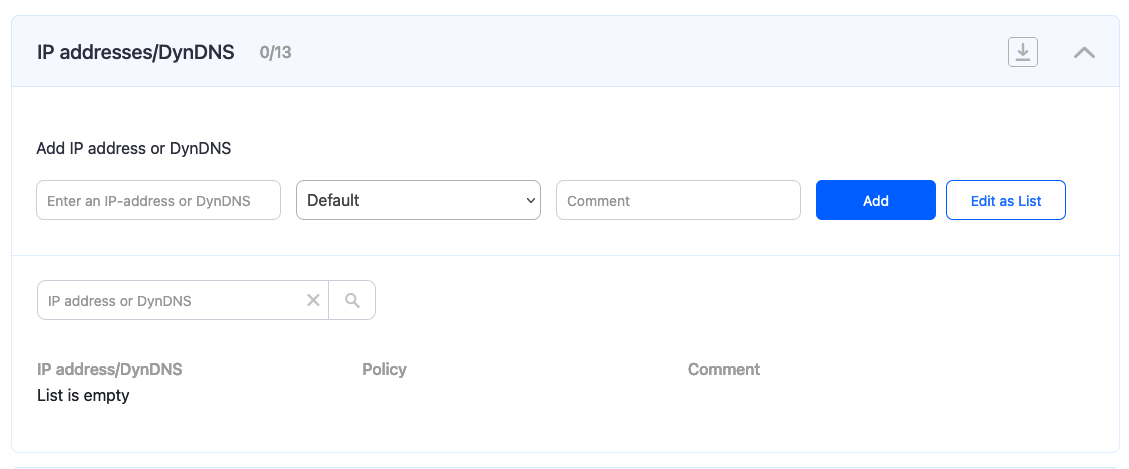
Navigate to **Dashboard -> Settings -> Devices** and add your external IP in the section "IP addresses/DynDNS".
[](https://docs.safedns.com/uploads/images/gallery/2024-08/FIP0HKxn982piWKP-1-safedns-and-active-directory.png)
#### Grant access to local resources.
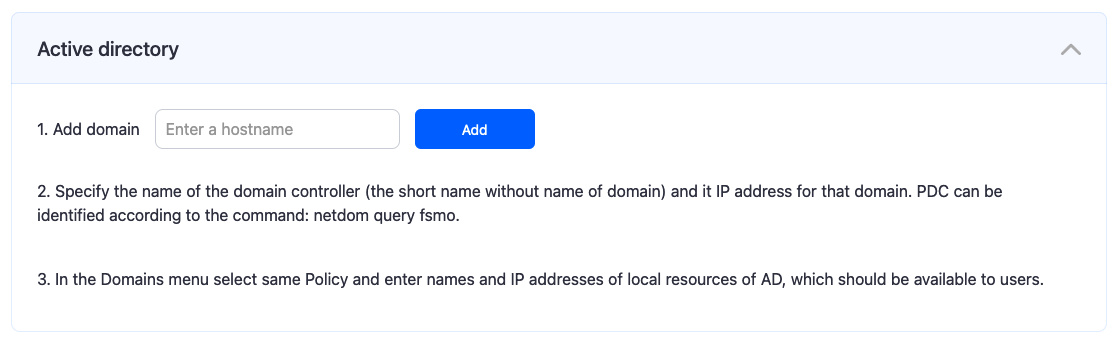
1\. Navigate to **Dashboard -> Settings -> Advanced -> Active Directory**.
2\. Enter and add your AD **domain** in the form.
[](https://docs.safedns.com/uploads/images/gallery/2024-08/Y113X9uER9P6bTlW-2-safedns-and-active-directory.png)
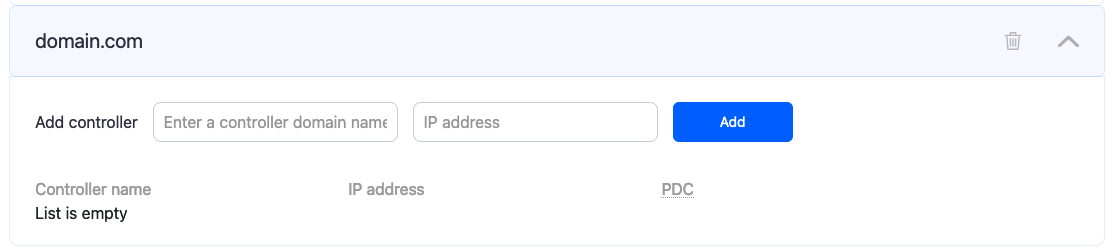
3\. Enter and add the **name** of the PDC (Primary Domain Controller) and its **IP address** in the local network.
[](https://docs.safedns.com/uploads/images/gallery/2024-08/u5MYiddKxF8Wsm2D-3-safedns-and-active-directory.png)
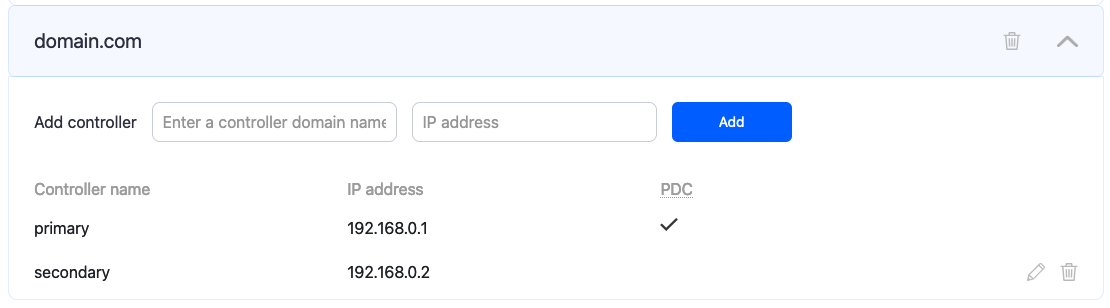
4\. Add **secondary** domain controllers, if applicable. You can change the **PDC** by clicking on the pencil icon on the right.
[](https://docs.safedns.com/uploads/images/gallery/2024-08/Zf21sGriNmPyuBkP-4-safedns-and-active-directory.png)
5\. Set aliases for all required local resources in the **Aliases** table below. Enter the **name of a local resource** and its **local IP address**.[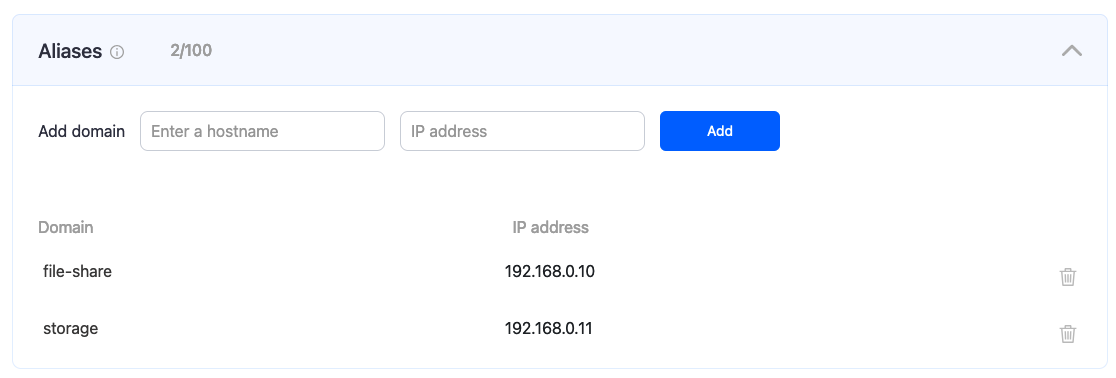](https://docs.safedns.com/uploads/images/gallery/2024-08/3mlFsPYGtzJlYrw9-5-safedns-and-active-directory.png)
6\. Wait about **5-7 minutes** until all local resources become accessible.
Please note that settings take 5-7 minutes to apply.
Stats and filtering status update every 10 minutes.