# SafeDNS Root Certificate For HTTPS Pages
#### About the certificate
**Root certificate** or **SSL certificate** is the main part of the website security. SSL certificate is required for the correct operation of sites with a secure (HTTPS) connection. If you have issues with displaying the SafeDNS block page (your internet browser shows a message "Unable to access the site"), you need to download a SafeDNS certificate and configure it to use in your browser.
Please note that the certificate should be installed on each end device where you want HTTPS pages to display correctly.
[⤵Download **SafeDNS** certificate](https://safedns.com/downloads/safedns_root.crt)
If the browser starts installing the certificate after you click on the button, cancel it, right-click on the button and choose "**Save as…**"
---
#### Windows (Chrome, Edge, Opera browsers)
For Mozilla Firefox, see the next section.
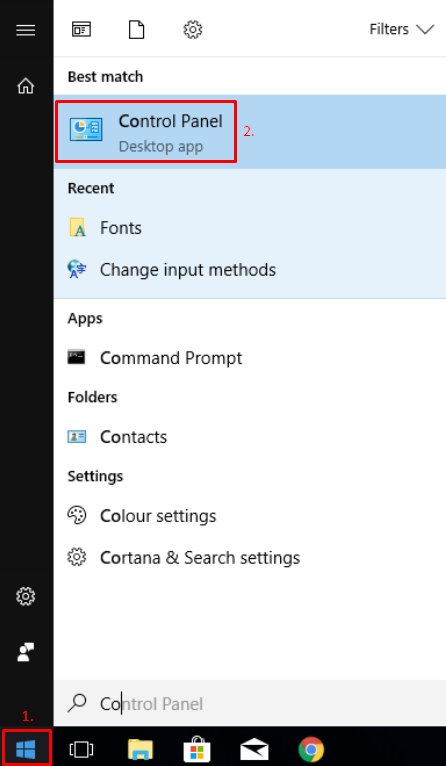
1\. Open the **Start menu**, type in **'Control Panel'**, and open the suggested app.
[](https://docs.safedns.com/uploads/images/gallery/2022-08/EH47xzYL5JOpIgla-1-safedns-root-certificate-for-https-pages.png)
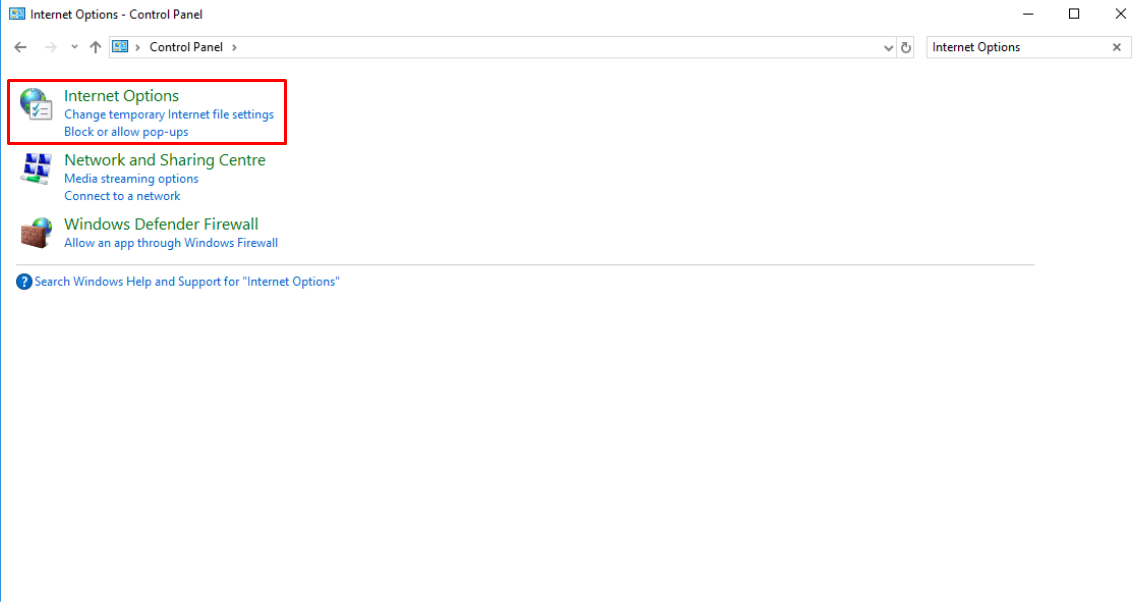
2\. Open **Internet Options**.
[](https://docs.safedns.com/uploads/images/gallery/2022-08/EeuikQdFFRGUBNxt-2-safedns-root-certificate-for-https-pages.png)
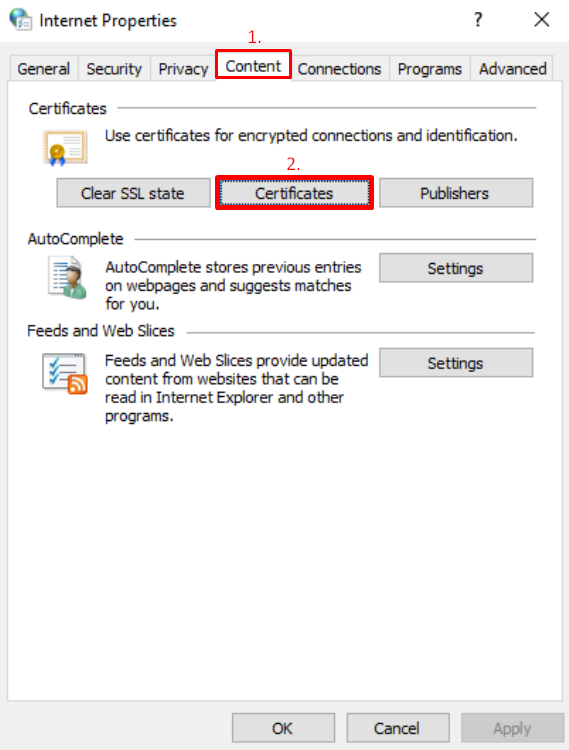
3\. Navigate to the **Content** tab and click **Certificates**.
[](https://docs.safedns.com/uploads/images/gallery/2022-08/BDO7gLR2MCE5Niuq-3-safedns-root-certificate-for-https-pages.png)
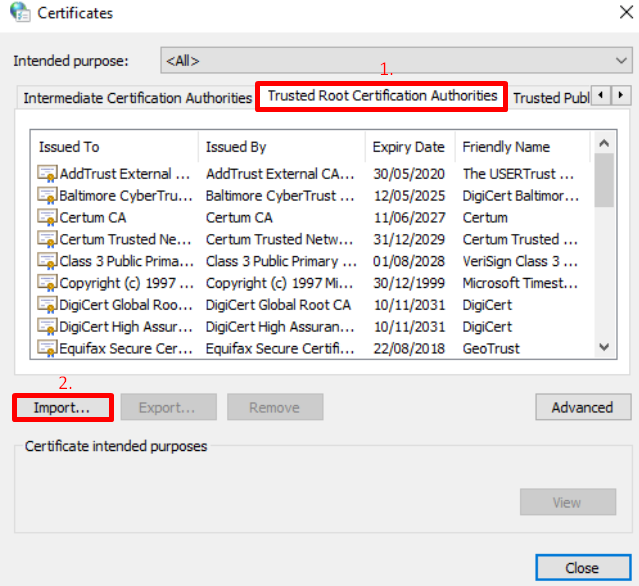
4\. Navigate to the **Trusted** **Root** **Certification** **Authorities** tab, and click **Import**.
[](https://docs.safedns.com/uploads/images/gallery/2022-08/cSnSGno6TwpbWWQl-4-safedns-root-certificate-for-https-pages.png)
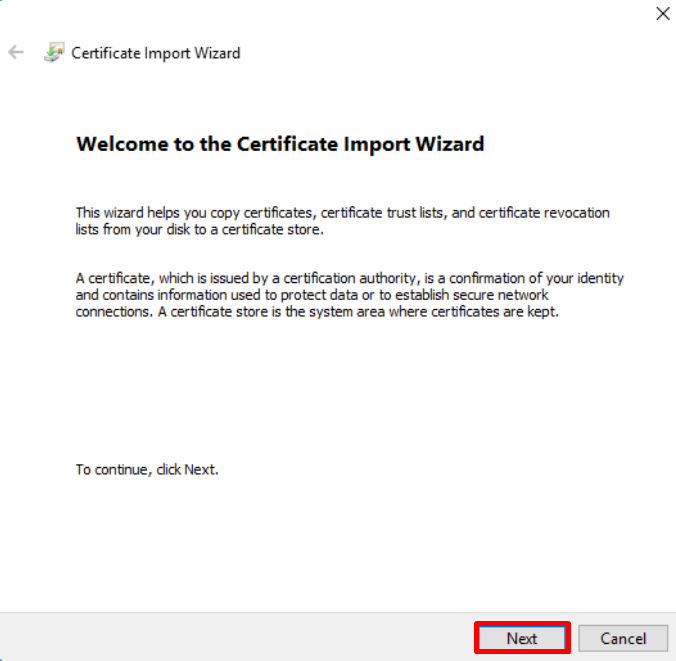
5\. Click **Next** in **Certificate Import Wizard**.
[](https://docs.safedns.com/uploads/images/gallery/2022-08/LEcB73AGmz3HVE7O-5-safedns-root-certificate-for-https-pages.png)
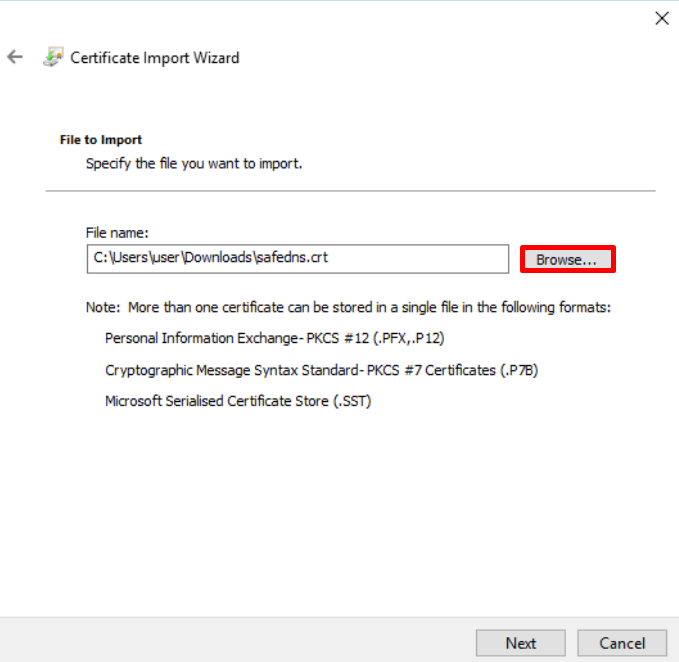
6\. Click **Browse** and select a downloaded SafeDNS certificate file.
[](https://docs.safedns.com/uploads/images/gallery/2022-08/cidG7g4x8eQG6LgC-6-safedns-root-certificate-for-https-pages.png)
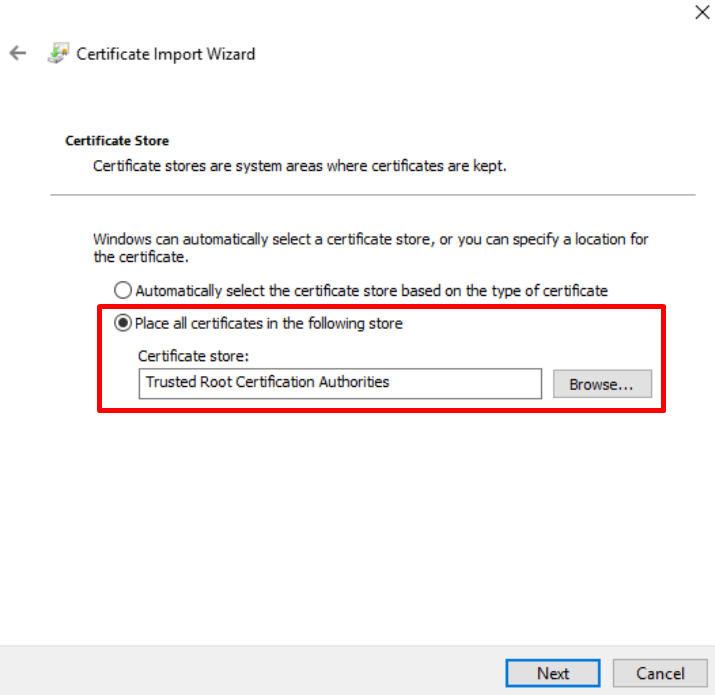
7\. Make sure that the certificate is placed in the store **Trusted Root Certification Authorities**.
[](https://docs.safedns.com/uploads/images/gallery/2022-08/GnrtMcCEx2zjraqJ-7-safedns-root-certificate-for-https-pages.png)
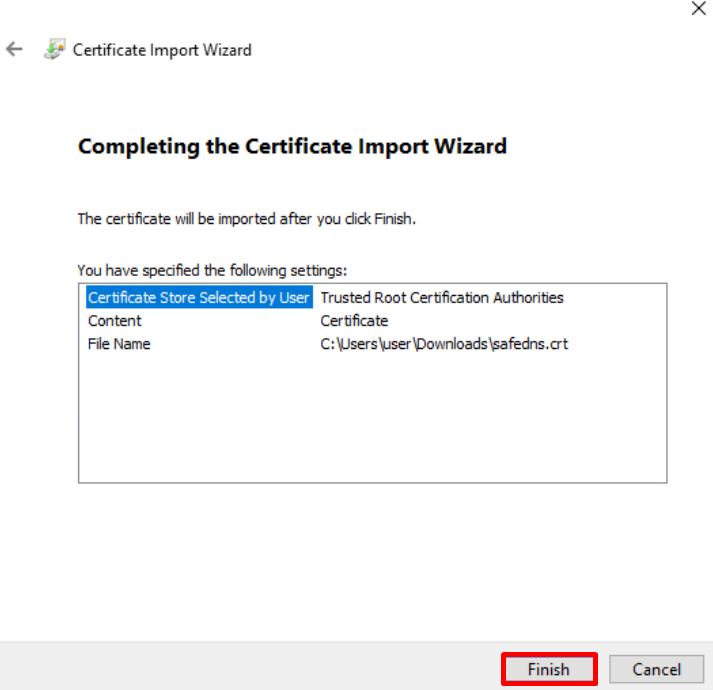
8\. Close the window by clicking on **Finish**.
[](https://docs.safedns.com/uploads/images/gallery/2022-08/DEvvPKW3YTNfjhtR-8-safedns-root-certificate-for-https-pages.png)
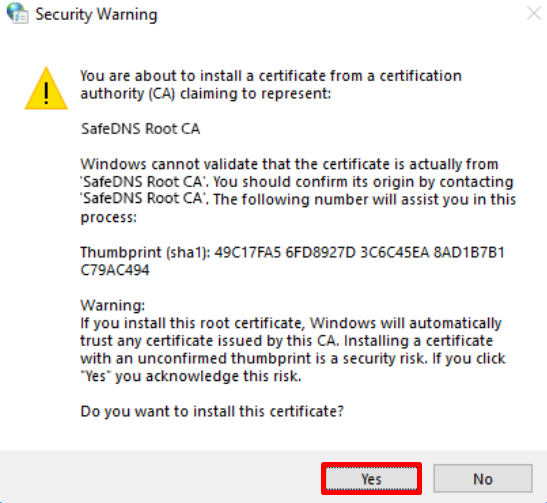
9\. Click on **Yes** when **Security Warning** appears.
[](https://docs.safedns.com/uploads/images/gallery/2022-08/Z3TSri5lEA6R3rQk-9-safedns-root-certificate-for-https-pages.png)
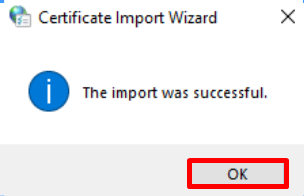
10\. Close Certificate Import Wizard by clicking **OK**.
[](https://docs.safedns.com/uploads/images/gallery/2022-08/92n9pCZg3MAI0mbv-10-safedns-root-certificate-for-https-pages.png)
#### Mozilla Firefox (all platforms)
1\. Click on the **Menu button** in the top right corner of the browser and select **Settings**.
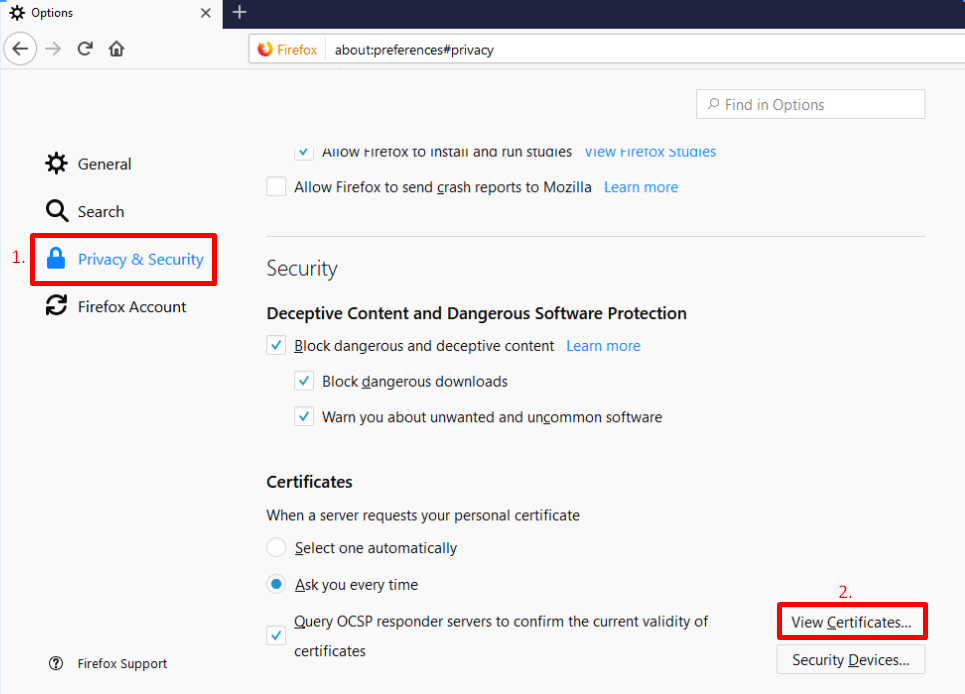
2\. Choose **Privacy & Security** in the left menu, scroll to the bottom of the page, and click **View Certificates**.
[](https://docs.safedns.com/uploads/images/gallery/2022-08/7EuQn6AYIvr9xM5d-11-safedns-root-certificate-for-https-pages.png)
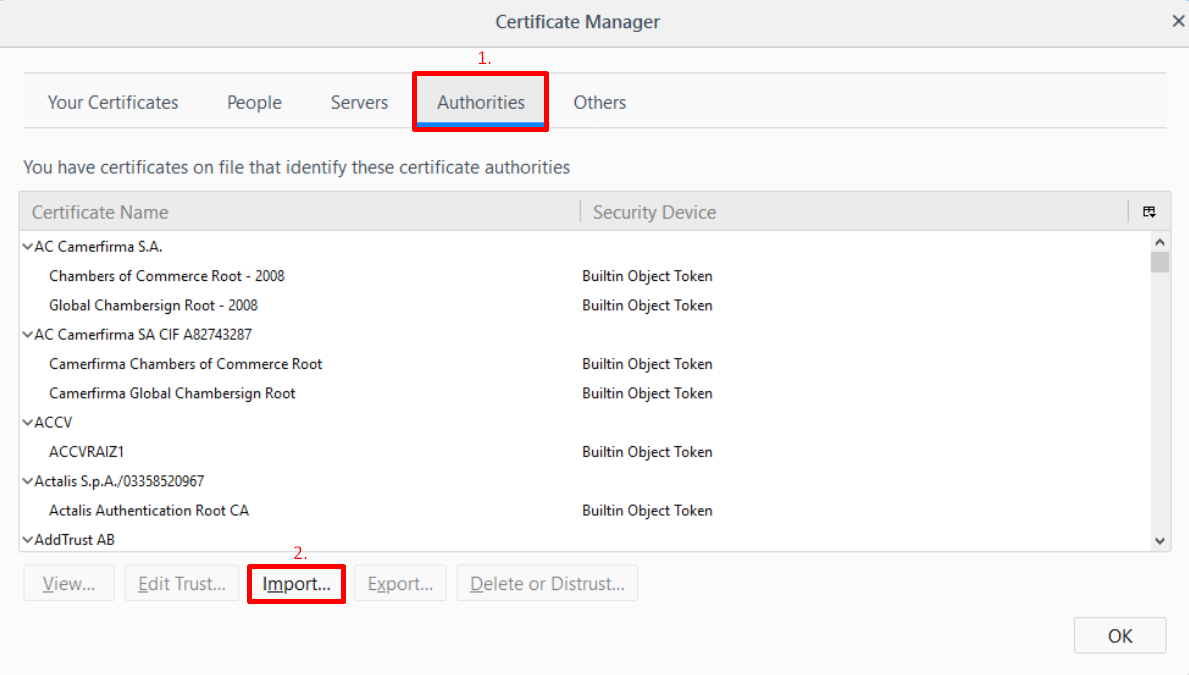
3\. Select the **Authorities** tab and click **Import**.
[](https://docs.safedns.com/uploads/images/gallery/2022-08/vyfNATgVn6ZgD5y9-12-safedns-root-certificate-for-https-pages.png)
4\. Select the downloaded SafeDNS Certificate, tick the box **Trust this CA to identify websites**, and click **OK**.
#### Mac OSX
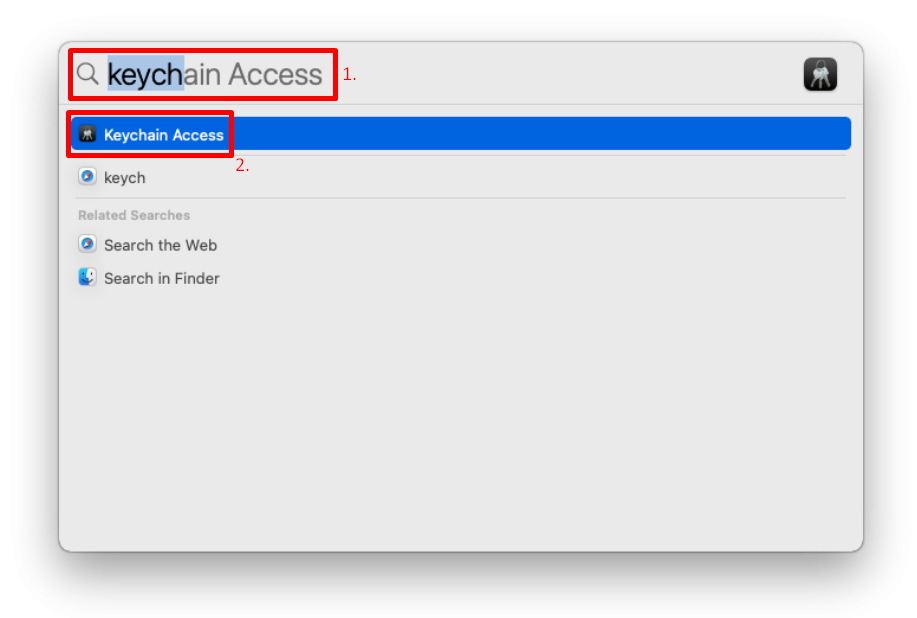
1\. Press the hotkey **CTRL + SPACE** and type **'Keychain'** in the Spotlight search. Open the **Keychain Access application**.
[](https://docs.safedns.com/uploads/images/gallery/2022-08/AbgckkFXIewvvPAS-13-safedns-root-certificate-for-https-pages.png)
2\. Navigate to **Login > System**.[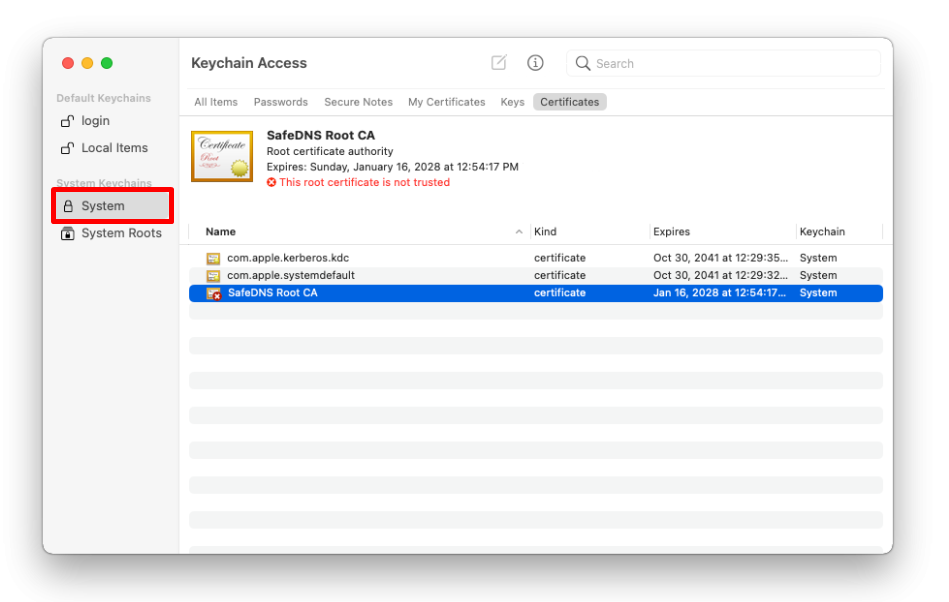](https://docs.safedns.com/uploads/images/gallery/2022-08/1Izltzl1Cif6z2SF-14-safedns-root-certificate-for-https-pages.png)
3\. Drag and drop the downloaded SafeDNS certificate on the right side of the Keychain Access application where the rest of the certificates are stored.
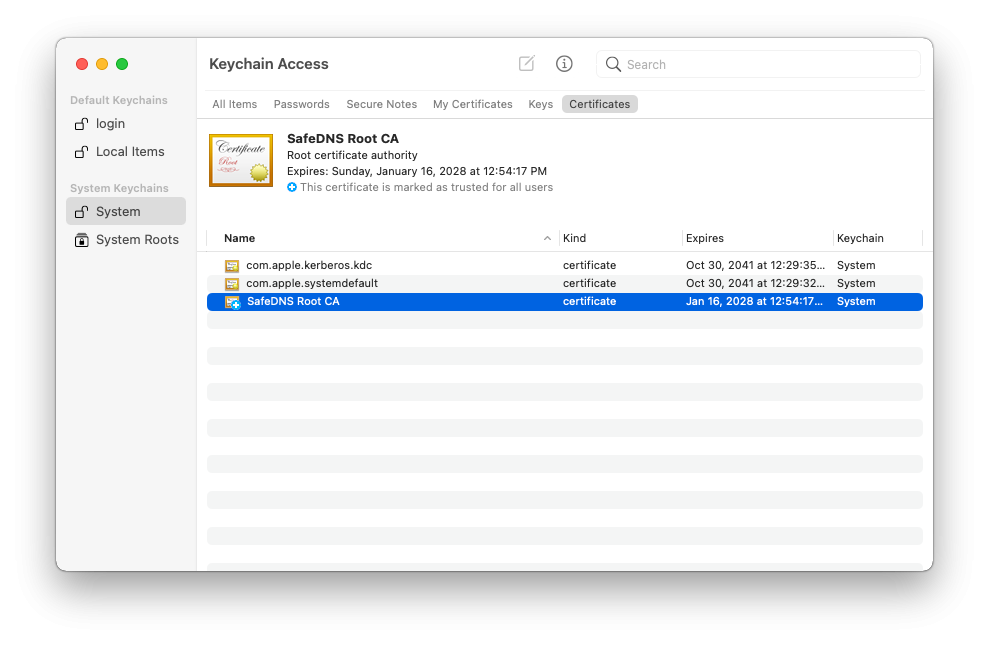
4\. Double-click on the SafeDNS certificate and select **Properties certificate**. In the opened window, choose when to use this certificate, and select **'Always trust'**. Close the window.
[](https://docs.safedns.com/uploads/images/gallery/2022-08/gSMpsIhVNqDdnj7D-15-safedns-root-certificate-for-https-pages.png)
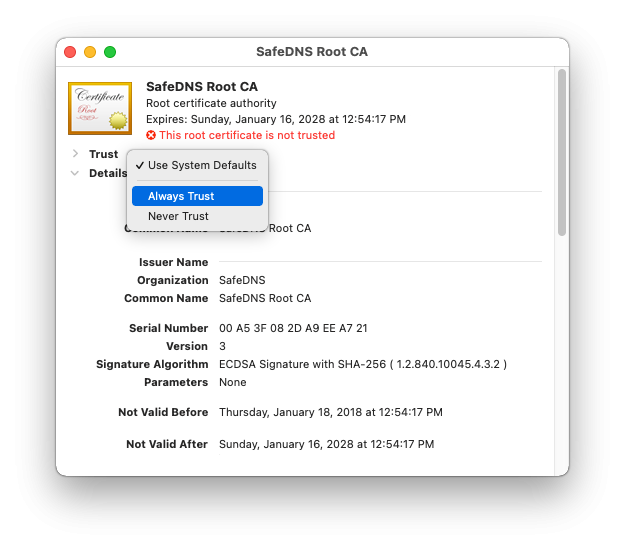
5\. Make sure that the SafeDNS certificate is marked as trusted for this account in the Keychain Access application.
[](https://docs.safedns.com/uploads/images/gallery/2022-08/wnNFAtmlpcsmPPGz-16-safedns-root-certificate-for-https-pages.png)
#### iPhone and iPad
1\. Download the **SafeDNS certificate.**
2\. **Allow** the website to open **Settings**.
[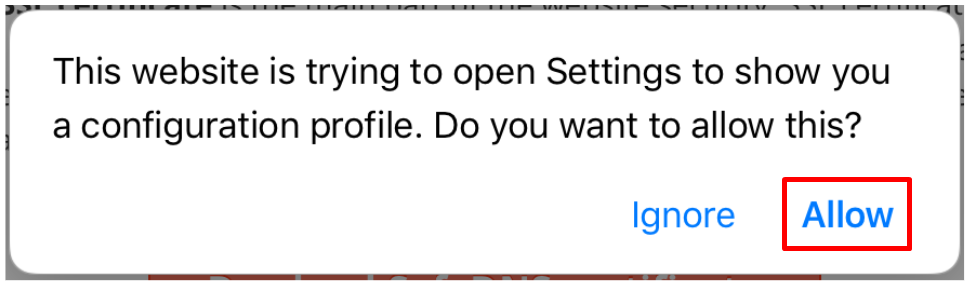](https://docs.safedns.com/uploads/images/gallery/2022-08/2hxC0yXFEvLyuW0m-17-safedns-root-certificate-for-https-pages.png)
3\. Tap **Install**.
[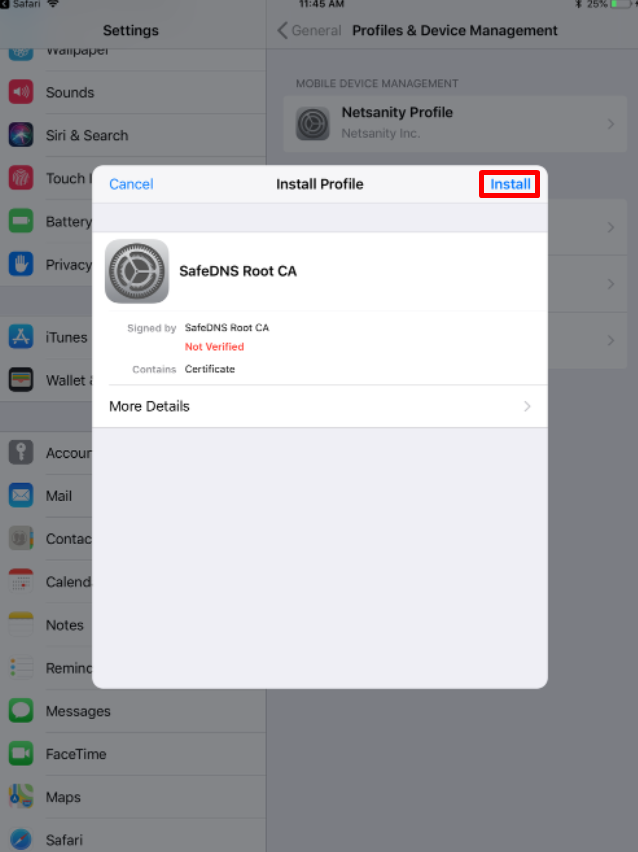](https://docs.safedns.com/uploads/images/gallery/2022-08/BafMW89CfwqDOUKg-18-safedns-root-certificate-for-https-pages.png)
4\. Tap on **Install** in the system warning window.
[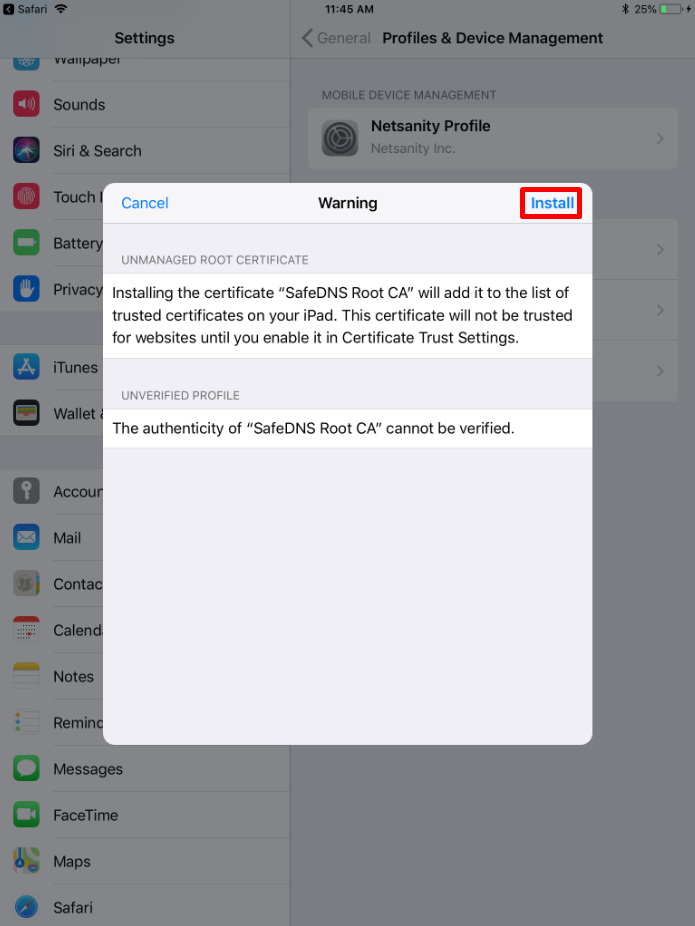](https://docs.safedns.com/uploads/images/gallery/2022-08/r3TBgT81TfaZwjr0-19-safedns-root-certificate-for-https-pages.png)
5\. Tap **Install** in the confirmation window.
[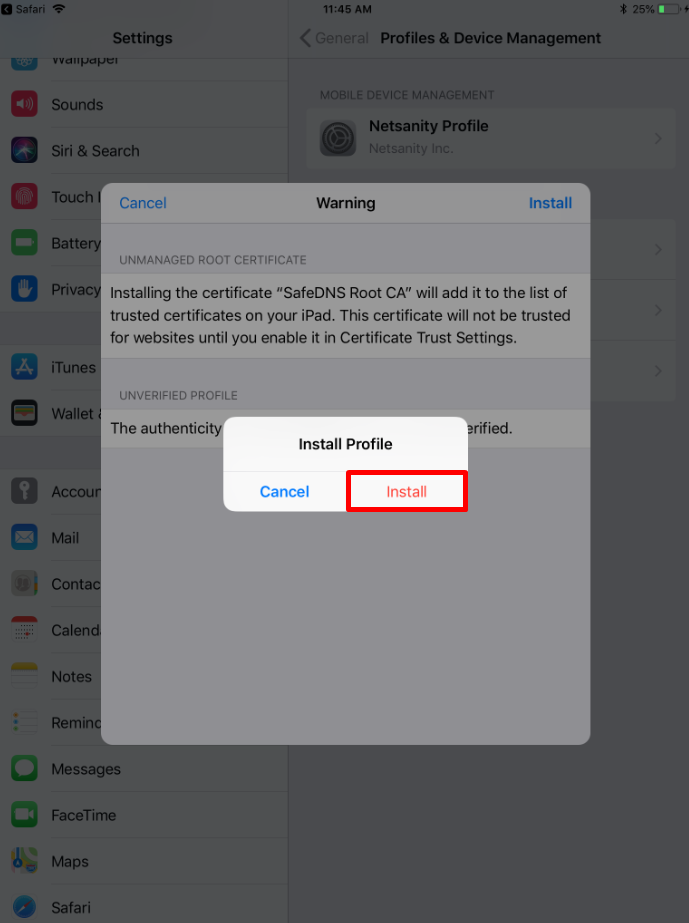](https://docs.safedns.com/uploads/images/gallery/2022-08/KK4M9oxdU3CGdInk-20-safedns-root-certificate-for-https-pages.png)
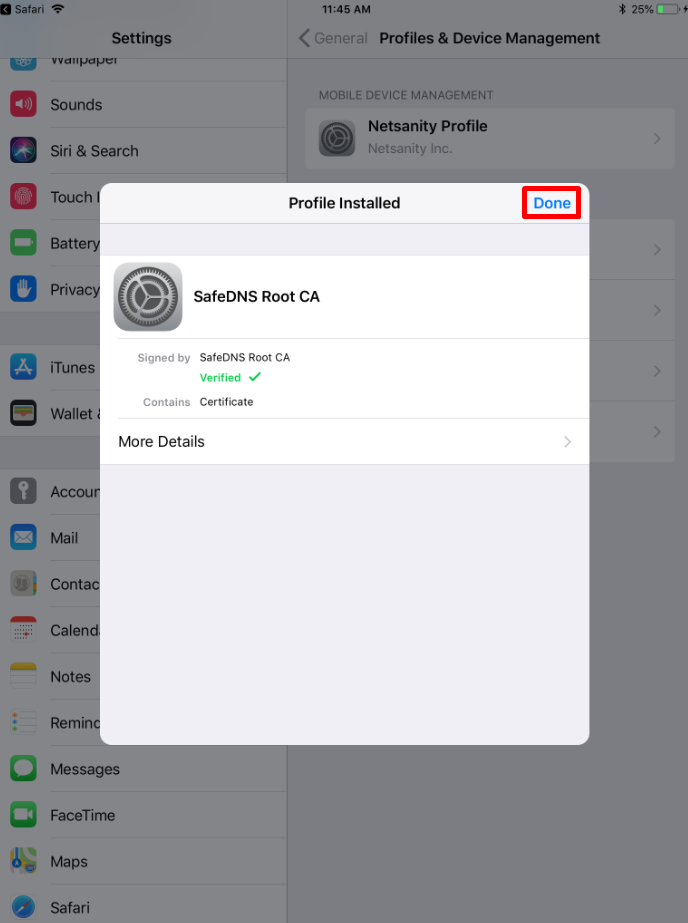
6\. Tap **Done**.
[](https://docs.safedns.com/uploads/images/gallery/2022-08/jGTNP7yJkF6n4MIi-21-safedns-root-certificate-for-https-pages.png)
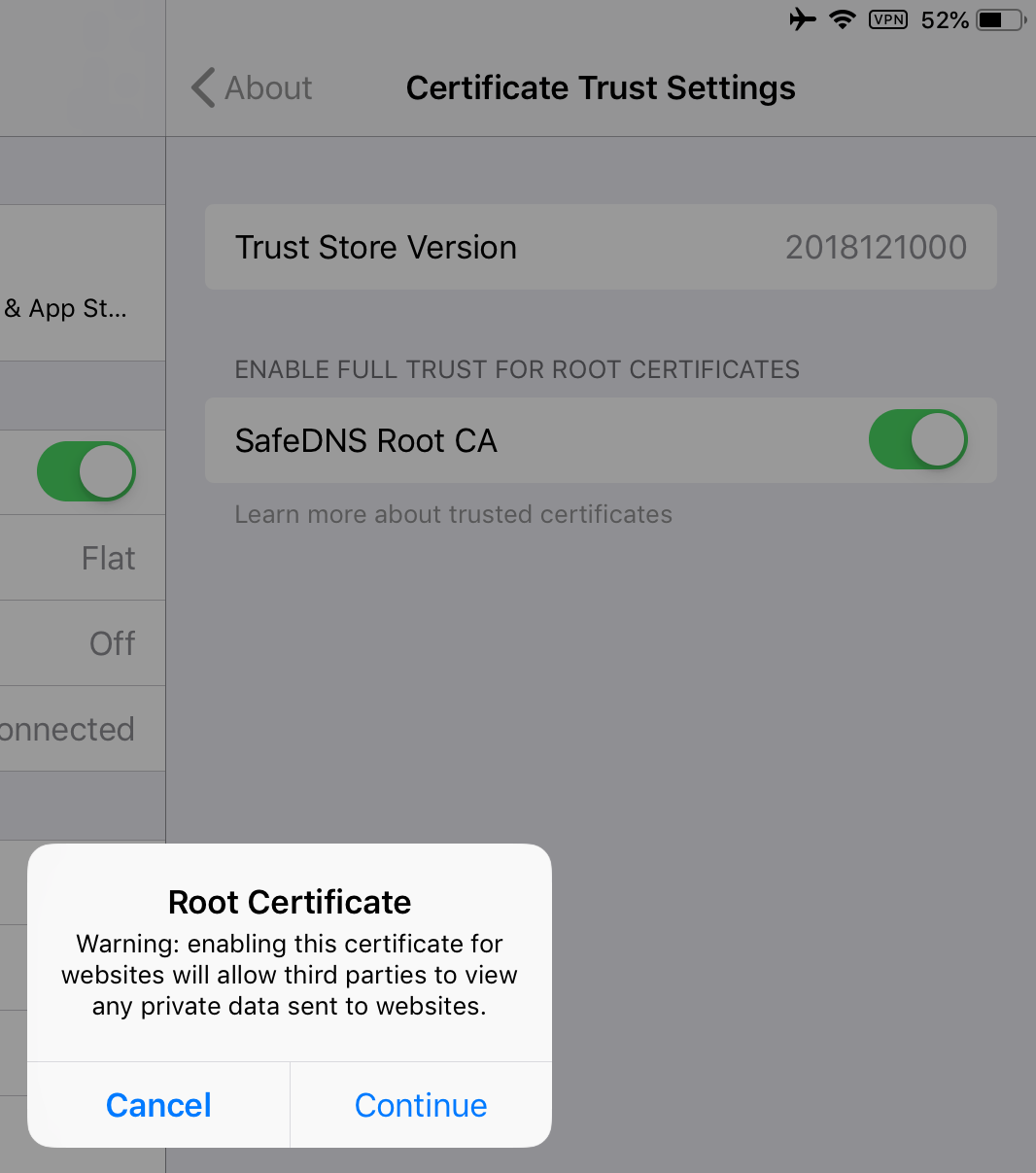
7\. Navigate to Settings > General > About > Certificate Trust Settings
8\. Enable full trust for the SafeDNS Root CA certificate
[](https://docs.safedns.com/uploads/images/gallery/2022-12/o35v8w38cB4jL57O-img-0500.PNG)
---
#### Android
Menu items and the system interface might be different on your device.
1\. Open the Settings app.
2\. Start typing "certificate" in the search box.
3\. Choose the option related to the certificate installation, a new window will open.
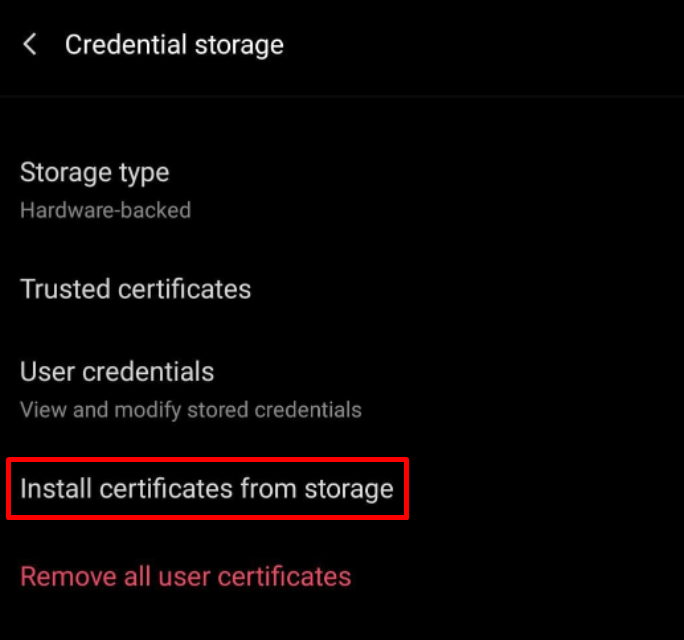
4\. Choose "Install certificates from storage".
[](https://docs.safedns.com/uploads/images/gallery/2022-08/xfQCQKLJKrdLKsEh-22-safedns-root-certificate-for-https-pages.png)
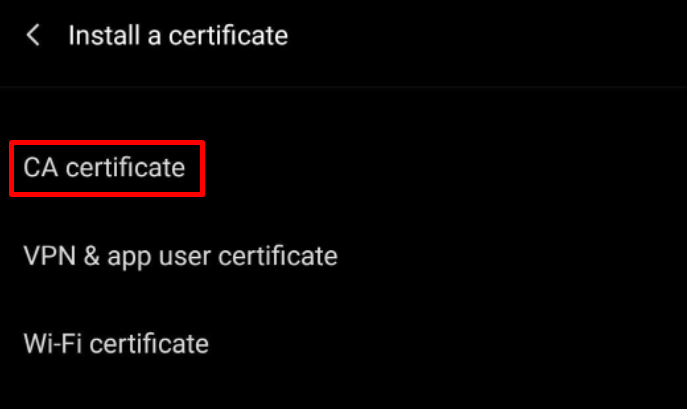
5\. Press "CA certificate".
[](https://docs.safedns.com/uploads/images/gallery/2022-08/X0PjN0UiGjEJcoln-23-safedns-root-certificate-for-https-pages.png)
6\. Follow the on-screen instructions to install the certificate.
---
#### Chromebooks and Google Workspace
In case the .crt certificate is not accepted, export it as a .pem file and import it into Workspace Admin.
---
#### Troubleshooting
If you don't see the block page on HTTPS pages after the certificate installation, or there is a browser warning about an invalid certificate, please, try reinstalling the certificate.
If the issue remains, [⤵contact our technical support team](mailto:support@safedns.com)