System requirements: **macOS Tahoe 26** or later, Mac with **Apple silicon — M1 chip** or later. The Agent is available on the following billing plans: **Safe Family, Pro, Pro Plus,** and archived **Safe@Home, Safe@Office**.
##### SafeDNSDaemon registers each managed macOS device in the SafeDNS dashboard and obtains the DNS token required for filtering.The example below uses SimpleMDM, but the same logic applies to other MDM platforms.
#### **Deployment steps** 1. **Download the package [safedns-daemon-20260515-1335-signed.pkg](https://docs.safedns.com/attachments/11)** 2. **Upload the package to the MDM catalog:** Go to **Apps & Media** -> **Catalog** -> [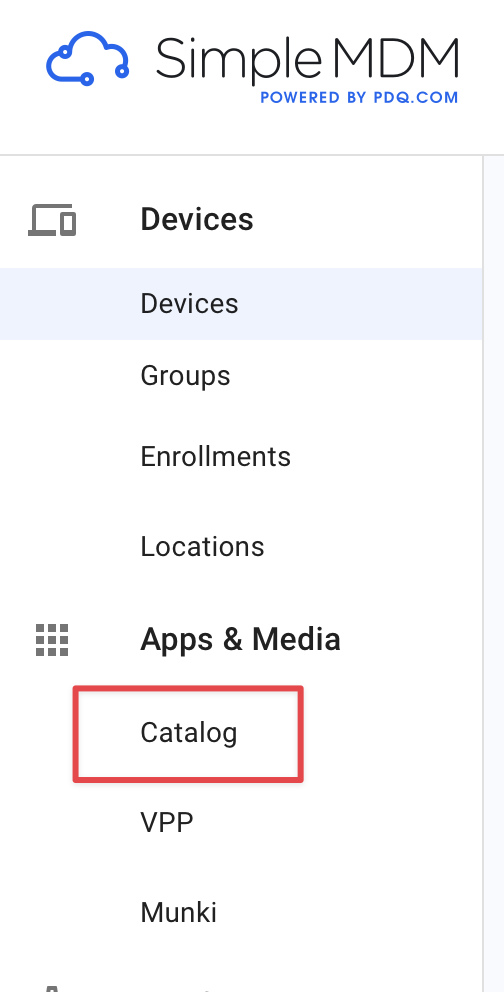](https://docs.safedns.com/uploads/images/gallery/2026-05/RfUBtkzHYQkvhxA3-deamon1.png) 3. Select **Add App** -> **Custom App. [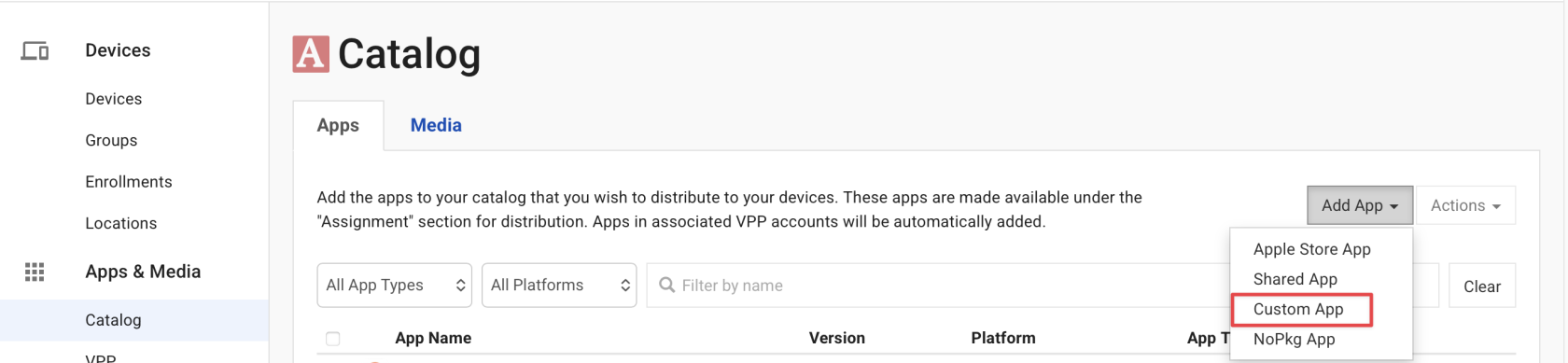](https://docs.safedns.com/uploads/images/gallery/2026-05/aBPnHMs6WFl06ta5-deamon2.png)** 4. Upload the **SafeDNSDaemon** package downloaded earlier: [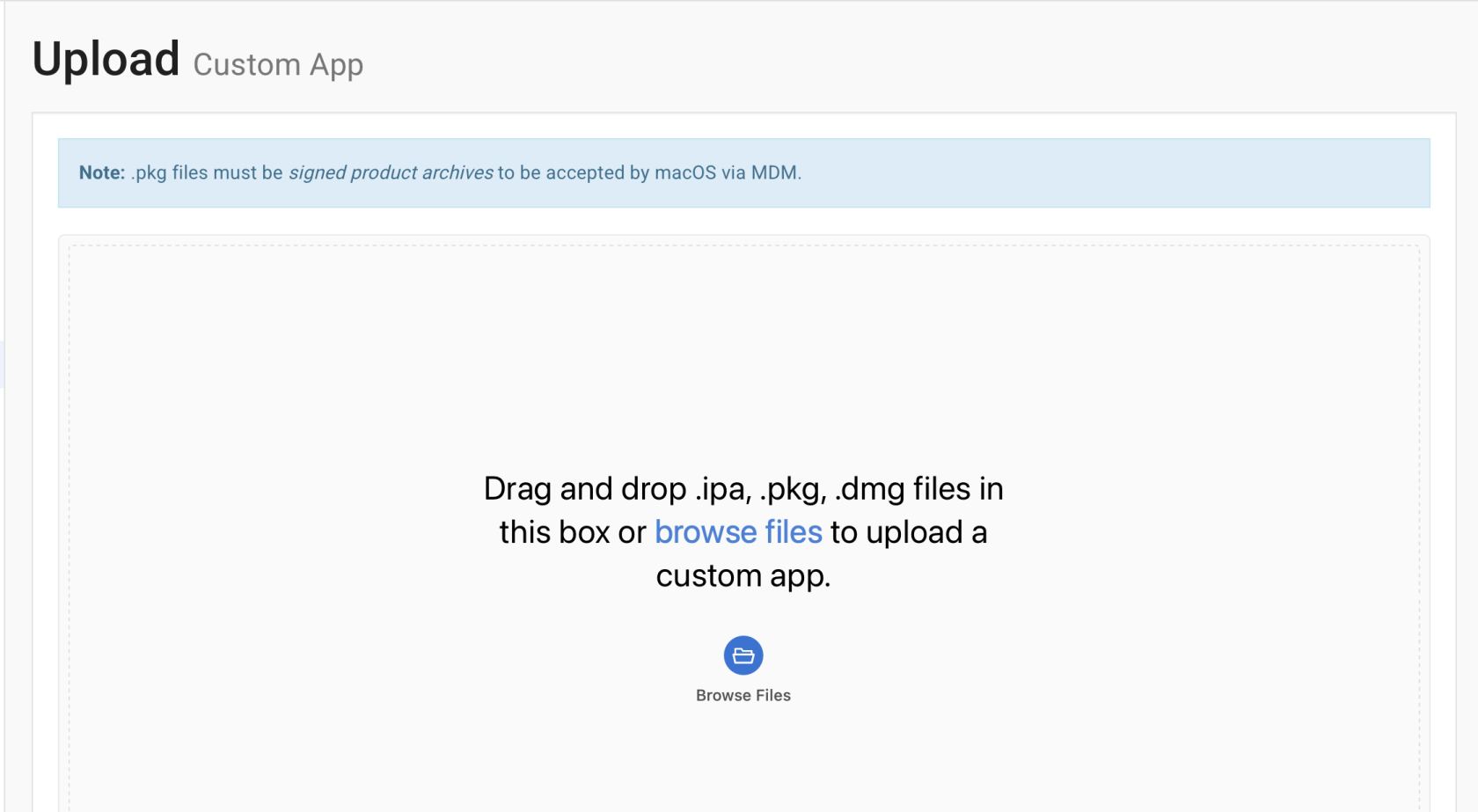](https://docs.safedns.com/uploads/images/gallery/2026-05/z5urFksHtzlKPAGk-deamon3.png) After uploading, **SafeDNSDaemon** appears in the app catalog. 5. **Assign the daemon to devices:** Go to **Groups**, select the target device group, open the **Apps** section, and add **SafeDNSDaemon**. 6. **Save and deploy:** Click **Review** -> Save Changes. Then open **Group Actions** and select **Install Apps and Media** to deploy the daemon to the target devices. #### **Verify the installation** You can confirm that **SafeDNSDaemon** is working in either of these ways: - Check the s**afedns-daemon.log** file on the target Mac. - Open the **SafeDNS dashboard** and confirm that the newly registered devices are displayed.