# Unifi/Ubiquiti Router Setup

#### **Router with Static IP address configuration**

  
1\. Go to SafeDNS **Dashboard &gt; Settings &gt; Devices** and copy your IP address to the "**IP addresses / DynDNS**" box, choose a policy, and click "**Add**".

[![1.Unifi:Ubiquiti.png](https://docs.safedns.com/uploads/images/gallery/2024-08/scaled-1680-/aGcuMd72aZ62JJGv-1-unifiubiquiti.png)](https://docs.safedns.com/uploads/images/gallery/2024-08/aGcuMd72aZ62JJGv-1-unifiubiquiti.png)

2\. Start the Unifi Controller Application and wait for the load. Once it is loaded, start the browser.  
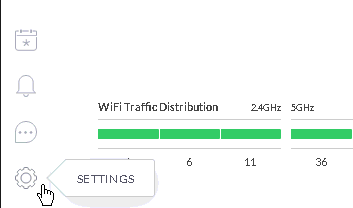
3\. Open the Settings menu from the Dashboard:

[![image-1679334506204.png](https://docs.safedns.com/uploads/images/gallery/2023-03/scaled-1680-/yXTKzEmgHSgvbuK2-image-1679334506204.png)](https://docs.safedns.com/uploads/images/gallery/2023-03/yXTKzEmgHSgvbuK2-image-1679334506204.png)

4\. Browse the Networks menu and select the option either Create New Network or Edit. It depends on the requirements, if you are creating a new setup, there might be no networks created – then you need to create a new network. If you are starting to use SafeDNS on the existing network – then select the Edit option:

[![image-1679334535779.png](https://docs.safedns.com/uploads/images/gallery/2023-03/scaled-1680-/8zwV3dZ4HTFznJQu-image-1679334535779.png)](https://docs.safedns.com/uploads/images/gallery/2023-03/8zwV3dZ4HTFznJQu-image-1679334535779.png)

The following configuration can be used as an example of your Local Network setup.

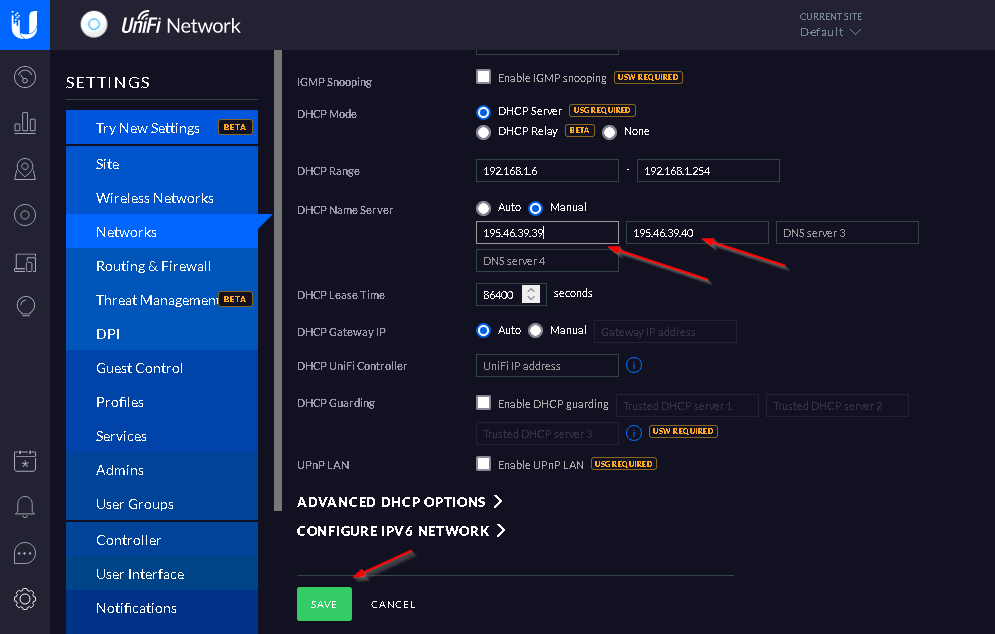
5\. Set the following DHCP Name Server addresses: 195.46.39.39 and 195.46.39.40

[![image-1679334563582.png](https://docs.safedns.com/uploads/images/gallery/2023-03/scaled-1680-/0neDc5SA9EWAKwA7-image-1679334563582.png)](https://docs.safedns.com/uploads/images/gallery/2023-03/0neDc5SA9EWAKwA7-image-1679334563582.png)

6\. After adding SafeDNS Name Servers, Press the Save button and wait for the provisioning process of the Unifi access points – it may take a while.

**You have successfully configured your router.**

<p class="callout warning">Please note that settings take 5-7 minutes to apply.  
Stats and filtering status update every 10 minutes.  
</p>

#### **Router with Dynamic IP address configuration**

In case you have a Dynamic IP address, you need to configure the DynDNS/DDNS on the router using a third-party Dynamic DNS service.

1\. In the router setting, go to DynDNS/DDNS settings.[![3.Router Setup Guide (IPv4).png](https://docs.safedns.com/uploads/images/gallery/2022-08/scaled-1680-/doLiCDLSJKzRoFIe-3-router-setup-guide-ipv4.png)](https://docs.safedns.com/uploads/images/gallery/2022-08/doLiCDLSJKzRoFIe-3-router-setup-guide-ipv4.png)
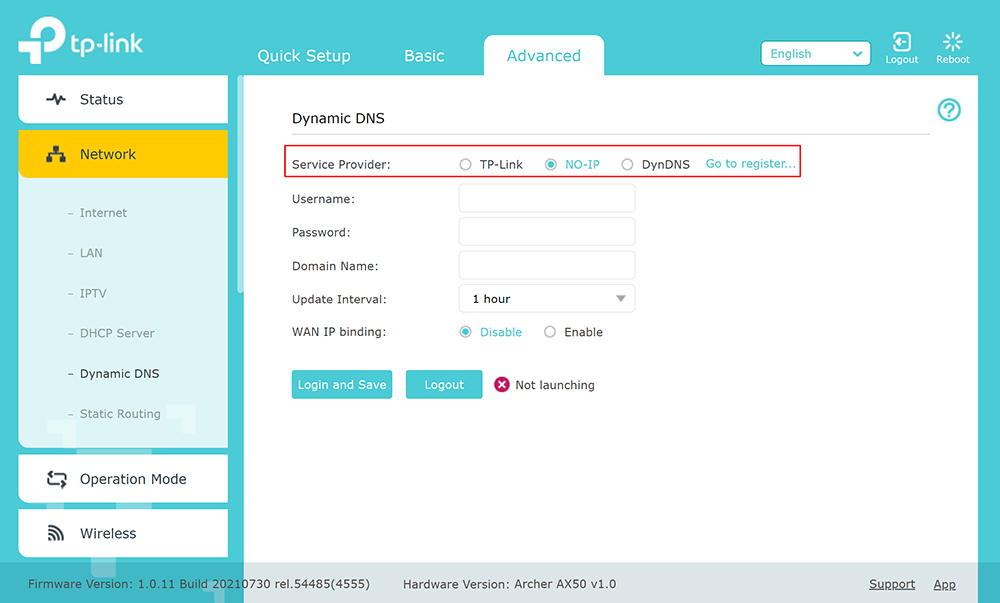
2\. Check the DynDNS service available for your router. If available, we recommend using the No IP DynDNS service provider.

3\. Go to the website noip.com and sign up.[![4.Router Setup Guide (IPv4).png](https://docs.safedns.com/uploads/images/gallery/2022-08/scaled-1680-/bceoEIpcnfn4hTTJ-4-router-setup-guide-ipv4.png)](https://docs.safedns.com/uploads/images/gallery/2022-08/bceoEIpcnfn4hTTJ-4-router-setup-guide-ipv4.png)

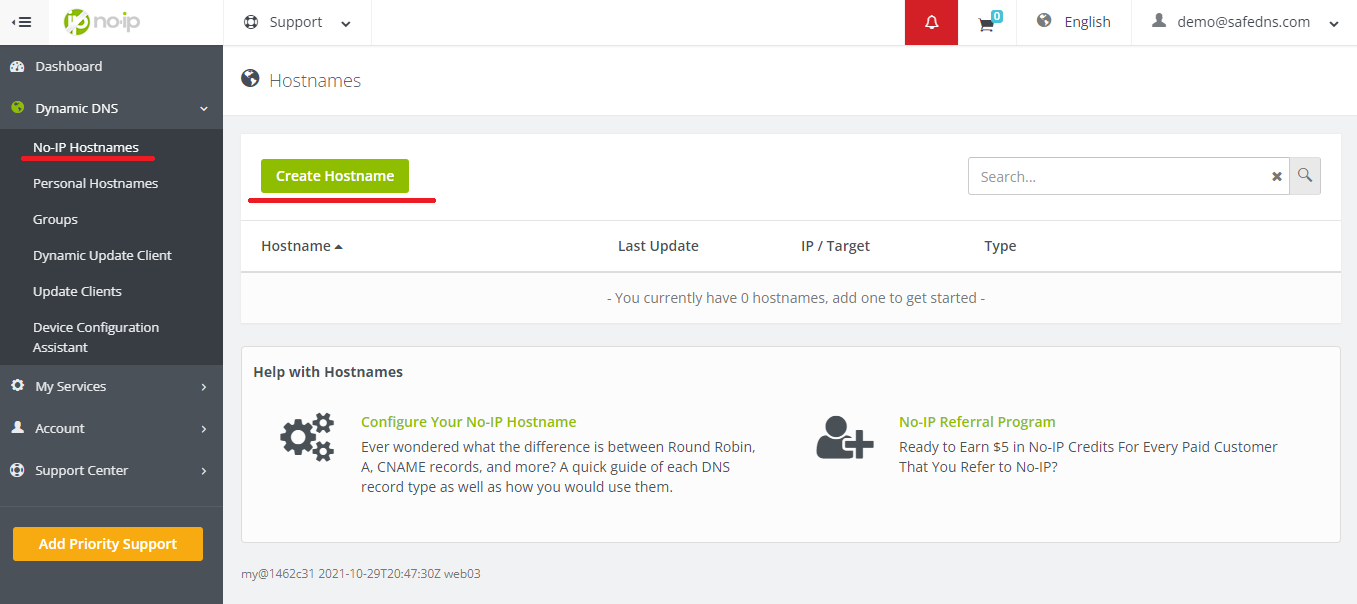
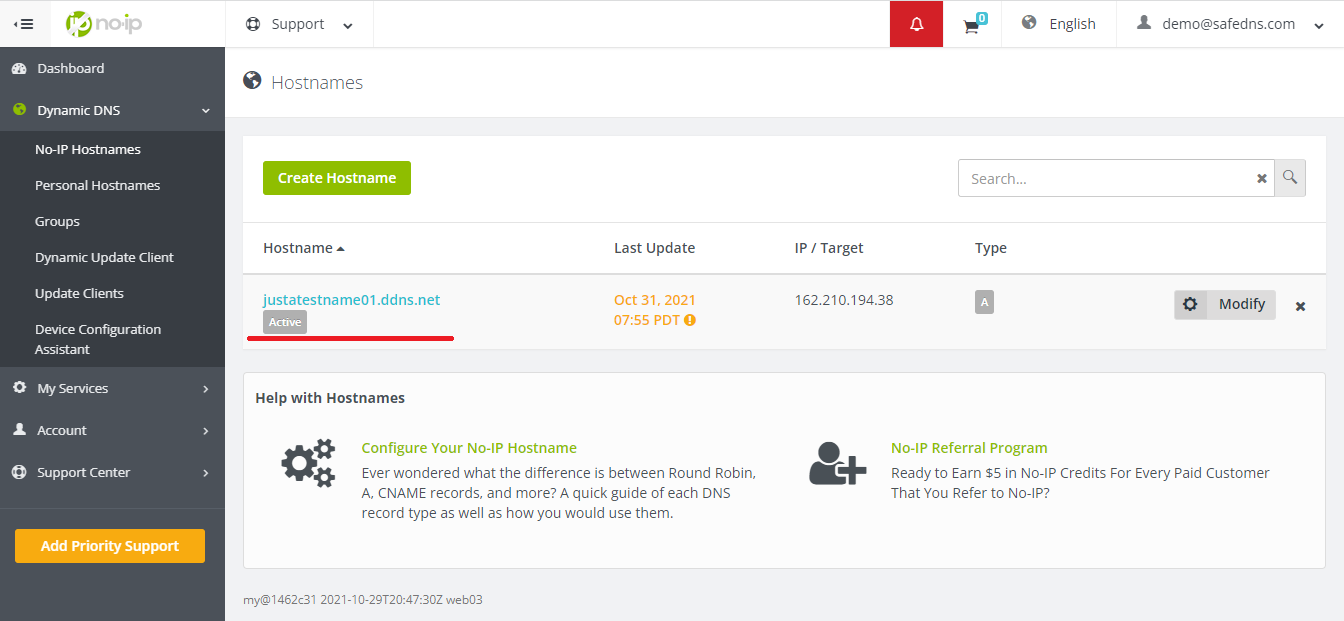
4\. In your No-IP account, create a hostname (any name you can think of).[![5.Router Setup Guide (IPv4).png](https://docs.safedns.com/uploads/images/gallery/2022-08/scaled-1680-/iM2lBtwjCMovYUlh-5-router-setup-guide-ipv4.png)](https://docs.safedns.com/uploads/images/gallery/2022-08/iM2lBtwjCMovYUlh-5-router-setup-guide-ipv4.png)[![6.Router Setup Guide (IPv4).png](https://docs.safedns.com/uploads/images/gallery/2022-08/scaled-1680-/9NhUPXUJ6J7Yb6PE-6-router-setup-guide-ipv4.png)](https://docs.safedns.com/uploads/images/gallery/2022-08/9NhUPXUJ6J7Yb6PE-6-router-setup-guide-ipv4.png)[![7.Router Setup Guide (IPv4).png](https://docs.safedns.com/uploads/images/gallery/2022-08/scaled-1680-/jXwQLcgVhGd8Kuj6-7-router-setup-guide-ipv4.png)](https://docs.safedns.com/uploads/images/gallery/2022-08/jXwQLcgVhGd8Kuj6-7-router-setup-guide-ipv4.png)
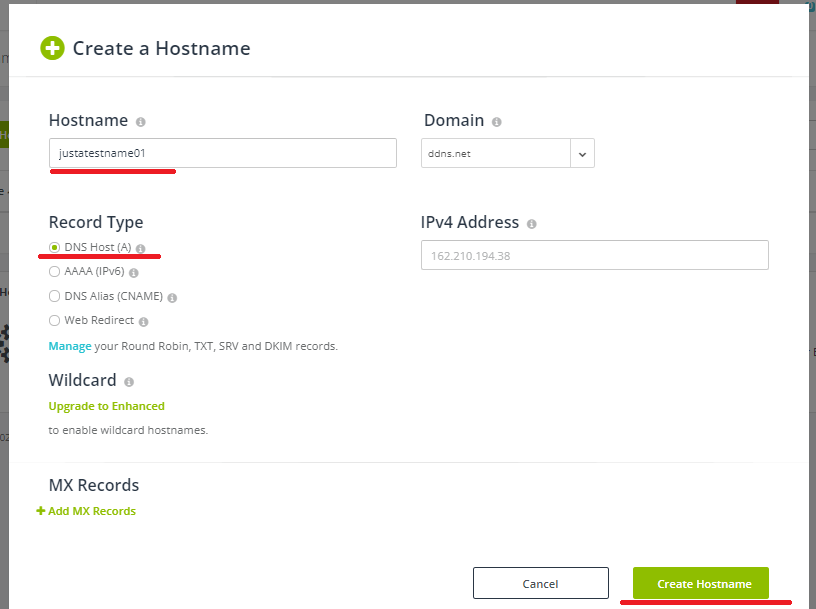
5\. Go back to your router and configure DDNS/DynDNS.

- Select No-IP as "**Service provider**".
- Type in the created hostname in the "**Hostname**" field.
- Type in your No-IP account credentials as "Username" and "Password", and click "Save".

[![8.Router Setup Guide (IPv4).png](https://docs.safedns.com/uploads/images/gallery/2022-08/scaled-1680-/DL3RnBN6JAKMoytg-8-router-setup-guide-ipv4.png)](https://docs.safedns.com/uploads/images/gallery/2022-08/DL3RnBN6JAKMoytg-8-router-setup-guide-ipv4.png)
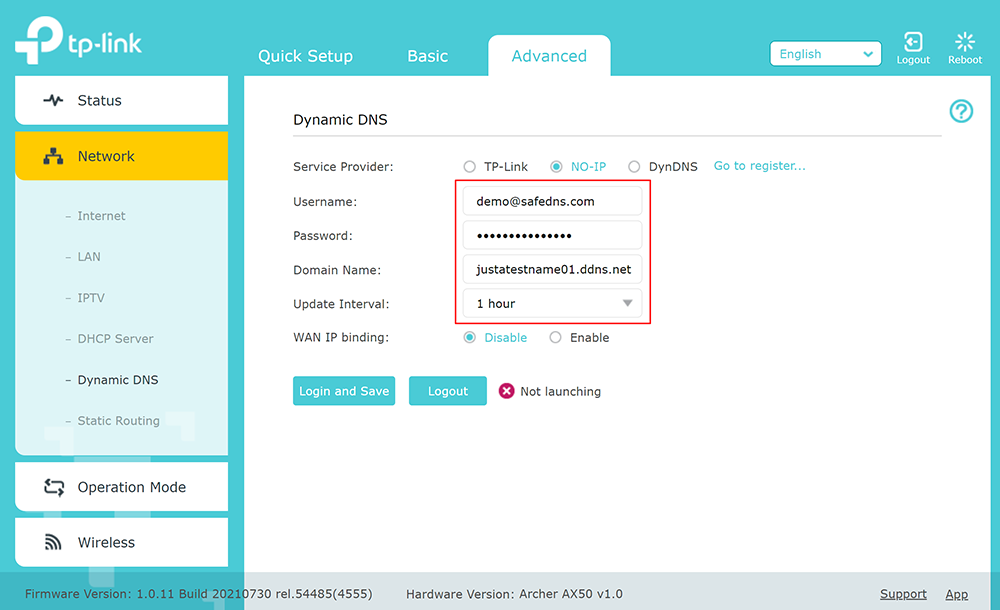
If everything is correct, DynDNS/DDNS settings will apply.[![9Router Setup Guide (IPv4).png](https://docs.safedns.com/uploads/images/gallery/2022-08/scaled-1680-/PlNezRO5TgDXeXt6-9router-setup-guide-ipv4.png)](https://docs.safedns.com/uploads/images/gallery/2022-08/PlNezRO5TgDXeXt6-9router-setup-guide-ipv4.png)

6\. Go to SafeDNS **Dashboard &gt; Settings &gt; Devices** and copy your DynDNS hostname to the "**IP addresses / DynDNS**" box, choose a policy, and click "**Add**".[![2.Unifi:Ubiquiti.png](https://docs.safedns.com/uploads/images/gallery/2024-08/scaled-1680-/LpXHkQFElp5Kb3Nq-2-unifiubiquiti.png)](https://docs.safedns.com/uploads/images/gallery/2024-08/LpXHkQFElp5Kb3Nq-2-unifiubiquiti.png)
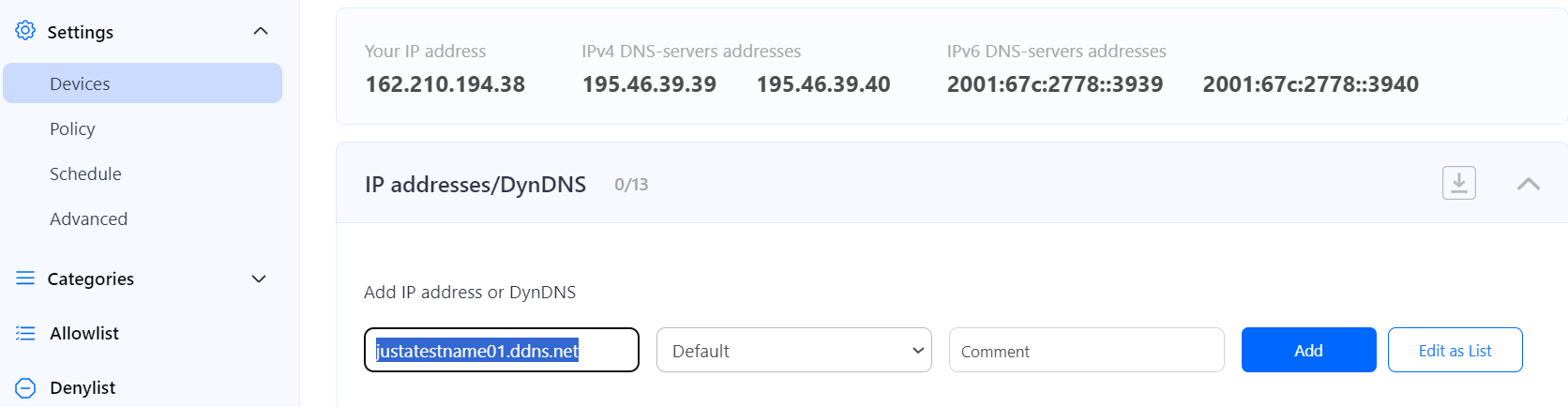
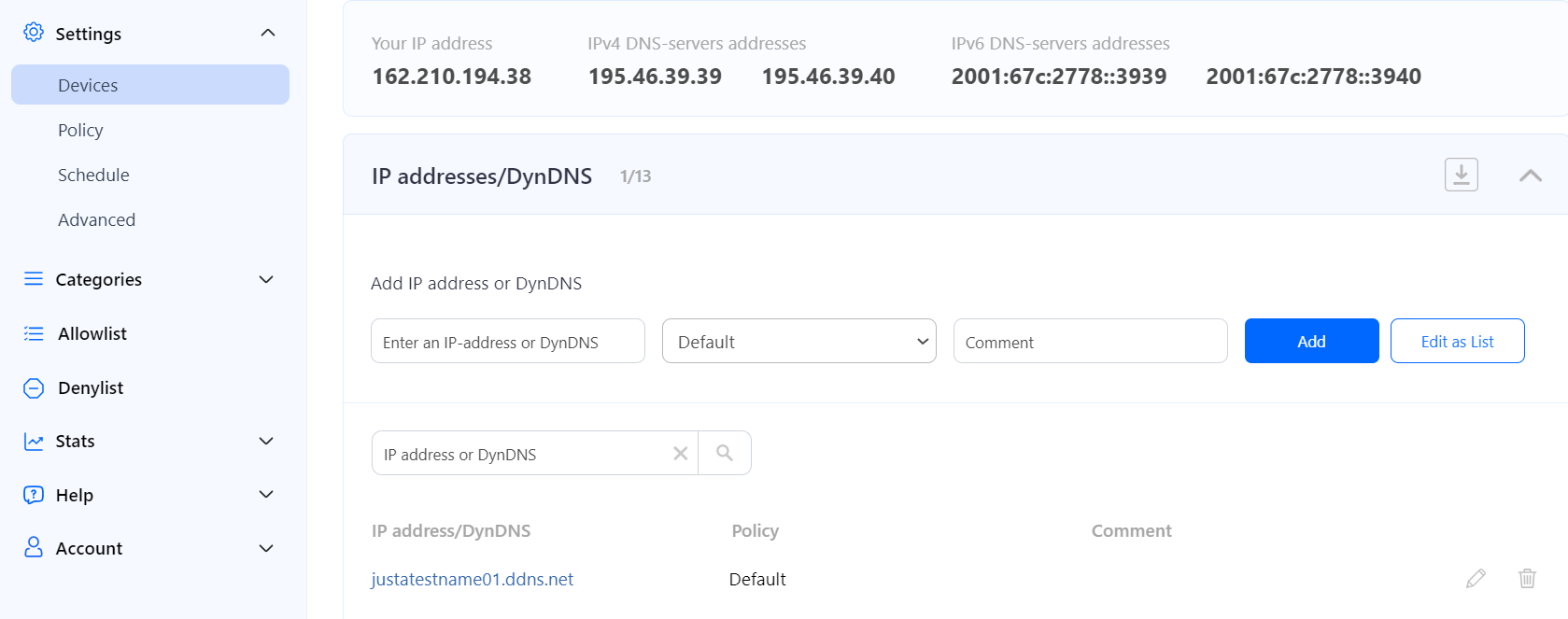
Once added, you will see it in the DynDNS section of the Dashboard.[![3.Unifi:Ubiquiti.png](https://docs.safedns.com/uploads/images/gallery/2024-08/scaled-1680-/ISJTfIGJzOkXA3Uu-3-unifiubiquiti.png)](https://docs.safedns.com/uploads/images/gallery/2024-08/ISJTfIGJzOkXA3Uu-3-unifiubiquiti.png)
7\. Start the Unifi Controller Application and wait for the load. Once it is loaded, start the browser.  
8\. Open the Settings menu from the Dashboard:

[![image-1679334506204.png](https://docs.safedns.com/uploads/images/gallery/2023-03/scaled-1680-/yXTKzEmgHSgvbuK2-image-1679334506204.png)](https://docs.safedns.com/uploads/images/gallery/2023-03/yXTKzEmgHSgvbuK2-image-1679334506204.png)
9\. Browse the Networks menu and select the option either Create New Network or Edit. It depends on the requirements, if you are creating a new setup, there might be no networks created – then you need to create a new network. If you are starting to use SafeDNS on the existing network – then select the Edit option:

[![image-1679334535779.png](https://docs.safedns.com/uploads/images/gallery/2023-03/scaled-1680-/8zwV3dZ4HTFznJQu-image-1679334535779.png)](https://docs.safedns.com/uploads/images/gallery/2023-03/8zwV3dZ4HTFznJQu-image-1679334535779.png)
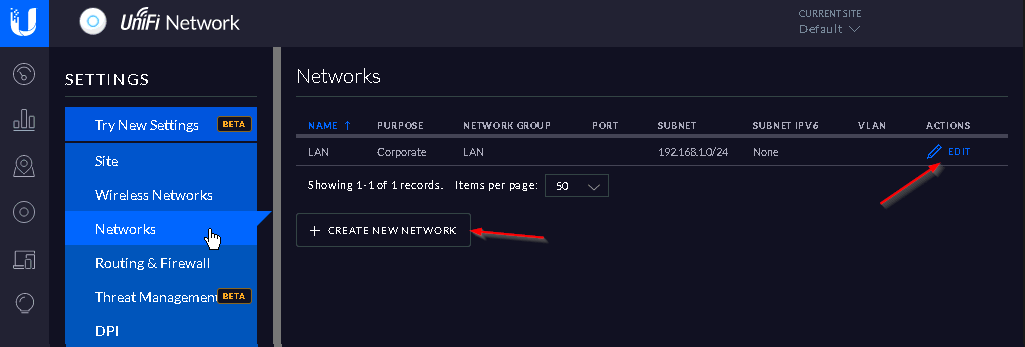
The following configuration can be used as an example of your Local Network setup.

10\. Set the following DHCP Name Server addresses: 195.46.39.39 and 195.46.39.40

[![image-1679334563582.png](https://docs.safedns.com/uploads/images/gallery/2023-03/scaled-1680-/0neDc5SA9EWAKwA7-image-1679334563582.png)](https://docs.safedns.com/uploads/images/gallery/2023-03/0neDc5SA9EWAKwA7-image-1679334563582.png)
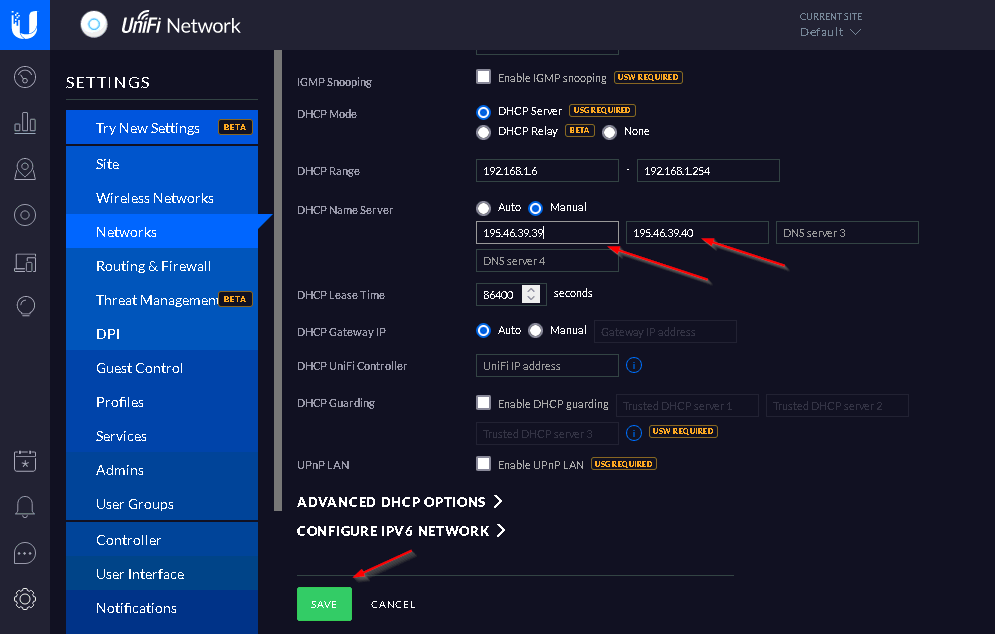
11\. After adding SafeDNS Name Servers, Press the Save button and wait for the provisioning process of the Unifi access points – it may take a while.

**You have successfully configured your router.**

<p class="callout warning">Please note that settings take 5-7 minutes to apply.  
Stats and filtering status update every 10 minutes.  
</p>

#### **Configuring the filter using the DDclient.**

In rare cases when your router does not have a DynDNS/DDNS setting and your IP is Dynamic, you need to use third-party software - **DDclient** - on the PC connected to the network:

1\. [Install DDclient](https://docs.safedns.com/books/installation-guides/page/dd-client-setup) on a PC connected to the network. Once DDclient is installed, all devices connected to the same network will be filtered by the same rules.

2\. Set up DNS servers in your router:

[![image-1679334749750.png](https://docs.safedns.com/uploads/images/gallery/2023-03/scaled-1680-/vEgI32ecvjXmZRlB-image-1679334749750.png)](https://docs.safedns.com/uploads/images/gallery/2023-03/vEgI32ecvjXmZRlB-image-1679334749750.png)