
Branches and Head Office
This type of connection allows you to combine LANs of several SafeUTM servers.
Features of IPsec technology implementation in SafeUTM assume two roles of using SafeUTM:
- The main office – SafeUTM must have a public address on the Internet and accept connections from other SafeUTM (Branches), network equipment or workstations (Remote Users).
- A branch – SafeUTM that connects to the Main Office and, as a rule, does not have a public address on the Internet. But if the Branch has a public address, then any other device can also be connected to it.
Setting up Connection Between Branch and Main Office
Main offices and Branches are added on the tabs with the same names in section Services -> IPsec.
- Before creating a connection between the Branch and the Main Office, make sure that the time zone is correctly configured on each of the connected parties. It is impossible to establish a connection without this.
- Before configuring IPsec, it should be taken into account that for it to work, no IP subnets involved in connections, including the networks of the Main Office and all Branches, should overlap and, moreover, coincide.
- Networks of local interfaces of the Main offices and Branches to which you want to give access, must be set statically.
- Before setting up the connection, you need to make sure that one of the servers has a public (white) IP address from the Internet provider. If it turns out that the Main Office does not have a public IP address, and the Branch has such an address, then the server roles for this connection should be reversed.
- When replacing/reissuing the root certificate in Certificates section, IPsec connections Main Office <-> Branch will stop working and they will need to be recreated.
Step 1. Creating a connection in a Branch
In order to create a connection on SafeUTM, which will act as a Branch, it is necessary to perform the following settings in the web interface of this UTM:
1. Open section Services -> IPsec -> Branch and click Add in the upper left corner of the screen.
2. Fill in the following fields:
- Main Office name – maximum 42 characters.
- The external address of the Main Office – the domain name or external IP address of the main office issued by the provider. If necessary, you can enter Additional address of the main office.
- The Branch's LAN – the IP address of the Branch's subnet that will be available to users in the Main Office, in the IP address/mask format.
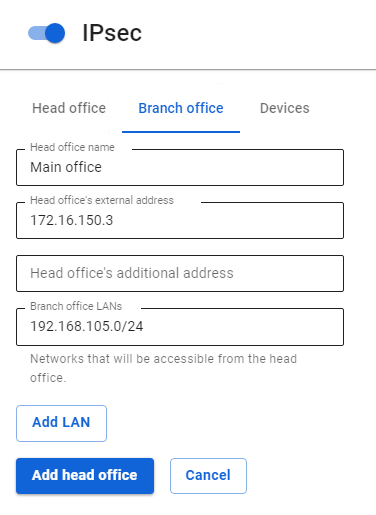
3. After filling in the fields, click Add Main Office.
4. Click on the edit icon next to the added Main Office.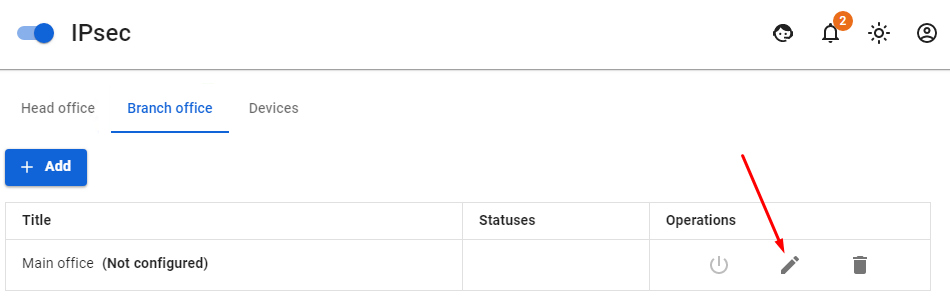
5. Copy the contents of the Branch Settings field. The contents need to be pasted when setting up the Main Office to which the connection is being made (see step 2).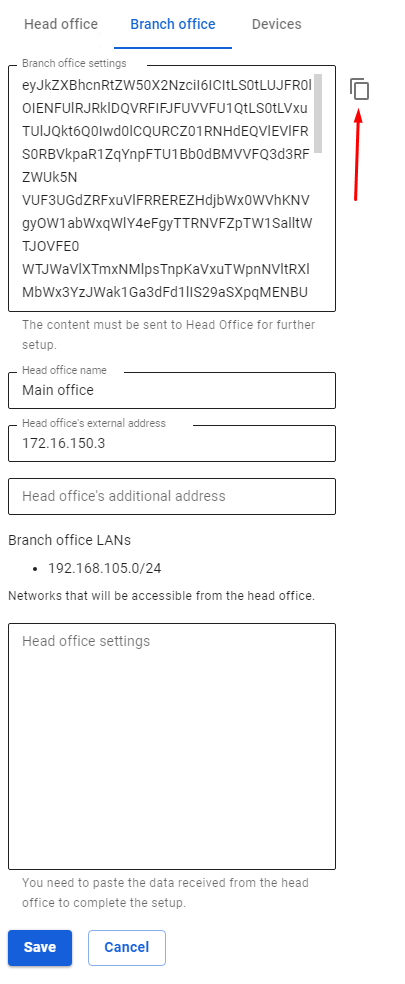
Step 2. Creating a connection in the Main Office
In order to create a connection on SafeUTM which will act as the Main Office it is necessary to perform the following settings in the web interface of this UTM:
1. Open section Services -> IPsec -> Main Office and click Add.
2. Fill in the following fields:
- Branch name – maximum 42 characters.
- Branch settings – paste the settings that you copied from the Branch after completing step 1.
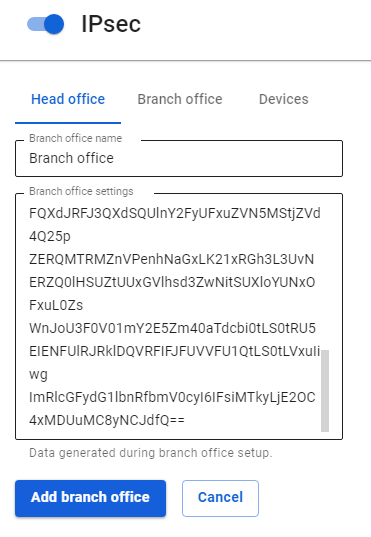
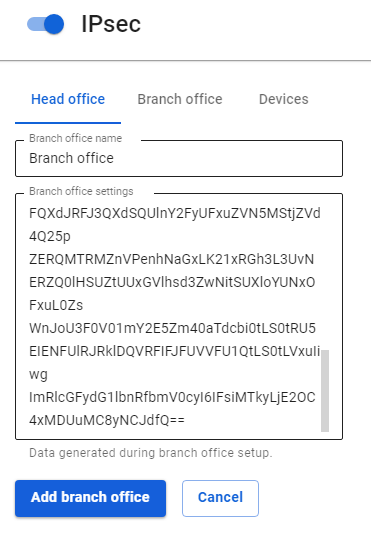
3. Click Add Branch.
4. Click edit icon next to the added Branch.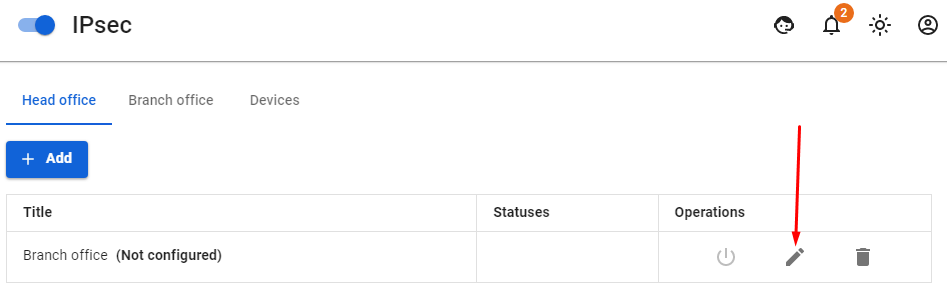
5.Select the LANs of the Main Office and click Save.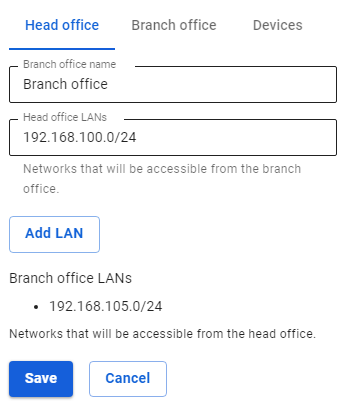
6. Go back to editing the added Branch and copy the contents of the Main office settings field. The contents need to be added to the Branch settings (see step 3).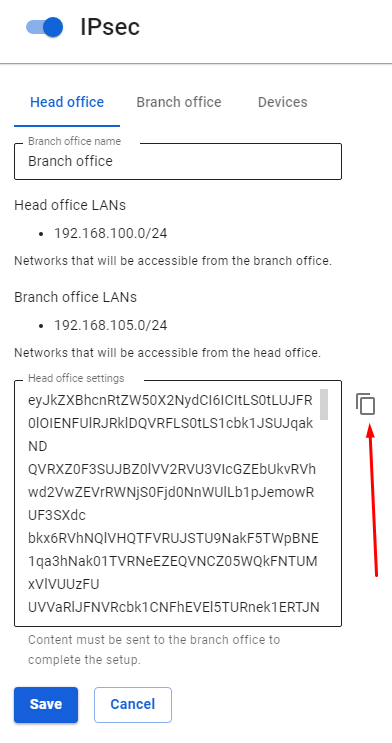
Step 3. Final setup of the Branch
In order to complete the creation of a connection on SafeUTM which will act as a Branch it is necessary to perform the following settings in the web interface of this UTM:
1. Open section Services -> IPsec -> Branch.
2. Select the desired main office and click Edit.
3. Insert into the Main Office Settings field the settings text received from the Main Office during step 2.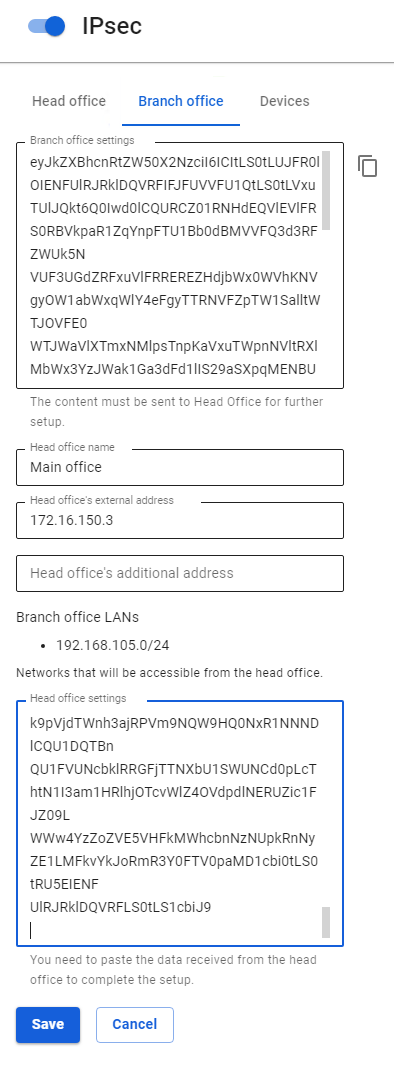
4. Click Save.
5. Open section Services -> IPsec -> Branch on UTM acting as a Branch and section Services -> IPsec -> Main Office on UTM acting as the Main Office and make sure that the connection to the Main Office is established. The confirmation Installed should appear in a green frame.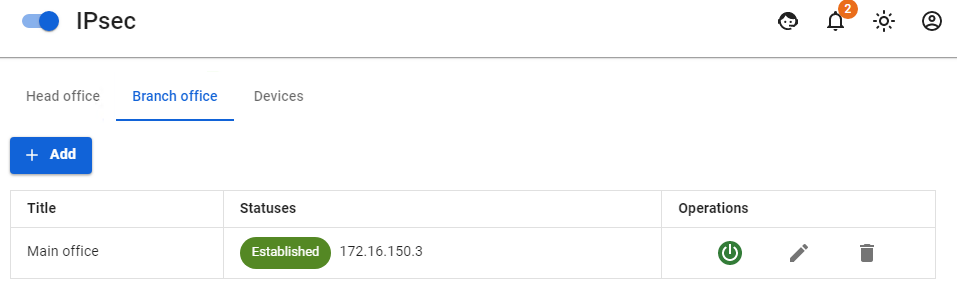
Routing of additional networks located behind the router in the local UTM network through an IPsec tunnel.
In order to configure the routing of networks located behind the router in the local UTM network, it is necessary to create a route to an additional network via the router's IP on SafeUTM (UTM, router and target host will be on the same network).
- If SafeUTM is behind NAT, then in order to work with IPsec you need to forward ports 500 and 4500 UDP.
- When installing an IPsec tunnel between SafeUTM servers (Branch and Main Office), 256-bit AES encryption is always used, as it is common and very reliable.