
Create and deploy configuration profiles for SafeDNS Endpoint Lite on macOS
System requirements: macOS Tahoe 26 or later, Mac with Apple silicon — M1 chip or later.
The Agent is available on the following billing plans: Safe Family, Pro, Pro Plus, and archived Safe@Home, Safe@Office.
Before deploying the SafeDNS daemon and filtering module, install two configuration profiles on the target macOS devices:
- SafeDNS_DNS_Proxy - Custom Configuration Profile
- SafeDNS_Profile_for_System_Extension - System Extension Policy
The steps below use SimpleMDM as an example. Other MDM platforms may use different menu names.
1. Create the SafeDNS DNS Proxy profile
- Go to Configs > Profiles
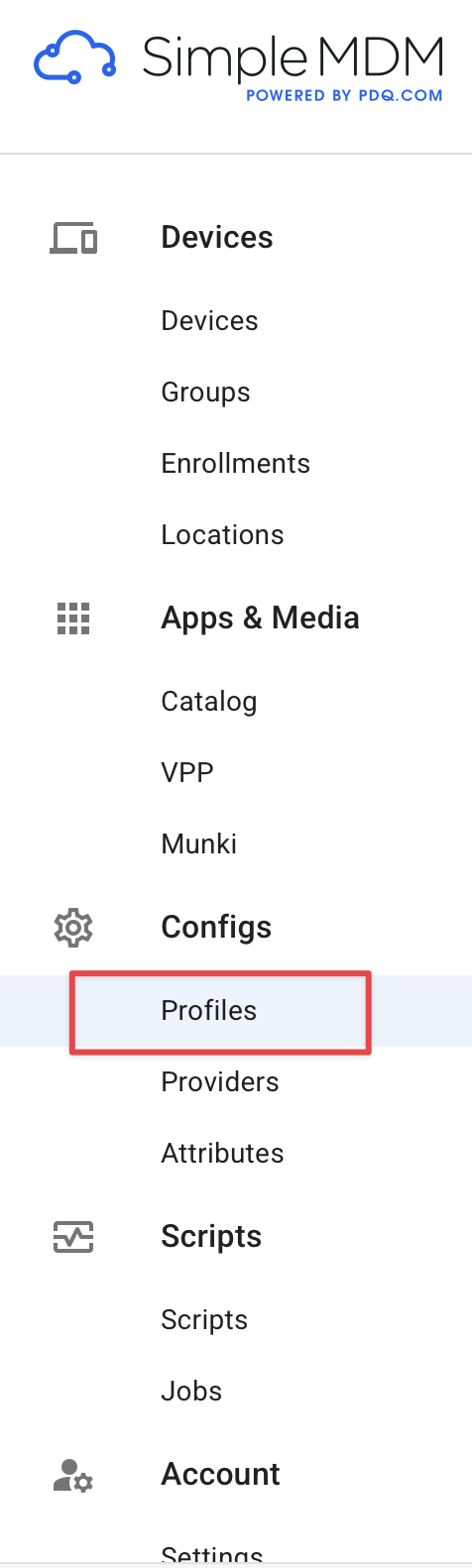
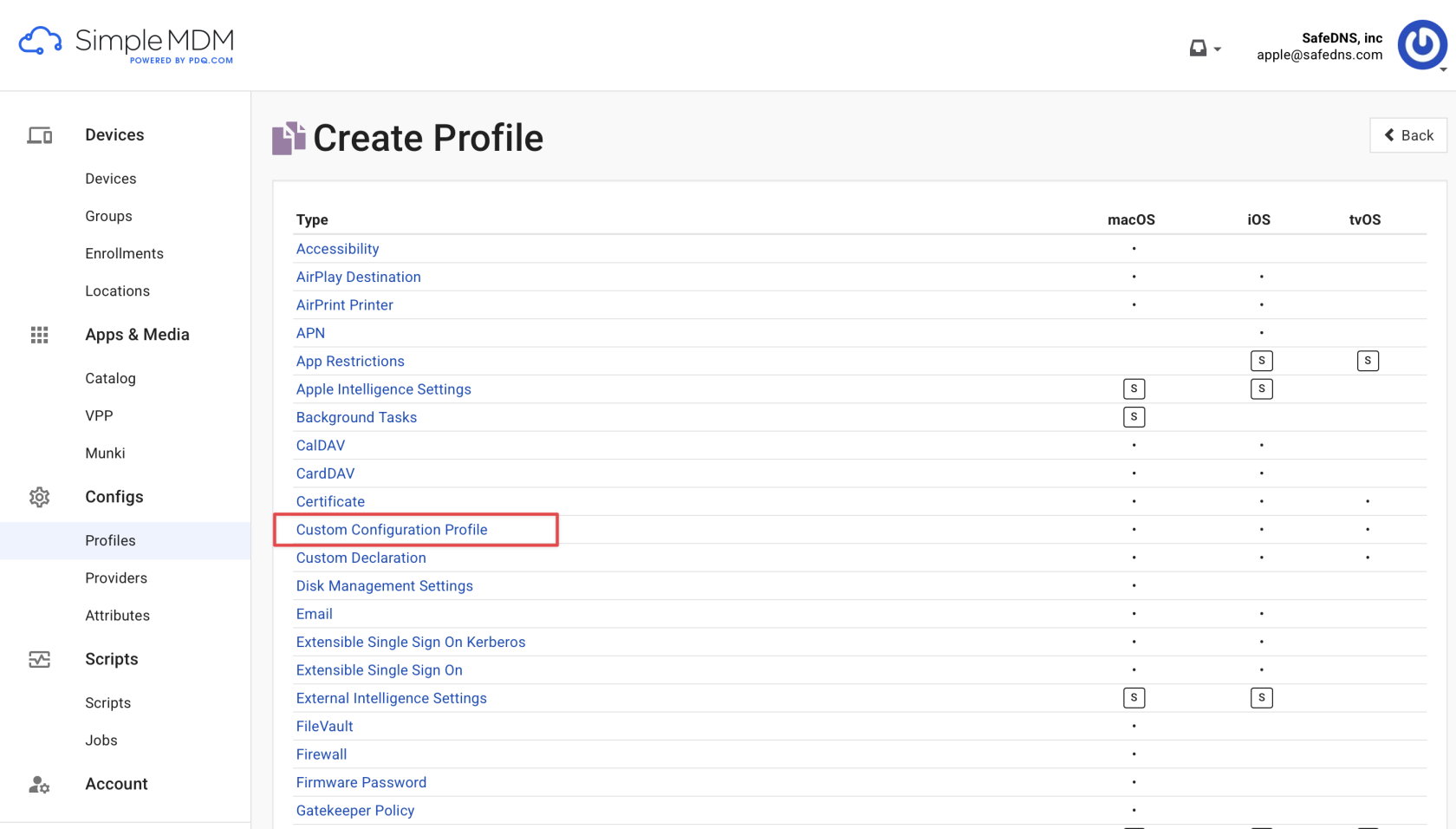
- Click Create Profile.

- Select Custom Configuration Profile.
- Name the profile SafeDNS_DNS_Proxy (as an example).
- Upload SafeDNS-DNSProxy.mobileconfig without changing the file (Provided by Sad). This file has all the required parameters.
- Click Save.

2. Create the System Extension profile
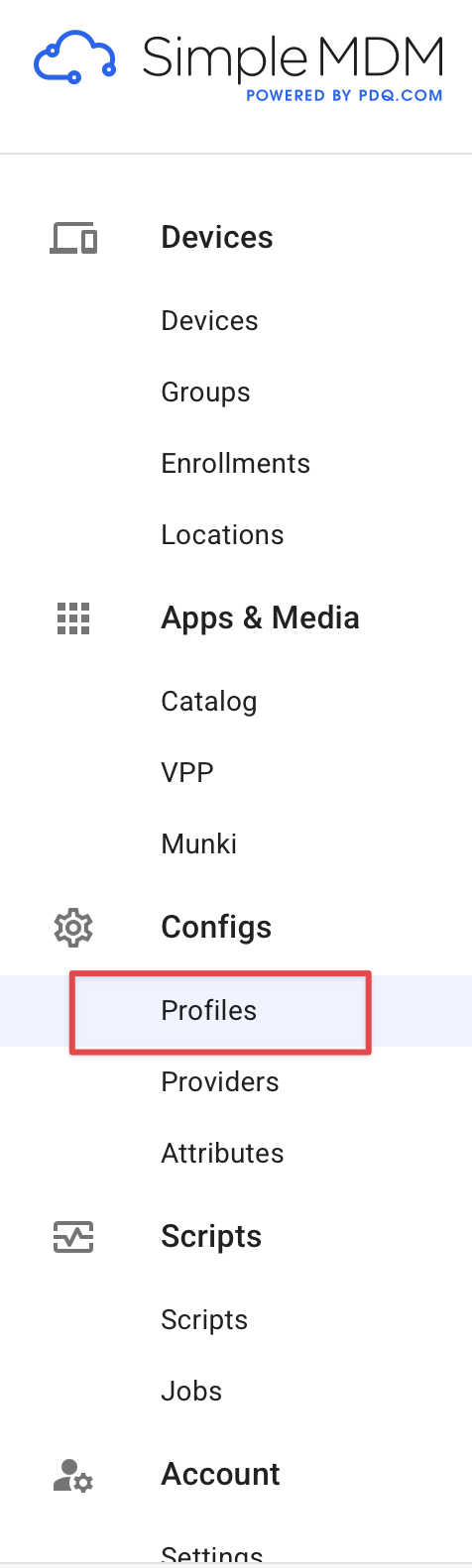
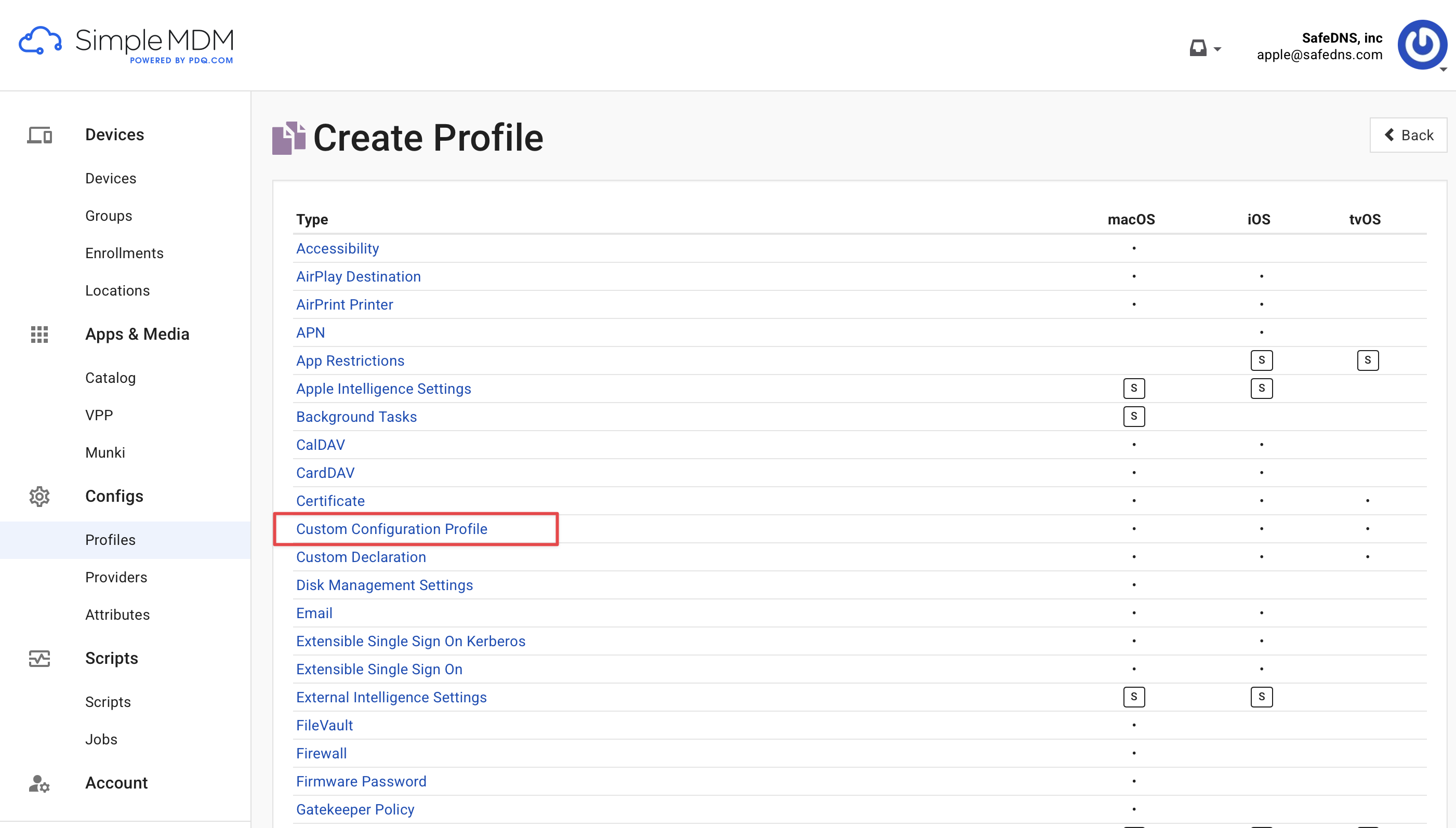
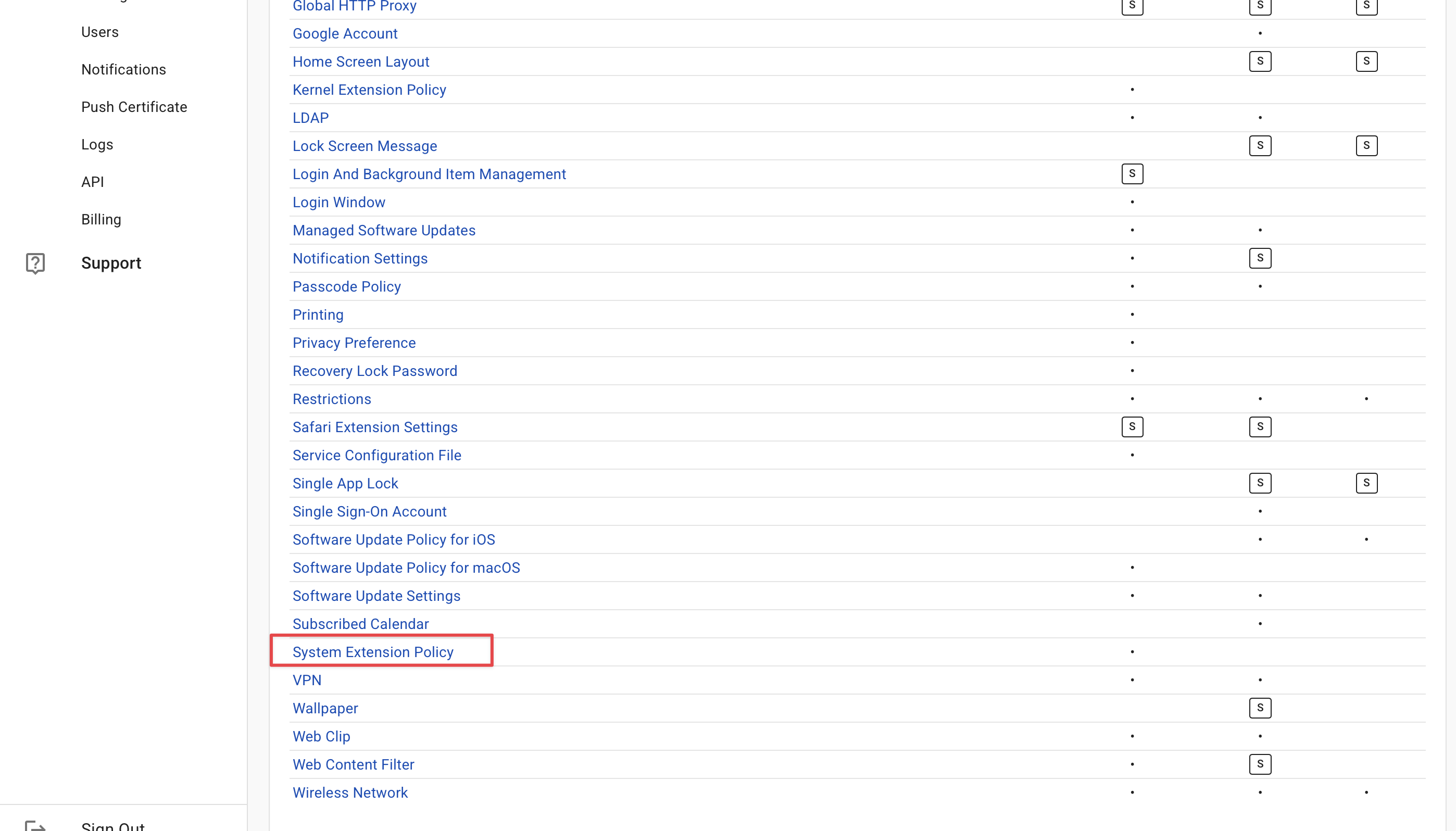
- Go to Configs > Profiles > Create Profile.
- Select System Extension Policy.
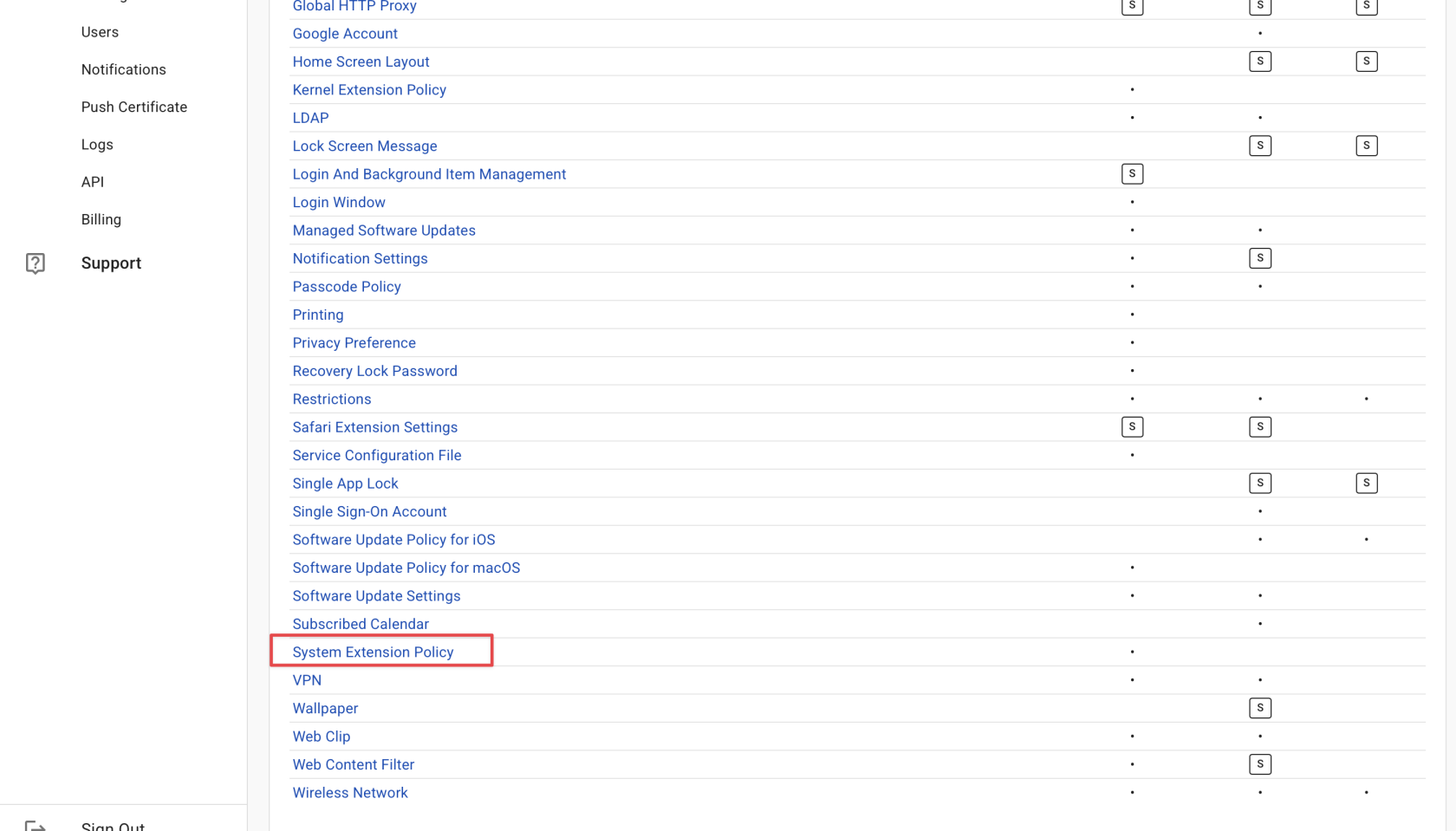
- Name the profile SafeDNS_Profile_for_System_Extension (as an example).
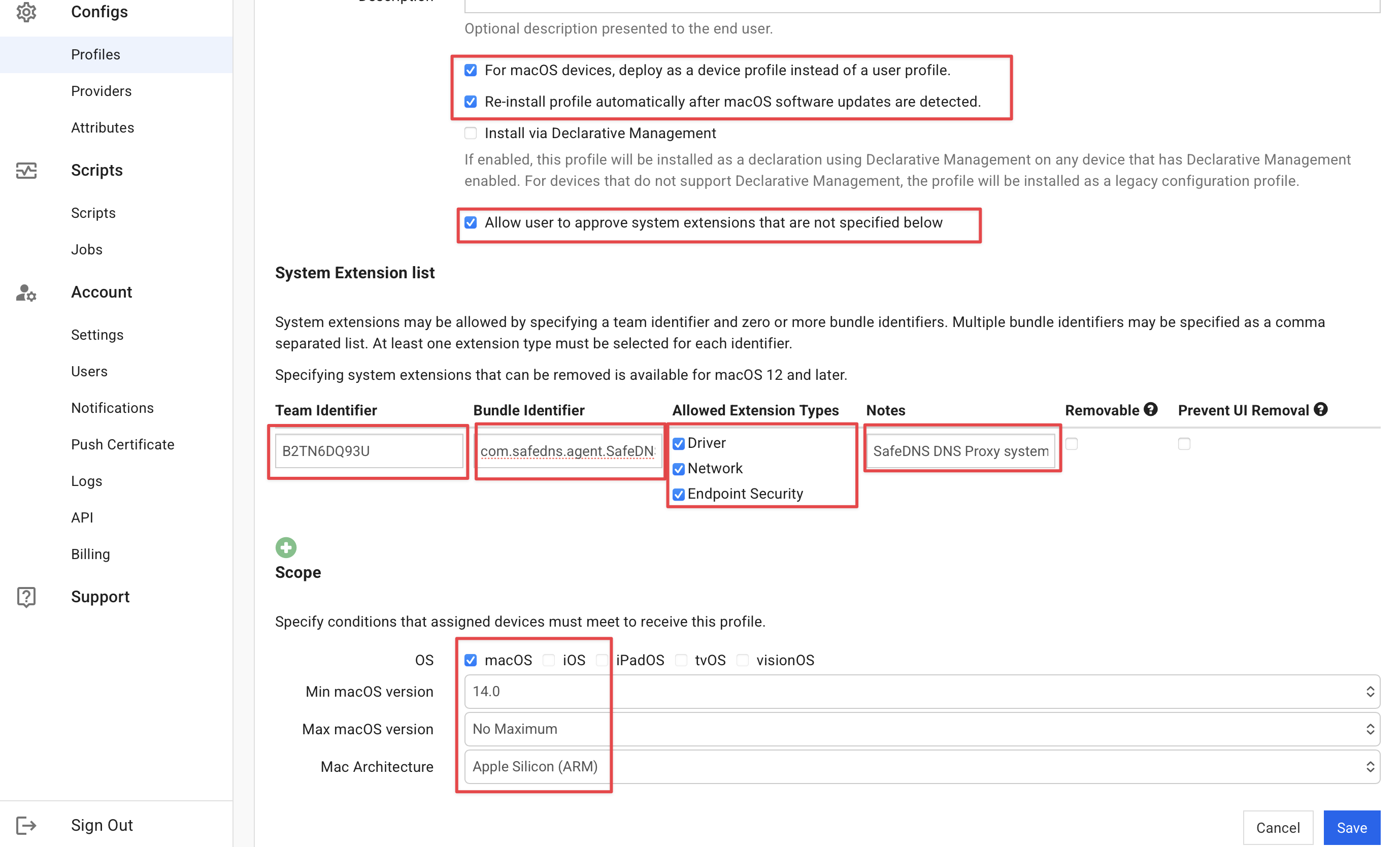
- Use the following values:
-
Team Identifier — B2TN6DQ93U
-
Bundle Identifier — com.safedns.agent.SafeDNSMacProxy.dnsProxy
-
Notes (optional) — SafeDNS DNS Proxy system extension (SafeDNSMacProxyDNS)
-
-
Allow the following extension types:
- Driver Extension
- Network Extension
- Endpoint Security Extension
- Click Save.
3. Assign the profiles to target devices
- Go to Groups and select the target device group.
- Open the Profiles tab.
- Add both profiles created earlier:
- SafeDNS_DNS_Proxy
- SafeDNS_Profile_for_System_Extension
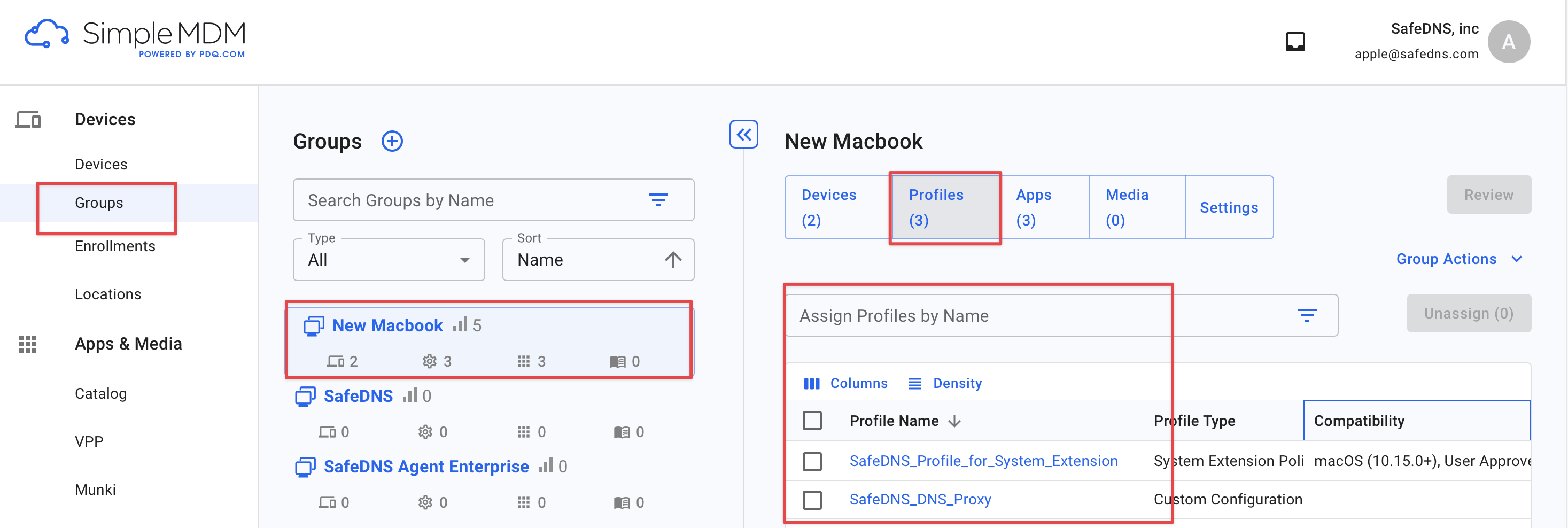
- Click Review > Save changes.
- Run Group Actions > Sync Profile.
The profiles should appear in 2-5 seconds on the target Mac under System Settings > General > Device Management.
How to remove the profiles
To remove the profiles, unassign both profiles from the device group, save the changes, and run Sync Profile again.
After synchronization, check System Settings > General > Device Management on the target Mac. The SafeDNS profiles should no longer be listed.